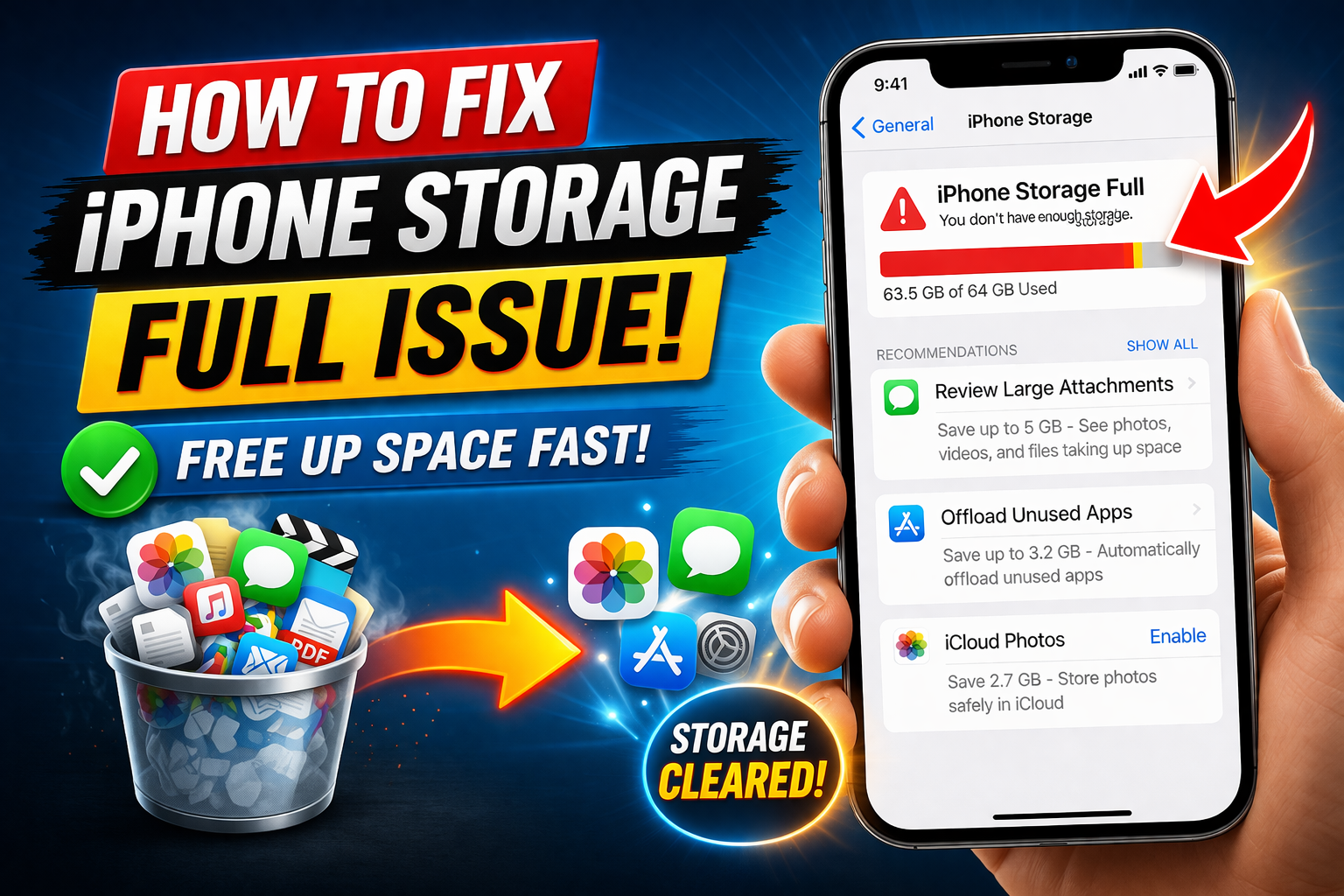
How to Fix iPhone Storage Full Issue (Step-by-Step Guide)
Running out of storage on your iPhone can be frustrating. You try to take a photo, install an app, or update iOS—but suddenly, you see the message: “iPhone Storage Full.”
This problem is very common, especially if you use your phone daily for photos, videos, apps, and social media. Over time, your storage fills up without you even noticing.
In this guide, you’ll learn how to fix iPhone storage full issue with easy, beginner-friendly steps. These solutions are simple, practical, and work on almost all iPhone models.
Why This Problem Happens
Before fixing the issue, it’s important to understand why your iPhone storage gets full.
Here are the most common reasons:
- 📸 Too many photos and videos
- 📱 Large apps and games
- 💬 Messages with media (images, videos, files)
- 📥 Downloaded files and offline content
- 🗂️ Cache and temporary files
- 🔄 System data and updates
Even if you don’t install new apps, your iPhone can still fill up due to hidden data like cache and system files.
Step-by-Step Solutions to Fix iPhone Storage Full Issue
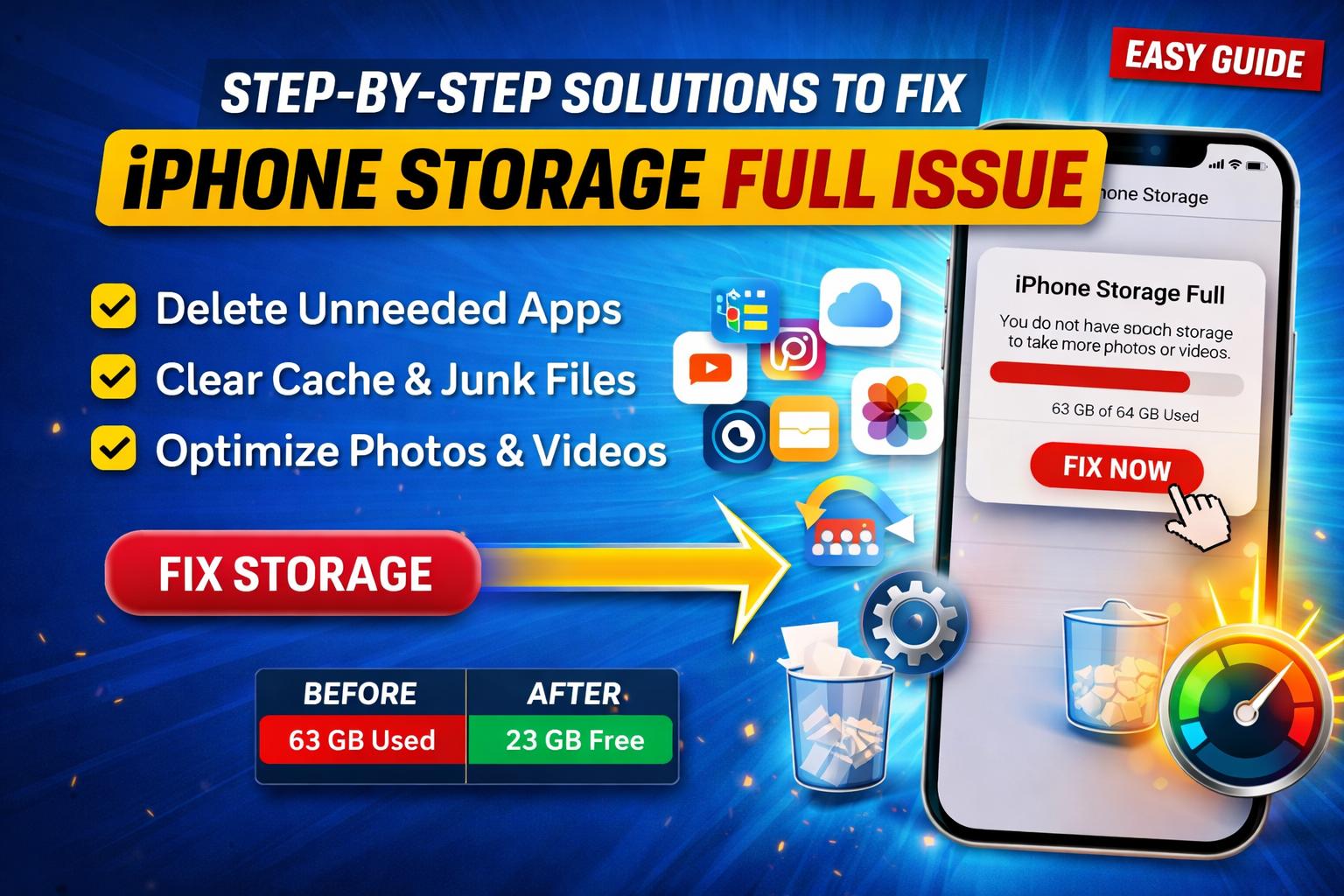
Follow these proven methods to free up space and fix the problem.
1. Check What Is Using Your Storage
First, identify what’s taking up space.
Steps:
- Go to Settings
- Tap General
- Select iPhone Storage
Here you’ll see a detailed breakdown of your storage usage.
👉 Tip: Look for apps or files using the most space.
2. Delete Unnecessary Apps
Many users install apps they rarely use.
Steps:
- Go to Settings > General > iPhone Storage
- Tap on an app you don’t need
- Tap Delete App
👉 You can also:
- Long press an app on the home screen
- Tap Remove App → Delete App
Focus on removing large apps like games or editing tools.
3. Clear Photos and Videos
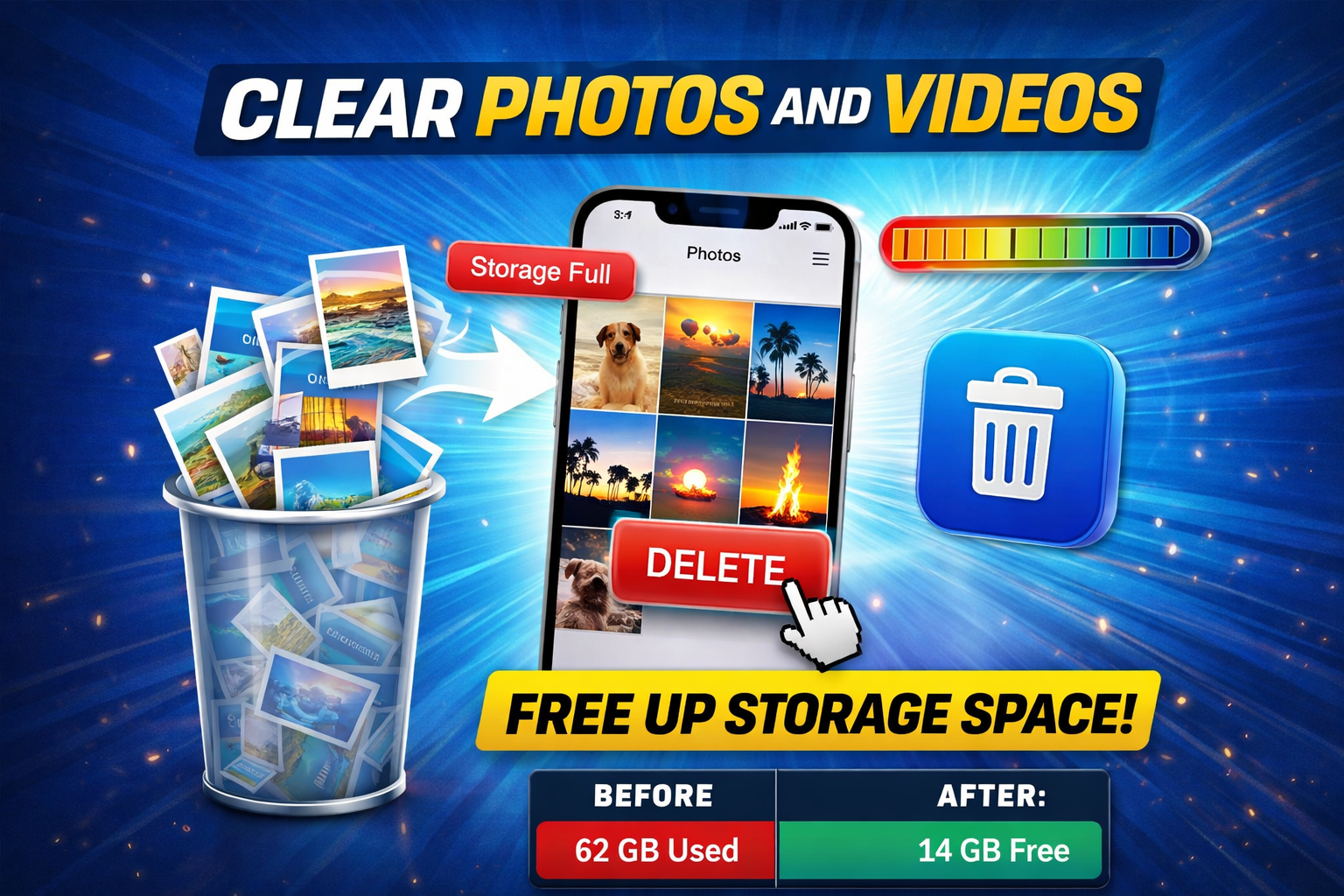
Photos and videos often take up the most storage.
Steps:
- Open the Photos app
- Select unwanted photos/videos
- Tap the Delete icon
👉 Don’t forget:
- Go to Recently Deleted
- Tap Delete All to free space permanently
Important: Deleting without clearing “Recently Deleted” will not free storage immediately.
4. Use iCloud to Free Up Space
You can move your photos to iCloud to save storage.
Steps:
- Go to Settings
- Tap your Apple ID
- Select iCloud → Photos
- Enable Optimize iPhone Storage
This keeps smaller versions on your phone while storing full files in iCloud.
5. Clear Safari Cache and Data

Browsers store cache that can take up space.
Steps:
- Go to Settings
- Scroll to Safari
- Tap Clear History and Website Data
This can instantly free up storage.
6. Delete Old Messages and Attachments
Messages with images and videos can use a lot of storage.
Steps:
- Open Messages
- Delete unnecessary conversations
- Remove large attachments
👉 You can also:
- Go to Settings > Messages
- Set Keep Messages to 30 Days
7. Offload Unused Apps
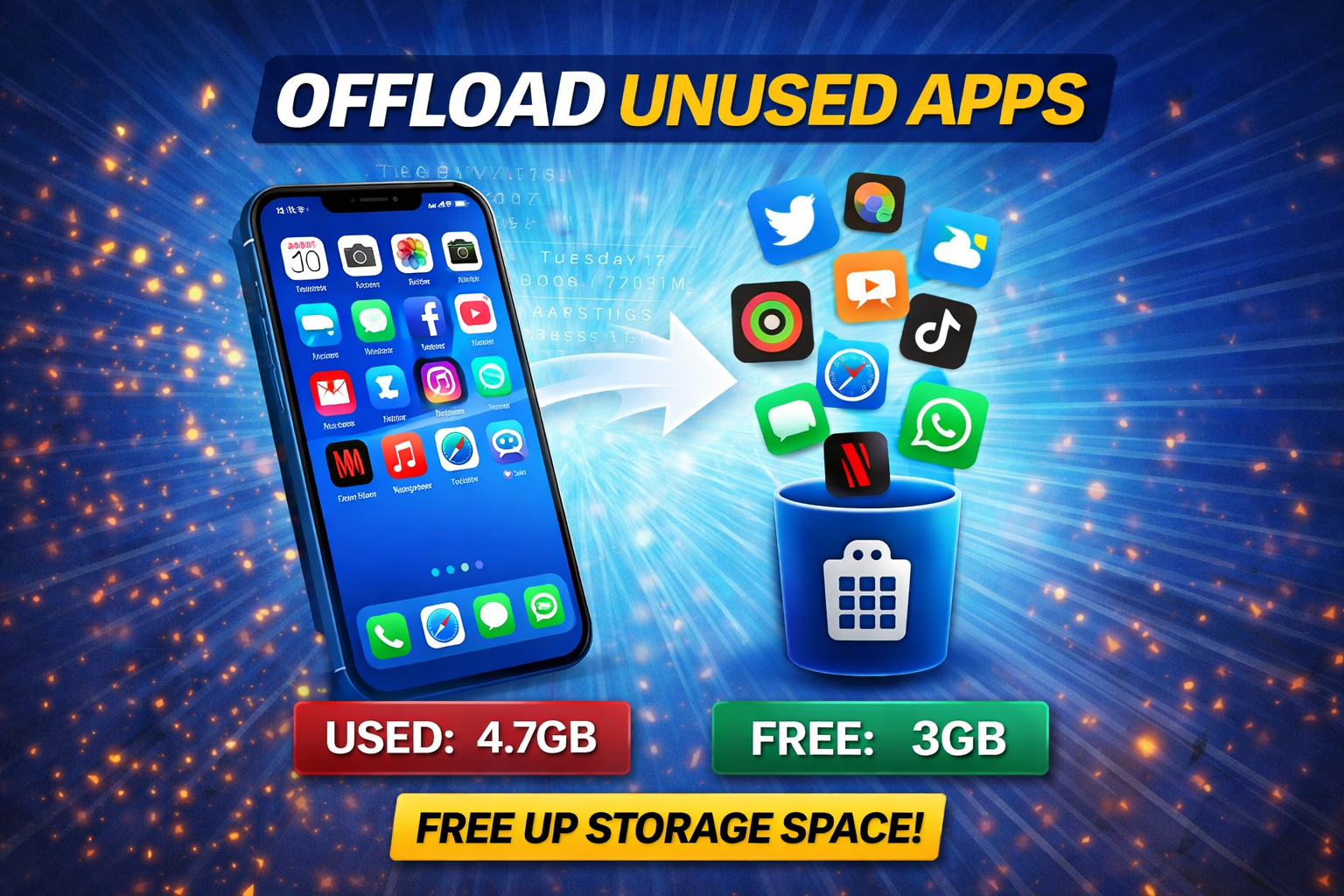
This feature removes apps but keeps their data.
Steps:
- Go to Settings
- Tap General → iPhone Storage
- Enable Offload Unused Apps
This is useful if you want to save space without losing app data.
8. Remove Downloaded Content
Apps like Netflix, Spotify, and YouTube store offline files.
Steps:
- Open each app
- Go to downloads
- Delete offline content
👉 This can free up hundreds of MB or even GBs.
9. Update iOS (If Possible)

Sometimes storage issues are caused by system bugs.
Steps:
- Go to Settings
- Tap General → Software Update
- Install the latest version
Updates can optimize storage usage.
10. Reset iPhone (Last Option)
If nothing works, you can reset your iPhone.
Steps:
- Go to Settings
- Tap General
- Select Transfer or Reset iPhone
- Tap Erase All Content and Settings
⚠️ Important: Backup your data before doing this.
Quick Tips to Prevent This Problem
Avoid facing the “storage full” issue again with these tips:
- ✅ Regularly delete unwanted photos and videos
- ✅ Use cloud storage (iCloud, Google Photos)
- ✅ Avoid installing unnecessary apps
- ✅ Clear cache every few weeks
- ✅ Enable Offload Unused Apps
- ✅ Delete old messages automatically
- ✅ Monitor storage monthly
Small habits can prevent big storage problems.
FAQ (Frequently Asked Questions)
1. Why is my iPhone storage full even after deleting files?
This happens because:
- Files are still in Recently Deleted
- Cache and system data are still stored
👉 Clear cache and empty deleted folders.
2. What is “System Data” on iPhone?
System Data includes:
- Cache files
- Logs
- Temporary files
It can grow over time and take up space.
3. Can I increase iPhone storage?
No, you cannot upgrade physical storage.
But you can:
- Use iCloud
- Use external storage options
4. Does deleting apps free storage immediately?
Yes, but sometimes you may need to restart your iPhone to see full changes.
5. Is iCloud necessary to fix storage issues?
Not required, but highly recommended. It helps manage files without filling your device.
Conclusion
The How to Fix iPhone Storage Full Issue problem is common, but it’s easy to solve with the right steps.
By:
- Deleting unnecessary files
- Clearing cache
- Managing apps
- Using cloud storage
You can quickly free up space and improve your iPhone’s performance.
Start with simple steps like checking storage and deleting large files, then move to advanced solutions if needed.
👉 Keep your device clean and organized, and you’ll rarely face this issue again.