How to Fix iPhone WiFi Greyed Out Issue Step-by-Step
Introduction
Many iPhone users face a frustrating issue where the WiFi option becomes greyed out and cannot be turned on. This means you cannot connect to any wireless network, making your device less useful for browsing, streaming, or downloading apps.
This problem often appears after an iOS update, due to software glitches, incorrect settings, or even hardware issues. The good news is that in most cases, you can fix it yourself without visiting a repair shop.
In this guide, we will walk you through easy, step-by-step solutions to fix the iPhone WiFi greyed out issue. Even if you’re a beginner, you can follow along and solve the problem quickly.
Common Signs of the Problem
Before fixing it, confirm you’re experiencing the same issue:
- WiFi toggle is greyed out in Settings
- Unable to turn WiFi ON
- WiFi option is unresponsive
- No networks are detected
Step-by-Step Fixes for iPhone WiFi Greyed Out Issue
Follow these solutions one by one. Start from the simplest and move to advanced fixes if needed.
1. Restart Your iPhone
A simple restart can fix temporary glitches.
Steps:
- Press and hold the Power button + Volume button
- Slide to power off
- Wait 10–15 seconds
- Turn your iPhone back on
👉 Important: This clears minor software bugs that may cause the WiFi greyed out issue.
2. Turn Airplane Mode ON and OFF
This refreshes your network connections.
Steps:
- Open Settings
- Turn ON Airplane Mode
- Wait for 30 seconds
- Turn it OFF again
👉 This can reset wireless functions quickly.
3. Reset Network Settings
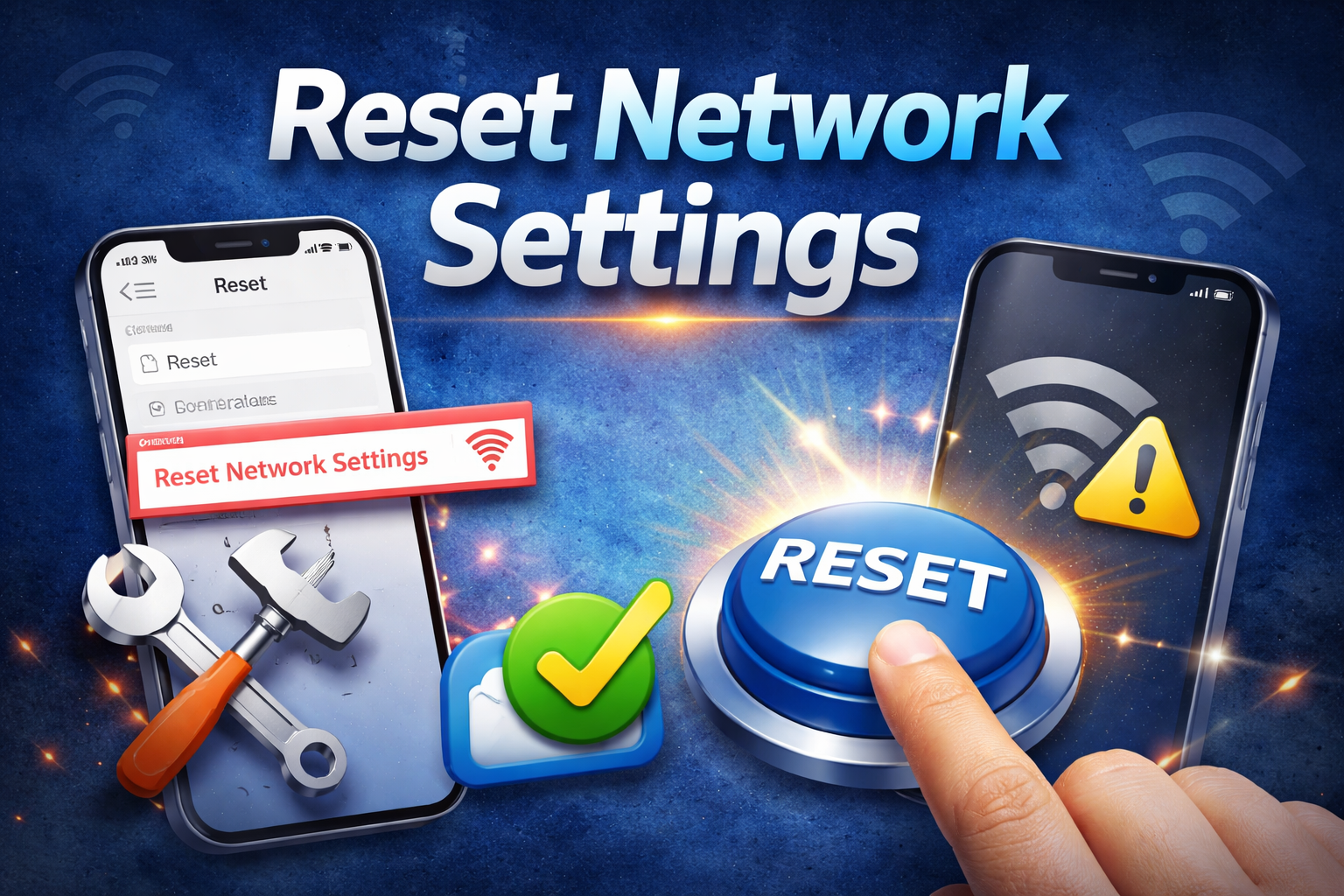
If your network configuration is corrupted, this will fix it.
Steps:
- Go to Settings
- Tap General
- Select Transfer or Reset iPhone
- Tap Reset
- Choose Reset Network Settings
- Enter your passcode
👉 Note: This will remove saved WiFi passwords, so you’ll need to reconnect later.
4. Check iOS Update
Sometimes, bugs in iOS cause this issue.
Steps:
- Go to Settings
- Tap General
- Select Software Update
- Install any available update
👉 Updates often fix WiFi-related bugs and improve system stability.
5. Force Restart Your iPhone
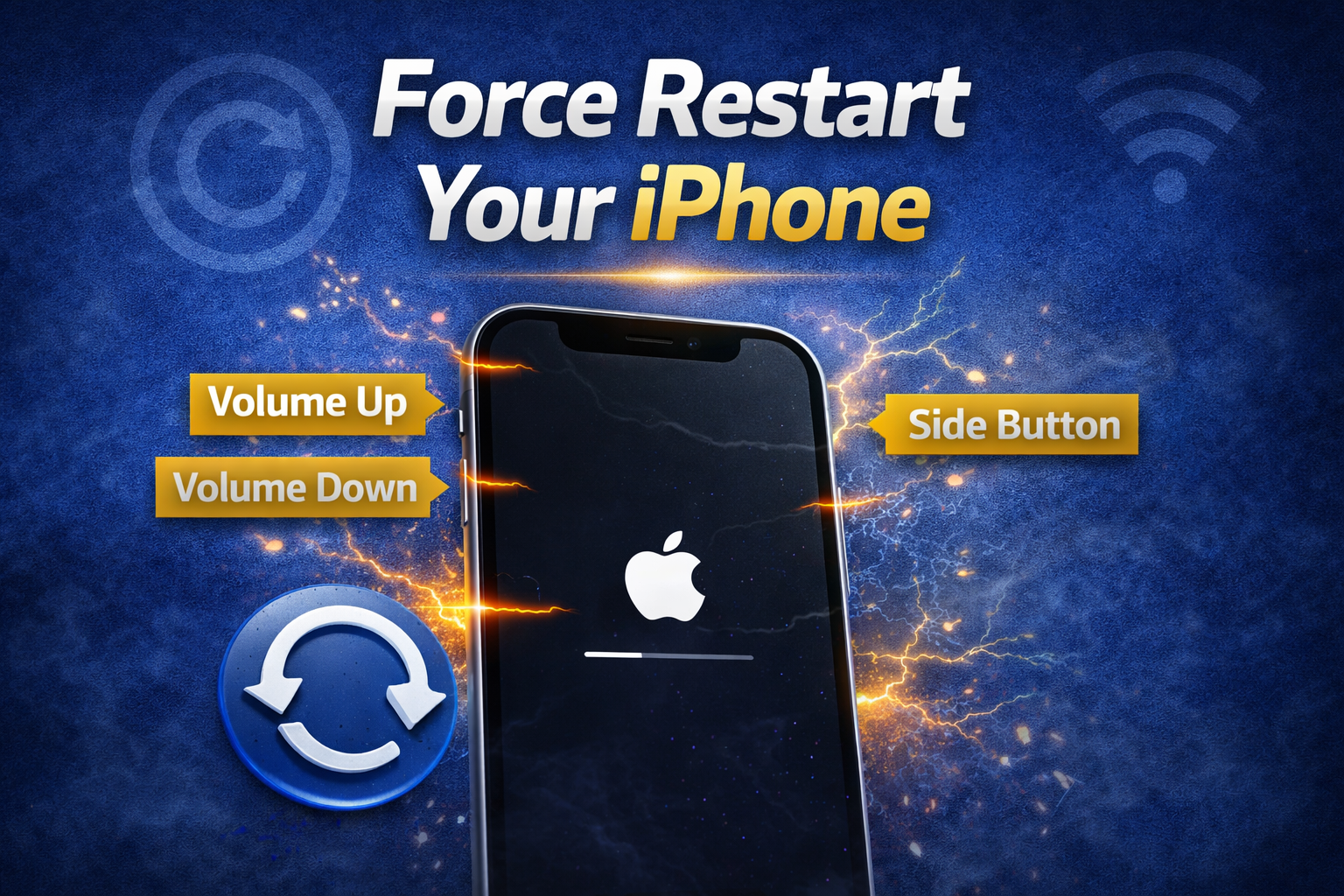
This is more powerful than a normal restart.
Steps (for iPhone 8 and later):
- Press and release Volume Up
- Press and release Volume Down
- Press and hold Power button
- Release when Apple logo appears
👉 Important: This refreshes deeper system processes.
6. Reset All Settings
This resets system settings without deleting data.
Steps:
- Open Settings
- Go to General
- Tap Transfer or Reset iPhone
- Select Reset
- Tap Reset All Settings
👉 This fixes misconfigured settings that may cause WiFi issues.
7. Check Date and Time Settings
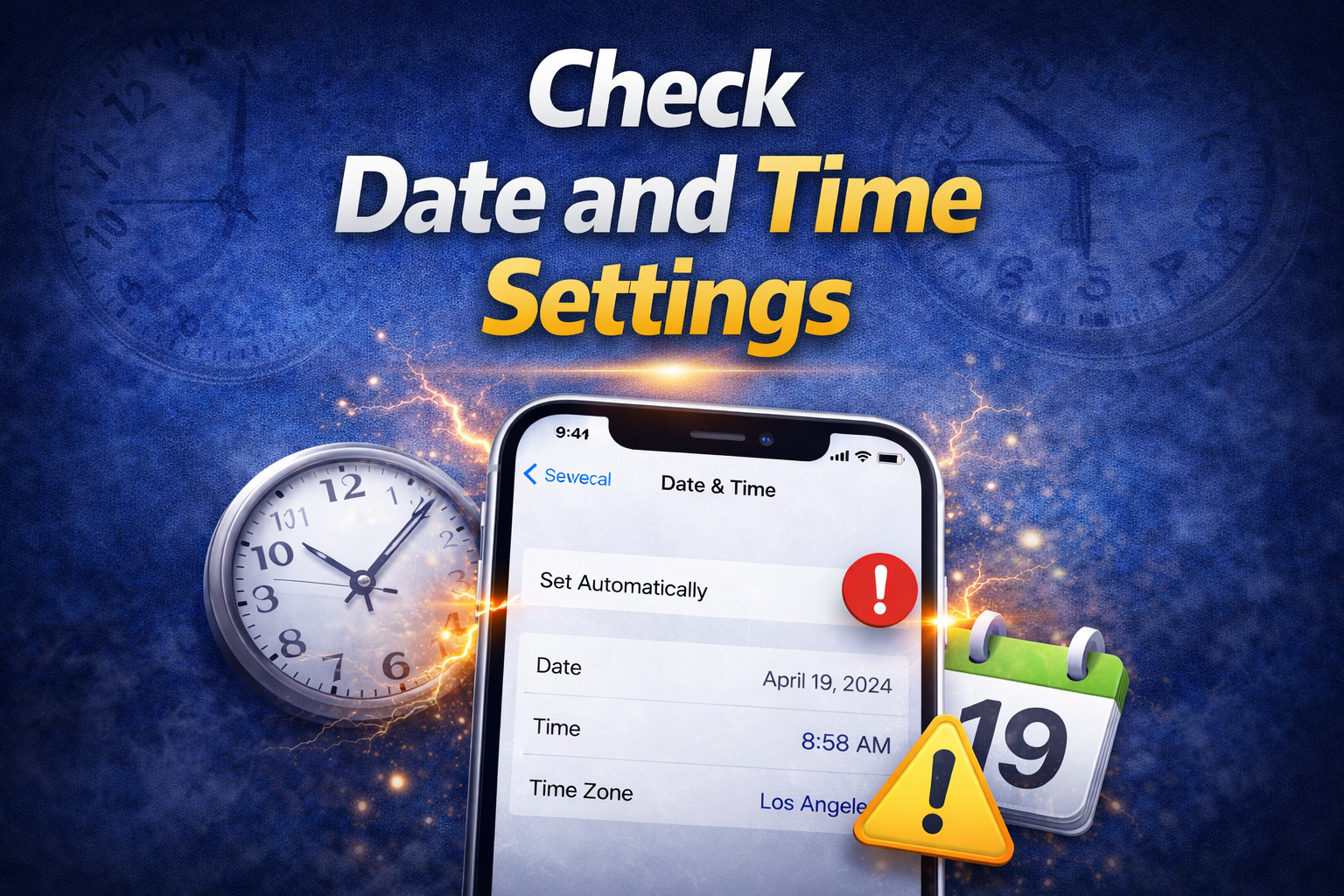
Incorrect date/time can affect network functions.
Steps:
- Go to Settings
- Tap General
- Select Date & Time
- Turn ON Set Automatically
8. Free Up Storage Space
Low storage can sometimes affect system performance.
Steps:
- Go to Settings > General > iPhone Storage
- Delete unused apps, photos, or files
👉 Keeping storage free helps your iPhone run smoothly.
9. Use DFU Restore (Advanced Fix)
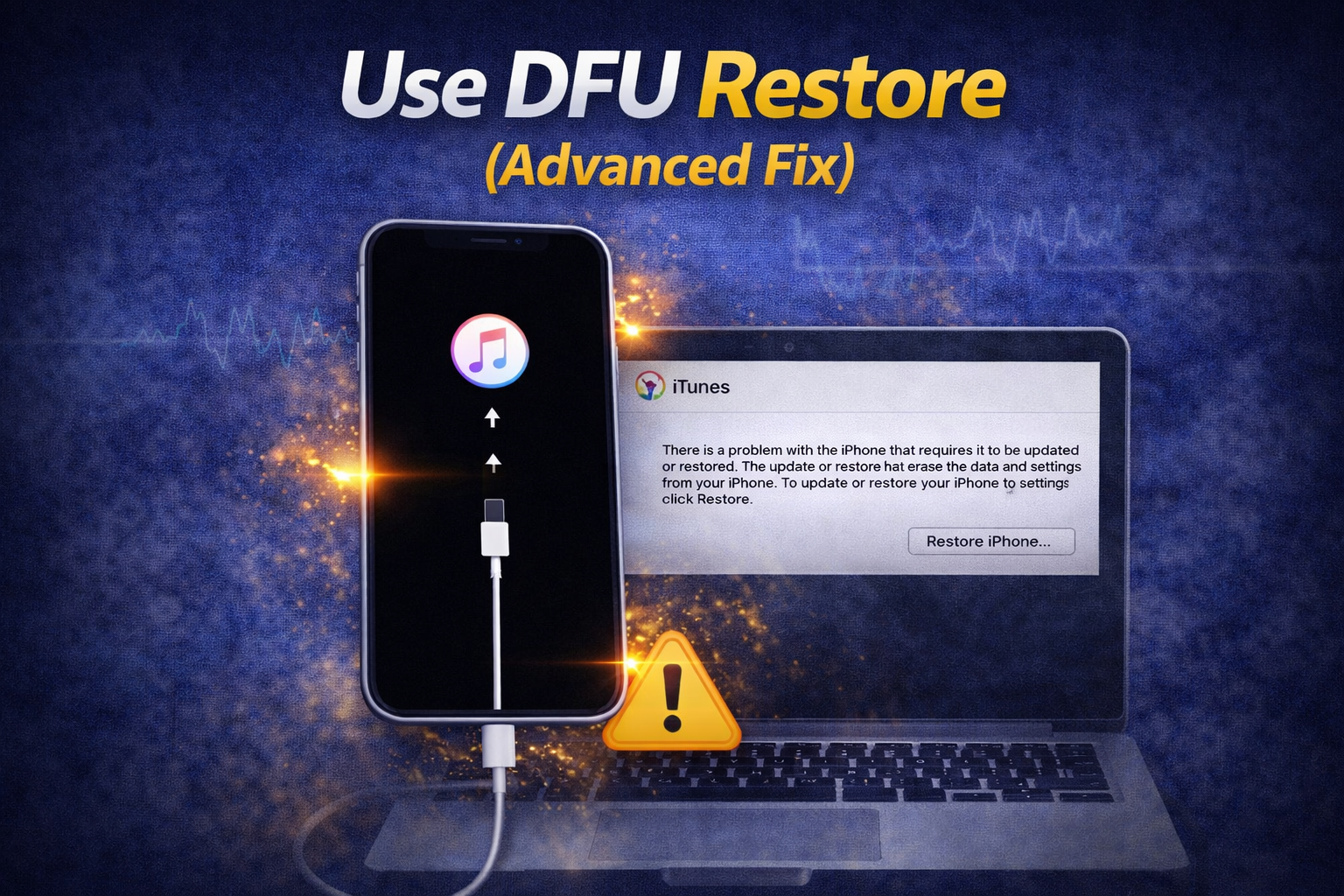
If nothing works, try DFU mode restore.
Warning:
This will erase your data, so backup your iPhone first.
Steps:
- Connect iPhone to a computer
- Open iTunes/Finder
- Put device into DFU mode
- Restore your iPhone
👉 This reinstalls the entire system and fixes deep issues.
10. Check for Hardware Problems
If WiFi is still greyed out, it may be hardware-related.
Possible causes:
- Damaged WiFi chip
- Water damage
- Overheating issues
👉 Visit an Apple Service Center for professional repair.
Why This Problem Happens
Understanding the cause helps prevent it in the future.
Common reasons:
- iOS update bugs
- Software glitches
- Incorrect network settings
- Overheating of the device
- Physical damage or water exposure
- Jailbreaking issues (if applicable)
Quick Tips to Prevent This Problem
Follow these simple tips to avoid the issue again:
- Keep your iPhone updated to the latest iOS
- Avoid exposing your phone to heat or water
- Restart your device regularly
- Do not install untrusted apps
- Maintain enough storage space
- Use original chargers and accessories
FAQ (Frequently Asked Questions)
1. Why is my iPhone WiFi greyed out after an update?
This usually happens due to a software bug introduced during the update.
2. Can I fix WiFi greyed out without resetting my iPhone?
Yes. Try simple fixes like restart, Airplane mode, or network reset first.
3. Will resetting network settings delete my data?
No. It only removes WiFi passwords and network settings, not personal data.
4. How do I know if it’s a hardware issue?
If none of the software fixes work, it’s likely a hardware problem.
5. Is DFU restore safe?
Yes, but it erases all data. Always backup your iPhone before using it.
Conclusion
The iPhone WiFi greyed out issue can be annoying, but in most cases, it’s easy to fix. Start with simple solutions like restarting your device or resetting network settings. If the problem continues, move to advanced fixes like DFU restore.
If none of the methods work, the issue may be hardware-related, and you should visit an Apple technician.
By following this guide, you can quickly solve the problem and get your WiFi working again.