How to Fix iPhone SIM Not Supported Issue
The iPhone SIM not supported issue is a common problem that many users face, especially when using a new SIM card or switching carriers. When this happens, your iPhone may show messages like “SIM Not Supported”, “Invalid SIM”, or “SIM Not Valid”. This can prevent you from making calls, sending messages, or using mobile data.
This issue usually happens because of carrier restrictions, software glitches, or SIM compatibility problems. The good news is that you can fix it yourself by following some simple steps.
In this guide, we’ll show you how to fix iPhone SIM not supported issue step-by-step in a beginner-friendly way.
Why This Problem Happens
Before fixing the problem, it’s important to understand the causes. Here are the most common reasons:
- Your iPhone is carrier-locked
- The SIM card is not supported by your device
- Software bugs or outdated iOS
- The SIM card is damaged or inserted incorrectly
- Carrier activation issues
- Network settings problems
Understanding the cause will help you choose the right solution.
Step-by-Step Solutions to Fix iPhone SIM Not Supported Issue
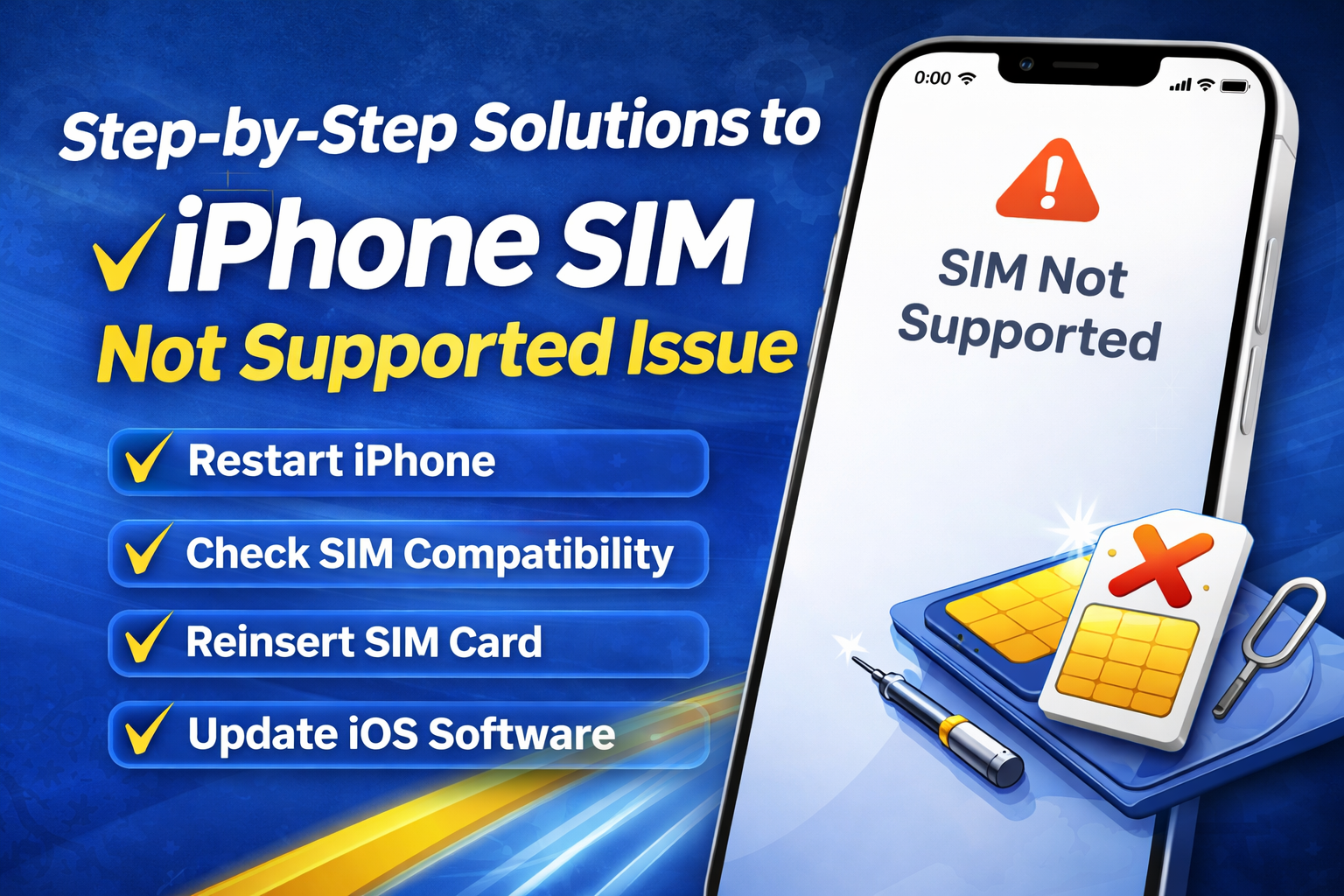
Follow these methods one by one until your problem is solved.
1. Restart Your iPhone
A simple restart can fix temporary glitches.
Steps:
- Press and hold the Power button
- Slide to power off
- Wait 30 seconds
- Turn your iPhone back on
👉 This refreshes the system and may fix the invalid SIM iPhone error.
2. Check SIM Card Compatibility
Make sure your SIM card is supported.
- Use a SIM from a compatible carrier
- Ensure it’s the correct SIM size (nano-SIM)
- Try using another SIM card to test
👉 If another SIM works, your original SIM may be faulty.
3. Reinsert the SIM Card
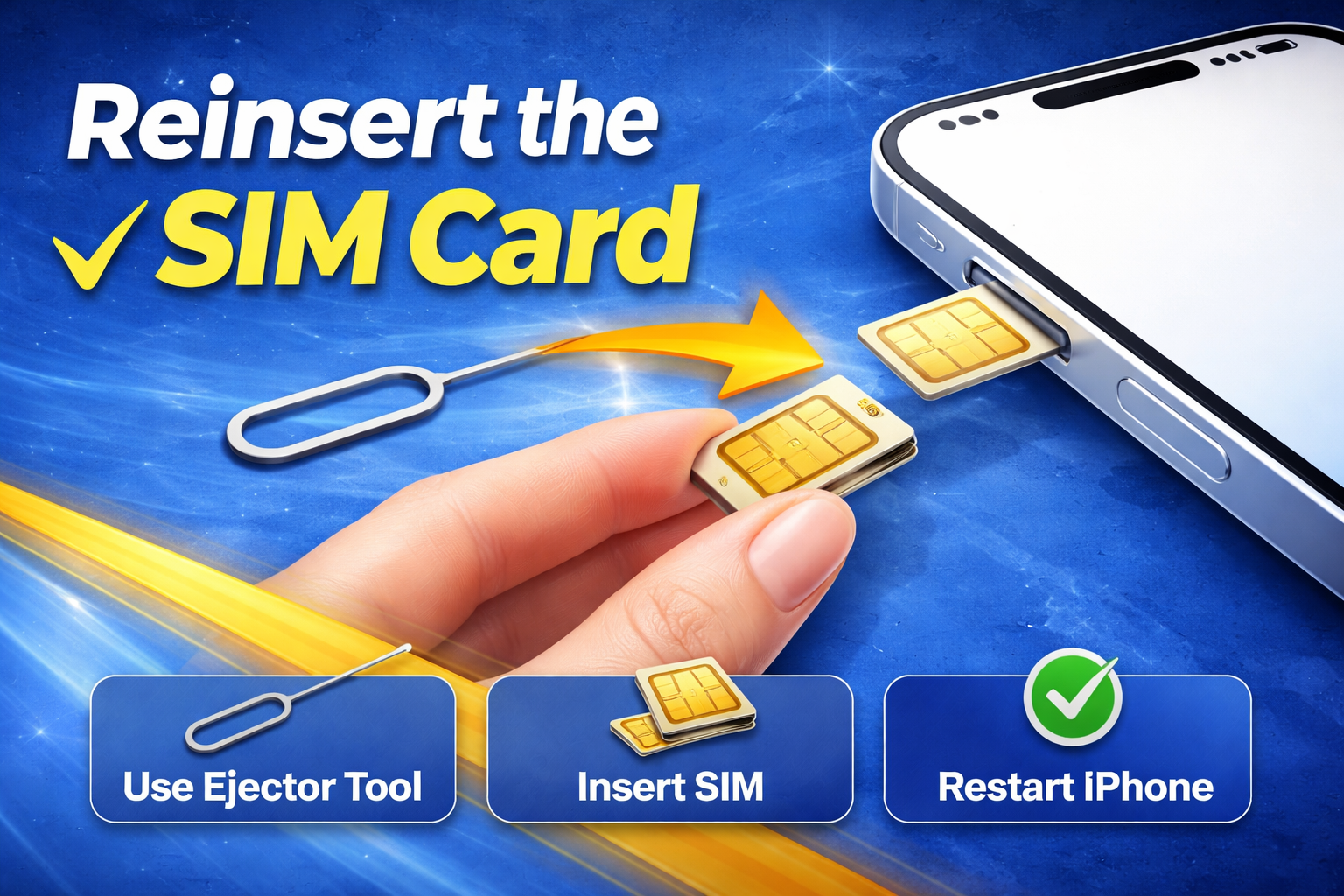
Sometimes the SIM is not properly inserted.
Steps:
- Turn off your iPhone
- Use a SIM eject tool
- Remove the SIM card
- Clean it gently
- Reinsert it properly
- Turn the phone back on
Important:
👉 Make sure the SIM is aligned correctly in the tray
4. Check Carrier Lock Status
Many iPhones are locked to a specific carrier.
How to check:
- Go to Settings
- Tap General
- Tap About
- Look for Carrier Lock
- If it says “No SIM restrictions”, your phone is unlocked
- If locked, you must contact your carrier
👉 This is one of the main causes of the iPhone SIM not supported issue
5. Update iOS Software
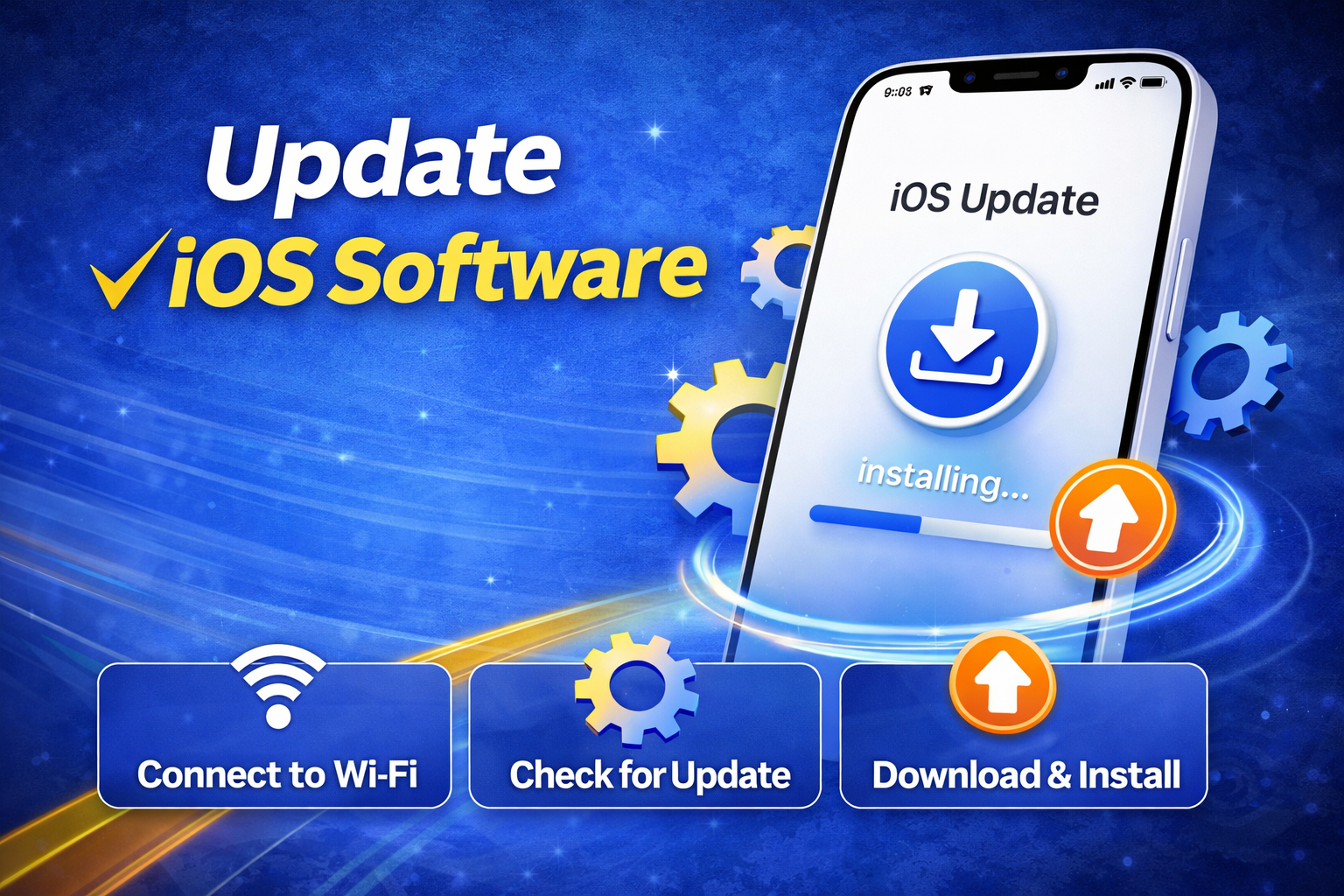
Outdated software can cause SIM issues.
Steps:
- Go to Settings
- Tap General
- Select Software Update
- Install any available updates
👉 Updates fix bugs and improve SIM compatibility.
6. Reset Network Settings
This can solve network-related issues.
Steps:
- Go to Settings
- Tap General
- Select Transfer or Reset iPhone
- Tap Reset
- Choose Reset Network Settings
Note:
👉 This will remove saved WiFi passwords
7. Activate Your iPhone
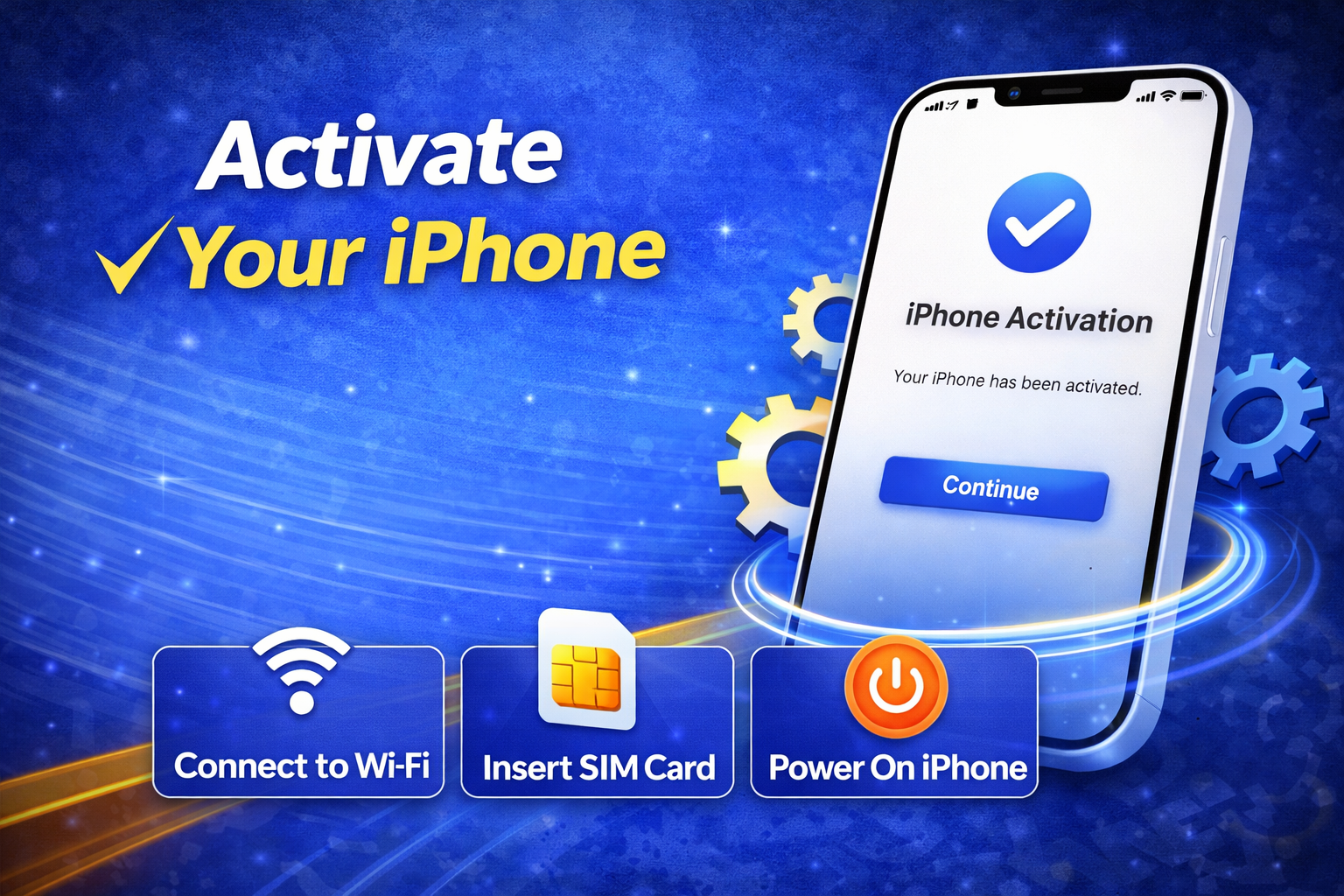
If your iPhone isn’t activated, SIM errors may appear.
Steps:
- Connect to WiFi
- Insert SIM card
- Follow on-screen activation instructions
👉 You can also activate via iTunes or Finder.
8. Contact Your Carrier
If your iPhone is locked, you need carrier support.
Ask them to:
- Unlock your device
- Verify SIM compatibility
- Check for account issues
👉 Carrier unlocking is often required for international SIM use.
9. Restore iPhone Using iTunes/Finder
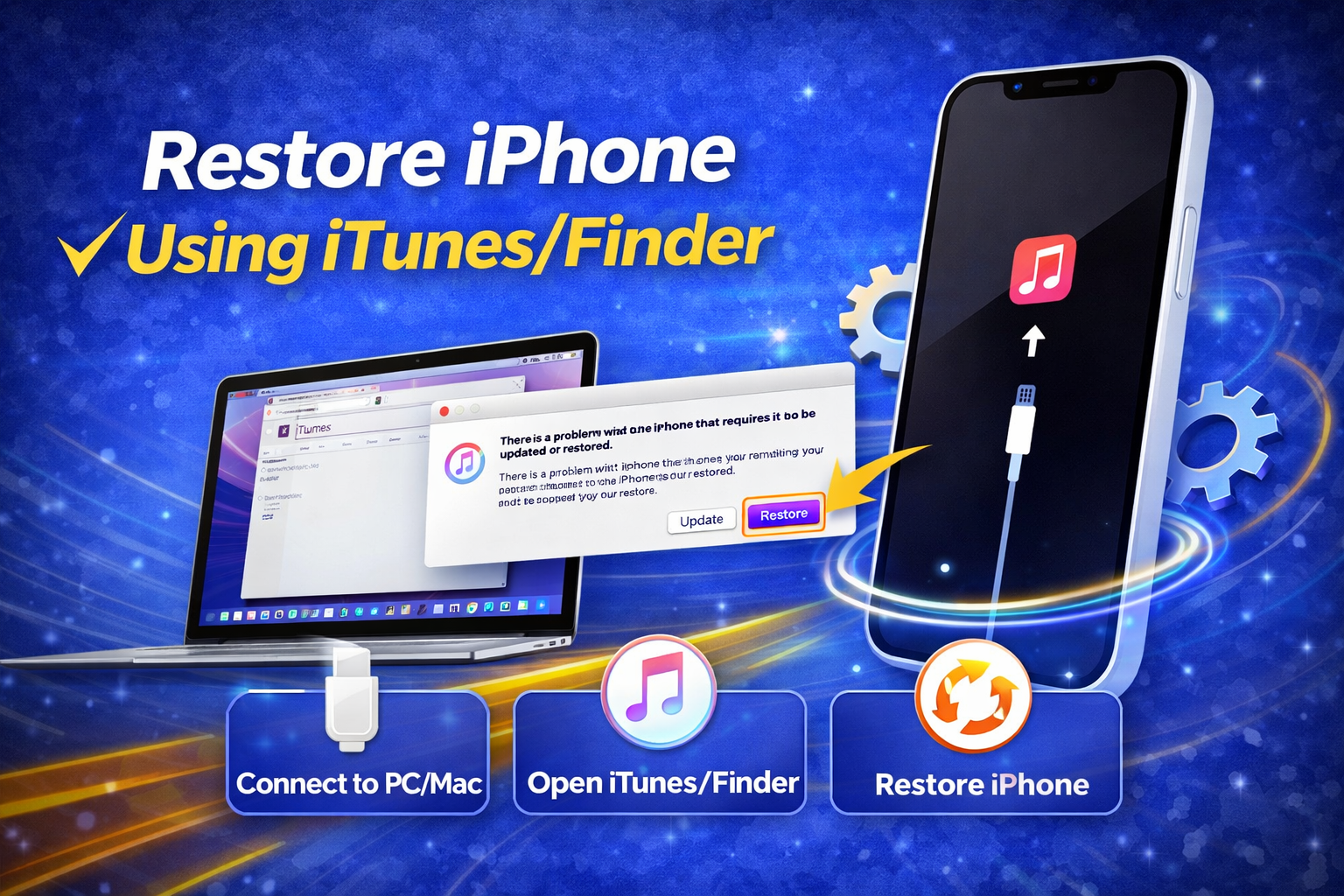
If nothing works, try a full restore.
Steps:
- Connect iPhone to a computer
- Open iTunes or Finder
- Select your device
- Click Restore iPhone
Important:
👉 Backup your data before restoring
10. Visit Apple Support
If the issue still exists, it may be hardware-related.
- Visit an Apple Store
- Contact Apple Support online
👉 They can check for internal damage or SIM reader issues.
Quick Tips to Prevent This Problem
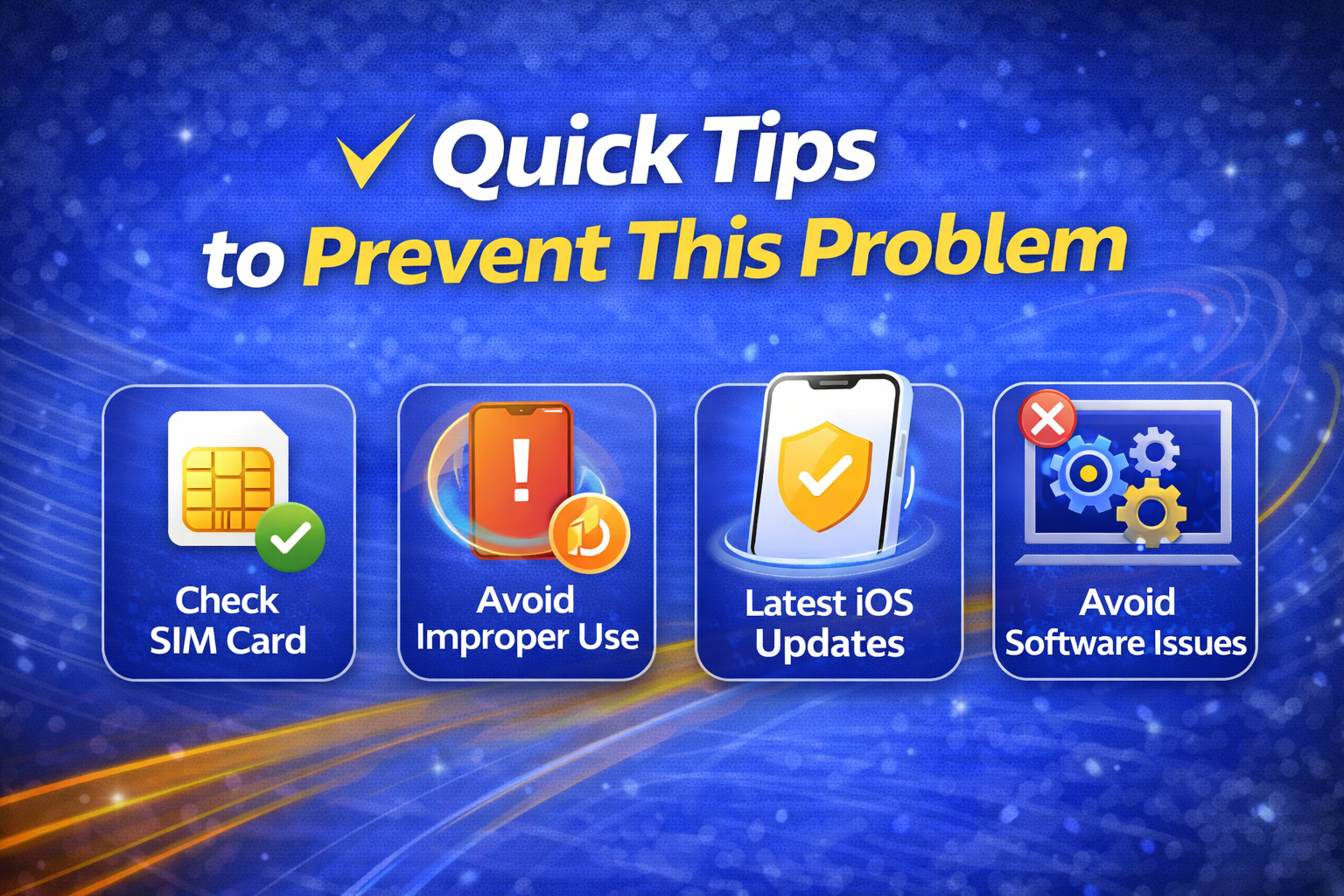
Avoid facing the SIM card not working iPhone issue again by following these tips:
- Always use a compatible carrier SIM
- Keep your iPhone updated
- Avoid removing SIM frequently
- Store SIM cards safely
- Unlock your phone before switching carriers
- Use original SIM trays only
FAQ: iPhone SIM Not Supported Issue
1. Why does my iPhone say SIM not supported?
This usually happens when your iPhone is carrier-locked or the SIM is incompatible.
2. Can I fix SIM not supported without unlocking?
If your iPhone is locked, you must unlock it through the carrier. Other fixes may not work.
3. Will resetting iPhone fix SIM issues?
Yes, resetting network settings or restoring the device can fix software-related issues.
4. How do I know if my iPhone is unlocked?
Go to Settings > General > About > Carrier Lock. It should say No SIM restrictions.
5. Is SIM not supported a hardware problem?
Usually not. But if all fixes fail, it could be a SIM reader hardware issue.
Conclusion
The iPhone SIM not supported issue can be frustrating, but in most cases, it’s easy to fix. Whether it’s a carrier lock, software bug, or SIM compatibility problem, following the steps above will help you solve it quickly.
Start with simple fixes like restarting your phone or reinserting the SIM. If the issue persists, check your carrier lock status or contact your provider.
By understanding the cause and applying the right solution, you can get your iPhone back to normal and avoid future problems.