How to Fix Android OTA Update Issue
Android OTA (Over-The-Air) updates are meant to make your phone better—bringing new features, security patches, and performance improvements. But sometimes, instead of upgrading smoothly, the update fails, gets stuck, or doesn’t install at all.
If you’re facing this issue, don’t worry—you’re not alone. Many users experience problems like:
- Update stuck on downloading
- “Update failed” error
- Installation stuck on boot screen
- OTA update not showing
In this guide, we’ll walk you through simple, beginner-friendly steps to fix the issue and get your device updated properly.
Why This Problem Happens
Before jumping into solutions, it helps to understand the cause. Android OTA update issues can happen due to:
- Poor internet connection
- Low storage space
- Battery not sufficient
- System bugs or cache problems
- Modified system (rooted devices)
- Server-side update delays
Understanding the cause makes it easier to fix the problem quickly.
Step-by-Step Solutions to Fix Android OTA Update Issue
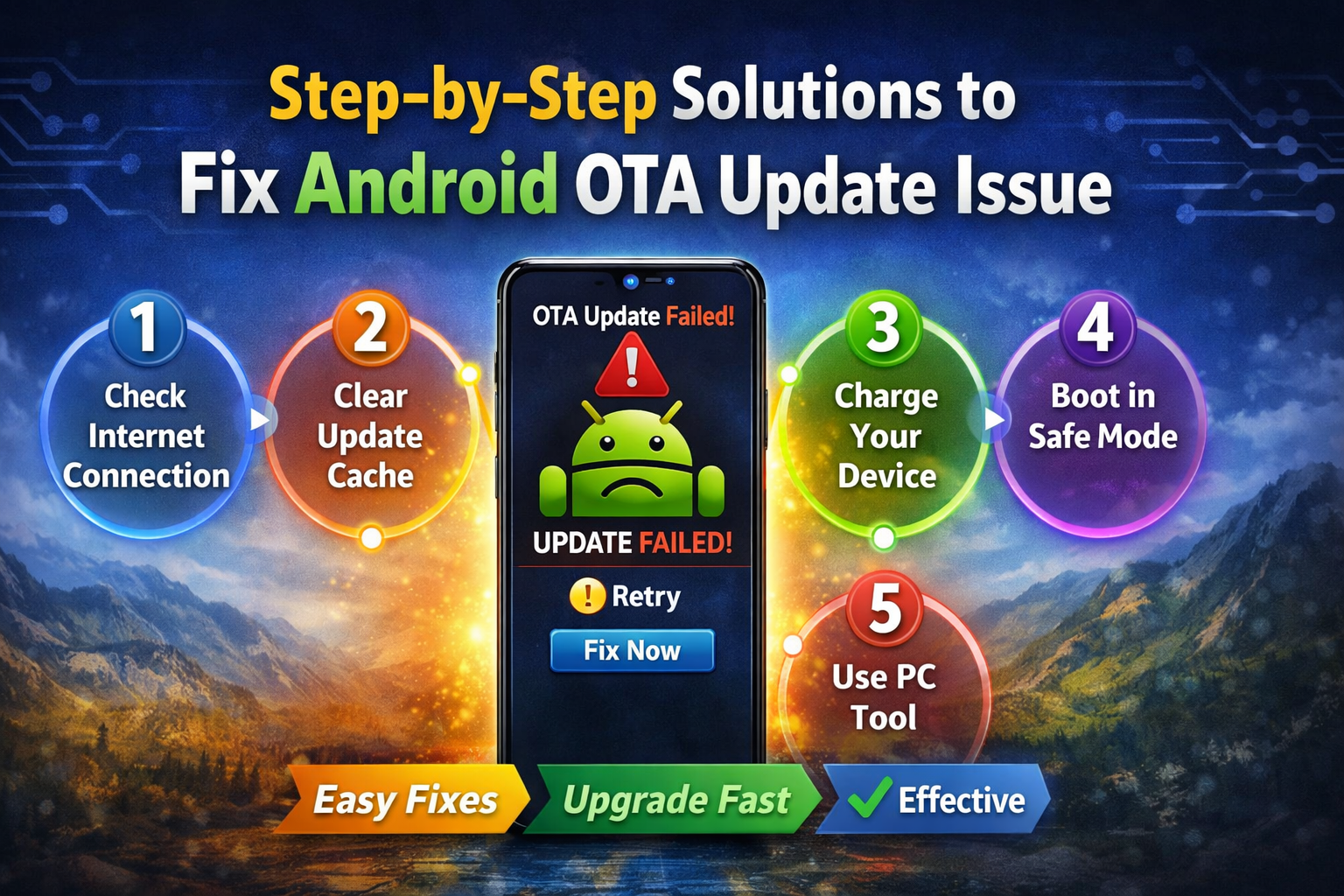
Follow these methods in order. Start with the easiest fix and move forward if needed.
1. Check Your Internet Connection
A weak or unstable connection can interrupt OTA updates.
Steps:
- Connect to a stable Wi-Fi network
- Avoid mobile data if possible
- Restart your router if needed
👉 Important: OTA updates require a strong and consistent connection.
2. Restart Your Device
This simple step fixes many temporary glitches.
Steps:
- Press and hold the Power button
- Tap Restart
- Try updating again after reboot
3. Check Storage Space
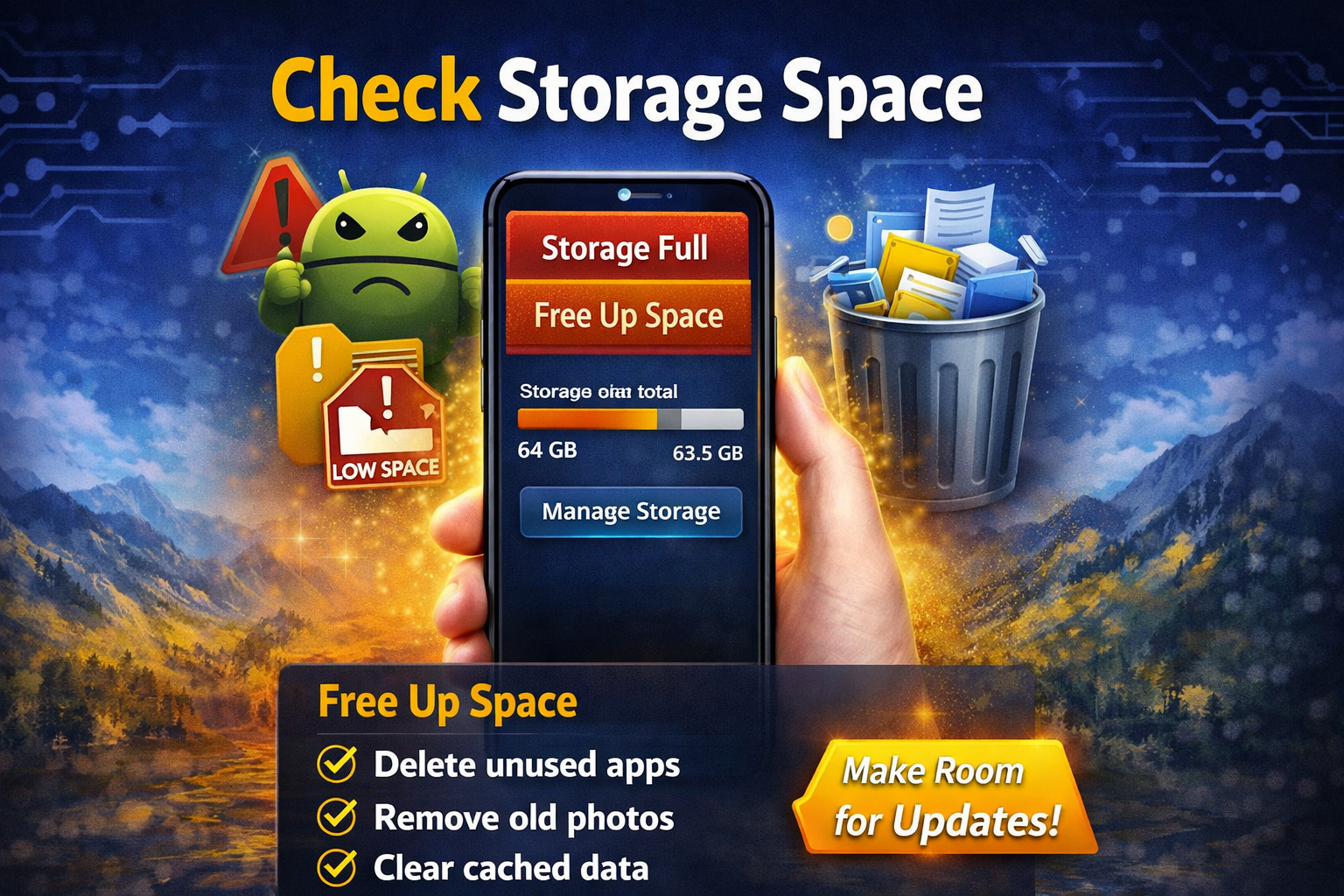
OTA updates need enough free storage to download and install.
Steps:
- Go to Settings > Storage
- Ensure at least 2–5 GB free space
- Delete unnecessary apps, photos, or files
👉 Tip: Clear downloads and large videos first.
4. Charge Your Battery
Most devices require at least 50% battery for updates.
Steps:
- Plug in your charger
- Wait until battery is above 50%
- Retry the update
5. Clear Cache of System Update App
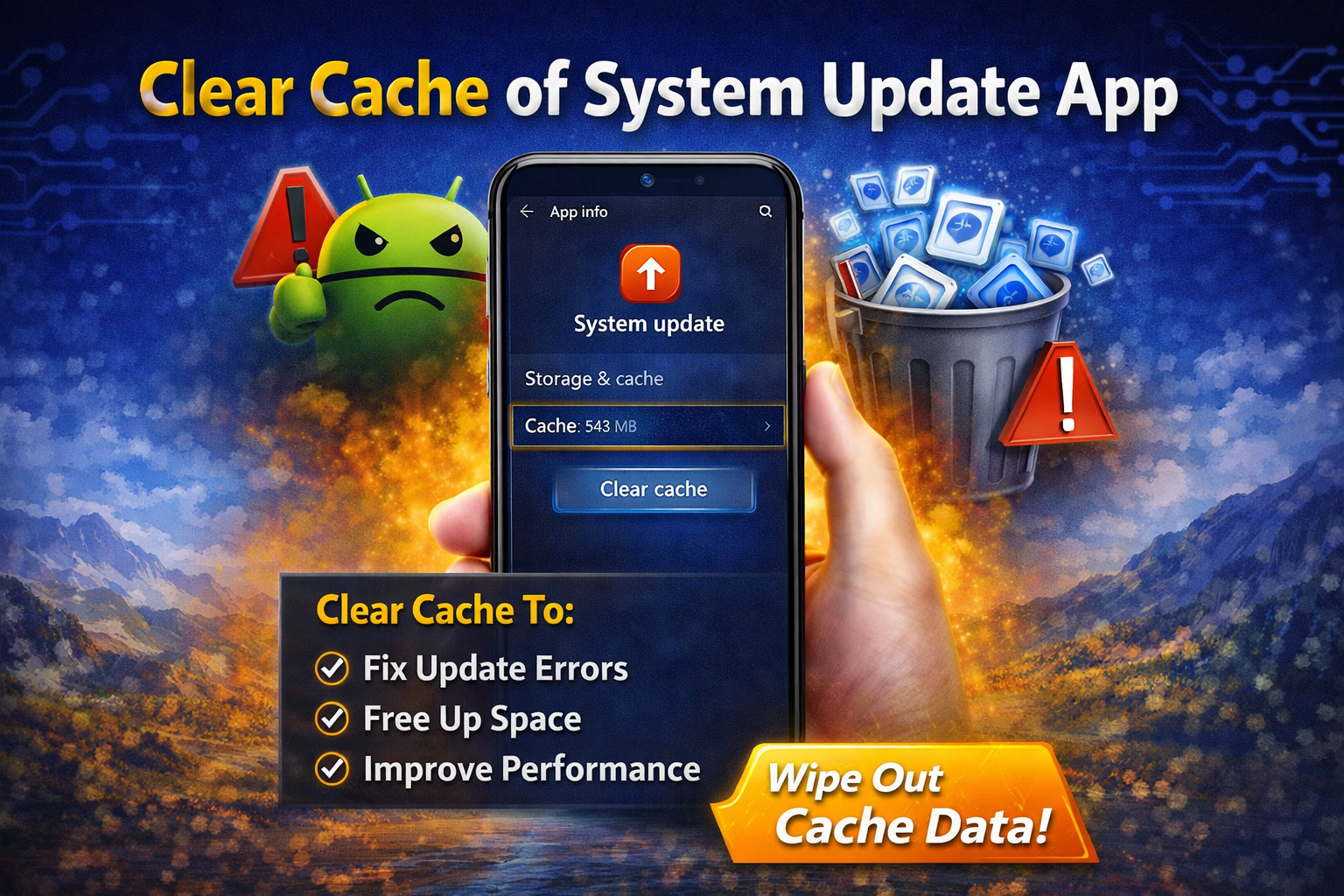
Corrupted cache can cause update failures.
Steps:
- Go to Settings > Apps
- Tap System Apps (or show system apps)
- Find Software Update / System Update
- Tap Storage
- Select Clear Cache
👉 Do NOT clear data unless necessary.
6. Check for Software Updates Again
Sometimes the update doesn’t appear properly.
Steps:
- Go to Settings > System > Software Update
- Tap Check for Updates
- Download again
7. Disable VPN or Proxy
VPNs can interfere with update servers.
Steps:
- Turn off any VPN apps
- Disable proxy settings
- Retry update
8. Remove Root or Custom ROM (If Applicable)
If your device is rooted or modified:
- OTA updates may fail completely
- You may need to restore stock firmware
👉 This is common with users who installed custom ROMs.
9. Boot into Safe Mode
Safe Mode disables third-party apps that may interfere.
Steps:
- Press and hold Power button
- Tap and hold Restart
- Select Safe Mode
- Try updating again
10. Update Using Recovery Mode
If OTA still fails, use recovery mode.
Steps:
- Turn off your device
- Press Power + Volume Up/Down (varies by device)
- Select Recovery Mode
- Choose Apply Update
👉 This method is more advanced but effective.
11. Use Official PC Software (Advanced)
Many brands offer PC tools:
- Samsung: Smart Switch
- Xiaomi: Mi Flash Tool
- OnePlus: Oxygen Updater
Steps:
- Install official software on PC
- Connect your phone
- Download and install update manually
Common Android OTA Update Errors & Fixes
Here are some common problems and quick fixes:
| Error | Fix |
|---|---|
| Update stuck at 0% | Check internet + restart |
| Installation failed | Clear cache + retry |
| Update not showing | Check manually |
| Boot loop after update | Use recovery mode |
Quick Tips to Prevent This Problem
To avoid OTA update issues in the future:
- Always use stable Wi-Fi
- Keep at least 3GB free storage
- Avoid interrupting updates
- Keep battery above 50%
- Don’t install unknown apps during update
- Avoid rooting if you want easy updates
FAQ (Frequently Asked Questions)
1. Why is my Android OTA update stuck?
This usually happens due to poor internet, low storage, or system glitches. Restart your device and check your connection.
2. Can I fix OTA update failure without losing data?
Yes. Most methods like clearing cache or restarting won’t delete your data.
3. Why is the update not showing on my phone?
Updates are released in phases. You may need to wait or manually check in settings.
4. Is it safe to update Android manually?
Yes, if you use official tools or firmware from the manufacturer.
5. What if nothing works?
You may need to factory reset or install firmware manually using a PC.
Conclusion
Android OTA update issues can be frustrating, but they are usually easy to fix. In most cases, simple steps like checking internet, freeing storage, or restarting your device solve the problem quickly.
If basic fixes don’t work, you can move to advanced solutions like recovery mode or manual updates.
The key is to stay patient and follow each step carefully. With the methods above, you should be able to fix almost any Android update issue and keep your device running smoothly.