How to Fix Android Not Detecting SD Card
If your phone suddenly stops reading your memory card, it can feel frustrating and even scary. You may lose access to photos, videos, apps, music, or important files stored on the card. This issue is common on many Android devices, and the good news is that in many cases, you can fix it yourself.
The Android not detecting SD card problem can happen for several reasons. The SD card may not be inserted correctly, the card may be dirty, the file system may be corrupted, or your Android phone may have trouble reading the card format. Sometimes the issue comes from the phone itself, not the SD card.
In this guide, you will learn simple and practical ways to fix the problem step by step. Even if you are a beginner, these solutions are easy to follow.
Main keyword: Android not detecting SD card
Related keywords: Android SD card not working, phone not reading SD card, fix SD card not showing up on Android
Why This Problem Happens
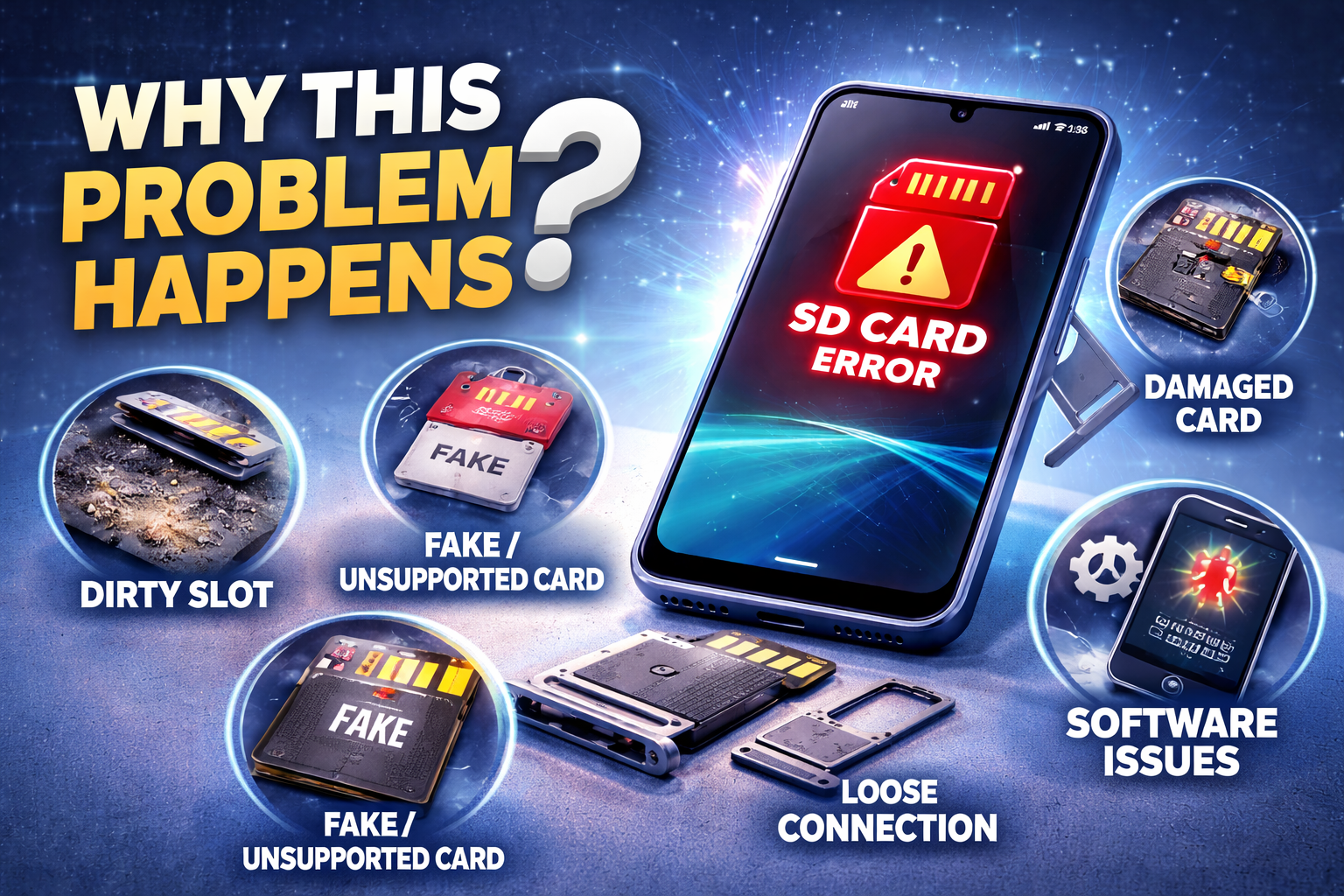
Before jumping into the fixes, it helps to understand why your phone is not recognizing the card.
Here are the most common causes:
- The SD card is not inserted properly
- Dust or dirt is blocking the card slot
- The SD card is damaged or corrupted
- The card format is not supported by your Android device
- Your phone software has a temporary glitch
- The SD card slot on the phone has a hardware problem
- The memory card is fake, low quality, or worn out
- Android failed to mount the card correctly
If your phone is not reading SD card, you should start with simple checks first before trying advanced solutions.
1. Restart Your Android Phone
A quick restart can solve many temporary Android issues, including storage detection problems.
Steps to restart your phone:
- Press and hold the Power button.
- Tap Restart.
- Wait for the phone to turn back on.
- Check whether the SD card appears in Settings > Storage or in your file manager.
A restart refreshes the system and may help Android detect the card again.
Important: After restarting, give the phone a minute or two to scan the card.
2. Remove and Reinsert the SD Card
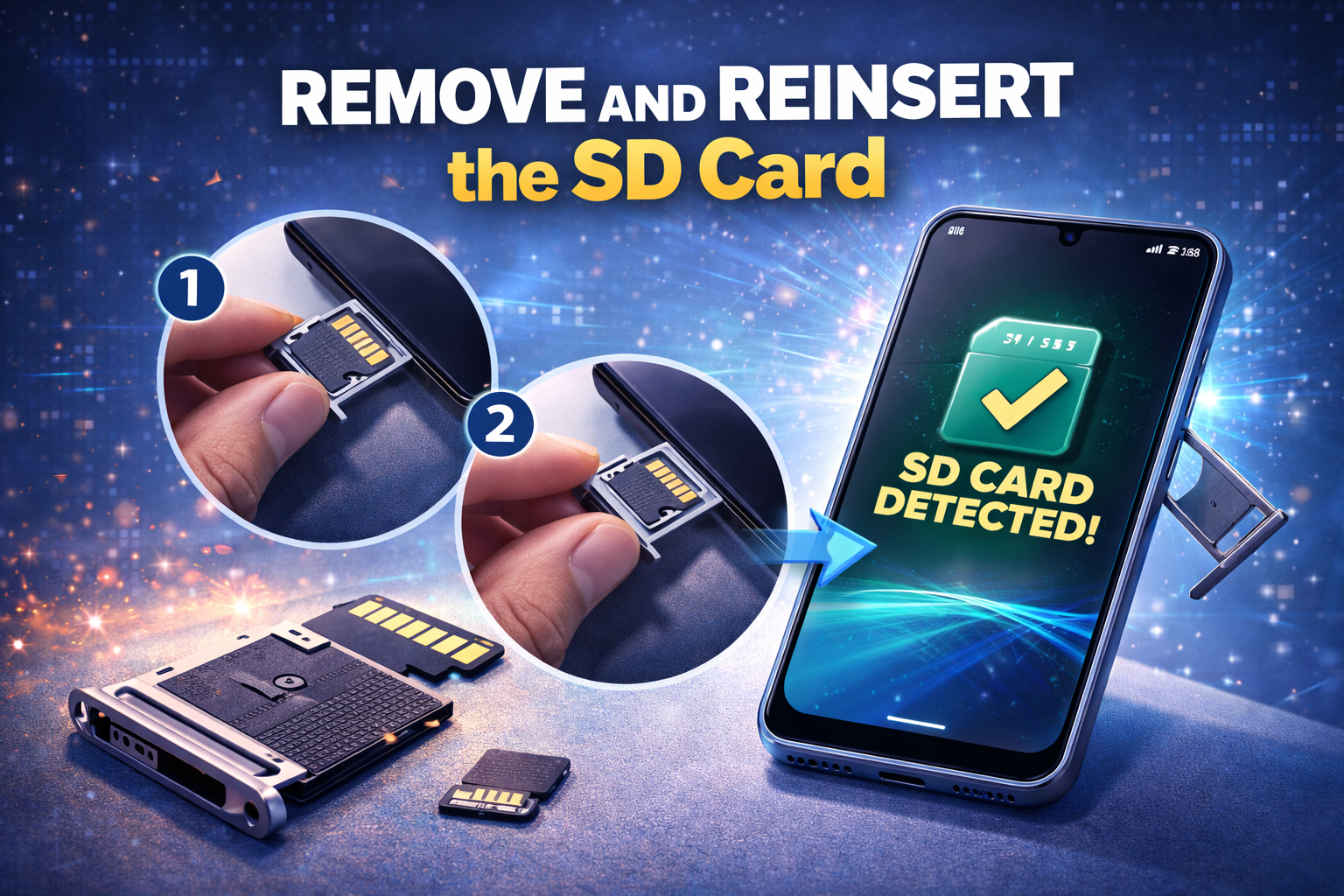
Sometimes the card becomes slightly loose, especially if the phone is dropped or the tray is not fully secured.
How to do it:
- Turn off your Android phone.
- Remove the SIM/SD card tray carefully.
- Take out the SD card.
- Check whether the card is placed correctly.
- Reinsert it firmly into the tray.
- Put the tray back in the phone.
- Turn the phone on again.
Make sure the metal contacts line up properly and the card fits securely.
Important: Never remove the SD card while the phone is on unless your phone allows safe unmounting first.
3. Clean the SD Card and Card Slot
Dust or dirt can prevent proper contact between the SD card and the phone.
Follow these steps:
- Turn off the phone.
- Remove the SD card.
- Use a soft, dry cloth to gently clean the gold contacts on the card.
- If needed, use a soft brush or gentle air blower to clean the card slot.
- Reinsert the card and turn the phone back on.
Do not use water or harsh cleaning liquids.
A dirty contact surface is a simple but common reason for Android SD card not working.
4. Check if the SD Card Is Detected in Storage Settings
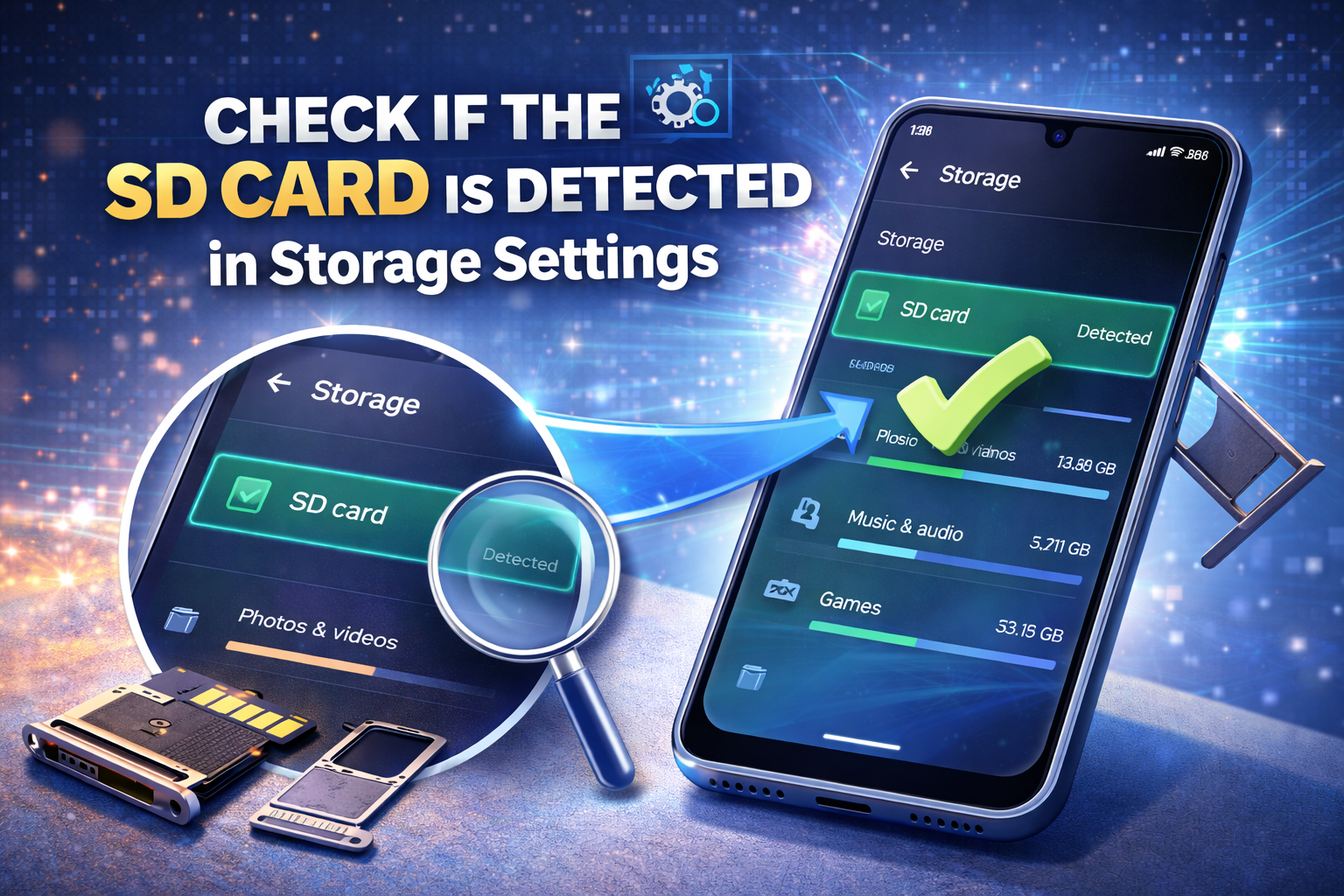
Sometimes the card is inserted, but Android is not mounting it correctly.
To check:
- Open Settings.
- Tap Storage.
- Look for the SD card or portable storage section.
- If you see the card but it says Unmounted, tap it and choose Mount.
If the card mounts successfully, the issue is solved.
If you see an error like “Unsupported” or “Corrupted,” move to the next fixes below.
5. Test the SD Card on Another Device
This step helps you find out whether the problem comes from the phone or the card.
Try this:
- Insert the SD card into another Android phone, tablet, laptop, or card reader.
- Check whether the device can read the card.
What the result means:
- If another device reads it, your phone may have a slot or software issue.
- If no device reads it, the SD card may be corrupted or damaged.
This is one of the best ways to diagnose a fix SD card not showing up on Android issue.
6. Check for File System Errors on the SD Card
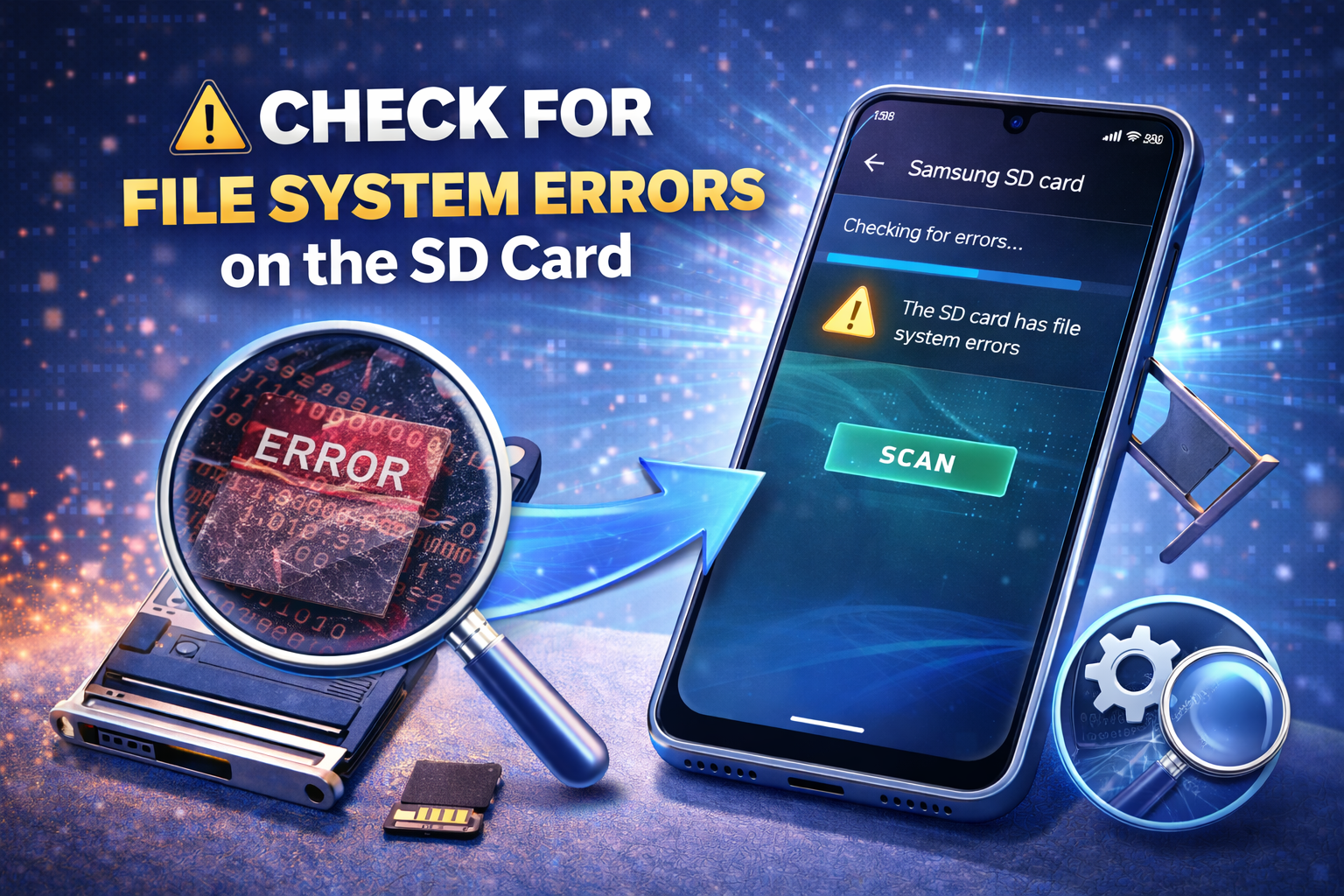
If the memory card is corrupted, Android may fail to detect it properly.
Use a Windows PC:
- Insert the SD card into your computer using a card reader.
- Open This PC.
- Right-click the SD card.
- Select Properties.
- Go to the Tools tab.
- Click Check under Error Checking.
- Let Windows scan and repair the card.
Use a Mac:
- Insert the card into your Mac.
- Open Disk Utility.
- Select the SD card.
- Click First Aid.
- Let the scan finish.
After repair, place the card back in your phone and test it again.
7. Back Up the Card and Format It
If the card is detected on a computer but not on your phone, formatting may fix the problem.
Warning:
Formatting will erase all data on the SD card.
Back up your files first if the card is still readable on another device.
How to format on Android:
- Insert the SD card into your phone.
- Open Settings > Storage.
- Tap the SD card.
- Choose Format or Erase SD card.
How to format on a computer:
- Insert the SD card into your PC.
- Open This PC.
- Right-click the SD card.
- Choose Format.
- Select exFAT or FAT32 if supported by your phone.
- Click Start.
After formatting, insert the card into your phone again.
Important: Many Android phones work best with FAT32 or exFAT, depending on card size and device support.
8. Make Sure the SD Card Format Is Supported
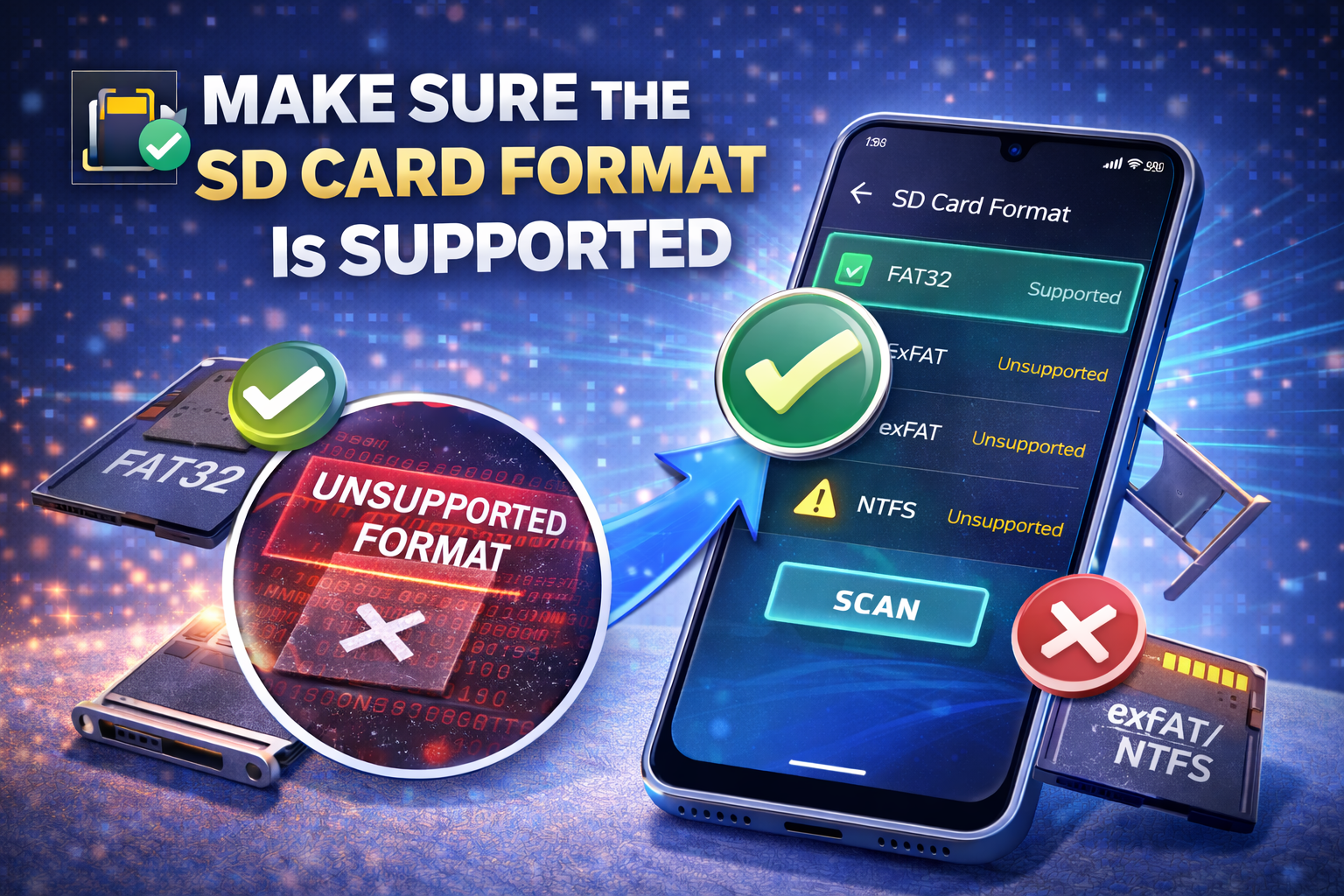
Not every Android device supports every card type or file system.
Things to check:
- Some older phones do not support very large SD cards
- Some phones may not read certain file systems
- Cheap or fake cards may report wrong sizes and fail during use
If your SD card was formatted in an unsupported format, Android may ignore it completely.
Best practice:
- Use FAT32 for smaller cards
- Use exFAT for larger cards if your device supports it
- Check your phone’s specifications for maximum supported card size
This is especially useful when your Android not detecting SD card problem starts after buying a new card.
9. Update Your Android Software
A software bug may stop the phone from recognizing external storage.
To check for updates:
- Open Settings.
- Tap Software Update or System.
- Tap Download and Install or Check for Updates.
- Install any available update.
After updating, restart your phone and test the SD card again.
Software updates often fix storage bugs and improve compatibility.
10. Boot Your Phone in Safe Mode
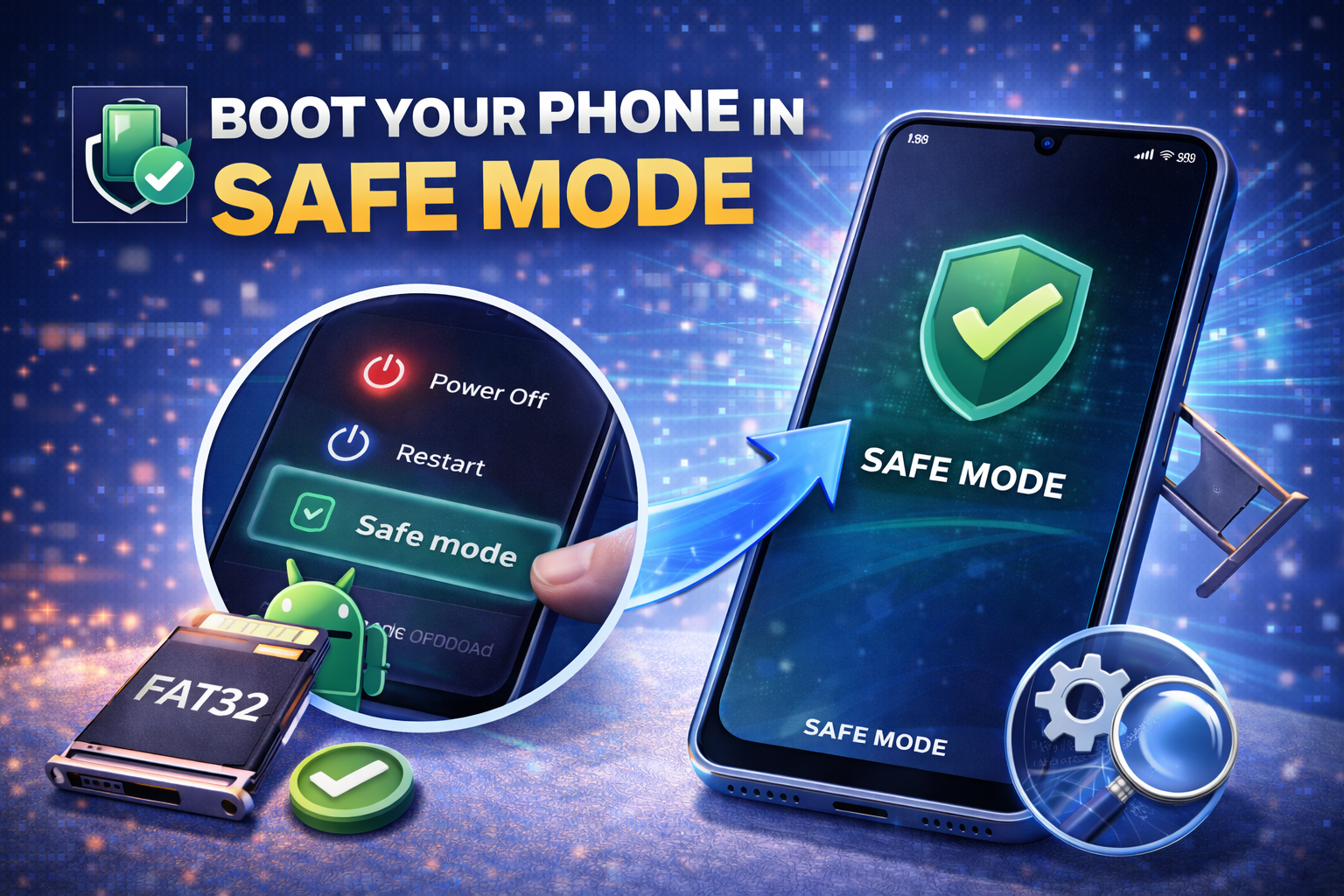
Sometimes a third-party app interferes with storage access.
Why Safe Mode helps:
Safe Mode disables downloaded apps temporarily. If the SD card works in Safe Mode, an app may be causing the issue.
General steps:
- Press and hold the Power button.
- Touch and hold Power off.
- Tap Safe Mode when it appears.
- After the phone restarts, check whether the card is detected.
If the SD card works in Safe Mode, remove recently installed file manager, cleaner, or storage-related apps.
11. Reset Storage or App Preferences
Occasionally, Android system settings related to storage may behave incorrectly.
Try resetting app preferences:
- Open Settings.
- Tap Apps.
- Tap the three-dot menu.
- Select Reset app preferences.
- Confirm the action.
This will not delete your personal files, but it resets disabled apps, default apps, and permission settings.
It can help if a system process is blocking SD card access.
12. Check for Hardware Damage
If nothing works, there may be physical damage.
Signs of hardware trouble:
- The SD card has scratches or bent edges
- The phone’s card tray is loose
- The card slot pins are bent
- The phone only reads the card sometimes
- Multiple SD cards fail in the same phone
If your phone does not detect any SD card at all, the slot may need repair.
If only one card fails everywhere, the SD card itself is likely dead and may need replacement.
13. Replace the SD Card
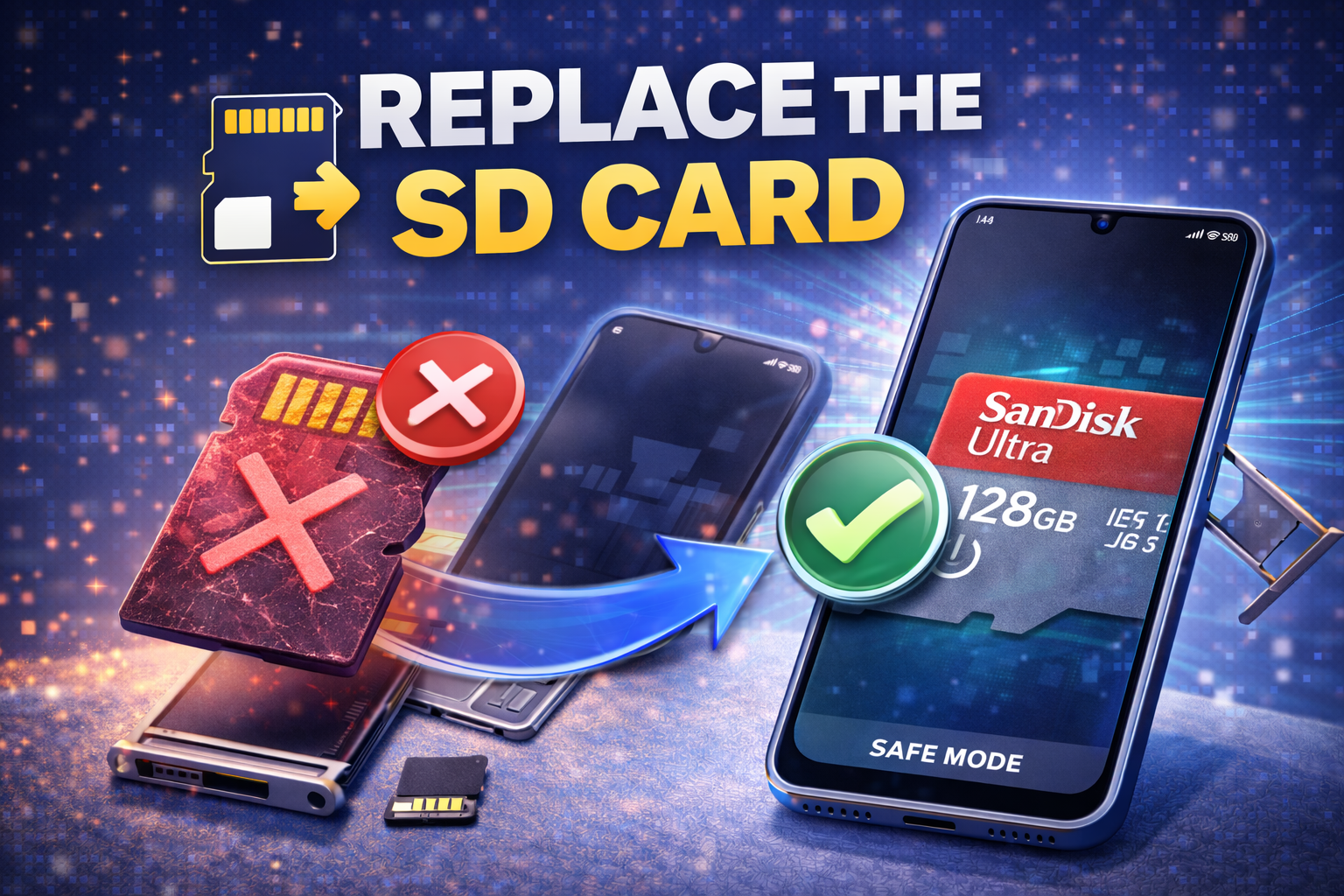
SD cards do not last forever. Over time, they wear out and become unreadable.
When to replace it:
- The card disconnects often
- Files disappear or become corrupted
- The phone says the card is damaged
- The card is not readable on any device
Buy a quality SD card from a trusted brand to avoid future problems.
Quick Tips to Prevent This Problem
Here are some simple ways to avoid SD card issues in the future:
- Always unmount the SD card safely before removing it
- Avoid cheap or unknown memory card brands
- Keep your phone software updated
- Do not expose the card to water, heat, or dust
- Back up your files regularly
- Avoid filling the card completely
- Use the correct file format for your phone
- Do not force the tray in or out
These habits can reduce the chances of your phone not reading SD card again.
FAQ
1. Why is my Android phone not detecting my SD card?
Your phone may not detect the card because it is inserted incorrectly, corrupted, dirty, unsupported, or physically damaged. A software glitch can also cause the problem.
2. Can I recover data from an undetected SD card?
Yes, sometimes. If a computer can still detect the card, you may be able to back up or recover files before formatting it.
3. Should I format my SD card if Android cannot read it?
Formatting can help, but only after you back up important data. It erases everything on the card.
4. What format should an SD card use for Android?
Most Android phones support FAT32 or exFAT. The best option depends on your phone model and card size.
5. What if my phone still does not detect the SD card after all fixes?
Try another SD card in the phone. If the new card also fails, your phone’s SD card slot may have a hardware issue.
Conclusion
The Android not detecting SD card problem is annoying, but it is often fixable. In many cases, a simple restart, reinserting the card, or cleaning the contacts solves the issue. If not, checking the card on another device, repairing file system errors, or formatting the card can usually help.
Start with the easy solutions first. Then move step by step through the more advanced fixes. This method saves time and makes it easier to find the real cause.
If your card still does not work after trying everything, it may be damaged and need replacement, or your phone’s card slot may need repair. Either way, regular backups and safe handling will help protect your data and prevent the same issue in the future.