iPhone Not Charging After iOS Update? 9 Quick Fixes
Introduction
Have you recently updated your iPhone and suddenly noticed it won’t charge properly? This is a common issue many users face after installing a new iOS version. You plug in your charger, but nothing happens — or the charging is extremely slow.
If your iPhone not charging after iOS update, don’t panic. In most cases, the problem is caused by software glitches, charging settings, or temporary system bugs rather than hardware damage.
The good news is that you can usually solve this issue in just a few minutes using simple iPhone troubleshooting steps. In this Apple iPhone guide, we’ll explain why the problem happens and show you 9 effective solutions to fix it.
Why This Problem Happens
Before jumping into fixes, it’s important to understand why your iPhone not charging after iOS update.
Here are the most common causes:
• Software bugs after updating iOS
• Charging port blocked by dust or debris
• Faulty charging cable or adapter
• Optimized Battery Charging settings
• Background apps causing system glitches
• Battery calibration issues after update
• Temporary system errors
Most of these issues can be solved with simple iOS troubleshooting guide methods.
How to Fix iPhone Not Charging After iOS Update
Below are 9 proven solutions used by Apple technicians and iPhone repair experts.
Fix 1 – Force Restart Your iPhone
A simple restart can fix many iOS problem fix situations.
Steps:
- Quickly press and release Volume Up.
- Quickly press and release Volume Down.
- Press and hold the Power button.
- Release when the Apple logo appears.
This refreshes the system and often restores charging functionality.
Fix 2 – Check Your Charging Cable and Adapter
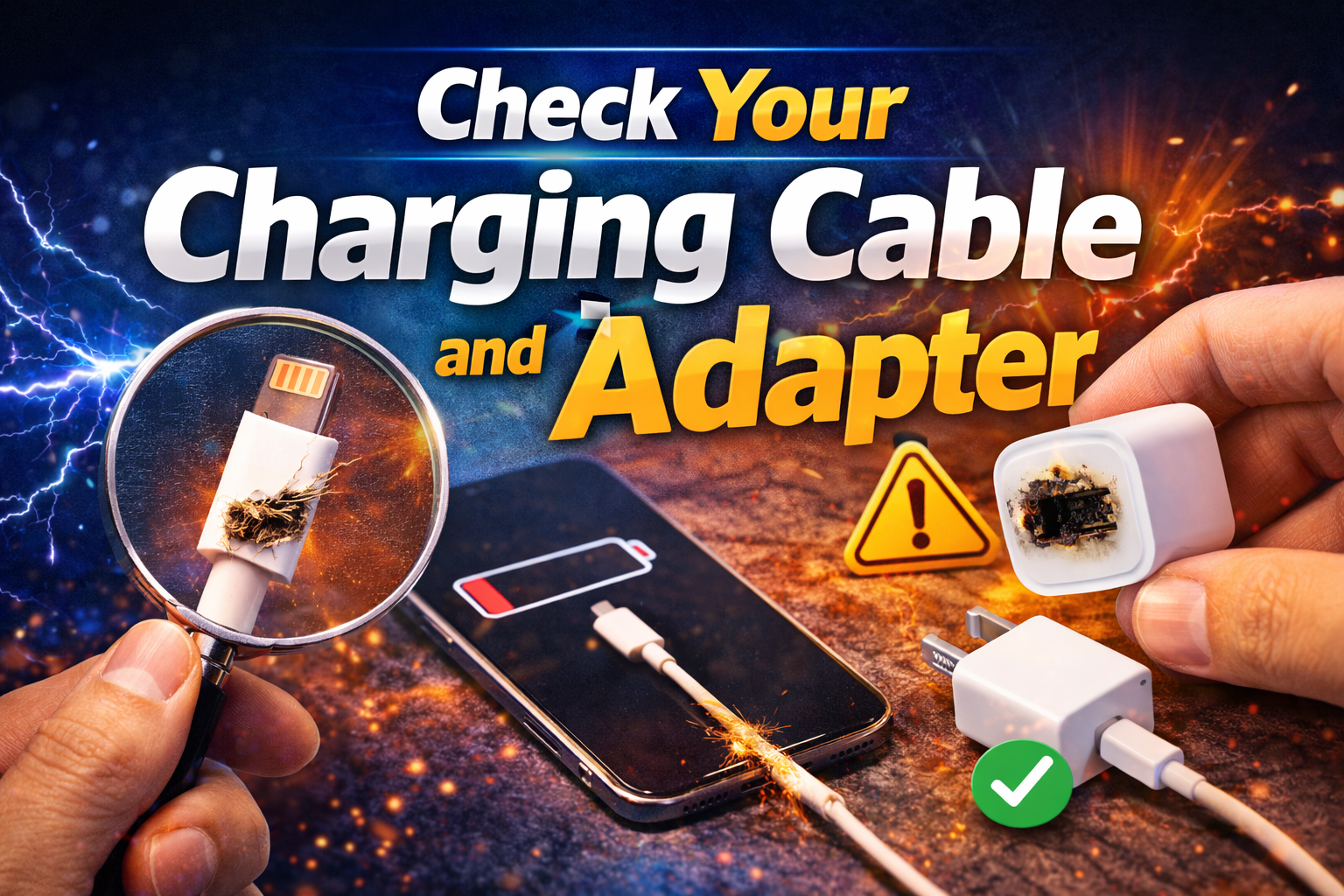
Sometimes the issue is not software — it’s your charger.
Steps:
- Inspect the Lightning cable for damage.
- Try a different charging cable.
- Test another power adapter or outlet.
- Use Apple-certified (MFi) accessories.
Faulty cables are one of the most common iPhone repair tips technicians encounter.
Fix 3 Clean the Charging Port
Dust or lint inside the charging port can block the connection.
Steps:
- Turn off your iPhone.
- Use a wooden toothpick or soft brush.
- Carefully remove debris from the port.
- Try charging again.
Avoid using metal tools to prevent damage.
Fix 4 Turn Off Optimized Battery Charging
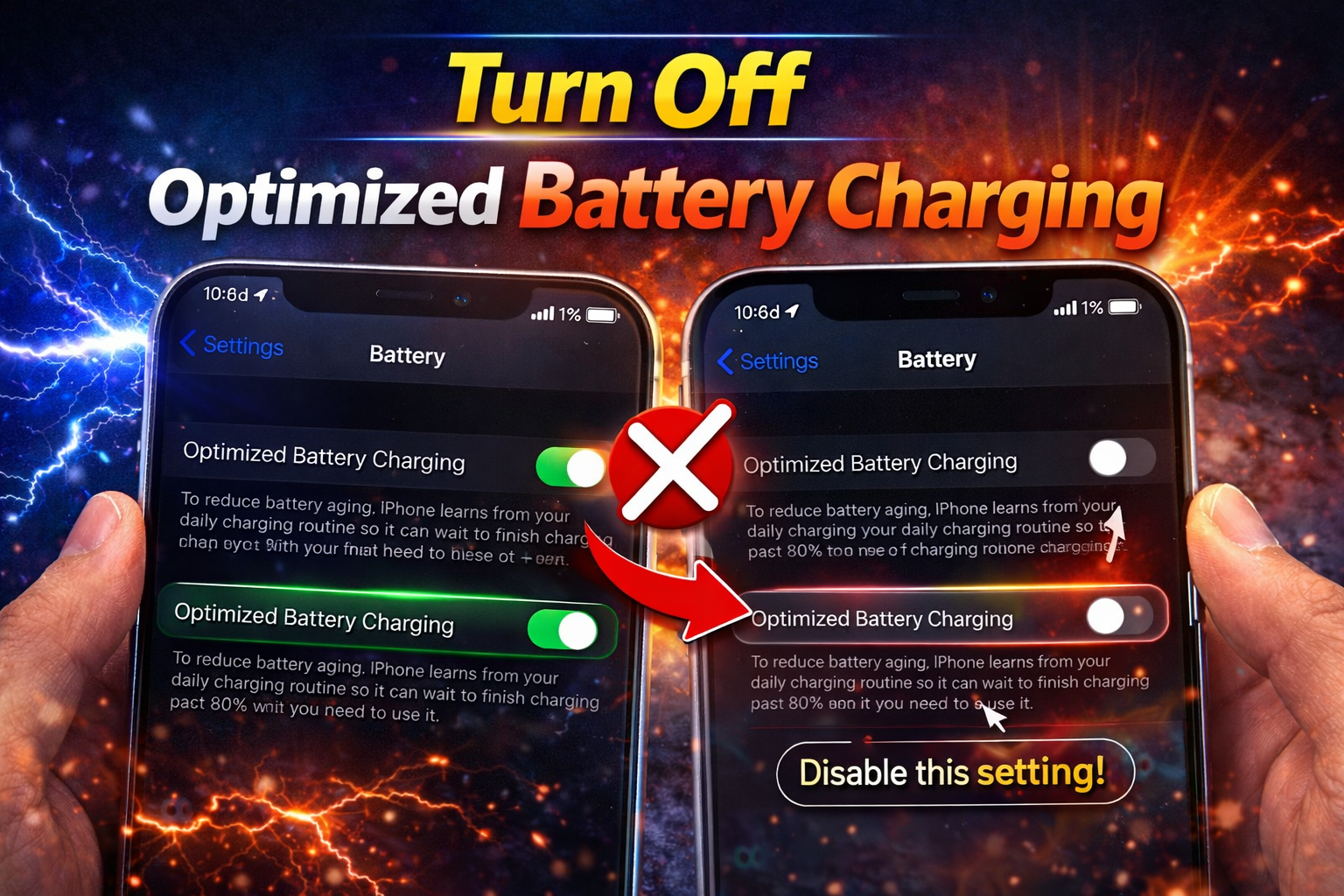
After an update, battery settings may interfere with charging.
Steps:
- Open Settings.
- Tap Battery.
- Select Battery Health & Charging.
- Turn off Optimized Battery Charging.
This feature sometimes delays charging when the system predicts usage patterns.
Fix 5 – Update to the Latest iOS Version
Apple often releases quick patches for update bugs.
Steps:
- Open Settings.
- Tap General.
- Select Software Update.
- Install any available updates.
Minor updates often include fixes for iPhone troubleshooting issues.
Fix 6 – Reset All Settings
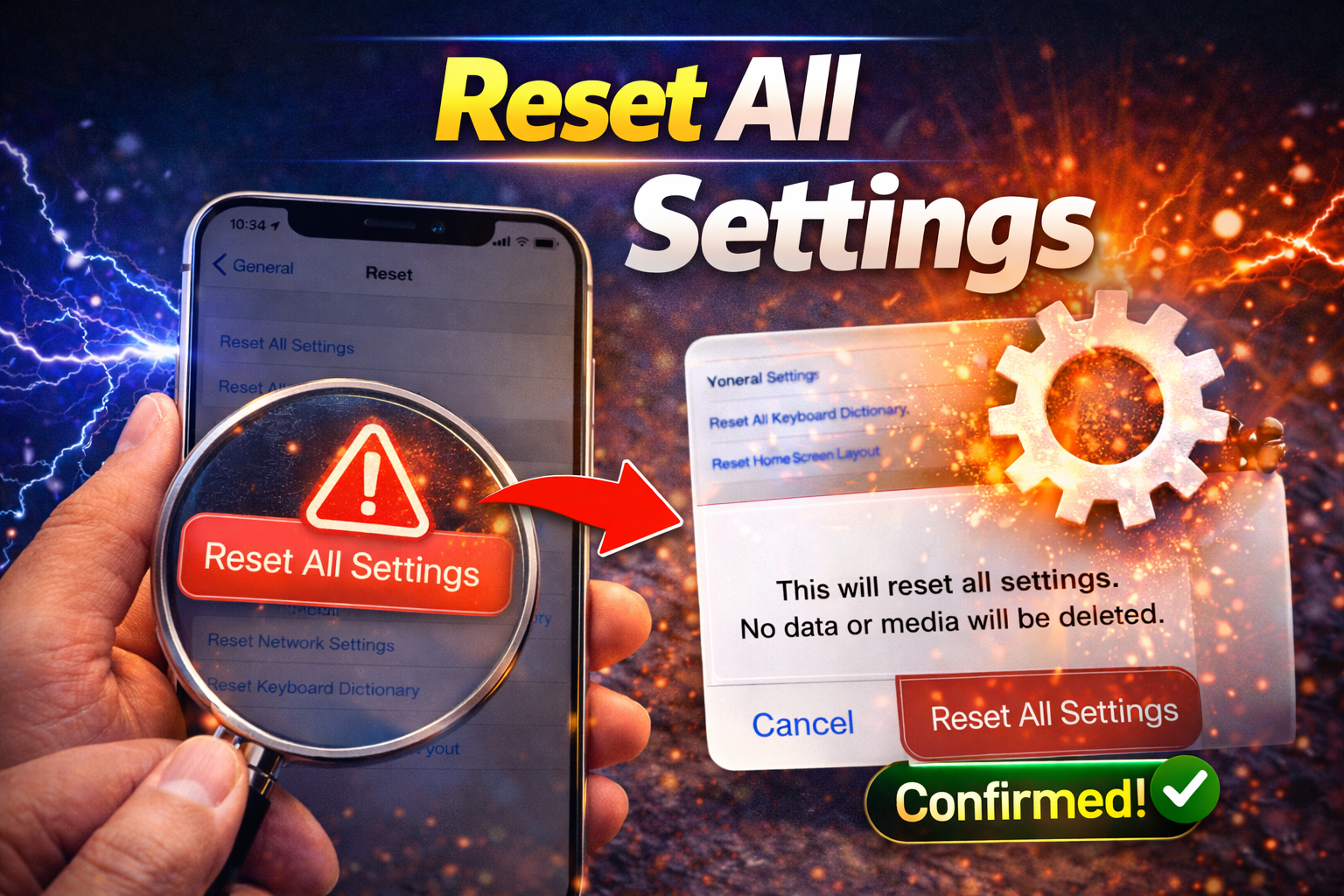
If settings were corrupted during the update, resetting can help.
Steps:
- Go to Settings.
- Tap General.
- Select Transfer or Reset iPhone.
- Tap Reset.
- Choose Reset All Settings.
This will not delete your data, but it resets Wi-Fi, display, and system settings.
Fix 7 – Try Wireless Charging (If Supported)
If your iPhone supports wireless charging, this helps determine whether the problem is the charging port or software.
Steps:
- Place your iPhone on a Qi wireless charger.
- Wait a few seconds.
- Check if charging begins.
If wireless charging works, your Lightning port may need cleaning or repair.
Fix 8 – Let the Battery Drain Completely
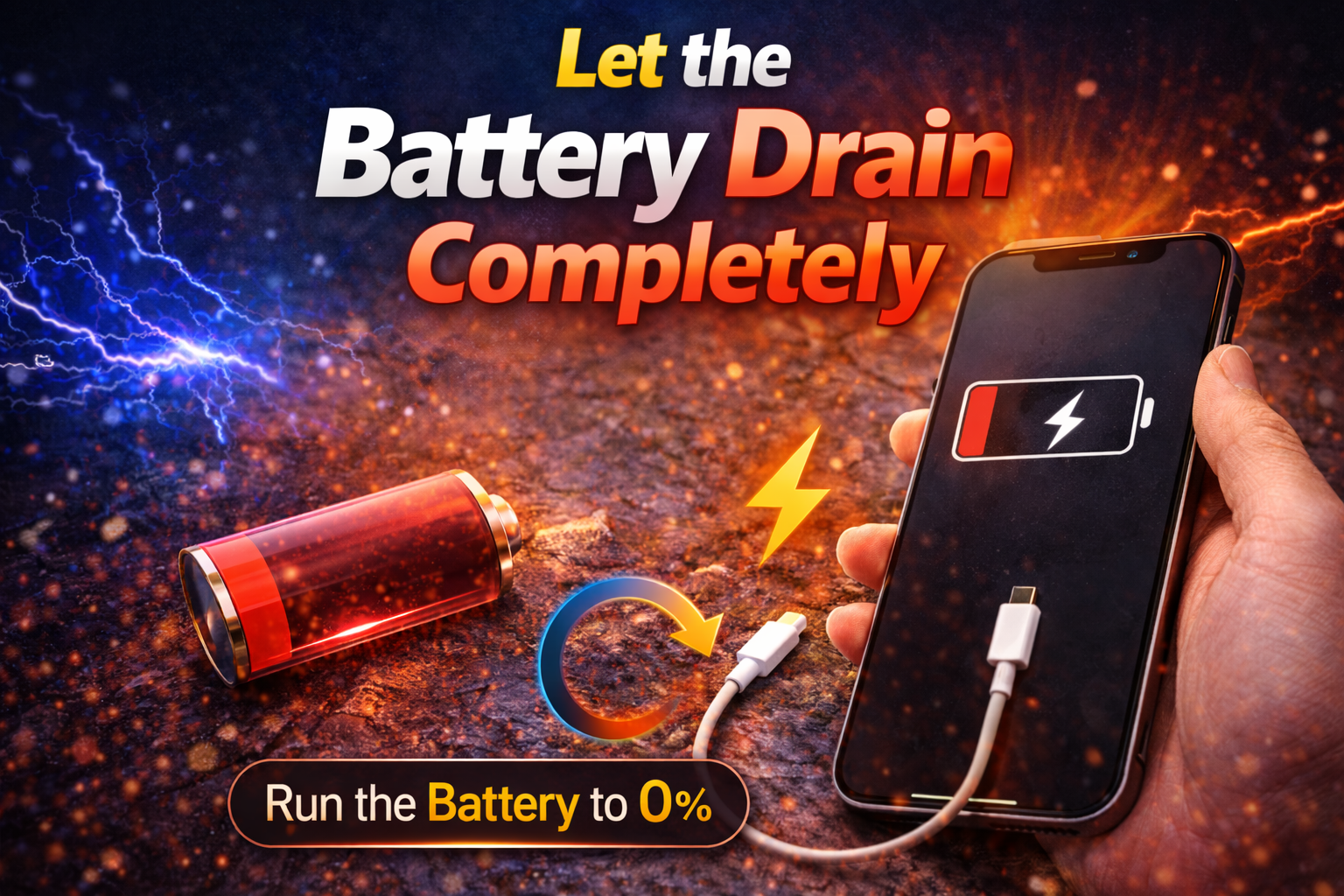
Sometimes iOS updates affect battery calibration.
Steps:
- Use your iPhone until the battery reaches 0%.
- Let the phone shut down.
- Charge it uninterrupted to 100%.
- Restart the device.
This can recalibrate the battery system.
Fix 9 – Restore iPhone Using Recovery Mode
If none of the fixes work, the system software might be corrupted.
Steps:
- Connect iPhone to a computer.
- Open Finder (Mac) or iTunes (Windows).
- Put the device into Recovery Mode.
- Select Update or Restore.
This method reinstalls iOS and resolves deep iOS troubleshooting guide problems.
Quick Tips to Prevent This Problem
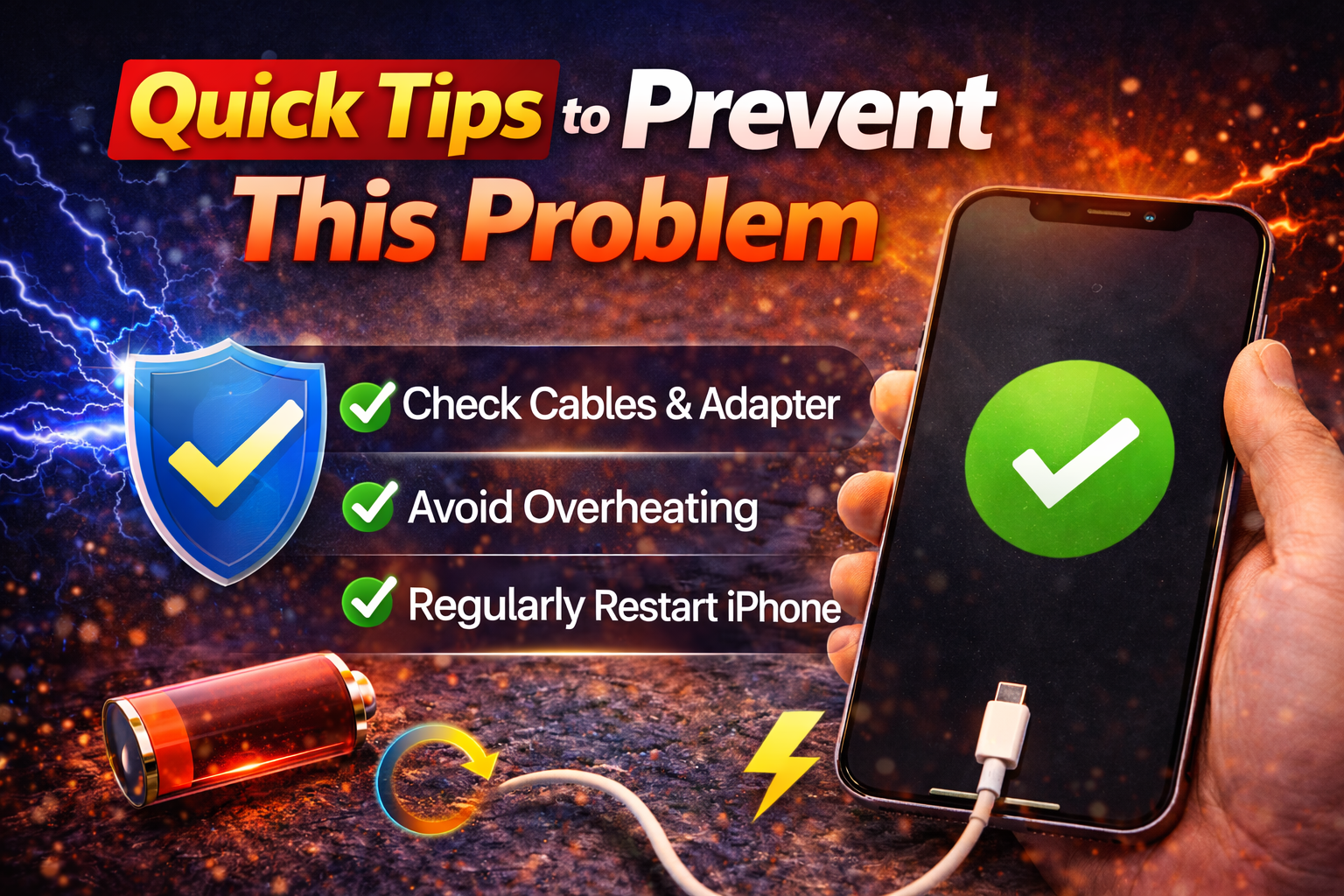
Here are some simple iPhone solution tips to avoid charging issues in the future:
• Always use Apple-certified chargers
• Keep the charging port clean
• Avoid installing unstable beta updates
• Restart your iPhone after major updates
• Update iOS regularly to receive bug fixes
• Avoid charging in extreme temperatures
Following these Apple iPhone guide practices helps maintain healthy charging performance.
When You Should Contact Apple Support
If your iPhone not charging after iOS update still persists, it may indicate a hardware problem.
Contact Apple Support if:
• Your iPhone only charges intermittently
• The charging port appears damaged
• The phone overheats while charging
• Wireless charging also does not work
• You see battery service warnings
You can visit an Apple Store or authorized service provider for professional diagnostics.
FAQ (People Also Ask)
Why is my iPhone not charging after an iOS update?
This usually happens due to software bugs, charging settings, or system glitches introduced during the update.
Can this issue damage my iPhone?
No. In most cases, it’s a temporary iOS problem fix situation and does not damage the device.
Does restarting fix the charging issue?
Yes. A force restart often clears system bugs and restores charging functionality.
Should I replace my battery?
Not immediately. Try the iPhone troubleshooting steps in this guide first before considering battery replacement.
Why does my iPhone charge slowly after updating iOS?
New iOS versions sometimes run background processes like indexing and optimization, which temporarily slow charging.
Conclusion
Experiencing an iPhone not charging after iOS update can be frustrating, especially when you rely on your device daily. Fortunately, most cases are caused by temporary software glitches or simple charging issues.
Start with the easiest solutions like restarting your iPhone, checking the cable, or cleaning the charging port. If the issue continues, try resetting settings or updating iOS.
By following this complete iOS troubleshooting guide, you can usually restore normal charging within minutes.
If none of the solutions work, contacting Apple Support is the safest option.