iPhone Touch Screen Not Responding? 9 Quick Fixes
Introduction
Few things are more frustrating than tapping your iPhone screen and getting no response. Whether you are trying to open an app, type a message, or scroll through social media, a slow or unresponsive screen can ruin the experience.
If your iPhone touch screen is not responding quickly, you are not alone. Many users face this issue after an iOS update, when storage is full, or when the device overheats.
The good news is that most touch screen issues can be fixed easily without visiting a repair shop. In this Apple iPhone guide, we will show you simple and practical solutions to restore your screen responsiveness.
Let’s explore why this problem happens and how to fix it.
Why This Problem Happens
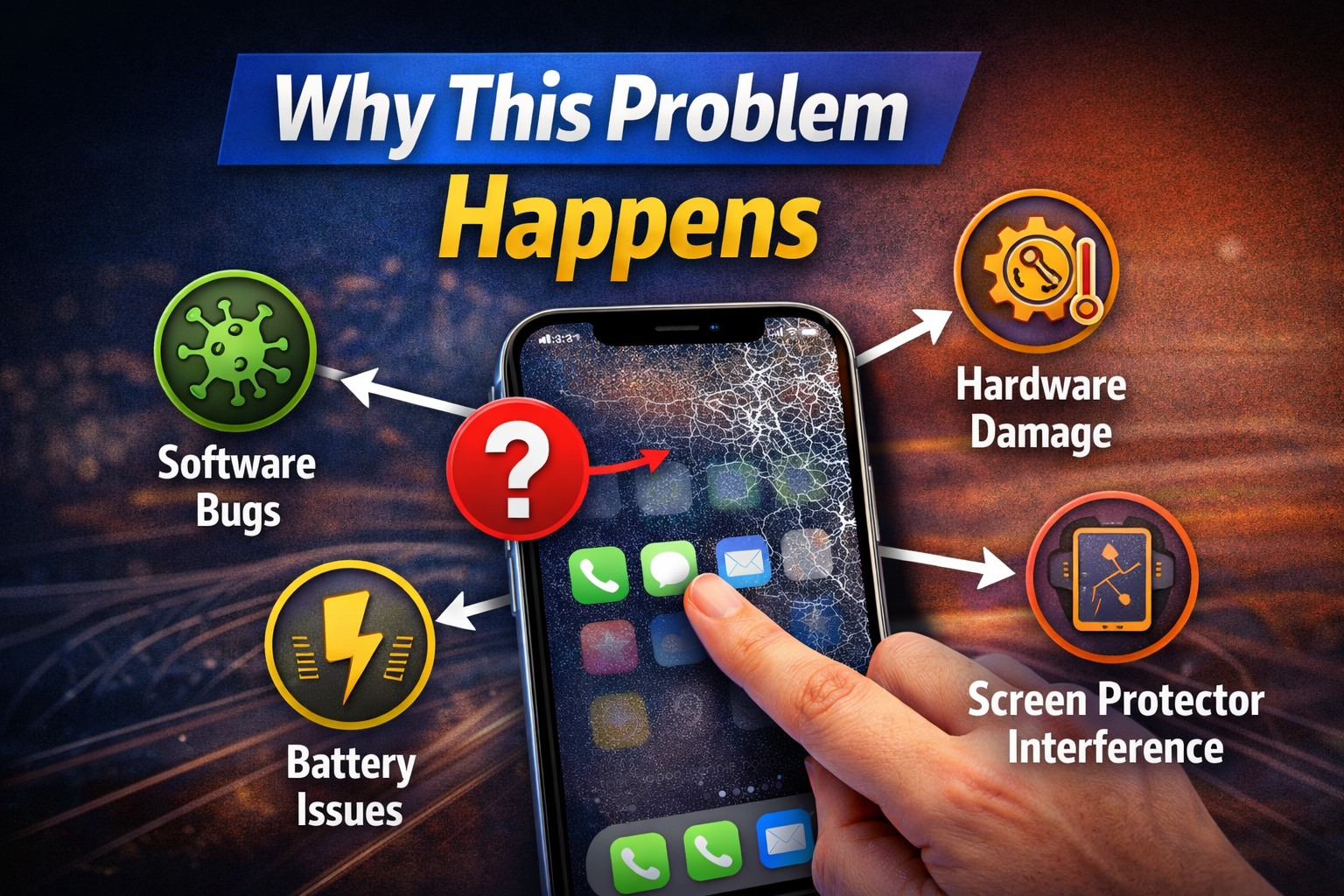
Before applying fixes, it helps to understand why your iPhone screen is slow or unresponsive.
Common causes include:
• Software glitches after an iOS update
• Too many apps running in the background
• Low storage space
• Dirty or wet screen
• Screen protector interference
• Overheating device
• System bugs or outdated iOS
In some cases, the issue may also be caused by hardware damage, especially if the phone has been dropped.
Fortunately, most cases can be solved with simple iPhone troubleshooting steps.
How to Fix iPhone Touch Screen Not Responding Quickly
Below are 9 effective fixes you can try.
Fix 1 – Restart Your iPhone
Restarting your phone can solve many temporary iOS glitches.
Steps:
- Press and hold the Power button + Volume button.
- Drag the Power Off slider.
- Wait about 30 seconds.
- Turn your iPhone back on.
A restart refreshes system processes and often improves screen responsiveness.
Fix 2 – Clean the Screen
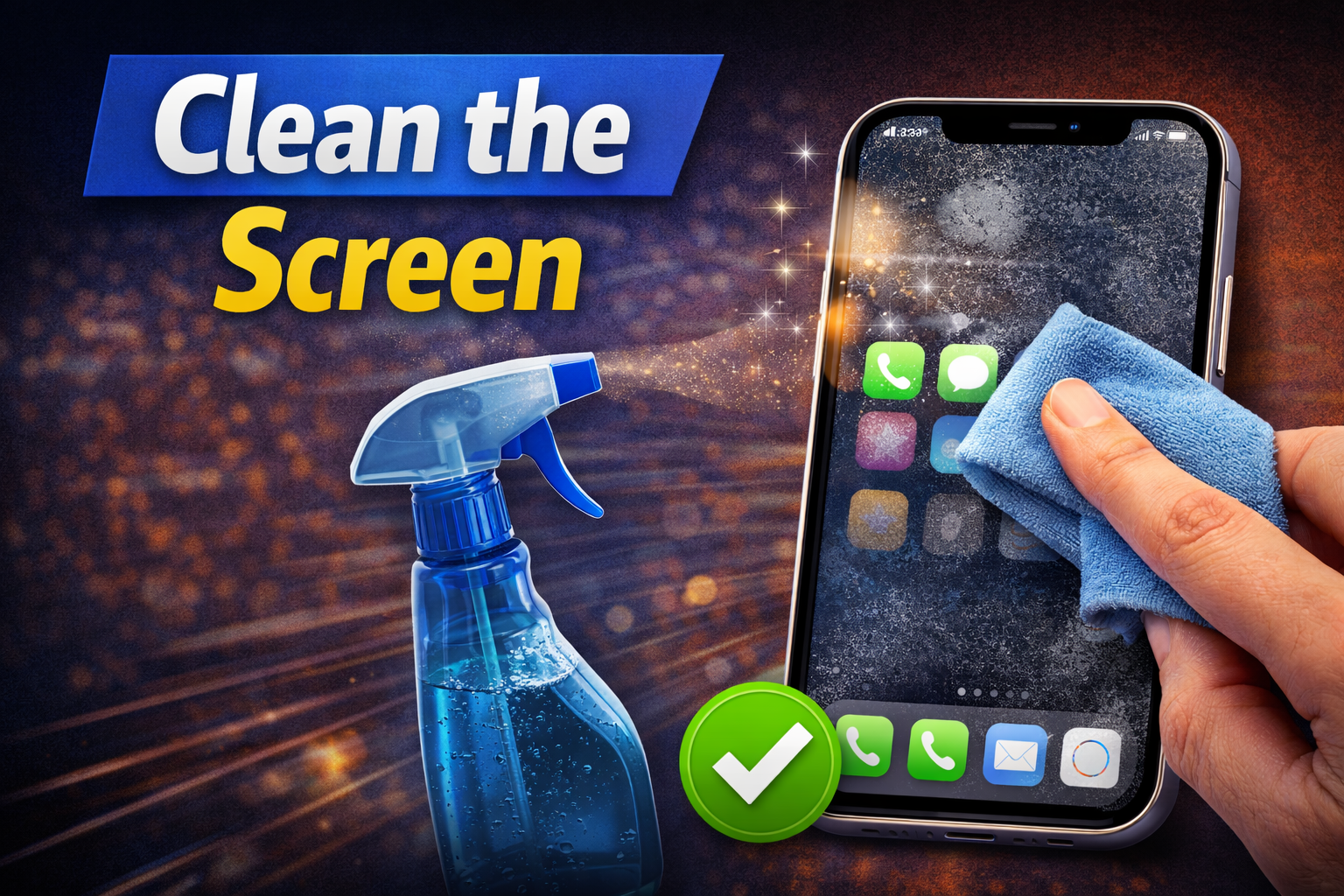
Sometimes the problem is as simple as a dirty display.
Oil, dust, and moisture can interfere with touch sensors.
Steps:
- Turn off your iPhone.
- Use a soft microfiber cloth.
- Gently wipe the screen.
- Avoid using too much liquid.
Clean screens improve touch accuracy and sensitivity.
Fix 3 – Remove Screen Protector
Some cheap or thick screen protectors reduce touch sensitivity.
Steps:
- Carefully remove the screen protector.
- Test the screen response.
- Replace it with a high-quality protector if necessary.
This is one of the most overlooked iPhone repair tips.
Fix 4 – Close Background Apps
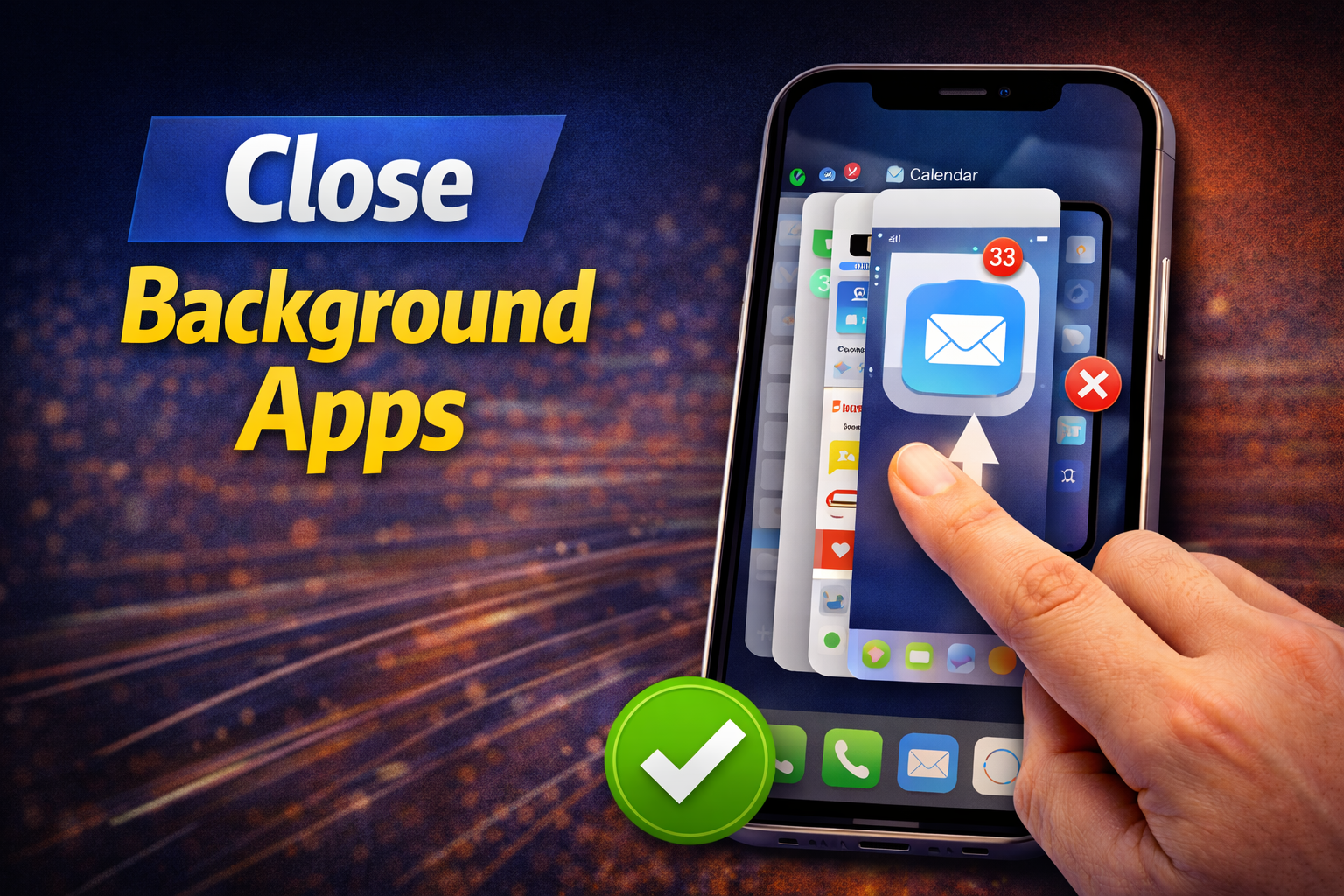
Running too many apps can slow down your device and cause touch lag.
Steps:
- Swipe up from the bottom of the screen.
- View the App Switcher.
- Swipe up on apps to close them.
- Keep only essential apps running.
This simple iOS troubleshooting guide step often improves performance.
Fix 5 – Free Up Storage Space
Low storage can slow system performance.
Steps:
- Go to Settings
- Tap General
- Select iPhone Storage
- Delete unused apps, photos, or videos.
Experts recommend keeping at least 5–10GB free storage.
Fix 6 – Update iOS
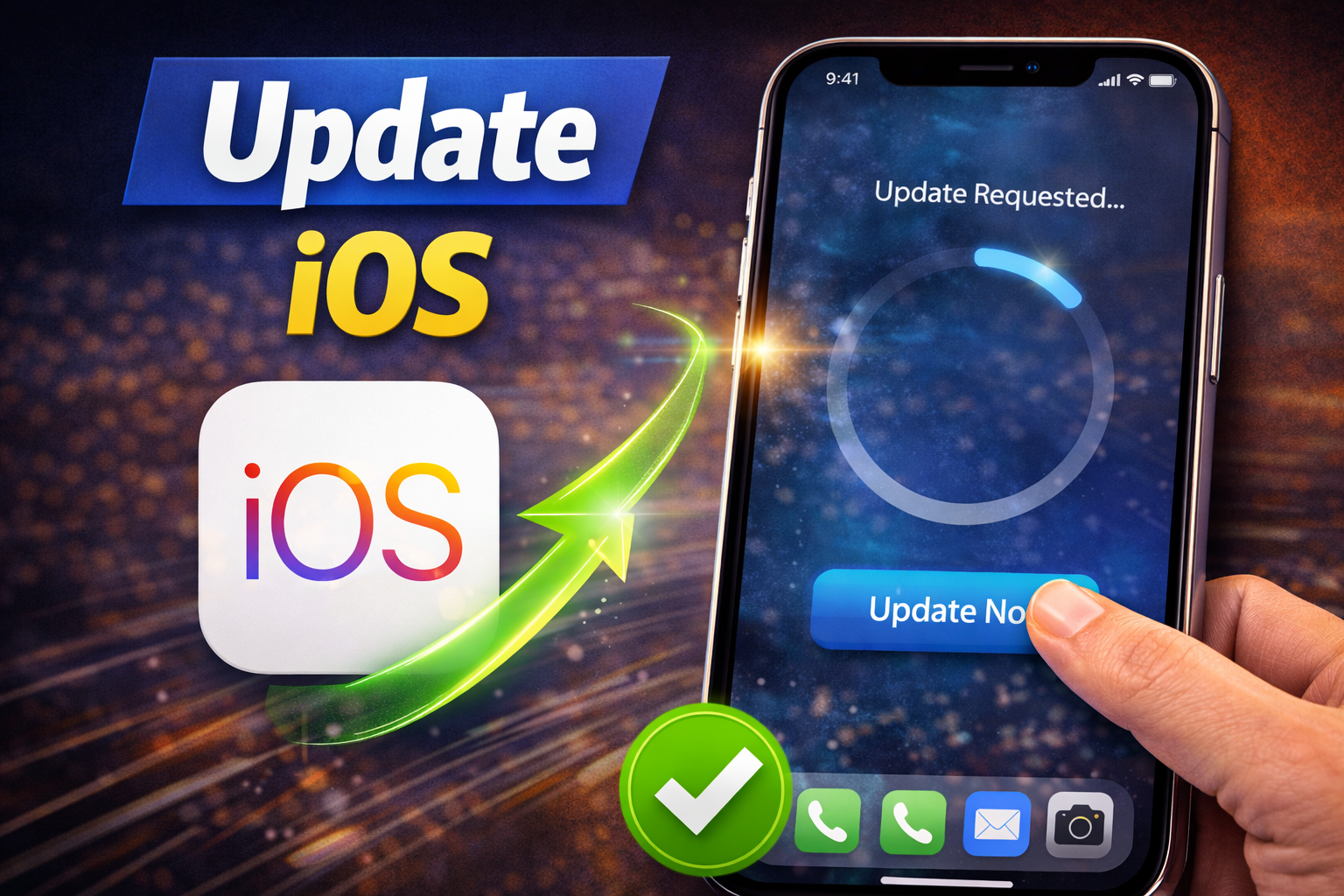
Apple frequently releases updates that fix bugs affecting touch responsiveness.
Steps:
- Open Settings
- Tap General
- Select Software Update
- Install the latest iOS version.
Updating your system can resolve many iOS problem fix issues.
Fix 7 – Turn Off Background App Refresh
Background processes can slow down touch performance.
Steps:
- Go to Settings
- Tap General
- Select Background App Refresh
- Turn it Off or limit to Wi-Fi only.
This reduces system load and improves responsiveness.
Fix 8 – Reset All Settings
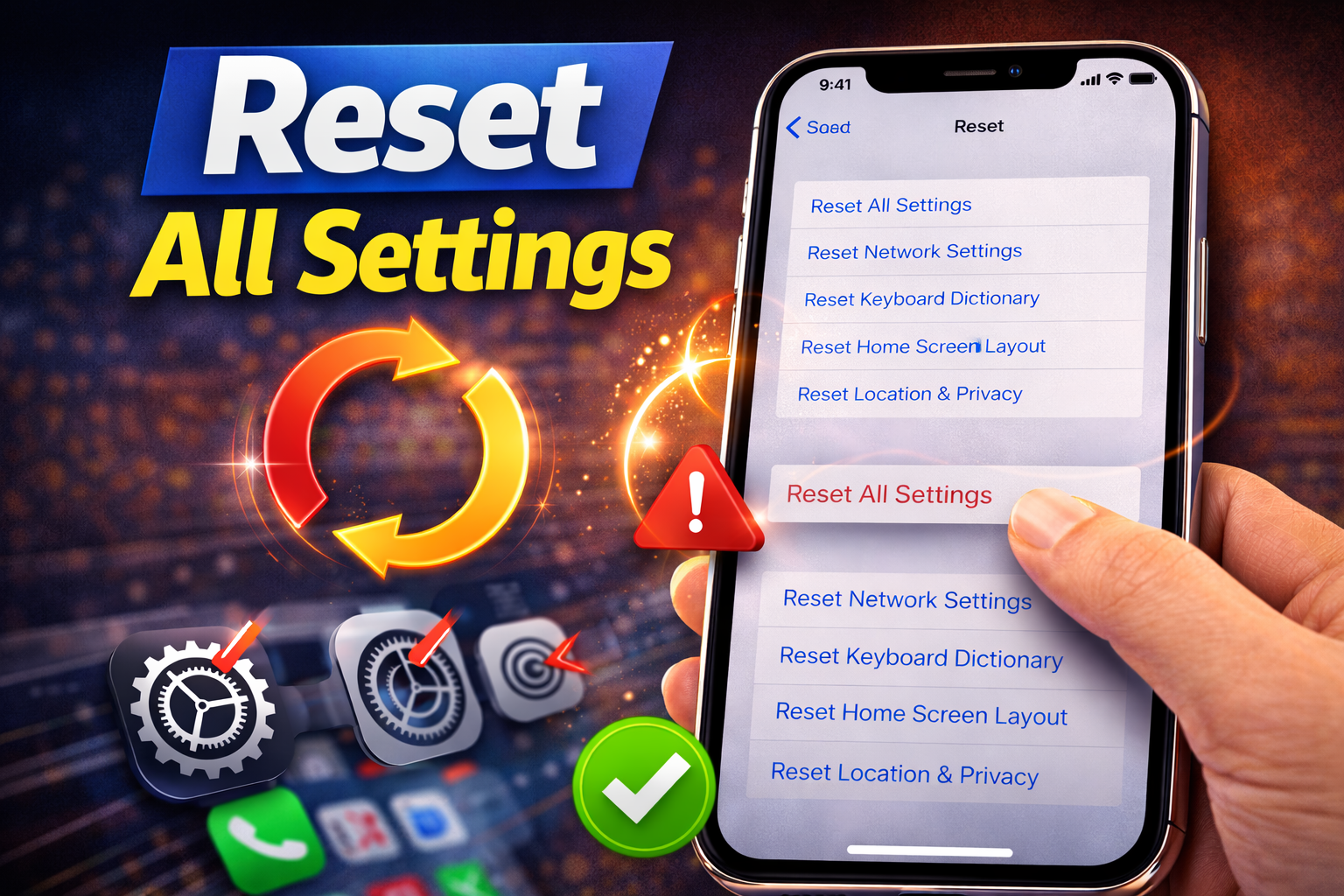
If the issue is caused by system conflicts, resetting settings may help.
Steps:
- Go to Settings
- Tap General
- Select Transfer or Reset iPhone
- Tap Reset
- Choose Reset All Settings
This will not delete your data, but it will reset system settings like Wi-Fi and notifications.
Fix 9 – Check for Hardware Damage
If none of the fixes work, the problem might be hardware-related.
Signs include:
• Screen responding only in certain areas
• Ghost touches
• Cracked display
• Screen not responding at all
In such cases, professional repair may be required.
Quick Tips to Prevent This Problem
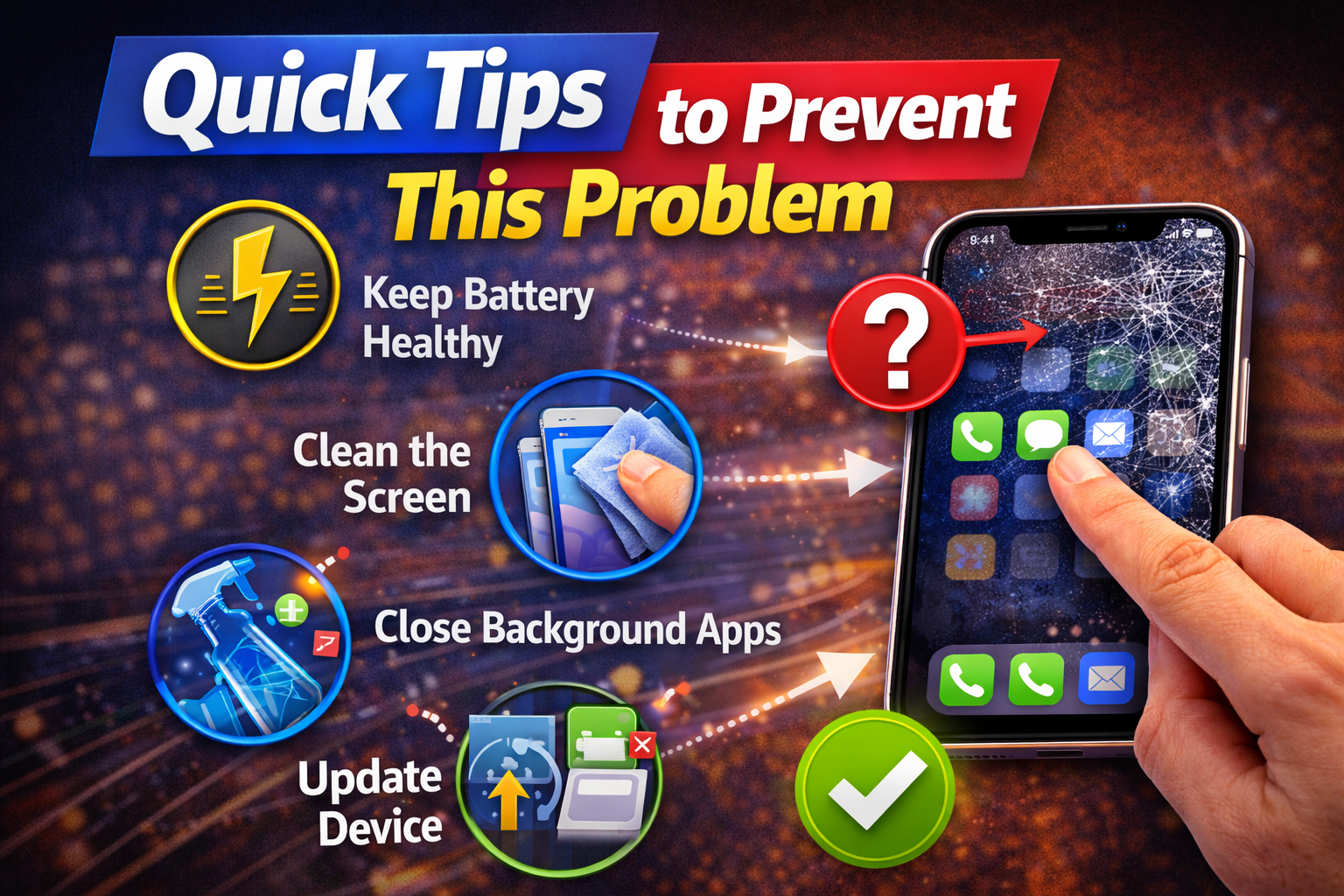
You can avoid future touch screen issues by following these tips:
• Keep your iPhone storage clean
• Update iOS regularly
• Avoid overheating your device
• Use high-quality screen protectors
• Close unnecessary background apps
• Keep the screen clean and dry
Following these habits improves overall iPhone solution reliability.
When You Should Contact Apple Support
Sometimes DIY fixes are not enough.
You should contact Apple Support if:
• The screen remains unresponsive after all fixes
• The iPhone was recently dropped
• The display shows flickering or lines
• Ghost touches occur frequently
• The device is under Apple warranty
An Apple technician can diagnose hardware issues and recommend the best repair option.
FAQ (People Also Ask)
Why is my iPhone touch screen not responding quickly?
This usually happens due to software bugs, low storage, overheating, or screen protector interference.
Can this issue damage my iPhone?
In most cases, no. However, if caused by hardware damage, the problem may worsen over time.
Does restarting fix the problem?
Yes. Restarting refreshes system processes and can quickly solve many iPhone troubleshooting issues.
Why does my iPhone screen lag after an iOS update?
Sometimes updates introduce temporary bugs. Installing the latest iOS patch usually fixes the problem.
Can a screen protector cause touch issues?
Yes. Low-quality or thick protectors can reduce touch sensitivity and cause delays.
Conclusion
A slow or unresponsive screen can make using your phone extremely frustrating. If your iPhone touch screen is not responding quickly, the issue is often caused by simple problems such as software glitches, storage overload, or dirty screens.
Fortunately, the fixes are usually easy. Restarting the phone, cleaning the screen, freeing storage, updating iOS, or resetting settings can quickly restore performance.
By following the iPhone troubleshooting steps in this guide, most users can solve the problem in minutes.
If none of the solutions work, contacting Apple Support is the best option to diagnose possible hardware damage.
With proper maintenance and updates, your iPhone should continue to run smoothly and respond instantly to every touch.