How to Fix Android GPS Not Working Fast
Meta Description: Android GPS not working? Learn easy step-by-step fixes to restore location accuracy, improve signal, and solve GPS issues on Android phones.
Introduction
If your phone cannot find your location, shows the wrong place on the map, or keeps losing signal while using Google Maps, you are probably dealing with an Android GPS not working issue.
This problem is common on many Android phones. It can happen after a software update, after changing location settings, or even because of weak signal conditions around you. In some cases, the GPS works but becomes slow, inaccurate, or unstable.
The good news is that most GPS issues can be fixed without visiting a repair shop. In this guide, you will learn simple and practical ways to solve the problem step by step.
Whether your phone location is not accurate, Google Maps cannot detect your position, or your Android location services are not working properly, this article will help you get everything working again.
Why This Problem Happens
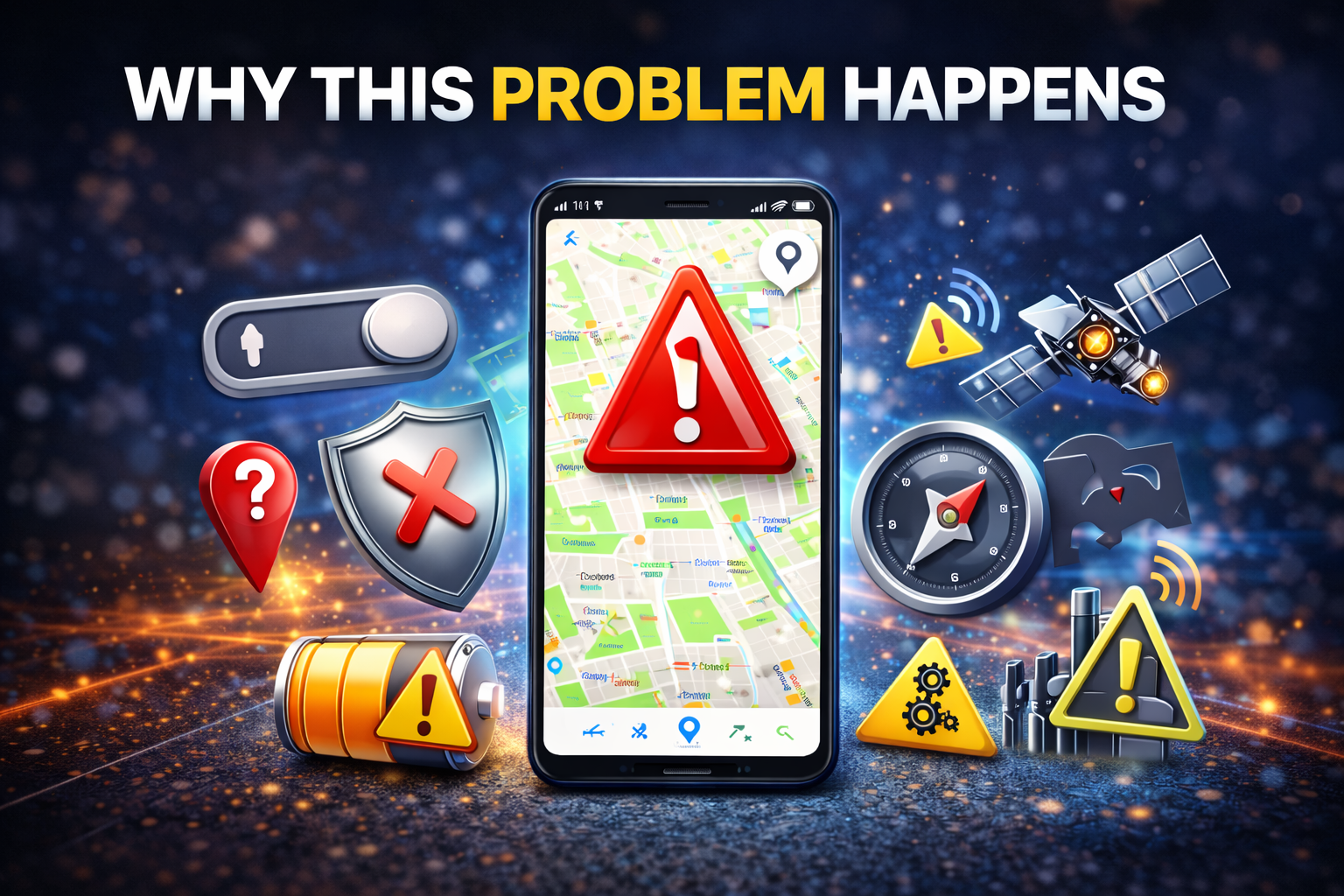
Before trying the fixes, it helps to understand why this happens.
Your phone’s GPS depends on several things working together, including:
- Location settings
- Google Location Accuracy
- Mobile data or Wi-Fi
- A strong satellite signal
- App permissions
- System software stability
Here are some common reasons why GPS may stop working on Android:
- Location services are turned off
- Battery Saver is limiting GPS functions
- An app does not have location permission
- Google Maps or another app has a bug
- Your phone case or surroundings are blocking signal
- Software glitches after an Android update
- Corrupted cache in location-based apps
- Network settings are causing location errors
Now let’s go through the best fixes one by one.
1. Make Sure Location Is Turned On
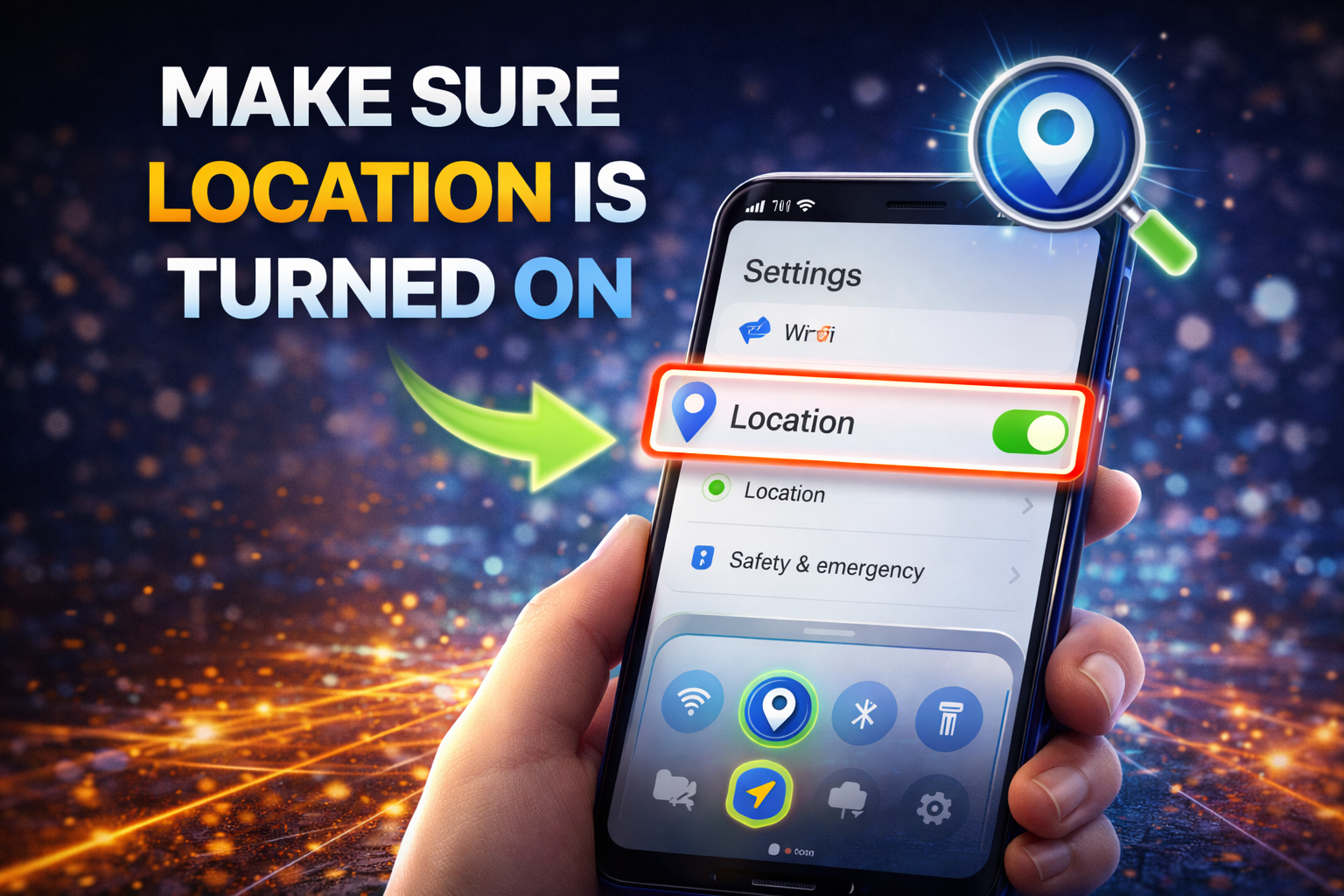
This sounds simple, but it is often the main reason.
Steps to check location settings
- Open Settings
- Tap Location
- Make sure Use Location is turned On
- If available, set accuracy to High Accuracy or enable Google Location Accuracy
When location is off, apps like Google Maps, ride-sharing apps, weather apps, and delivery apps cannot detect your position correctly.
Important: If your Android phone has a quick settings panel, swipe down from the top and confirm that the Location icon is enabled.
2. Restart Your Android Phone
A quick restart can fix temporary system glitches that affect GPS.
How to restart
- Press and hold the Power button
- Tap Restart
- Wait for the phone to turn back on
- Open Google Maps and test your location again
This simple step refreshes system processes and may restore GPS immediately.
3. Turn Airplane Mode On and Off
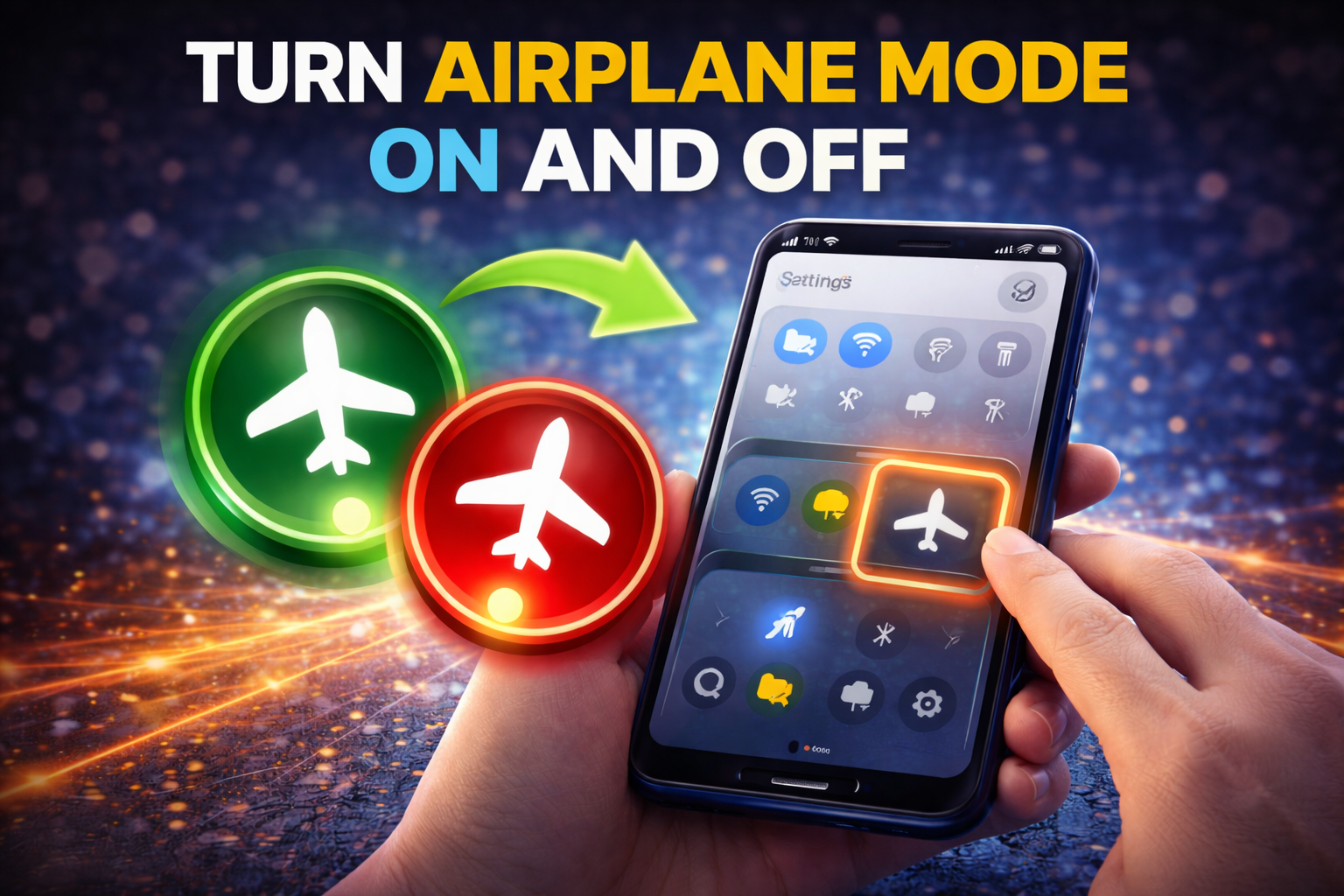
Sometimes the phone’s network connection affects location services. Turning Airplane Mode on and off can refresh those connections.
Steps
- Swipe down from the top of the screen
- Turn Airplane Mode on
- Wait 10 to 15 seconds
- Turn it off again
- Test GPS in a maps app
This can help if your Android phone location is not accurate or if the GPS signal keeps jumping.
4. Enable Google Location Accuracy
Google Location Accuracy uses Wi-Fi, mobile networks, and sensors to improve your location, especially indoors or in crowded areas.
To enable it
- Open Settings
- Go to Location
- Tap Location Services
- Turn on Google Location Accuracy
If this setting is off, GPS may be slower or less accurate.
This is one of the most effective fixes when Google Maps GPS issues happen on Android.
5. Check App Location Permissions
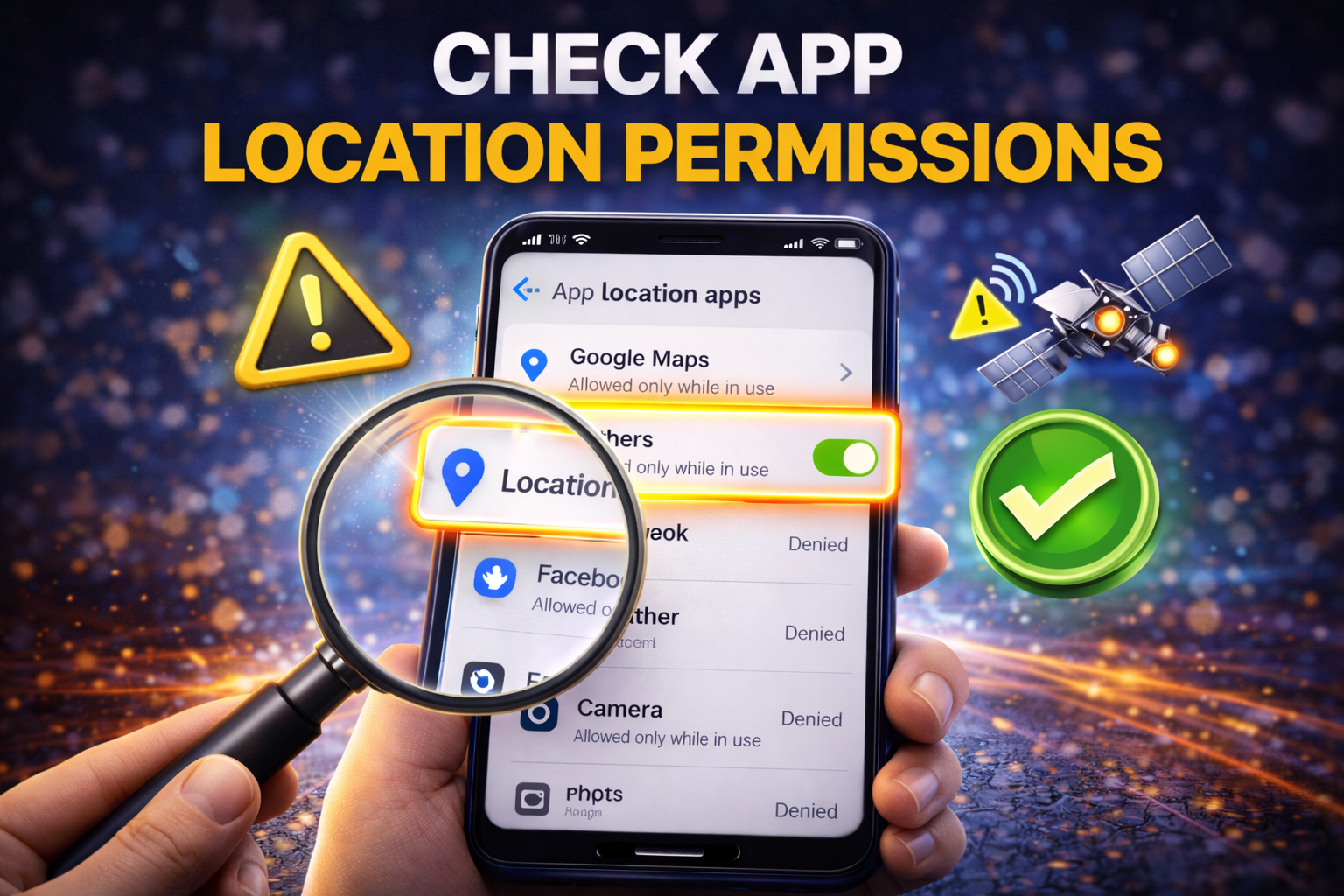
Some apps cannot use GPS correctly unless they have permission.
How to check permissions
- Open Settings
- Tap Apps
- Select the app that has GPS problems, such as Google Maps
- Tap Permissions
- Select Location
- Choose Allow all the time or Allow only while using the app
Also make sure that Precise Location is enabled if your phone offers that option.
Without correct permission, the app may show the wrong location or fail to load location data completely.
6. Turn Off Battery Saver
Battery Saver can limit background services and reduce GPS performance.
Steps
- Open Settings
- Tap Battery
- Select Battery Saver or Power Saving Mode
- Turn it Off
Then test your GPS again.
If GPS works normally after disabling Battery Saver, that means the phone was restricting location services to save power.
Important: Some phones also have app-specific battery optimization. If needed, remove Google Maps or your navigation app from battery restrictions.
7. Go Outdoors for a Better GPS Signal
GPS needs a clear path to satellite signals. If you are indoors, underground, inside a parking garage, or surrounded by tall buildings, the phone may struggle to lock your location.
Try this
- Go outside to an open area
- Wait for 1 to 3 minutes
- Open Google Maps
- Let the phone settle your location
If the GPS suddenly becomes accurate outdoors, the problem may not be your phone. It may simply be weak signal conditions.
8. Update Google Maps and Android System Software
Outdated apps or old software can cause bugs that affect GPS performance.
Update Google Maps
- Open the Google Play Store
- Search for Google Maps
- Tap Update if available
Update Android
- Open Settings
- Tap Software Update or System
- Tap Check for updates
- Install any available update
Software updates often fix known bugs related to Android location services and improve device stability.
9. Clear Cache for Google Maps and Location Apps
Corrupted cache files can break app behavior, including location detection.
Steps to clear cache
- Open Settings
- Tap Apps
- Select Google Maps
- Tap Storage
- Tap Clear Cache
You can also do this for other apps that use GPS, such as:
- Waze
- Uber
- Food delivery apps
- Fitness tracking apps
After clearing cache, reopen the app and check if GPS works better.
10. Recalibrate the GPS or Compass in Google Maps
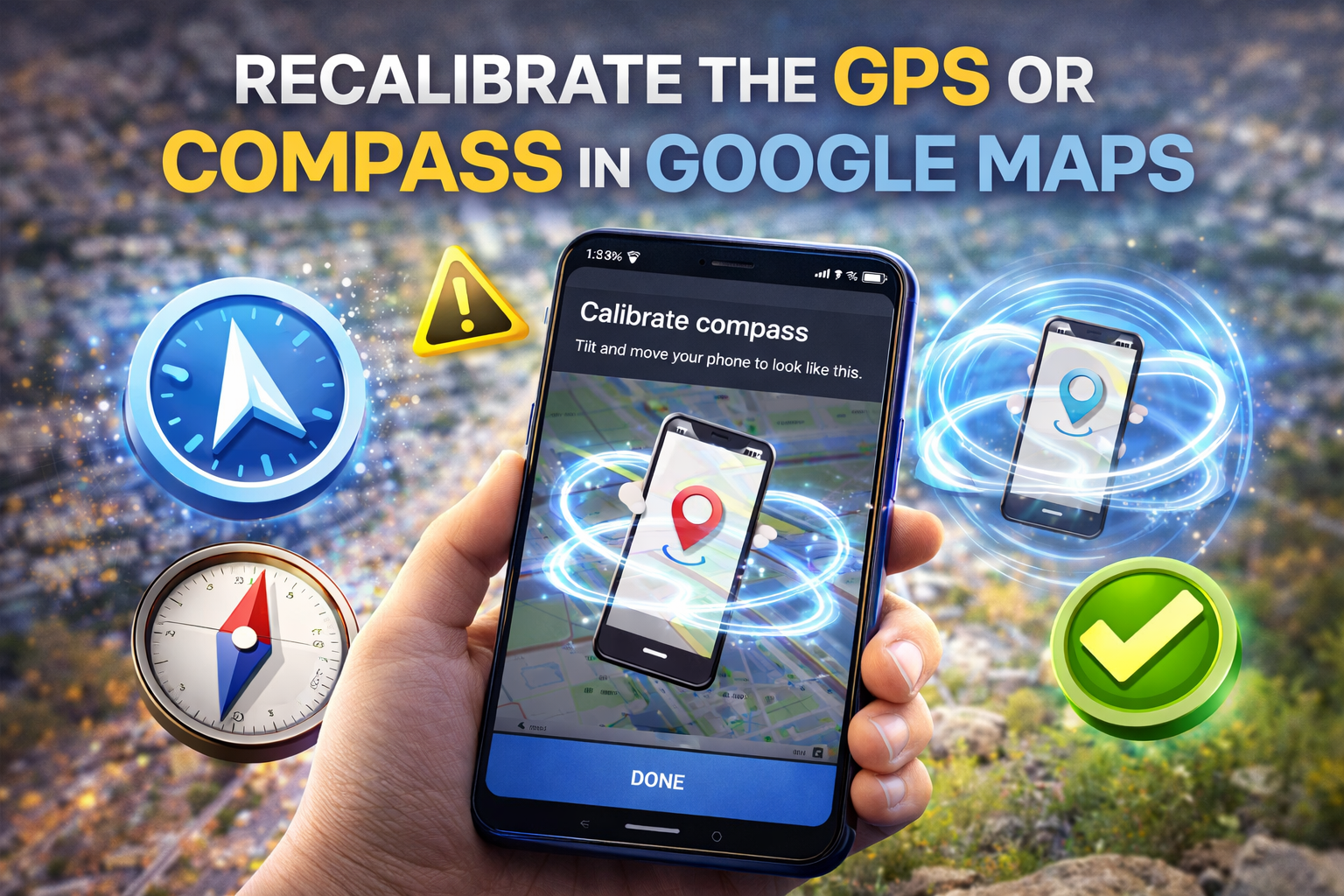
If your position is detected but points in the wrong direction, the compass may need recalibration.
How to recalibrate in Google Maps
- Open Google Maps
- Tap the blue dot showing your location
- Tap Calibrate
- Move your phone in a figure-eight motion
- Follow any on-screen instructions
This can improve location direction and accuracy.
It is especially useful when your Android GPS works, but navigation points the wrong way.
11. Reset Network Settings
If location accuracy depends on network-based services and something is corrupted, resetting network settings may help.
Steps
- Open Settings
- Tap System
- Tap Reset options
- Choose Reset Wi-Fi, mobile, and Bluetooth
- Confirm the reset
Keep in mind this will remove saved Wi-Fi networks and paired Bluetooth devices, so you will need to reconnect them later.
Use this fix if your phone location is not accurate even after checking all main settings.
12. Boot Into Safe Mode
Sometimes a third-party app interferes with location services.
Safe Mode loads only system apps, which helps you test whether another app is causing the problem.
General steps
- Press and hold the Power button
- Touch and hold Power off
- Tap Safe Mode if the option appears
- After the phone restarts, test GPS
If GPS works normally in Safe Mode, a recently installed app may be causing the issue. Remove suspicious apps one by one and test again.
13. Reset All Settings or Factory Reset as a Last Resort
If nothing works, system settings may be deeply corrupted.
Reset all settings first
On many phones, you can reset system settings without deleting personal files.
- Open Settings
- Tap System
- Tap Reset options
- Choose Reset all settings if available
Factory reset only if necessary
If the issue continues, you can do a factory reset.
Important: Back up your data first because this will erase your phone.
- Open Settings
- Tap System
- Tap Reset options
- Choose Erase all data (factory reset)
- Follow the instructions
Use this only after trying every other fix.
Quick Tips to Prevent This Problem
To avoid GPS issues in the future, follow these tips:
- Keep Android and Google Maps updated
- Leave Google Location Accuracy enabled
- Avoid using Battery Saver during navigation
- Check app permissions after installing new apps
- Restart your phone regularly
- Clear app cache once in a while
- Use GPS outdoors when possible for better signal
- Avoid thick metal phone cases that may affect signal
- Do not install too many unknown cleaner or booster apps
These habits can help keep your GPS stable and accurate.
FAQ
1. Why is my Android GPS not working even with location turned on?
Your GPS may still fail because of weak signal, disabled Google Location Accuracy, app permission problems, battery restrictions, or software bugs.
2. How do I fix inaccurate location on Android?
Try these steps:
- Turn on Location
- Enable Google Location Accuracy
- Recalibrate the compass in Google Maps
- Clear app cache
- Restart your phone
3. Why does Google Maps show the wrong location?
This can happen because of poor GPS signal, outdated app cache, compass problems, or limited location permissions.
4. Does Battery Saver affect GPS on Android?
Yes. Battery Saver can reduce location accuracy or stop some apps from using GPS properly in the background.
5. Should I factory reset my phone to fix GPS issues?
Only as a last resort. First try simpler fixes like restarting, updating apps, clearing cache, checking permissions, and resetting network settings.
Conclusion
Dealing with Android GPS not working can be frustrating, especially when you need directions, ride-booking, food delivery, or location sharing. The good news is that most GPS problems can be fixed with a few simple steps.
Start with the basics like turning on location, restarting your phone, checking permissions, and enabling Google Location Accuracy. Then move on to clearing cache, updating software, recalibrating the compass, and resetting network settings if needed.
In many cases, one of these fixes will solve the issue quickly.
If your GPS still does not work after trying everything, there may be a hardware problem with your phone’s sensor or antenna. At that point, contacting the phone manufacturer or a repair technician is the best next step.
By following this guide, you should be able to restore accurate location tracking and get your Android phone working normally again.