How to Fix Android Microphone Not Working
A microphone is one of the most important parts of any smartphone. It allows you to make calls, send voice messages, record videos, and use voice assistants like Google Assistant.
But sometimes Android users face a frustrating problem — the Android microphone not working. You may notice that people can’t hear you during calls, voice recordings sound silent, or apps like WhatsApp, Messenger, or Zoom can’t detect your voice.
This issue can happen due to software bugs, blocked microphone holes, incorrect app permissions, or system glitches. The good news is that most microphone problems can be fixed easily without visiting a repair shop.
In this guide, you will learn how to fix Android microphone not working step-by-step, even if you’re a beginner.
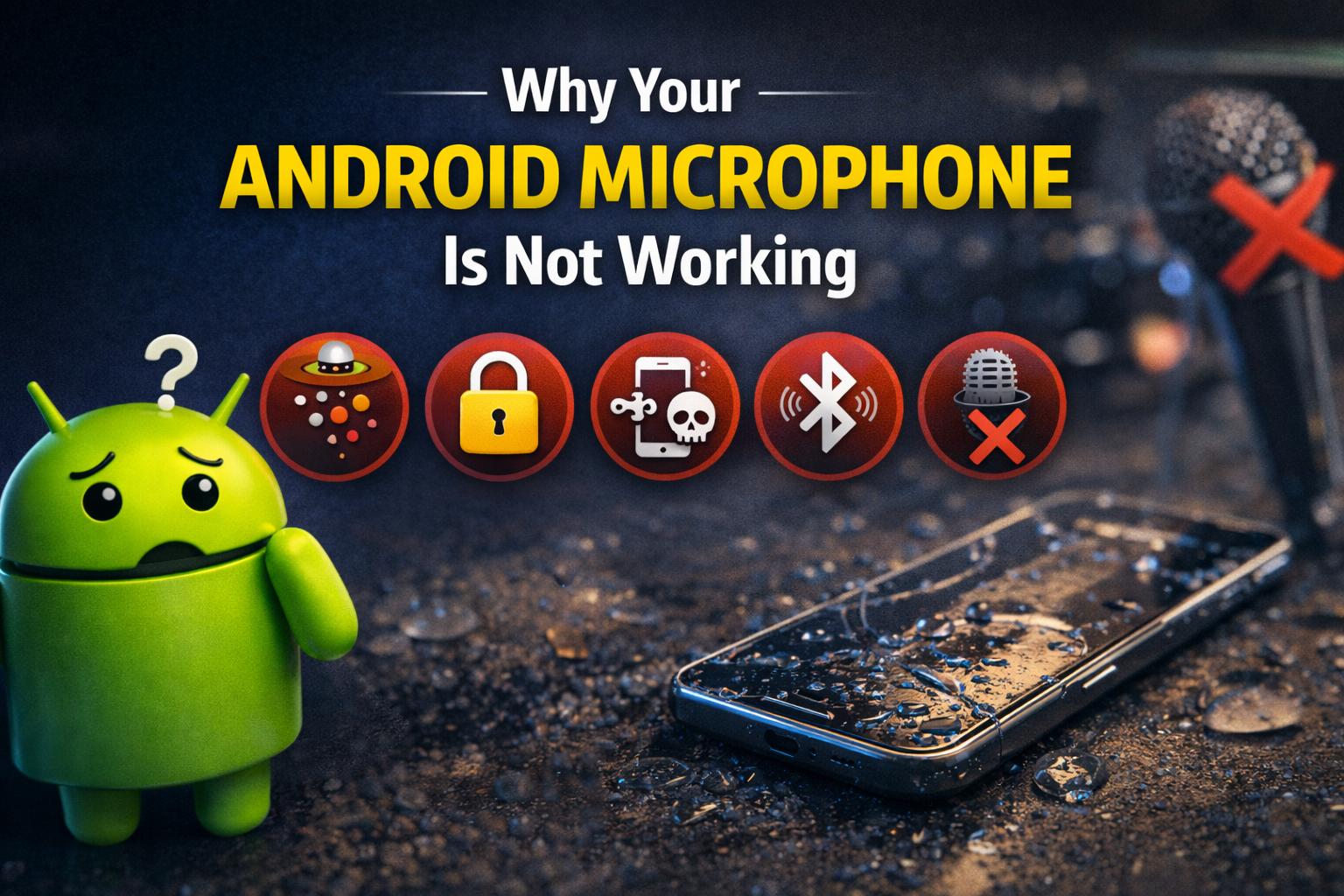
Why Your Android Microphone Is Not Working
Before fixing the issue, it’s helpful to understand why it happens.
Common causes include:
-
Dust or debris blocking the microphone
-
App permission problems
-
Software bugs or system glitches
-
Faulty third-party apps
-
Outdated Android software
-
Water or physical damage
-
Bluetooth device interference
Identifying the cause helps you apply the right solution faster.
How to Fix Android Microphone Not Working
Follow these solutions in order. Start with the simplest fixes first.
1. Restart Your Android Phone
A simple restart can fix many temporary system glitches.
Steps to restart:
-
Press and hold the Power button.
-
Tap Restart or Reboot.
-
Wait for the phone to turn back on.
After restarting, test the microphone by:
-
Recording a voice note
-
Making a phone call
-
Using Google Assistant
Many users find that restarting fixes the Android mic not working problem instantly.
2. Check If the Microphone Is Blocked
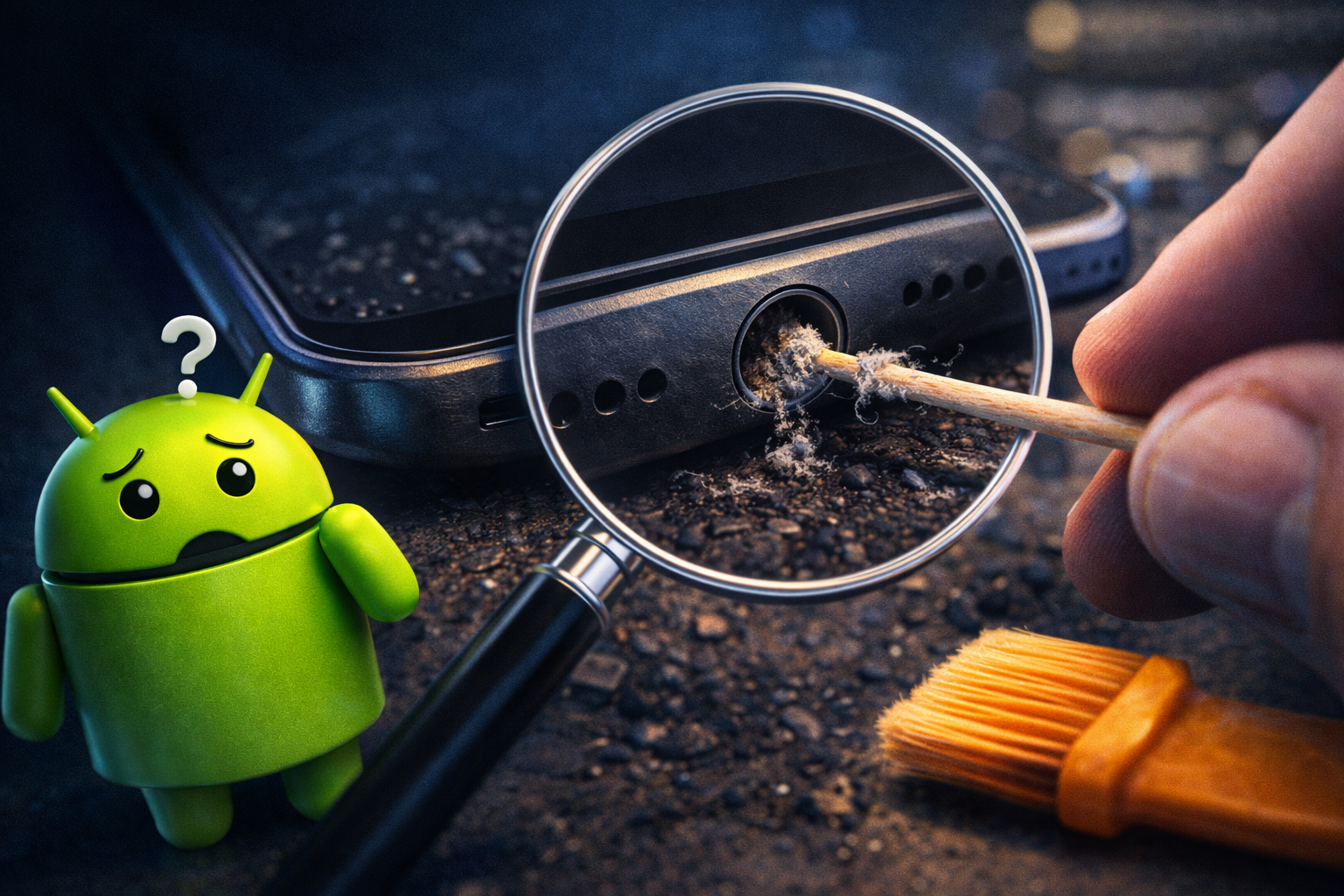
Your phone’s microphone hole is very small and can easily get blocked by dust, dirt, or pocket lint.
What to do:
-
Look for the tiny microphone hole near the bottom of the phone.
-
Use a soft brush, toothpick, or compressed air to gently clean it.
-
Remove any phone case or screen protector that might cover the mic.
⚠️ Important: Never use sharp metal objects that may damage the microphone.
Once cleaned, test the microphone again.
3. Check App Microphone Permissions
Sometimes apps cannot access the microphone because permission is disabled.
Steps:
-
Open Settings.
-
Tap Privacy.
-
Select Permission Manager.
-
Tap Microphone.
-
Make sure apps like:
-
Phone
-
WhatsApp
-
Messenger
-
Zoom
-
Recorder
have permission enabled.
-
If permission is disabled, turn it ON.
This often fixes Android microphone issues in apps.
4. Test Microphone Using Voice Recorder
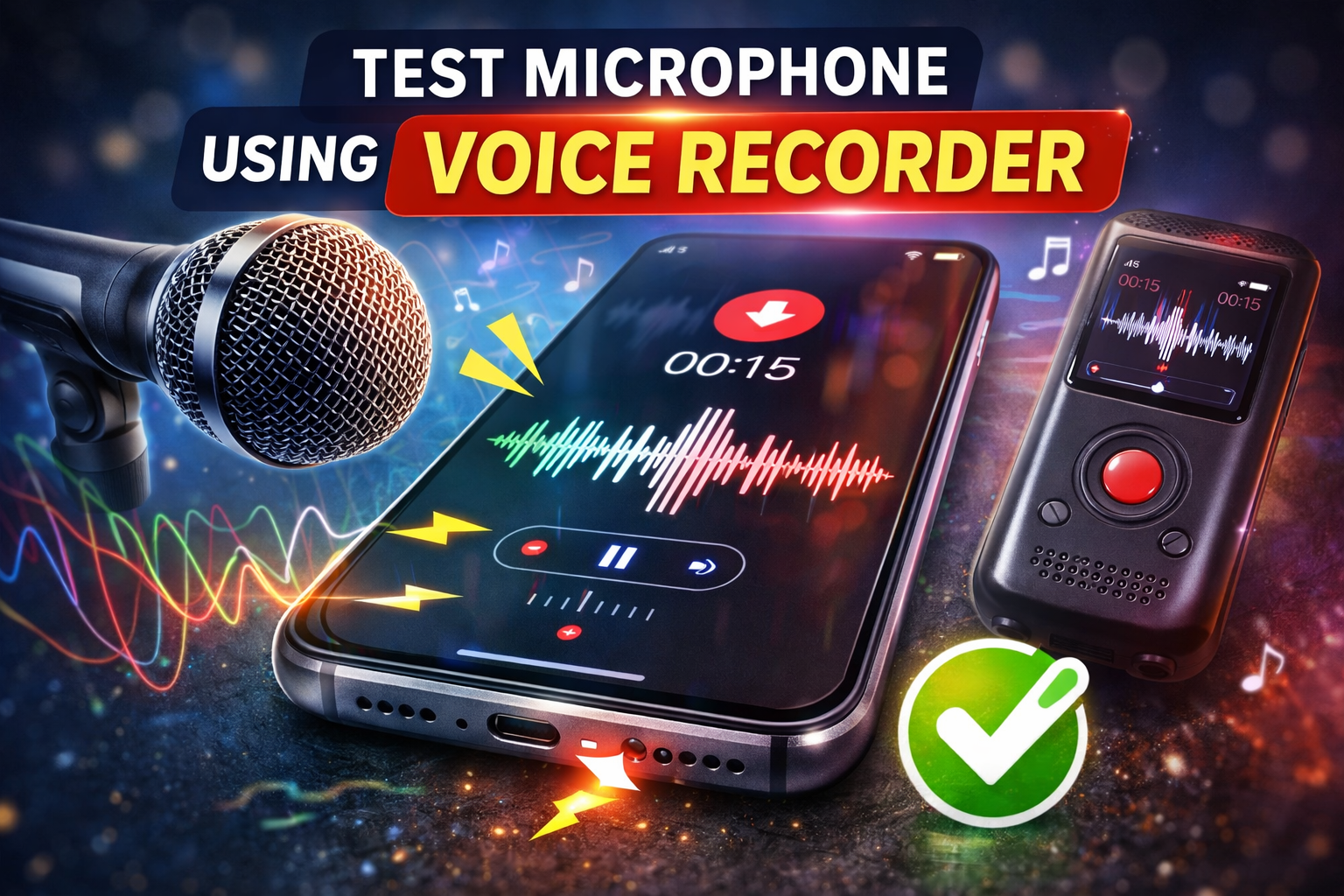
Before trying more fixes, confirm whether the microphone actually works.
Steps:
-
Open the Voice Recorder app.
-
Record a short message.
-
Play the recording.
If you hear your voice clearly, the microphone works and the problem is likely with a specific app.
If there is no sound, continue with the next fixes.
5. Turn Off Bluetooth Devices
If a Bluetooth headset or wireless earbuds are connected, your phone may use their microphone instead of the phone’s built-in mic.
Steps:
-
Open Settings.
-
Tap Bluetooth.
-
Disconnect all Bluetooth devices.
Then test the microphone again.
Many users don’t realize that Bluetooth audio devices can cause microphone problems on Android.
6. Boot Your Phone in Safe Mode
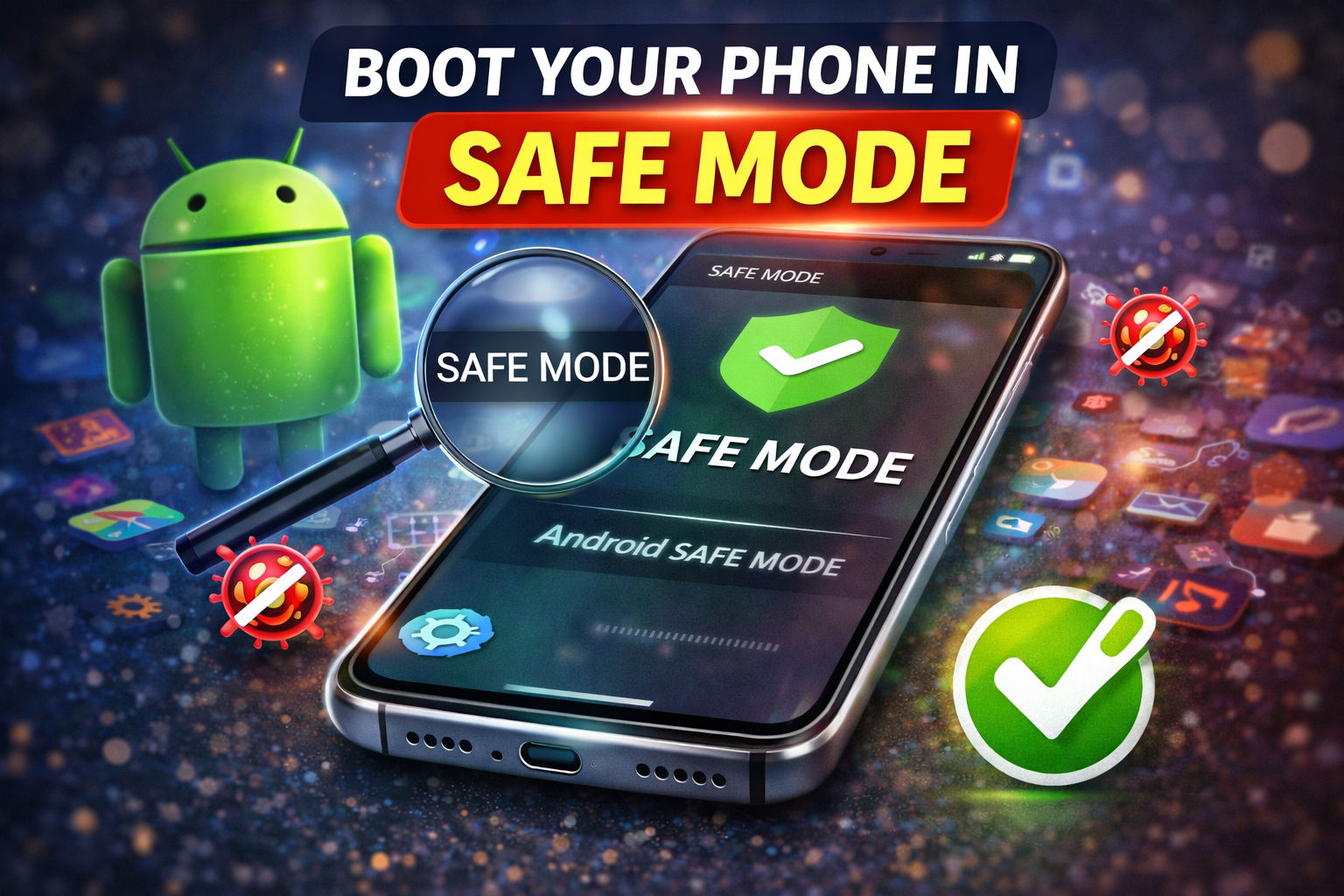
Third-party apps can sometimes interfere with the microphone.
Booting into Safe Mode disables all downloaded apps.
Steps:
-
Press and hold the Power button.
-
Tap and hold Power Off.
-
Select Safe Mode.
-
Tap OK.
Your phone will restart in Safe Mode.
Now test the microphone.
If it works in Safe Mode, the problem is likely caused by a recently installed app.
Fix:
-
Uninstall recently installed apps
-
Restart your phone normally
7. Clear Cache of Problem Apps
Apps like WhatsApp or Messenger may store corrupted data.
Steps:
-
Go to Settings.
-
Tap Apps.
-
Select the app with the microphone problem.
-
Tap Storage.
-
Tap Clear Cache.
Do not clear data unless necessary.
After clearing the cache, reopen the app and test the microphone.
8. Update Your Android Software
Software bugs can cause microphone issues. Updating Android can fix them.
Steps:
-
Open Settings.
-
Tap Software Update.
-
Tap Download and Install.
Install any available updates.
Updates often include bug fixes and performance improvements.
9. Reset App Preferences
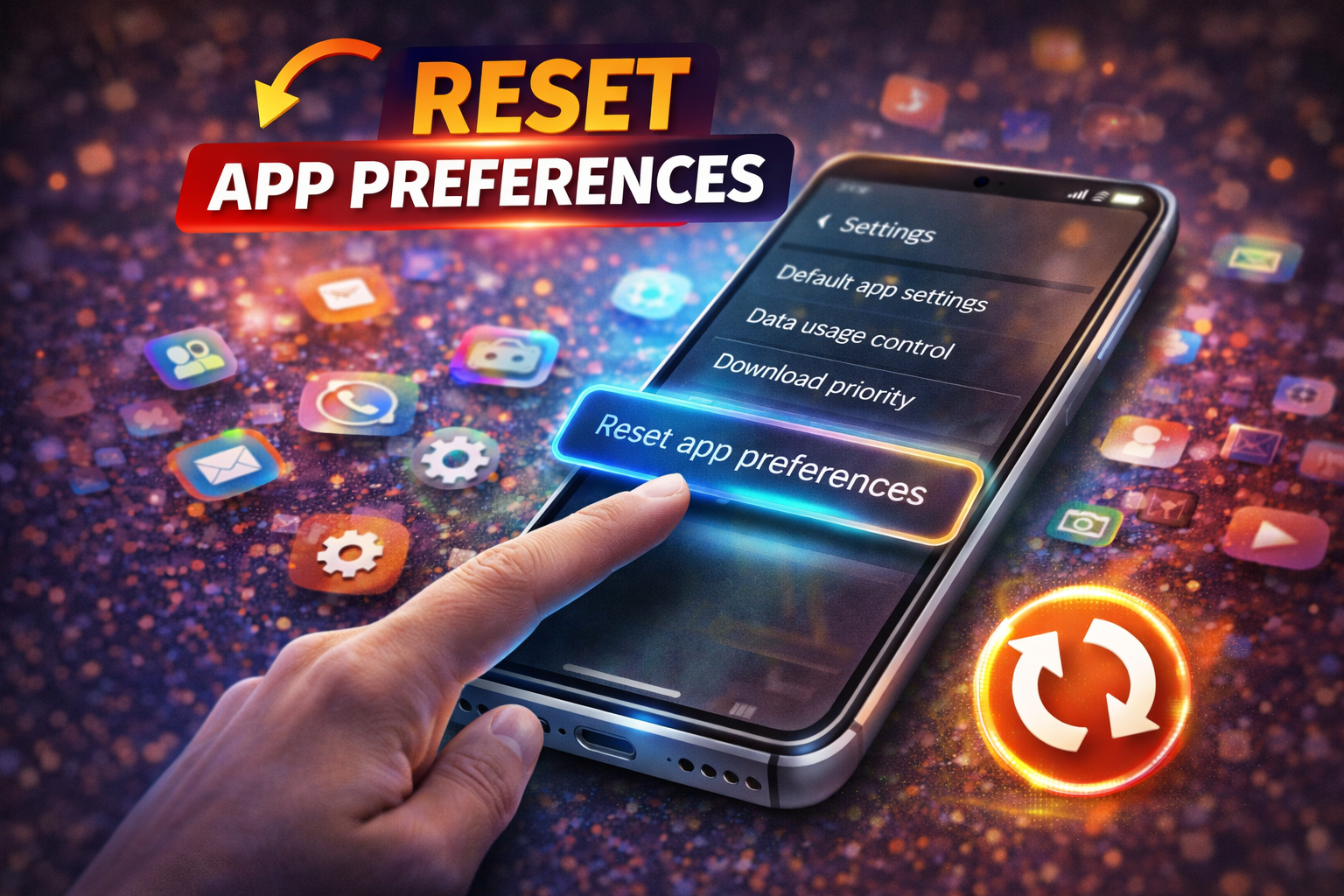
If permissions or settings are misconfigured, resetting app preferences can help.
Steps:
-
Open Settings.
-
Tap Apps.
-
Tap the three-dot menu.
-
Select Reset App Preferences.
This will reset:
-
App permissions
-
Disabled apps
-
Background restrictions
But it won’t delete your personal data.
10. Perform a Factory Reset (Last Option)
If none of the above solutions work, a factory reset may fix deep system issues.
⚠️ Important: This will erase all data on your phone.
Steps:
-
Back up your data.
-
Open Settings.
-
Tap System.
-
Select Reset.
-
Tap Factory Data Reset.
After resetting, test the microphone before reinstalling apps.
Why This Problem Happens
The Android microphone not working issue can occur for several reasons.
1. Software Bugs
Operating system glitches can prevent apps from accessing the microphone.
2. Blocked Microphone Hole
Dust, dirt, or pocket lint can block sound from reaching the microphone.
3. App Permission Problems
Some apps may not have permission to use the microphone.
4. Faulty Apps
Certain third-party apps may conflict with microphone functions.
5. Bluetooth Conflicts
Connected headsets or earbuds may override the phone microphone.
6. Hardware Damage
Dropping the phone or water damage can physically affect the microphone.
Understanding these causes makes troubleshooting easier.
Quick Tips to Prevent Microphone Problems
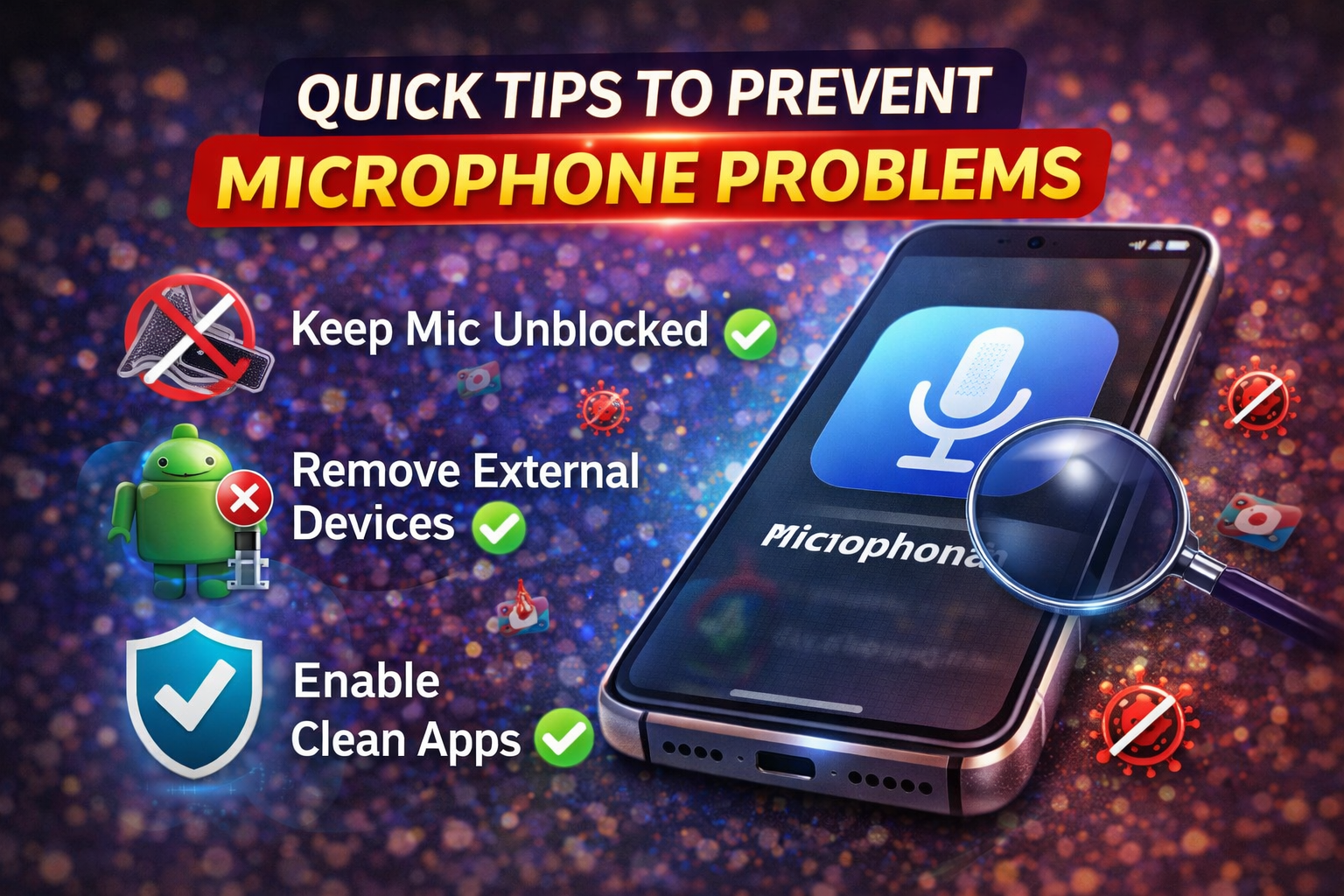
Use these simple tips to avoid microphone issues in the future.
-
Keep your phone clean to prevent dust blocking the mic.
-
Avoid installing suspicious third-party apps.
-
Regularly update Android software.
-
Use a protective case that doesn’t block microphone holes.
-
Avoid exposing your phone to water or moisture.
-
Periodically restart your device.
Taking these steps helps maintain clear microphone performance.
FAQ
Why can’t people hear me during phone calls?
This may happen if:
-
The microphone hole is blocked
-
App permissions are disabled
-
Bluetooth devices are connected
-
There is a software glitch
Restarting the phone usually fixes this issue.
Why does my microphone work in some apps but not others?
This usually means the problem is related to app permissions or app bugs.
Check the microphone permission settings for the affected app.
How do I test my Android microphone?
You can test the microphone by:
-
Recording a voice note
-
Using the Voice Recorder app
-
Making a phone call
-
Using Google Assistant
Can water damage cause microphone issues?
Yes. Water exposure can damage the internal microphone components.
If your phone got wet recently, you may need professional repair.
Should I replace my phone if the microphone stops working?
Not necessarily. Try the fixes in this guide first. Most microphone problems are caused by software issues and can be fixed easily.
Conclusion
The Android microphone not working problem can be frustrating, especially when you rely on your phone for calls, recordings, and voice messages.
Fortunately, most microphone issues are easy to fix.
Start with simple solutions like:
-
Restarting your phone
-
Cleaning the microphone hole
-
Checking microphone permissions
-
Disconnecting Bluetooth devices
If the problem continues, try Safe Mode, clearing app cache, or updating Android.
By following the steps in this guide, you should be able to restore your Android microphone and enjoy clear audio again.