How to Fix Android Camera Blurry Problem
A blurry camera on your Android phone can be very frustrating. You open the camera app, try to capture a quick photo, and the image turns out soft, foggy, or out of focus. This problem can happen on any Android phone, whether it is a Samsung, Xiaomi, Oppo, Vivo, Pixel, or another brand.
The good news is that in many cases, this issue is not caused by serious hardware damage. Often, the fix is simple. A dirty lens, wrong focus settings, a software glitch, or even a bulky phone case can make your camera look much worse than it should.
In this guide, you will learn how to fix Android camera blurry problem step by step. The instructions are simple, beginner-friendly, and practical. By the end, you should have a much clearer idea of what is causing the problem and how to get sharp photos again.
Why This Problem Happens
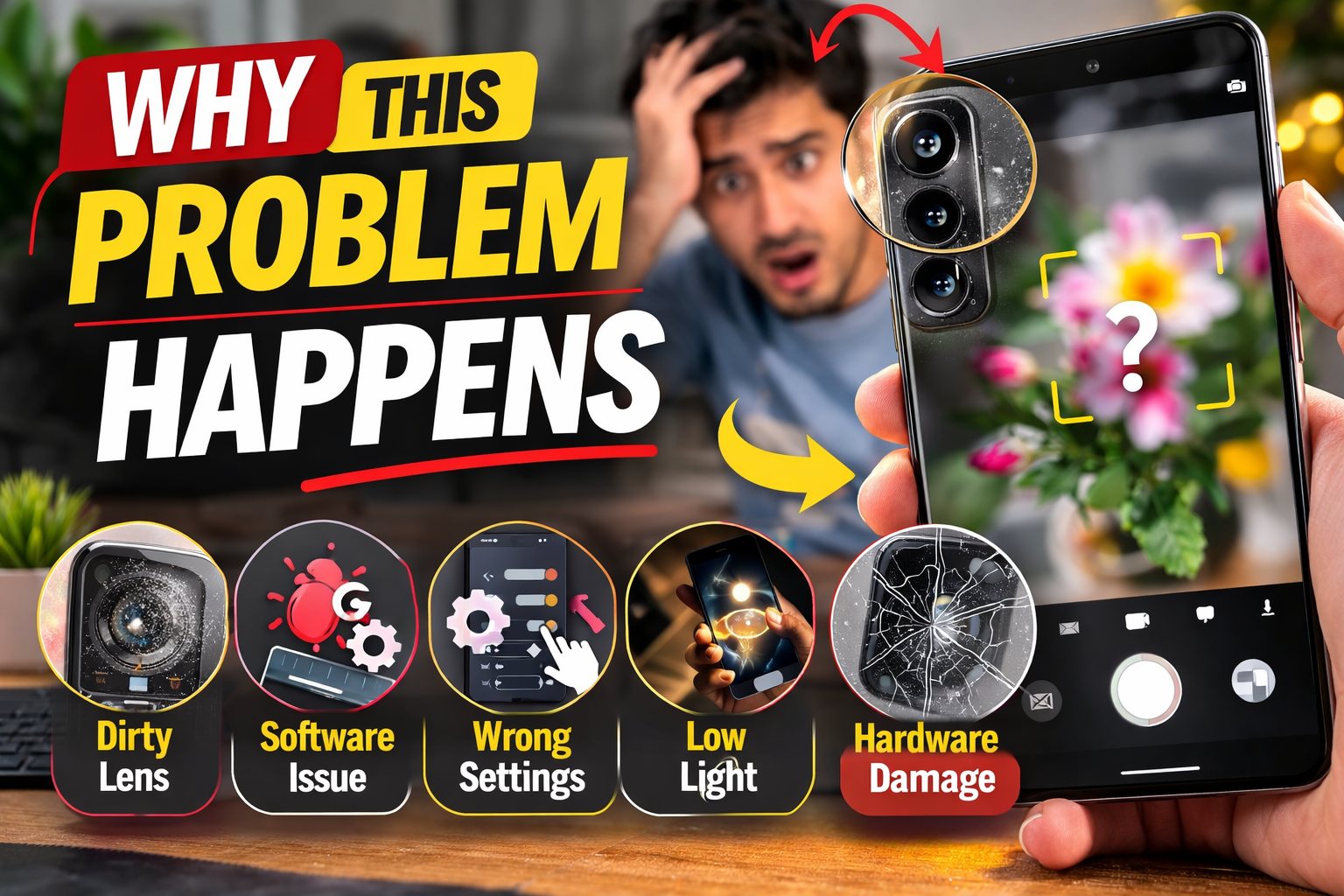
Before you try to fix the issue, it helps to understand why your Android camera is blurry in the first place.
Here are the most common reasons:
- The camera lens is dirty or covered with fingerprints
- The phone case is blocking part of the lens
- The camera app has a temporary glitch
- Autofocus is not working correctly
- The camera settings are wrong
- The phone shakes while taking a photo
- There is poor lighting in the room
- A software update caused camera issues
- The camera lens is scratched or damaged
Sometimes the issue is very minor. Other times, it may point to a hardware problem. That is why it is best to start with the easiest fixes first.
1. Clean the Camera Lens Properly
The first thing you should do is clean the lens. This is the most common fix for a blurry phone camera.
Even if the lens looks clean, it may still have:
- Fingerprints
- Dust
- Oil
- Pocket lint
- Smudges
How to clean it safely
- Turn off your phone.
- Use a soft microfiber cloth.
- Gently wipe the rear camera lens in a circular motion.
- If needed, slightly dampen the cloth with lens-safe cleaner.
- Wipe the lens again with a dry part of the cloth.
Do not use rough fabric, tissue paper, or too much liquid, because that can scratch the lens or damage the phone.
After cleaning, open the camera app and test it again.
2. Remove the Phone Case or Camera Protector
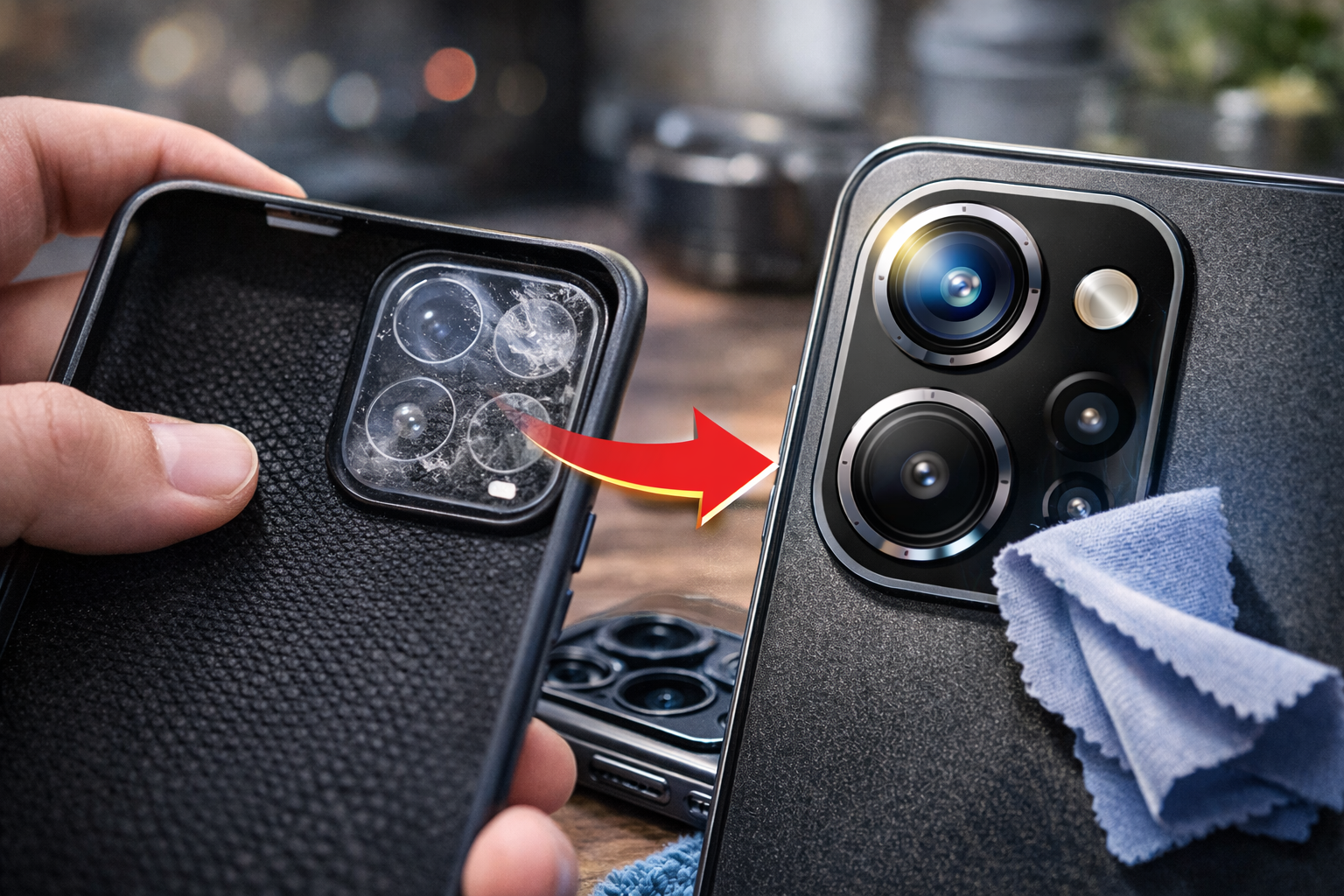
Sometimes the problem is not the camera itself. It is the accessory around it.
A thick case or cheap camera lens protector can:
- Block the lens edge
- Reduce light
- Cause haze or glare
- Make the camera focus incorrectly
What to do
- Remove your phone case.
- If you use a camera lens protector, remove it temporarily.
- Open the camera app.
- Take a few test photos in good lighting.
If the pictures look sharp again, then the accessory is the cause. Replace it with a better-quality case or camera protector.
3. Tap the Screen to Refocus
Sometimes autofocus does not lock on the right subject. When that happens, the whole image may look soft or blurry.
How to fix focus issues
- Open your camera app.
- Point the camera at your subject.
- Tap on the screen where you want the focus to be.
- Wait a second for the focus ring or box to settle.
- Then take the photo.
This simple trick often fixes blurry photos on Android, especially for close-up shots, portraits, and text photos.
Extra tip
If you are too close to the object, the camera may not be able to focus. Move your phone slightly farther away and try again.
4. Restart Your Android Phone
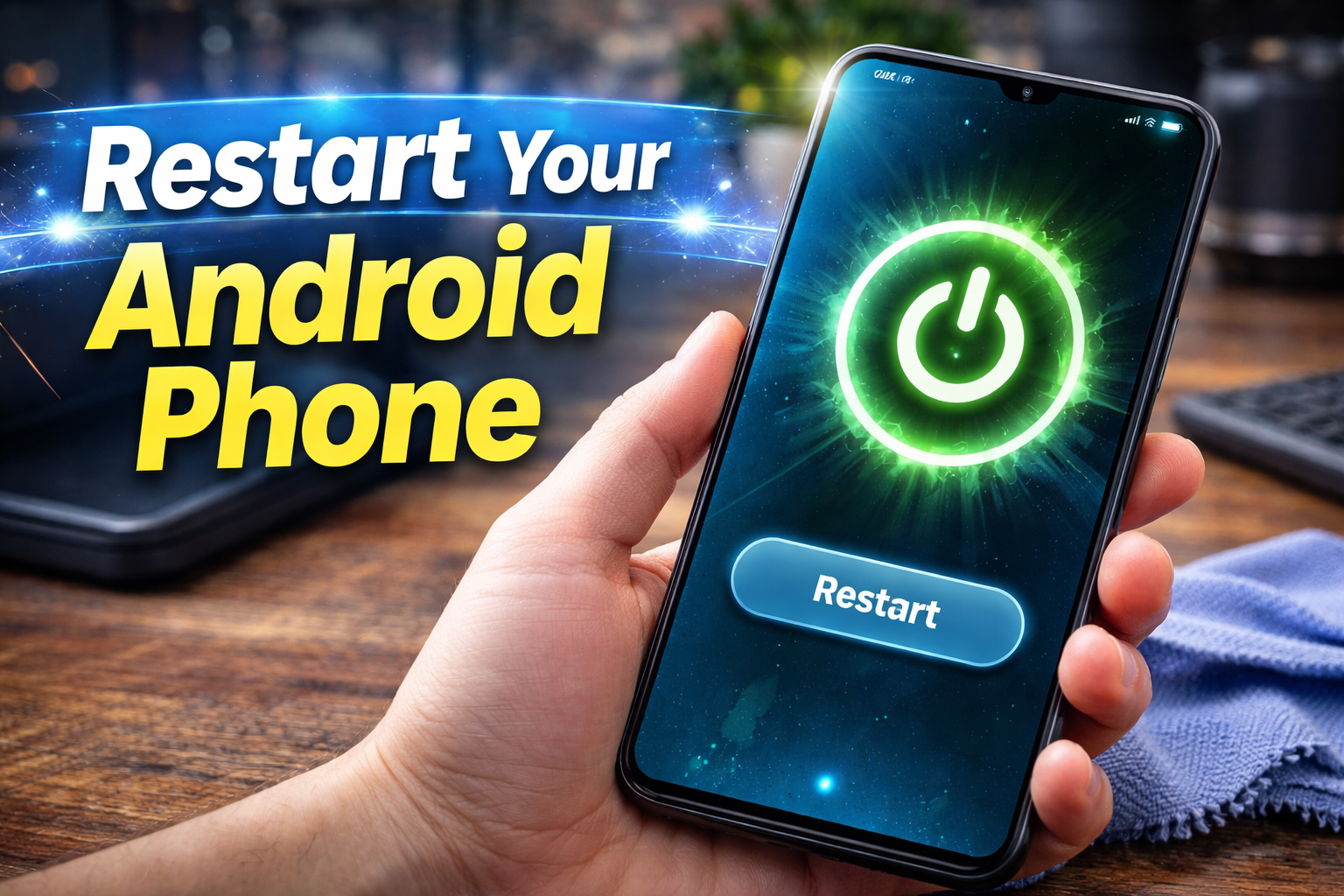
A quick restart can fix many temporary camera bugs.
If the camera app is lagging, freezing, or focusing badly, restarting the device can refresh the system and solve the issue.
Steps
- Press and hold the power button.
- Tap Restart.
- Wait for the phone to turn back on.
- Open the camera and test it again.
This is a simple but very effective fix for many Android camera issues.
5. Clear Camera App Cache and Data
The camera app stores temporary files to help it run faster. But if those files become corrupted, the app may start acting strangely.
This can cause:
- Blurry preview
- Slow focus
- Camera crashes
- Poor image quality
How to clear camera cache
- Open Settings.
- Go to Apps or App Management.
- Find and tap Camera.
- Tap Storage.
- Tap Clear Cache.
If that does not work, you can also tap Clear Data.
Important: Clearing data may reset camera settings, modes, filters, and preferences.
6. Check Camera Settings
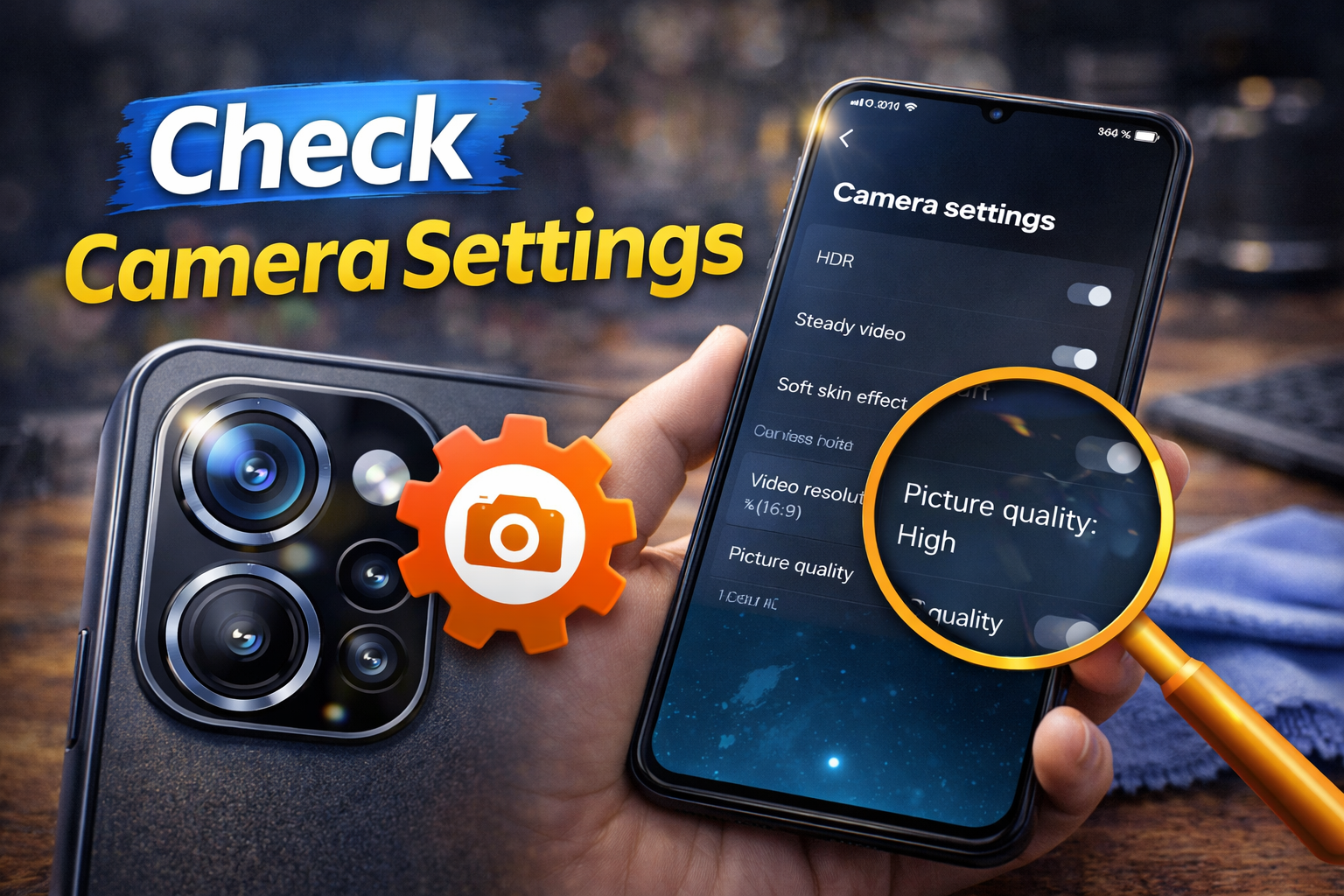
Wrong settings can also make photos look blurry. This is especially true if you changed something by accident.
Settings to review
- Photo resolution
- Beauty mode
- Macro mode
- Night mode
- Pro mode
- Lens selection
- AI camera features
What you should do
- Open the camera app.
- Go to camera settings.
- Set photo quality or resolution to the highest available option.
- Turn off unnecessary filters or beauty effects.
- Switch back to standard Photo mode.
- Test the camera again.
If you are unsure what changed, reset the camera settings to default.
Reset camera settings
On many Android phones, the camera app has a Reset Settings option in its settings menu. Use that if the blur started after changing camera options.
7. Hold the Phone Steady
Sometimes the camera is not really out of focus. The blur happens because the phone moves while taking the photo.
This is very common in:
- Low light
- Indoor rooms
- Night photos
- Zoom shots
How to reduce motion blur
- Hold the phone with both hands.
- Keep your elbows close to your body.
- Stay still for a moment after pressing the shutter button.
- Use a tripod or support if possible.
- Turn on grid lines to help stabilize framing.
If your phone has image stabilization, make sure it is enabled if the option is available.
8. Improve Lighting Conditions
Poor light is a major reason for blurry Android camera photos.
When there is not enough light, the camera uses a slower shutter speed. That makes it easier for motion blur to happen.
Try these fixes
- Move to a brighter area.
- Use natural daylight when possible.
- Turn on room lights.
- Use Night mode only when needed.
- Avoid digital zoom in low light.
Better light can instantly improve sharpness, focus, and overall image quality.
9. Update the Camera App and Android Software

Software bugs can affect camera performance. A recent update may fix autofocus issues, app crashes, or blurry image problems.
How to update Android
- Open Settings.
- Go to Software Update or System Update.
- Tap Download and Install.
- Install any available update.
Update the camera app
If your phone uses a camera app that updates through the Play Store:
- Open Google Play Store.
- Search for your camera app.
- Tap Update if available.
Keeping software updated is one of the best ways to fix a blurry phone camera caused by bugs.
10. Test in Safe Mode
A third-party app can sometimes interfere with the camera. This is common with:
- Photo filter apps
- Flashlight apps
- Cleaner apps
- Overlay apps
- Security apps
Booting into Safe Mode helps you check whether another app is causing the problem.
How to use Safe Mode
The steps vary by brand, but on many Android phones:
- Press and hold the power button.
- Touch and hold Power Off.
- Tap Safe Mode.
- Once the phone restarts, test the camera.
If the camera is clear in Safe Mode, then a third-party app is likely causing the issue. Remove recently installed apps one by one until the problem stops.
11. Check for Lens Damage
If none of the software fixes work, inspect the camera hardware.
Look closely for:
- Scratches on the lens
- Cracks
- Moisture inside the camera
- Dust trapped under the lens cover
- Loose camera module movement
Signs of hardware damage
- The blur stays in every app
- One lens is blurry but others work fine
- The camera makes strange noises while focusing
- The image shakes or cannot lock focus
If you notice physical damage, software fixes probably will not fully solve the issue.
12. Reset Your Phone as a Last Resort
If the problem started after a major system issue and nothing else helps, a factory reset may solve it.
Only do this after backing up your data.
Steps before resetting
- Back up photos, contacts, and files.
- Sign out of important accounts if needed.
- Charge your phone.
How to reset
- Open Settings.
- Go to System or General Management.
- Tap Reset.
- Choose Factory Data Reset.
- Follow the on-screen instructions.
After the reset, test the camera before reinstalling all your apps.
When to Get Professional Repair Help
Sometimes the issue is beyond normal troubleshooting.
You should contact a repair center if:
- The lens is cracked or scratched
- Autofocus never works
- The camera app stays blurry after reset
- The phone was dropped recently
- Water damage may have reached the camera
- The camera shakes, rattles, or fails to open
In this case, the problem may be with the camera module itself.
Quick Tips to Prevent This Problem
Once you fix the issue, use these simple habits to keep your camera clear.
- Clean the camera lens regularly
- Use a high-quality phone case
- Avoid cheap camera lens protectors
- Keep your software updated
- Do not touch the lens with your fingers
- Hold the phone steady when taking photos
- Avoid using digital zoom too much
- Protect the phone from drops and water
- Close unused apps if the camera feels slow
These small steps can help prevent blurry camera problems in the future.
FAQ
Why is my Android camera blurry all of a sudden?
A sudden blurry camera issue is usually caused by a dirty lens, focus problem, software bug, or a phone case blocking the lens. Start by cleaning the lens and restarting the phone.
How do I fix blurry photos on Android?
You can fix blurry photos on Android by cleaning the lens, tapping to focus, improving lighting, clearing the camera cache, updating software, and checking for physical damage.
Can a screen protector or camera protector make photos blurry?
Yes. A low-quality or scratched camera protector can create haze, glare, and blur. Remove it and test the camera again.
Why does my phone camera blur in low light?
In low light, the camera uses slower shutter speeds. This makes motion blur more likely if your hand moves even a little while taking the photo.
Should I factory reset my phone to fix a blurry camera?
Only use a factory reset as a last resort. First try cleaning the lens, restarting, clearing cache, resetting camera settings, and checking for app conflicts.
Conclusion
Dealing with a blurry phone camera can be annoying, but in most cases, the fix is simple. If you follow the steps above carefully, you can usually solve the issue without needing professional repair.
Start with the basics: clean the lens, remove the case, tap to focus, and restart the phone. Then move on to clearing cache, checking settings, updating software, and testing in Safe Mode. If the blur does not go away, inspect the lens for damage or consider professional service.
When you want to fix Android camera blurry problem, the key is to test one solution at a time. That makes it easier to find the real cause and get your camera sharp again.