How to Fix Android Software Update Problems
Android software updates are important because they bring new features, security patches, and performance improvements. However, many users experience problems when trying to update their Android devices.
You might see errors like:
- Android update failed
- Software update stuck
- Update not downloading
- Installation failed
- Phone stuck on update screen
These problems can be frustrating, especially if your phone refuses to update even after multiple attempts.
The good news is that most Android software update problems can be fixed easily with a few simple troubleshooting steps.
In this guide, you will learn step-by-step solutions to fix Android software update problems quickly, even if you are a beginner.
Common Android Software Update Problems
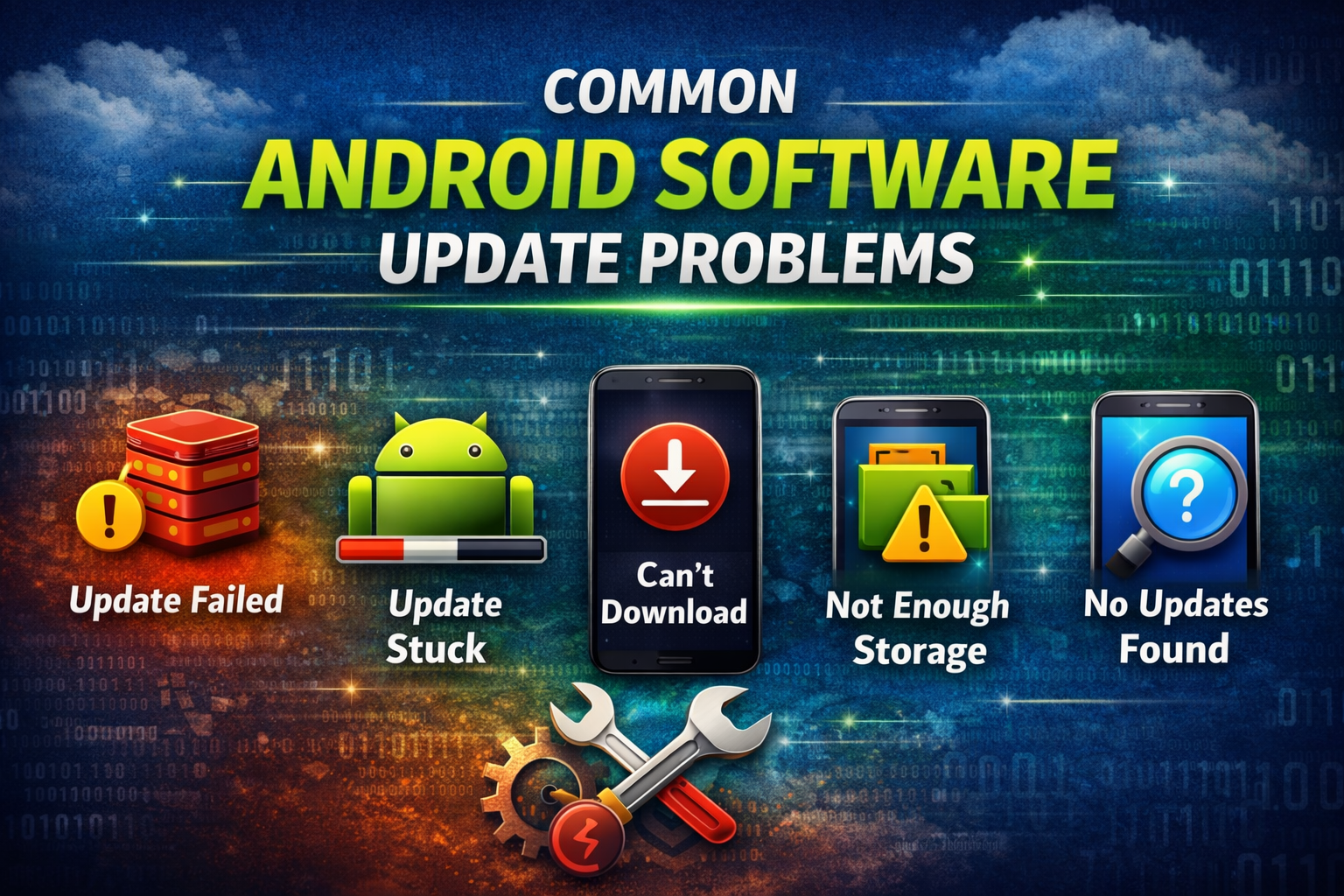
Before fixing the issue, it helps to understand the common problems users face.
Some of the most common Android update issues include:
- Update stuck at downloading
- Update stuck at installing
- Software update failed error
- Not enough storage for update
- Phone stuck on update screen
- Android update not showing
If you are facing any of these issues, the solutions below should help.
1. Restart Your Android Phone
The first and simplest fix is restarting your phone.
Sometimes temporary system glitches prevent the update from installing properly.
Steps to restart your phone
- Press and hold the Power button
- Tap Restart
- Wait for the phone to reboot
- Go to Settings
- Tap Software Update
- Try updating again
Restarting clears temporary processes that may block the update.
2. Check Your Internet Connection
Android updates require a stable internet connection.
If your WiFi connection is weak or unstable, the update may fail or stop downloading.
What you should do
- Connect to a strong WiFi network
- Avoid using mobile data for large updates
- Restart your router if needed
Test your internet speed
- Open a browser
- Visit a website
- If it loads slowly, switch to another WiFi network
A slow connection is one of the most common causes of Android software update problems.
3. Check Available Storage Space
Software updates need enough storage space to download and install.
If your phone storage is full, the update may fail.
How to check storage
- Open Settings
- Tap Storage
- Check how much space is available
Free up storage if needed
You can free space by:
- Deleting unused apps
- Removing old photos and videos
- Clearing downloads
- Moving files to cloud storage
Try to keep at least 5–10 GB of free storage before updating.
4. Check for System Update Again
Sometimes the update does not appear due to a temporary server delay.
Checking manually can fix the issue.
Steps
- Open Settings
- Tap System
- Select Software Update
- Tap Check for Updates
- Install the update if available
Make sure your phone is connected to WiFi and has enough battery.
5. Charge Your Phone Battery
Android updates often require at least 50% battery before installation.
If your battery level is too low, the update will not start.
What to do
- Connect your phone to the charger
- Wait until the battery reaches 50% or higher
- Try installing the update again
Keeping the phone plugged in during the update is recommended.
6. Clear Cache of System Update App
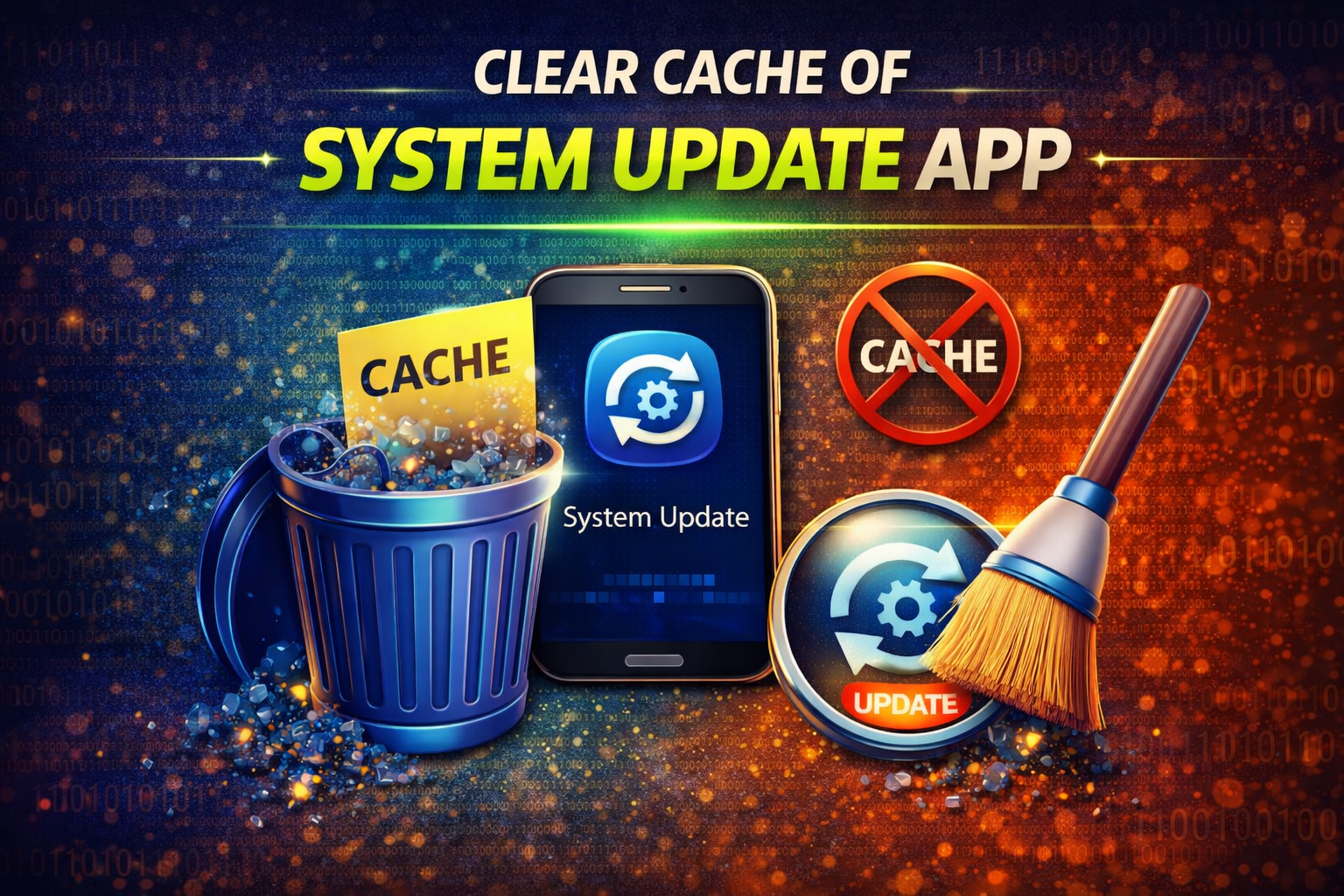
Corrupted cache files may prevent Android updates from installing.
Clearing the cache can fix this problem.
Steps to clear update cache
- Open Settings
- Tap Apps
- Tap See all apps
- Tap the three-dot menu
- Select Show system apps
- Find Software Update or System Update
- Tap Storage
- Tap Clear Cache
After clearing the cache, try updating again.
7. Disable VPN If You Are Using One
Using a VPN can sometimes interfere with Android update servers.
Fix
- Open Settings
- Tap Network & Internet
- Select VPN
- Turn off VPN
- Check for updates again
Once the update is complete, you can enable the VPN again.
8. Boot Your Phone in Safe Mode
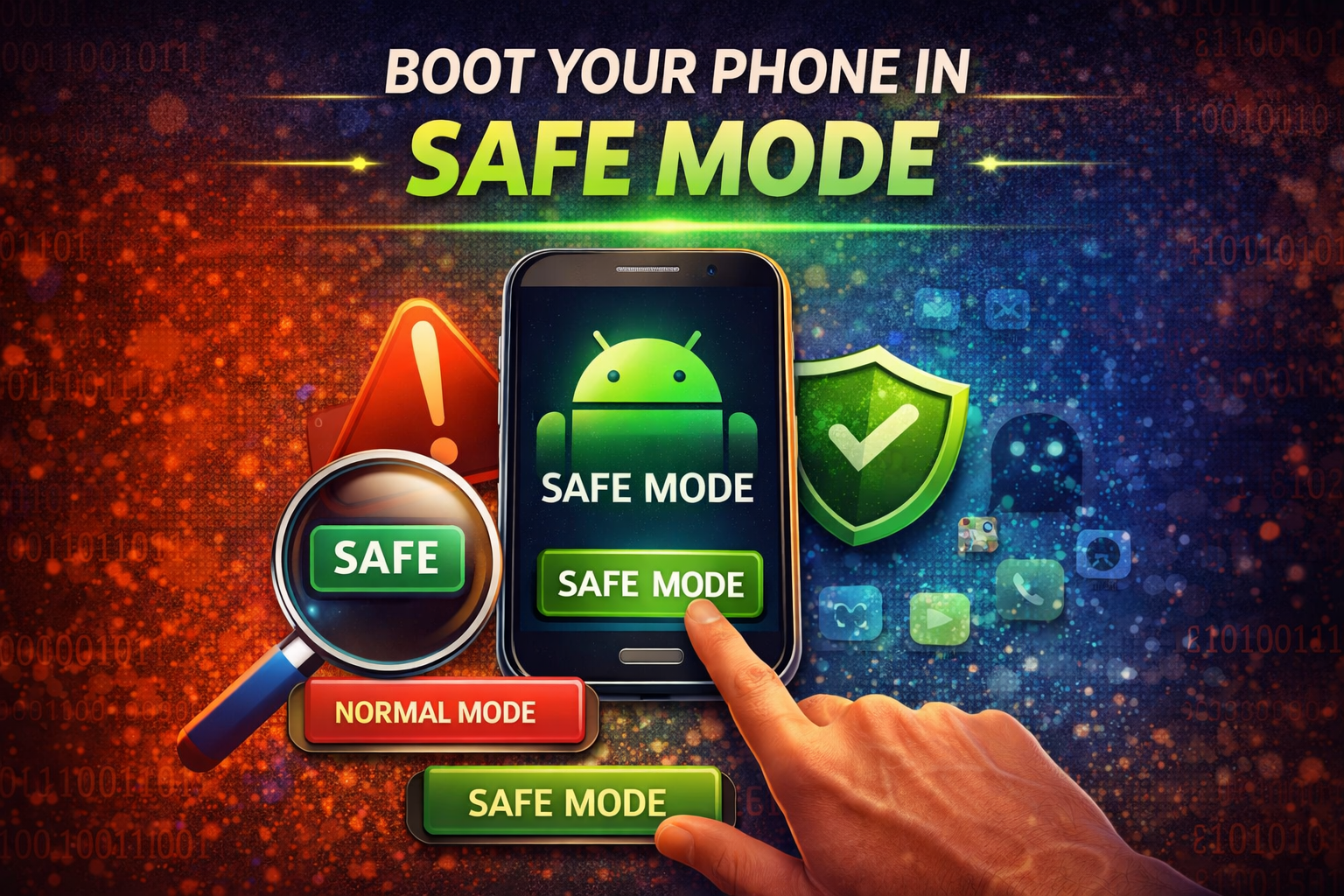
Some third-party apps can block system updates.
Booting into Safe Mode disables those apps temporarily.
Steps
- Press and hold the Power button
- Tap and hold Restart
- Select Reboot to Safe Mode
- Try installing the update
If the update works in Safe Mode, an app may be causing the problem.
9. Update Using a Computer
If the update still fails, you can install it using a computer.
Many manufacturers provide update tools.
Examples include:
- Samsung Smart Switch
- Xiaomi Mi PC Suite
- Huawei HiSuite
Basic steps
- Install the official update tool on your computer
- Connect your phone using a USB cable
- Check for updates
- Install the update through the software
This method often works when OTA updates fail.
10. Reset Network Settings
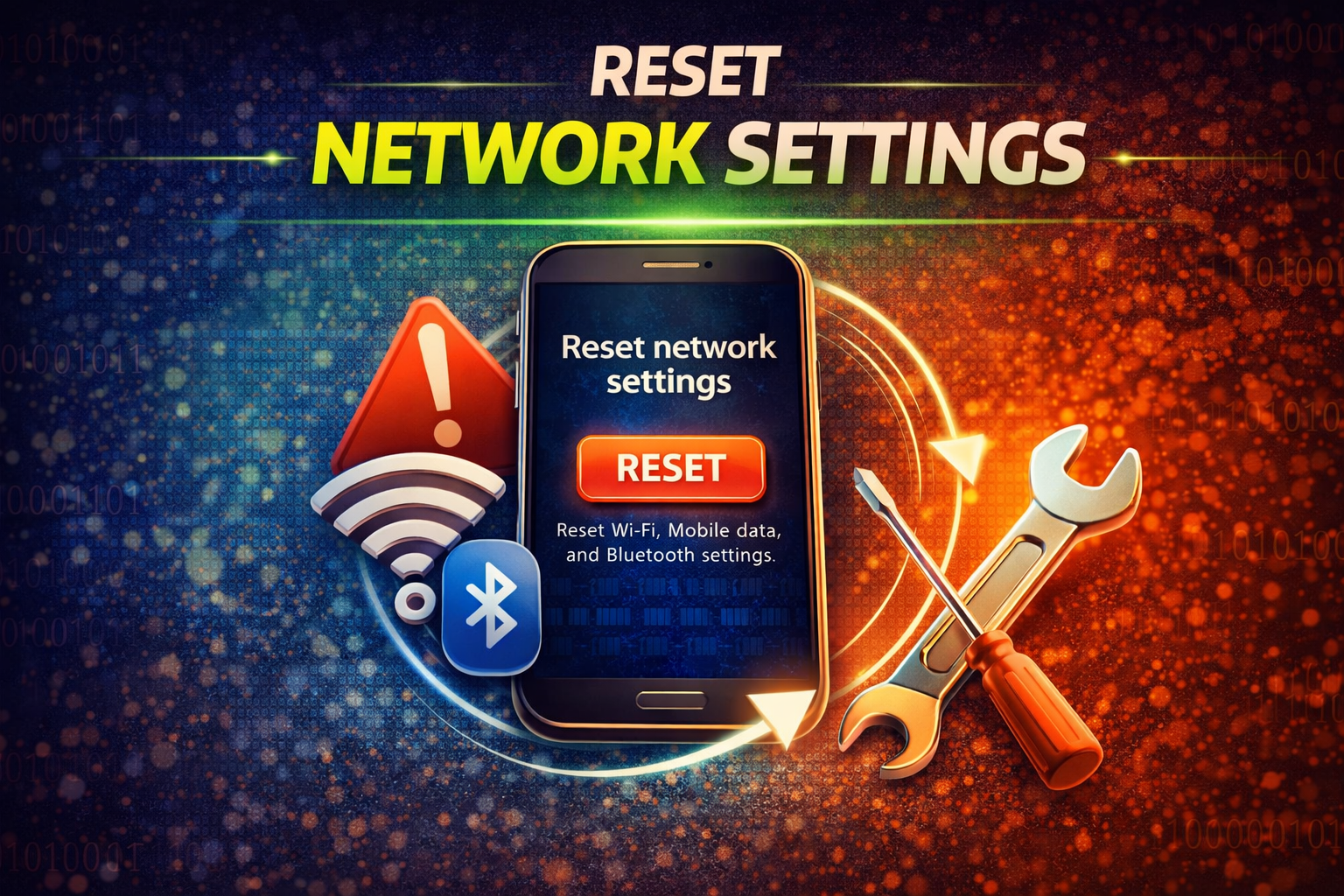
Sometimes network configuration issues prevent update downloads.
Resetting network settings can fix the problem.
Steps
- Open Settings
- Tap System
- Select Reset Options
- Tap Reset Network Settings
This will reset:
- WiFi networks
- Bluetooth connections
- Mobile data settings
You will need to reconnect to WiFi afterward.
11. Factory Reset Your Phone (Last Resort)
If nothing works, a factory reset may solve the issue.
⚠️ This will erase all data on your device.
Backup your data first
Before resetting, back up:
- Photos
- Contacts
- Messages
- Apps
Steps to factory reset
- Open Settings
- Tap System
- Select Reset Options
- Tap Erase All Data (Factory Reset)
After the reset, check for the update again.
Why This Problem Happens
Several factors can cause Android software update problems.
1. Poor Internet Connection
Large updates require a stable and fast internet connection.
2. Insufficient Storage
If your phone storage is full, the update cannot download or install.
3. Software Bugs
Temporary system glitches can block updates.
4. Corrupted Cache Files
Old system cache files sometimes interfere with updates.
5. Server Issues
Sometimes the update server is overloaded.
6. Third-Party App Conflicts
Some apps can interfere with system processes.
Understanding the cause helps prevent the problem in the future.
Quick Tips to Prevent This Problem
Follow these simple tips to avoid Android update issues.
- Keep at least 5–10 GB free storage
- Always update using stable WiFi
- Charge your phone before updating
- Avoid installing suspicious apps
- Restart your phone regularly
- Install updates as soon as they are available
These habits help keep your Android device running smoothly.
FAQ
Why is my Android software update failing?
Your Android update may fail due to poor internet connection, low storage space, low battery, or corrupted system cache files.
Why is my Android update stuck?
Updates can get stuck if the download is interrupted or the device lacks enough storage space.
Restarting the phone often fixes the issue.
How much storage do I need for an Android update?
Most Android updates require 2–5 GB of free storage, but keeping 10 GB free is recommended.
Can I stop an Android update once it starts?
You should not stop an update during installation because it may damage the system software.
If it is stuck for hours, restarting the phone may help.
Why is my phone not showing new updates?
Possible reasons include:
- Your device is not eligible for the update
- The update has not reached your region yet
- Your phone already has the latest version
Conclusion
Android updates are essential for security, performance, and new features, but sometimes they fail to install properly.
Fortunately, most Android software update problems can be fixed with simple troubleshooting steps like:
- Restarting your phone
- Checking internet connection
- Freeing up storage
- Clearing system cache
- Updating using a computer
If the issue still persists, a factory reset or manufacturer update tool can usually solve the problem.
By following the steps in this guide, you should be able to fix Android software update problems quickly and keep your device up to date without frustration.