
How to Fix Screen Flickering on Windows (Easy Step-by-Step Guide)
Screen flickering on a Windows computer can be annoying, distracting, and sometimes scary—especially if it happens suddenly. If your display keeps blinking, flashing, or going black for a moment, you are not alone. Many users experience this problem after updates, driver changes, or hardware issues. This guide will show you how to fix screen flickering on Windows using simple and safe methods that beginners can follow.
In this article, you will learn the common causes of screen flickering, how to identify the real problem, and step-by-step solutions to fix it on Windows 10 and Windows 11.
What Is Screen Flickering on Windows?
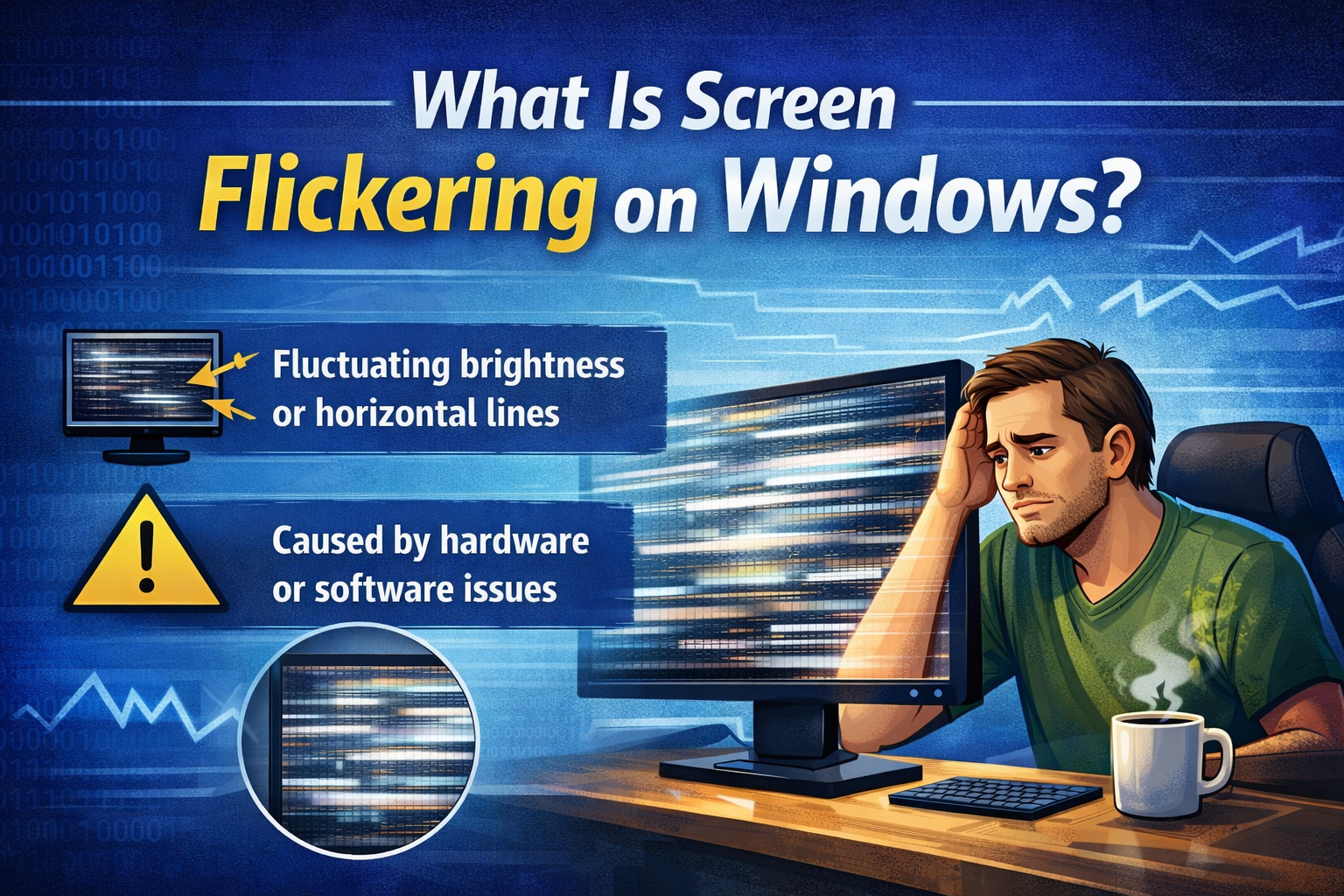
Screen flickering means your display rapidly changes brightness, flashes, or turns black briefly. It can happen occasionally or constantly, making your PC hard to use.
Common Screen Flickering Symptoms
- Screen flashes white or black
- Display blinks when opening apps
- Screen flickers after Windows update
- Flickering only happens in certain programs
- Monitor brightness keeps changing
Common Causes of Screen Flickering on Windows
Before fixing the problem, it helps to understand why it happens.
1. Display Driver Issues
Outdated, corrupted, or incompatible graphics drivers are the most common cause of screen flickering on Windows.
2. Incompatible Apps
Some apps are not fully compatible with your Windows version or display driver.
3. Incorrect Display Settings
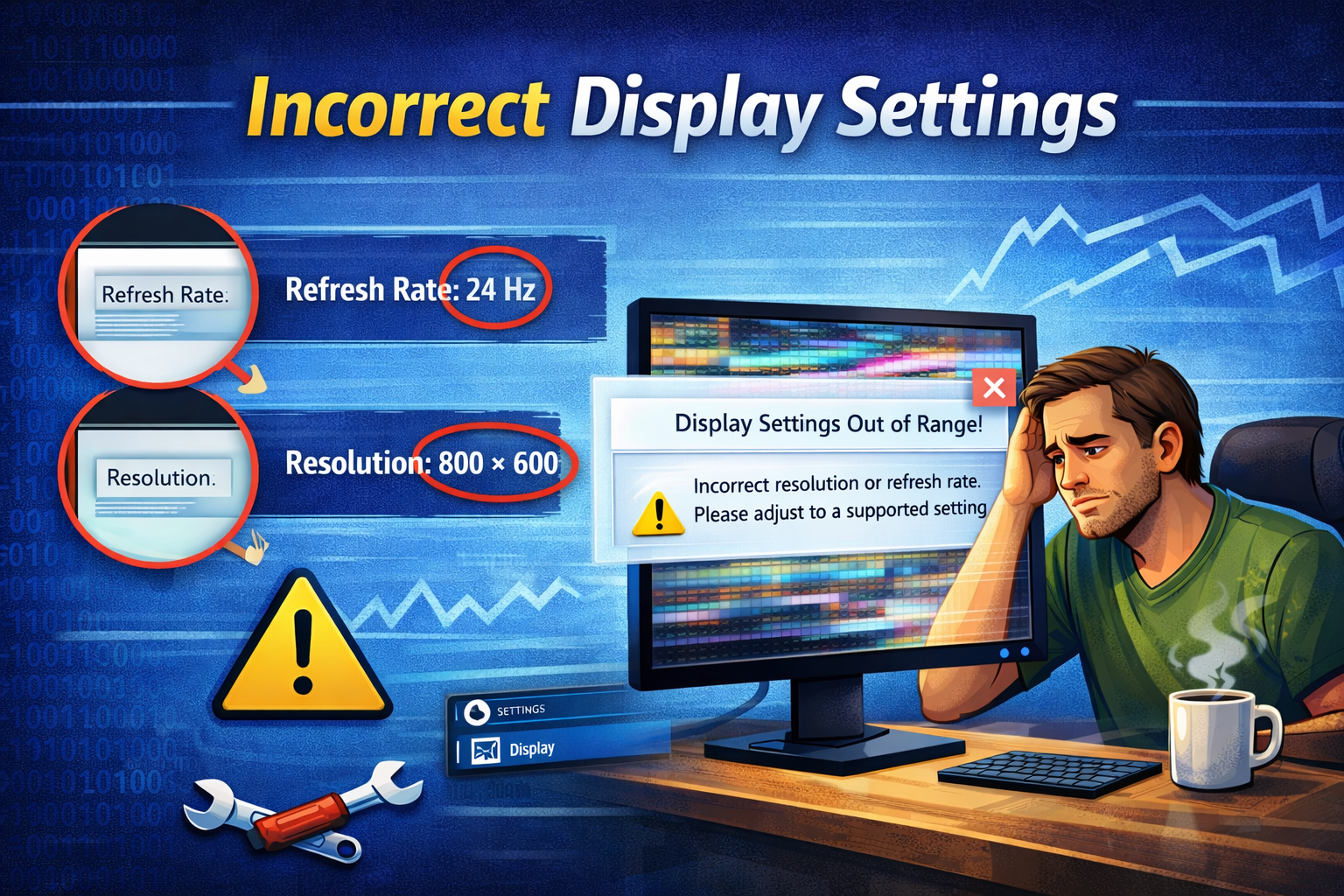
Wrong refresh rate or resolution can cause flickering.
4. Hardware Problems
Loose cables, faulty monitors, or damaged graphics cards can also cause flickering.
5. Windows Update Problems
Sometimes Windows updates install unstable display drivers.
How to Fix Screen Flickering on Windows (Beginner-Friendly Solutions)
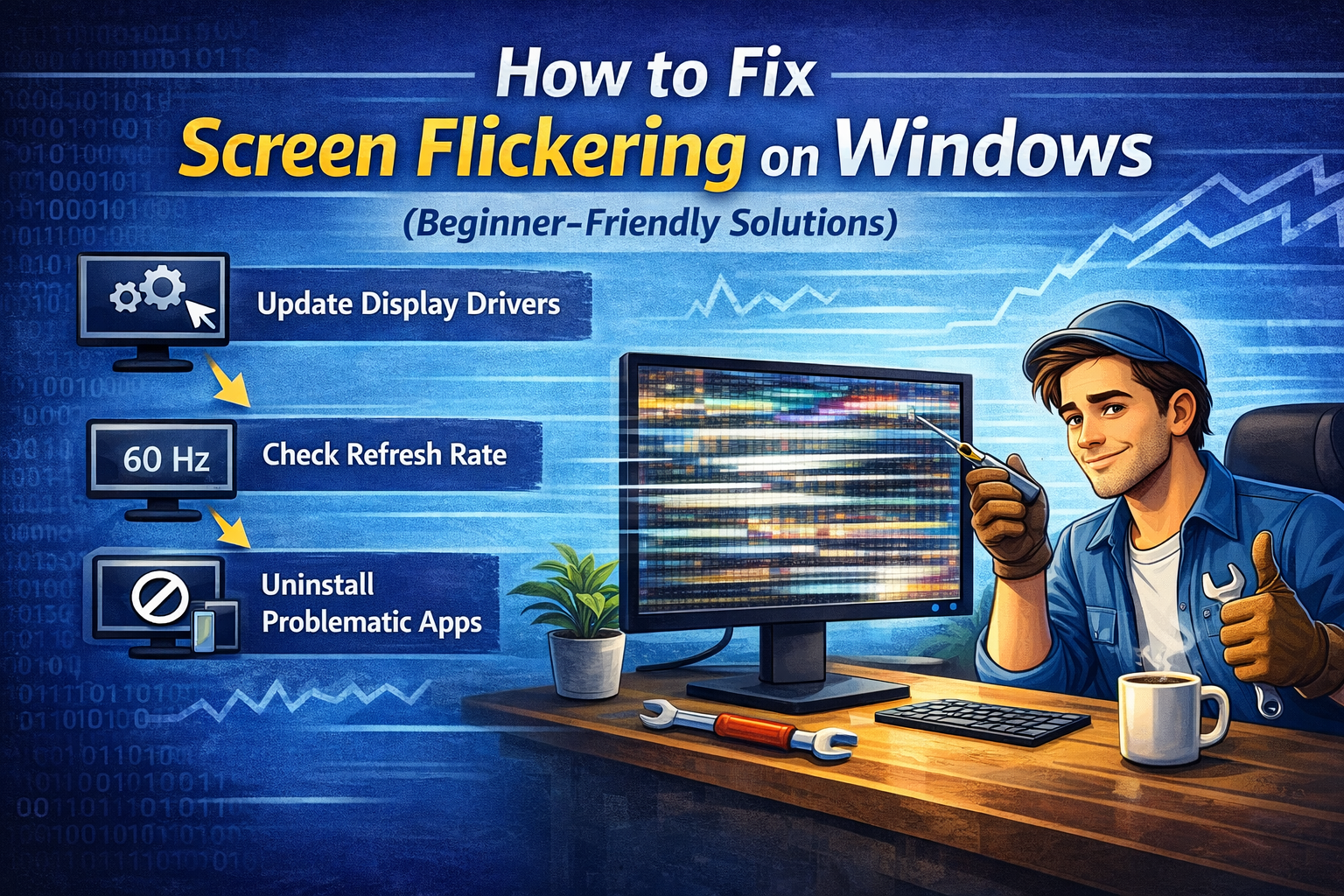
Try the solutions below in order. Most screen flickering problems can be fixed using the first few methods.
Solution 1: Restart Your Computer
It may sound simple, but restarting fixes many temporary display issues.
Why it works:
- Reloads display drivers
- Clears temporary system glitches
Real-world example:
Your screen starts flickering after waking the laptop from sleep. A restart restores normal display behavior.
Solution 2: Check If an App Is Causing Screen Flickering
This helps identify software-related problems.
Step-by-step:
- Press Ctrl + Shift + Esc to open Task Manager
- Watch the screen while Task Manager is open
What to look for:
- If Task Manager also flickers, the issue is likely a driver or hardware problem
- If Task Manager does not flicker, an app is likely the cause
What to do next:
- Uninstall recently installed apps
- Update problematic software
Solution 3: Update Display Drivers (Most Important Fix)
Updating drivers is one of the best ways to fix screen flickering on Windows.
Steps:
- Press Windows + X
- Click Device Manager
- Expand Display adapters
- Right-click your graphics card
- Select Update driver
- Choose Search automatically for drivers
- Restart your PC
Works best for:
- Flickering after Windows update
- Old or missing drivers
Solution 4: Roll Back the Display Driver
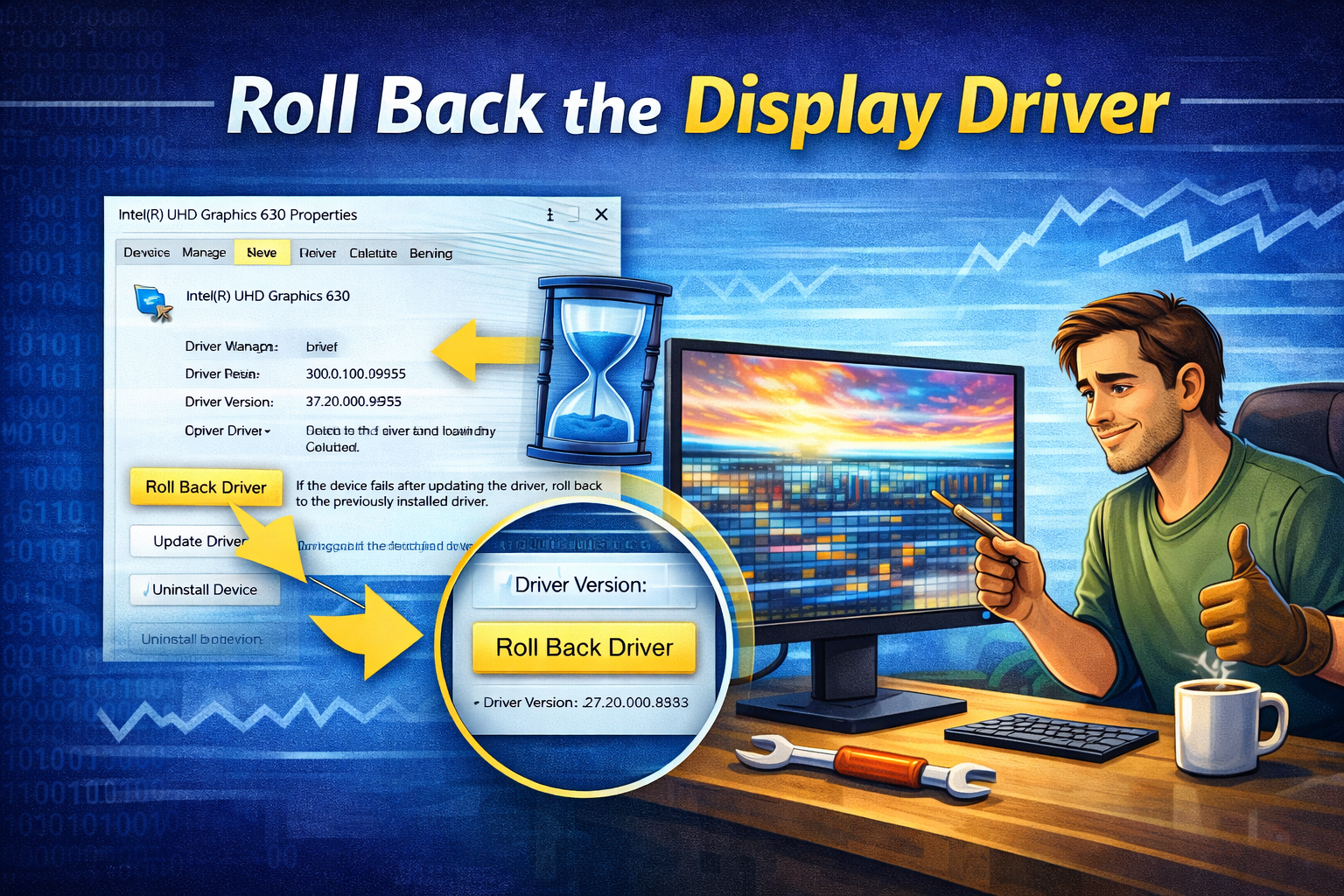
If flickering started after a driver update, rolling back can fix it.
Steps:
- Open Device Manager
- Right-click your display adapter
- Click Properties
- Go to the Driver tab
- Click Roll Back Driver
- Restart your computer
Real-world example:
After updating the graphics driver, the screen starts blinking. Rolling back restores the stable version.
Solution 5: Reinstall the Display Driver
If updating does not work, reinstalling the driver can fix corruption issues.
Steps:
- Open Device Manager
- Right-click Display adapters
- Select Uninstall device
- Check Delete the driver software for this device (if available)
- Restart your PC
Windows will automatically reinstall the correct driver.
Solution 6: Change Screen Refresh Rate
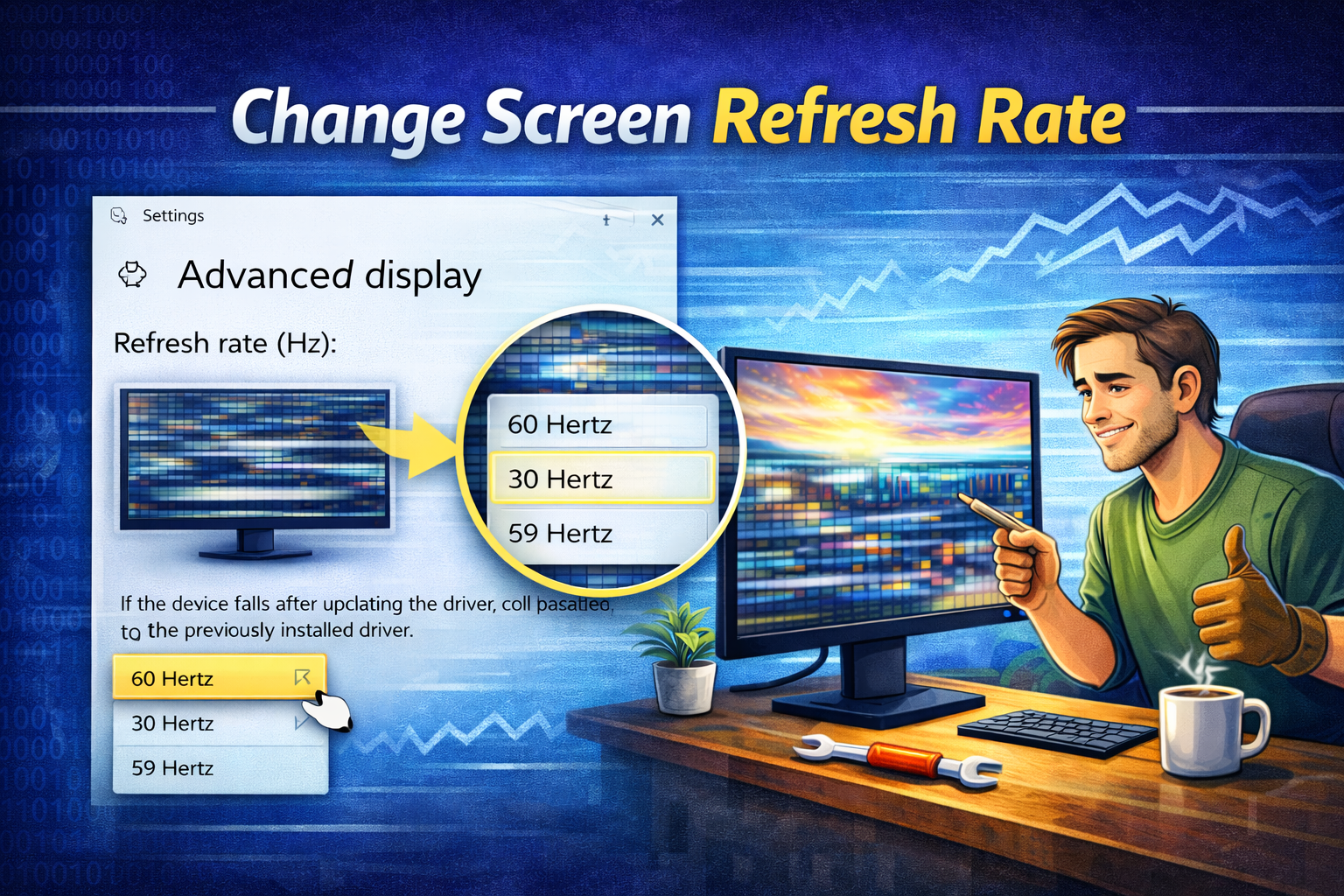
An incorrect refresh rate often causes screen flickering, especially on external monitors.
Steps:
- Right-click on the desktop
- Select Display settings
- Click Advanced display
- Under Refresh rate, choose the recommended value
- Click Apply
Tip:
- Most monitors work best at 60Hz
- Gaming monitors may support 120Hz or 144Hz
Solution 7: Adjust Display Resolution
Using unsupported resolutions can cause flickering.
Steps:
- Open Display settings
- Scroll to Display resolution
- Select the Recommended resolution
- Apply changes
Solution 8: Disable Hardware Acceleration in Apps
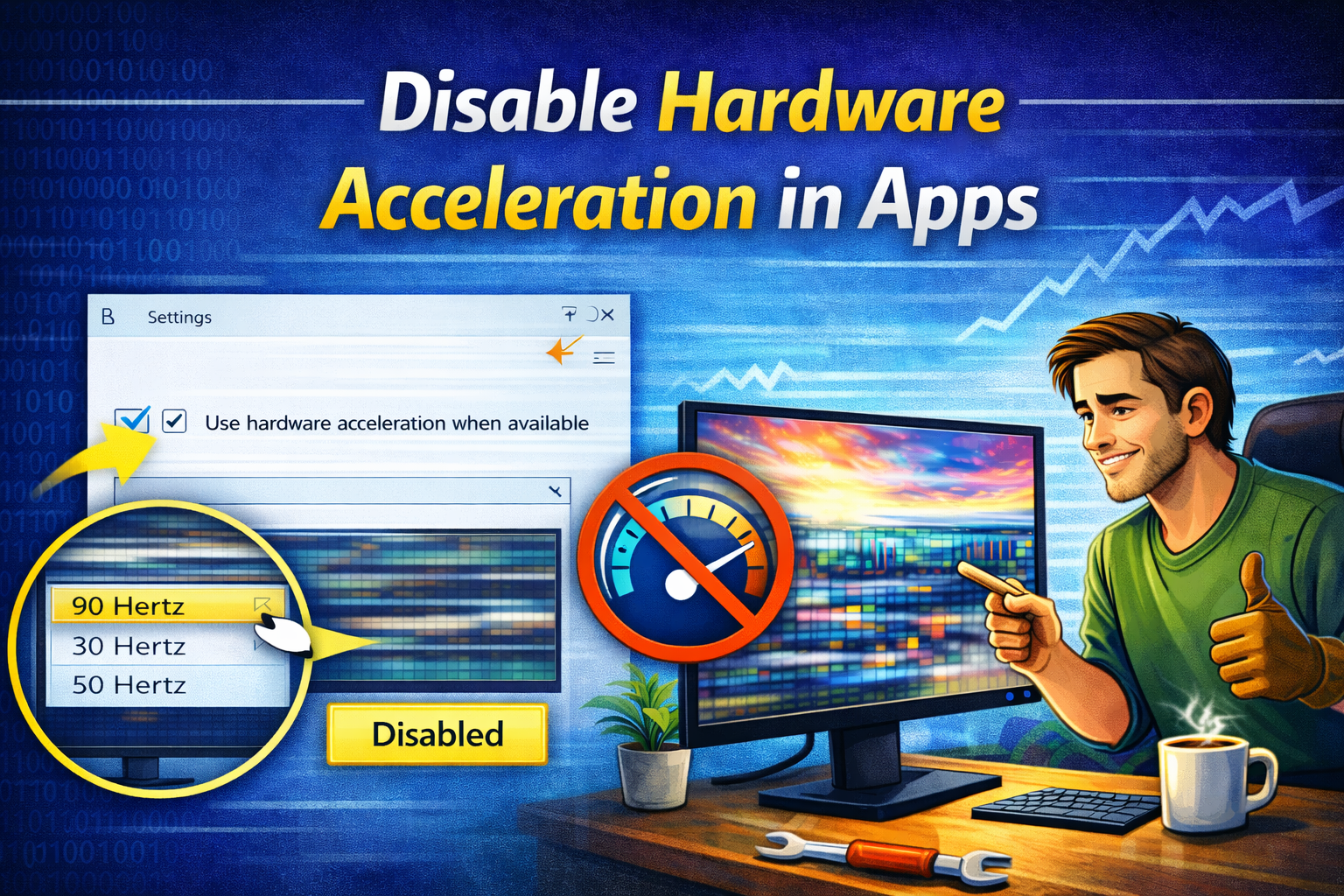
Some apps cause flickering due to hardware acceleration.
Common apps:
- Google Chrome
- Microsoft Edge
- Microsoft Office
- Zoom
Example (Chrome):
- Open Chrome
- Go to Settings
- Click System
- Turn off Use hardware acceleration
- Restart Chrome
Solution 9: Check Monitor and Cable Connections
Screen flickering is not always a Windows problem.
What to check:
- Loose HDMI or DisplayPort cable
- Damaged cable
- Try a different cable or port
- Test with another monitor
Real-world example:
A desktop PC screen flickers randomly. Replacing a damaged HDMI cable fixes the issue instantly.
Solution 10: Update Windows
Windows updates often include display fixes.
Steps:
- Open Settings
- Go to Windows Update
- Click Check for updates
- Install all updates
- Restart your PC
Solution 11: Boot Into Safe Mode (Advanced)
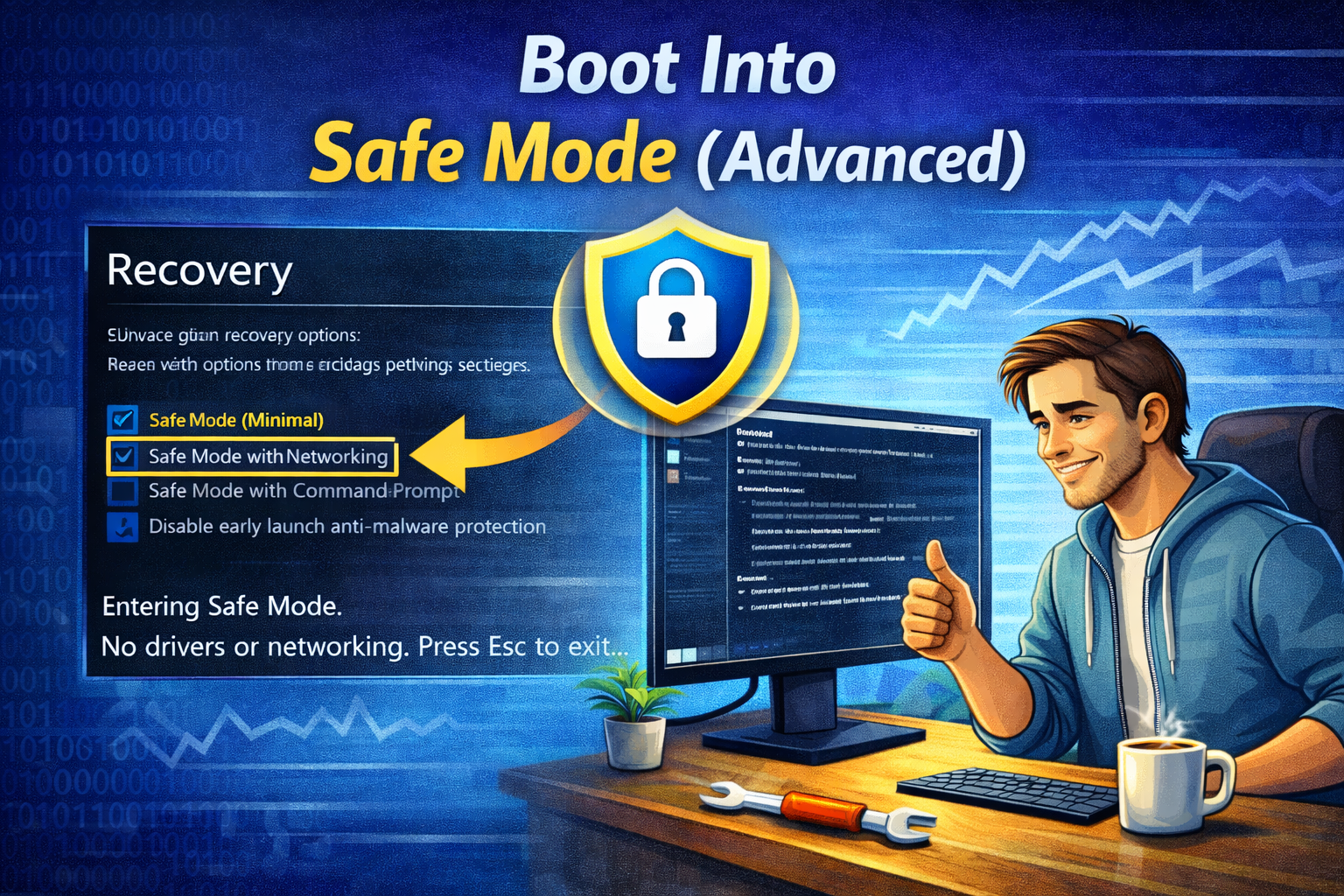
Safe Mode helps identify driver or software problems.
Steps:
- Hold Shift and click Restart
- Go to Troubleshoot → Advanced options
- Select Startup Settings
- Press F4 to enter Safe Mode
What it tells you:
- If flickering stops in Safe Mode, a driver or app is causing the issue
Common Screen Flickering Scenarios and Fixes
Screen Flickering After Windows Update
Roll back or reinstall display driver
Screen Flickering While Gaming
Update graphics driver
Adjust refresh rate
Laptop Screen Flickering
Update display driver
Check power settings
External Monitor Flickering
Change cable
Set correct refresh rate
Tips to Prevent Screen Flickering in the Future
- Keep display drivers updated
- Avoid unofficial driver websites
- Use recommended display settings
- Update Windows regularly
- Handle cables carefully
Frequently Asked Questions (FAQ)
1. Why does my Windows screen keep flickering?
Screen flickering usually happens due to display driver issues, incorrect refresh rate, or faulty cables.
2. Can screen flickering damage my computer?
No, but it can indicate a serious hardware or driver problem that should be fixed early.
3. Does screen flickering mean my graphics card is bad?
Not always. Most cases are software-related and easy to fix.
4. Why does my screen flicker only in some apps?
Those apps may be incompatible or using hardware acceleration incorrectly.
5. Will resetting Windows fix screen flickering?
It can, but it should be the last option after trying driver and display fixes.
Conclusion
Screen flickering can be frustrating, but in most cases, it is easy to fix. By following this guide, you now know how to fix screen flickering on Windows using simple, beginner-friendly steps. Start with driver updates and display settings, then move to hardware checks if needed. With the right approach, your Windows screen will be stable and comfortable to use again.