
How to Fix Google Play Services Errors on Android (Complete Beginner Guide)
Google Play Services is one of the most important system apps on Android. It runs silently in the background and helps apps like Gmail, Google Maps, YouTube, Play Store, WhatsApp, and Facebook work properly. When it stops working, you may see messages like “Google Play Services has stopped”, “Google Play Services keeps stopping”, or apps may crash suddenly.
In this complete guide, you will learn how to fix Google Play Services errors step by step. The instructions are written in simple, clear English, perfect for beginners and normal Android users.
What Is Google Play Services and Why Errors Happen?
Google Play Services connects your apps to Google features such as:
- Google account login
- App updates
- Location services
- Push notifications
- Security updates
When it has a problem, many apps may stop working at the same time.
Common reasons for Google Play Services errors:
- Corrupted cache or data
- Outdated Google Play Services version
- Android system bugs
- Wrong date & time settings
- Google account sync problems
- Low storage space
Real-world example:
After an Android system update, many users experience Google Play Services errors because the update didn’t install cleanly.
Common Google Play Services Error Messages
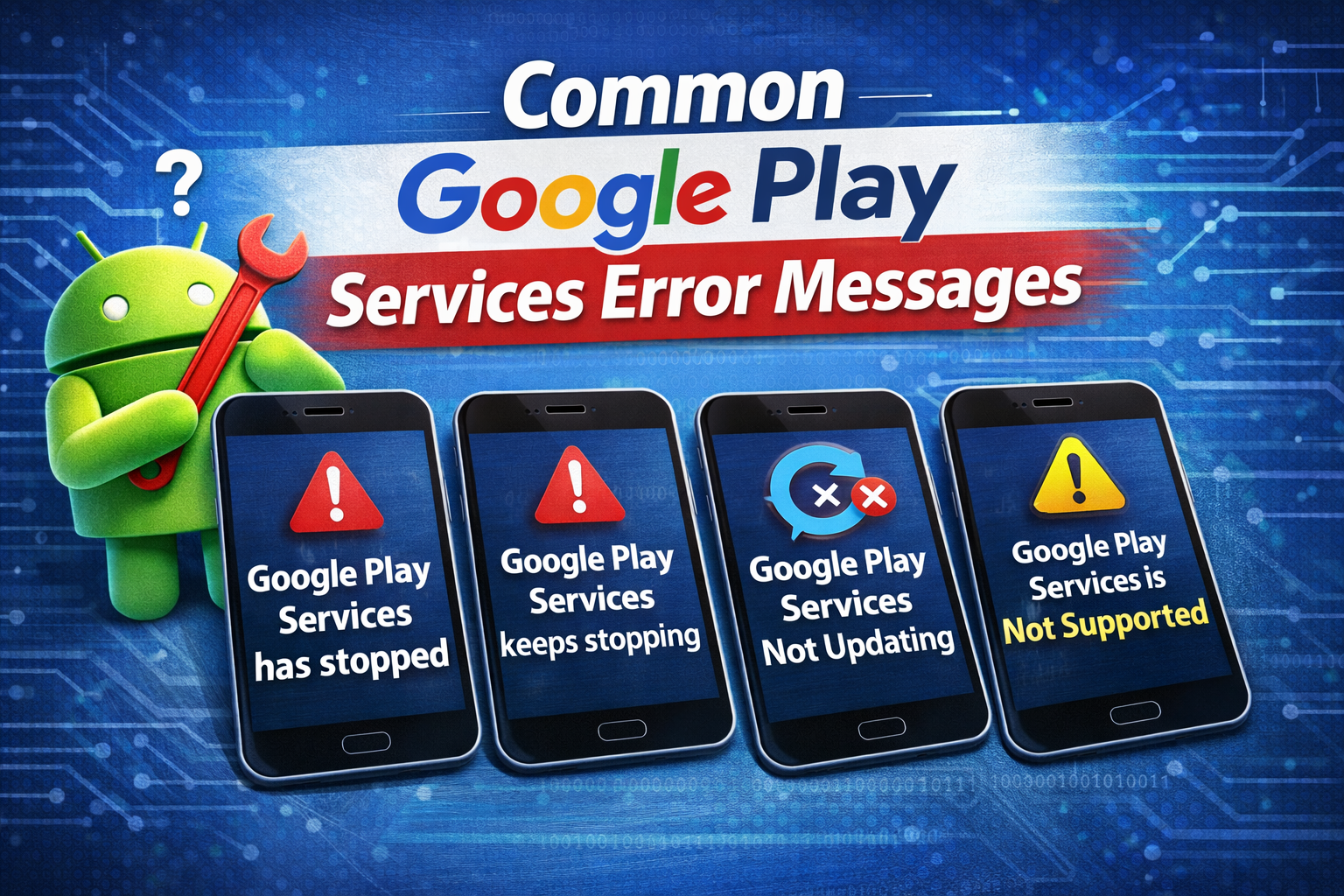
You may see one or more of these messages:
- Google Play Services has stopped
- Google Play Services keeps stopping
- This app won’t run unless you update Google Play Services
- Google Play Services error occurred
- Apps crashing due to Google Play Services
If you see any of these, don’t panic. Most errors are easy to fix.
Basic Checks Before Fixing Google Play Services Errors
Before trying advanced solutions, start with these quick checks.
1. Restart Your Android Phone
Restarting clears temporary bugs.
Steps:
- Press and hold the Power button
- Tap Restart
- Open your apps again
This simple step fixes the problem for many users.
2. Check Internet Connection
Google Play Services needs internet access.
Steps:
- Switch between Wi-Fi and mobile data
- Turn Airplane mode ON for 10 seconds, then OFF
- Test internet using a browser
How to Fix Google Play Services Errors (Step-by-Step)
3. Clear Google Play Services Cache (Most Effective Fix)
This is the first fix you should try.
Steps:
- Go to Settings
- Tap Apps or Apps & notifications
- Find Google Play Services
- Tap Storage
- Tap Clear Cache
Clearing cache will NOT delete your data.
Real-world example:
If apps crash randomly, clearing the cache often fixes the issue instantly.
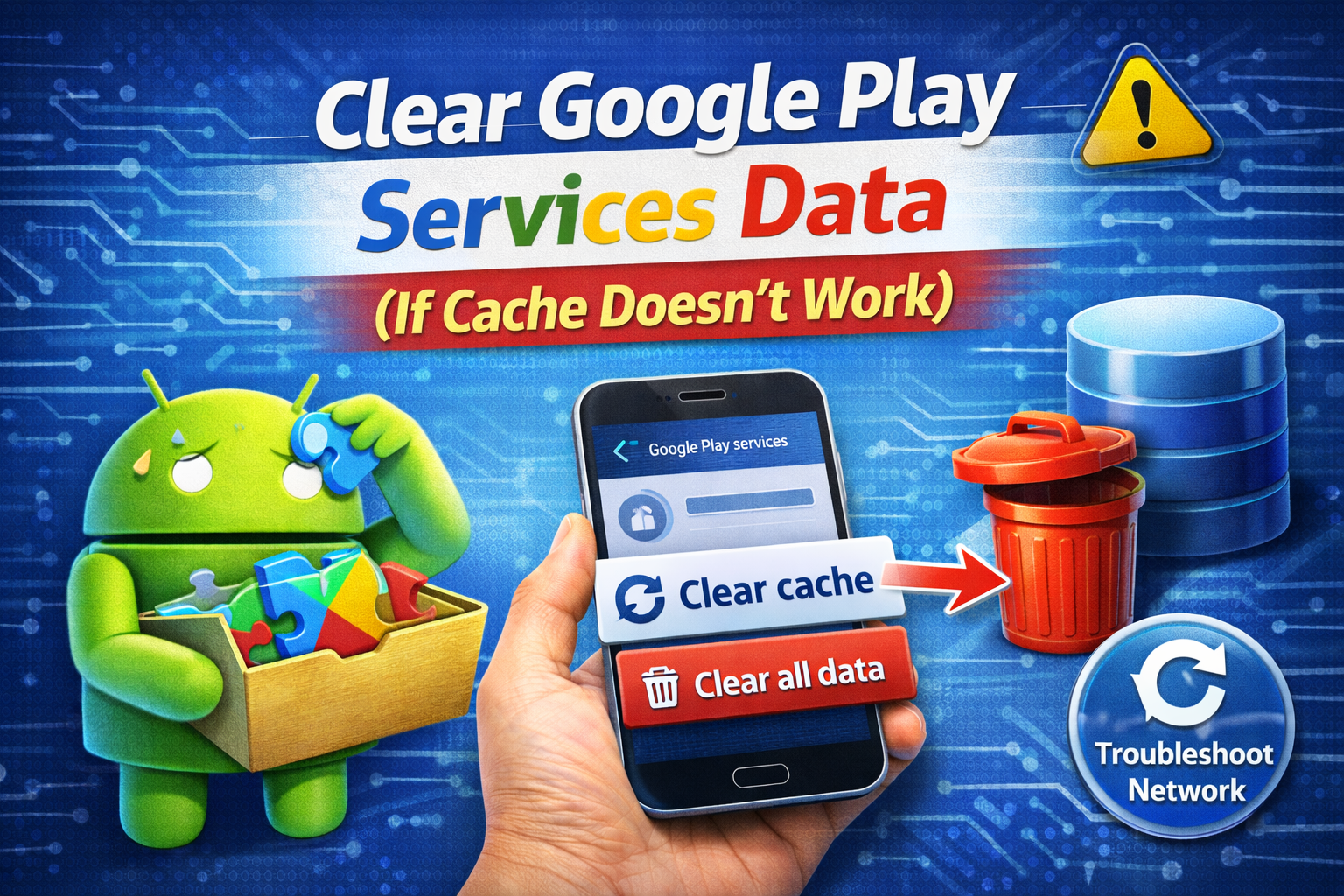
4. Clear Google Play Services Data (If Cache Doesn’t Work)
Steps:
- Settings → Apps → Google Play Services
- Tap Storage
- Tap Clear Data
- Confirm
This resets Play Services settings but keeps your Google account safe.
Fix Related Google Apps (Very Important)
Google Play Services works together with other Google apps.
5. Clear Cache for Google Play Store
Steps:
- Settings → Apps
- Open Google Play Store
- Tap Storage
- Tap Clear Cache
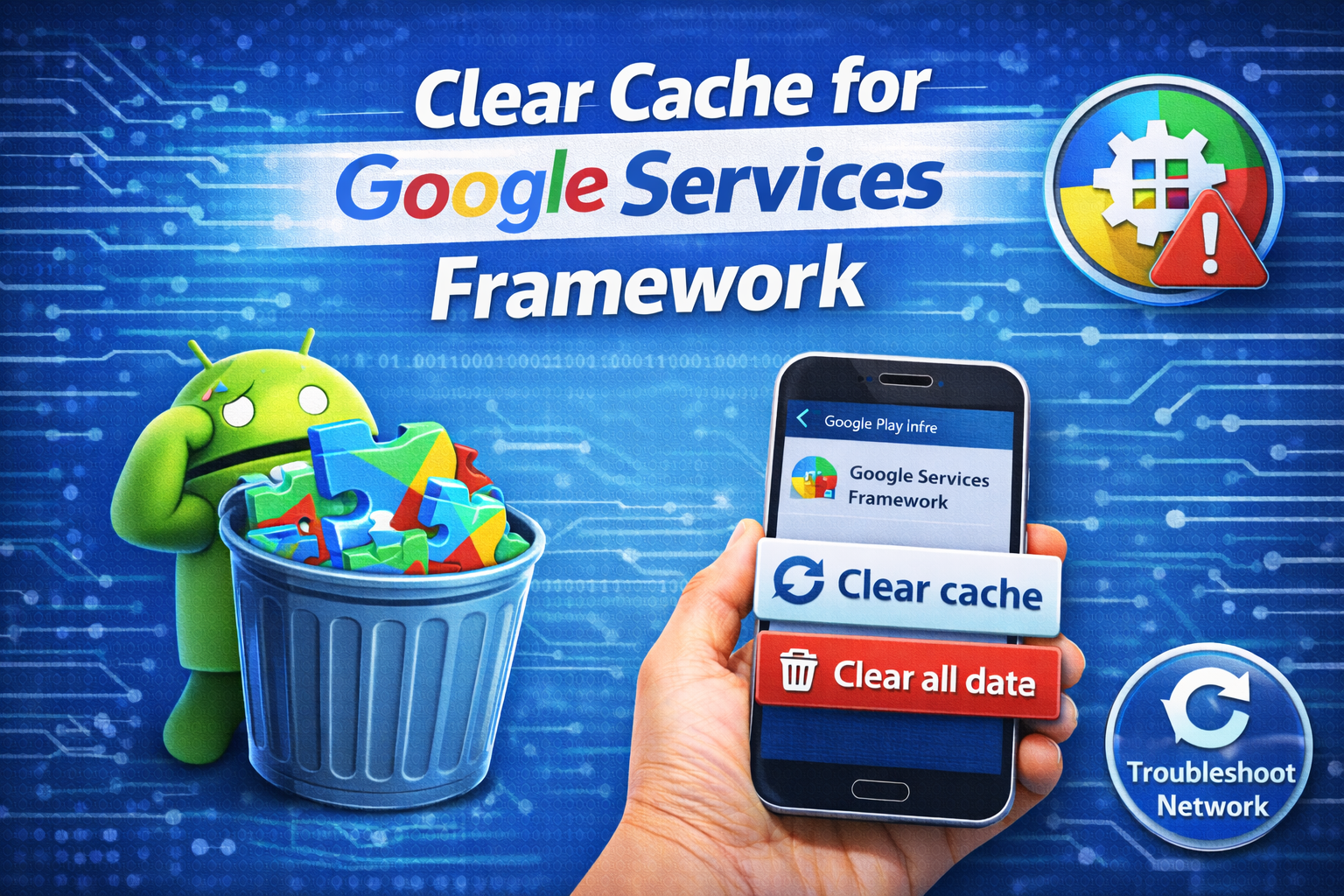
6. Clear Cache for Google Services Framework
Steps:
- Settings → Apps
- Tap Google Services Framework
- Tap Storage
- Tap Clear Cache
This helps fix login and sync-related errors.
Fix Google Play Services Update Problems
7. Update Google Play Services
Outdated versions cause many errors.
Steps:
- Open Google Play Store
- Search Google Play Services
- Tap Update (if available)
If you don’t see Update, your app is already up to date.
8. Uninstall Google Play Services Updates (Safe Method)
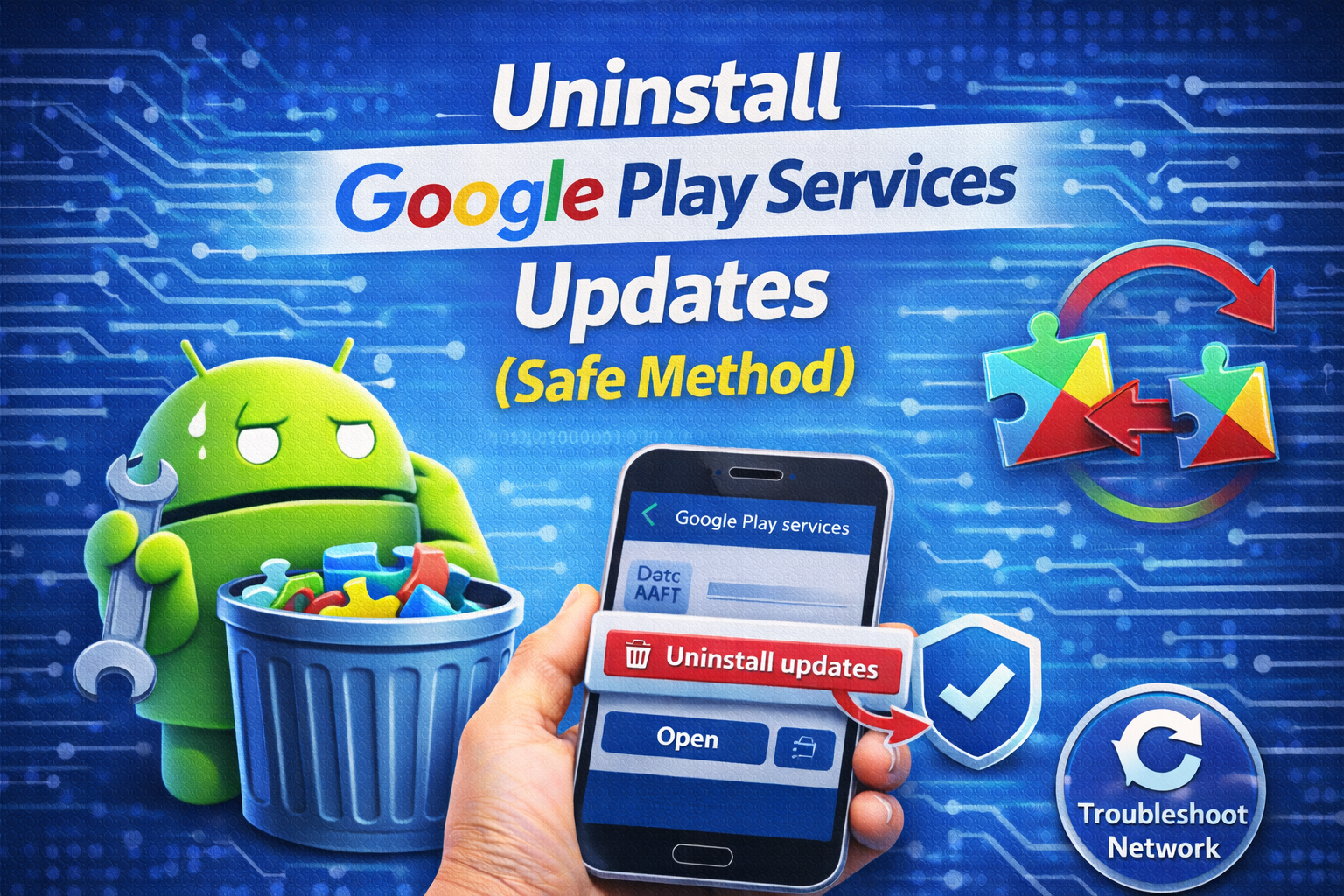
If errors started after an update, rolling back helps.
Steps:
- Settings → Apps → Google Play Services
- Tap Three dots (⋮) in the top corner
- Tap Uninstall updates
- Restart your phone
Android will reinstall the correct version automatically.
Fix Date, Time, and Storage Issues
9. Check Date & Time Settings
Wrong date/time causes authentication errors.
Steps:
- Settings → Date & Time
- Enable Automatic date & time
- Enable Automatic time zone
10. Free Up Storage Space
Low storage can break system services.
Steps:
- Settings → Storage
- Delete unused apps
- Remove large videos or files
📌 Keep at least 1–2 GB free space.
Fix Google Account Problems
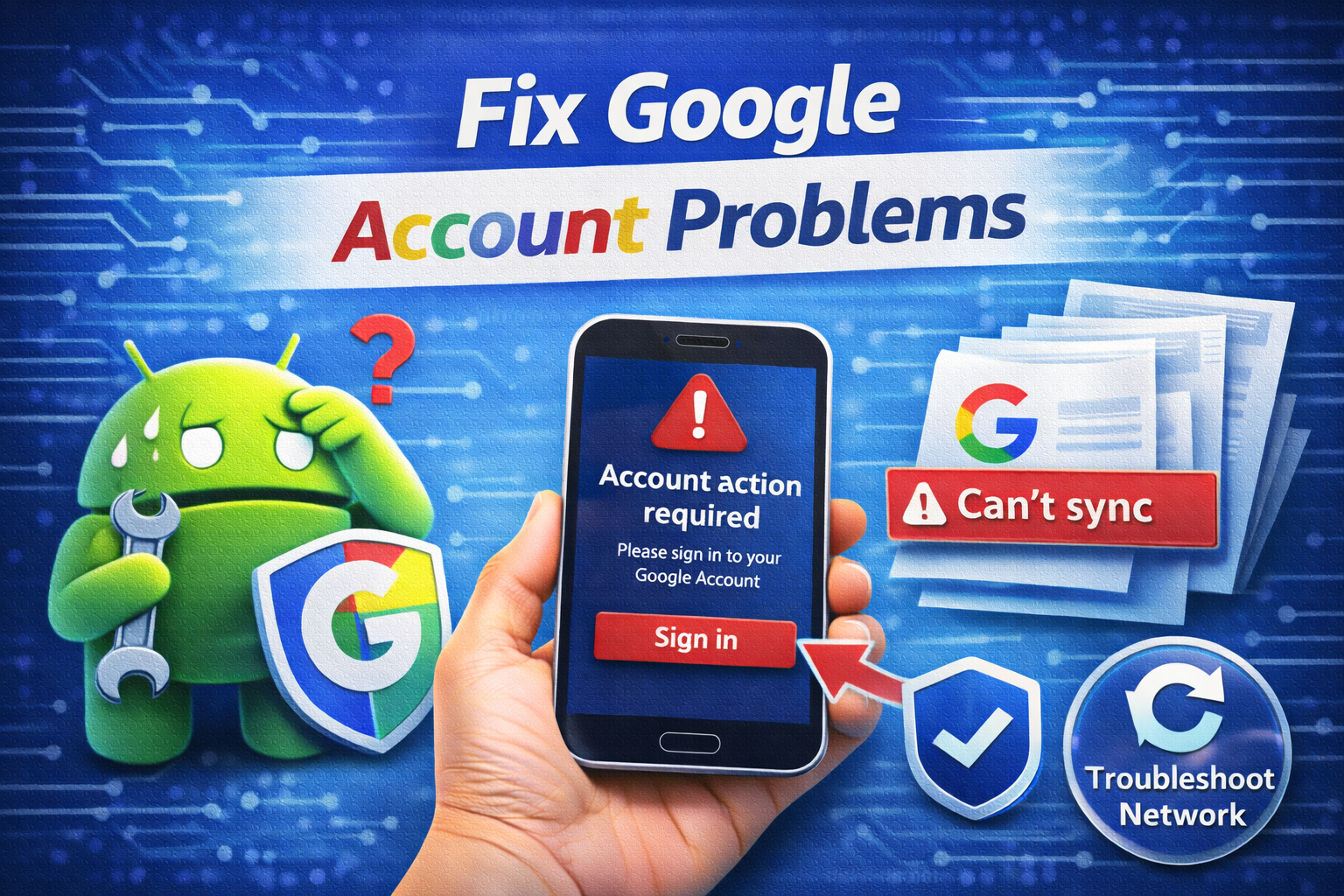
11. Remove and Re-Add Google Account
This fixes sync and authentication issues.
Steps:
- Settings → Accounts
- Select Google
- Tap Remove account
- Restart phone
- Add the Google account again
Make sure you know your password before removing.
Advanced Fixes for Google Play Services Errors
12. Reset App Preferences (Safe)
This resets app settings without deleting data.
Steps:
- Settings → Apps
- Tap Three dots (⋮)
- Tap Reset app preferences
- Confirm
13. Disable VPN or Ad Blockers
VPNs can block Google servers.
Steps:
- Turn off VPN apps
- Disable DNS or ad blockers
- Restart the phone
👉 Many “keeps stopping” errors are fixed this way.
Last Resort Fix
14. Factory Reset (Only If Nothing Works)
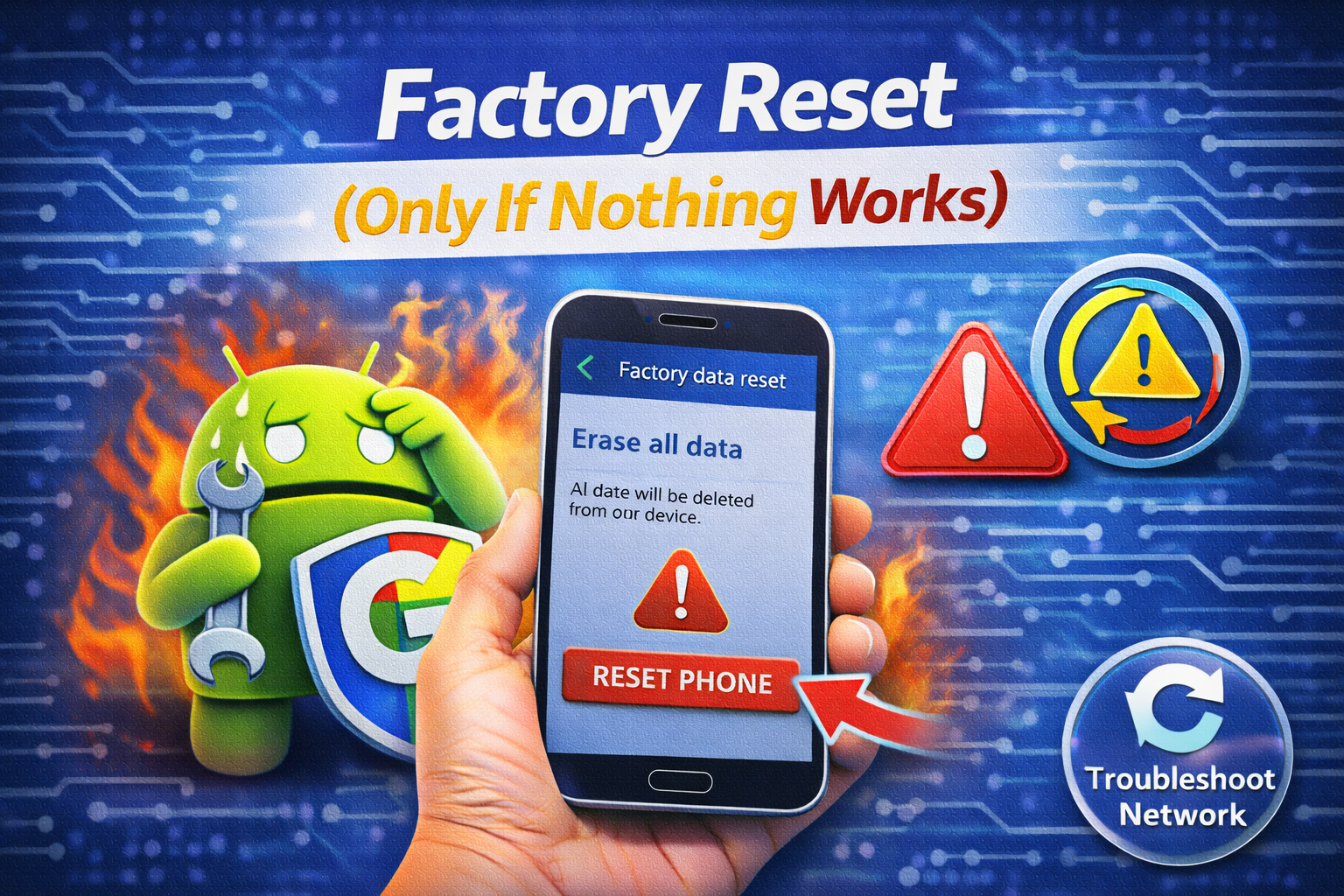
This will erase all data.
Steps:
- Backup your data
- Settings → System → Reset
- Tap Factory data reset
Use this only if Google Play Services errors are constant and severe.
Tips to Prevent Google Play Services Errors
- Keep Android updated
- Avoid force-stopping Google apps
- Install apps only from Play Store
- Maintain enough storage space
- Don’t use outdated APK files
Frequently Asked Questions (FAQ)
1. Why does Google Play Services keep stopping?
This usually happens due to corrupted cache, outdated version, or system bugs.
2. Is it safe to clear Google Play Services data?
Yes. It resets settings but does not delete personal data.
3. Can I uninstall Google Play Services?
No. It’s a system app, but you can uninstall updates safely.
4. Why do many apps crash when Play Services fails?
Because most apps depend on Google Play Services to function.
5. Does Google Play Services drain battery?
Normally no. Battery drain usually means a bug or outdated version.
Conclusion
Google Play Services errors can be frustrating, but most problems are easy to fix. By following the step-by-step solutions in this guide—from clearing cache to updating services—you can restore your Android device to normal working condition.
Start with simple fixes first, and only move to advanced options if needed. With proper maintenance, Google Play Services will continue to work smoothly in the background.
Quick reminder: Clearing cache + updating Google Play Services fixes most errors.