How to Fix iPhone No Service or Signal Problem
If your iPhone suddenly shows “No Service” or has very weak signal bars, you’re not alone. This is a common issue faced by many iPhone users, and the good news is that most of the time, it can be fixed without going to a repair shop.
In this guide, you’ll learn how to fix iPhone no service or signal problem using simple, step-by-step solutions. The explanations are beginner-friendly, with real-world examples, so even if you’re not tech-savvy, you can follow along easily.
Understanding the iPhone No Service or Signal Problem
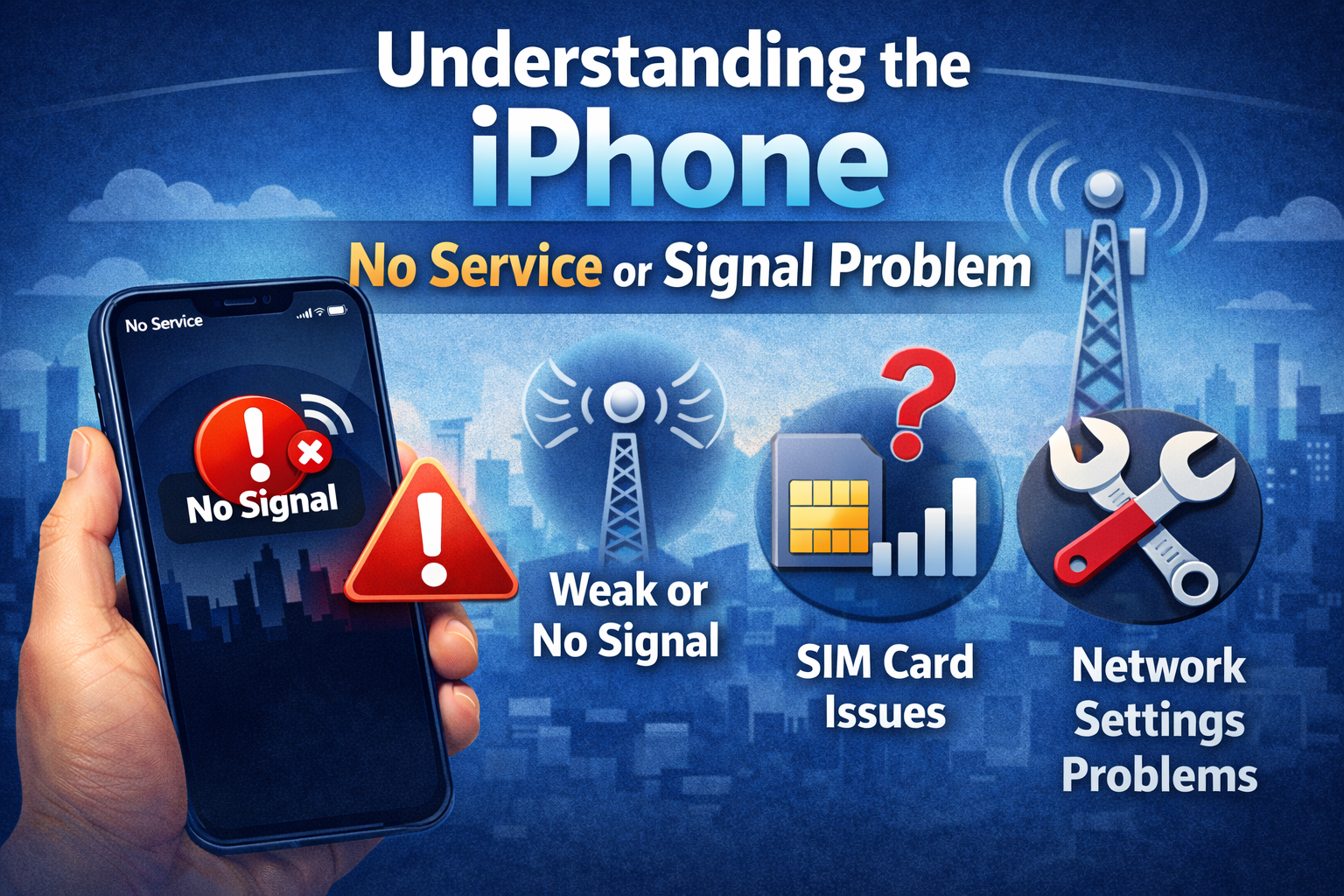
When your iPhone displays No Service, it means the device cannot connect to your mobile carrier’s network. Without a signal, you can’t make calls, send SMS, or use mobile data.
Common Signs of This Problem
- “No Service” or “Searching…” shown in the status bar
- Very weak signal (1 bar or fluctuating bars)
- Calls dropping frequently
- Mobile data not working
Why This Happens
The iPhone no service or signal problem can be caused by:
- Temporary network issues
- Incorrect settings
- SIM card problems
- iOS software bugs
- Physical damage to the antenna
Let’s fix these issues one by one.
Basic Checks Before Trying Advanced Fixes
Before changing any settings, start with the simplest solutions. These often solve the problem in minutes.
1. Move to a Better Signal Area
If you’re in a basement, elevator, rural area, or inside a thick concrete building, signal strength may be poor.
Real-world example:
A user in an underground parking lot sees “No Service.” As soon as they go outside, the signal returns.
Try stepping outside or near a window.
2. Turn Airplane Mode On and Off
This refreshes your iPhone’s connection to nearby cell towers.
Steps:
- Open Control Center
- Turn Airplane Mode ON
- Wait 10–15 seconds
- Turn it OFF
Check if the signal comes back.
3. Restart Your iPhone
Restarting clears temporary system glitches.
Steps:
- Press and hold the Power button
- Slide to power off
- Wait 30 seconds
- Turn your iPhone back on
This simple step fixes many signal-related problems.
How to Fix iPhone No Service or Signal Problem Using Settings
If basic checks didn’t work, try adjusting your iPhone settings.
Enable and Disable Cellular Data (Important Fix)
This helps your iPhone re-register with the carrier network.
Steps:
- Go to Settings
- Tap Cellular
- Turn Cellular Data OFF
- Wait 10 seconds
- Turn it ON
Many users report this instantly fixes the iPhone no service or signal problem.
Check Network Selection Settings
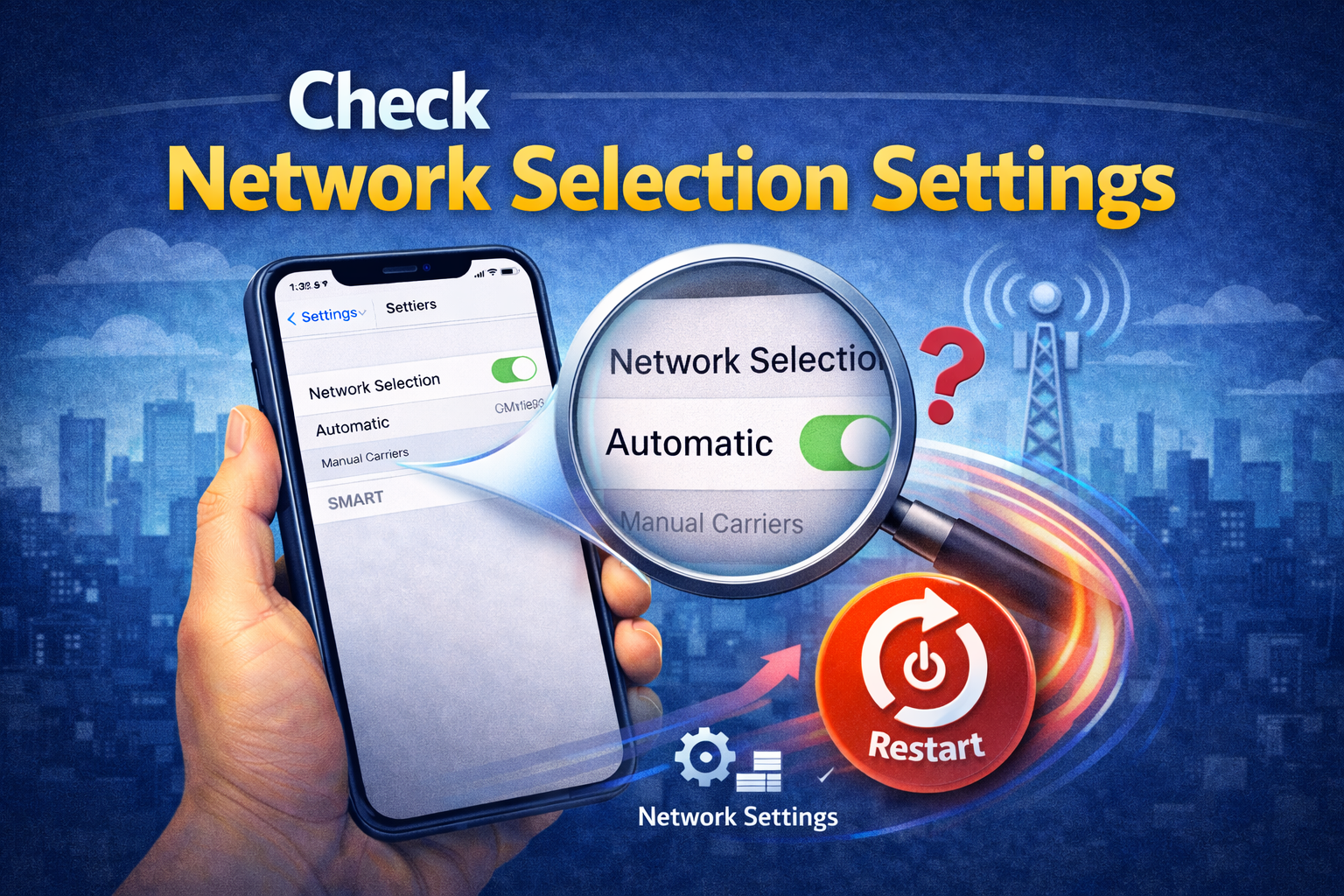
Your iPhone should normally select the network automatically.
Steps:
- Go to Settings → Cellular
- Tap Network Selection
- Turn Automatic ON
If Automatic is OFF, your phone may fail to connect to the correct carrier.
Check Date & Time Settings
Incorrect date and time can cause network authentication issues.
Steps:
- Go to Settings → General → Date & Time
- Enable Set Automatically
SIM Card Problems and Solutions
A damaged or improperly placed SIM card is a very common cause.
Remove and Reinsert the SIM Card
Steps:
- Power off your iPhone
- Use a SIM eject tool or paperclip
- Remove the SIM card
- Clean it gently with a dry cloth
- Reinsert it properly
- Turn your iPhone back on
Real-world example:
A traveler swaps SIM cards while abroad. After reinserting it incorrectly, the phone shows No Service. Reseating the SIM fixes it instantly.
Try Another SIM Card
If possible, insert a different SIM card.
- If the new SIM works → your old SIM is faulty
- If it still shows No Service → the issue is with the phone
Contact your carrier for a SIM replacement if needed.
Software Issues That Cause No Service on iPhone
Update iOS to Fix Network Bugs
Outdated iOS versions may contain bugs that affect signal reception.
Steps:
- Go to Settings → General → Software Update
- Download and install the latest update
Apple often includes network stability fixes in updates.
Reset Network Settings (Very Effective)
This does not delete your data, but it removes saved Wi-Fi passwords and VPN settings.
Steps:
- Go to Settings → General → Transfer or Reset iPhone
- Tap Reset
- Choose Reset Network Settings
- Enter your passcode
After restarting, reconnect to Wi-Fi and check the signal.
Carrier-Related Issues You Should Know
Sometimes the problem isn’t your phone—it’s the network.
Check Carrier Coverage and Outages
Your carrier may be experiencing temporary service outages or maintenance.
What to do:
- Visit your carrier’s website
- Check social media for outage reports
- Ask friends using the same network
Update Carrier Settings
Carrier settings updates improve network connectivity.
Steps:
- Go to Settings → General → About
- Wait a few seconds
- If an update appears, tap Update
Hardware Damage and When to Seek Repair
If none of the software fixes work, hardware may be the cause.
Common Hardware Causes
- Dropped phone damaging the antenna
- Water or moisture exposure
- Internal component failure
Real-world example:
A phone dropped on concrete shows No Service afterward. Internal antenna damage requires professional repair.
If your iPhone:
- Shows No Service constantly
- Has been dropped or exposed to water
- Doesn’t detect any SIM card
Visit an authorized repair center.
Advanced Tips to Improve iPhone Signal
Disable VPN Temporarily
VPN apps can interfere with cellular connections.
Steps:
- Go to Settings → VPN
- Turn VPN OFF
- Check signal again
Reset All Settings (Last Software Option)
This resets system preferences but keeps your data.
Steps:
- Go to Settings → General → Transfer or Reset iPhone
- Tap Reset
- Choose Reset All Settings
FAQ: iPhone No Service or Signal Problem
1. Why does my iPhone say No Service but others work?
This usually means a SIM card issue, incorrect settings, or hardware damage specific to your phone.
2. Can iOS updates cause signal problems?
Yes. Sometimes new updates introduce bugs, but Apple usually fixes them quickly with follow-up updates.
3. Does resetting network settings delete data?
No. It only removes Wi-Fi passwords, VPNs, and cellular settings.
4. Why does No Service appear after traveling?
Your iPhone may not automatically connect to the local network. Enable Automatic Network Selection or contact your carrier.
5. When should I contact Apple or a repair shop?
If the problem continues after all fixes and especially after drops or water exposure.
Conclusion
The iPhone no service or signal problem can be frustrating, but in most cases, it’s easy to fix. Start with basic steps like Airplane Mode, restarting, and checking SIM cards. Then move on to network settings, software updates, and resets. Only consider repairs if nothing else works.
By following this guide step by step, even beginners can restore their iPhone signal and get back to calling, texting, and browsing without stress.