How to Change DNS to Improve Internet Speed
Slow internet can be incredibly frustrating—especially when everything looks fine, but websites still load slowly. One simple but often overlooked solution is changing your DNS settings. How to Change DNS to Improve Internet Speed is a practical guide that helps beginners and normal users speed up browsing, reduce loading times, and improve overall internet reliability without buying new hardware or calling an ISP.
In this article, you’ll learn what DNS is, why it affects internet speed, and how to safely change DNS on different devices step by step. We’ll also share real-world examples, common mistakes, and FAQs to make everything crystal clear.
What Is DNS and Why Does It Affect Internet Speed?
DNS stands for Domain Name System. Think of it as the internet’s phonebook.
- When you type
google.cominto your browser - DNS translates that name into an IP address like
142.250.190.14 - Your device then connects to the correct server
If your DNS server is slow, overloaded, or unreliable, your internet will feel slow—even if your connection speed is fast.
How DNS Impacts Speed (In Simple Terms)
DNS does not increase your download speed (Mbps), but it:
- Reduces website loading time
- Speeds up first-time page visits
- Improves connection stability
- Helps avoid ISP DNS outages
Signs You Should Change Your DNS
You may benefit from changing DNS if you notice:
- Websites take a long time to start loading
- Pages fail to load but work after refresh
- Internet feels slow only on certain sites
- ISP DNS outages happen often
- You want better privacy and security
Best Free Public DNS Servers You Can Use
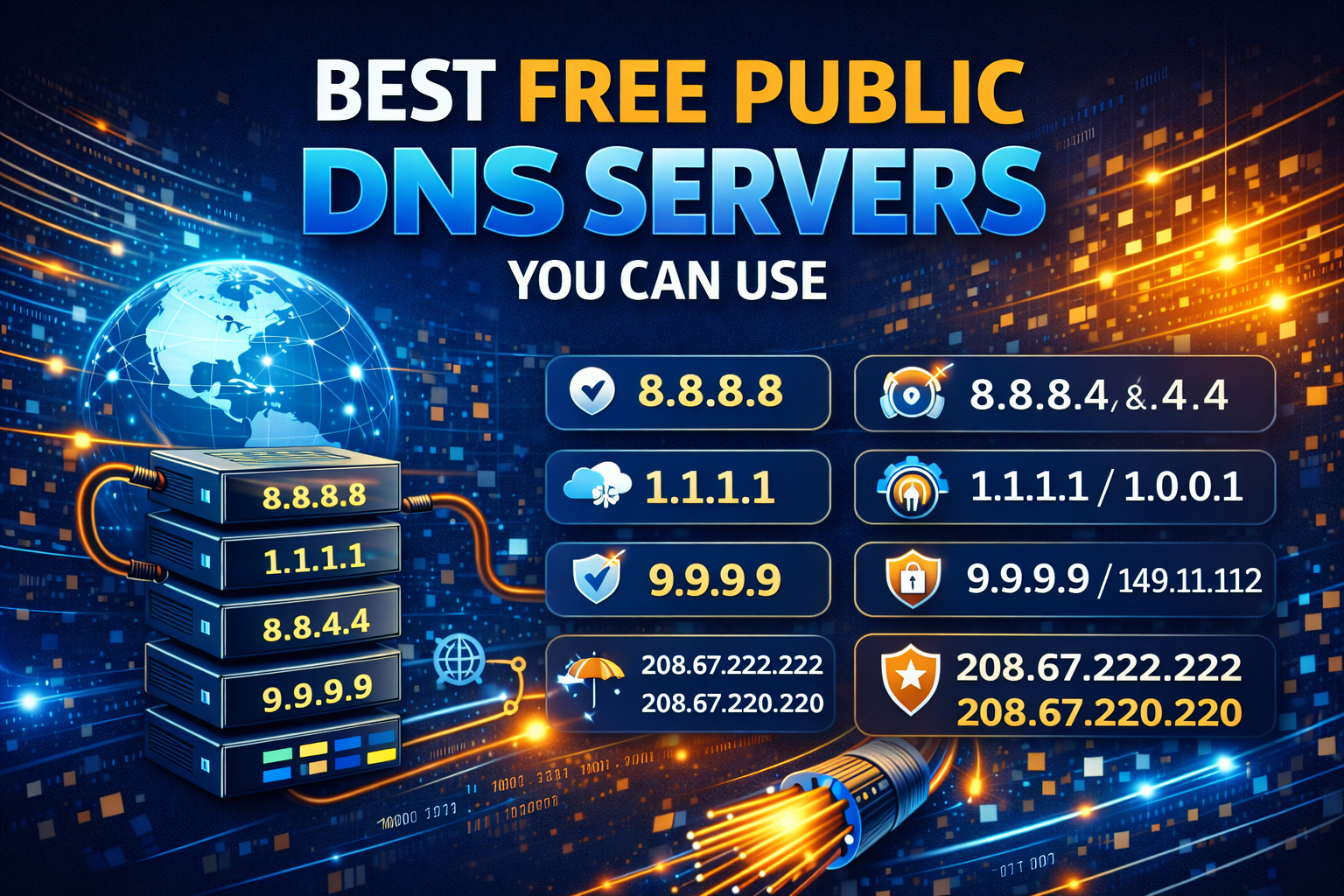
Here are some reliable and fast public DNS providers trusted worldwide:
Popular DNS Options
- Google DNS
- Primary:
8.8.8.8 - Secondary:
8.8.4.4
- Primary:
- Cloudflare DNS
- Primary:
1.1.1.1 - Secondary:
1.0.0.1
- Primary:
- OpenDNS
- Primary:
208.67.222.222 - Secondary:
208.67.220.220
- Primary:
Tip: Cloudflare DNS is often the fastest and focuses strongly on privacy.
How to Change DNS to Improve Internet Speed on Windows
Step-by-Step (Windows 10 / 11)
- Open Settings
- Go to Network & Internet
- Click Advanced network settings
- Select More network adapter options
- Right-click your active connection → Properties
- Double-click Internet Protocol Version 4 (IPv4)
- Select Use the following DNS server addresses
- Enter:
- Preferred DNS:
1.1.1.1 - Alternate DNS:
1.0.0.1
- Preferred DNS:
- Click OK and restart your browser
Real-World Example
A home user switched from ISP DNS to Cloudflare DNS and noticed websites like YouTube and Facebook loaded 1–2 seconds faster.
How to Change DNS to Improve Internet Speed on Android
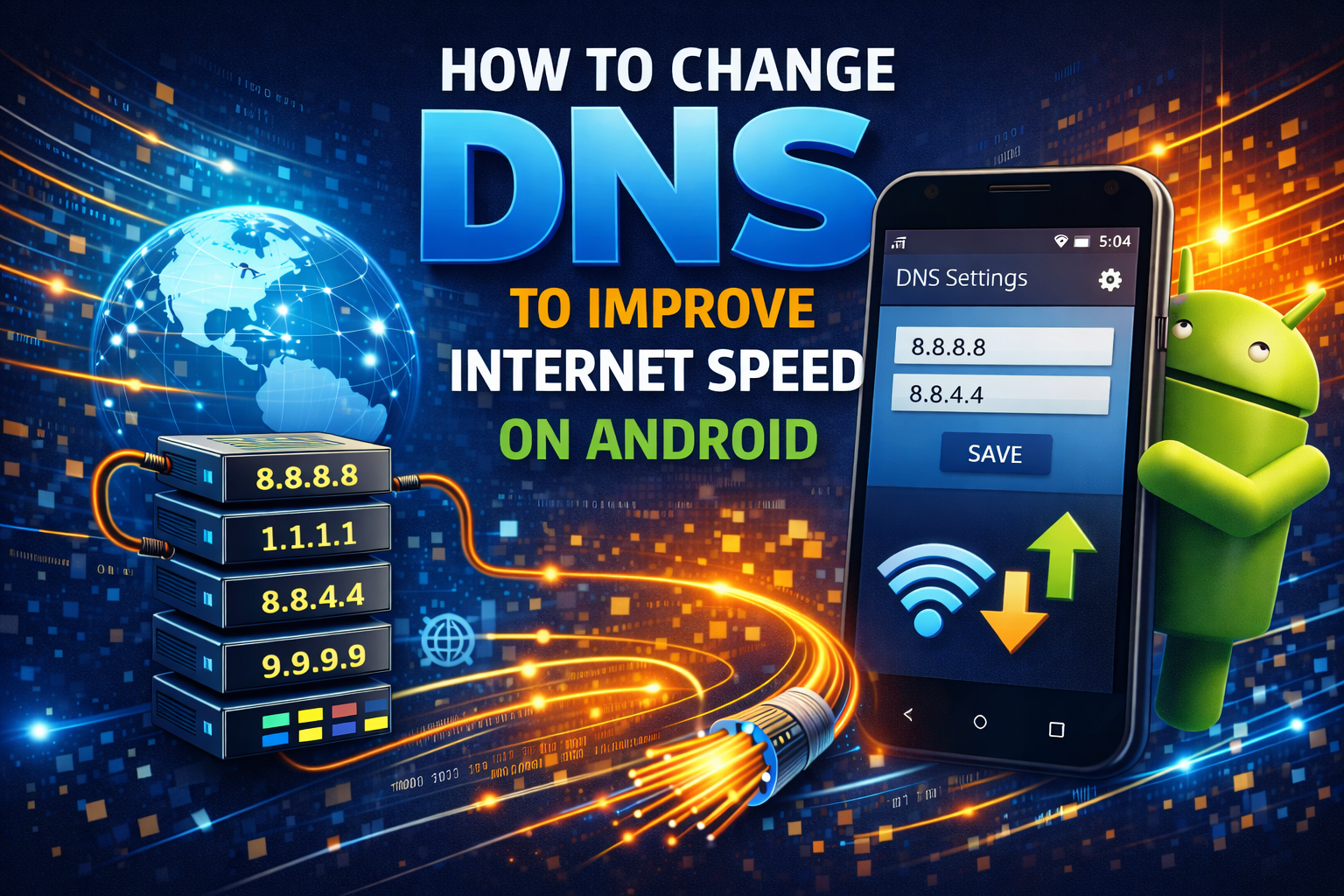
Method 1: Private DNS (Android 9+)
- Open Settings
- Go to Network & Internet
- Tap Private DNS
- Select Private DNS provider hostname
- Enter:
one.one.one.one - Save changes
Method 2: Wi-Fi DNS (Older Versions)
- Long-press your connected Wi-Fi
- Tap Modify network
- Enable Advanced options
- Set IP settings to Static
- Enter DNS:
- DNS 1:
8.8.8.8 - DNS 2:
8.8.4.4
- DNS 1:
- Save
How to Change DNS to Improve Internet Speed on iPhone / iPad
Step-by-Step (iOS)
- Open Settings
- Tap Wi-Fi
- Tap the ⓘ icon next to your Wi-Fi
- Tap Configure DNS
- Select Manual
- Remove existing servers
- Add:
1.1.1.11.0.0.1
- Save and reconnect Wi-Fi
How to Change DNS on Your Router (Best Option)
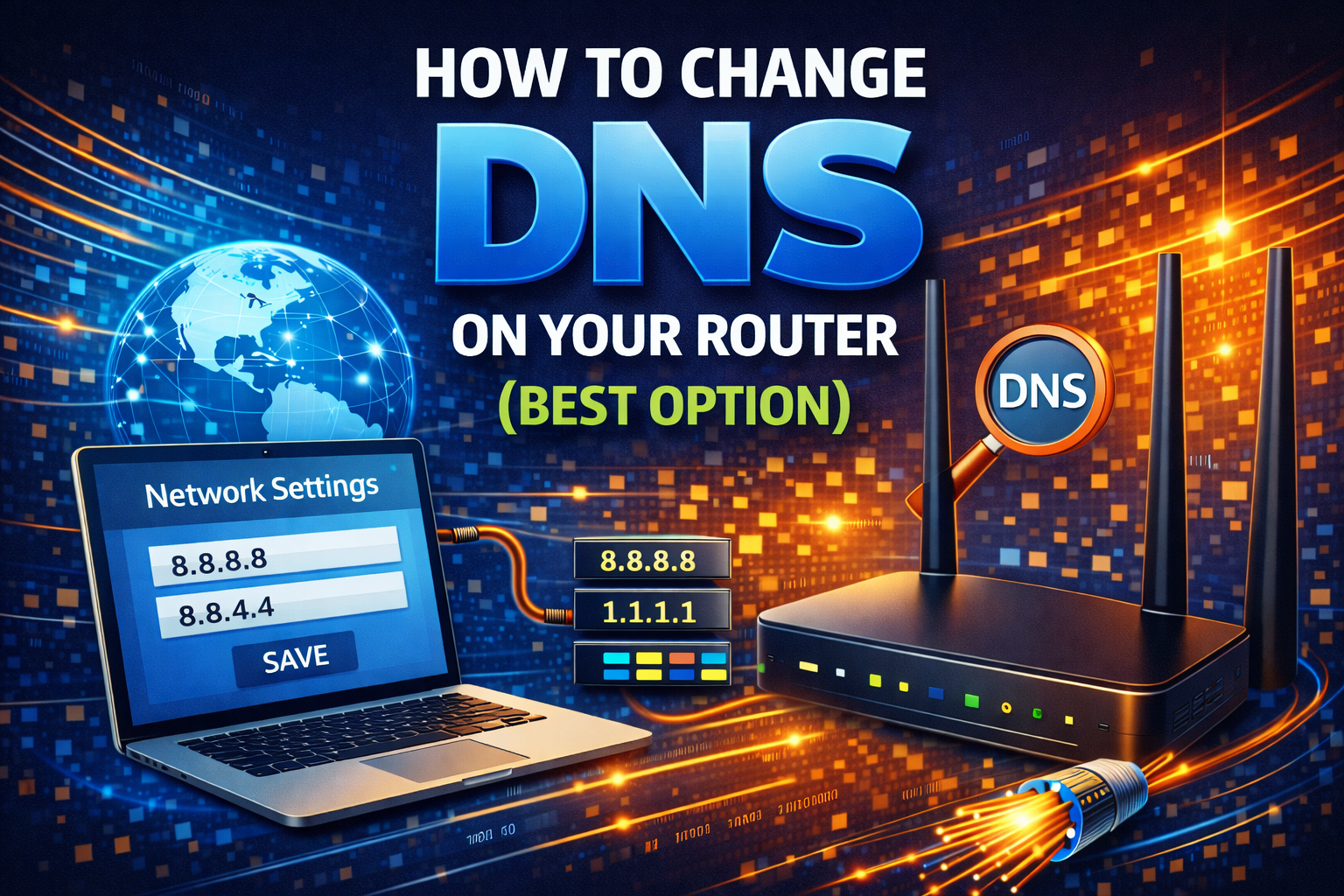
Changing DNS on your router applies it to all devices connected to your network.
General Steps (May Vary by Router)
- Open browser and go to:
192.168.1.1or192.168.0.1
- Log in to router admin panel
- Go to Internet / WAN settings
- Find DNS settings
- Enter custom DNS:
- Primary:
1.1.1.1 - Secondary:
1.0.0.1
- Primary:
- Save and reboot router
This is the most effective way to improve internet experience across your home.
Does Changing DNS Really Improve Internet Speed?
What DNS Improves
- Faster website loading
- Reduced connection delays
- More stable browsing
- Better gaming server lookup
What DNS Does NOT Improve
- Download speed from ISP
- Bandwidth limits
- Weak Wi-Fi signal
DNS improves responsiveness, not raw speed.
Common Mistakes to Avoid When Changing DNS
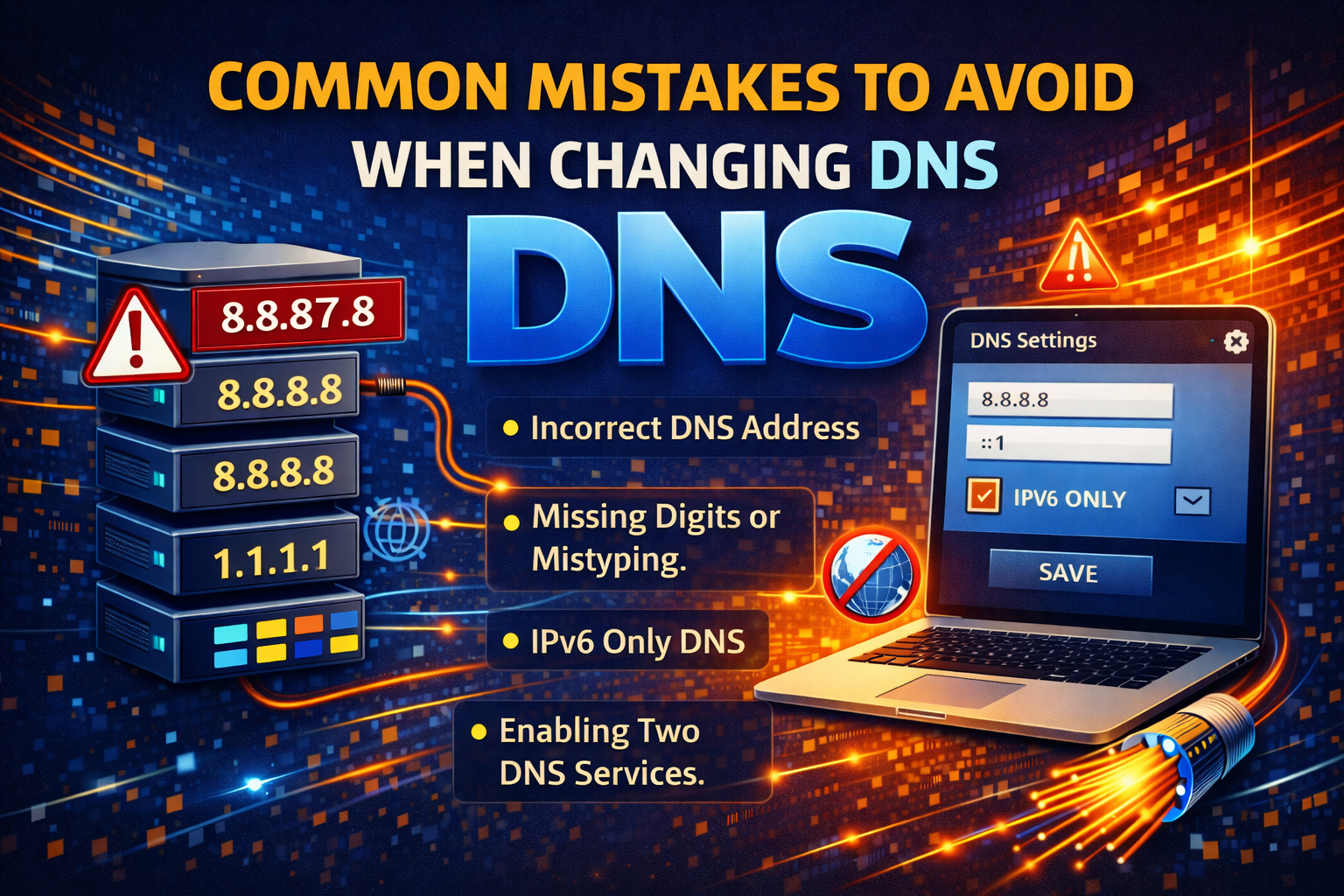
- Using random DNS from untrusted sources
- Forgetting to restart browser or device
- Mixing IPv4 and IPv6 incorrectly
- Changing DNS during ISP outages (test later)
FAQ: How to Change DNS to Improve Internet Speed
1. Is it safe to change DNS?
Yes. Using trusted DNS providers like Google or Cloudflare is completely safe.
2. Will DNS increase my download speed?
No, but it improves browsing speed and page loading time.
3. Which DNS is fastest?
Cloudflare (1.1.1.1) is often the fastest globally.
4. Should I change DNS on each device or router?
Router-level change is best for all devices.
5. Can DNS improve gaming ping?
Slightly—mainly during server lookup, not gameplay itself.
Conclusion
Changing DNS is one of the easiest and safest ways to improve your internet experience. While it won’t magically boost your ISP speed, it can significantly reduce loading delays, improve stability, and make everyday browsing smoother.
If you’re tired of slow-loading websites, follow this guide on How to Change DNS to Improve Internet Speed, try a reliable DNS provider, and enjoy a faster-feeling internet—no technical skills required.