How to Fix iPhone Apps Crashing Constantly
If you’re dealing with iPhone apps crashing constantly, you’re not alone—and the good news is that this problem is usually easy to fix. Many iPhone users experience apps suddenly closing, freezing, or crashing right after opening. This can happen because of software bugs, outdated apps, low storage space, or simple system glitches.
In this beginner-friendly guide, you’ll learn how to fix iPhone apps crashing constantly using clear, step-by-step solutions. You don’t need any technical knowledge—just follow along and try each fix in order. Most users solve the problem within minutes.
Why Do iPhone Apps Keep Crashing?
Before jumping into fixes, it helps to understand why apps crash in the first place. Common reasons include:
- Outdated app versions
- Bugs in iOS after an update
- Low storage or memory
- Corrupted app data
- Incompatible apps
- Overheating or background overload
For example, after a major iOS update, many users report apps like social media or games crashing until developers release updates.
1. Restart Your iPhone (Simple but Effective)
Why this works
Restarting clears temporary memory (RAM) and stops background processes that may cause apps to crash.
Steps to restart your iPhone
- Press and hold the Power button (and Volume button on newer models)
- Slide Power Off
- Wait 30 seconds
- Turn your iPhone back on
Real-world example:
Many users notice that apps crashing constantly after long usage stop crashing immediately after a restart.
2. Update the Crashing App
Outdated apps are one of the top causes of iPhone apps crashing constantly.
How to update apps
- Open the App Store
- Tap your profile icon
- Scroll to see available updates
- Tap Update next to the crashing app
Why this matters
Developers regularly release bug fixes to make apps compatible with the latest iOS version.
3. Update iOS to the Latest Version
How to check for iOS updates
- Open Settings
- Tap General
- Select Software Update
- Download and install any available update
Important tip
Always connect to Wi-Fi and make sure your battery is above 50% before updating.
Real-world example:
After an iOS update, some apps crash more often. Updating to the latest patch usually fixes system-level bugs.
4. Force Close the App and Reopen It
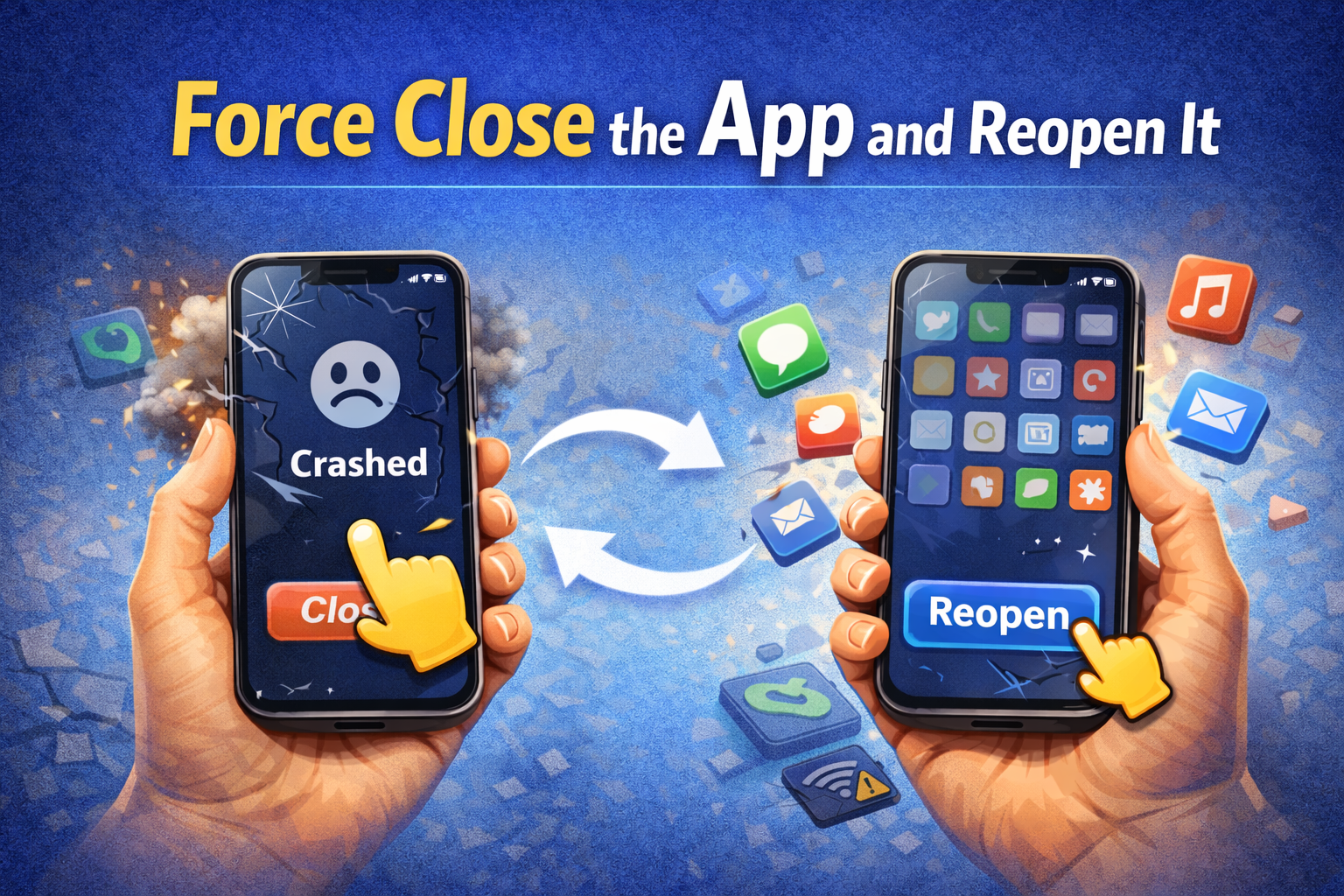
Sometimes an app crashes because it’s stuck in a bad state.
How to force close an app
- Swipe up from the bottom (or double-press Home)
- Find the crashing app
- Swipe it up to close
- Reopen the app
This quick fix works well for apps that freeze or crash randomly.
5. Free Up iPhone Storage Space
Low storage can cause apps to crash or fail to load properly.
Check your storage
- Go to Settings
- Tap General
- Select iPhone Storage
What to delete
- Old photos and videos
- Unused apps
- Large files and downloads
Tip: Try to keep at least 5–10 GB free for smooth performance.
6. Reinstall the App (Very Effective)
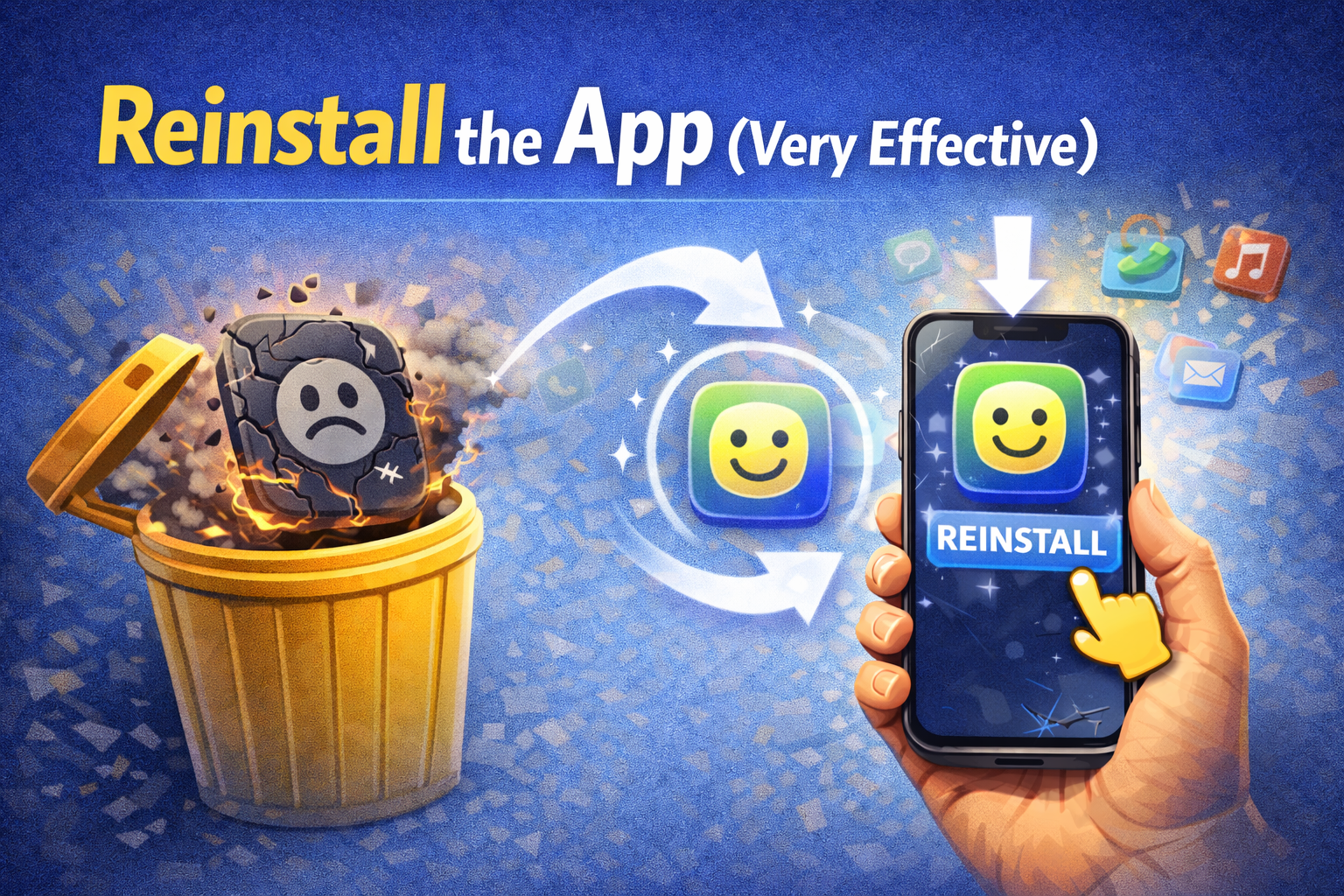
If a specific app keeps crashing, reinstalling it often solves the problem.
Steps to reinstall an app
- Press and hold the app icon
- Tap Remove App
- Choose Delete App
- Open the App Store and reinstall it
Why this works
Reinstalling removes corrupted app files and installs a fresh version.
7. Check App Compatibility
Some apps don’t work well with older iPhones or newer iOS versions.
What to look for
- App Store reviews mentioning crashes
- App description compatibility notes
- Last update date (very old apps = risky)
If an app hasn’t been updated in years, crashes are more likely.
8. Reset All Settings (Safe Option)
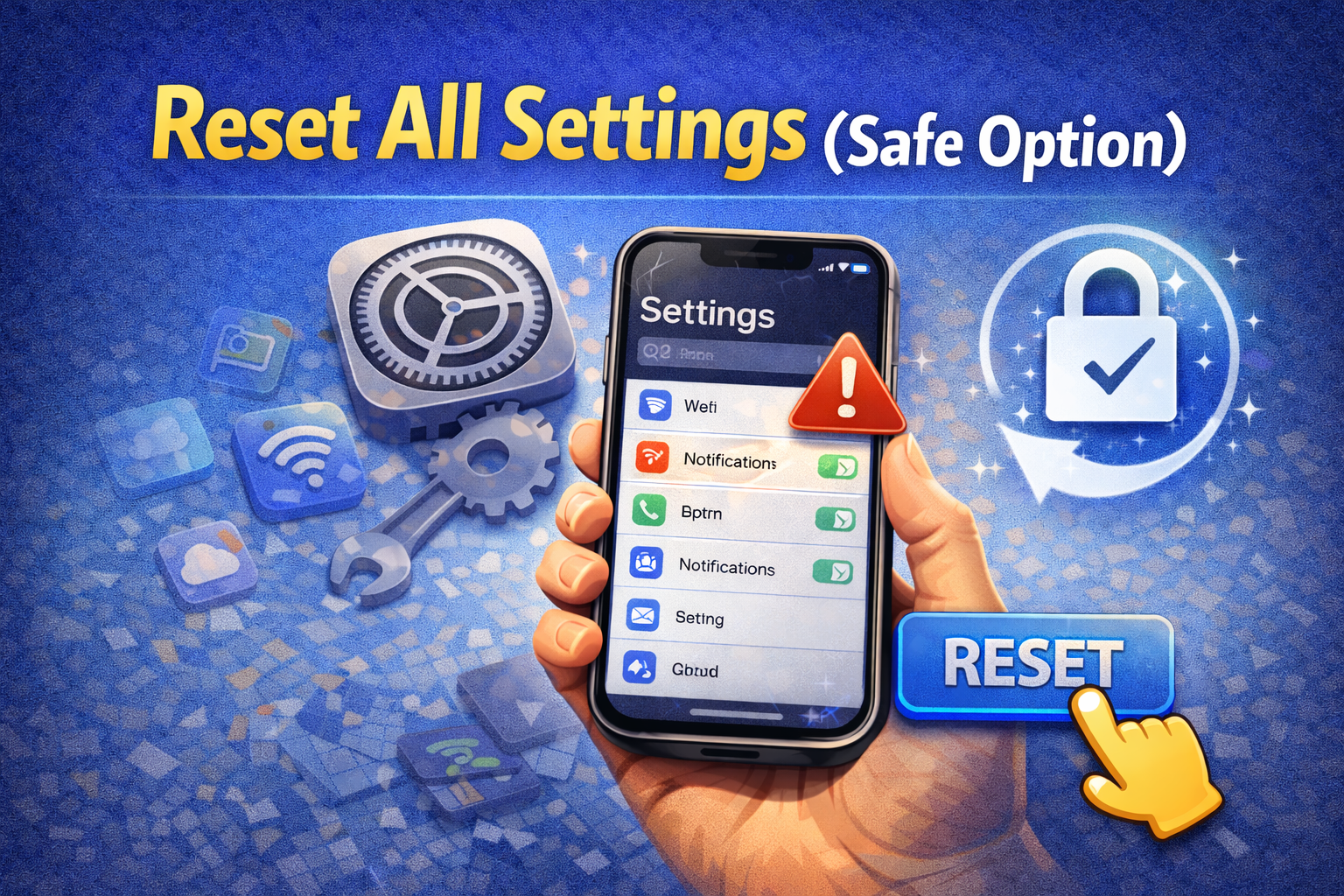
This does not delete your data, but resets system settings.
How to reset all settings
- Open Settings
- Tap General
- Select Transfer or Reset iPhone
- Tap Reset
- Choose Reset All Settings
This fixes crashes caused by incorrect system configurations.
9. Reduce Background App Activity
Too many apps running in the background can overload memory.
What to do
- Close unused apps
- Turn off Background App Refresh:
- Settings → General → Background App Refresh
This helps older iPhones especially.
10. Check for Overheating Issues
If your iPhone gets too hot, apps may crash to protect the system.
Common causes
- Heavy gaming
- Charging while using apps
- Hot environments
Let your iPhone cool down before using it again.
11. Factory Reset (Last Resort)
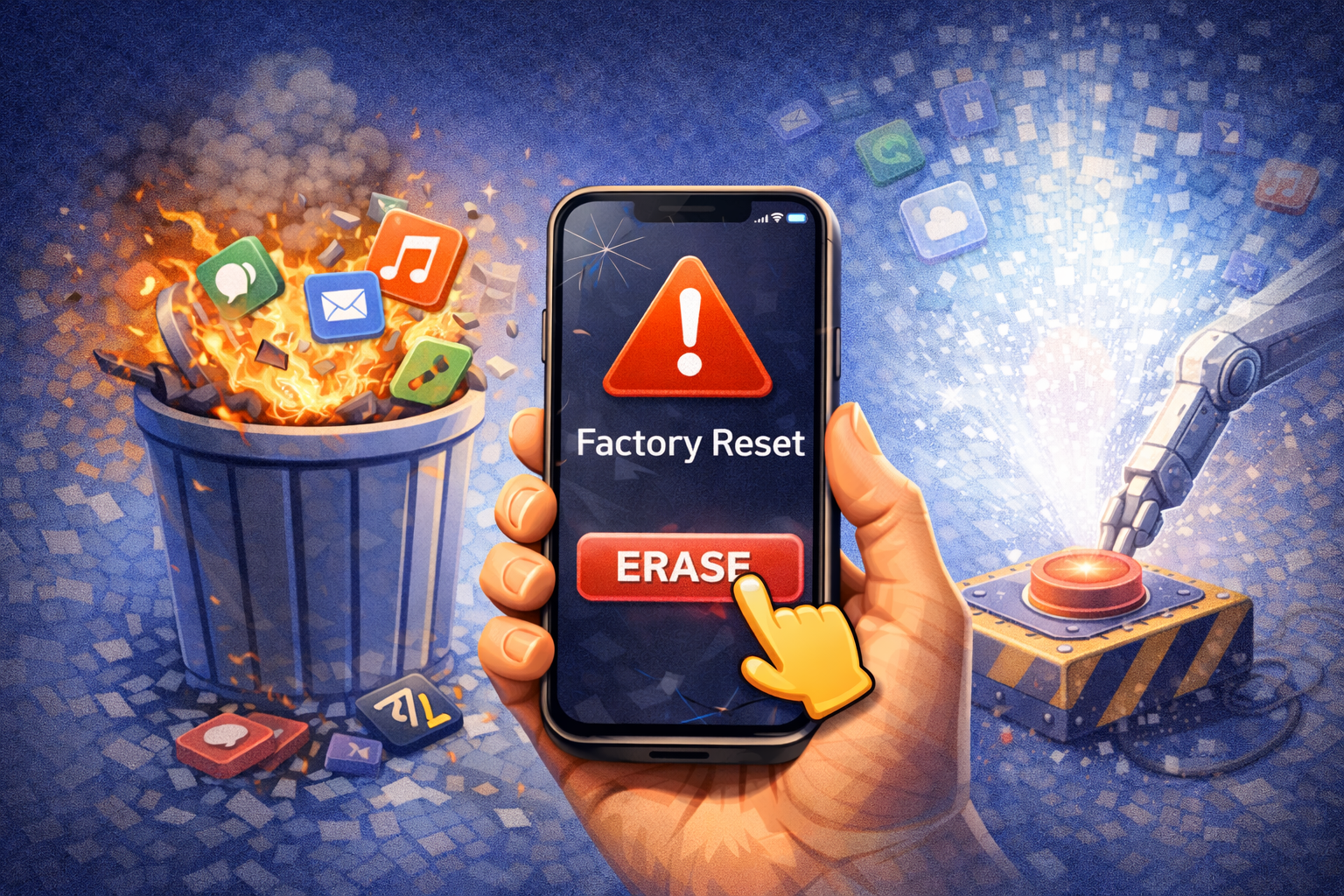
If iPhone apps crashing constantly even after all fixes, a factory reset may help.
Important: Back up first!
- Use iCloud or a computer backup
Steps
- Settings → General
- Transfer or Reset iPhone
- Erase All Content and Settings
This should only be used if nothing else works.
When to Contact Apple Support
If apps still crash constantly, the issue may be hardware-related.
Contact Apple Support if:
- Your iPhone restarts randomly
- Apps crash even after factory reset
- The phone overheats often
Frequently Asked Questions (FAQ)
1. Why do my iPhone apps keep crashing after an update?
This usually happens due to app incompatibility or iOS bugs. Updating apps or reinstalling them often fixes it.
2. Can low storage cause apps to crash?
Yes. Low storage affects performance and can cause apps to crash or fail to open.
3. Is it safe to reset all settings?
Yes. Resetting all settings does not delete your data, only system preferences.
4. Why does only one app keep crashing?
The app may have corrupted data or compatibility issues. Reinstalling usually solves it.
5. Do iPhone apps crash because of viruses?
Very rarely. App crashes are usually caused by software bugs, not malware.
Conclusion
Dealing with iPhone apps crashing constantly can be frustrating, but in most cases, the solution is simple. Restarting your device, updating apps and iOS, freeing up storage, or reinstalling problematic apps can quickly fix the issue.
Try each solution step by step, starting from the easiest. With a little patience, your iPhone should run smoothly again—and your apps will stop crashing for good.