How to Fix Android Alarm Not Ringing on Time
Waking up late because your phone alarm didn’t ring is frustrating—and sometimes costly. If you’re dealing with Android alarm not ringing on time, you’re not alone. This is a common issue caused by simple settings, battery optimizations, or app conflicts.
In this beginner-friendly guide, you’ll learn how to fix Android alarm not ringing on time using clear, step-by-step solutions. We’ll also share real-life examples, common mistakes to avoid, and a helpful FAQ section at the end.
Why Is My Android Alarm Not Ringing on Time?
Before fixing the problem, it helps to understand why it happens. In most cases, it’s not a hardware issue. Android alarms usually fail due to:
- Alarm volume set too low or muted
- Do Not Disturb (DND) blocking alarm sounds
- Battery optimization stopping the Clock app
- Wrong alarm sound or vibration settings
- Third-party alarm or cleaner apps interfering
- System bugs after an update
The good news? All of these can be fixed in minutes.
Basic Checks Before Advanced Fixes
Start with these quick checks. Many users solve the problem right here.
Check Alarm Volume (Very Common Issue)
- Open Settings
- Go to Sound & Vibration
- Tap Volume
- Increase Alarm volume to maximum
Real-world example:
Many users increase media volume (for videos) but forget alarm volume is separate. Their alarm technically rings—but at near-zero volume.
Make Sure the Alarm Is Enabled
- Open the Clock app
- Tap Alarm
- Confirm the alarm switch is ON
- Check the correct AM/PM time
Sounds obvious, but it happens more often than you think.
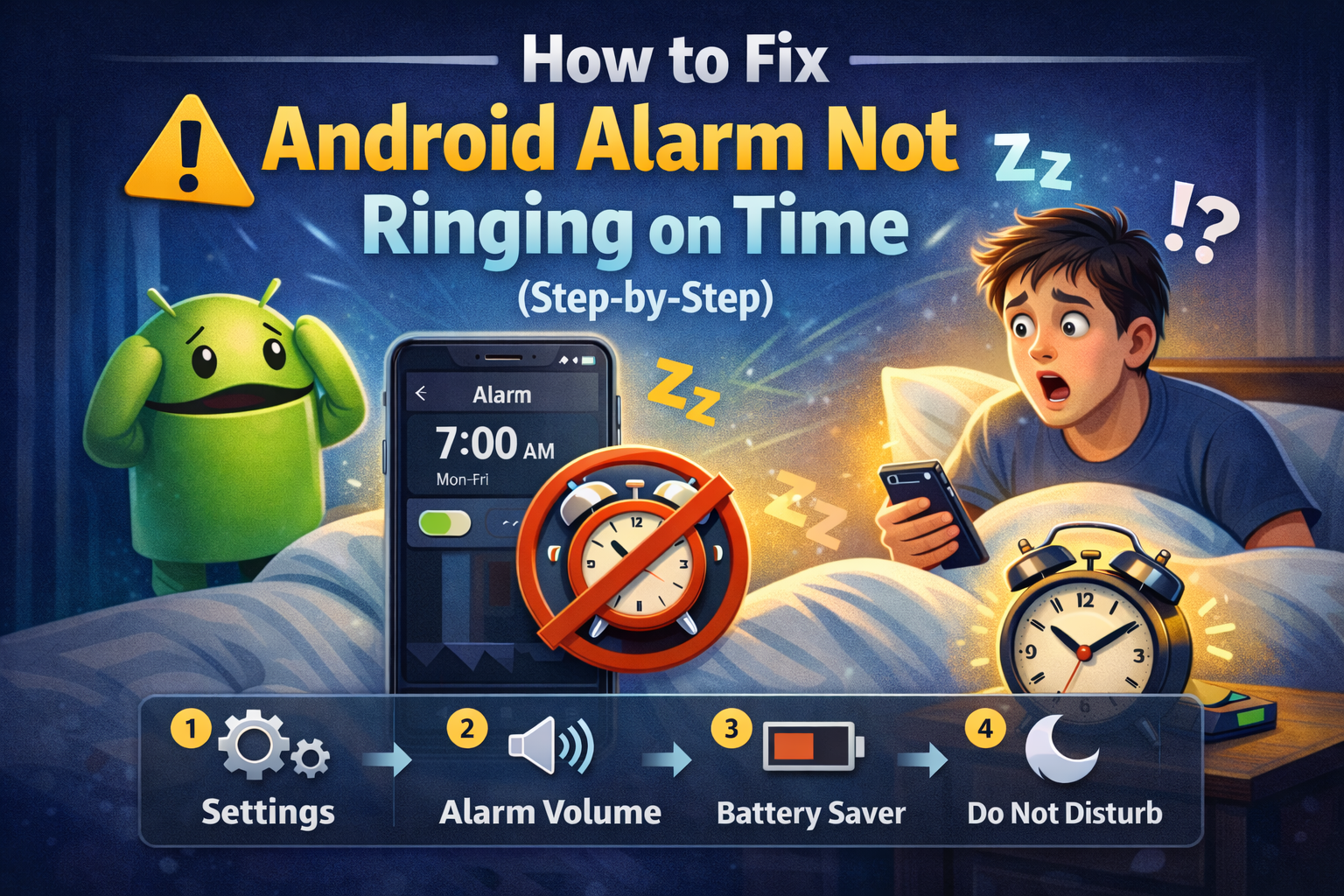
How to Fix Android Alarm Not Ringing on Time (Step-by-Step)
Turn Off Do Not Disturb for Alarms
Do Not Disturb mode can silence alarms on some phones.
Steps:
- Go to Settings
- Tap Notifications or Sound
- Select Do Not Disturb
- Tap Exceptions or Allowed sounds
- Make sure Alarms are allowed
Tip:
If you use DND at night, always double-check this setting.
Disable Battery Optimization for the Clock App
Battery optimization is one of the top reasons for Android alarm issues.
Steps:
- Open Settings
- Go to Battery
- Tap App battery usage
- Find Clock
- Set it to Unrestricted or Don’t optimize
Real-world example:
A user installed a “battery saver” app that stopped background apps overnight—silencing alarms completely.
Choose a Loud and Reliable Alarm Sound
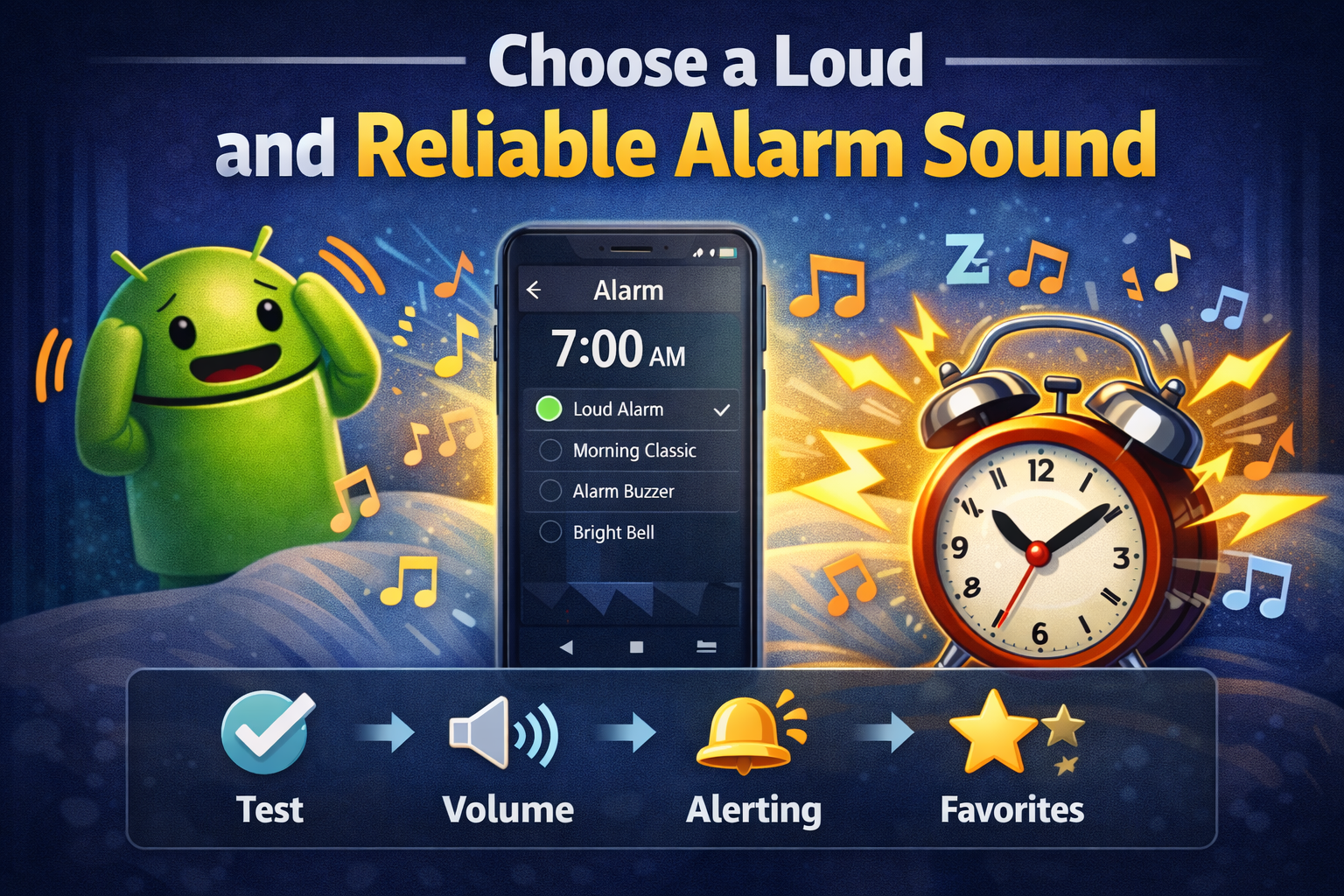
Some alarm tones are too soft or glitchy.
Steps:
- Open Clock → Alarm
- Edit your alarm
- Tap Alarm sound
- Choose a loud built-in tone
- Avoid custom MP3 files (they may fail)
Stick with default system sounds for reliability.
Enable Vibration as Backup
Even if sound fails, vibration can save you.
- Edit your alarm
- Turn on Vibrate
- Set vibration strength to high (if available)
This is especially useful if your speaker has issues.
Advanced Fixes for Persistent Alarm Problems
Clear Cache of the Clock App
Clearing cache won’t delete alarms.
Steps:
- Go to Settings
- Tap Apps
- Find Clock
- Tap Storage
- Select Clear cache
This helps fix minor bugs.
Update the Clock App and Android System
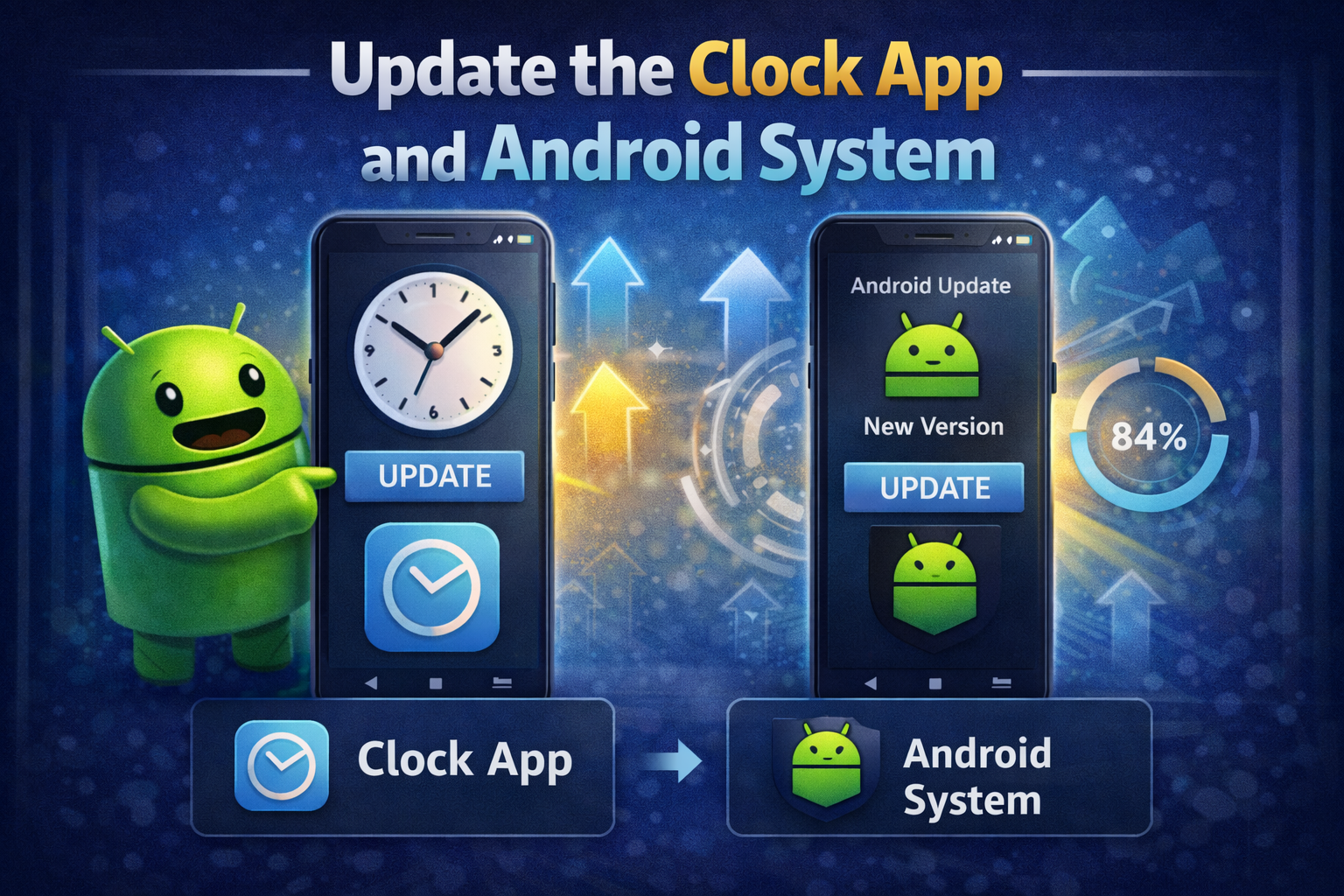
Outdated apps can malfunction.
- Open Play Store
- Search Clock
- Update if available
- Also check Settings → Software Update
System updates often fix alarm-related bugs.
Remove Third-Party Alarm or Cleaner Apps
Apps like task killers or custom alarm apps may override system alarms.
What to do:
- Uninstall third-party alarm apps
- Remove battery cleaner or booster apps
- Restart your phone
Real-world example:
A user installed two alarm apps. One silently canceled the other, causing missed alarms.
Restart Your Phone Regularly
A simple restart can fix background glitches.
- Restart at least once a week
- Especially after updates
Yes, it really helps.
Special Situations You Should Check
Phone Was Turned Off or Battery Died
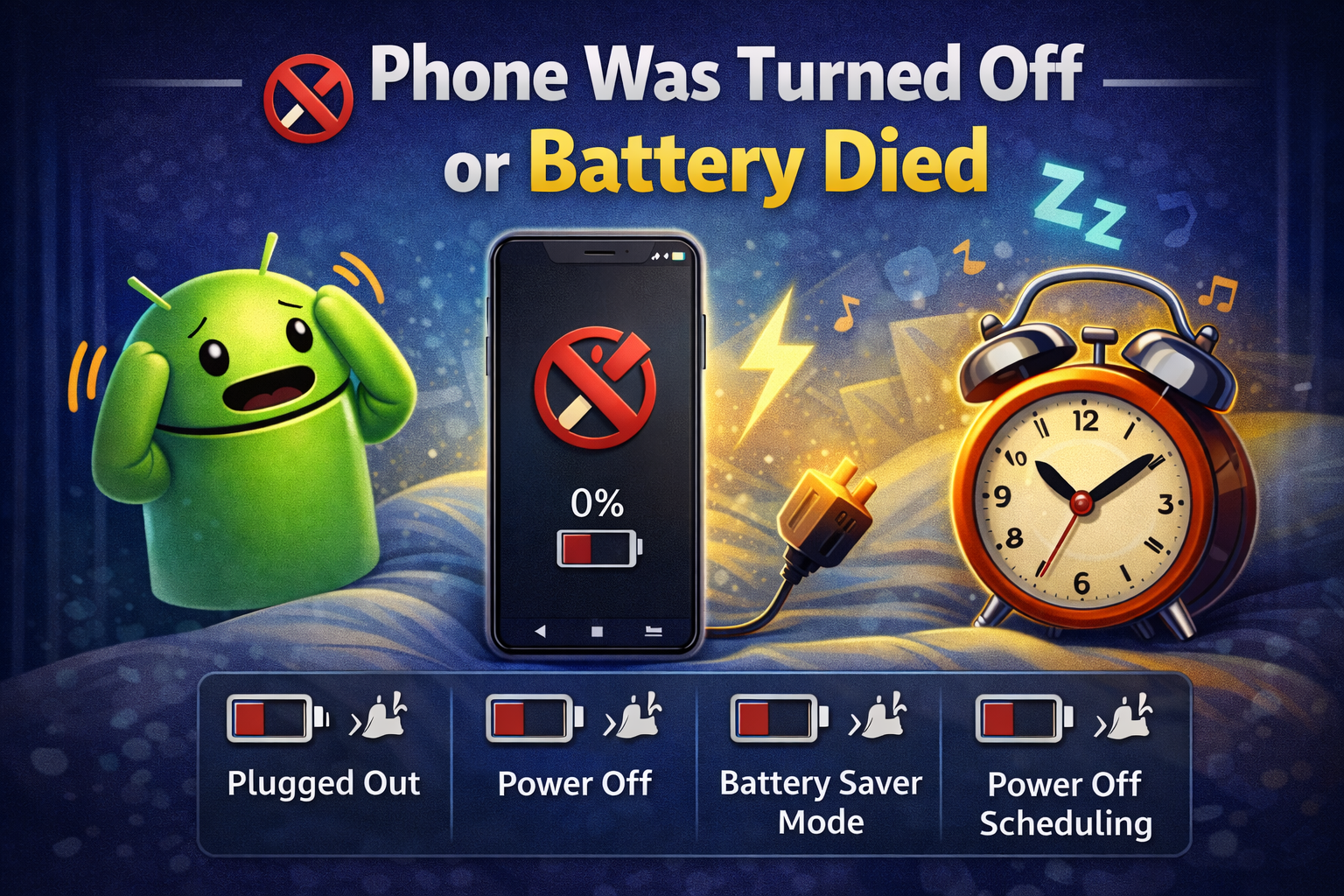
Android alarms do not ring if:
- The phone is powered off
- Battery drained overnight
Charge your phone before sleep.
Bluetooth Devices Stealing Alarm Sound
If connected to earbuds or speakers, alarms may play through them.
Fix:
- Turn off Bluetooth before sleep
- Or disconnect audio devices
Best Practices to Prevent Alarm Problems
- Use the default Clock app
- Set two alarms (5 minutes apart)
- Avoid aggressive battery saver apps
- Test alarms occasionally
- Keep system updated
These habits reduce the risk of oversleeping.
Frequently Asked Questions (FAQ)
1. Why does my Android alarm not ring sometimes?
Usually due to battery optimization, Do Not Disturb mode, or low alarm volume.
2. Will clearing cache delete my alarms?
No. Clearing cache is safe and won’t remove alarms.
3. Can Android alarms work in airplane mode?
Yes. Alarms work without internet or network connection.
4. Why does my alarm ring late?
System lag, battery saver apps, or outdated software can delay alarms.
5. Should I use a third-party alarm app?
The default Android Clock app is the most reliable for most users.
Conclusion
If you’re dealing with Android alarm not ringing on time, the issue is almost always caused by settings—not hardware. By checking alarm volume, disabling battery optimization, allowing alarms in Do Not Disturb mode, and keeping your system updated, you can fix the problem quickly and reliably.
Take a few minutes to apply these steps today—your future, well-rested self will thank you.
Pro tip: Set a test alarm right now to make sure everything works perfectly.