How to Fix Android Screen Lock Problems
Android screen lock problems can be stressful. Your phone may refuse to unlock, the PIN may stop working, the fingerprint sensor may fail, or the lock screen may freeze. In some cases, the screen lock appears after an update. In others, it happens because of a software glitch, too many wrong attempts, or a problem with security settings.
The good news is that most of these issues can be fixed. You do not always need to visit a repair shop or reset your phone right away. In this guide, you will learn how to fix Android screen lock problems step by step in simple language.
This article is written for beginners, so every method is easy to follow.
Why This Problem Happens
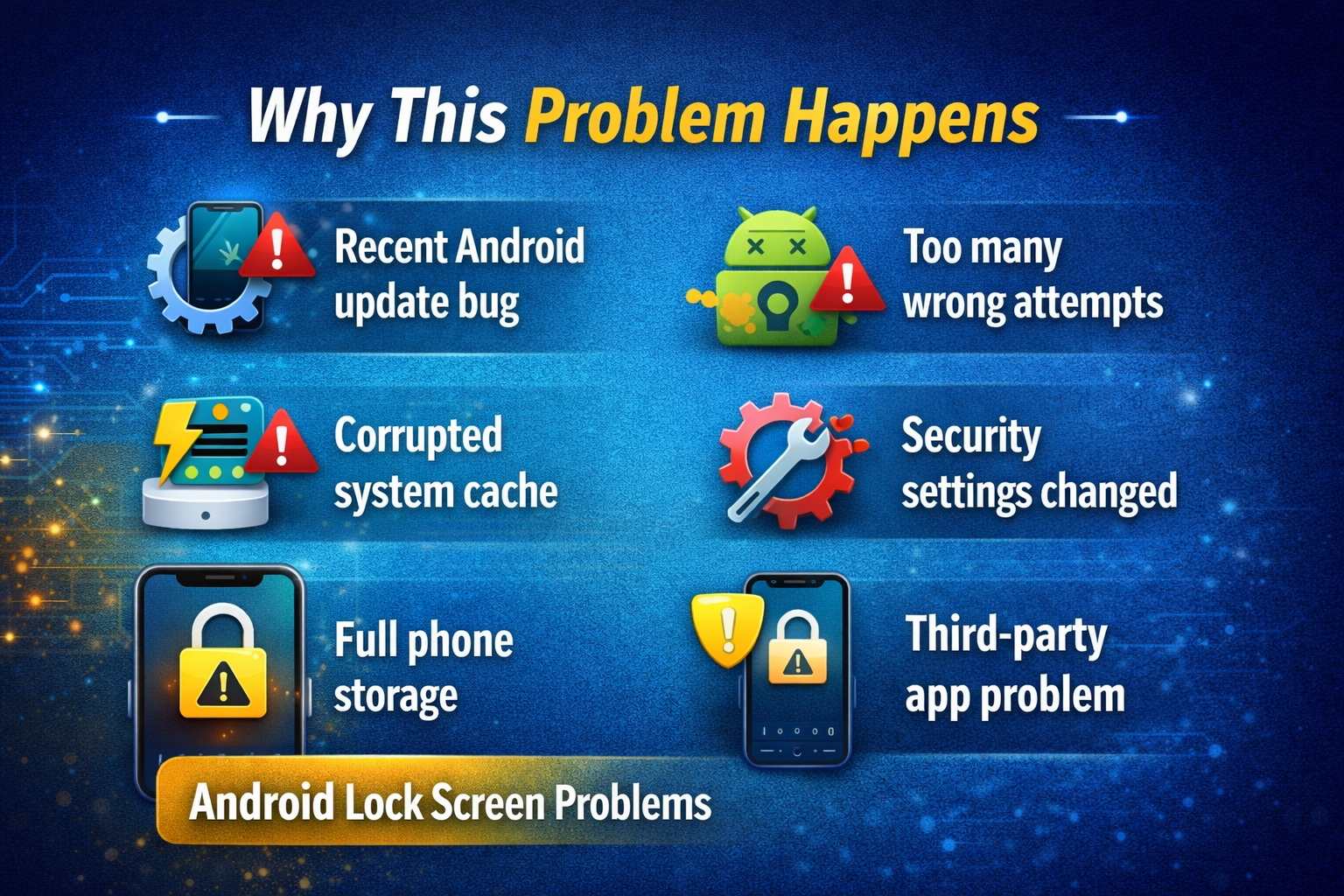
Before jumping into the fixes, it helps to understand the cause. Android lock screen issues often happen for one of these reasons:
-
A recent Android update caused a bug
-
The phone cache became corrupted
-
The touchscreen is lagging or freezing
-
You entered the wrong PIN, password, or pattern too many times
-
Fingerprint or face unlock stopped working
-
A third-party app is interfering with the lock screen
-
Security settings changed by mistake
-
The phone storage is too full
-
The system files are damaged
Common related issues include:
-
Android lock screen not working
-
phone password not accepted
-
Android PIN not working
-
fingerprint unlock not working on Android
Now let’s go through the solutions one by one.
Step-by-Step Solutions to Fix Android Screen Lock Problems
1. Restart Your Android Phone
This is the first and easiest fix. A simple restart can remove temporary bugs that affect the lock screen.
Steps:
-
Press and hold the Power button.
-
Tap Restart.
-
Wait for the phone to turn back on.
-
Try unlocking it again.
If your screen is frozen and you cannot tap anything:
-
Press and hold the Power button for about 10 to 20 seconds.
-
Wait until the phone force restarts.
-
Check whether the lock screen works normally.
Important: A restart often fixes minor software glitches without deleting any data.
2. Check If the Touchscreen Is the Real Problem
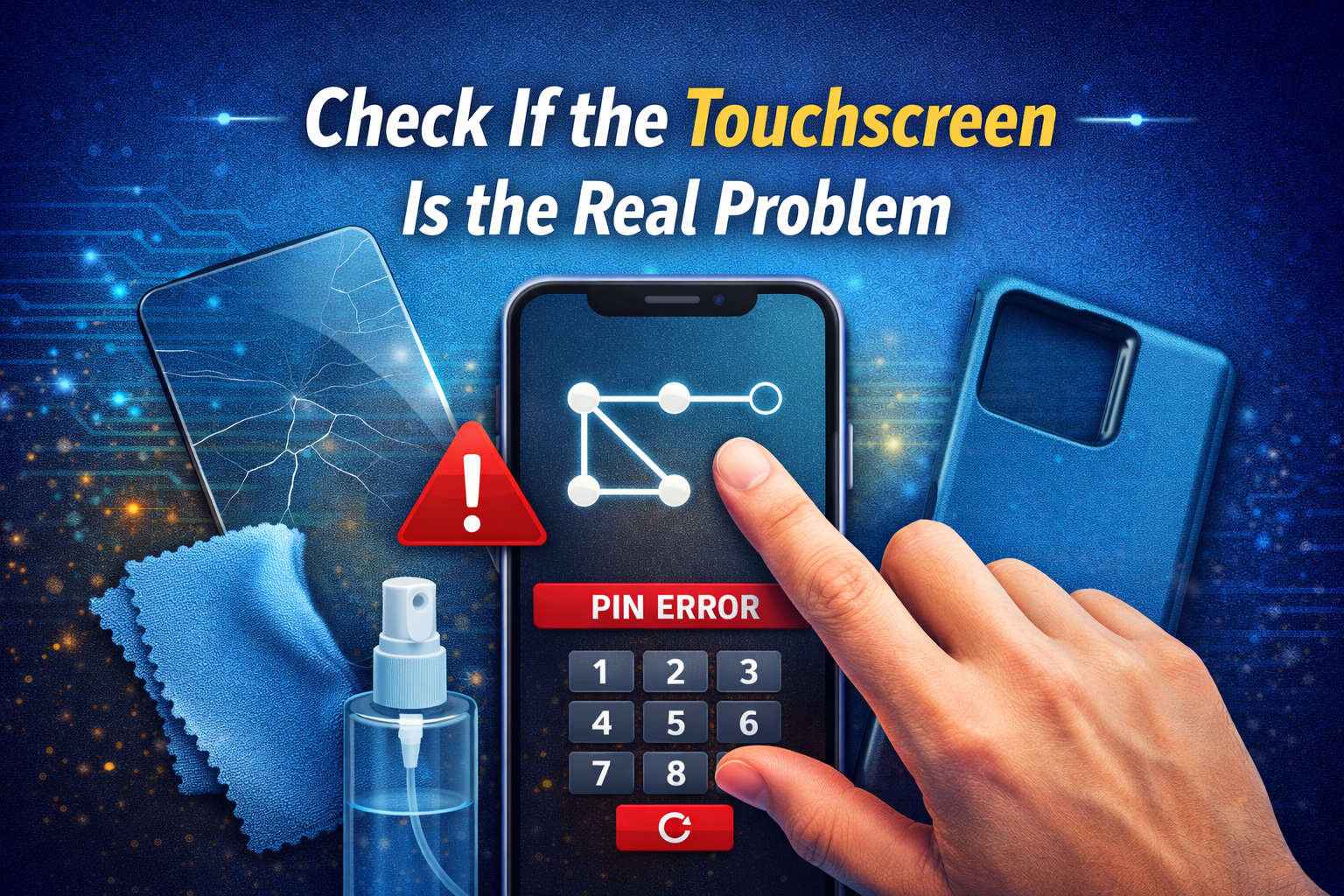
Sometimes the screen lock is not the problem. The touchscreen may not be responding properly.
Signs of touchscreen trouble:
-
You cannot draw the pattern correctly
-
The PIN buttons do not respond
-
The lock screen lags badly
-
Some parts of the screen do not work
What to do:
-
Clean the screen with a soft cloth.
-
Remove any wetness, dust, or oil.
-
Take off the screen protector if it is damaged or poorly fitted.
-
Remove the phone case if it presses on the screen edges.
-
Try entering your PIN or pattern again.
If the touchscreen is damaged, software fixes may not fully solve the issue.
3. Make Sure You Are Using the Correct PIN, Password, or Pattern
It sounds obvious, but many users type the wrong code in a hurry.
Try these checks:
-
Make sure Caps Lock is not affecting your password
-
Enter the pattern slowly and exactly
-
Check whether the keyboard layout changed
-
Wait a few seconds between attempts if the phone is lagging
If you forgot your screen lock, do not keep guessing too many times. Too many failed attempts can temporarily lock the phone.
4. Use Fingerprint or Face Unlock Only After Cleaning Sensors
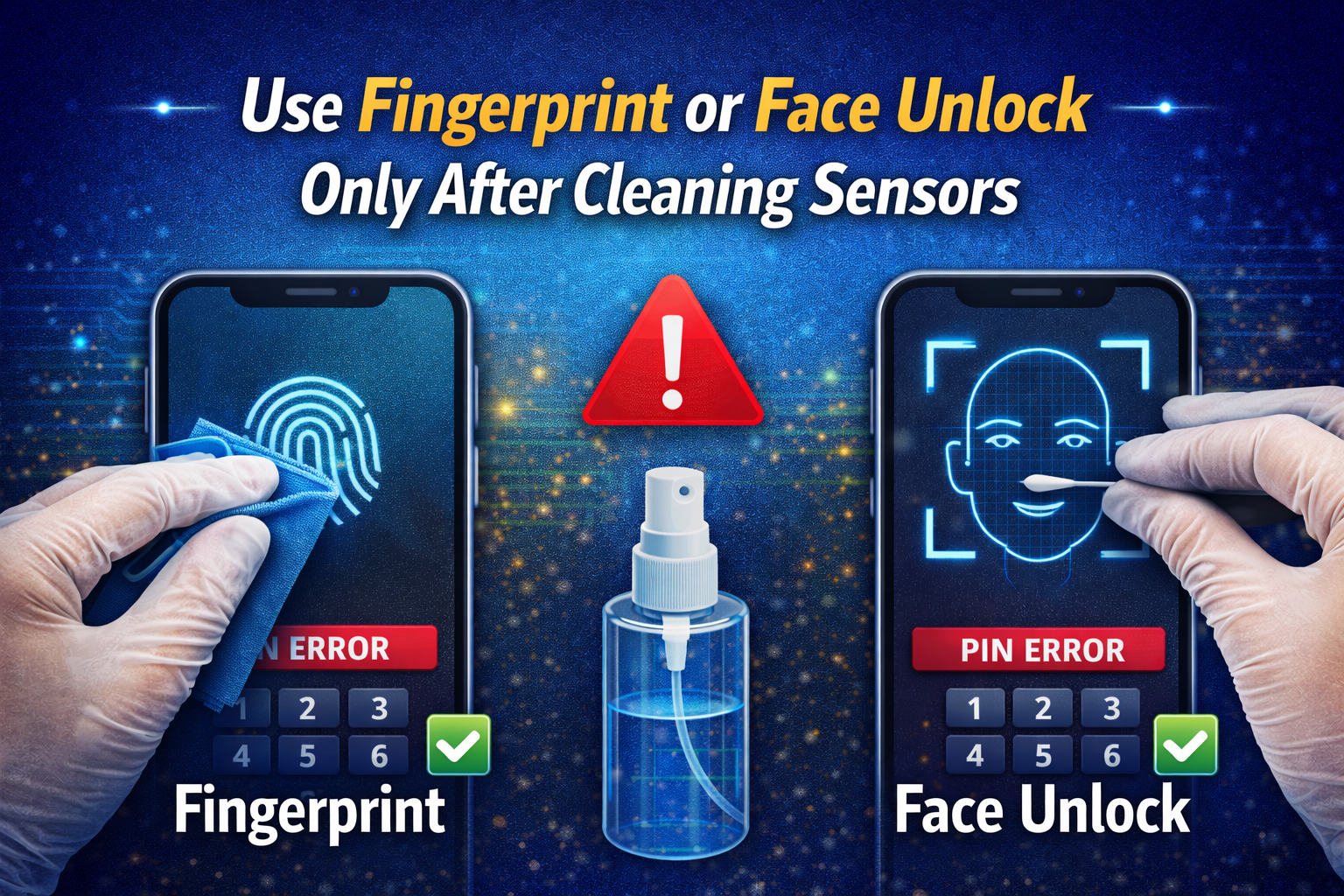
If the fingerprint unlock is not working on Android, the problem may be with the sensor, not the phone system.
Steps:
-
Clean the fingerprint sensor gently.
-
Clean your finger if it is wet, oily, or dirty.
-
Remove any dust near the front camera if you use face unlock.
-
Try again in good lighting for face unlock.
-
Use your backup PIN or password if biometric unlock fails.
If fingerprint unlock works sometimes but not always:
-
Re-register your fingerprint later in settings
-
Add the same finger twice for better recognition
-
Avoid using a cracked screen protector over in-display sensors
5. Boot the Phone Into Safe Mode
A third-party app can sometimes cause Android screen lock problems. Safe Mode loads only system apps, which helps you test if an installed app is causing the issue.
How to boot into Safe Mode:
-
Press and hold the Power button.
-
Touch and hold Power off until the Safe Mode option appears.
-
Tap OK or Safe Mode.
-
Wait for the phone to restart.
Once in Safe Mode:
-
Check if the lock screen works normally.
-
If it does, one of your apps is likely causing the problem.
-
Uninstall recently added apps one by one.
-
Restart the phone normally.
Important: Focus on apps related to lock screens, cleaners, themes, launchers, or security tools.
6. Clear the Cache Partition
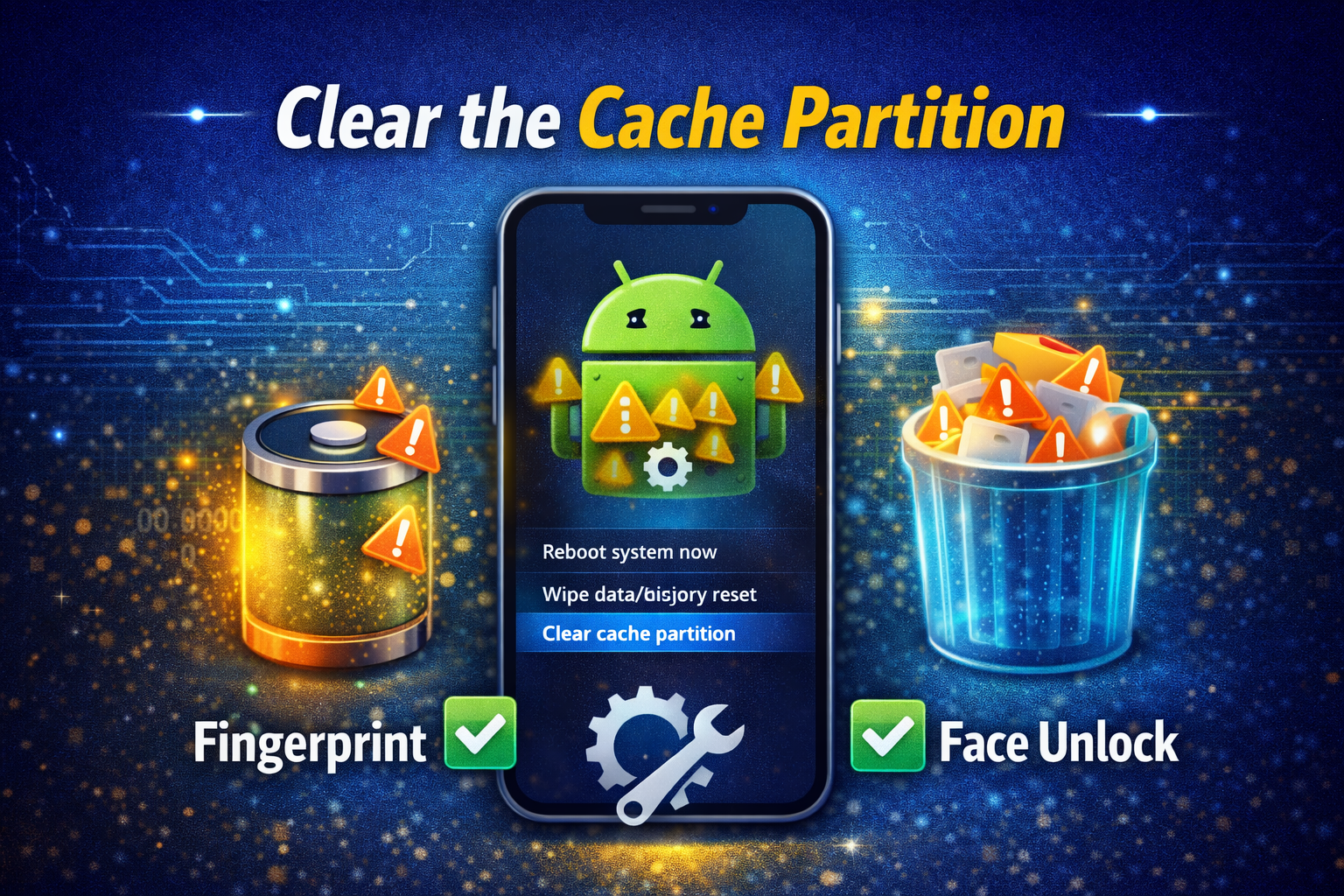
Temporary system files can become corrupted and affect screen lock behavior. Clearing the cache partition can help without deleting your personal files.
General steps:
-
Turn off your phone.
-
Press the correct button combination for recovery mode. This is often:
-
Power + Volume Up
-
or Power + Volume Down
-
-
When Recovery Mode appears, use the volume buttons to move.
-
Select Wipe cache partition.
-
Press the Power button to confirm.
-
Reboot the phone.
Note: The exact steps may differ by brand such as Samsung, Xiaomi, OnePlus, Motorola, or Pixel.
7. Update Android and Security Patches
If the issue started after a bug or system error, a new update may already fix it.
Steps:
-
Open Settings.
-
Go to System or Software Update.
-
Tap Check for updates.
-
Download and install any available update.
-
Restart your phone.
Updates can fix:
-
Android lock screen not working
-
fingerprint recognition errors
-
lag after unlocking
-
security bugs related to screen lock
8. Remove and Set Up the Screen Lock Again
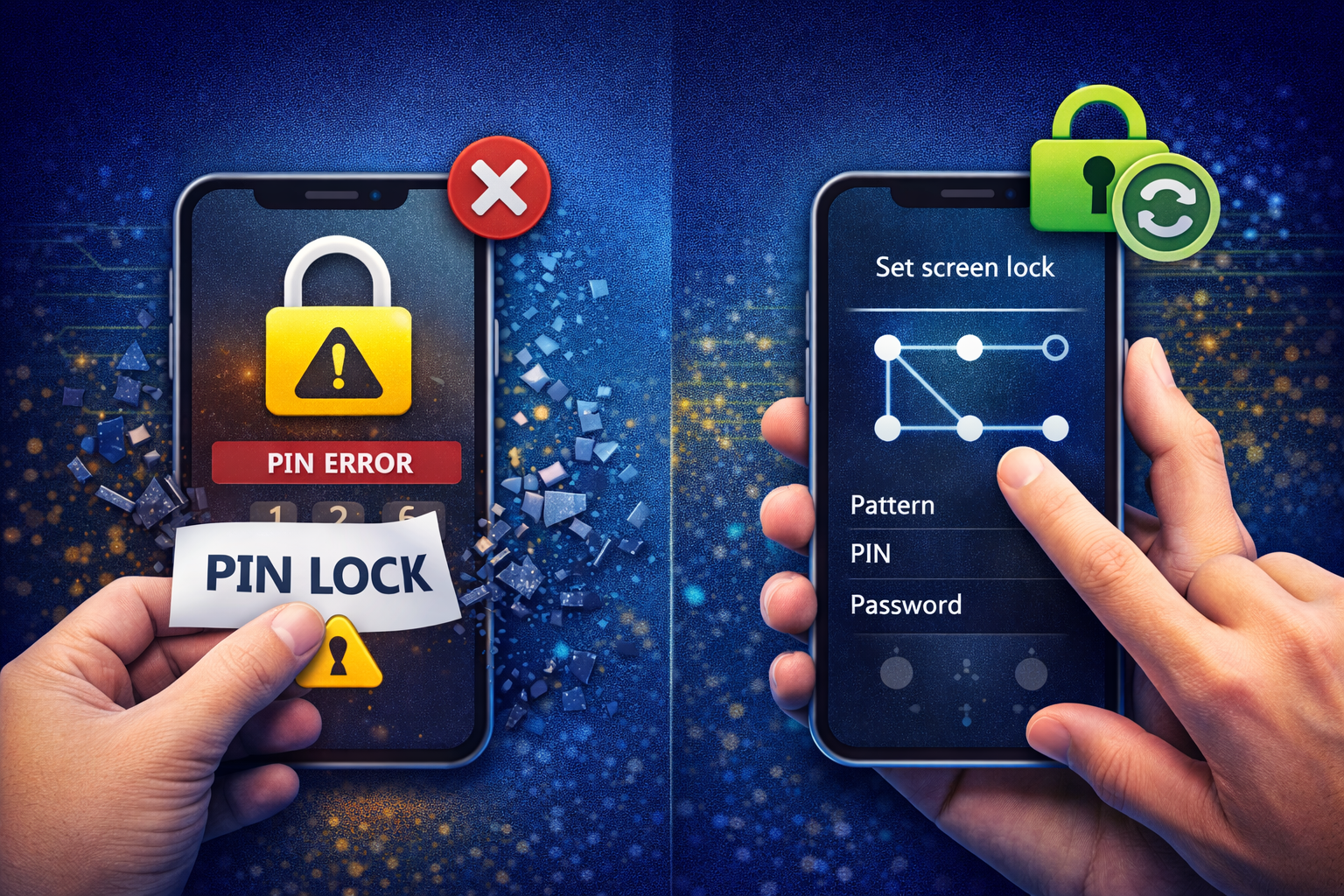
If you can still access the phone using another unlock method, try removing the lock and setting it up again.
Steps:
-
Open Settings.
-
Go to Security or Lock Screen.
-
Tap Screen lock.
-
Enter your current PIN, password, or pattern.
-
Choose None or Swipe temporarily.
-
Restart the phone.
-
Go back and set a new PIN, password, or pattern.
-
Re-add fingerprints or face unlock if needed.
Important: Choose a backup PIN that you can remember easily but is still secure.
9. Check Smart Lock or Security Features
Sometimes Smart Lock settings can confuse the normal locking process. For example, your phone may stay unlocked in certain locations or with trusted devices, then behave strangely later.
Steps:
-
Open Settings.
-
Go to Security.
-
Tap Smart Lock if available.
-
Turn off options like:
-
On-body detection
-
Trusted places
-
Trusted devices
-
-
Test the lock screen again.
This can help if your phone locks and unlocks at the wrong times.
10. Use Find My Device or Brand Tools If You Are Locked Out
If you are completely locked out and cannot remember the password, some users can use remote tools depending on their device and settings.
Possible options include:
-
Google Find My Device
-
Samsung Find My Mobile for supported devices
-
Brand-specific cloud tools if already enabled
These tools may help you locate, lock, or reset the device, but in many cases they now focus more on security and remote erase than bypassing a forgotten lock.
Important: You usually need:
-
An internet connection on the phone
-
Your Google or brand account
-
Remote features enabled before the problem started
11. Factory Reset as a Last Resort
If nothing works and you are locked out, a factory reset may be the final fix. This erases apps, settings, and personal data stored on the device.
Before you do this:
-
Make sure you know your Google account login
-
Charge the battery
-
Understand that data may be lost if not backed up
General steps:
-
Turn off the phone.
-
Enter Recovery Mode.
-
Select Wipe data/factory reset.
-
Confirm the action.
-
Reboot the device.
-
Set it up again from the start.
After the reset, Android may ask for the previous Google account because of Factory Reset Protection.
Warning: Only use this option after trying all safer fixes first.
Best Fix Order for Beginners
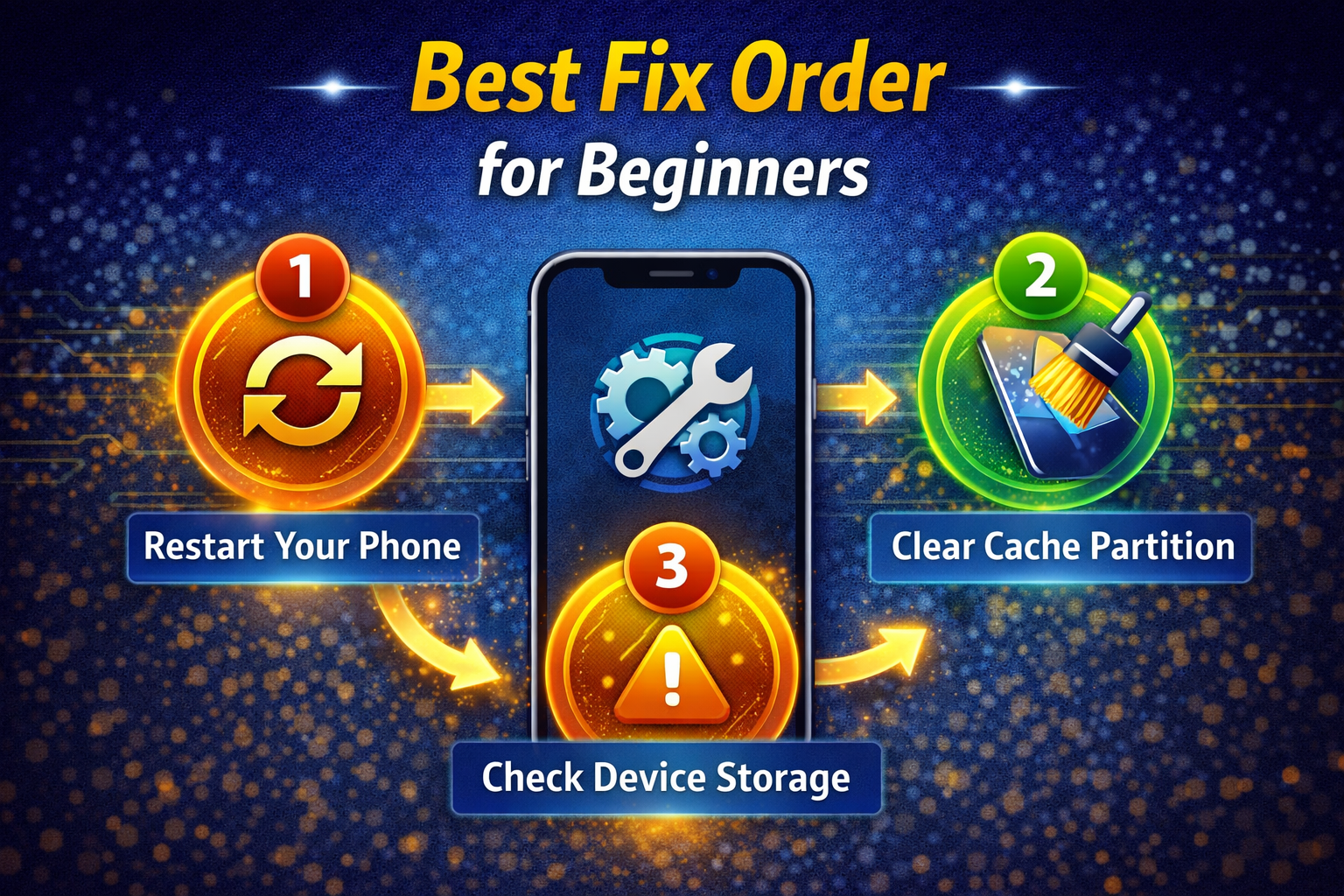
If you are not sure where to start, follow this order:
-
Restart the phone
-
Clean the screen and fingerprint sensor
-
Double-check the PIN, password, or pattern
-
Boot into Safe Mode
-
Clear cache partition
-
Update Android
-
Reset lock screen settings
-
Factory reset as the last option
This order helps you avoid data loss.
Quick Tips to Prevent This Problem
You can reduce the chance of future Android screen lock problems by following these simple tips:
-
Keep your phone updated
-
Restart the phone once in a while
-
Avoid installing unknown lock screen apps
-
Use a strong but memorable PIN or password
-
Register more than one fingerprint
-
Keep the screen and sensors clean
-
Do not let storage become completely full
-
Back up your phone regularly
-
Remove broken or low-quality screen protectors
-
Test the lock screen after every major update
These small habits can save a lot of trouble later.
FAQ
1. Why is my Android phone not accepting my correct PIN?
This can happen because of touchscreen lag, a software bug, keyboard issues, or temporary system errors. Restart the phone and try again slowly.
2. How do I fix Android fingerprint unlock not working?
Clean the fingerprint sensor, dry your finger, remove a bad screen protector, and re-add your fingerprint in settings if needed.
3. Can Safe Mode fix Android screen lock problems?
Yes, Safe Mode can help if a third-party app is causing the lock screen issue. It disables non-system apps so you can test the phone safely.
4. Will clearing the cache partition delete my photos or files?
No, clearing the cache partition usually removes only temporary system files. It does not erase personal data.
5. When should I factory reset my Android phone?
Use a factory reset only when all other fixes fail or when you are completely locked out and cannot recover access any other way.
Conclusion
Android lock screen issues can feel serious, but many of them are fixable with simple steps. If you are dealing with how to fix Android screen lock problems, start with the easy methods first, such as restarting the phone, cleaning the screen, checking your PIN, and booting into Safe Mode. Then move to deeper fixes like clearing the cache partition, updating Android, or resetting lock settings.
Most importantly, do not rush into a factory reset unless you truly need it. In many cases, the problem is only a temporary glitch.
By following the steps in this guide, you can fix Android lock screen not working, solve Android PIN not working issues, and deal with fingerprint unlock not working on Android without panic.