How to Fix Android Dark Mode Not Working
Android Dark Mode is one of the most useful features on modern smartphones. It makes the screen easier on the eyes, helps in low light, and can even save battery life on some devices with OLED displays. But sometimes Dark Mode does not turn on, stops working in certain apps, or switches back to light mode by itself.
If you are facing this issue, do not worry. In most cases, the problem is caused by a small setting, a software bug, app compatibility, battery saver mode, or a scheduled display option. The good news is that you can usually fix it in just a few minutes.
In this guide, you will learn how to fix Android Dark Mode not working with easy step-by-step solutions. This article is written for beginners, so you can follow along even if you are not very technical.
Why This Problem Happens
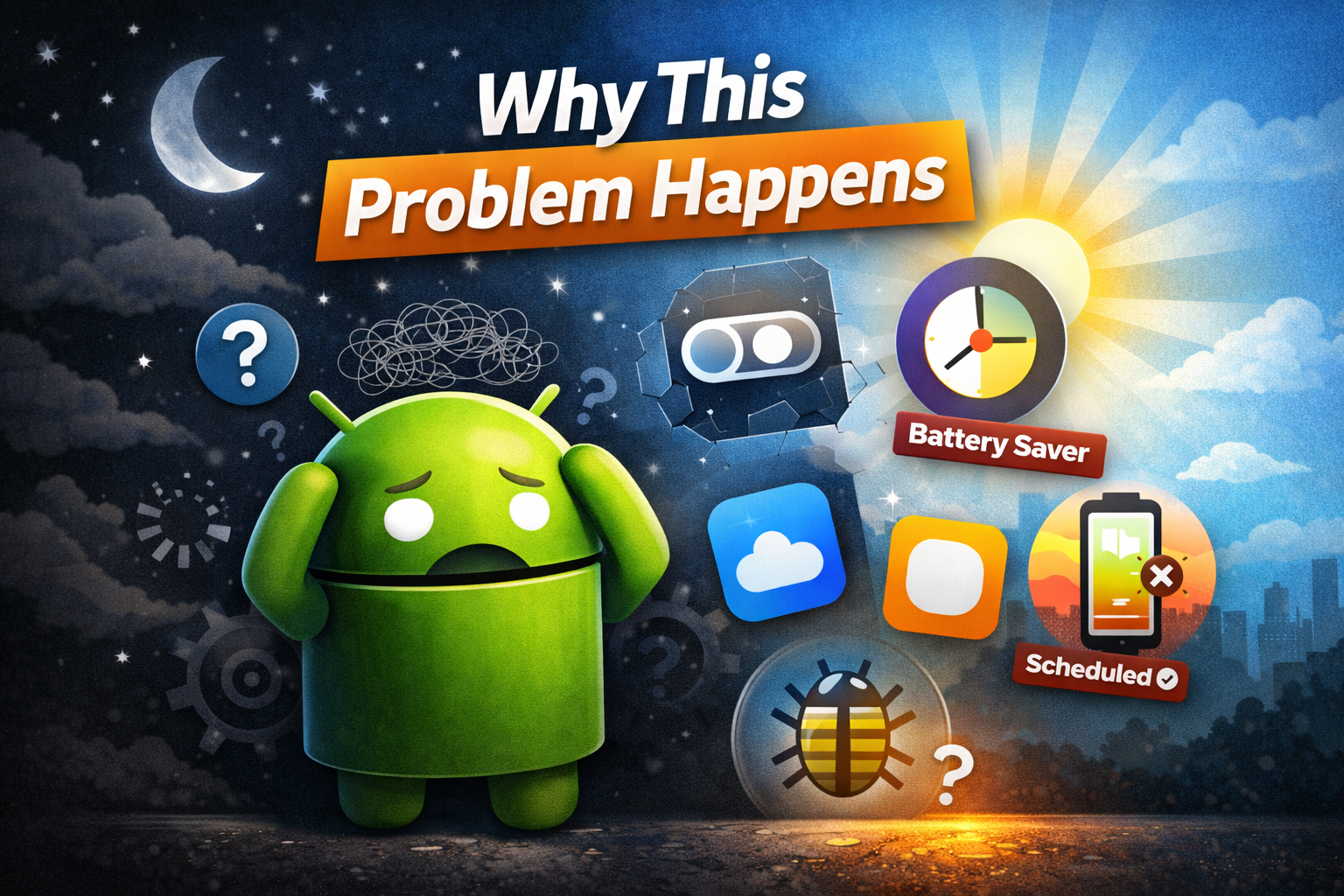
Before jumping into the fixes, it helps to know why this problem happens. Android Dark Mode issues can appear for several reasons, including:
-
Dark Mode is not enabled in system settings
-
Battery Saver is changing display behavior
-
A scheduled theme is switching modes automatically
-
The app you are using does not fully support dark theme
-
Your Android system has a temporary bug
-
The app cache is causing display problems
-
Your phone software is outdated
-
Device-specific themes or display settings are conflicting with Dark Mode
Some Android phones from Samsung, Xiaomi, OnePlus, Oppo, Vivo, Pixel, and other brands also add their own theme settings. That can sometimes make the issue more confusing.
1. Check if Dark Mode Is Actually Turned On
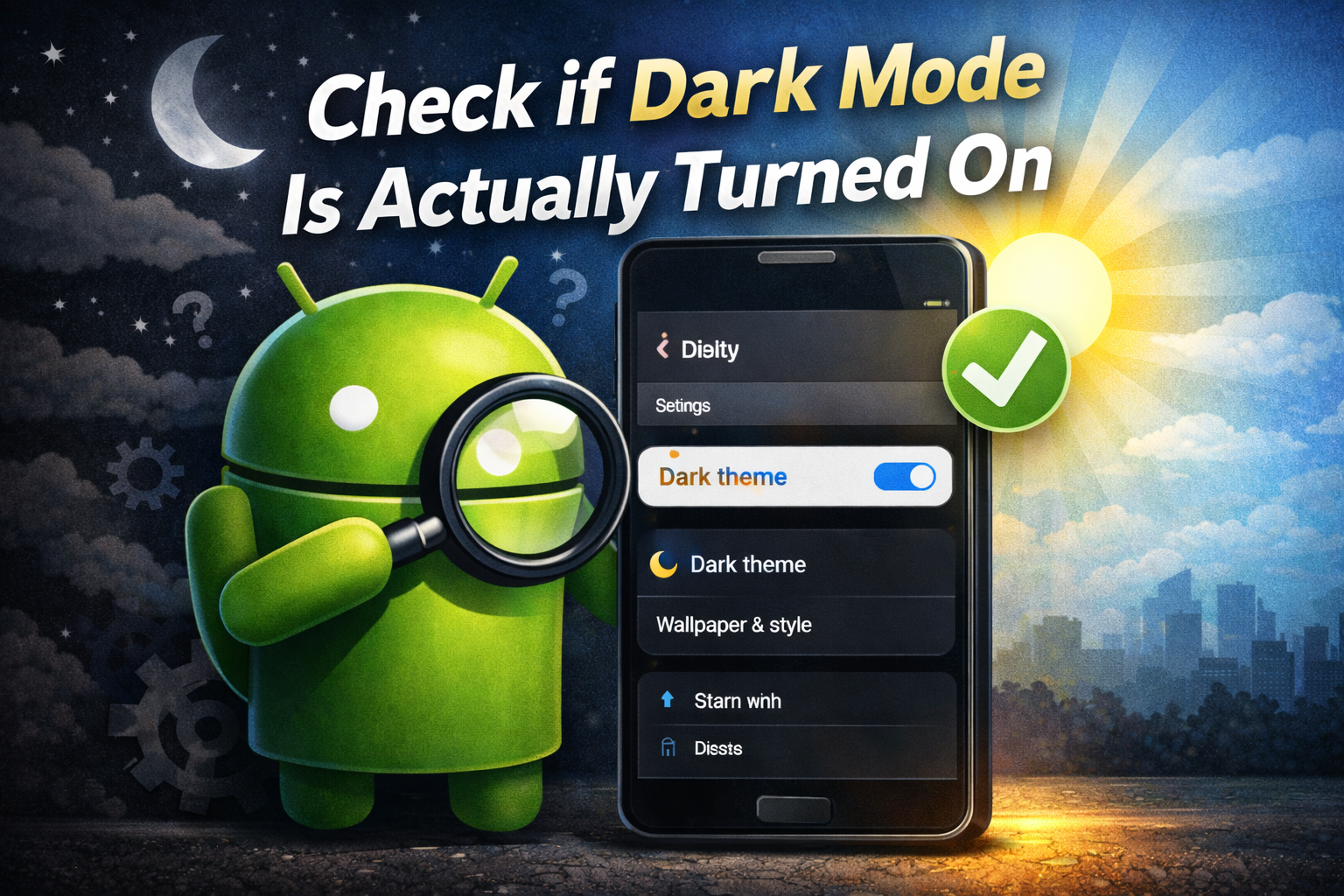
The first thing you should do is make sure Dark Mode is enabled in your phone settings.
Steps to enable Dark Mode on Android
-
Open Settings
-
Tap Display
-
Look for Dark theme, Dark Mode, or Theme
-
Turn it On
On some phones, the path may look slightly different:
-
Settings > Display > Dark theme
-
Settings > Wallpaper & style > Dark theme
-
Settings > Themes
If the feature is already on but your screen still looks light, move to the next fix.
2. Restart Your Android Phone
Sometimes the simplest fix works best. A temporary system glitch may stop Android dark theme from applying correctly.
How to restart your phone
-
Press and hold the Power button
-
Tap Restart
-
Wait for the phone to turn back on
-
Check if Dark Mode is working again
A restart refreshes the system and often fixes minor bugs affecting display settings.
3. Turn Off Scheduled Dark Mode
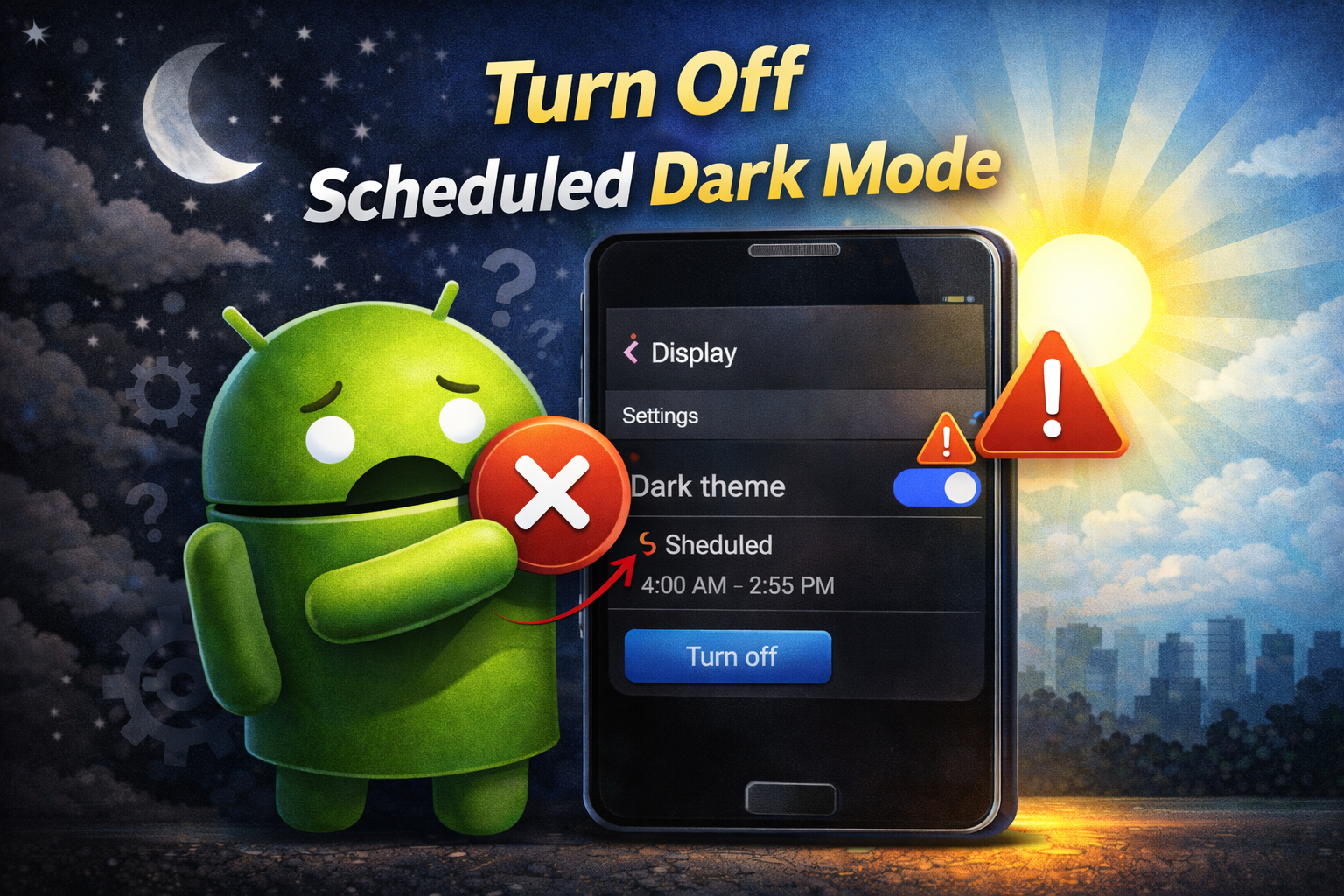
Many Android phones let you schedule Dark Mode to turn on at sunset or during certain hours. If this setting is active, it may switch your phone back to light mode automatically.
How to check Dark Mode schedule
-
Open Settings
-
Tap Display
-
Tap Dark theme or Dark Mode
-
Look for Schedule, Turn on automatically, or Sunset to sunrise
-
Set it to None or turn scheduling Off
After that, manually turn Dark Mode on again.
This is one of the most common reasons why users think Android Dark Mode is not working.
4. Disable Battery Saver Mode
Battery Saver can sometimes change display behavior or limit visual features to save power. On certain devices, it may interfere with dark theme settings.
Steps to turn off Battery Saver
-
Open Settings
-
Tap Battery
-
Select Battery Saver or Power Saving Mode
-
Turn it Off
Now go back to Display and enable Dark Mode again.
If Android dark mode issue started when your battery was low, this fix may solve it quickly.
5. Check if the App Supports Dark Mode
Sometimes Dark Mode works on the phone itself but not inside certain apps. This usually means the app does not support dark theme, or its own theme setting is overriding the system setting.
What to do
-
Open the app that stays in light mode
-
Go to the app’s Settings
-
Look for Theme, Appearance, or Dark Mode
-
Choose:
-
Dark
-
System default
-
Follow system
-
Popular apps like YouTube, Instagram, X, Gmail, and many others have their own theme options. If the app is set to Light, it will ignore your phone’s dark setting.
This is especially helpful when you want to fix dark mode on Android apps instead of the whole phone.
6. Update the Problem App
If one specific app is not switching to dark mode, the app itself may be outdated. Developers often fix theme bugs in newer versions.
How to update apps
-
Open the Google Play Store
-
Tap your profile icon
-
Tap Manage apps & device
-
Tap Updates available
-
Update the app that has the problem
After updating, reopen the app and check if the dark theme works.
7. Clear Cache of the Problem App
Cached files can sometimes cause display glitches, theme problems, or settings that do not apply correctly.
How to clear app cache
-
Open Settings
-
Tap Apps
-
Choose the app with the issue
-
Tap Storage
-
Tap Clear Cache
Do not tap Clear Data unless needed, because that may log you out or remove app settings.
After clearing the cache, open the app again and check if Dark Mode works.
8. Update Your Android Software
An outdated Android version can cause bugs with display features, including dark theme, app theming, and system appearance.
How to update Android
-
Open Settings
-
Tap Software update or System
-
Tap System update
-
Tap Download and install if an update is available
After the update, restart your device and enable Dark Mode again.
This can help if you are dealing with an Android display settings issue caused by a system bug.
9. Remove Custom Themes or Launchers
Third-party themes, launchers, or customization apps can sometimes block or override Dark Mode.
Things to check
-
Are you using a custom launcher?
-
Did you install a theme app recently?
-
Are you using icon packs or visual customization tools?
How to test this
-
Switch back to the default launcher
-
Remove any active custom theme
-
Restart the phone
-
Turn on Dark Mode again
If Dark Mode starts working, the custom theme or launcher was likely the cause.
10. Check Developer Options or Forced Dark Mode
Some Android devices include advanced display settings in Developer Options. If these settings are changed, they can create unexpected behavior.
How to check
-
Open Settings
-
Tap System
-
Tap Developer options if available
-
Look for options like:
-
Override force-dark
-
Display-related theme settings
-
If you changed these settings before, turn them back to default and test again.
Be careful in Developer Options because changing the wrong setting can affect other parts of your phone.
11. Reset Display or App Preferences
If you are not sure which setting is causing the issue, resetting preferences can help restore normal behavior without deleting your personal files.
How to reset app preferences
-
Open Settings
-
Tap Apps
-
Tap the three-dot menu
-
Select Reset app preferences
-
Confirm the action
This resets disabled apps, notification settings, default apps, and some background restrictions, which may help solve theme conflicts.
12. Boot Into Safe Mode
If Dark Mode stopped working after installing a new app, that app may be causing the problem. Safe Mode lets you test your phone without third-party apps running.
How to use Safe Mode
-
Press and hold the Power button
-
Touch and hold Power off
-
Tap Safe Mode if the option appears
-
Wait for the phone to restart
Once in Safe Mode:
-
Open Settings
-
Turn on Dark Mode
-
Check if it works normally
If Dark Mode works in Safe Mode, a third-party app is likely causing the problem. Remove recently installed apps one by one and test again.
13. Reset All Settings as a Last Resort
If nothing works, you can reset your phone settings. This should be your last option before a factory reset.
Steps to reset settings
-
Open Settings
-
Tap System
-
Tap Reset options
-
Choose Reset all settings or similar option
-
Confirm
This usually resets Wi-Fi, display, and app preferences, but does not erase your photos, videos, or files. Still, it is smart to back up your important data first.
Quick Tips to Prevent This Problem
Here are a few simple ways to avoid Dark Mode issues in the future:
-
Keep your Android phone updated
-
Update apps regularly from the Play Store
-
Avoid using too many theme or customization apps
-
Check app theme settings after updates
-
Be careful with Battery Saver and scheduled theme options
-
Restart your phone once in a while
-
Do not change Developer Options unless necessary
These small habits can help prevent future Android dark theme problems.
FAQ
Why is Dark Mode not working on some Android apps?
Some apps have their own theme settings, while others do not fully support dark theme. Open the app settings and choose Dark or Follow system if available.
Why does my Android phone switch from dark mode to light mode?
This often happens because of a scheduled theme setting, Battery Saver, or a software bug. Check your display settings first.
Does Dark Mode save battery on Android?
Yes, on phones with OLED or AMOLED displays, Dark Mode can help save battery because dark pixels use less power.
Can a software update fix Android Dark Mode issues?
Yes. Many Dark Mode problems are caused by bugs, and a software update may fix them.
Should I factory reset my phone if Dark Mode is not working?
Not right away. First try restarting, checking settings, updating apps, clearing cache, and resetting preferences. A factory reset should only be used if all other fixes fail.
Conclusion
If you are trying to fix Android Dark Mode not working, the problem is usually easier to solve than it seems. In most cases, the issue comes from a simple setting such as scheduled dark mode, battery saver, app theme preferences, or outdated software.
Start with the basic fixes first. Check if Dark Mode is enabled, restart your phone, turn off scheduling, and update your apps and Android system. If the problem only happens in one app, look inside that app’s own appearance settings. If needed, move on to clearing cache, using Safe Mode, or resetting settings.
By following the steps in this guide, you should be able to get Dark Mode working again and enjoy a more comfortable viewing experience on your Android phone.