How to Fix Android Root Issues (Complete Guide)
Rooting your Android device gives you full control, but it can also lead to serious problems if something goes wrong. Many users face issues like bootloops, apps crashing, root access errors, or even a completely unusable phone.
If you’re dealing with any of these, don’t worry—this guide will show you exactly how to fix Android root issues step-by-step in a simple and safe way.
What Are Android Root Issues?
Android root issues happen when something goes wrong during or after rooting your device. This can affect system files, permissions, or app behavior.
Common problems include:
- Phone stuck on boot screen (bootloop)
- Root apps not working
- Device overheating or lagging
- Banking apps not opening
- OTA updates failing
Why This Problem Happens
Understanding the cause helps you fix it faster. Here are the most common reasons:
- Incorrect rooting method
- Incompatible Magisk or SuperSU version
- Corrupted system files
- Incomplete root process
- Wrong custom ROM or kernel
- Security restrictions from apps
Step-by-Step Solutions to Fix Android Root Issues
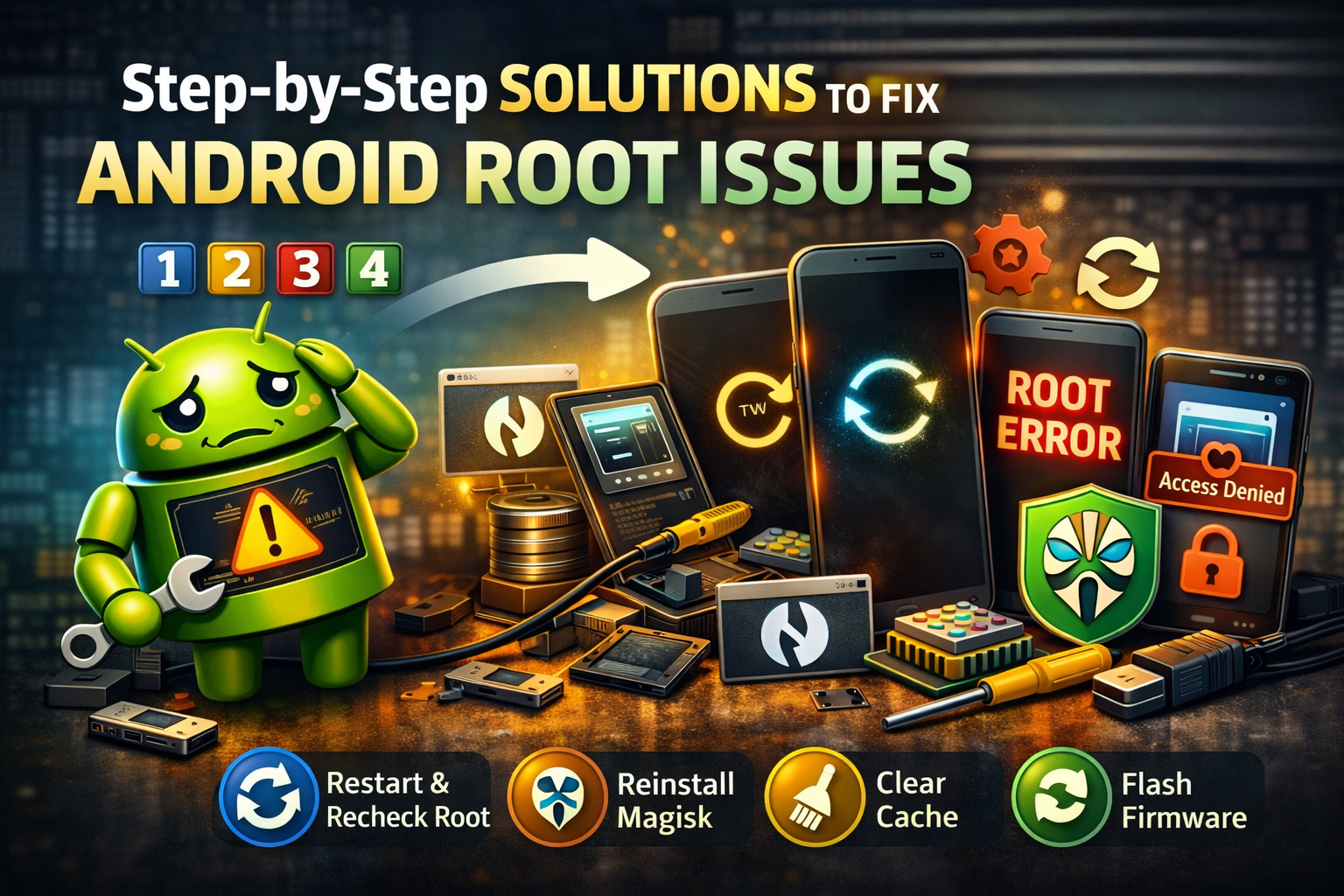
Follow these methods carefully. Start from the first solution and move forward if needed.
1. Restart Your Device
This may sound simple, but it can fix minor root glitches.
Steps:
- Press and hold the Power button
- Tap Restart
- Wait for your phone to reboot
👉 This helps clear temporary bugs affecting root access.
2. Check Root Access with a Root Checker App
Sometimes root is not properly installed.
Steps:
- Download Root Checker from Play Store
- Open the app
- Tap Verify Root
If root is missing:
- You may need to re-root your device
3. Reinstall Magisk (Recommended)
Magisk is the most stable root tool today.
Steps:
- Download the latest Magisk APK
- Boot into Recovery Mode
- Flash the Magisk ZIP file
- Reboot your device
👉 This often fixes:
- Root not detected
- Apps not getting root access
4. Clear Cache and Dalvik Cache

Corrupted cache can cause many Android root issues.
Steps:
- Boot into Recovery Mode (TWRP)
- Tap Wipe
- Select:
- Cache
- Dalvik Cache
- Swipe to confirm
👉 This helps fix:
- App crashes
- System lag
- Boot issues
5. Fix Bootloop After Root
If your phone is stuck on the logo, follow this carefully.
Method 1: Boot into Safe Mode
- Press and hold Power button
- Tap and hold Power Off
- Select Safe Mode
Method 2: Restore Backup (TWRP)
- Boot into Recovery Mode
- Tap Restore
- Select your backup
- Swipe to restore
👉 Always create a backup before rooting!
6. Uninstall Problematic Root Apps
Some root apps can break your system.
Steps:
- Open Magisk Manager
- Go to Modules
- Disable or remove suspicious modules
- Reboot your device
7. Hide Root from Apps (Fix Banking Apps Issue)
Many apps block rooted devices.
Steps:
- Open Magisk
- Enable Zygisk
- Turn on DenyList
- Add apps (banking, Google Pay, etc.)
👉 This helps apps work normally again.
8. Update or Flash Stock Firmware

If nothing works, this is the best fix.
Steps:
- Download official firmware for your device
- Use tools like:
- Odin (Samsung)
- Fastboot (Android)
- Flash stock ROM
👉 This will:
- Remove root
- Fix all system errors
9. Fix OTA Update Issues After Root
Rooted phones often fail to update.
Solution:
- Unroot your device temporarily
Steps:
- Open Magisk
- Tap Uninstall → Restore Images
- Install OTA update
- Re-root after update
10. Factory Reset (Last Resort)
If your phone is still broken, reset it.
Steps:
- Go to Settings > System > Reset
- Tap Factory Data Reset
- Confirm
⚠️ Warning: This will erase all data.
Quick Tips to Prevent This Problem
Avoid Android root issues in the future with these tips:
- Always use trusted rooting tools (Magisk preferred)
- Create a full backup before rooting
- Avoid installing unknown modules
- Keep your device updated
- Don’t modify system files without knowledge
- Check compatibility before flashing ROMs
FAQ – Fix Android Root Issues
1. Is rooting safe for Android?
Rooting is safe if done correctly, but it can cause issues if you use the wrong tools or methods.
2. Can I fix root issues without losing data?
Yes, many problems can be fixed by clearing cache or reinstalling Magisk without data loss.
3. Why are apps not working after rooting?
Some apps detect root for security reasons. Use Magisk DenyList to hide root.
4. How do I remove root completely?
You can remove root by:
- Using Magisk uninstall
- Flashing stock firmware
5. What is the best tool for rooting Android?
Magisk is currently the best and safest tool for rooting Android devices.
Conclusion
Fixing Android root issues may seem complicated, but with the right steps, you can solve most problems بسهولة—even if you’re a beginner.
Start with simple solutions like restarting or checking root access, then move to advanced fixes like reinstalling Magisk or flashing stock firmware if needed.
👉 The key is to always:
- Follow instructions carefully
- Backup your data
- Use trusted tools
By doing this, you can enjoy the full power of root access without the headaches.