How to Fix Android Firmware Problem
Android firmware problems can make your phone feel almost useless. Your device may get stuck on the boot screen, restart again and again, freeze after an update, or show strange software errors. In some cases, apps stop working properly, the phone becomes very slow, or the system fails to load at all.
The good news is that many firmware issues can be fixed without replacing the phone. If you follow the right steps, you may be able to solve the problem at home. This guide will show you how to fix Android firmware problem in a simple and beginner-friendly way.
Whether your issue started after a failed update, corrupted system files, or incorrect flashing, the steps below can help you recover your Android device safely.
What Is an Android Firmware Problem?
Firmware is the core software that helps your Android phone run properly. It controls how the hardware and operating system work together. If the firmware gets damaged, outdated, or installed incorrectly, your phone can start showing serious problems.
Common Android firmware issues include:
- Phone stuck on boot logo
- Boot loop problem
- Failed system update
- Black screen after update
- Apps crashing after firmware install
- Device freezing or lagging
- Network or touch issues caused by software corruption
If you are searching for how to fix Android firmware problem, you are likely dealing with one of these common software failures.
Why This Problem Happens
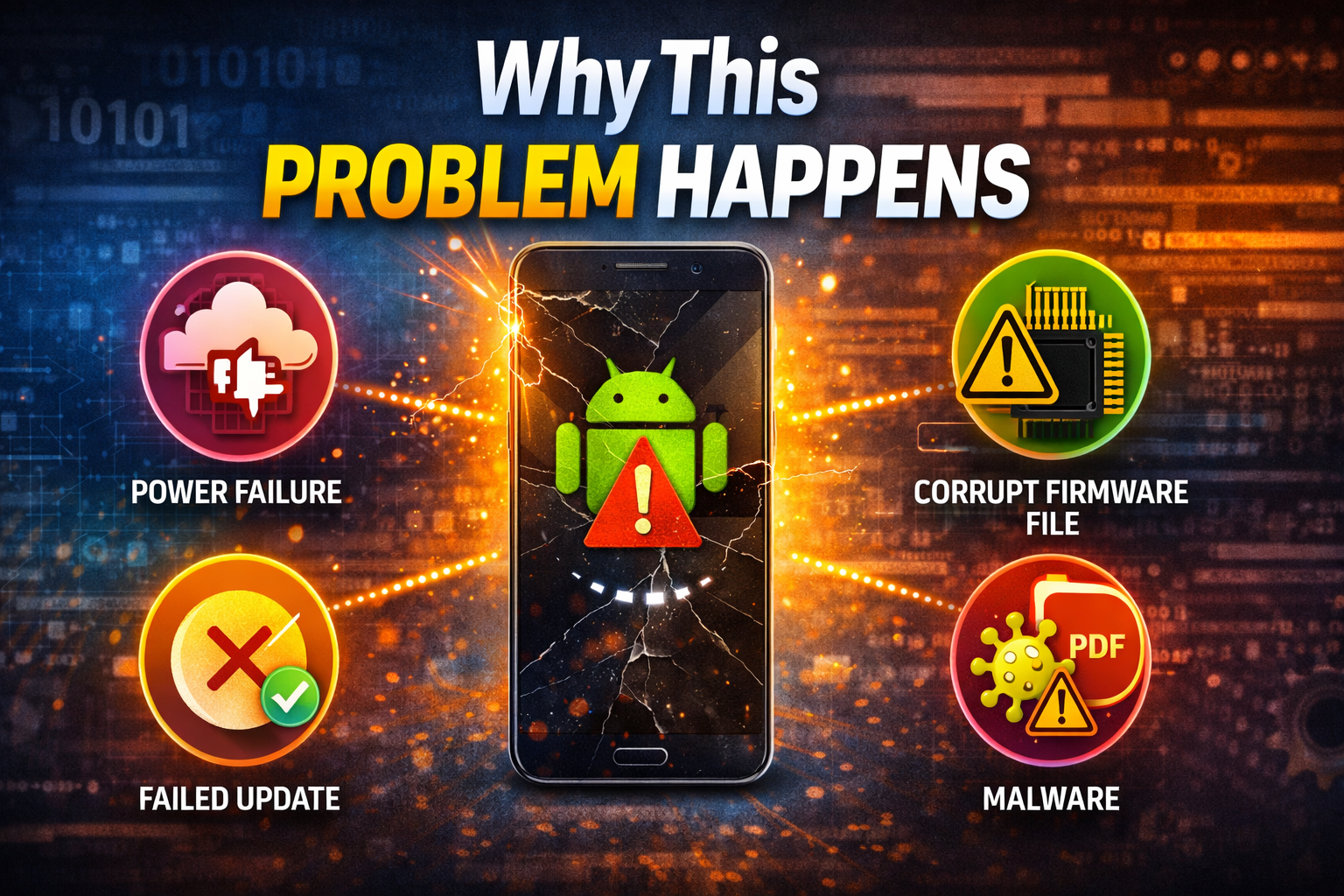
Before fixing the issue, it helps to understand what caused it. Android firmware problems usually happen for one of these reasons:
1. Interrupted Software Update
If your phone loses power or internet during an update, the firmware may install incorrectly.
2. Corrupted System Files
System files can become damaged because of malware, failed apps, or storage errors.
3. Wrong Firmware Installation
Flashing the wrong firmware version can cause boot failure or device instability.
4. Low Storage Space
If your phone does not have enough storage during an update, system files may not install correctly.
5. Rooting or Custom ROM Errors
If you rooted your phone or installed a custom ROM, a mistake in the process can damage the firmware.
6. Hardware and Software Conflict
Sometimes a battery issue, faulty memory chip, or damaged internal part can look like a firmware problem.
Signs Your Android Has a Firmware Problem
Here are some warning signs:
- The phone keeps restarting
- The Android system will not load
- The device is stuck on the logo screen
- You see update failed messages
- The phone becomes very slow after an update
- Recovery mode opens again and again
- Touchscreen, Wi-Fi, or camera stops working after firmware changes
Step-by-Step Solutions to Fix Android Firmware Problem
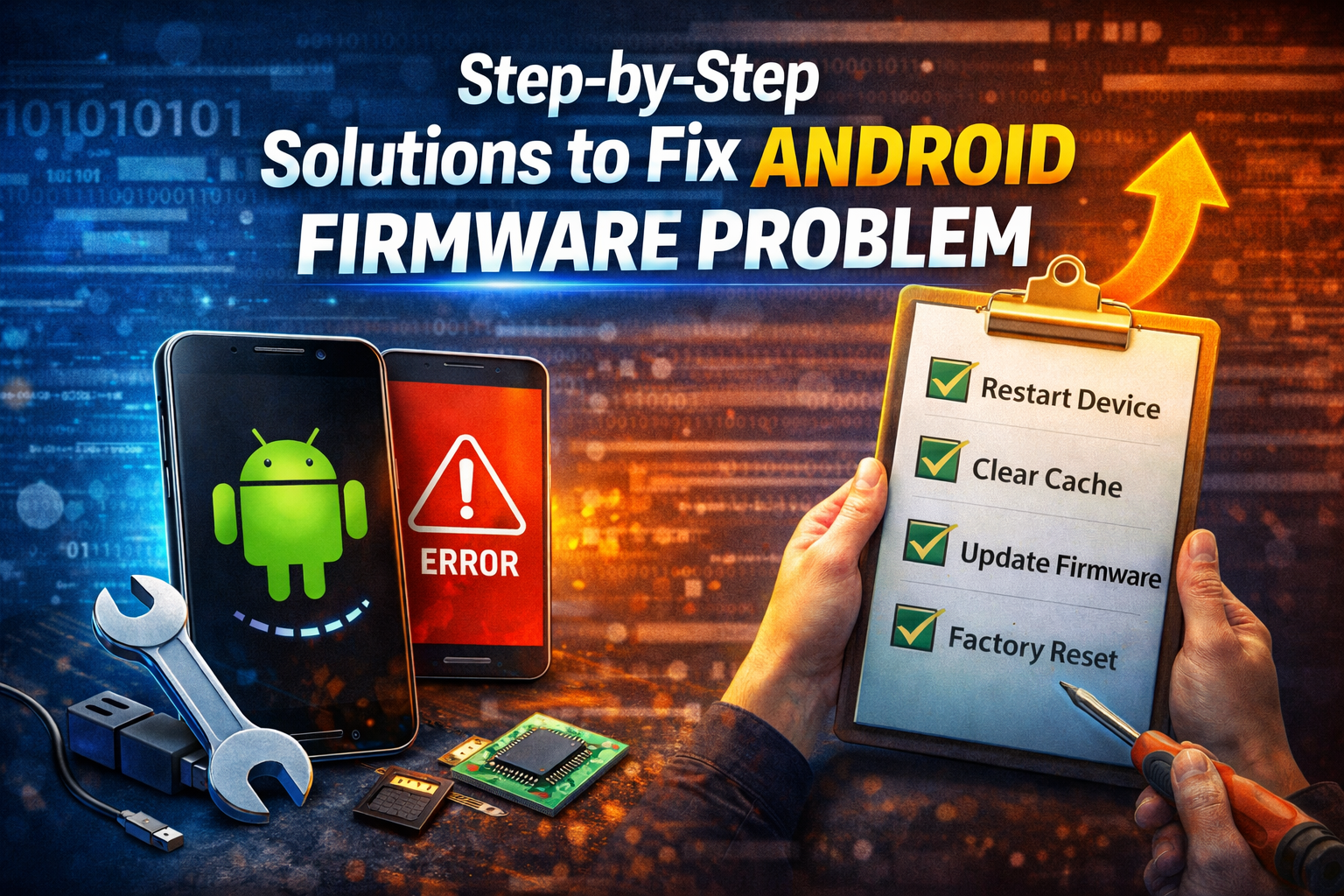
Follow these methods in order. Start with the easiest fix first.
1. Restart Your Phone
Sometimes the problem is temporary. A simple restart may solve a minor software glitch.
Steps:
- Press and hold the Power button.
- Tap Restart if the screen responds.
- If the phone is frozen, hold Power + Volume Down for about 10 to 15 seconds.
- Wait for the phone to reboot.
If the issue continues, move to the next step.
2. Charge the Device Fully
Low battery can interrupt system processes and make firmware problems worse.
Steps:
- Connect your phone to the original charger.
- Let it charge for at least 30 minutes.
- Try turning it on again.
Important: Do not try firmware repair or system updates on a very low battery.
3. Boot Into Safe Mode

Safe Mode disables third-party apps. This helps you check if the issue is caused by an app instead of the firmware itself.
Steps:
- Press and hold the Power button.
- Touch and hold Power Off until Safe Mode appears.
- Tap OK.
- Use the phone for a few minutes.
If the phone works normally in Safe Mode, a recent app may be causing the issue.
What to do next:
- Remove recently installed apps
- Delete suspicious or crashing apps
- Restart the phone normally
4. Clear Cache Partition
A corrupted cache can cause boot issues, lag, and update errors. Clearing the cache partition does not delete your personal files.
Steps:
- Turn off the phone.
- Press the correct key combination to enter Recovery Mode.
Common buttons include:- Power + Volume Up
- Power + Volume Down
- Power + Bixby + Volume Up on some Samsung phones
- Use the volume buttons to select Wipe Cache Partition.
- Press the Power button to confirm.
- Select Reboot System Now.
This method often helps after a failed Android update or firmware bug.
5. Free Up Storage Space

Your device needs free storage to work properly. Lack of space can lead to Android software repair issues and failed firmware updates.
Steps:
- Open Settings.
- Go to Storage.
- Delete:
- Unused apps
- Large videos
- Duplicate photos
- Downloaded files you no longer need
- Restart the device.
Try to keep at least a few gigabytes of free space available.
6. Update Android Software Again
If the firmware problem started because of a failed or incomplete update, installing the latest version may fix the issue.
Steps:
- Open Settings.
- Tap Software Update or System Update.
- Tap Download and Install.
- Keep the battery above 50%.
- Stay connected to stable Wi-Fi.
Important: Do not turn off the phone during the update.
7. Factory Reset the Phone
If basic fixes do not work, a factory reset can solve deeper software corruption. This will erase your apps, settings, and files, so back up your data first if possible.
Steps from Settings:
- Open Settings.
- Go to System.
- Tap Reset Options.
- Select Erase All Data (Factory Reset).
- Confirm the action.
Steps from Recovery Mode:
- Turn off the device.
- Enter Recovery Mode.
- Select Wipe Data/Factory Reset.
- Confirm using the Power button.
- Reboot the phone.
A factory reset is one of the most effective ways to fix a serious Android firmware issue.
8. Reinstall or Flash Official Firmware
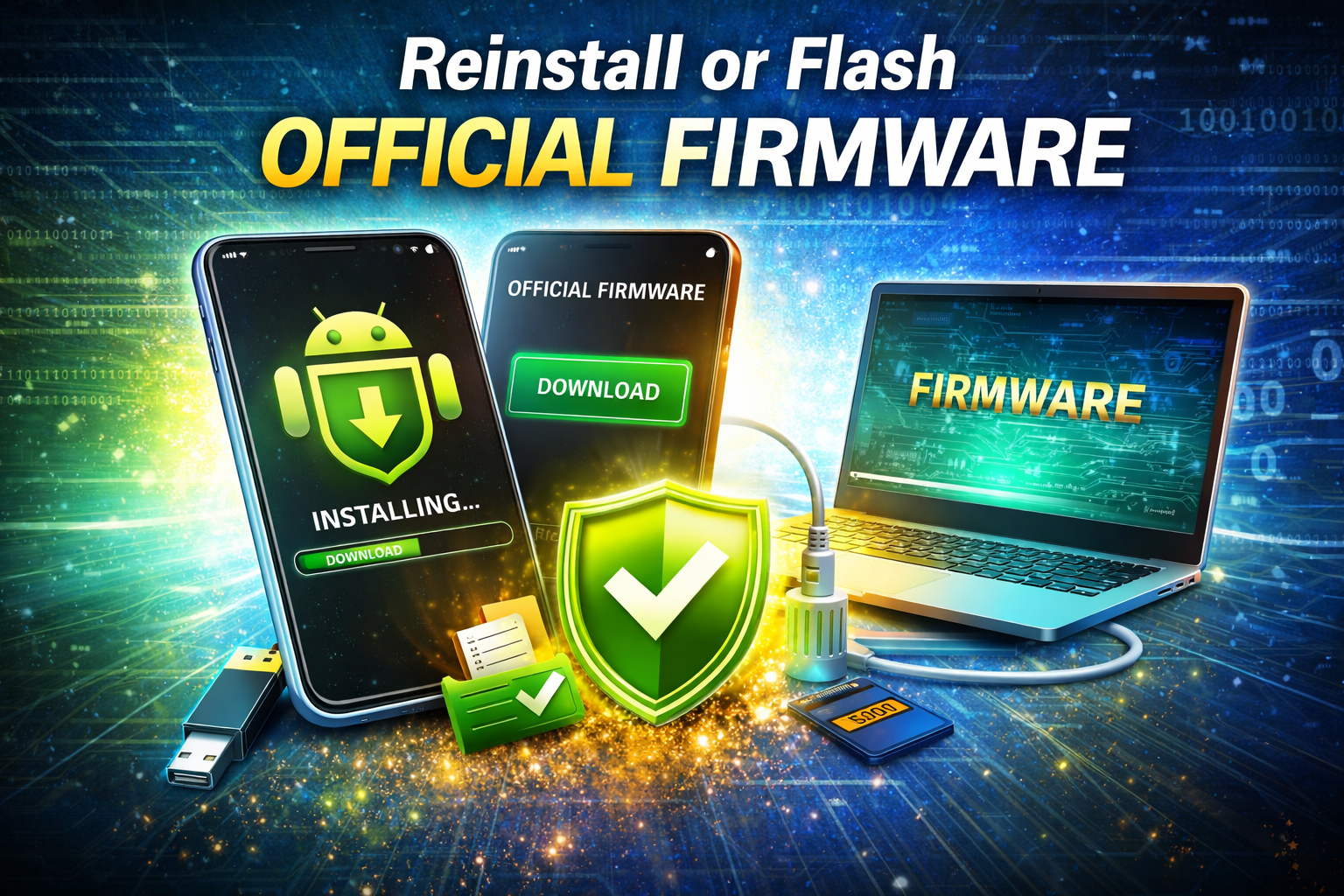
If the phone still will not boot or the firmware is badly damaged, you may need to reinstall the official firmware. This is a more advanced step, but it can fully repair corrupted system software.
Before you begin:
- Back up data if possible
- Use the official firmware for your exact phone model
- Download tools only from trusted sources
- Make sure your battery is charged
General process:
- Find your exact phone model number.
- Download the official firmware package for that model.
- Install the correct flashing tool for your brand. Examples include:
- Samsung: Odin
- Xiaomi: Mi Flash Tool
- Some other brands: SP Flash Tool or brand-specific utilities
- Boot the phone into Download Mode or Fastboot Mode.
- Connect the phone to your computer with a USB cable.
- Load the firmware files into the flashing tool.
- Start the flashing process.
- Wait until the process finishes and the phone reboots.
Warning: Flashing the wrong file can make the problem worse. If you are unsure, contact official support or a professional technician.
9. Use Android Repair Tools
Some brands offer PC software that can repair system problems automatically.
Examples include:
- Samsung Smart Switch
- Xiaomi Assistant tools
- Device-specific recovery software from manufacturers
These tools may help repair firmware without manual flashing.
Basic steps:
- Install the official repair tool on your computer.
- Connect your Android phone.
- Follow the on-screen recovery or repair instructions.
This option is useful for beginners who are not comfortable flashing firmware manually.
10. Visit an Authorized Service Center
If nothing works, the issue may not be firmware alone. It could be a hardware problem that looks like a software failure.
You should get professional help if:
- The phone will not enter Recovery Mode
- Flashing official firmware fails
- The device overheats badly
- The screen stays black with no response
- The phone has water or physical damage
A trained technician can test both firmware and hardware safely.
Quick Tips to Prevent This Problem
You can reduce the chance of future firmware issues by following these simple tips:
- Keep your battery charged before updating Android
- Use only official updates from your phone brand
- Avoid interrupting software updates
- Do not install unknown ROMs or risky root tools
- Free up storage regularly
- Scan your device for harmful apps
- Back up important data often
- Install apps only from trusted sources
- Check firmware compatibility before flashing anything manually
These habits can help prevent another Android system problem in the future.
Best Practices Before Repairing Firmware
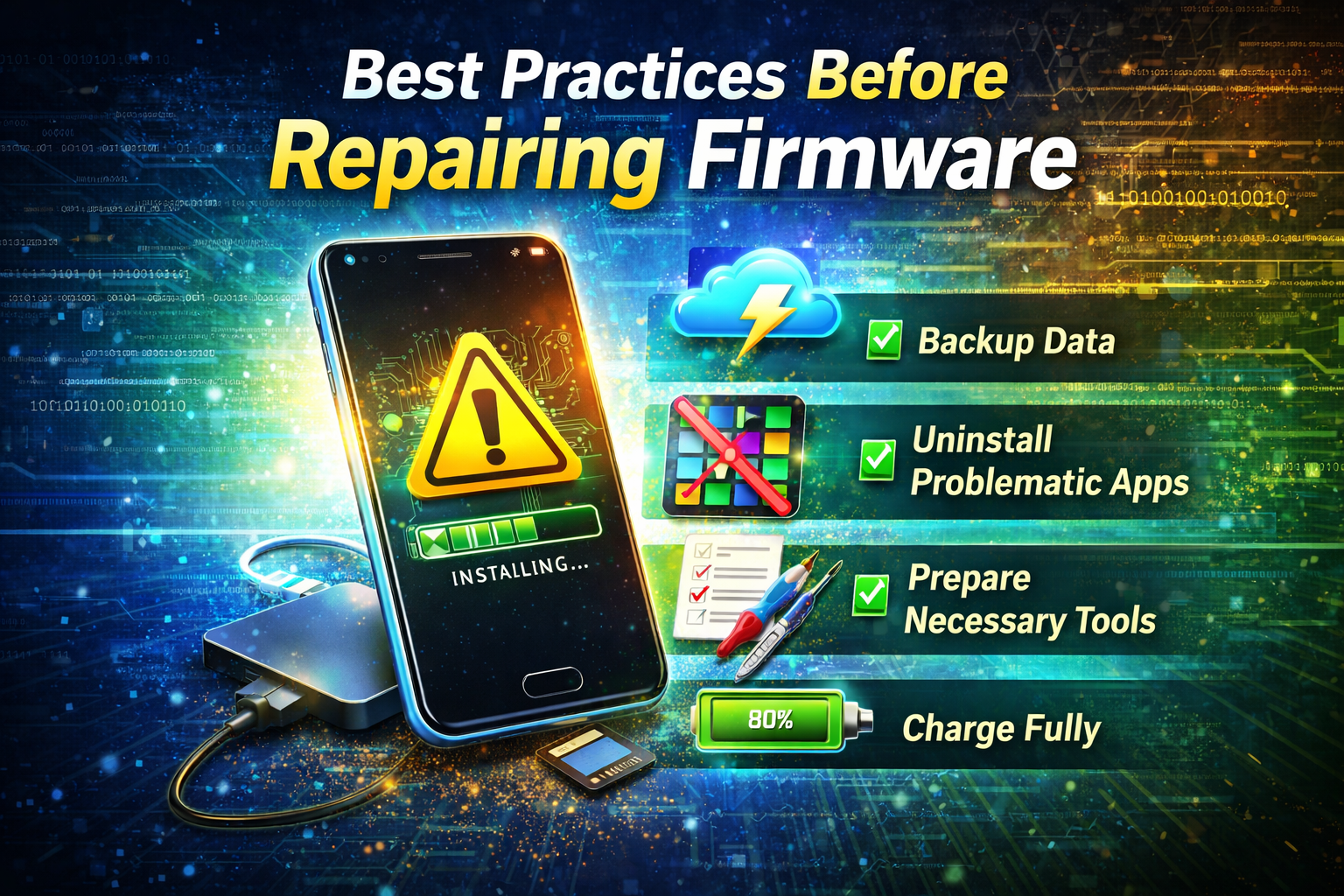
Before trying advanced fixes, remember these safety tips:
Back Up Your Data
Save your photos, contacts, documents, and videos if the phone still responds.
Check Your Exact Model
Firmware files must match your exact device model and region.
Use Reliable USB Cable and PC
A loose cable or unstable computer connection can interrupt the process.
Follow Brand-Specific Instructions
Samsung, Xiaomi, Oppo, Vivo, Realme, and Motorola may use different repair steps.
FAQ
1. What is the easiest way to fix Android firmware problem?
The easiest method is to restart the phone, charge it fully, and clear the cache partition. If that does not work, try a software update or factory reset.
2. Can a factory reset fix firmware issues?
Yes, a factory reset can fix many Android firmware issues caused by corrupted settings or damaged software files. However, it will erase your data.
3. Is flashing firmware safe?
Flashing official firmware is generally safe if you use the correct file and proper tool for your exact device model. Using the wrong firmware can cause more problems.
4. Why is my phone stuck on the logo after an update?
This often happens because of a failed update, corrupted cache, or damaged system files. Clearing the cache or reinstalling official firmware may help.
5. Can firmware problems be caused by apps?
Yes. Some apps can cause crashes, freezing, or system instability. Booting into Safe Mode can help you identify whether an app is the problem.
Conclusion
Learning how to fix Android firmware problem is important if your phone is stuck, crashing, or failing to boot properly. In many cases, the issue can be solved with simple steps like restarting the device, clearing the cache, freeing storage, or updating the system. For more serious cases, a factory reset or reinstalling official firmware may be necessary.
The key is to start with the safest and easiest methods first. If the problem continues, move carefully to advanced solutions. And if you are not confident with manual flashing, it is always better to get help from an authorized technician.
With the right approach, many Android firmware issues can be fixed without buying a new phone.