How to Fix Android No Sound Issue (Speaker & Media Fix)
If your Android phone has no sound, you are not alone. Many users suddenly face problems where media sound, speaker sound, or notification sound stops working without any clear reason. This issue can happen on Samsung, Xiaomi, Oppo, Vivo, Pixel, or any other Android device.
The good news?
In most cases, the Android no sound issue can be fixed easily without going to a repair shop.
In this guide, you’ll learn step-by-step solutions to fix Android speaker and media sound problems. This article is written in simple English, perfect for beginners and normal users.
Common Signs of Android No Sound Problem
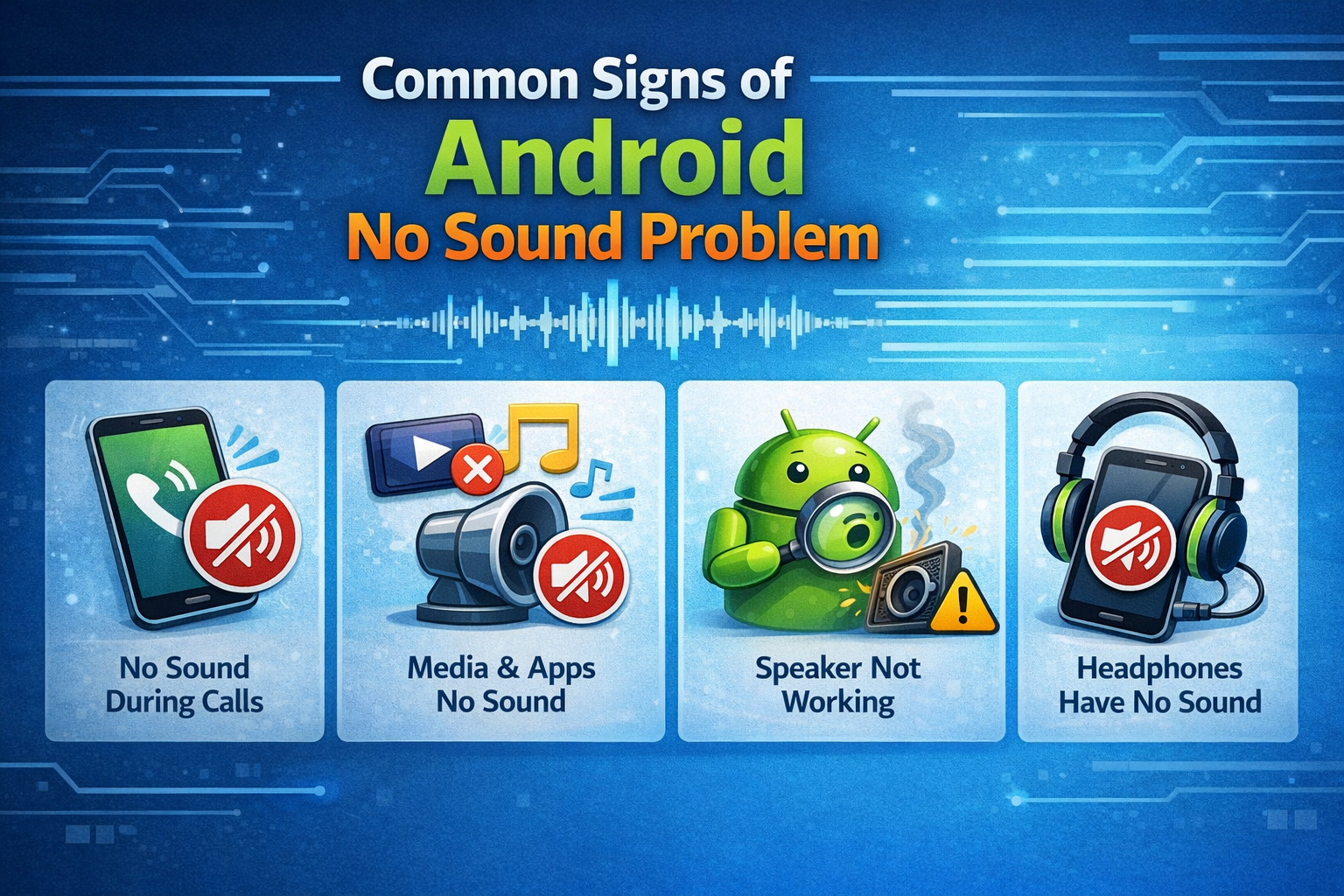
Before fixing the issue, make sure your phone shows one of these signs:
- No sound when playing videos or music
- Phone calls work, but media has no sound
- Speaker icon shows sound, but nothing is audible
- Notification and ringtone sound not working
- Sound works only with headphones
If any of these sound familiar, follow the solutions below.
Step 1: Check Volume and Sound Settings (Basic but Important)
Many users skip this step, but it solves the problem more often than you think.
What to do:
- Press the Volume Up button
- Tap the three dots or settings icon
- Check:
- Media volume
- Ringtone volume
- Notification volume
- Make sure none of them are muted
Real-world example:
You may increase ringtone volume, but media volume stays at zero, causing videos to play silently.
Step 2: Disable Silent Mode & Do Not Disturb
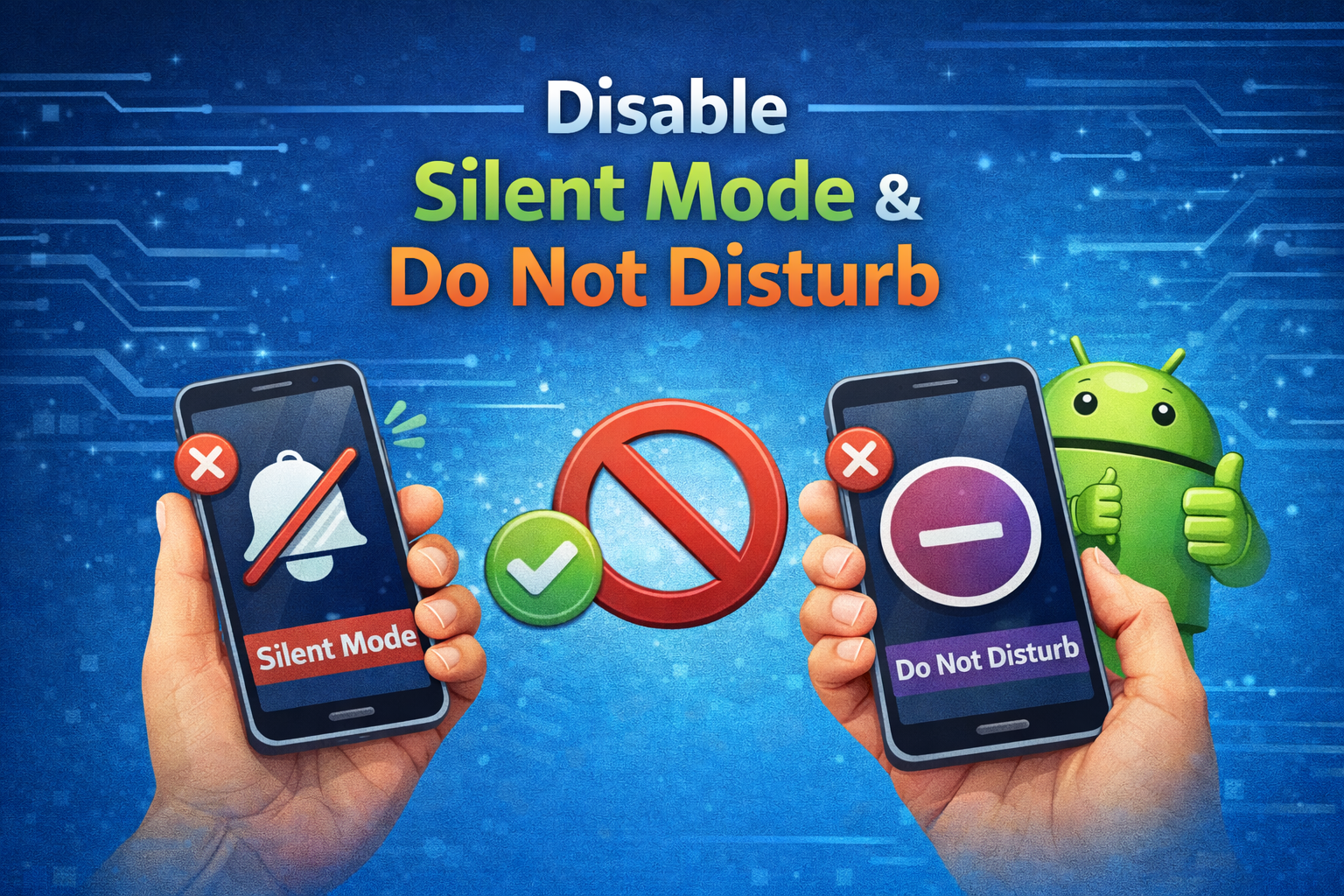
Silent Mode and Do Not Disturb (DND) can block sound completely.
How to check:
- Swipe down to open Quick Settings
- Look for:
- Silent
- Vibrate
- Do Not Disturb
- Turn them OFF
- Set sound mode to Sound
Tip: Some phones automatically enable DND at night.
Step 3: Test the Speaker Using Safe Mode
Third-party apps can sometimes block sound.
How to enter Safe Mode:
- Press and hold the Power button
- Tap and hold Power Off
- Select Safe Mode
- Play a video or music
What this means:
- Sound works → A third-party app is causing the problem
- No sound → System or hardware issue
What to do next:
Uninstall recently installed apps (especially volume boosters, cleaner apps, or launchers).
Step 4: Check Bluetooth Connections
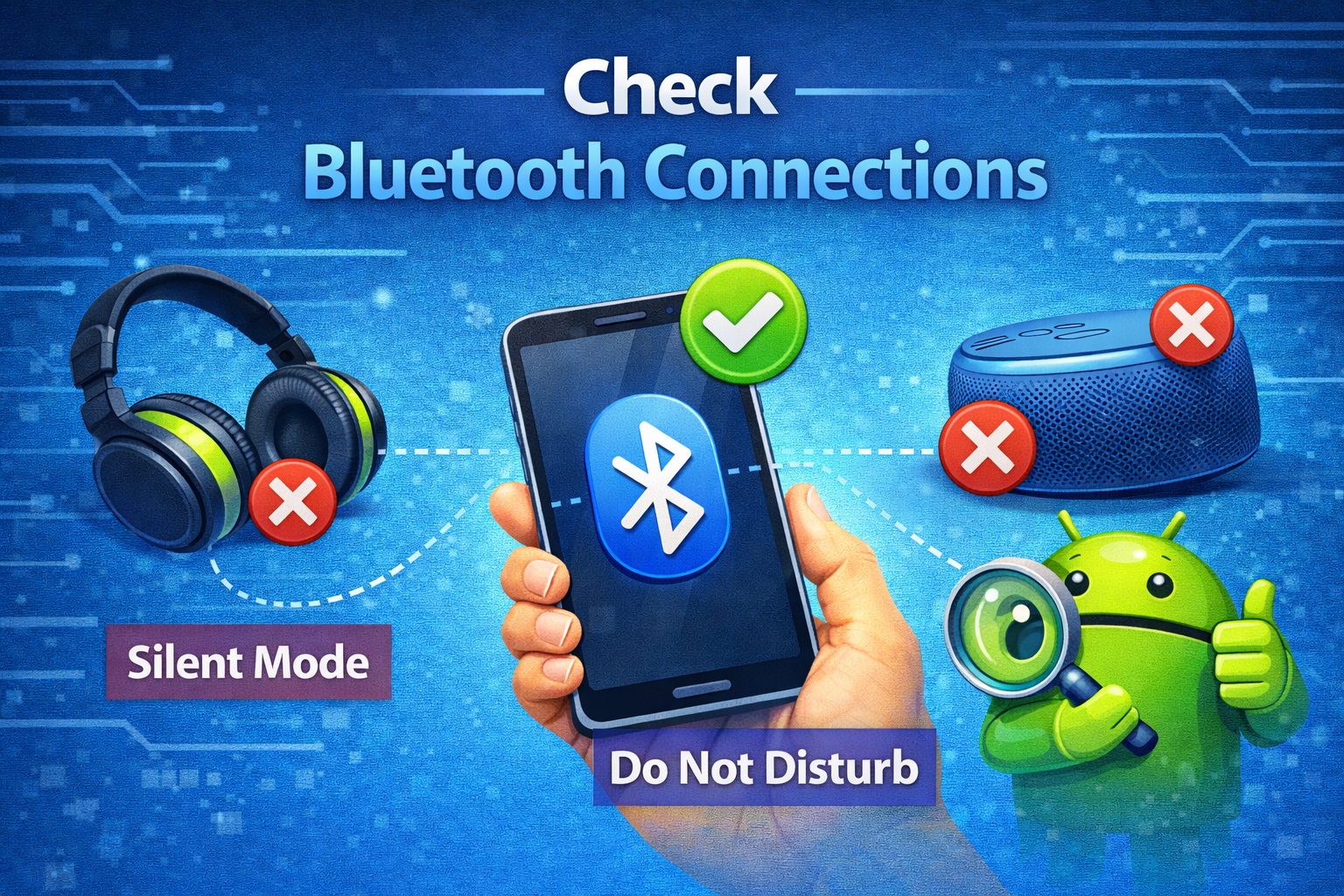
Your phone may be connected to another audio device.
Fix:
- Go to Settings → Bluetooth
- Turn Bluetooth OFF
- Restart your phone
- Test sound again
Real-world example:
Your phone may still be connected to wireless earbuds in another room, sending sound there instead of the speaker.
Step 5: Clean the Speaker Grill Carefully
Dust and dirt can block sound output.
How to clean safely:
- Use a soft brush
- Use compressed air
- Avoid water or sharp objects
Warning: Never insert needles or pins into the speaker hole.
Step 6: Check App-Specific Sound Settings
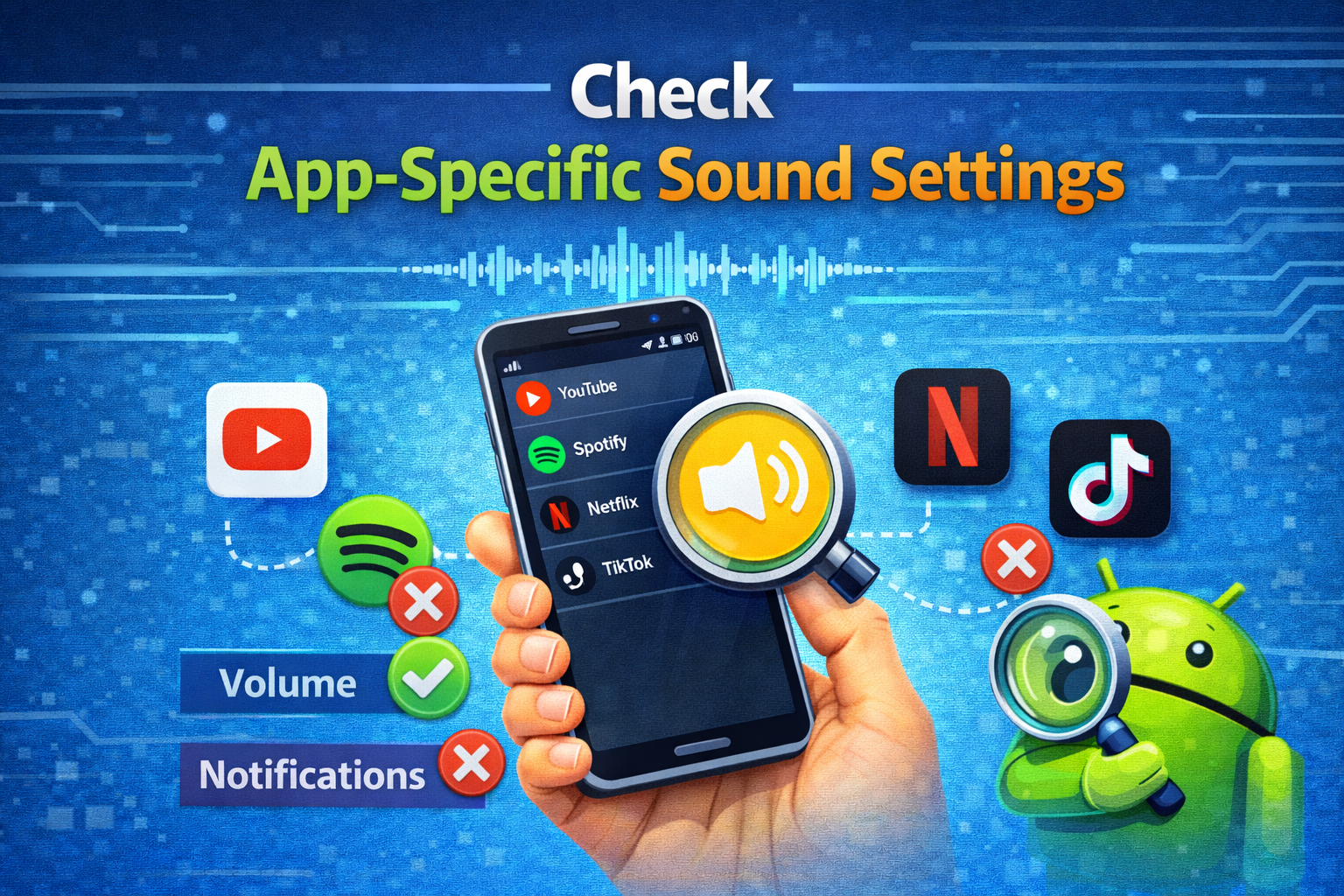
Some apps have their own sound controls.
Example: YouTube, Facebook, or Games
- Open the app
- Check in-app volume or mute icon
- Reinstall the app if needed
Step 7: Clear Cache Partition (Advanced but Safe)
System cache problems can cause Android no sound issues.
Steps (may vary by device):
- Power off phone
- Press Volume Up + Power
- Enter Recovery Mode
- Select Wipe Cache Partition
- Reboot device
This does NOT delete personal data.
Step 8: Check Accessibility & Audio Balance Settings
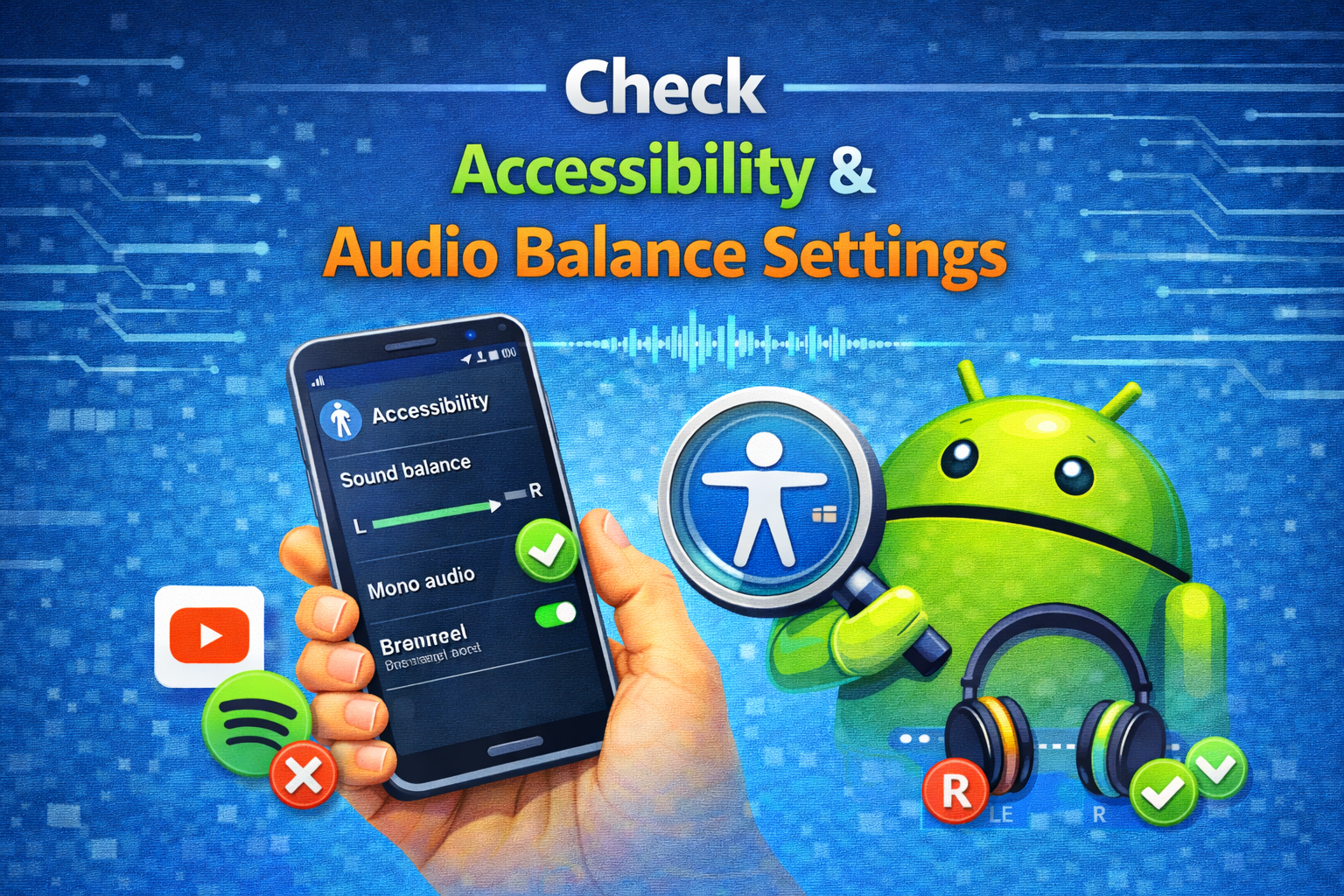
Sometimes sound goes only to one side.
Fix:
- Go to Settings → Accessibility
- Open Audio settings
- Center the Left / Right balance
- Disable Mono Audio (if enabled)
Step 9: Update Android System
Outdated software may contain sound bugs.
Steps:
- Go to Settings → Software Update
- Download and install the latest update
- Restart your phone
Many Android sound issues are fixed through updates.
Step 10: Factory Reset (Last Resort)
If nothing works, a factory reset may help.
Before resetting:
- Backup photos, videos, contacts
- Sign in to Google account
Steps:
- Go to Settings → Reset
- Select Factory Data Reset
- Confirm reset
Use this only if all other methods fail.
Hardware vs Software Sound Problems
| Symptom | Likely Cause |
|---|---|
| No sound even in Safe Mode | Speaker hardware issue |
| Sound only works with headphones | Speaker damaged |
| Sound stops after update | Software bug |
| Sound missing in one app | App issue |
If it’s a hardware problem, visit an authorized service center.
Frequently Asked Questions (FAQ)
1. Why does my Android phone suddenly have no sound?
Common reasons include muted volume, Bluetooth connection, Do Not Disturb mode, or a buggy app.
2. Why does sound work with headphones but not the speaker?
This usually means the speaker is damaged or blocked by dust.
3. Can water damage cause no sound on Android?
Yes. Water can damage speaker components, even if the phone still turns on.
4. Does factory reset fix Android no sound issues?
Yes, if the problem is software-related. It will not fix hardware damage.
5. How can I test if my Android speaker is broken?
Play sound in Safe Mode. If there’s still no sound, it’s likely a hardware issue.
Conclusion
The Android no sound issue can be frustrating, but in most cases, it’s easy to fix. Simple checks like volume settings, Bluetooth connections, and Safe Mode testing can solve the problem quickly. Only move to advanced solutions like cache clearing or factory reset if basic steps don’t work.
If none of the fixes restore sound, your phone may need professional repair.
Tip: Always keep your Android system updated and avoid installing unknown apps to prevent sound problems in the future.
If you want more Android fix guides, feel free to ask!