How to Troubleshoot Software Errors Without Reinstalling the Program
Software problems can be frustrating, especially when your first thought is, “Do I need to uninstall and reinstall everything?” The good news is that you can troubleshoot software errors without reinstalling the program in most cases. Reinstalling should always be the last option, not the first.
In this beginner-friendly guide, you’ll learn step-by-step methods to fix common software issues safely, quickly, and without losing your settings or data. These solutions work for most applications on Windows and Mac and are designed for normal users—no technical background required.
Why You Should Avoid Reinstalling Software First
Before we dive into solutions, it’s important to understand why reinstalling is not ideal.
Reinstalling software:
- Takes time
- Can remove saved settings
- May delete local data
- Does not always fix the real problem
Most software errors are caused by temporary glitches, corrupted cache files, permission issues, or conflicts with updates, not the program itself. That’s why learning how to troubleshoot software errors without reinstalling the program is so valuable.
Common Signs of Software Errors
Here are typical symptoms that tell you something is wrong:
- The program won’t open
- The app crashes or freezes
- Features stop working
- Error messages appear suddenly
- Software worked fine before an update
If you notice these issues, try the steps below in order, from easiest to more advanced.
Step 1: Restart the Software (Yes, Really)
Why This Works
Many software errors are caused by temporary memory or process issues. Restarting clears these instantly.
What to Do
- Close the software completely
- Wait 10–20 seconds
- Open it again
Real-World Example
A photo editing app freezes while exporting images. Closing and reopening it fixes the issue without any extra steps.
Tip: Make sure the program is fully closed, not just minimized.
Step 2: Restart Your Computer
Why This Works
Your system may have background conflicts or stuck processes affecting the software.
Steps
- Save your work
- Restart your computer
- Launch the software again
Real-World Example
A video player shows a black screen. Restarting the computer clears a background graphics issue and the player works normally.
Step 3: Check for Software Updates
Why Updates Matter
Developers release updates to fix bugs, improve stability, and patch security issues.
How to Check
- Open the software
- Look for Help → Check for Updates or Settings → Updates
- Install available updates
Real-World Example
A messaging app crashes after launch. Updating it fixes a known bug introduced in the previous version.
Related keyword: fix software bugs without reinstalling
Step 4: Run the Software as Administrator (Windows)
Why This Helps
Some programs need extra permissions to access system files.
Steps
- Right-click the software icon
- Select Run as administrator
Real-World Example
A backup tool fails to save files. Running it as administrator gives it the required permissions.
Use this only for trusted software.
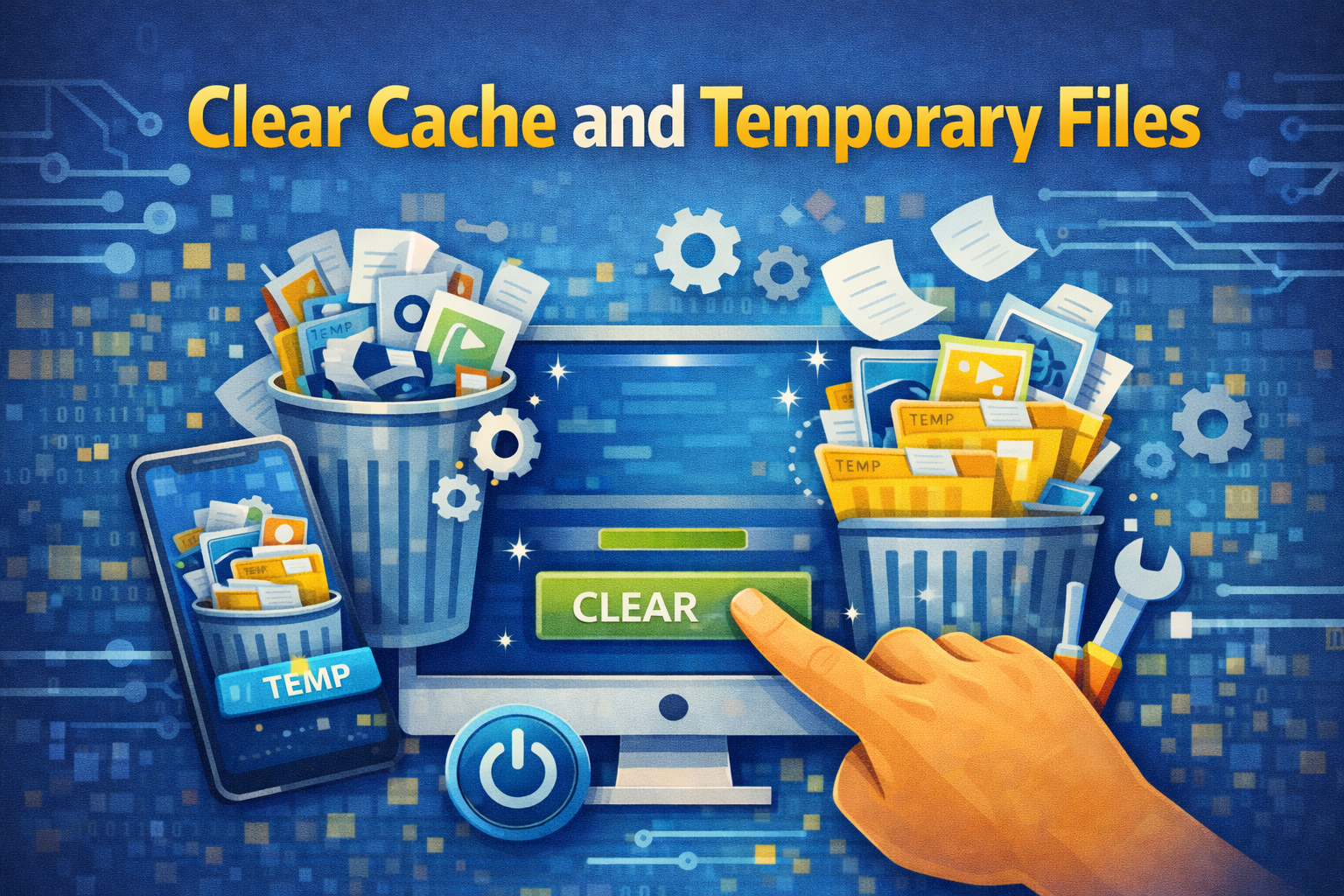
Step 5: Clear Cache and Temporary Files
Why This Works
Corrupted cache files are one of the most common causes of software errors.
How to Clear Cache (General Method)
- Open the software settings
- Look for Cache, Storage, or Temporary files
- Clear cache (not data)
Real-World Example
A web browser crashes frequently. Clearing the cache restores normal performance.
Clearing cache will not delete your personal files.
Step 6: Disable Conflicting Programs
Why Conflicts Happen
Antivirus tools, firewalls, or background apps can interfere with software.
What to Do
- Temporarily disable antivirus or firewall
- Close unnecessary background apps
- Test the software
Real-World Example
A game won’t start because antivirus software blocks it. Adding the game to the antivirus exception list solves the issue.
Related keyword: software conflict troubleshooting
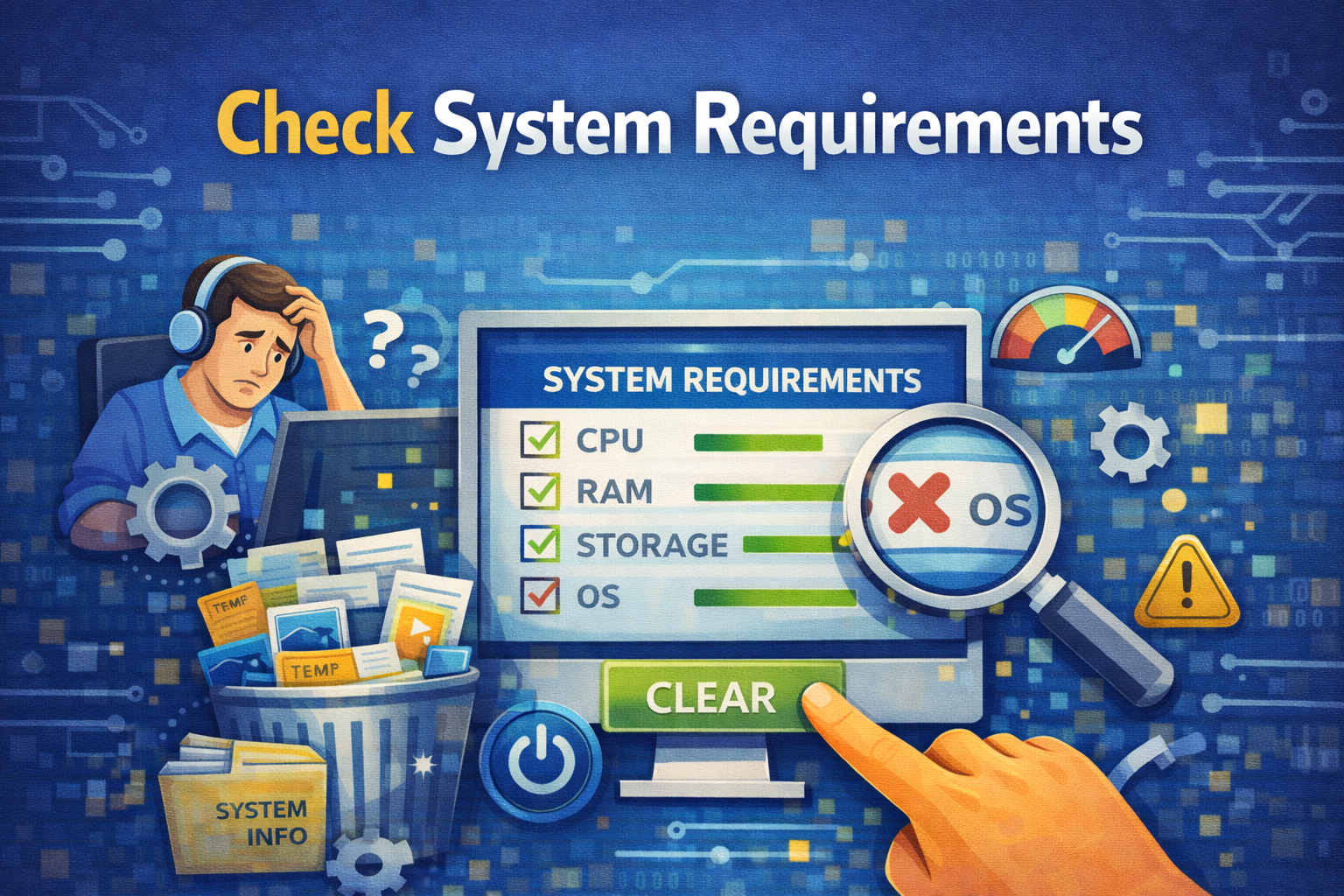
Step 7: Check System Requirements
Why This Is Important
Software updates sometimes increase system requirements.
Steps
- Visit the software’s official website
- Check minimum system requirements
- Compare them with your computer specs
Real-World Example
A design tool lags badly after an update because the system RAM is below requirements.
Step 8: Repair the Software (Built-in Repair Option)
Why This Is Powerful
Many programs include a repair feature that fixes corrupted files without reinstalling.
How to Repair (Windows Example)
- Open Control Panel → Programs
- Select the software
- Click Repair
Real-World Example
An office program crashes on startup. Using the repair option fixes missing files instantly.
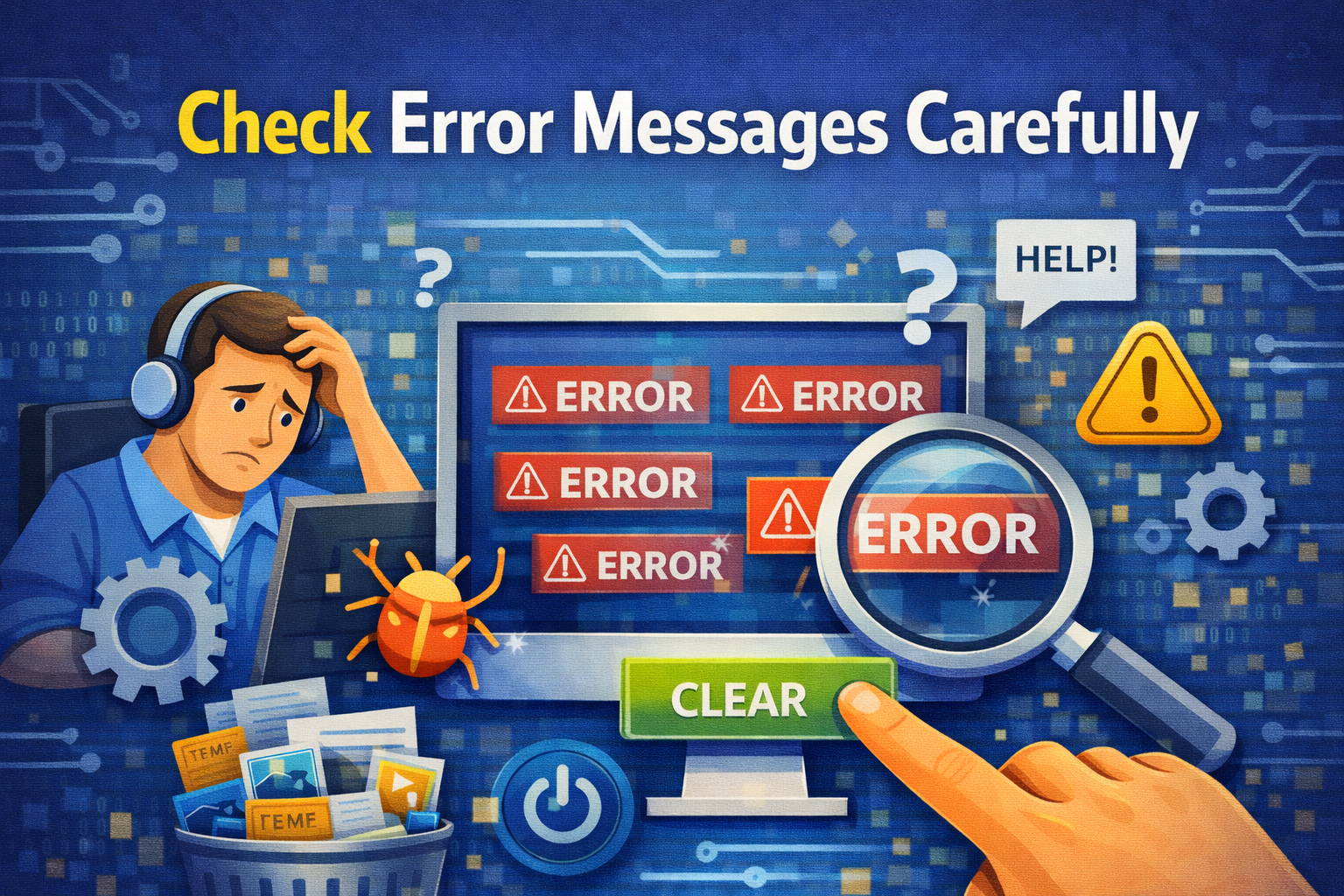
Step 9: Check Error Messages Carefully
Why This Matters
Error messages often tell you exactly what’s wrong.
What to Look For
- Missing files
- Permission denied
- Network errors
- License problems
Real-World Example
An error message says “Network connection failed.” The real issue is unstable internet, not the software.
Copy the error message and search it online for targeted solutions.
Step 10: Roll Back Recent Changes
Why This Works
If the problem started after an update or system change, rolling back can help.
What to Undo
- Recent software updates
- Driver updates
- System settings changes
Real-World Example
After updating a graphics driver, a video app crashes. Rolling back the driver fixes the issue.
Advanced Tips (Try Only If Needed)
Reset Software Settings
Some apps allow you to reset settings to default without reinstalling.
Create a New User Profile
A corrupted user profile can cause software errors.
Check Disk and System Files
System-level issues can affect software stability.
Frequently Asked Questions (FAQ)
1. Can I fix software errors without reinstalling?
Yes. Most software problems can be fixed by restarting, updating, clearing cache, or repairing the program.
2. Will clearing cache delete my files?
No. Cache files are temporary and do not include personal data.
3. When should I reinstall the software?
Only if all troubleshooting steps fail or if the program files are severely corrupted.
4. Why does software suddenly stop working?
Common reasons include updates, corrupted cache, permission issues, or system conflicts.
5. Is reinstalling software risky?
It can be. Reinstalling may remove settings, licenses, or local files if not done carefully.
Conclusion
Learning how to troubleshoot software errors without reinstalling the program saves time, protects your data, and reduces frustration. Most issues are minor and can be solved with simple steps like restarting, updating, clearing cache, or repairing the software.
Before uninstalling anything, always try these methods first. In many cases, you’ll fix the problem in minutes—and keep your system running smoothly.