Fix All iPhone Problems with These Methods
Introduction
iPhones are known for their smooth performance, but like any device, they can still have problems. You might face issues like slow performance, WiFi not working, apps crashing, or battery draining too fast.
The good news? Most of these problems can be fixed (easily) without needing technical skills.
In this guide, you’ll learn how to fix all iPhone problems with these methods step-by-step. Whether you’re a beginner or just looking for quick solutions, this article will help you solve common iPhone issues fast.
Common iPhone Problems You Can Fix
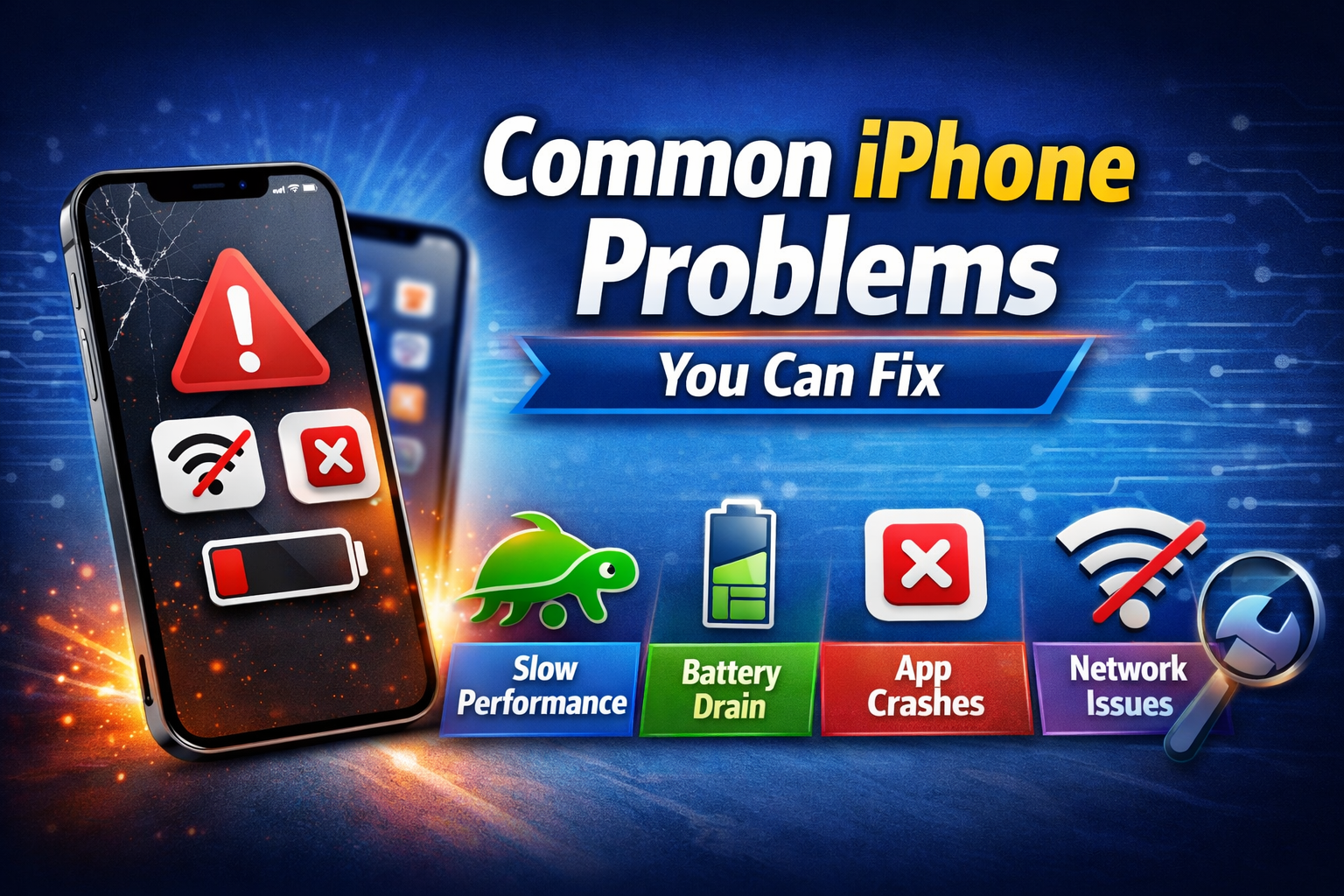
Before we jump into solutions, here are some common issues:
- iPhone running slow
- Apps not opening or crashing
- WiFi or Bluetooth not working
- Battery draining quickly
- iPhone freezing or stuck
- Storage full issue
Let’s fix them step-by-step.
Step-by-Step Methods to Fix All iPhone Problems
1. Restart Your iPhone (Simple but Powerful)
Sometimes, a simple restart can fix many issues.
Steps:
- Press and hold the Power button + Volume button
- Slide to power off
- Wait 10–15 seconds
- Turn it back on
👉 Why it works: It clears temporary bugs and refreshes the system.
2. Update iOS to the Latest Version

Outdated software can cause many problems.
Steps:
- Go to Settings
- Tap General
- Select Software Update
- Tap Download and Install
👉 Important: Always keep your iPhone updated to avoid bugs.
3. Fix iPhone Slow Performance
If your iPhone feels slow, try these steps:
Steps:
- Close unused apps
- Go to Settings > General > iPhone Storage
- Delete unnecessary apps or files
- Restart your device
👉 Pro Tip: Keep at least 2–3GB free space for smooth performance.
4. Fix Apps Crashing or Not Opening

Apps may crash due to bugs or outdated versions.
Steps:
- Open App Store
- Update all apps
- Delete and reinstall the problematic app
- Restart your iPhone
👉 This solves most app-related issues quickly.
5. Fix WiFi or Internet Problems
Steps:
- Turn WiFi off and on
- Restart your router
- Go to Settings > WiFi and reconnect
- Reset network settings:
- Go to Settings > General > Transfer or Reset iPhone
- Tap Reset > Reset Network Settings
👉 Note: This will remove saved WiFi passwords.
6. Fix Battery Draining Fast
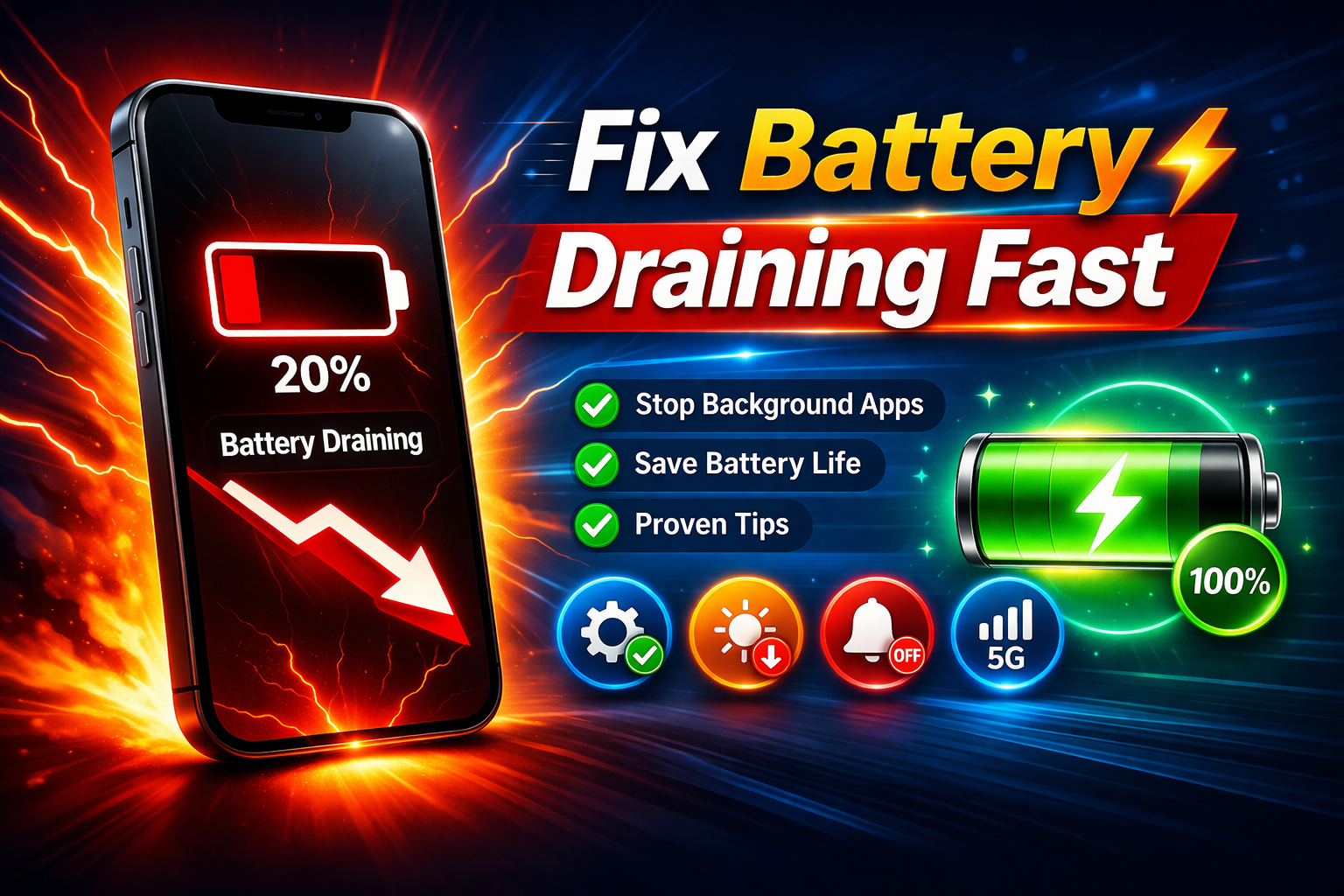
Battery issues are very common.
Steps:
- Go to Settings > Battery
- Check which apps use the most battery
- Turn on Low Power Mode
- Reduce screen brightness
- Disable background app refresh
👉 Bonus Tip: Update apps regularly to avoid battery drain bugs.
7. Fix iPhone Freezing or Stuck
If your iPhone is frozen:
Steps (Force Restart):
- iPhone 8 or later:
- Press Volume Up
- Press Volume Down
- Hold Power button until Apple logo appears
👉 This will force your device to restart.
8. Fix Storage Full Problem
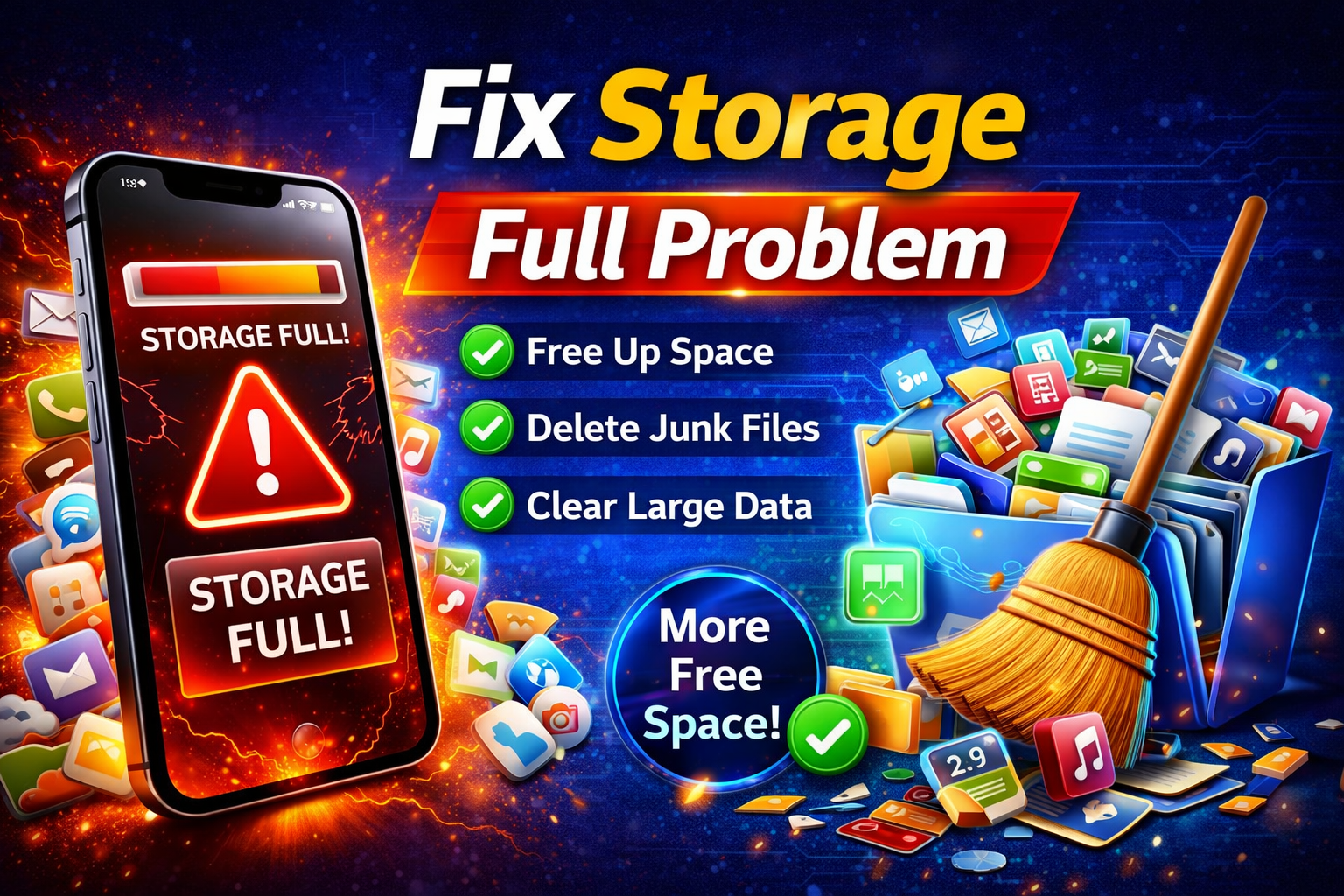
Steps:
- Go to Settings > General > iPhone Storage
- Delete large files (videos, apps)
- Enable Offload Unused Apps
- Clear Safari cache:
- Go to Settings > Safari > Clear History and Data
9. Reset All Settings (Advanced Fix)
If nothing works, try resetting settings.
Steps:
- Go to Settings > General
- Tap Transfer or Reset iPhone
- Select Reset > Reset All Settings
👉 Important: This won’t delete your data, but it resets WiFi, settings, etc.
Why This Problem Happens
Understanding the cause helps prevent future issues.
Common reasons include:
- Outdated iOS version
- Too many background apps
- Low storage space
- Software bugs
- Network issues
- Overheating or heavy usage
👉 Most iPhone problems are software-related and easy to fix.
Quick Tips to Prevent This Problem
Follow these simple tips to keep your iPhone running smoothly:
- ✅ Always update iOS and apps
- ✅ Restart your iPhone once a week
- ✅ Avoid installing too many apps
- ✅ Keep storage space available
- ✅ Use original chargers and accessories
- ✅ Avoid overheating your device
👉 These habits can prevent most issues before they happen.
FAQ (Frequently Asked Questions)
1. Can I fix iPhone problems without resetting?
Yes! Most problems can be fixed using simple methods like restarting, updating iOS, or clearing storage.
2. Why is my iPhone suddenly slow?
This usually happens due to low storage, outdated software, or too many background apps.
3. Is it safe to reset all settings?
Yes, it’s safe. It won’t delete your data, but it will reset system settings like WiFi and notifications.
4. How often should I restart my iPhone?
At least once a week to keep performance smooth.
5. What should I do if nothing works?
Try a full reset or contact Apple Support if the problem is hardware-related.
Conclusion
Now you know how to fix all iPhone problems with these methods بسهولة and quickly. Most issues are simple and can be solved at home without technical help.
Start with basic steps like restarting and updating your iPhone. If the problem continues, move to advanced solutions like resetting settings.
👉 By following these steps and tips, you can keep your iPhone running fast, smooth, and problem-free.