Beginner’s Guide to Fix iPhone Issues
Introduction
iPhones are known for their smooth performance, but even the best devices can run into problems. You might notice your iPhone running slow, apps crashing, WiFi not working, or the screen freezing unexpectedly. These issues can be frustrating—especially if you don’t know what caused them.
The good news? Most iPhone problems are easy to fix, even for beginners.
In this guide, you’ll learn simple, step-by-step solutions to fix common iPhone issues quickly without needing technical skills. Whether your device is lagging, overheating, or not connecting to the internet, this article will help you solve it.
Common iPhone Problems You Can Fix
Before diving into solutions, here are some common issues users face:
- iPhone running slow
- Apps crashing or not opening
- WiFi or Bluetooth not working
- Battery draining fast
- iPhone freezing or stuck
Let’s fix them step by step.
Step-by-Step Solutions to Fix iPhone Issues
1. Restart Your iPhone
This is the easiest and most effective fix.
Steps:
- Press and hold the Power button + Volume button
- Slide to power off
- Wait 10–15 seconds
- Turn it back on
👉 Why it works:
Restarting clears temporary bugs and refreshes the system.
2. Update iOS to the Latest Version

Outdated software can cause many problems.
Steps:
- Go to Settings > General > Software Update
- Tap Download and Install
- Wait for the update to complete
👉 Important:
Always keep your iPhone updated to avoid bugs.
3. Free Up Storage Space
Low storage can slow down your iPhone.
Steps:
- Go to Settings > General > iPhone Storage
- Delete unused apps
- Remove old photos/videos
- Clear cache from apps
👉 Tip:
Keep at least 2–5GB free space for smooth performance.
4. Close Background Apps
Too many apps running can cause lag.
Steps:
- Swipe up from the bottom (or double-click Home button)
- Swipe up on apps to close them
👉 Important:
Close apps you’re not using to save memory.
5. Reset Network Settings
If WiFi or mobile data isn’t working, try this.
Steps:
- Go to Settings > General > Transfer or Reset iPhone
- Tap Reset > Reset Network Settings
- Enter passcode and confirm
👉 Note:
This will remove saved WiFi passwords.
6. Check Battery Usage
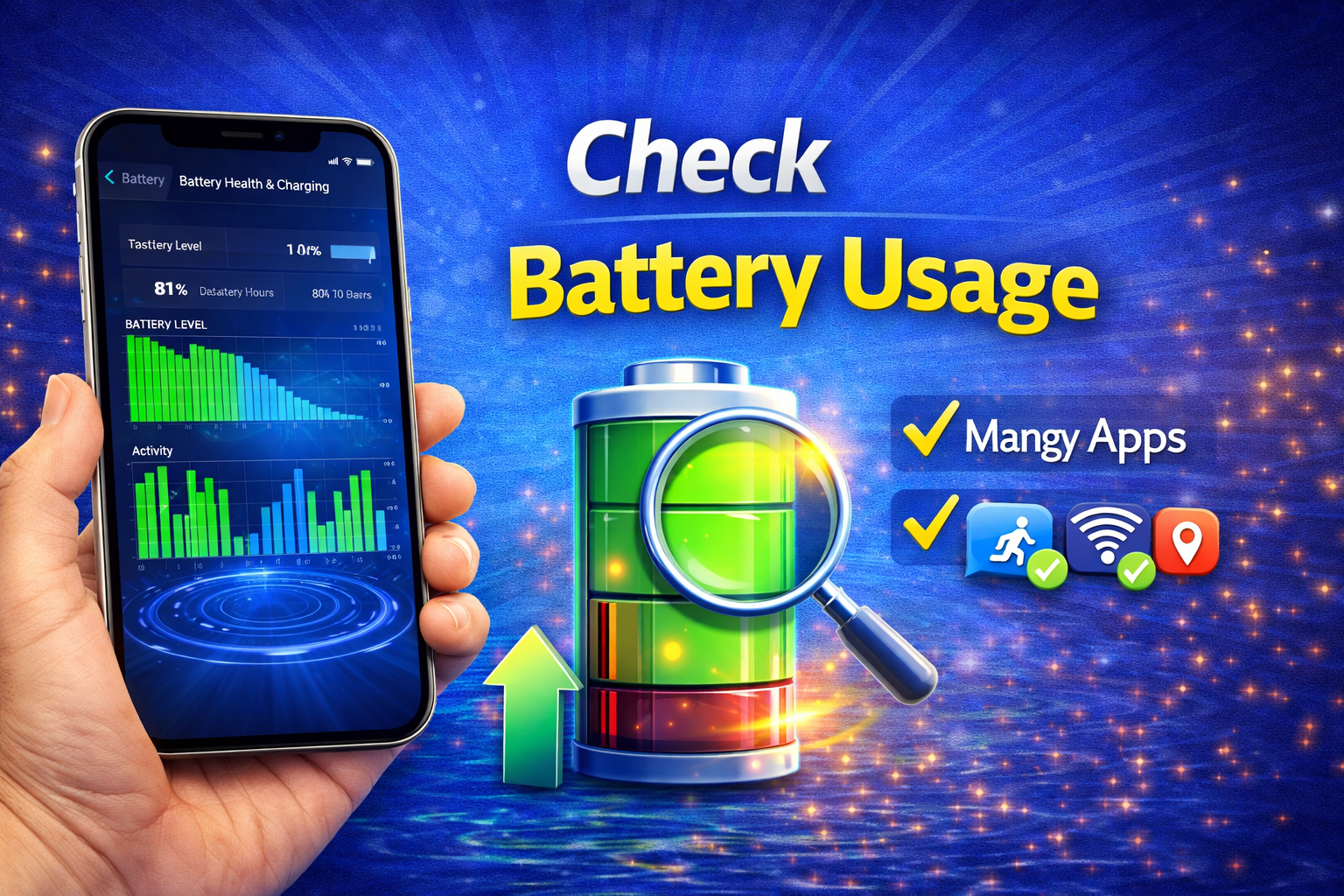
Battery draining fast? Check what’s causing it.
Steps:
- Go to Settings > Battery
- Check which apps use the most power
- Disable unnecessary background activity
👉 Tip:
Turn on Low Power Mode to save battery.
7. Reset All Settings (Safe Fix)
If nothing works, try resetting settings.
Steps:
- Go to Settings > General > Transfer or Reset iPhone
- Tap Reset > Reset All Settings
- Enter passcode
👉 Good news:
This won’t delete your data.
8. Restore iPhone (Advanced Fix)
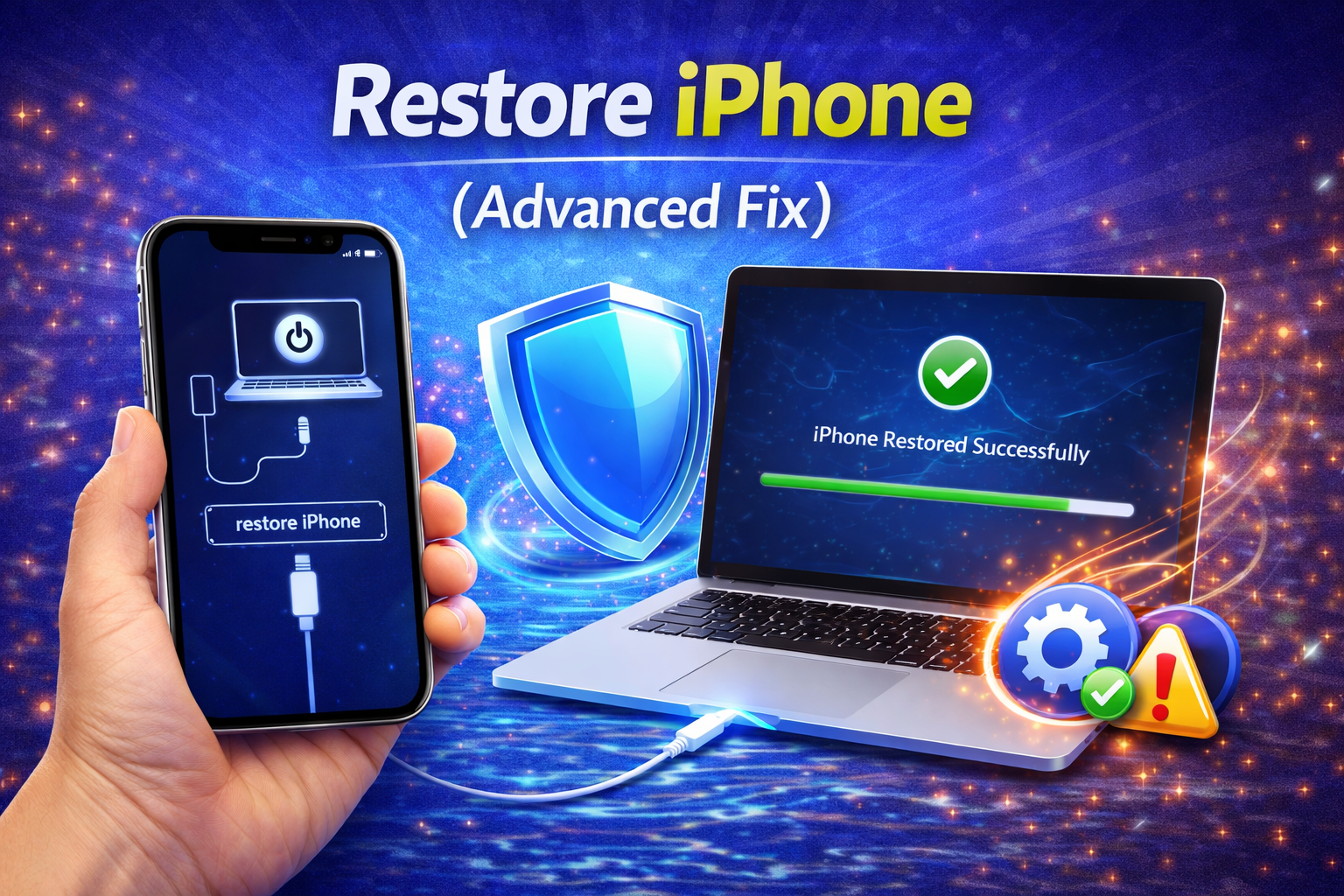
Use this only if serious problems continue.
Steps:
- Connect iPhone to a computer
- Open iTunes or Finder
- Click Restore iPhone
- Follow instructions
👉 Warning:
This will erase all data, so backup first.
Why This Problem Happens
Understanding the cause helps prevent future issues.
Here are the main reasons:
1. Outdated iOS
Old software can have bugs and compatibility issues.
2. Low Storage Space
When storage is full, your iPhone struggles to perform tasks.
3. Too Many Background Apps
Apps running in the background use memory and slow down your device.
4. App Bugs or Crashes
Some apps are poorly optimized or outdated.
5. Network Issues
Weak WiFi or incorrect settings can cause connection problems.
6. Battery Degradation
Old batteries affect performance and stability.
Quick Tips to Prevent This Problem
Follow these simple tips to keep your iPhone running smoothly:
- ✅ Update iOS regularly
- ✅ Delete unused apps and files
- ✅ Restart your iPhone weekly
- ✅ Avoid installing unknown apps
- ✅ Use original chargers and accessories
- ✅ Keep at least 20% storage free
- ✅ Turn off background app refresh when not needed
👉 These habits can prevent most iPhone issues.
FAQ (Frequently Asked Questions)
1. Why is my iPhone so slow suddenly?
Your iPhone may be slow due to low storage, outdated iOS, or too many background apps.
2. Will resetting my iPhone delete everything?
- Reset All Settings → No data loss
- Factory Reset → Deletes everything
3. How often should I restart my iPhone?
At least once a week to keep it running smoothly.
4. What should I do if apps keep crashing?
- Update the app
- Restart your iPhone
- Reinstall the app
5. Is it safe to update iOS?
Yes. Updates improve performance, fix bugs, and add security.
Conclusion
Fixing iPhone issues doesn’t have to be difficult. With the simple steps in this guide, even beginners can solve most problems quickly. From restarting your device to updating iOS and managing storage, these solutions are easy and effective.
The key is to act early and maintain your iPhone regularly.
If you follow these steps and tips, your device will stay fast, stable, and problem-free for a long time.