How to Fix Android Auto Not Working
Android Auto is a useful feature that lets you use Google Maps, calls, messages, and music on your car screen. But when it suddenly stops working, it can be frustrating. You plug in your phone and nothing happens. Or it connects for a few seconds and disconnects again. In some cases, the screen stays black, voice commands fail, or your car does not recognize your phone at all.
The good news is that this problem is usually easy to fix.
If you are searching for how to fix Android Auto not working, this guide will walk you through the most effective solutions in simple steps. Whether you have a wired or wireless setup, these fixes can help restore the connection and get Android Auto working again.
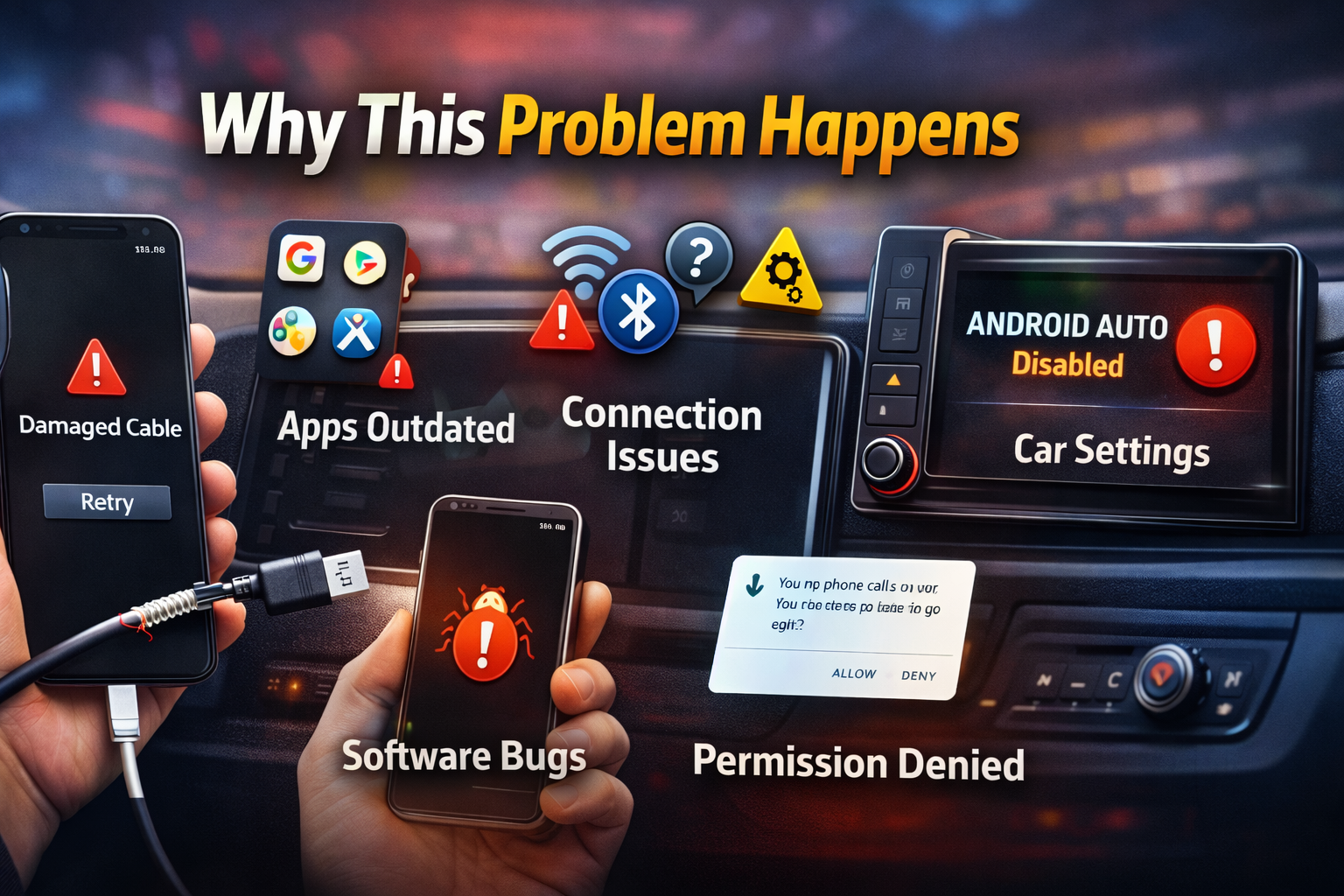
Why This Problem Happens
Before jumping into the fixes, it helps to understand why Android Auto may stop working.
Common causes include:
- A damaged or low-quality USB cable
- Outdated Android Auto, Google, or system apps
- Bluetooth or Wi-Fi connection problems
- Wrong car infotainment settings
- Software bugs on your phone
- Cache or app permission issues
- Incompatible device or unsupported car system
Sometimes the issue is small, like a loose cable. Other times, it may be a software conflict between your phone and car.
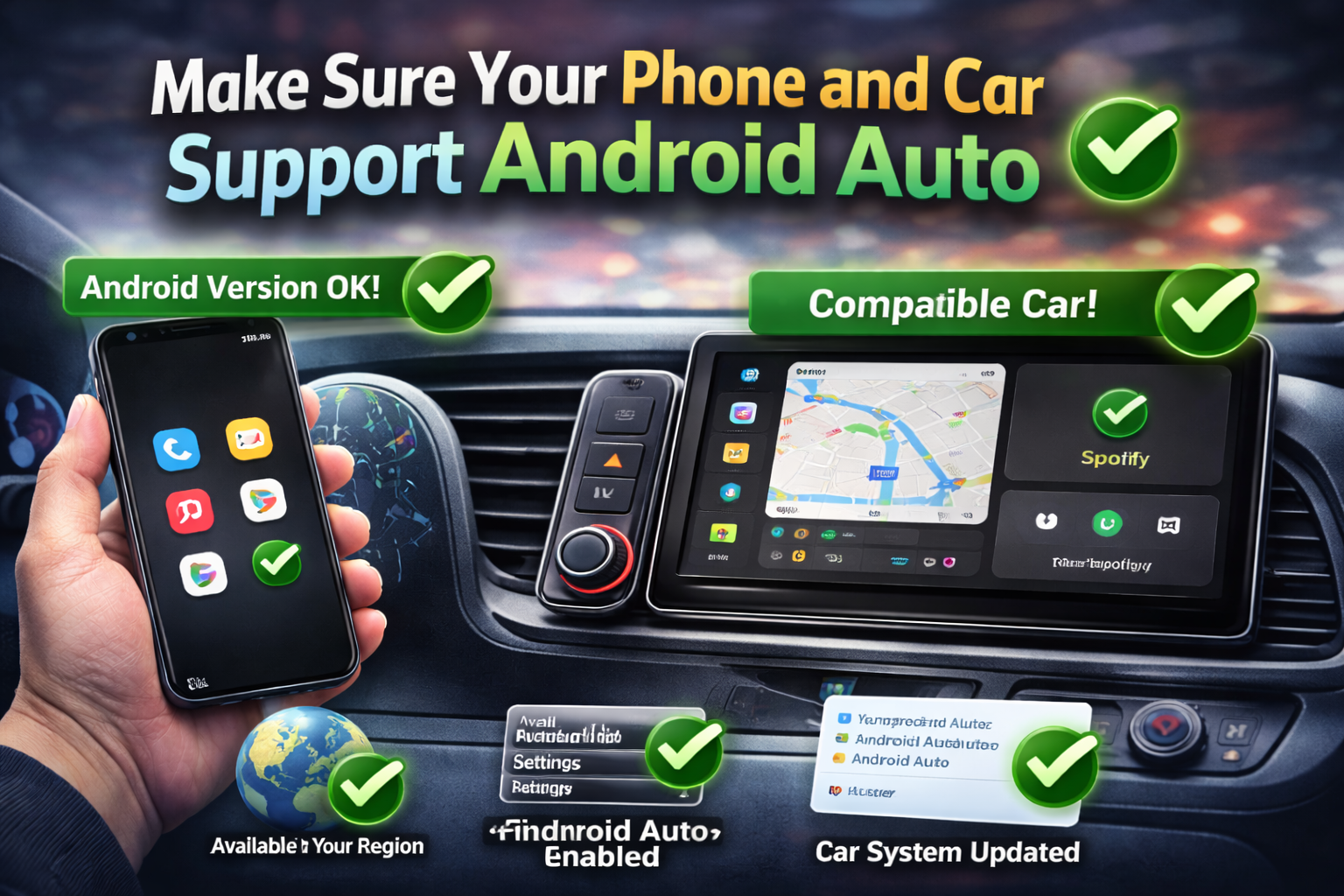
1. Make Sure Your Phone and Car Support Android Auto
The first thing to check is compatibility.
Check these basics first:
- Your phone must run a supported Android version.
- Your car or stereo system must support Android Auto.
- Android Auto must be available in your region.
- Your car may need Android Auto enabled in settings.
If your car supports only wired Android Auto, wireless connection will not work. If your stereo is older, it may need a firmware update.
Important: Do not skip this step, because many users try multiple fixes before discovering that the issue is related to compatibility or settings in the car system.
2. Restart Your Phone and Car System
A simple restart can fix temporary connection glitches.
Follow these steps:
- Turn off your car completely.
- Restart your Android phone.
- Wait for both systems to fully reboot.
- Start the car again.
- Reconnect Android Auto.
If your car stereo has a reboot option, restart that too. Some infotainment systems freeze in the background and need a fresh restart before Android Auto can connect again.
3. Check the USB Cable and USB Port
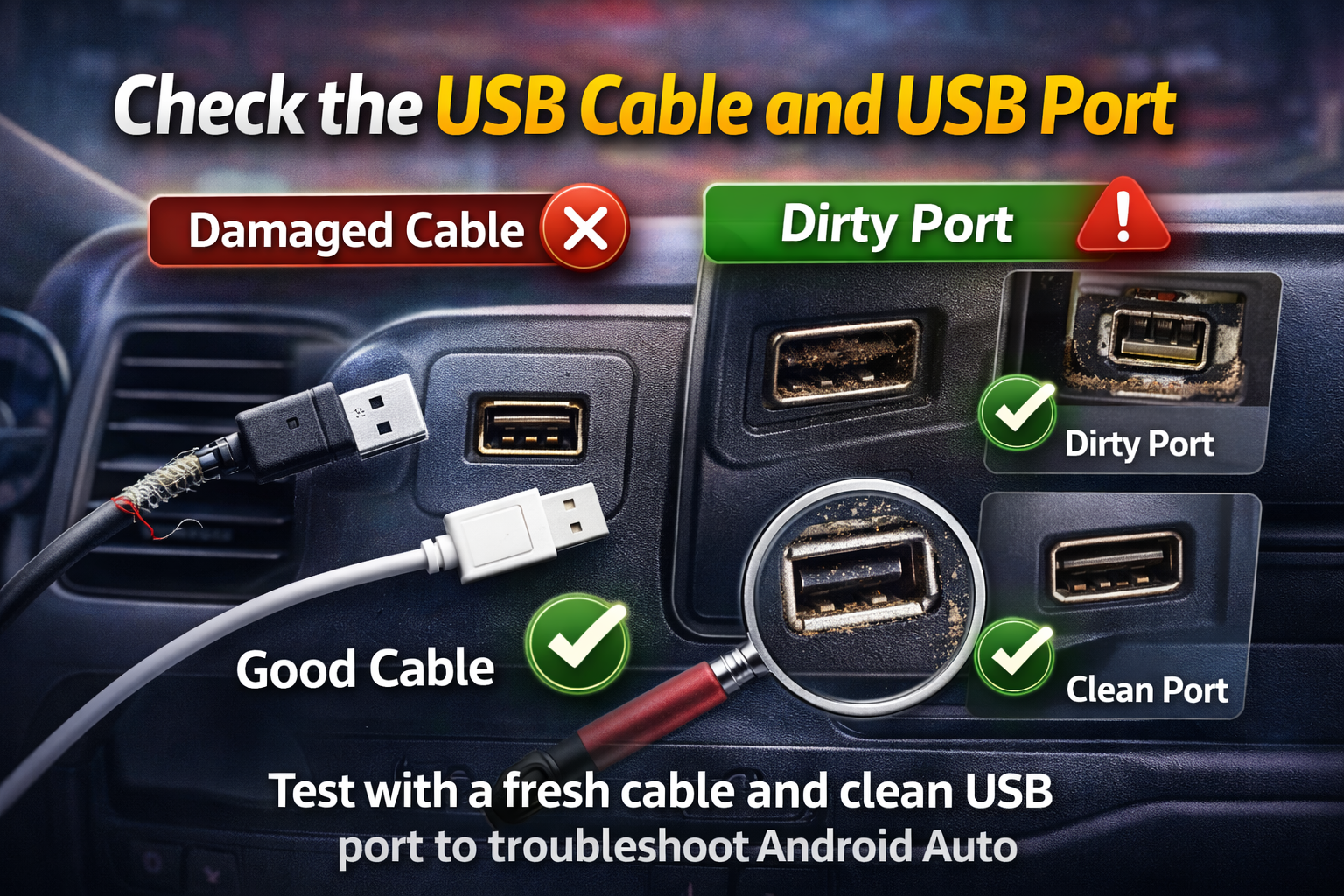
A bad cable is one of the most common reasons for Android Auto not connecting.
What to do:
- Use the original USB cable that came with your phone if possible.
- Try a short, high-quality data cable.
- Avoid cheap charging-only cables.
- Test another USB port in the car if available.
- Clean dust or lint from your phone’s charging port.
Signs the cable may be the problem:
- Your phone charges but Android Auto does not start
- The connection drops when you move the cable
- Android Auto keeps connecting and disconnecting
If you notice these symptoms, replace the cable first. This small change solves the problem for many users.
4. Update Android Auto and Related Apps
Outdated apps can create connection and performance issues.
Update these apps:
- Android Auto
- Google app
- Google Play Services
- Google Maps
- Your phone’s Android system software
Steps to update:
- Open the Google Play Store.
- Search for Android Auto.
- Tap Update if available.
- Do the same for Google, Maps, and other related apps.
- Go to Settings > System > Software Update and install any Android updates.
Important: Always keep both your apps and Android system updated. Old software can break compatibility with newer car systems.
5. Clear Android Auto App Cache
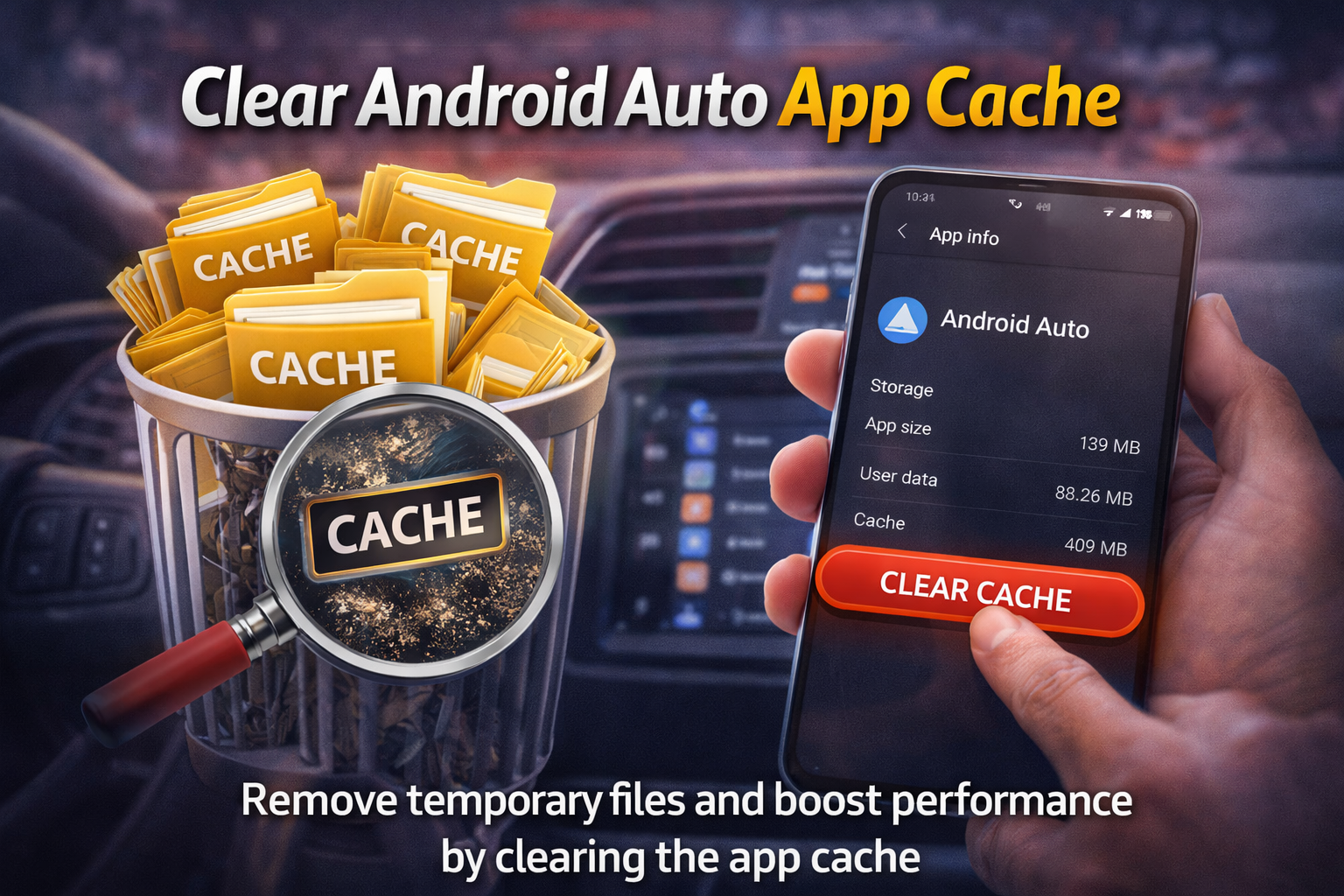
If Android Auto is corrupted or stuck, clearing cache can help.
Steps:
- Open Settings on your phone.
- Tap Apps.
- Find and open Android Auto.
- Tap Storage & cache.
- Tap Clear cache.
- If needed, tap Clear storage or Clear data.
You can also clear cache for:
- Google app
- Google Play Services
- Bluetooth
- Maps
After that, restart the phone and reconnect to your car.
6. Reconnect Your Phone to the Car
If Android Auto saved incorrect settings before, removing the connection and pairing again can fix it.
For wired Android Auto:
- Disconnect your phone from the car.
- On your phone, open Android Auto settings.
- Remove previously connected cars.
- Plug the phone back in.
- Accept any permissions shown on the screen.
For wireless Android Auto:
- Delete your car from the phone’s Bluetooth settings.
- Delete your phone from the car’s paired devices list.
- Restart both devices.
- Pair them again from the beginning.
- Make sure Bluetooth and Wi-Fi are both turned on.
Wireless Android Auto depends on both Bluetooth and Wi-Fi, so even if Bluetooth works, weak Wi-Fi communication can still stop Android Auto from launching.
7. Check Permissions for Android Auto
Android Auto needs the right permissions to work properly.
Make sure these permissions are allowed:
- Phone
- Contacts
- Location
- Microphone
- SMS
- Notifications
How to check:
- Open Settings.
- Tap Apps.
- Select Android Auto.
- Tap Permissions.
- Allow all necessary permissions.
If permissions are denied, features like calling, voice commands, and navigation may fail even when Android Auto opens.
8. Turn Bluetooth and Wi-Fi Off and On Again
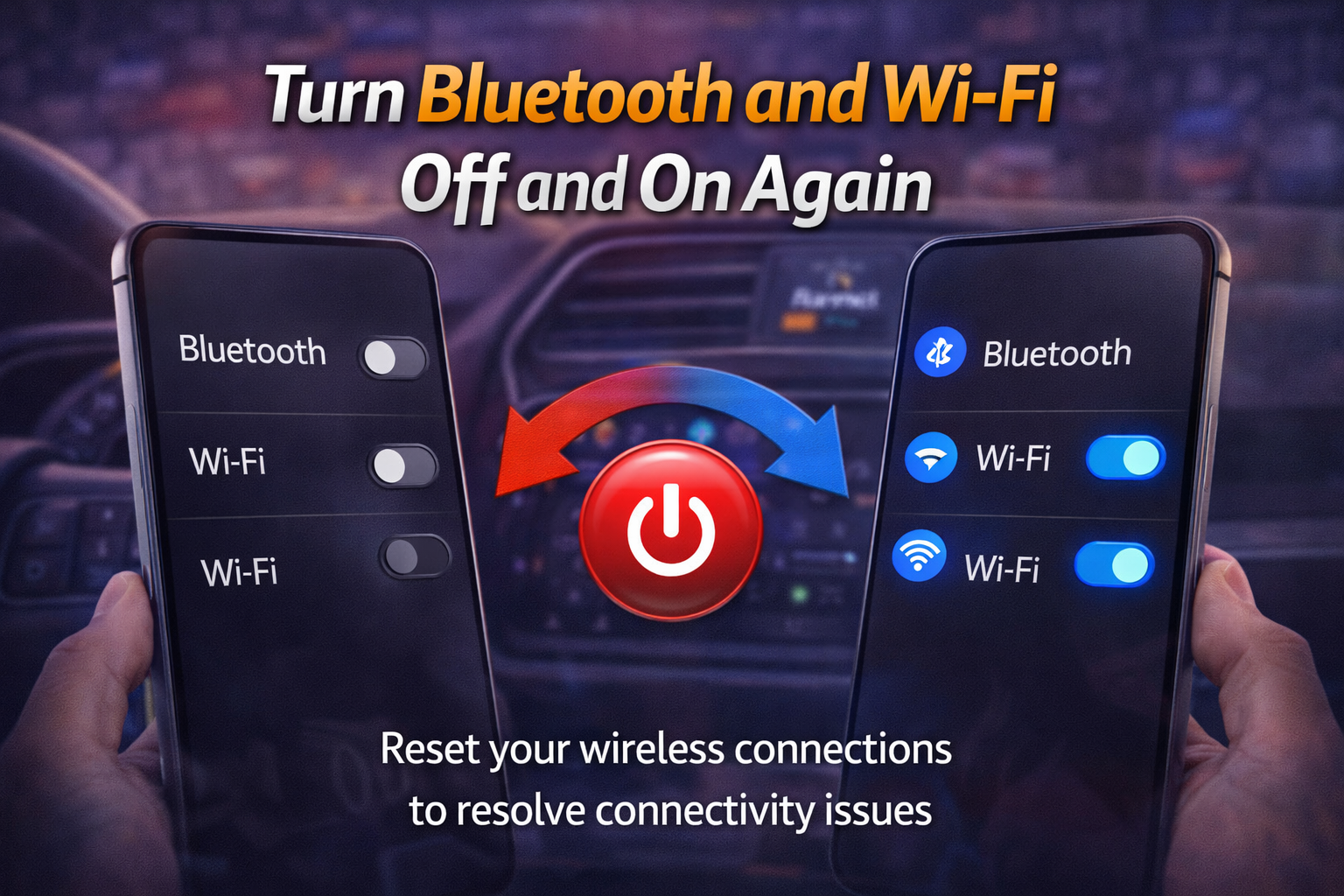
For wireless issues, resetting wireless connections often helps.
Steps:
- Turn Bluetooth off.
- Turn Wi-Fi off.
- Wait 10 seconds.
- Turn both back on.
- Try reconnecting Android Auto.
You can also enable and disable Airplane mode once, then re-enable Bluetooth and Wi-Fi manually. This refreshes your phone’s connection services.
This fix is especially useful when Android Auto keeps disconnecting or fails to find your car.
9. Disable Battery Saver and Background Restrictions
Some Android phones block Android Auto in the background to save battery.
Check these settings:
- Open Settings.
- Tap Battery.
- Turn off Battery Saver.
- Go to Apps > Android Auto > Battery.
- Set it to Unrestricted if your phone has that option.
Also check the Google app and Maps app, because aggressive battery settings can interfere with Android Auto performance.
Important: Battery optimization can silently stop Android Auto from working correctly, especially on phones with custom Android skins.
10. Enable USB Data Transfer Mode
Sometimes the phone connects only for charging instead of data transfer.
Steps:
- Connect the phone to the car with a USB cable.
- Unlock the phone.
- Pull down the notification panel.
- Tap the USB connection notification.
- Select File Transfer or Data Transfer instead of Charge Only.
If your phone stays in charging mode, Android Auto may not start at all.
11. Reset Android Auto Settings
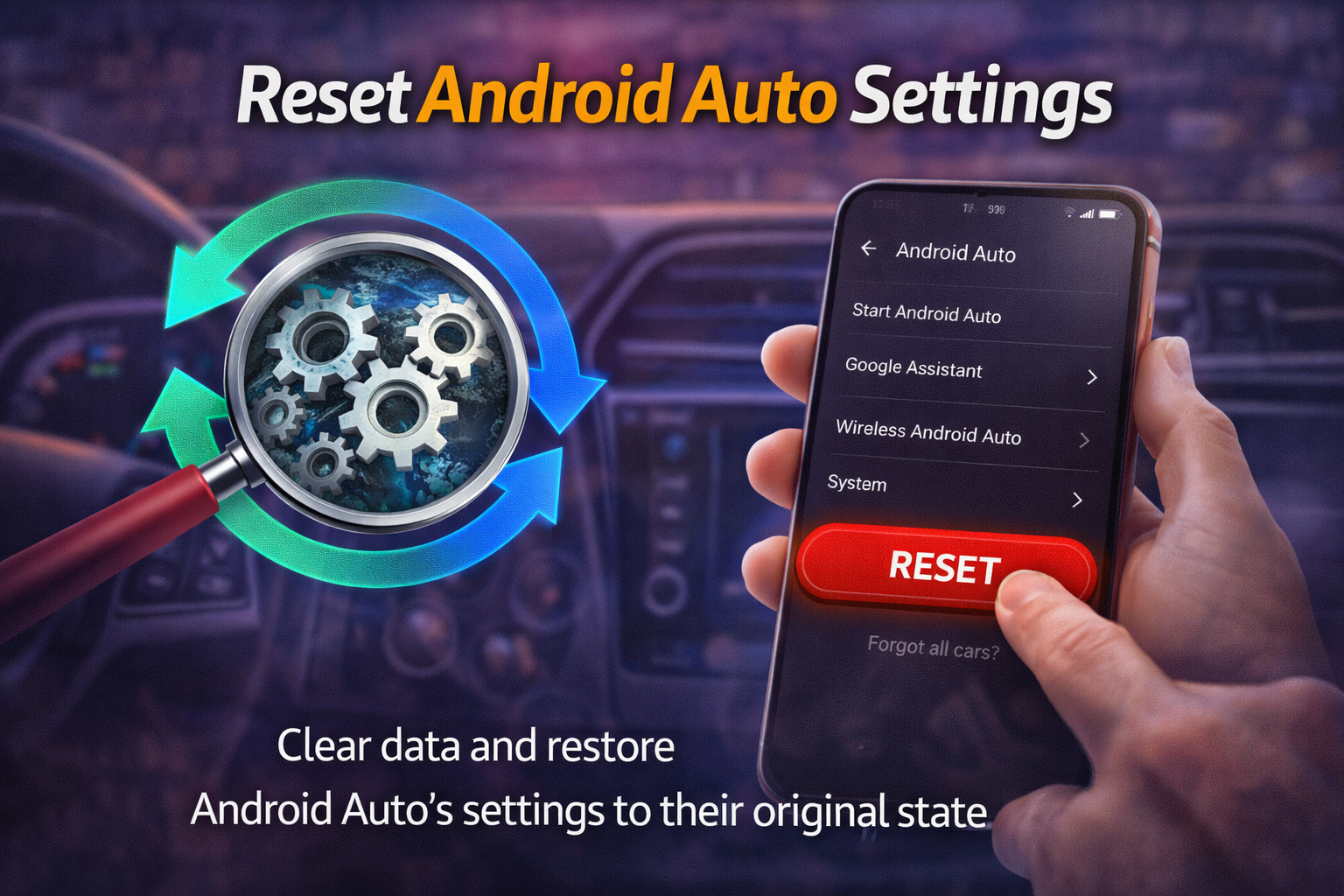
If nothing works so far, reset the app’s settings completely.
Steps:
- Open Settings > Apps > Android Auto.
- Tap Storage & cache.
- Tap Clear storage.
- Open Android Auto again.
- Set it up from scratch.
You may also need to:
- Reconnect your car
- Re-allow permissions
- Reconfigure app preferences
This is a useful step in any serious Android Auto troubleshooting process.
12. Check Your Car’s Infotainment Settings
The issue may be on the car side, not the phone.
Look for these settings in your car:
- Android Auto enabled
- Smartphone integration turned on
- Correct USB mode selected
- Car software or firmware updates available
Some cars let you disable Android Auto without realizing it. Others require you to enable phone projection manually in the infotainment system.
If your car recently had a software reset, you may need to turn Android Auto back on.
13. Try Another Phone or Another Car
This is one of the easiest ways to find the real cause.
Test these combinations:
- Your phone with another Android Auto-compatible car
- Another Android phone with your car
- A different cable with your current setup
This helps you answer an important question: is the problem caused by the phone, the cable, or the car?
If another phone works in your car, your device settings are likely the issue. If your phone works in another car, then your car system may need attention.
14. Reset Network Settings
If wireless pairing is broken, resetting network settings can help.
Steps:
- Open Settings.
- Go to System.
- Tap Reset options.
- Tap Reset Wi-Fi, mobile & Bluetooth.
- Confirm the reset.
- Pair the car and phone again.
Keep in mind that this will erase saved Wi-Fi networks and Bluetooth pairings.
15. Reinstall Updates or Reset App Preferences
If Android Auto started failing after an update, reinstalling app updates may help.
Try this:
- Open Settings > Apps > Android Auto.
- Tap the menu icon.
- Choose Uninstall updates if available.
- Restart the phone.
- Update the app again from the Play Store.
You can also reset app preferences:
- Go to Settings > Apps.
- Tap the menu icon.
- Select Reset app preferences.
This can restore disabled system services that Android Auto needs.
Quick Tips to Prevent This Problem
To reduce the chance of Android Auto issues in the future, follow these tips:
- Use a high-quality USB data cable
- Keep Android Auto and Google apps updated
- Restart your phone regularly
- Clean the charging port from dust
- Avoid using battery saver while driving
- Remove old paired cars you no longer use
- Check for car infotainment updates
- Allow all required app permissions
A few small maintenance habits can prevent repeated connection problems.
FAQ
Why is Android Auto not connecting to my car?
The most common reasons are a faulty USB cable, outdated apps, Bluetooth issues, or disabled Android Auto settings in the car.
Why does Android Auto keep disconnecting?
This usually happens because of a bad cable, unstable wireless signal, battery restrictions, or a software bug on the phone or car system.
Do I need Bluetooth for Android Auto?
For wireless Android Auto, yes. For wired Android Auto, Bluetooth may still be used for some features, but the main connection is through USB.
Can a USB charging cable stop Android Auto from working?
Yes. Some cables only support charging and do not transfer data. Android Auto needs a cable that supports data transfer.
Should I clear cache or clear data for Android Auto?
Start with Clear cache. If that does not help, use Clear data to fully reset the app.
Conclusion
If you are dealing with how to fix Android Auto not working, start with the simple fixes first. Check the cable, restart your phone, update apps, and reconnect the device properly. In many cases, the problem is not serious and can be solved in a few minutes.
If the issue continues, move on to clearing cache, checking permissions, resetting network settings, and reviewing your car’s infotainment options. By following the steps in this guide, you can fix most Android Auto problems without needing expert help.
A reliable connection makes driving easier, safer, and more convenient. Once Android Auto is working again, you can get back to navigation, music, and hands-free communication without stress.