How to Fix Android Bootloader Problem (Step-by-Step Guide)
Android bootloader problems can be frustrating. Your phone may get stuck on the logo, refuse to boot, or show error messages like “Bootloader unlocked” or “Device corrupt”.
If you’re facing this issue, don’t worry—you’re not alone, and most bootloader problems can be fixed.
In this guide, you’ll learn simple and effective ways to fix Android bootloader problems, even if you’re a beginner.
What Is an Android Bootloader?
Before we fix the issue, let’s quickly understand what a bootloader is.
The bootloader is a small program that runs when you turn on your phone. It tells your device how to load the Android operating system.
If something goes wrong with it, your phone may:
- Not turn on properly
- Get stuck in boot loop
- Show error messages
- Fail to load Android
Why This Problem Happens
Understanding the cause can help you fix it faster.
Here are the most common reasons:
- Failed software update
- Incorrect ROM flashing
- Corrupted system files
- Unlocked or locked bootloader issues
- Rooting errors
- Using incompatible firmware
👉 In short, bootloader issues usually happen when the system is modified incorrectly.
How to Fix Android Bootloader Problem
Follow these methods one by one. Start with the easiest solution.
1. Restart Your Device
Sometimes the issue is temporary.
Steps:
- Press and hold the Power button
- Tap Restart (if available)
👉 If your phone is frozen:
- Press Power + Volume Down for 10–15 seconds
This simple step can fix minor bootloader glitches.
2. Boot Into Recovery Mode
Recovery mode allows you to fix system issues.
Steps:
- Turn off your phone
- Press and hold:
- Power + Volume Up (or Volume Down depending on device)
- Release when logo appears
- Select Recovery Mode
3. Wipe Cache Partition
This clears temporary system files without deleting your data.
Steps:
- Enter Recovery Mode
- Select Wipe Cache Partition
- Confirm the action
- Reboot your device
✅ Safe and recommended before trying advanced fixes
4. Perform a Factory Reset

If the issue persists, a factory reset may help.
⚠️ Warning: This will erase all your data
Steps:
- Go to Recovery Mode
- Select Wipe Data / Factory Reset
- Confirm the reset
- Restart your phone
👉 This fixes most serious Android bootloader problems.
5. Reboot Bootloader (Fastboot Mode)
If your device supports Fastboot, this method can help.
Steps:
- Connect your phone to a PC
- Boot into Fastboot Mode
- Open Command Prompt (PC)
- Type:
fastboot reboot
👉 This restarts the bootloader safely.
6. Flash Stock Firmware
If your system is corrupted, reinstalling firmware is the best solution.
What You Need:
- PC or laptop
- USB cable
- Official firmware for your device
- Flashing tool (Odin, SP Flash Tool, etc.)
Steps:
- Download official firmware
- Install flashing tool
- Boot phone into Download/Fastboot Mode
- Connect to PC
- Flash firmware
✅ This restores your phone to original condition
7. Lock or Unlock Bootloader Properly
Sometimes bootloader errors happen due to incorrect lock status.
To unlock:
fastboot oem unlock
To lock:
fastboot oem lock
⚠️ Important:
- Unlocking wipes your data
- Only do this if you understand the risks
8. Use ADB Commands to Fix Boot Issues
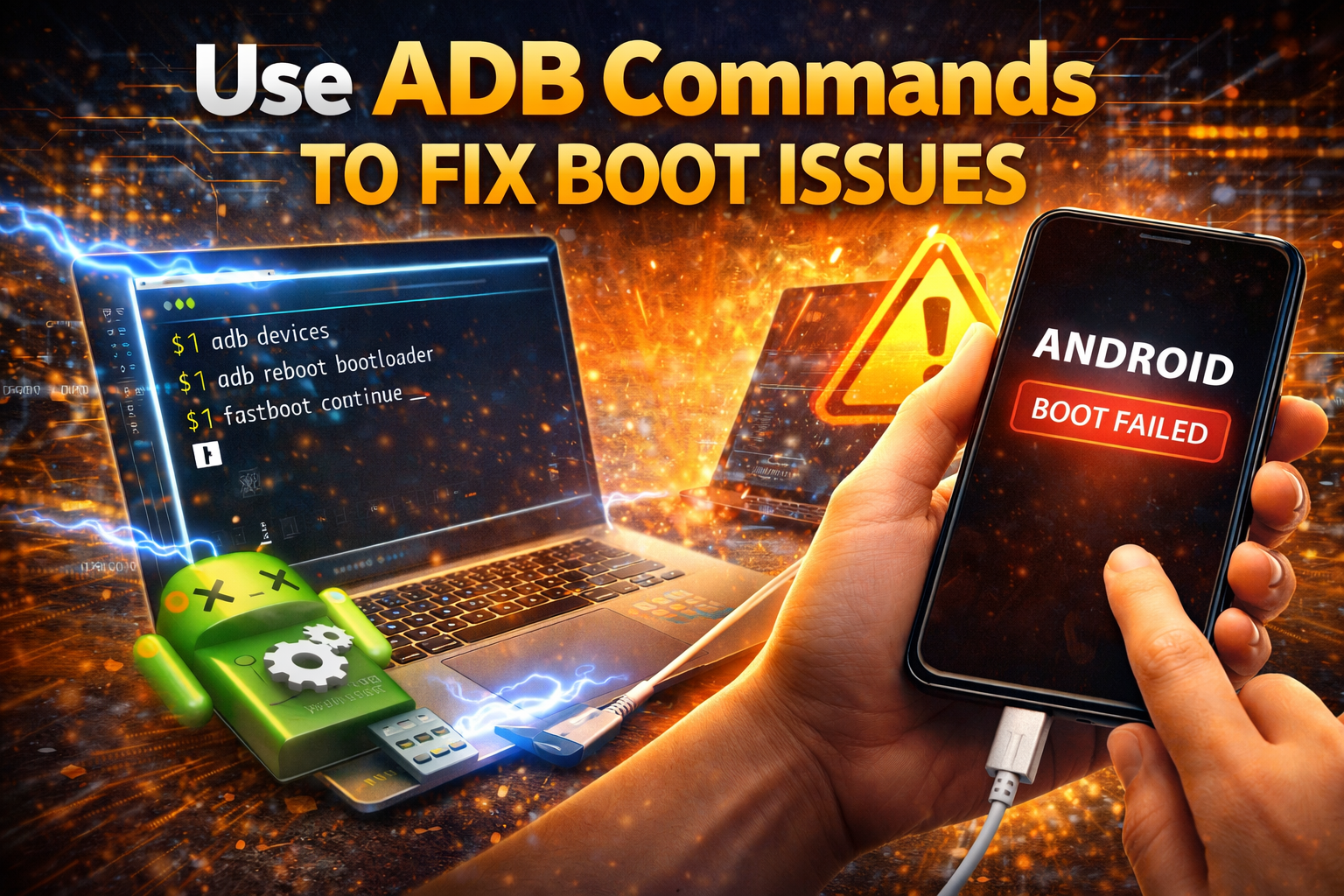
ADB (Android Debug Bridge) can help fix deeper problems.
Steps:
- Install ADB on PC
- Connect your phone
- Use commands like:
adb reboot bootloader
adb reboot recovery
👉 Useful for advanced users
Quick Tips to Prevent This Problem
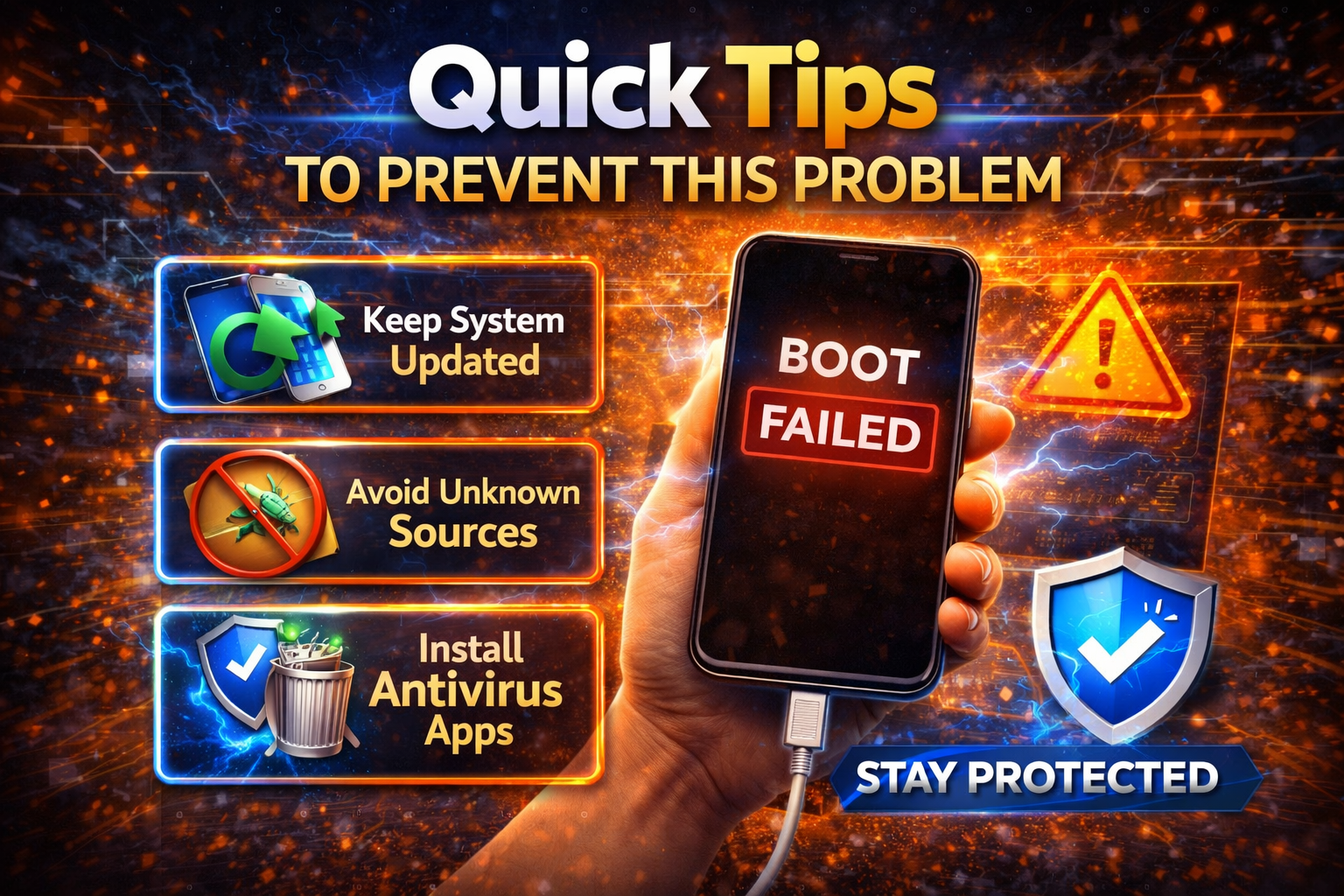
Avoid bootloader issues in the future with these tips:
- ✅ Always use official firmware
- ✅ Avoid interrupting updates
- ✅ Backup your data regularly
- ✅ Don’t install unknown custom ROMs
- ✅ Follow proper rooting steps
- ✅ Keep your Android updated
👉 Prevention is always easier than fixing.
FAQ: Android Bootloader Problems
1. What is a bootloader error on Android?
It means your device cannot properly load the operating system due to system or firmware issues.
2. Can I fix bootloader problems without a PC?
Yes, you can try:
- Restarting
- Recovery mode
- Factory reset
But advanced fixes may require a PC.
3. Is it safe to unlock the bootloader?
It’s safe if done correctly, but:
- It voids warranty (in some cases)
- It wipes your data
4. Will factory reset fix bootloader issues?
Yes, in many cases it solves the problem by removing corrupted files.
5. What is Fastboot mode?
Fastboot is a special mode that lets you fix or flash your device using a computer.
Conclusion
Android bootloader problems may look serious, but most of them are fixable with the right steps.
Start with simple solutions like:
- Restarting your device
- Wiping cache
- Using recovery mode
If needed, move to advanced methods like:
- Flashing firmware
- Using Fastboot or ADB
👉 By following this guide, you can safely fix your device and avoid future issues.