How to Fix Android System Crash Problems
Android phones are powerful, but they are not perfect. Sometimes the system starts freezing, apps close by themselves, the screen goes black, or the phone suddenly restarts. These Android system crash problems can be frustrating, especially when you need your phone for work, messages, or daily tasks.
In many cases, the issue is not as serious as it looks. A system crash can happen because of a buggy app, low storage, outdated software, corrupted cache, or even overheating. The good news is that most users can fix it without being a tech expert.
In this guide, you will learn how to fix Android system crash problems step by step. The instructions are simple, beginner-friendly, and practical. We will also explain why this happens and how to stop it from coming back.
Why This Problem Happens
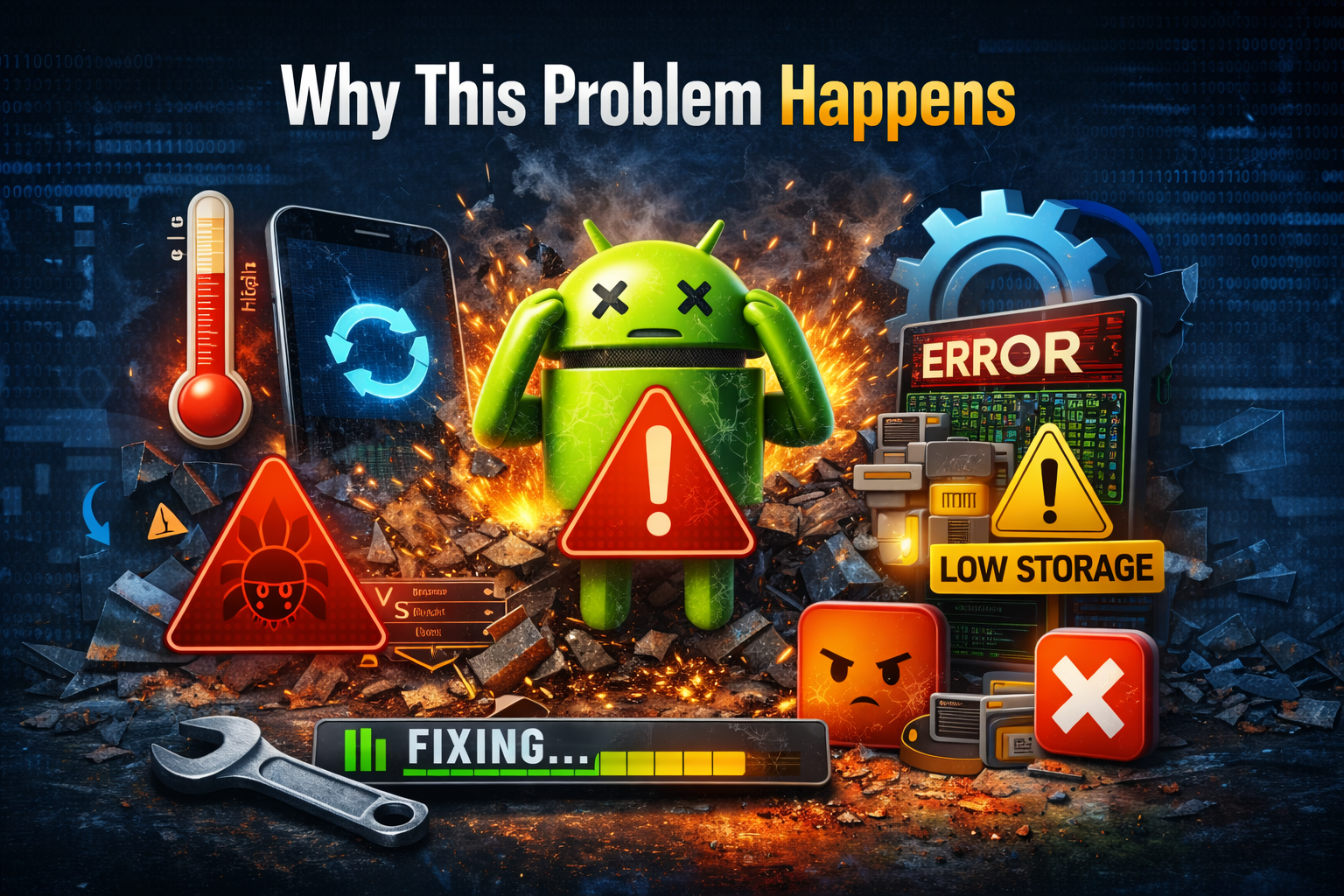
Before you start fixing the issue, it helps to know what may be causing it. Android system crash problems usually happen for one or more of these reasons:
- Too many apps running in the background
- Low storage space
- Outdated Android software
- A bad app update
- Corrupted system cache
- Overheating
- Malware or unsafe apps
- Software conflicts after an update
- Battery or hardware problems
If your Android keeps crashing, the cause is often software-related. That means there is a good chance you can solve it yourself by following the steps below.
Signs of Android System Crash Problems
You may be dealing with a system crash if your phone shows any of these symptoms:
- Apps open and close suddenly
- The home screen freezes
- The phone restarts on its own
- You see “System UI isn’t responding”
- Touch controls stop working
- The screen goes black for a few seconds
- The phone becomes very slow, then crashes
These are common signs of Android crash fix issues and should be checked as soon as possible.
How to Fix Android System Crash Problems
Follow these solutions in order. Start with the easy ones first.
1. Restart Your Android Phone
A simple restart can clear temporary glitches and refresh system processes.
Steps:
- Press and hold the Power button.
- Tap Restart.
- Wait for the phone to turn back on.
- Check if the crashing problem is gone.
Important: If your phone is frozen, press and hold the Power button for about 10 to 20 seconds until it restarts.
This is the fastest first step when your Android phone crashes randomly.
2. Free Up Storage Space
Low storage is one of the most common reasons behind Android system crashes. When the phone has almost no free space, apps and system services may stop working properly.
Steps:
- Open Settings.
- Tap Storage.
- Check how much free space is left.
- Delete:
- Large videos
- Unused apps
- Duplicate photos
- Downloaded files you no longer need
- Empty the Trash or Recently Deleted folder if available.
Try to keep at least 10% to 15% of storage free for smooth performance.
3. Update Android Software
An outdated system can cause bugs, performance issues, and crashes. Software updates often include important stability fixes.
Steps:
- Open Settings.
- Go to Software Update or System > System Update.
- Tap Download and Install.
- Install any available update.
- Restart your device after the update.
If you are searching for how to fix Android system crash problems, updating the software should always be one of your first actions.
4. Update All Apps
Sometimes the problem is not the Android system itself. It may be one app that keeps crashing and affecting overall performance.
Steps:
- Open the Google Play Store.
- Tap your profile icon.
- Select Manage apps & device.
- Tap Update all.
After updating, watch your phone for a while. If the problem started after installing or updating one specific app, that app may be the cause.
5. Remove the Problem App

A bad or incompatible app can make your Android unstable. This is common if you installed apps from unknown sources.
Steps:
- Think about when the crashing started.
- Ask yourself:
- Did it happen after installing a new app?
- Did it happen after an app update?
- Go to Settings > Apps.
- Select the suspicious app.
- Tap Uninstall.
Then restart your phone and test it again.
Tip: If you cannot identify the bad app, boot into Safe Mode. This disables third-party apps temporarily.
6. Boot Into Safe Mode
Safe Mode helps you check whether a third-party app is causing the issue. If the phone works normally in Safe Mode, an installed app is likely the problem.
Steps for many Android phones:
- Press and hold the Power button.
- Touch and hold Power off until Safe Mode appears.
- Tap OK.
Your phone will restart in Safe Mode.
What to do next:
- Use the phone for a few minutes.
- If it does not crash, uninstall recently added apps one by one.
- Restart the phone normally to exit Safe Mode.
This is a very useful method when your Android keeps crashing for no clear reason.
7. Clear Cache Partition or App Cache

Cached data can become corrupted over time and lead to performance issues or system instability.
Clear app cache:
- Open Settings.
- Tap Apps.
- Select the app that crashes often.
- Tap Storage.
- Tap Clear Cache.
Clear system cache partition:
This option depends on your phone brand and model. On some Android devices, you may need to enter recovery mode.
General steps:
- Turn off the phone.
- Press the button combination for recovery mode. This is often Power + Volume Up or Power + Volume Down.
- Use volume buttons to move through the menu.
- Select Wipe Cache Partition.
- Restart the device.
Important: Do not choose factory reset unless you want to erase all data.
8. Check for Overheating
Overheating can force apps or the system to shut down to protect the phone.
What to do:
- Remove the phone case for a while
- Stop gaming or heavy use
- Close unused apps
- Avoid charging while using the phone heavily
- Keep the phone out of direct sunlight
If your phone crashes when it gets hot, overheating is likely part of the problem.
9. Scan for Malware or Unsafe Apps

Apps downloaded from unofficial sources may contain harmful code. This can cause serious Android system problems.
Steps:
- Open Google Play Store.
- Tap your profile icon.
- Select Play Protect.
- Run a scan.
- Remove any unsafe app it finds.
Also avoid downloading APK files from websites you do not trust.
10. Reset App Preferences
Sometimes the issue comes from misconfigured system apps, permissions, or disabled services.
Steps:
- Open Settings.
- Go to Apps.
- Tap the three-dot menu.
- Select Reset app preferences.
- Confirm the reset.
This will not delete your personal data, but it may reset:
- Disabled apps
- Default apps
- Permission settings
- Background restrictions
11. Perform a Factory Reset
If none of the above fixes work, a factory reset may solve deeper software issues. This returns the phone to its original state.
Important: Back up your photos, contacts, files, and messages first.
Steps:
- Open Settings.
- Go to System or General Management.
- Tap Reset.
- Choose Factory data reset.
- Follow the on-screen instructions.
After the reset, do not install all your apps immediately. First, use the phone for a while and check whether the crash problem is fixed.
A factory reset is one of the most effective answers for Android crash fix problems caused by software corruption.
12. Get Hardware Help if the Problem Continues
If your phone still crashes after a factory reset, the problem may be hardware-related.
Possible hardware causes include:
- Bad battery
- Faulty storage chip
- Overheating motherboard
- Physical damage
- Water damage
In that case, contact your phone brand’s support center or visit a trusted repair shop.
Quick Tips to Prevent This Problem

Once your phone is working again, follow these tips to reduce the chance of future crashes.
- Keep Android updated
- Update apps regularly
- Avoid installing apps from unknown sources
- Restart your phone once every few days
- Keep enough free storage space
- Remove apps you no longer use
- Do not let your phone overheat
- Use antivirus or Play Protect scanning
- Back up important data often
These simple habits can help stop Android phone crashes randomly and improve overall performance.
Best Order to Try the Fixes
If you want a quick plan, follow this order:
- Restart the phone
- Free up storage
- Update Android
- Update apps
- Uninstall suspicious apps
- Use Safe Mode
- Clear cache
- Scan for malware
- Factory reset
- Get hardware support
This order saves time and helps you avoid unnecessary steps.
FAQ
1. Why does my Android phone keep crashing?
Your Android phone may keep crashing because of low storage, bad apps, outdated software, overheating, or corrupted cache files.
2. Can a software update fix Android system crash problems?
Yes. Many system crashes are caused by bugs that are fixed in newer Android updates. Always check for updates first.
3. Will a factory reset fix Android crashing issues?
In many cases, yes. A factory reset can remove deep software problems, but it deletes your data, so back up everything first.
4. How do I know if an app is causing the crash?
Boot into Safe Mode. If the phone works normally there, a third-party app is likely the cause.
5. What should I do if my phone still crashes after reset?
If the issue continues after a full reset, it may be a hardware problem. You should contact support or visit a repair technician.
Conclusion
Android system crashes can be annoying, but they are often fixable. In most cases, the solution is simple: restart the phone, free up storage, update the software, remove bad apps, and clear cache. If needed, Safe Mode and a factory reset can help solve deeper problems.
The key is to work step by step and not panic. By following this guide on how to fix Android system crash problems, even beginners can solve many common issues without expert help.
Keeping your phone updated, clean, and free from unsafe apps will also help prevent the problem in the future. With the right approach, you can make your Android device stable, fast, and reliable again.
If you’d like, I can also turn this into a WordPress-ready version with slug, excerpt, and FAQ schema markup.