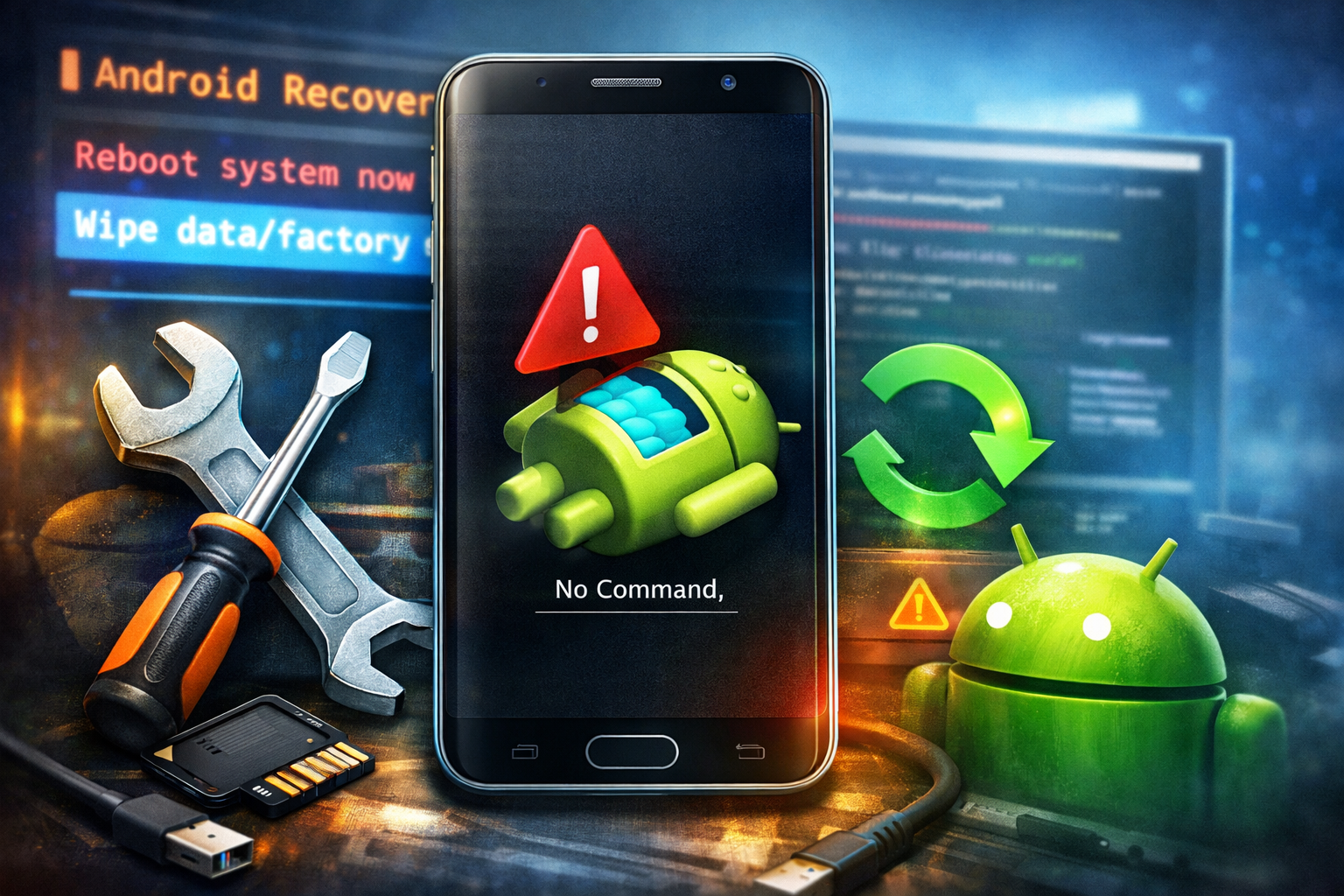
How to Fix Android Recovery Mode Issues
Android Recovery Mode is an important feature that helps users troubleshoot system problems. It allows you to factory reset your phone, wipe cache, or install system updates when your device isn’t working properly.
However, sometimes users face Android Recovery Mode issues, such as:
- Phone stuck in Recovery Mode
- Recovery Mode not working
- Android showing “No Command” error
- Device rebooting back to Recovery Mode repeatedly
These problems can be frustrating, especially if you don’t know how to fix them.
The good news is that most Android Recovery Mode problems can be solved with simple troubleshooting steps. In this guide, we’ll walk you through practical solutions that beginners can follow easily.
What Is Android Recovery Mode?
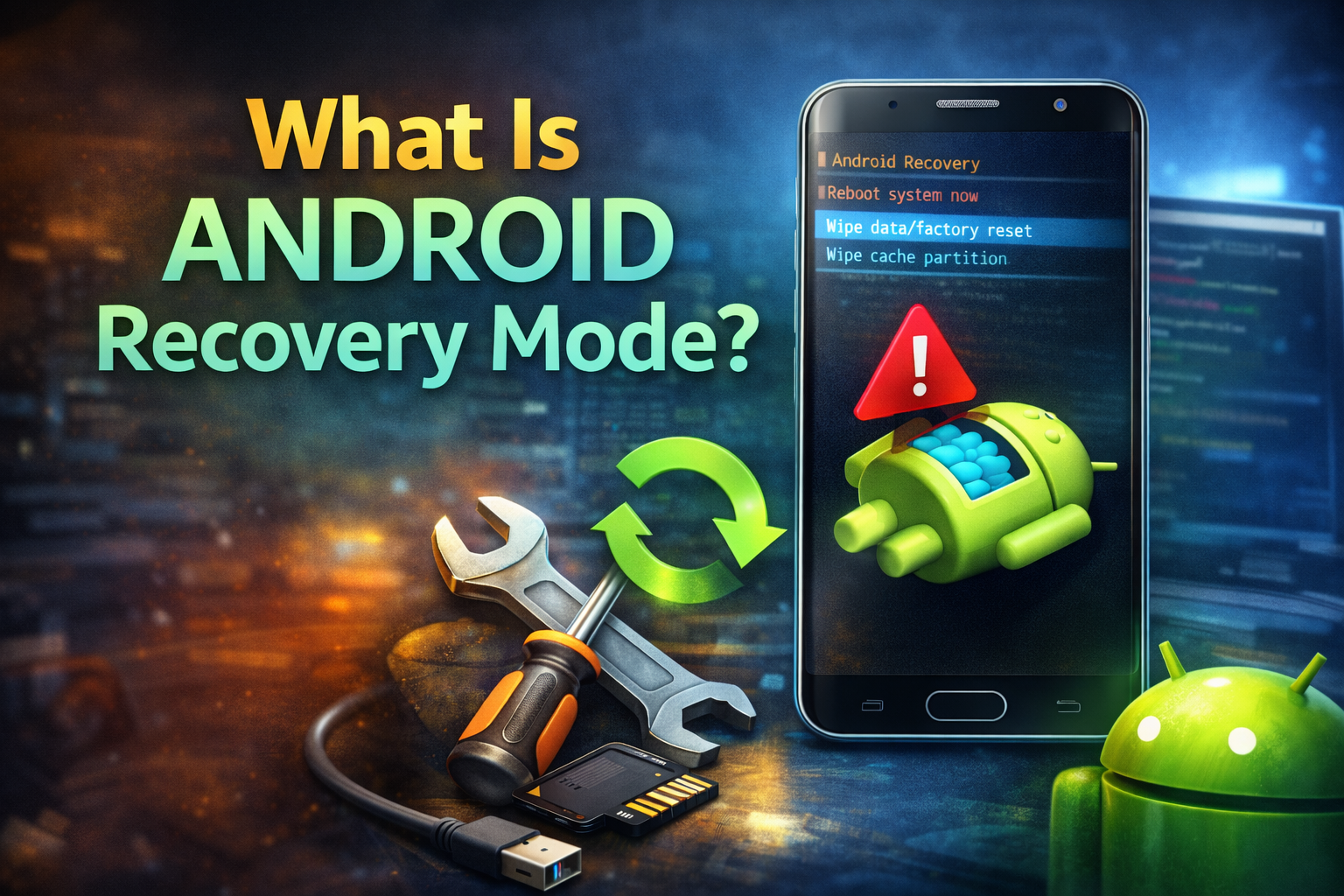
Android Recovery Mode is a special bootable partition that allows you to repair your Android system when something goes wrong.
With Recovery Mode, you can:
- Wipe cache partition
- Perform factory reset
- Install system updates
- Fix boot problems
- Recover a malfunctioning system
But when Recovery Mode itself stops working properly, you may not be able to fix your phone easily.
Common Android Recovery Mode Issues
Before fixing the problem, it’s helpful to understand what type of issue you’re facing.
Some common problems include:
- Android stuck in Recovery Mode
- Recovery Mode not showing options
- Android “No Command” screen
- Device restarting repeatedly
- Buttons not responding in Recovery Mode
Let’s go through the solutions step-by-step.
1. Restart Your Android Phone
Sometimes Recovery Mode issues happen because of a temporary system glitch.
A simple restart can often fix the problem.
Steps to restart your phone:
- In Recovery Mode, select Reboot system now.
- Use the Volume buttons to navigate.
- Press the Power button to confirm.
If your phone boots normally after restarting, the issue is solved.
2. Fix the Android “No Command” Error
Many Android users see a screen that says:
“No Command”
This usually appears when you try to access Recovery Mode but the full menu doesn’t open.
How to fix it:
- When you see No Command, press and hold the Power button.
- While holding Power, press the Volume Up button once.
- Release both buttons.
This should open the Android Recovery Menu.
Now you can access options like:
- Reboot system
- Wipe cache
- Factory reset
3. Wipe Cache Partition
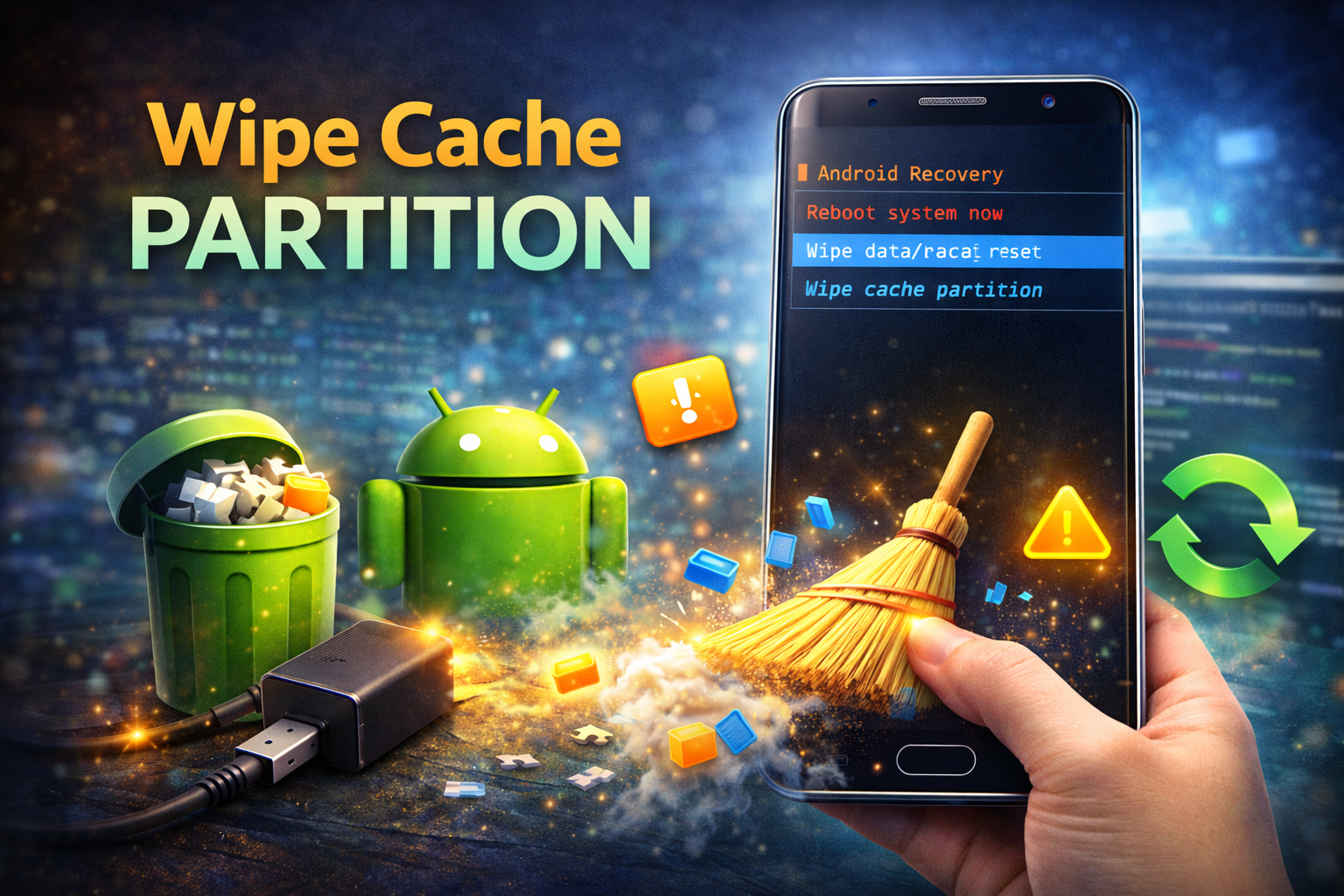
Corrupted cache files often cause Android Recovery Mode issues.
Clearing the cache does not delete personal data, so it is safe to try.
Steps to wipe cache partition:
- Boot your device into Recovery Mode.
- Use Volume buttons to highlight Wipe cache partition.
- Press the Power button to select it.
- Wait for the process to finish.
- Select Reboot system now.
This often fixes problems like:
- Android stuck in Recovery Mode
- System update errors
- Slow performance
4. Boot Android in Safe Mode
Sometimes a third-party app may cause system conflicts.
Booting your phone in Safe Mode disables all third-party apps temporarily.
Steps to boot Safe Mode:
- Hold the Power button.
- Tap and hold Power Off.
- Select Safe Mode.
- Tap OK.
If Recovery Mode issues stop happening in Safe Mode, the problem is likely caused by an app you installed recently.
You can fix it by uninstalling the problematic app.
5. Check Your Phone’s Buttons

Recovery Mode navigation relies on hardware buttons.
If your Volume or Power button is damaged, the device may behave incorrectly.
Things to check:
- Stuck Volume buttons
- Dust or debris around buttons
- Loose Power button
Try cleaning around the buttons carefully.
If the issue continues, the problem might be hardware related.
6. Update Your Android Software
Outdated Android versions may cause system bugs that affect Recovery Mode.
Updating your phone can resolve these issues.
Steps to update Android:
- Open Settings.
- Tap System.
- Select Software Update.
- Tap Check for Updates.
- Install the latest update.
Software updates often include:
- Bug fixes
- Stability improvements
- Security patches
7. Perform a Factory Reset (Last Resort)
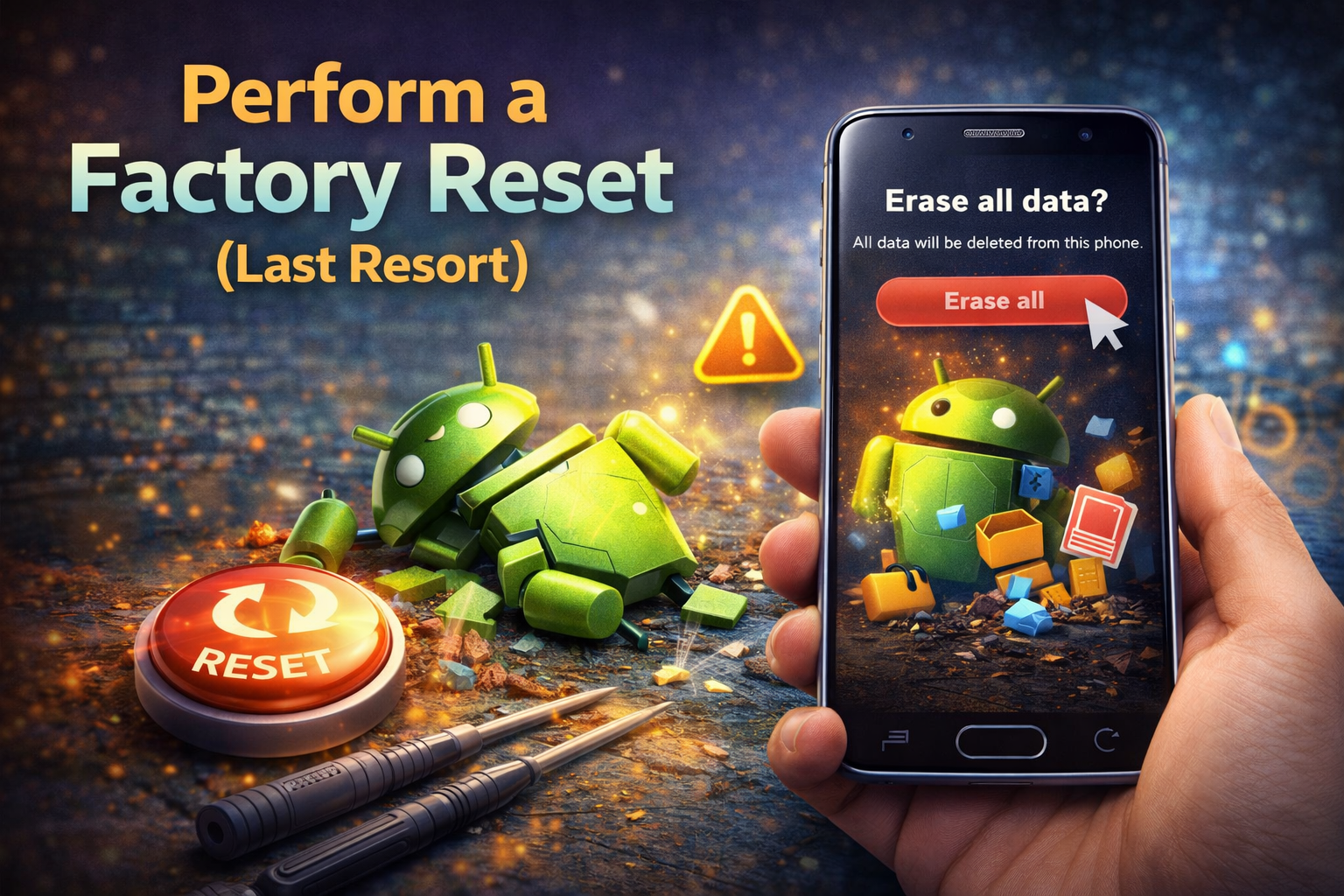
If nothing else works, performing a factory reset can fix serious system errors.
⚠️ Important: This will erase all data on your phone.
Steps to factory reset via Recovery Mode:
- Boot into Recovery Mode.
- Select Wipe data / factory reset.
- Confirm using the Power button.
- Wait for the process to complete.
- Select Reboot system now.
After the reset, your device will return to factory settings.
8. Reinstall Android Firmware
If Recovery Mode keeps failing, the Android system itself may be corrupted.
Reinstalling firmware can restore the system completely.
This method varies by manufacturer:
- Samsung – Odin tool
- Xiaomi – Mi Flash Tool
- Google Pixel – Fastboot tools
- OnePlus – MSM Tool
This process requires a computer and official firmware file.
If you are not comfortable doing this, consider visiting a professional repair center.
Why This Problem Happens
Android Recovery Mode issues can happen for several reasons.
Common causes include:
1. Corrupted System Files
Incomplete updates or software crashes may damage system files.
2. Failed Android Updates
If an update fails during installation, Recovery Mode may malfunction.
3. Faulty Apps
Some apps interfere with Android system processes.
4. Hardware Button Problems
Stuck or damaged buttons can trigger Recovery Mode unexpectedly.
5. System Cache Errors
Corrupted cache files can cause boot and recovery issues.
Quick Tips to Prevent This Problem
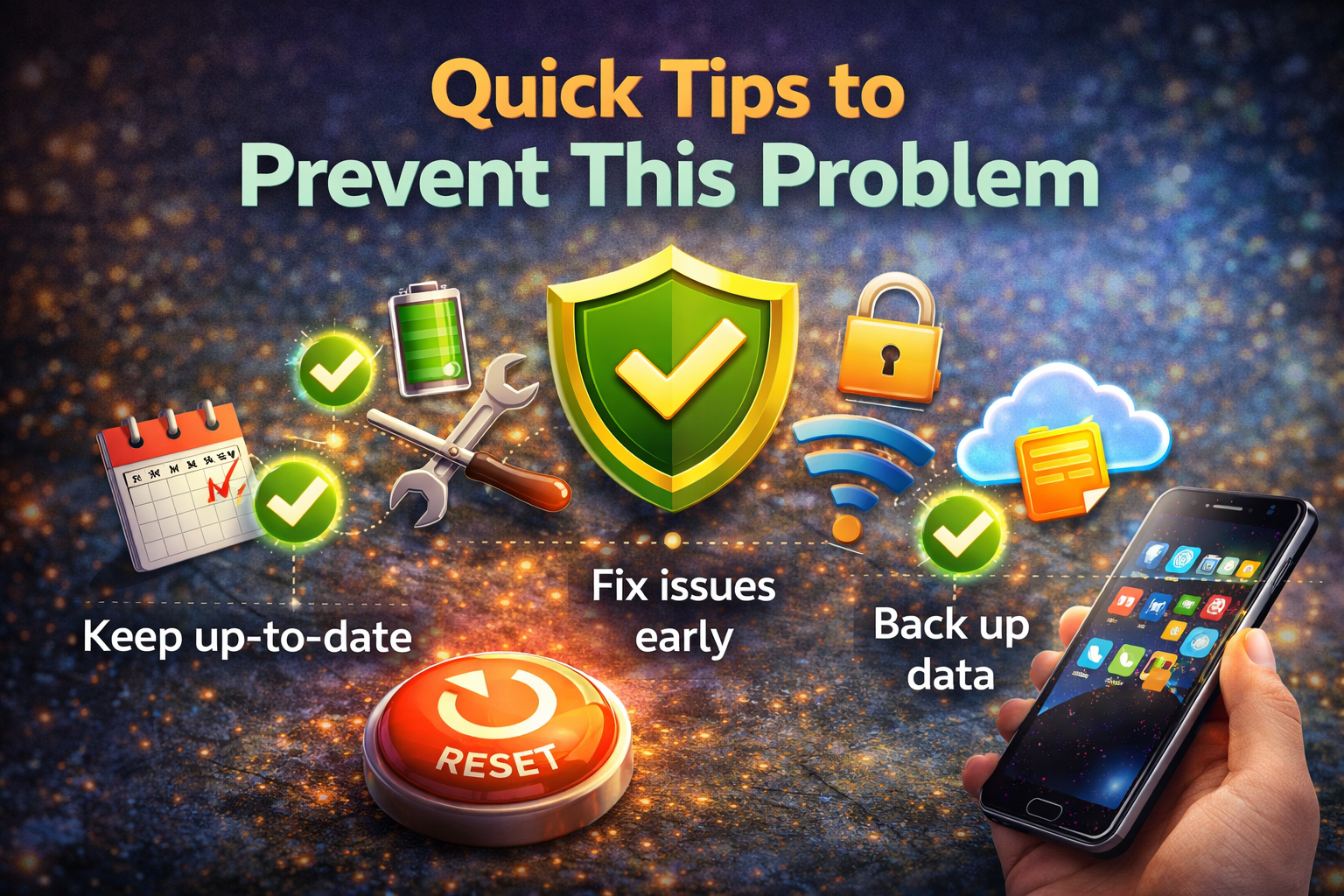
You can avoid most Android Recovery Mode problems by following these simple tips.
- Keep Android updated regularly
- Avoid installing apps from unknown sources
- Restart your phone occasionally
- Do not interrupt system updates
- Clear cache files periodically
These habits help maintain system stability and performance.
FAQ
1. Why is my Android stuck in Recovery Mode?
Your phone may be stuck in Recovery Mode due to system crashes, corrupted updates, or hardware button issues.
Restarting the device or wiping the cache partition usually fixes the problem.
2. Is it safe to wipe cache partition?
Yes. Wiping cache partition does not delete personal data like photos, messages, or apps.
It only removes temporary system files.
3. What does Android “No Command” mean?
The No Command error appears when Android cannot load the full Recovery menu.
Press Power + Volume Up to access the recovery options.
4. Will factory reset fix Recovery Mode issues?
In many cases, factory reset solves serious system errors that prevent Android from working properly.
However, it will erase all data.
5. Can Recovery Mode damage my phone?
No. Recovery Mode is a built-in Android troubleshooting tool and is safe to use when following the correct steps.
Conclusion
Android Recovery Mode is a powerful tool designed to help you fix serious system problems. However, when Android Recovery Mode issues occur, it can make troubleshooting difficult.
Fortunately, most problems can be fixed using simple methods such as:
- Restarting your device
- Fixing the No Command error
- Wiping cache partition
- Booting into Safe Mode
- Updating Android software
If these methods don’t work, a factory reset or firmware reinstall may be required.
By following the step-by-step solutions in this guide, you should be able to fix Android Recovery Mode problems and restore your device to normal operation.