How to Fix Android Storage Space Running Out
Running out of storage on your Android phone can be frustrating. You may see warnings like “Storage Space Running Out” or “Storage Almost Full.” When this happens, your phone may slow down, apps may stop working, and you may not be able to install new apps or take photos.
This problem is very common, especially on phones with limited storage capacity. Over time, apps, photos, videos, and cached files build up and take a lot of space.
The good news is that you can easily free up storage on Android by removing unnecessary files, clearing cache, and managing apps.
In this guide, you will learn simple step-by-step methods to fix Android storage space running out and make your phone run smoothly again.
Why This Problem Happens
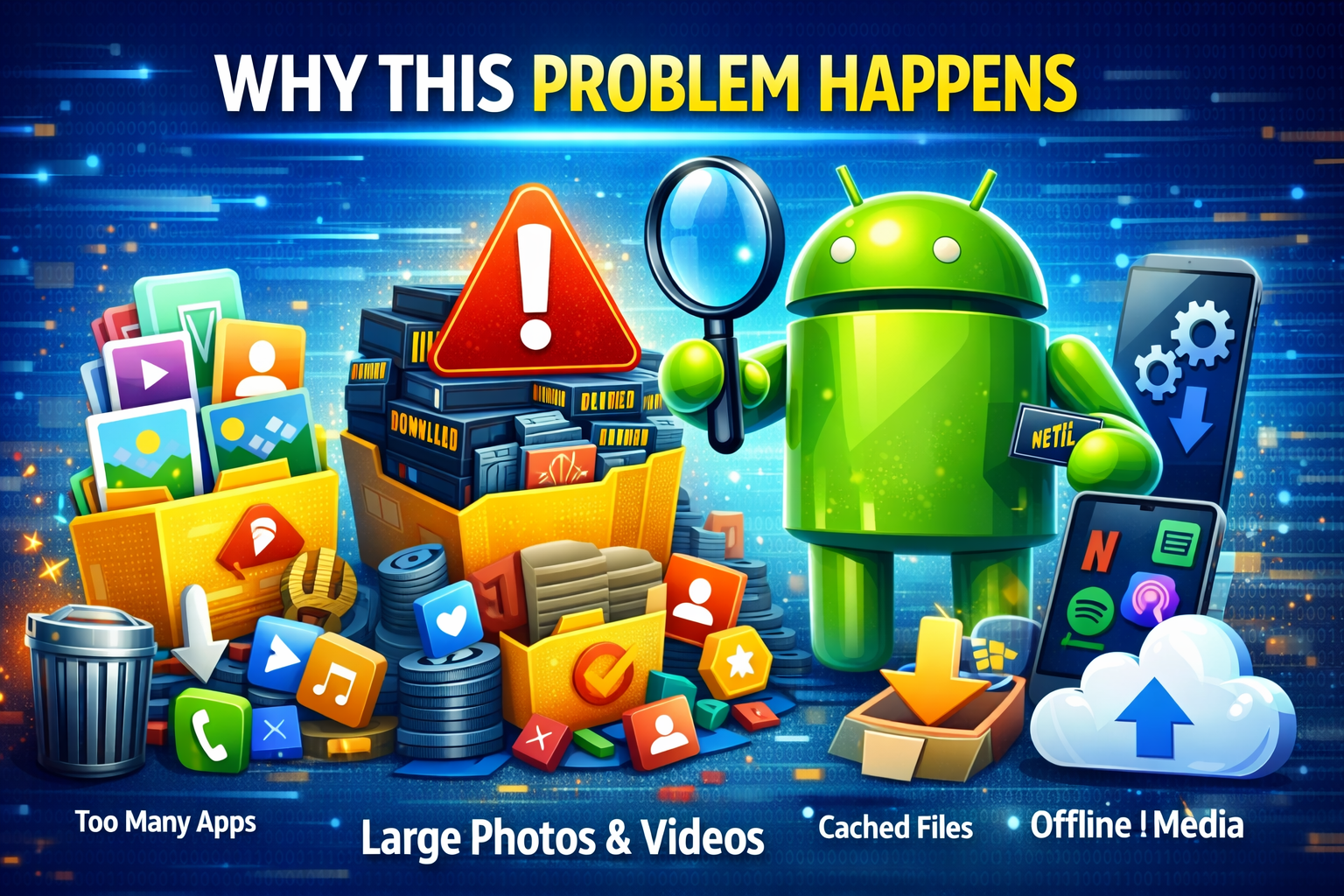
Before fixing the issue, it’s helpful to understand why Android storage becomes full.
Common reasons include:
- Too many installed apps
- Large photos and videos
- Cached files from apps
- Downloads and duplicate files
- Offline media from apps like Netflix or Spotify
- System updates that require extra space
Even apps you rarely use may store temporary data that takes up storage.
1. Check What Is Using Your Storage
The first step is to identify what is taking up space.
How to check storage usage
- Open Settings
- Tap Storage
- Wait for Android to analyze storage
- Review categories such as:
- Apps
- Photos
- Videos
- Audio
- Cached Data
- System files
This helps you understand where most of your storage is being used.
Tip: Focus on categories using the most storage space.
2. Delete Unnecessary Apps

Many users install apps but rarely use them.
Removing unused apps is one of the fastest ways to free up storage on Android.
Steps to uninstall apps
- Open Settings
- Tap Apps
- Select See All Apps
- Choose an app you don’t need
- Tap Uninstall
Important:
Start with large apps such as:
- Games
- Video editing apps
- Social media apps
- Streaming apps
These apps often use hundreds of megabytes or even gigabytes.
3. Clear App Cache
Apps store temporary files called cache. Over time, these files can take a lot of space.
Clearing cache does not delete your personal data.
Steps to clear cache
- Go to Settings
- Tap Apps
- Select the app
- Tap Storage
- Tap Clear Cache
Apps that usually store large caches:
- Chrome
- TikTok
- YouTube
Clearing cache regularly helps fix Android storage full issues.
4. Delete Large Photos and Videos

Photos and videos are often the biggest storage consumers.
High-resolution photos and 4K videos can quickly fill your storage.
How to free space from media
- Open the Gallery or Google Photos
- Sort files by size
- Delete:
- Duplicate photos
- Blurry images
- Unwanted videos
Important Tip:
Move important files to:
- Google Photos cloud storage
- Google Drive
- External storage or computer
This frees space while keeping your files safe.
5. Clear the Downloads Folder
The Downloads folder often contains forgotten files.
These files include:
- PDFs
- Images
- APK files
- Documents
- Old videos
Steps to clear downloads
- Open the Files app
- Tap Downloads
- Select unnecessary files
- Tap Delete
You may be surprised how much storage this folder uses.
6. Use Android’s Built-in Storage Cleaner
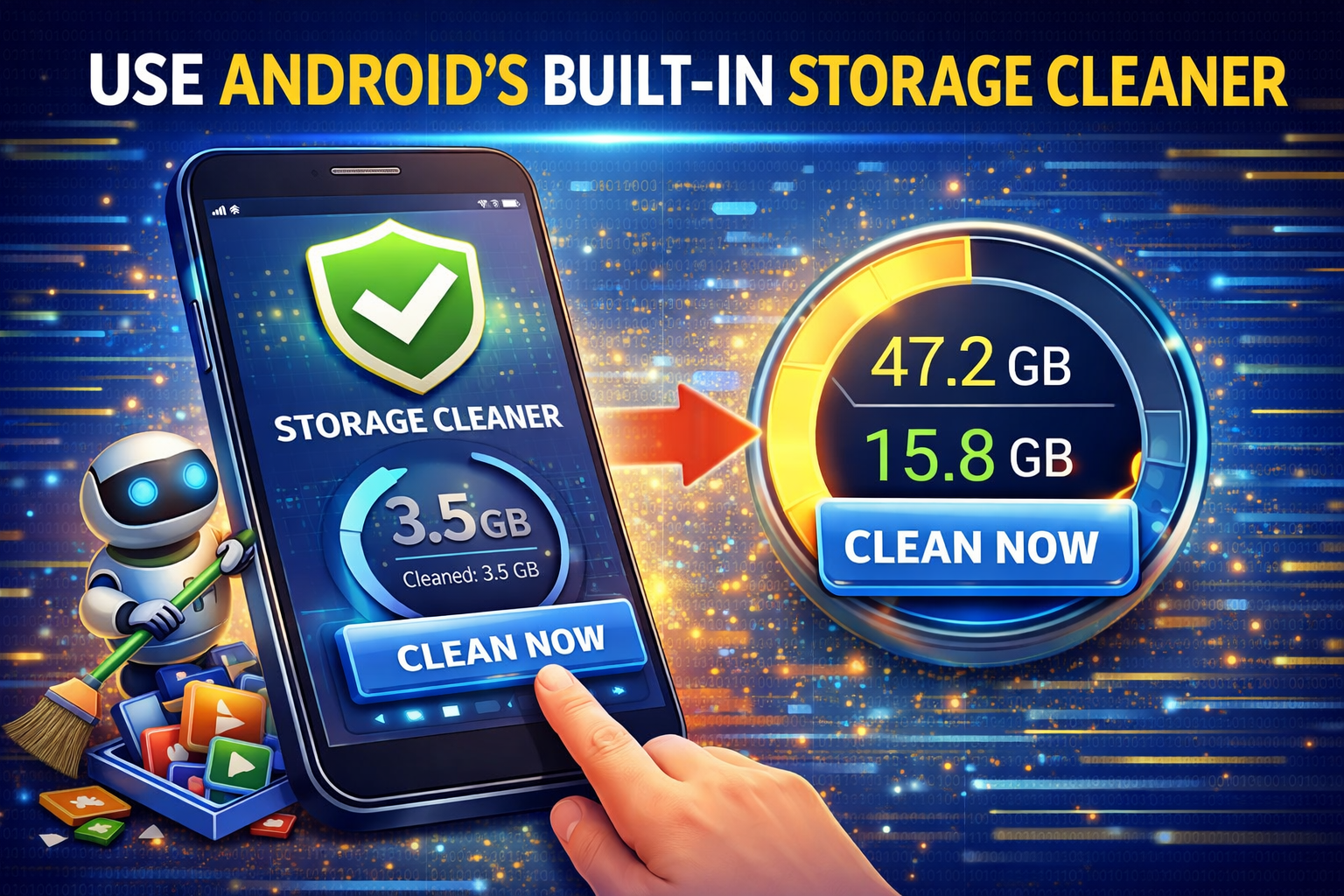
Many Android phones include a storage cleaning tool.
How to use it
- Open Settings
- Tap Storage
- Tap Free Up Space or Clean Now
Android may recommend deleting:
- Large files
- Duplicate files
- Old screenshots
- Unused apps
This feature is a quick way to fix Android storage space running out.
7. Move Files to an SD Card
If your phone supports microSD cards, you can move files there.
Move files to SD card
- Open File Manager
- Select photos, videos, or documents
- Tap Move
- Choose SD Card
You can also move some apps to the SD card.
Move apps to SD card
- Go to Settings
- Tap Apps
- Select the app
- Tap Storage
- Choose Move to SD Card
This is helpful for phones with small internal storage.
8. Delete Offline Content From Apps

Some apps store offline downloads automatically.
Examples include:
- Netflix
- Spotify
- YouTube
- Google Maps
Remove offline files
- Open the app
- Go to Downloads
- Delete saved content you no longer need
These files can use several gigabytes of storage.
9. Use Google Files to Clean Storage
Google provides a free app called Files by Google that helps clean storage.
Features include:
- Removing junk files
- Finding duplicate files
- Deleting large files
- Clearing unused apps
How to use it
- Install Files by Google from Play Store
- Open the app
- Tap Clean
- Follow suggested actions
This is one of the best tools to free up storage on Android.
10. Reset Your Phone (Last Option)
If storage is still full after cleaning everything, a factory reset may help.
⚠️ Warning: This deletes all data on your phone.
Steps to reset Android
- Go to Settings
- Tap System
- Tap Reset Options
- Choose Erase All Data (Factory Reset)
Before resetting:
- Backup photos
- Backup contacts
- Backup important files
Use this only if storage issues persist.
Quick Tips to Prevent This Problem
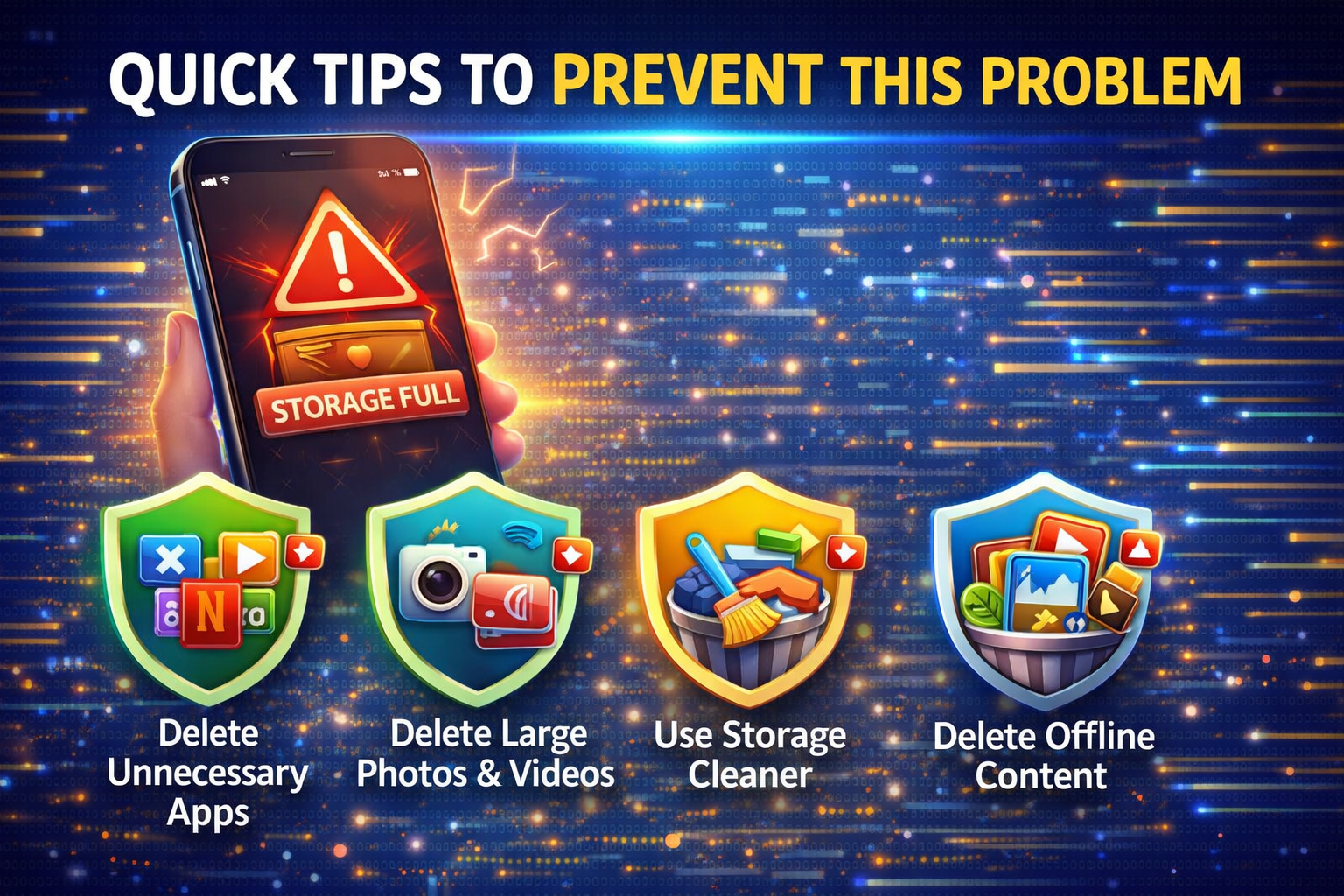
To avoid running out of storage again, follow these simple habits.
Useful storage tips
- Delete unused apps regularly
- Clear app cache monthly
- Upload photos to cloud storage
- Avoid downloading unnecessary media
- Use SD card storage when possible
- Clean the Downloads folder
- Use Files by Google regularly
These habits keep your Android phone fast and organized.
FAQ
Why does my Android storage fill up so quickly?
Storage fills up because of apps, photos, videos, cached files, and downloads. Many apps also store temporary data that grows over time.
Does clearing cache delete my files?
No. Clearing cache only removes temporary files created by apps. Your personal data and login information remain safe.
Is it safe to delete cached data?
Yes. Deleting cached data is safe and helps free up storage and improve phone performance.
How much free storage should my Android phone have?
It’s recommended to keep at least 10–20% of storage free for smooth performance and system updates.
Should I use cloud storage for photos?
Yes. Services like Google Photos and Google Drive help store photos safely and free up space on your device.
Conclusion
Running out of storage on your Android phone can slow down your device and prevent you from installing new apps or saving files. Fortunately, there are many simple ways to fix Android storage space running out.
By deleting unused apps, clearing cache, removing large files, and using storage management tools, you can quickly free up storage on Android and improve your phone’s performance.
To avoid the issue in the future, make it a habit to regularly clean your storage and back up files to the cloud.
A well-managed phone not only has more storage but also runs faster, smoother, and more reliably.