How to Fix Android File Manager Not Working
Android phones make it easy to store photos, videos, documents, and apps. To manage these files, most users rely on the Android File Manager (also called File Manager or My Files). However, sometimes the File Manager stops working, crashes, freezes, or refuses to open.
If your Android File Manager is not working, you may not be able to access important files, move documents, or manage storage. This problem can happen due to software bugs, corrupted cache files, storage issues, or outdated apps.
The good news is that this issue is usually easy to fix. In this guide, you’ll learn step-by-step solutions to fix Android File Manager not working, even if the app keeps crashing or won’t open.
Common Signs of Android File Manager Problems
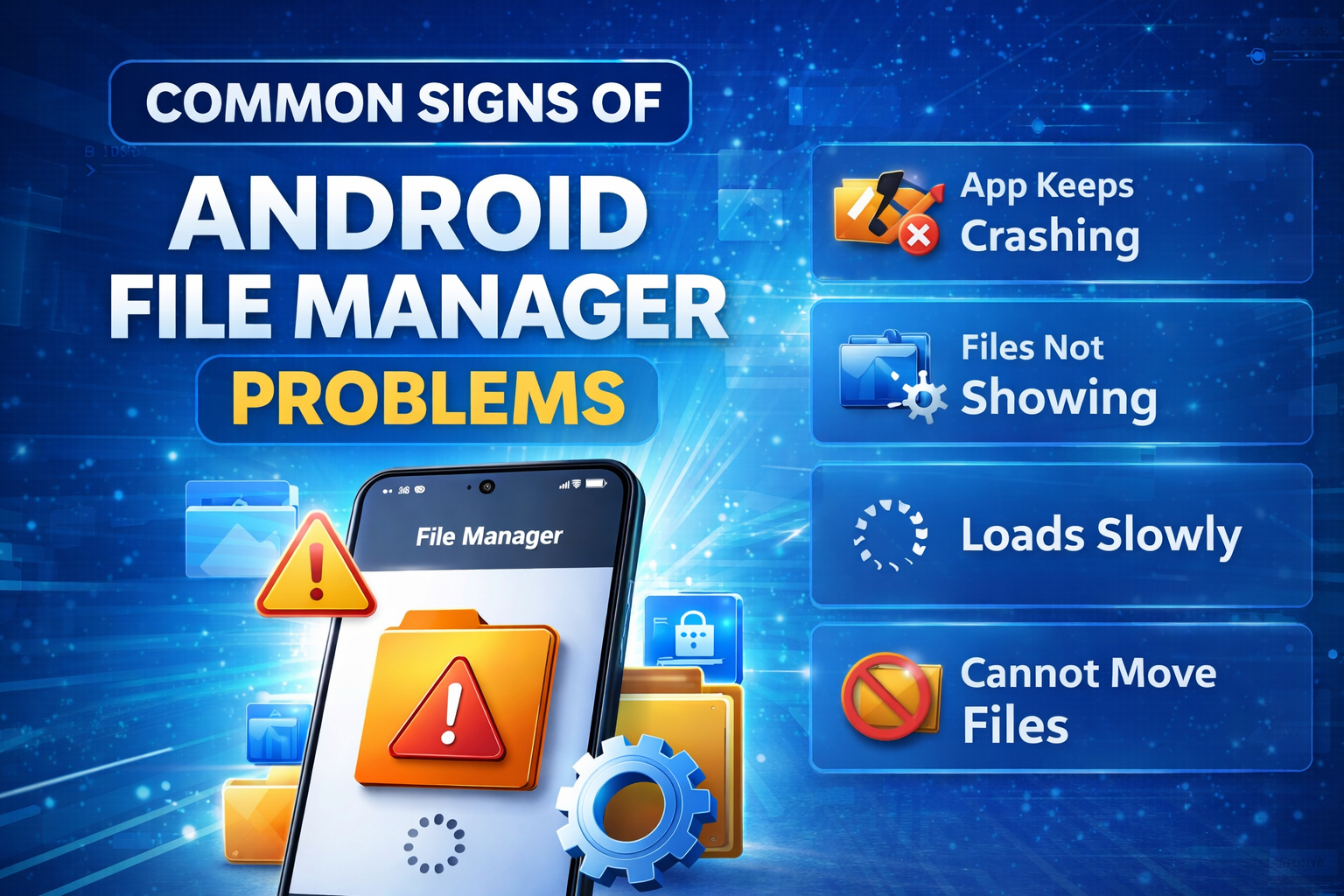
Before fixing the issue, it helps to recognize the symptoms.
You may notice:
- File Manager won’t open
- The app keeps crashing
- Files not showing in File Manager
- File Manager freezes or loads slowly
- You cannot move or delete files
- Storage folders missing
If you experience any of these issues, try the solutions below.
1. Restart Your Android Phone
Sometimes the problem is caused by temporary system glitches. A simple restart can fix many Android issues.
Steps to restart your phone
- Press and hold the Power button.
- Tap Restart or Reboot.
- Wait for the phone to turn back on.
- Open File Manager again.
Restarting clears temporary system processes that may prevent the Android file manager from working properly.
2. Clear File Manager Cache
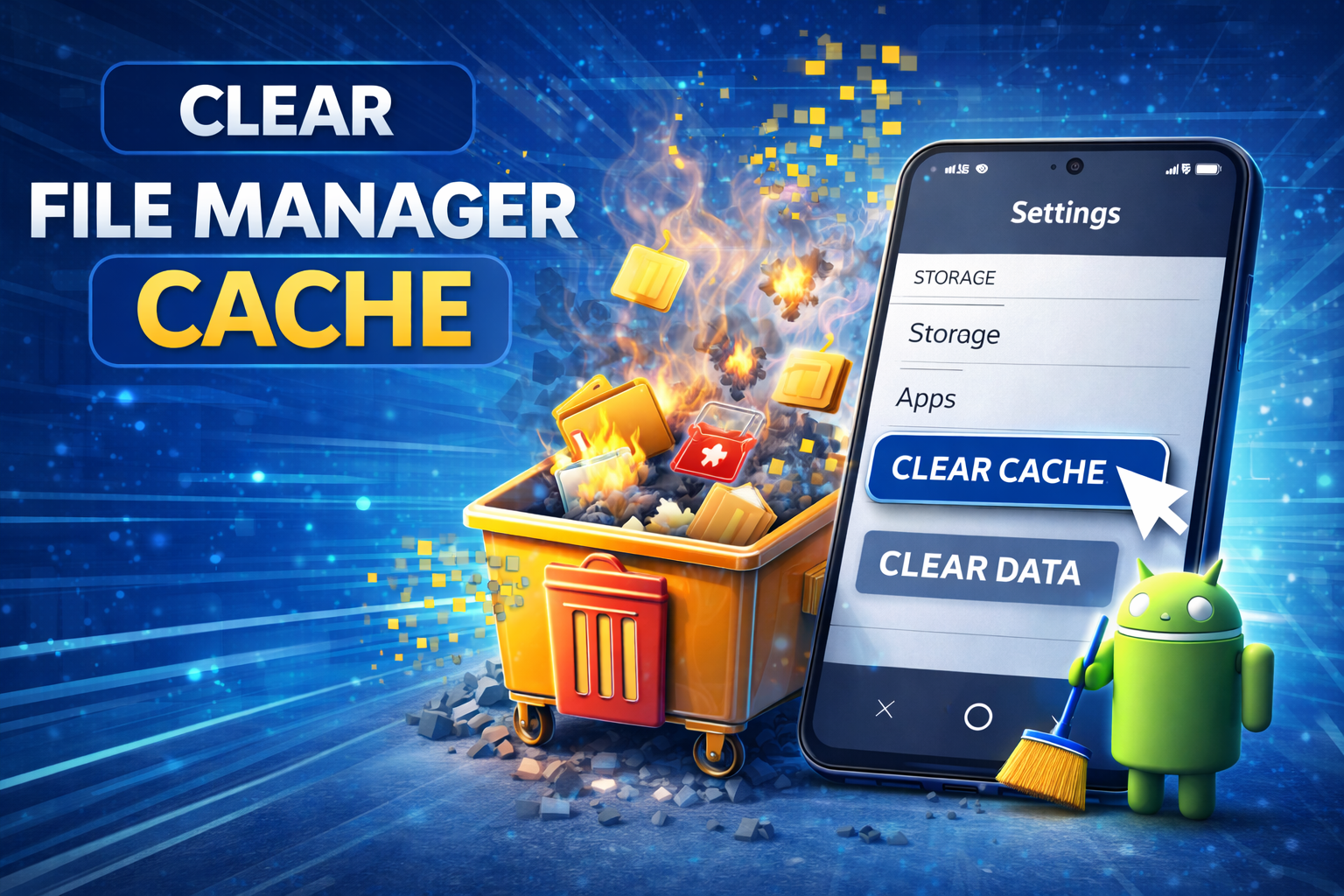
Cache files help apps run faster, but corrupted cache data can cause the file manager app to stop working.
Steps to clear cache
- Open Settings.
- Tap Apps or Apps & Notifications.
- Find File Manager or My Files.
- Tap Storage.
- Tap Clear Cache.
After clearing the cache, reopen the app and check if the issue is fixed.
3. Clear File Manager App Data
If clearing the cache doesn’t work, try clearing the app data.
⚠️ This resets the app settings but does not delete your files.
Steps
- Open Settings.
- Go to Apps.
- Tap File Manager.
- Select Storage.
- Tap Clear Data.
This resets the Android file manager app, which often fixes crashes and loading issues.
4. Update the File Manager App
An outdated app can cause compatibility problems with your Android system.
Steps to update
- Open Google Play Store.
- Search for File Manager or My Files.
- Tap Update if available.
Updating ensures the app runs smoothly with the latest Android version.
5. Check Storage Space
If your device storage is almost full, the Android file manager may stop working properly.
How to check storage
- Open Settings.
- Tap Storage.
- Check available space.
If storage is low, delete:
- Unused apps
- Large videos
- Duplicate photos
- Downloaded files
Freeing storage can improve system performance and fix file manager crashes.
6. Force Stop the File Manager App
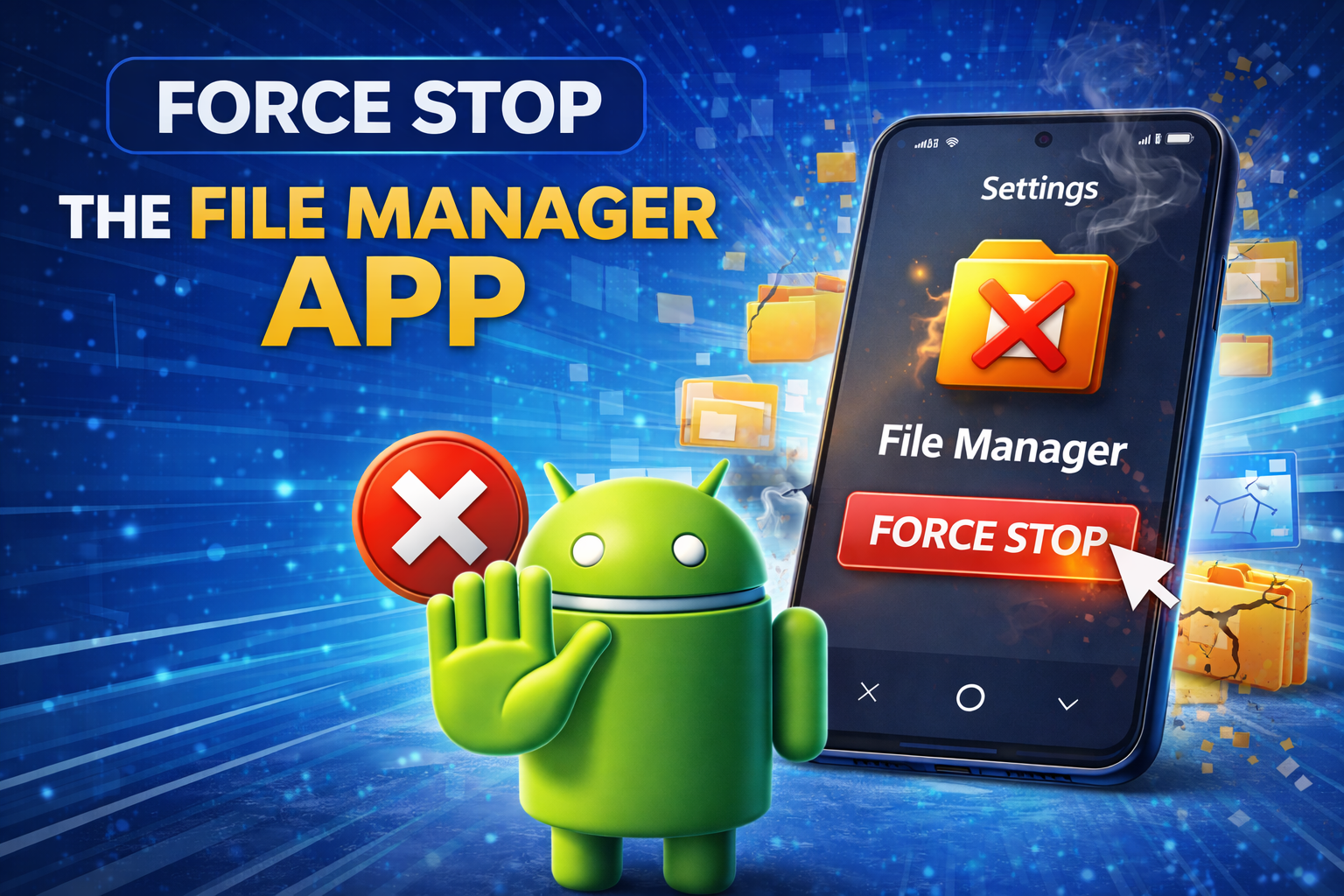
If the app freezes or becomes unresponsive, force stopping it can help.
Steps
- Open Settings.
- Tap Apps.
- Select File Manager.
- Tap Force Stop.
- Reopen the app.
This stops background processes causing the file manager to malfunction.
7. Check App Permissions
If File Manager doesn’t have permission to access storage, it may not show files.
Steps to enable permissions
- Go to Settings.
- Tap Apps.
- Select File Manager.
- Tap Permissions.
- Enable Storage access.
Without storage permission, the Android file manager cannot read or manage files.
8. Update Your Android System
Sometimes the issue comes from system bugs in older Android versions.
Steps to update Android
- Open Settings.
- Tap System.
- Select Software Update.
- Tap Download and Install.
Installing the latest update can fix Android file system bugs.
9. Install a Third-Party File Manager
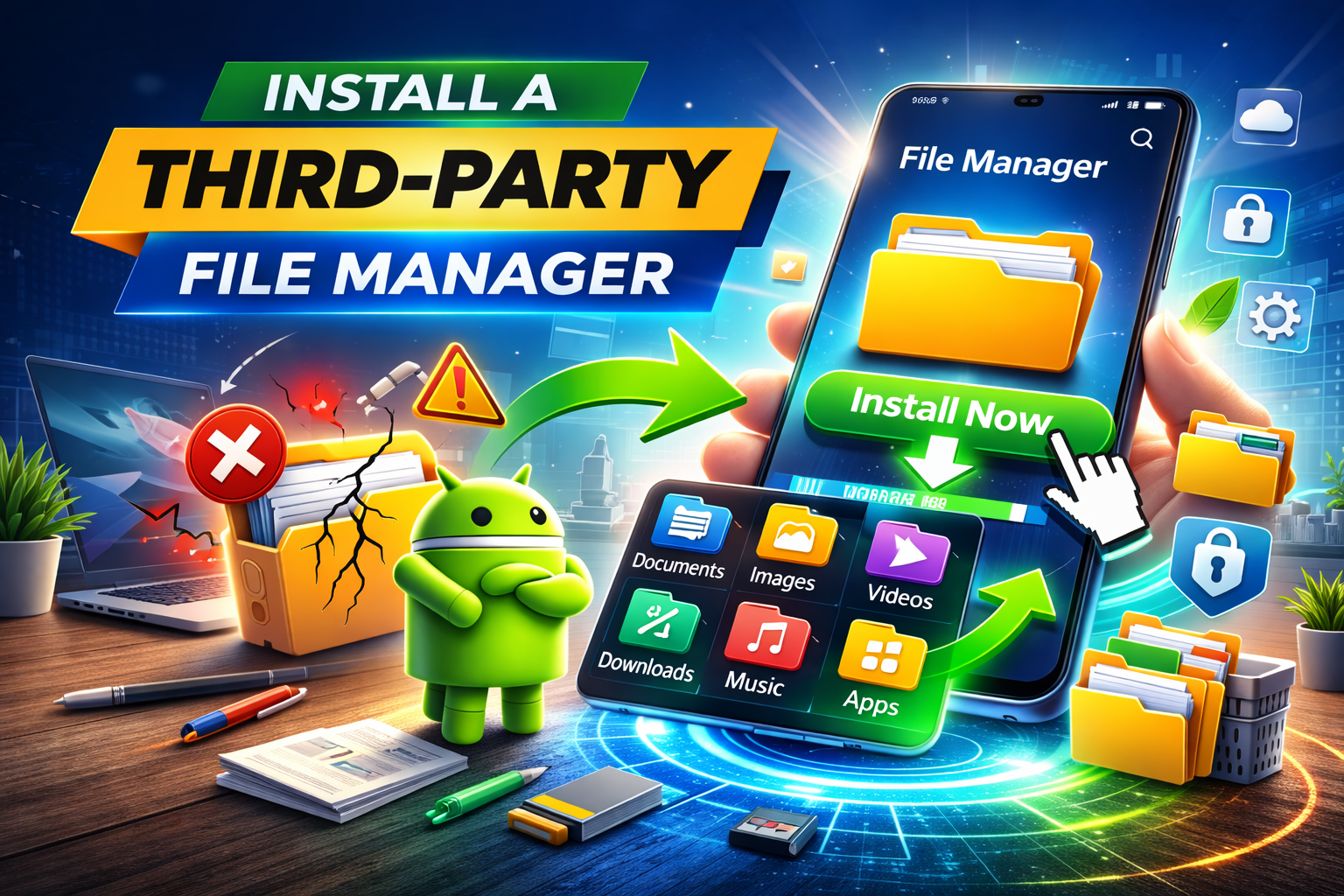
If the built-in File Manager keeps failing, you can use a reliable third-party app.
Popular options include:
- Files by Google
- Solid Explorer
- CX File Explorer
- Total Commander
These apps often offer better performance and additional features.
10. Reset App Preferences
Resetting app preferences can fix hidden system issues affecting File Manager.
Steps
- Open Settings.
- Tap Apps.
- Tap the three-dot menu.
- Select Reset App Preferences.
This resets:
- Disabled apps
- Default apps
- Permission restrictions
It often fixes Android file manager problems.
Why This Problem Happens
There are several reasons why the Android File Manager is not working.
1. Corrupted Cache Files
Temporary data may become corrupted, causing the app to crash.
2. Outdated App Version
Old versions may not work well with the latest Android updates.
3. Low Storage Space
When storage is full, system apps can malfunction.
4. Permission Issues
If File Manager cannot access storage, files won’t appear.
5. System Software Bugs
Android updates sometimes introduce temporary bugs.
6. Corrupted App Data
Improper shutdowns or crashes can damage app files.
Understanding the cause helps prevent the problem in the future.
Quick Tips to Prevent This Problem
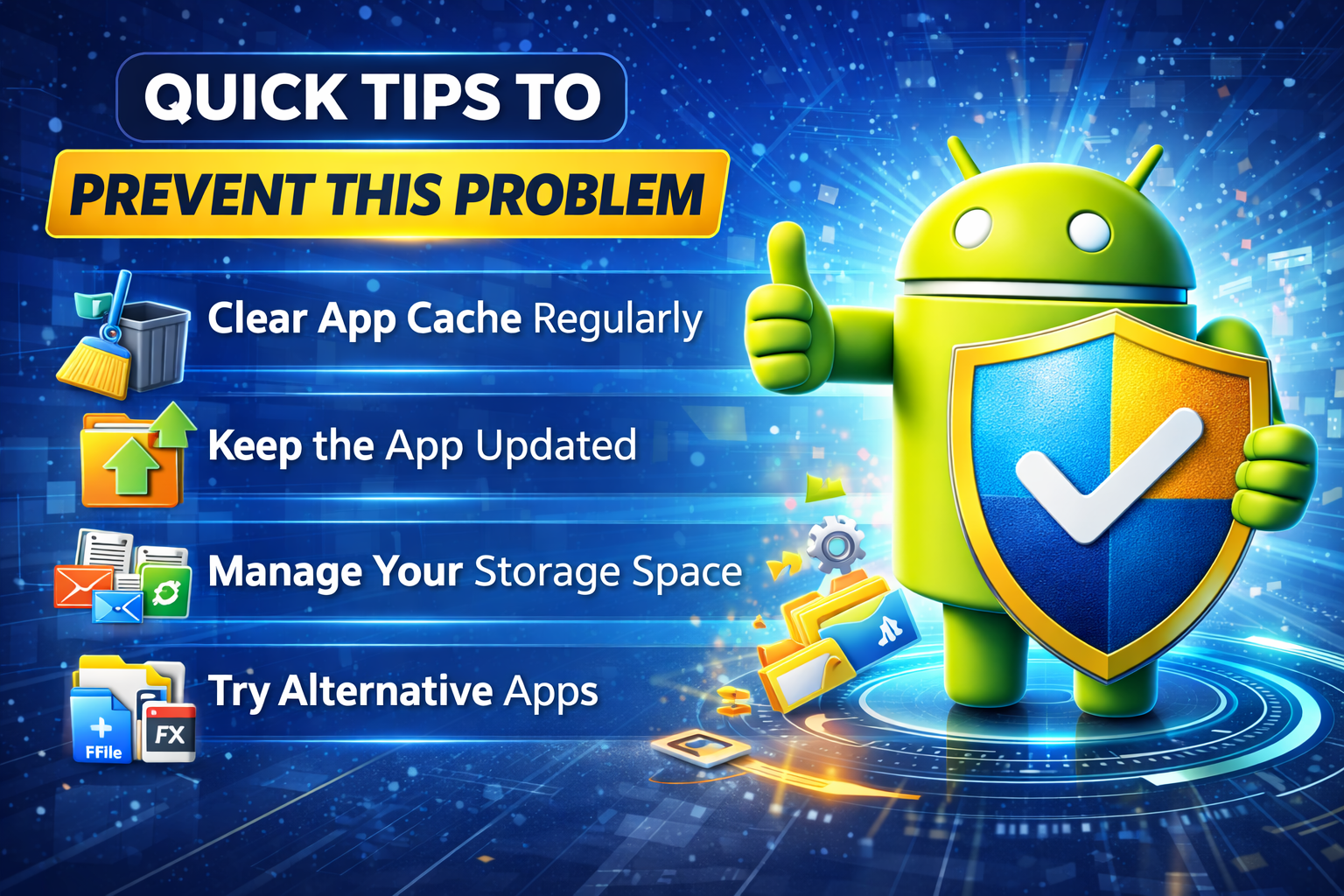
Follow these tips to keep your Android file manager working smoothly.
- Regularly clear app cache
- Keep Android updated
- Avoid installing suspicious apps
- Maintain enough free storage
- Restart your phone weekly
- Use trusted file manager apps
Keeping your device clean and updated helps prevent most Android issues.
FAQ
1. Why does my File Manager keep crashing?
The app may crash due to corrupted cache files, outdated software, or low storage space. Clearing cache or updating the app usually fixes the issue.
2. How do I restore my Android File Manager?
You can restore it by:
- Clearing app data
- Updating the app
- Resetting app preferences
If the issue continues, install another file manager from the Play Store.
3. Why can’t I see files in my File Manager?
This usually happens because:
- Storage permission is disabled
- Files are hidden
- The app is outdated
Enable storage permission in the app settings.
4. Is it safe to clear File Manager data?
Yes. Clearing data resets the app settings but does not delete your files.
5. What is the best File Manager for Android?
Popular options include:
- Files by Google
- Solid Explorer
- CX File Explorer
These apps are reliable and feature-rich.
Conclusion
When the Android File Manager is not working, it can make accessing files difficult. Fortunately, most issues are easy to fix.
Start with simple solutions like restarting your phone, clearing cache, and updating the app. If the issue continues, try checking permissions, freeing storage, or installing a third-party file manager.
By following the steps in this guide, you should be able to fix Android File Manager problems quickly and safely.
Keeping your phone updated, maintaining enough storage space, and clearing cache regularly will help ensure the Android File Manager works smoothly in the future.