Face Unlock Not Working on Android? Here’s How to Fix It
Face Unlock is one of the most convenient features on Android. You simply look at your phone, and it unlocks in seconds. But when it stops working, it can quickly become frustrating. Your phone may fail to recognize your face, unlock slowly, or stop using facial recognition altogether.
If you are dealing with Face Unlock not working on Android, you are not alone. This problem can happen for many reasons, including poor lighting, camera issues, software bugs, changed appearance, or incorrect face data.
The good news is that in most cases, the problem is easy to fix. In this guide, you will learn how to fix Face Unlock not working on Android with clear step-by-step methods that beginners can follow.
This article also covers the causes of the issue, prevention tips, and answers to common questions.
Why Face Unlock Not Working on Android Happens
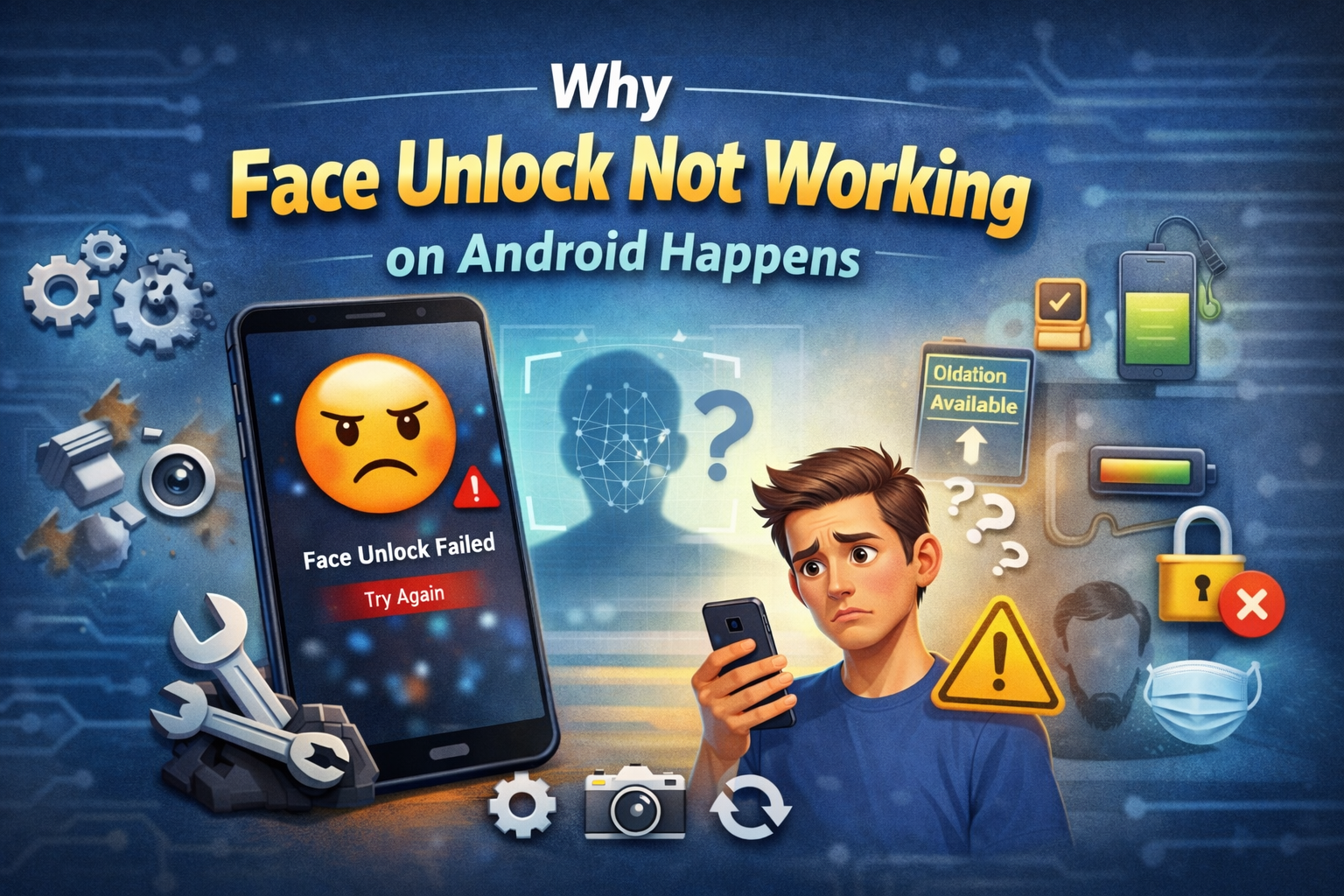
Before trying the fixes, it helps to understand why the issue appears in the first place. Face Unlock depends on both hardware and software working correctly.
Here are the most common reasons:
- Poor lighting makes it hard for the front camera to scan your face
- Dirt, dust, or fingerprints on the selfie camera
- Your appearance has changed with glasses, a mask, makeup, beard, or hairstyle
- Face Unlock settings were turned off by mistake
- Corrupted face data stored on the phone
- Camera or security app bugs
- Outdated Android software
- Battery saver or performance restrictions affecting background features
- Screen protector or damage around the front camera area
- Temporary system glitches
Now let’s go through the best ways to solve it.
10 Ways to Fix Face Unlock Not Working on Android
1. Clean the Front Camera
This is the simplest fix, but many people overlook it.
If the selfie camera is dirty, Face Unlock may fail to detect your face properly.
Steps:
- Turn off your phone screen.
- Use a soft microfiber cloth to gently clean the front camera area.
- Remove fingerprints, dust, or smudges.
- Try Face Unlock again.
Important: Do not use rough cloth or too much liquid. A clean lens helps Android facial recognition work better.
2. Improve the Lighting Around You
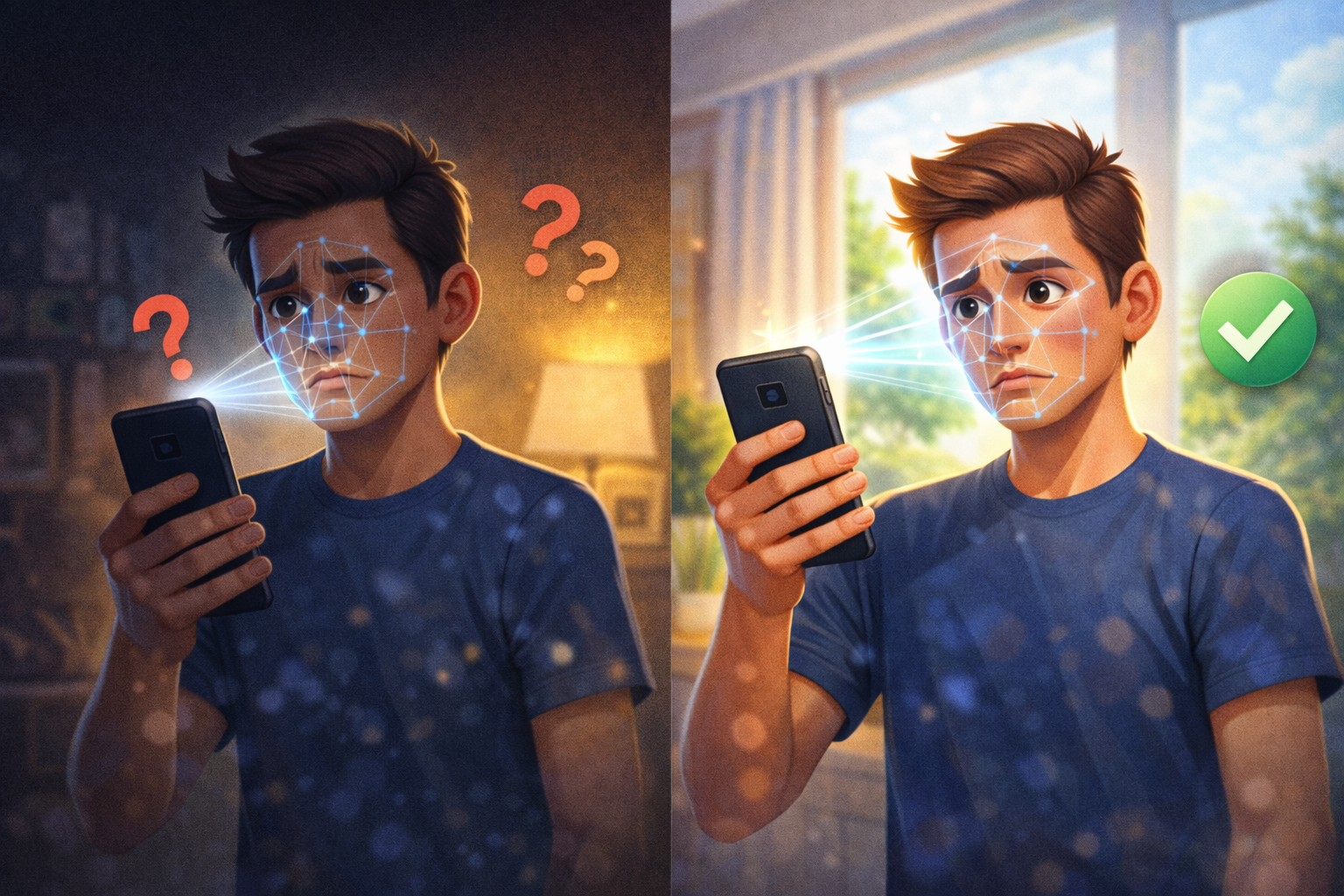
Face Unlock usually works best in bright, even lighting. If you are in a dark room or strong backlight, the phone may struggle to identify your face.
What to do:
- Move to a brighter place.
- Make sure light falls on your face, not behind you.
- Avoid strong shadows on your face.
- Test Face Unlock again.
Tip:
Natural daylight or normal indoor lighting is usually best. Very dark or overly bright light can cause scanning problems.
3. Hold the Phone at the Right Angle
Sometimes the issue is not the phone. It is simply how you are holding it.
Face Unlock works best when your face is clearly visible and centered in front of the camera.
Try this:
- Hold the phone at eye level.
- Keep your full face visible.
- Do not tilt your head too much.
- Keep the phone a short distance from your face.
- Remove anything blocking your face, such as hats or masks.
If your face is partly hidden, Android face unlock may not work correctly.
4. Restart Your Android Phone
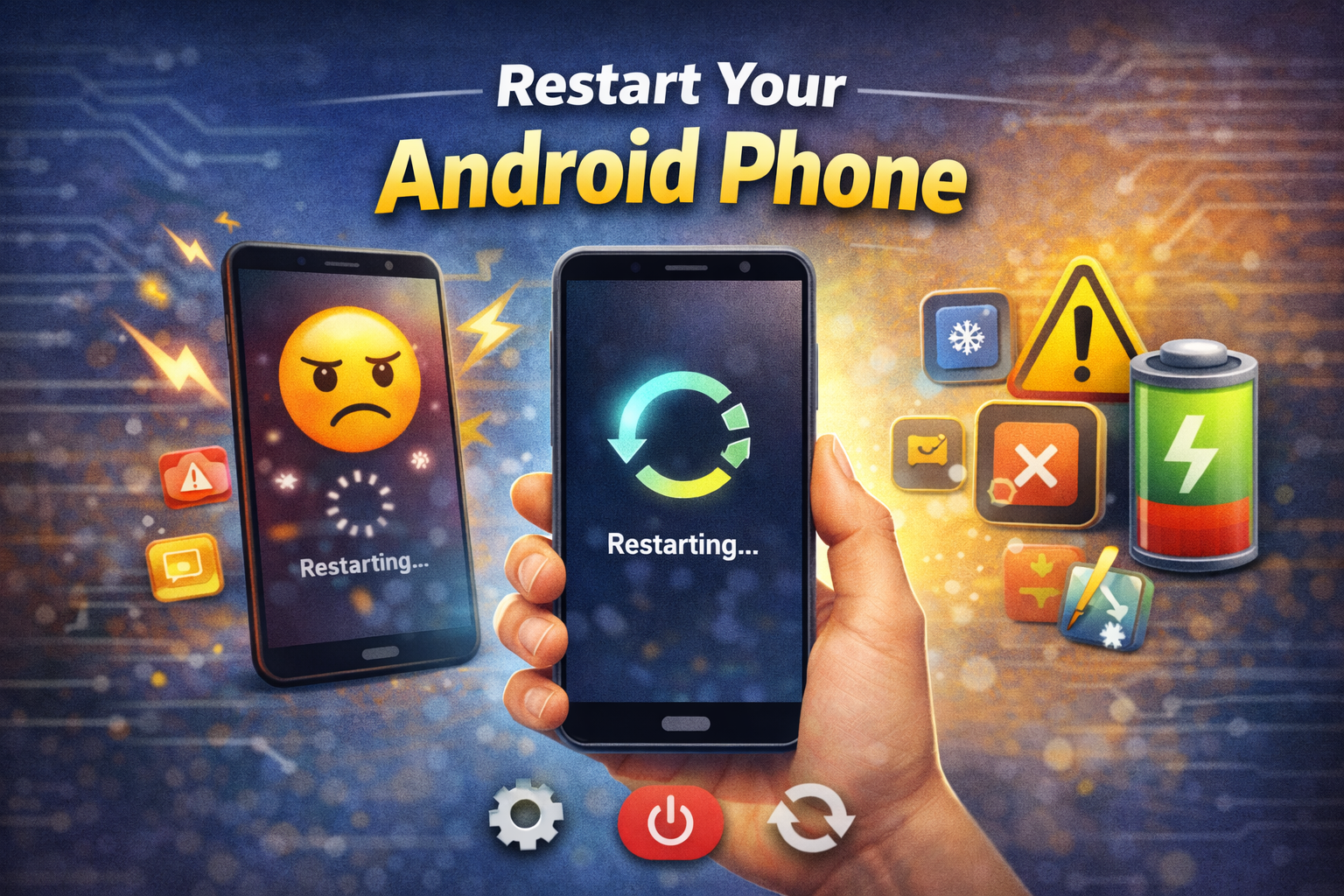
A quick restart can fix temporary bugs affecting Face Unlock, the camera, or system security features.
Steps:
- Press and hold the power button.
- Tap Restart.
- Wait for the phone to reboot fully.
- Test Face Unlock again.
This simple step often solves temporary Android facial recognition issues.
5. Check If Face Unlock Is Still Enabled
In some cases, the feature may have been disabled after a software update, settings reset, or security change.
Steps:
- Open Settings.
- Go to Security, Lock Screen, or Biometrics.
- Tap Face Unlock or Face Recognition.
- Make sure the feature is turned on.
- Confirm Face Unlock is allowed for screen unlocking.
The exact menu name may vary depending on your phone brand, but most Android phones keep it under security settings.
Important: Some phones may ask for your PIN, pattern, or password before you can manage Face Unlock settings.
6. Remove and Set Up Face Unlock Again
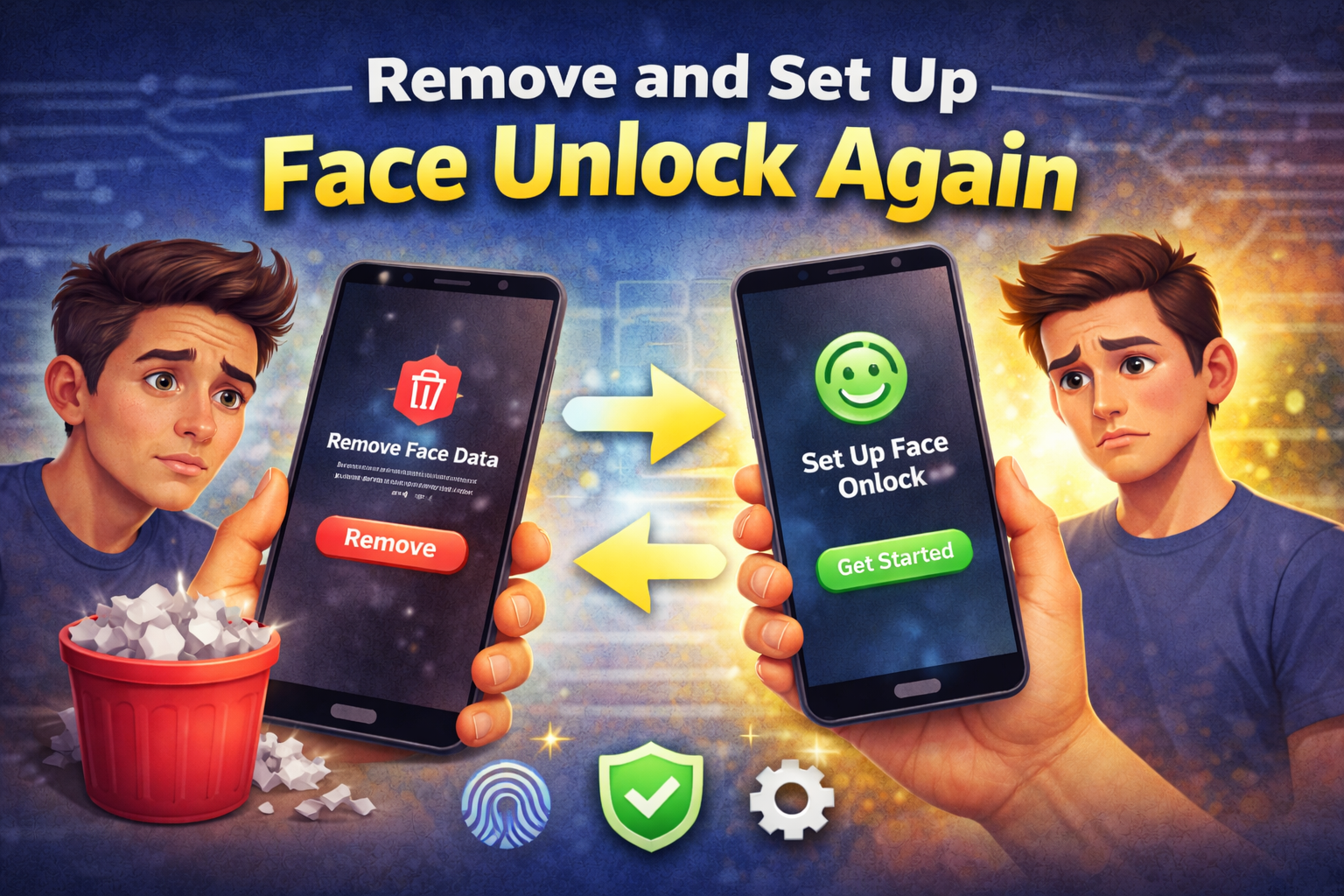
If the stored face data becomes inaccurate or corrupted, removing it and scanning your face again can often fix the problem.
This is one of the most effective ways to fix face recognition Android issues.
Steps:
- Open Settings.
- Go to Security or Biometrics.
- Tap Face Unlock.
- Enter your PIN, password, or pattern.
- Select Remove face data or Delete face model.
- Restart your phone.
- Go back to the same settings page.
- Tap Add Face Unlock or Set Up Face Recognition.
- Follow the on-screen instructions carefully.
Best practices during setup:
- Use good lighting
- Look directly at the front camera
- Keep your face natural
- Remove sunglasses or anything blocking your features
- Follow all movement instructions slowly
A fresh face scan can significantly improve unlocking speed and accuracy.
7. Update Your Android Software
Software bugs can affect biometric features. If your device is running an older version of Android, updating it may solve the issue.
Steps:
- Open Settings.
- Tap Software Update or System.
- Select Check for updates.
- Download and install any available update.
- Restart your phone after installation.
Updates often include:
- Bug fixes
- Camera improvements
- Security patches
- Better biometric performance
If Face Unlock not working on Android started after a small glitch, a software update may fix it.
8. Update the Camera and Security-Related Apps
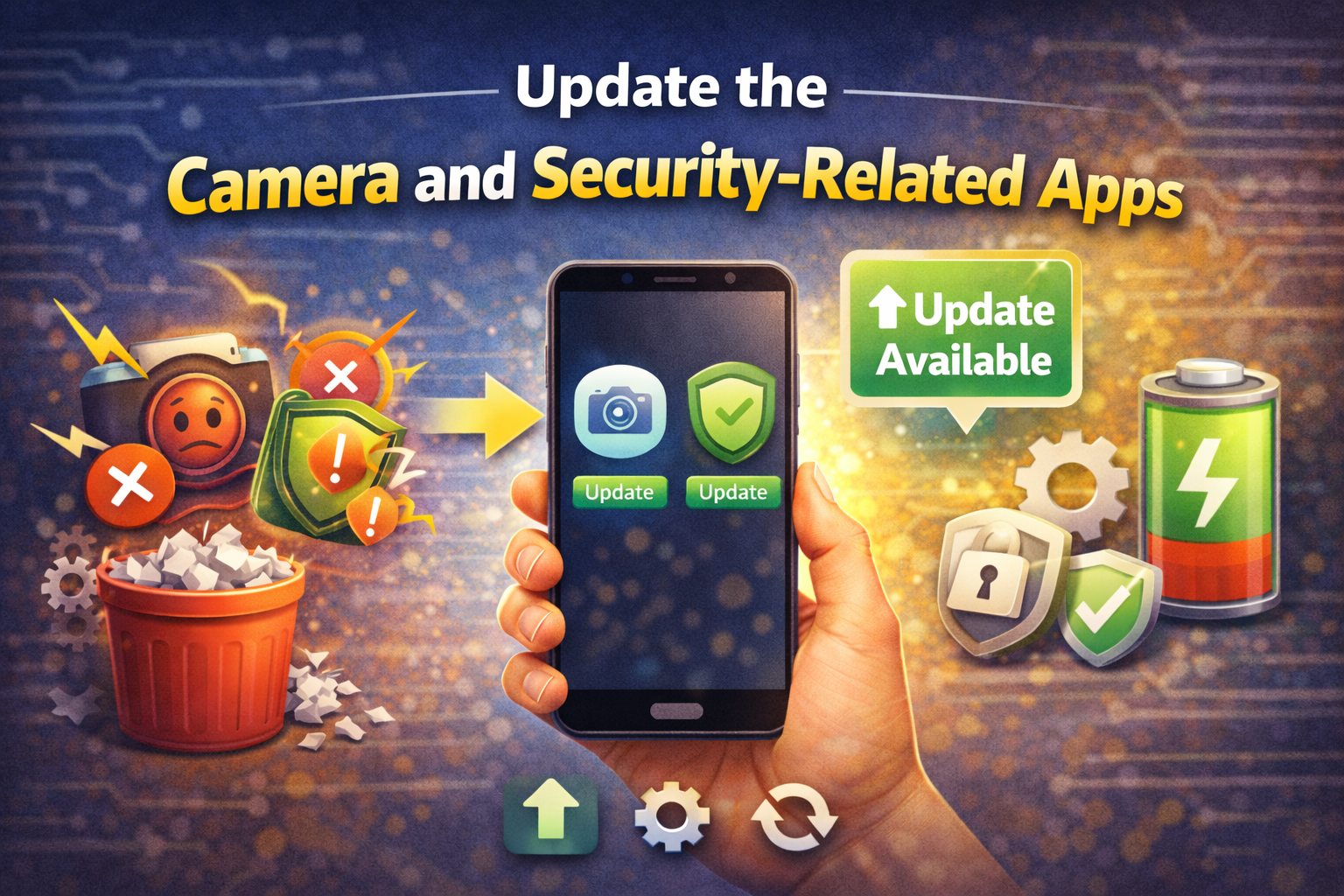
Some Android phones rely on system apps for camera access and biometric features. If those apps are outdated, Face Unlock may become unreliable.
What to do:
- Open the Google Play Store.
- Search for system-related apps if your brand allows updates there.
- Update your phone’s camera app, security app, or system services if available.
- Restart your phone.
You can also check your phone’s built-in app manager for updates.
Extra step:
Clear the camera app cache if Face Unlock depends heavily on the front camera.
To clear camera cache:
- Open Settings.
- Tap Apps.
- Select Camera.
- Tap Storage.
- Tap Clear Cache.
Do not clear important data unless needed. Start with cache first.
9. Turn Off Battery Saver
Battery Saver can limit some background tasks and phone performance. On some devices, this may affect Face Unlock speed or reliability.
Steps:
- Open Settings.
- Tap Battery.
- Select Battery Saver or Power Saving Mode.
- Turn it off temporarily.
- Lock your phone and test Face Unlock.
If it works better, battery optimization may be interfering with the feature.
10. Check for Hardware Problems or Try Safe Mode
If none of the above fixes work, the issue may be caused by a hardware problem or a third-party app conflict.
A. Check for hardware issues
Look for:
- Cracks near the front camera
- Screen protector blocking the sensor or camera
- Water damage
- Blurry selfie camera quality
If the front camera has trouble taking clear photos, Face Unlock may not work properly.
B. Boot into Safe Mode
Safe Mode disables third-party apps temporarily. This helps you check whether a downloaded app is causing the problem.
General steps:
- Press and hold the power button.
- Touch and hold Power Off until Safe Mode appears.
- Tap Safe Mode.
- Wait for the phone to restart.
- Test Face Unlock.
If Face Unlock works in Safe Mode, one of your installed apps may be interfering with the feature.
What to do next:
- Uninstall recently added security apps
- Remove lock screen apps
- Delete suspicious camera or cleaner apps
- Restart normally and test again
What If Face Unlock Still Does Not Work?
If you have tried everything and the feature still fails, use these final options:
1. Reset app preferences
This can restore system behavior without deleting personal files.
2. Reset security settings
Some phones allow partial resets for biometrics and lock screen settings.
3. Factory reset your phone
Use this only as a last resort.
Warning: A factory reset will erase your data unless you back it up first.
4. Contact your phone brand’s support
If there is physical damage or sensor failure, professional repair may be needed.
Quick Tips to Prevent This Problem
Once Face Unlock starts working again, these tips can help keep it reliable.
- Keep the front camera clean
- Use Face Unlock in normal lighting when possible
- Re-scan your face after major appearance changes
- Keep Android updated
- Avoid installing unknown lock screen or security apps
- Remove low-quality screen protectors that cover the camera area
- Restart your phone occasionally
- Use a strong PIN, password, or pattern as backup
Important: Face Unlock is convenient, but your backup screen lock is still essential for security.
FAQ About Face Unlock Not Working on Android
1. Why is my Android face unlock suddenly not working?
This usually happens because of poor lighting, dirty camera lenses, changed appearance, outdated software, or corrupted face data.
2. Can a screen protector affect Face Unlock?
Yes. If the screen protector covers the front camera or sensor area, it can reduce scanning accuracy and cause unlock failures.
3. Does restarting the phone really help?
Yes. A restart can fix temporary software bugs affecting the camera, biometric system, and lock screen functions.
4. Should I delete and add my face again?
Yes. Re-registering your face is one of the best ways to fix Android face unlock not working problems.
5. Is Face Unlock secure on all Android phones?
Security depends on the device. Some phones use basic camera recognition, while others use more advanced biometric systems. It is still best to keep a strong PIN or password enabled.
Conclusion
Dealing with Face Unlock not working on Android can be annoying, especially when you use it every day. The good news is that the issue is often caused by simple things like poor lighting, dirty cameras, outdated software, or bad face data.
In most cases, you can solve the problem by following a few easy steps:
- Clean the front camera
- Improve lighting
- Restart your phone
- Check Face Unlock settings
- Remove and re-add your face
- Update Android software
- Check for app or hardware problems
If the feature still does not work after trying all fixes, a hardware issue or deeper software problem may be the cause.
By using the tips in this guide, you can fix face recognition Android problems and make your phone unlock faster and more reliably again.