iPhone Bluetooth Not Working on iOS? 9 Easy Fixes
Introduction
Many iPhone users rely on Bluetooth every day. It connects wireless headphones, AirPods, car audio systems, keyboards, and smart devices.
But sometimes you may notice your iPhone Bluetooth not working on iOS. Your phone may fail to find devices, disconnect randomly, or refuse to pair at all.
This issue usually happens after an iOS update, incorrect settings, software glitches, or network conflicts.
The good news? Most Bluetooth problems are easy to fix with a few simple troubleshooting steps. In this Apple iPhone guide, we will show you practical solutions to restore your connection quickly.
Why This Problem Happens
Before fixing the issue, it’s helpful to understand why iPhone Bluetooth not working on iOS occurs.
Common causes include:
- Temporary iOS software glitches
- Bluetooth turned off or stuck
- Outdated iOS version
- Network settings conflicts
- Interference from other wireless devices
- Device compatibility issues
- Corrupted system settings
- Bluetooth cache errors
Most of these issues are software-related, which means they can usually be fixed without visiting a repair center.
How to Fix iPhone Bluetooth Not Working on iOS
Below are the most effective iPhone troubleshooting solutions recommended by Apple technicians.
Fix 1 – Turn Bluetooth Off and On Again
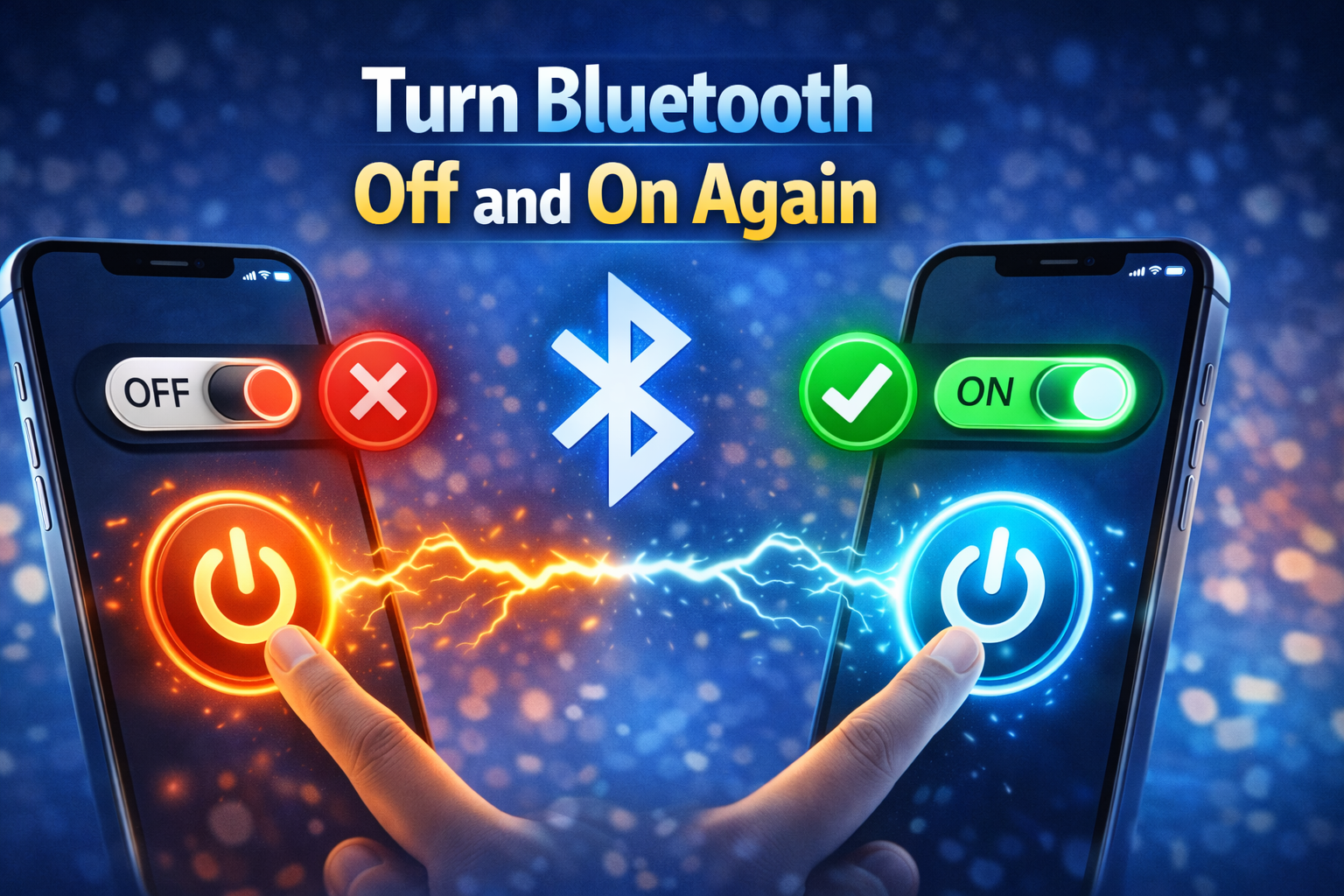
Sometimes Bluetooth simply gets stuck.
Restarting the connection refreshes the wireless system.
Steps:
- Open Settings
- Tap Bluetooth
- Turn Bluetooth OFF
- Wait 10 seconds
- Turn Bluetooth ON again
Now try reconnecting your device.
Fix 2 – Restart Your iPhone
A restart clears temporary system glitches.
This is one of the easiest iPhone repair tips that solves many problems.
Steps:
- Press and hold Power + Volume button
- Slide Power Off
- Wait 30 seconds
- Turn the iPhone back on
Check if Bluetooth works again.
Fix 3 – Forget the Bluetooth Device
Sometimes saved pairing data becomes corrupted.
Removing and reconnecting the device often fixes the issue.
Steps:
- Go to Settings
- Tap Bluetooth
- Find the connected device
- Tap the (i) icon
- Select Forget This Device
- Reconnect the device again
This resets the connection.
Fix 4 – Turn Airplane Mode On and Off
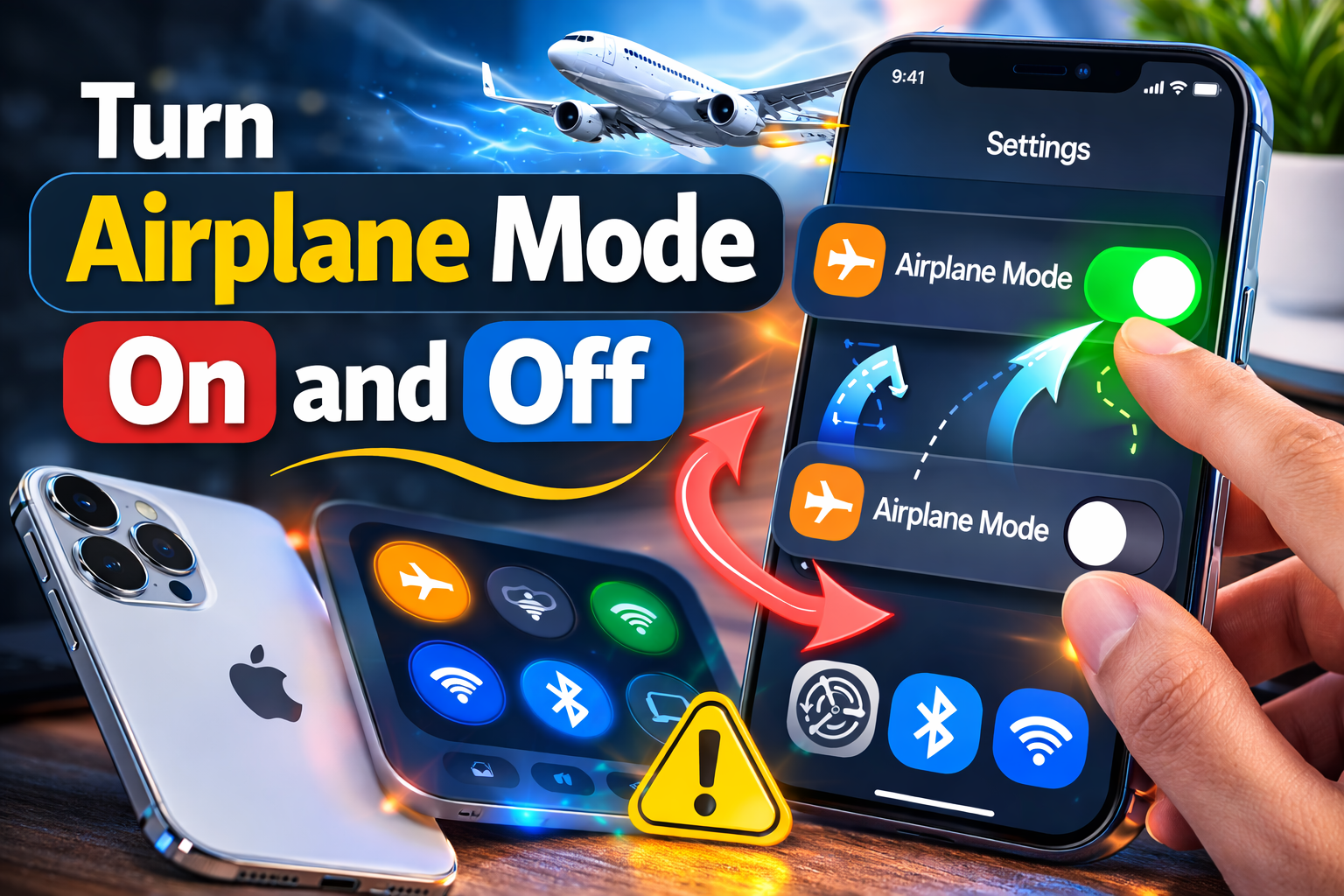
Airplane mode resets wireless radios including Bluetooth.
Steps:
- Open Control Center
- Turn Airplane Mode ON
- Wait 15 seconds
- Turn Airplane Mode OFF
- Enable Bluetooth again
This quick iOS problem fix often restores wireless connections.
Fix 5 – Reset Network Settings
Network settings control Wi-Fi, cellular, and Bluetooth connections.
If they become corrupted, Bluetooth may stop working.
Steps:
- Open Settings
- Tap General
- Select Transfer or Reset iPhone
- Tap Reset
- Choose Reset Network Settings
- Enter your passcode
Your iPhone will restart automatically.
Note: Saved Wi-Fi passwords will be erased.
Fix 6 – Update iOS to the Latest Version
Software bugs can cause Bluetooth issues.
Apple frequently releases updates that fix these problems.
Steps:
- Open Settings
- Tap General
- Select Software Update
- Install the latest iOS version
Keeping your device updated is an important part of iOS troubleshooting.
Fix 7 – Move Closer to the Bluetooth Device
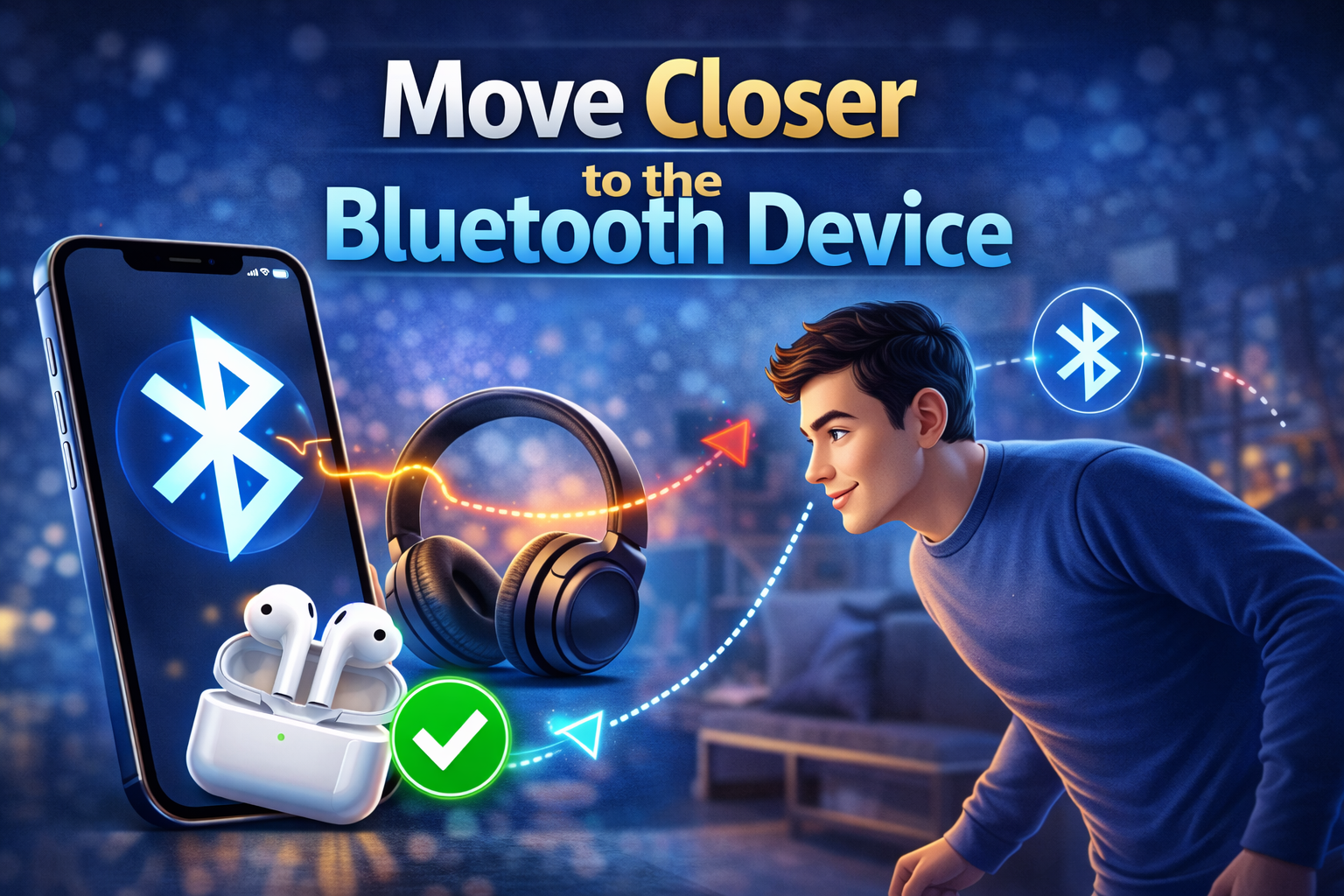
Bluetooth works best within 10 meters (33 feet).
Interference from walls or other devices can interrupt the signal.
Try these tips:
- Move closer to the device
- Turn off other Bluetooth devices nearby
- Avoid crowded wireless areas
This improves connection stability.
Fix 8 – Reset All Settings
If Bluetooth still doesn’t work, resetting system settings may help.
This does not delete your data, but it resets system preferences.
Steps:
- Go to Settings
- Tap General
- Select Transfer or Reset iPhone
- Tap Reset
- Choose Reset All Settings
Your iPhone will restart with default system settings.
Fix 9 – Use Recovery Mode Restore
If the problem started after a major iOS update, system files might be corrupted.
A recovery restore can reinstall iOS completely.
Steps:
- Connect your iPhone to a computer
- Open Finder (Mac) or iTunes (Windows)
- Put the iPhone into Recovery Mode
- Select Update or Restore
This advanced iPhone solution fixes deeper software problems.
Quick Tips to Prevent This Problem
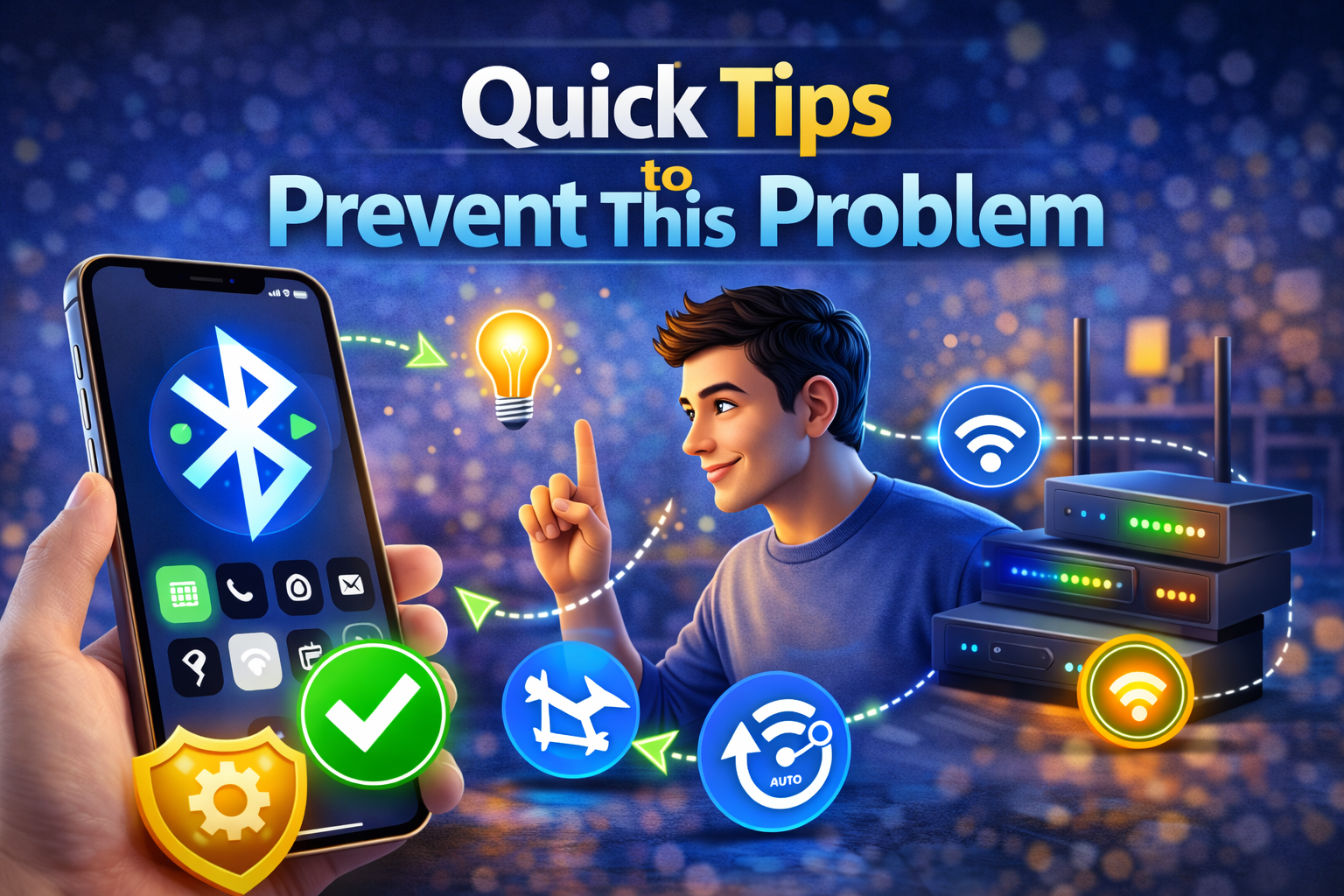
Follow these simple habits to avoid future Bluetooth problems.
Helpful tips:
- Keep your iPhone updated
- Avoid connecting too many Bluetooth devices
- Restart your phone occasionally
- Keep devices within Bluetooth range
- Remove unused paired devices
- Avoid using outdated accessories
These small steps improve overall iPhone troubleshooting performance.
When You Should Contact Apple Support
If none of the fixes work, the issue may be hardware-related.
Possible hardware problems include:
- Damaged Bluetooth antenna
- Internal motherboard issues
- Water damage
- Physical device damage
In this case, contact Apple Support or visit an authorized Apple repair center.
Professional technicians can run hardware diagnostics.
FAQ (People Also Ask)
Why is my iPhone having this problem?
Bluetooth issues usually happen due to software glitches, outdated iOS versions, network conflicts, or wireless interference.
Can this issue damage my iPhone?
No. Bluetooth connection problems usually do not damage your device. They are typically caused by software or settings issues.
Does restarting fix the problem?
Yes. Restarting your iPhone clears temporary bugs and is one of the most effective quick fixes.
Why won’t my iPhone find Bluetooth devices?
Your iPhone may be out of range, Bluetooth may be turned off, or the device may not be in pairing mode.
Why does Bluetooth keep disconnecting?
This can happen due to weak signal strength, wireless interference, or outdated iOS software.
Conclusion
If you are dealing with iPhone Bluetooth not working on iOS, don’t worry. In most cases, the issue is caused by simple software glitches or incorrect settings.
Start with easy solutions like:
- Restarting your iPhone
- Turning Bluetooth off and on
- Forgetting and reconnecting devices
If the issue continues, try advanced steps like resetting network settings or updating iOS.
By following this Apple iPhone guide, you can quickly solve Bluetooth connection problems and restore your wireless devices.
For more iPhone troubleshooting, iOS problem fix guides, and expert iPhone repair tips, visit techissuefix.com.