How to Fix iPhone Overheating While Charging
Introduction
Many iPhone users notice their device getting unusually hot while charging. Sometimes it becomes so warm that it feels uncomfortable to hold. If you’re experiencing iPhone overheating while charging, you’re not alone.
This issue can happen due to heavy background activity, faulty chargers, battery problems, or software bugs. The good news is that most cases can be fixed easily without expensive repairs.
In this Apple iPhone guide, you’ll learn the real causes and the best solutions to stop your phone from overheating and keep it running smoothly.
Why This Problem Happens
Before fixing the issue, it’s important to understand why iPhone overheating while charging happens.
Here are the most common causes:
1. Using a Low-Quality Charger
Cheap or uncertified chargers may deliver unstable power. This forces your iPhone battery to work harder and produce heat.
2. Charging While Using the Phone
Playing games, watching videos, or using heavy apps while charging increases CPU and battery activity.
3. Background Apps Running
Apps running in the background can consume processing power and create extra heat.
4. Software Bugs After iOS Update
Sometimes a recent update causes temporary system glitches that increase CPU usage.
5. Hot Environment
Charging in a hot room, inside a car, or under sunlight can easily raise the device temperature.
6. Battery Health Issues
Old or damaged batteries may overheat more easily during charging.
Understanding these causes helps you apply the right iPhone troubleshooting method.
How to Fix iPhone Overheating While Charging
Below are the most effective iPhone repair tips to solve the issue.
Fix 1 – Use an Apple-Certified Charger
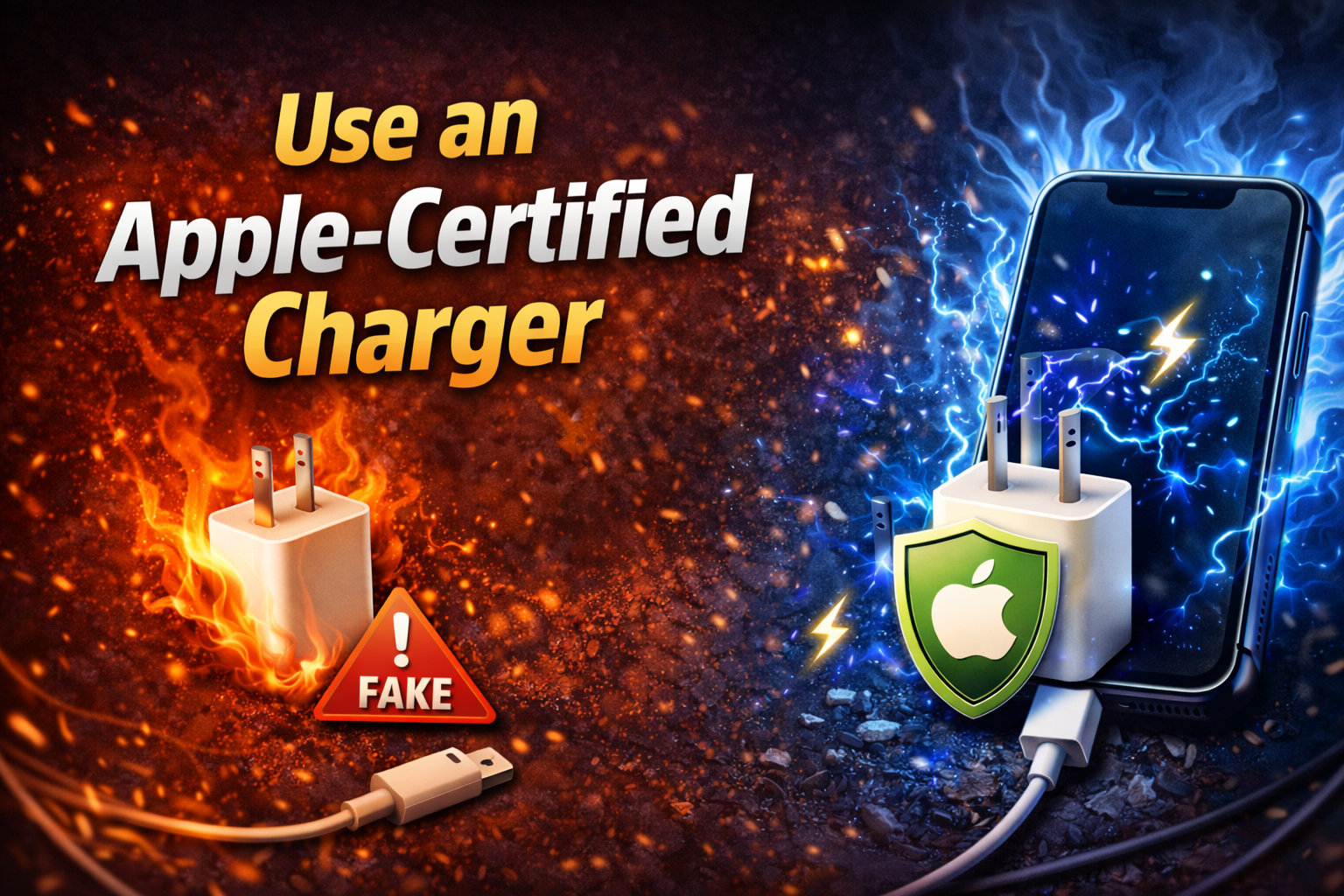
Using the wrong charger is one of the biggest causes of overheating.
Steps:
- Use the original Apple charger or an MFi-certified charger.
- Replace damaged charging cables.
- Avoid extremely cheap third-party chargers.
A stable power supply keeps the battery temperature under control.
Fix 2 – Remove the Phone Case While Charging
Some phone cases trap heat and prevent proper airflow.
Steps:
- Remove the case before charging.
- Place the iPhone on a flat, cool surface.
- Avoid charging on beds, sofas, or pillows.
This simple iPhone solution can reduce heat quickly.
Fix 3 – Stop Using Your iPhone While Charging
Using your device while charging forces the processor and battery to work simultaneously.
Steps:
- Stop gaming or streaming videos.
- Let the phone charge without usage.
- Turn off the screen if possible.
Your iPhone will charge faster and stay cooler.
Fix 4 – Close Background Apps

Too many background apps can cause unnecessary CPU activity.
Steps:
- Swipe up from the bottom of the screen.
- Open the App Switcher.
- Swipe up to close unused apps.
This basic iOS troubleshooting guide step helps reduce device workload.
Fix 5 – Restart Your iPhone
A simple restart can fix many iOS problem fix situations.
Steps:
- Press and hold the Power button + Volume button.
- Slide to power off.
- Wait 30 seconds.
- Turn the phone back on.
Restarting clears temporary system errors.
Fix 6 – Update iOS
Apple regularly releases updates that fix performance bugs.
Steps:
- Open Settings.
- Tap General.
- Select Software Update.
- Install the latest iOS version.
Keeping iOS updated improves battery and thermal management.
Fix 7 – Turn Off Background App Refresh

Background refresh allows apps to update even when not in use.
Steps:
- Open Settings.
- Tap General.
- Select Background App Refresh.
- Turn it Off or limit it to Wi-Fi.
This reduces processing load and prevents overheating.
Fix 8 – Enable Low Power Mode
Low Power Mode reduces system activity.
Steps:
- Go to Settings.
- Tap Battery.
- Turn on Low Power Mode.
This is a quick how to fix iPhone overheating trick.
Fix 9 – Check Battery Health
An aging battery may generate excessive heat.
Steps:
- Open Settings.
- Tap Battery.
- Select Battery Health & Charging.
- Check Maximum Capacity.
If capacity is below 80%, battery replacement may be needed.
Quick Tips to Prevent This Problem
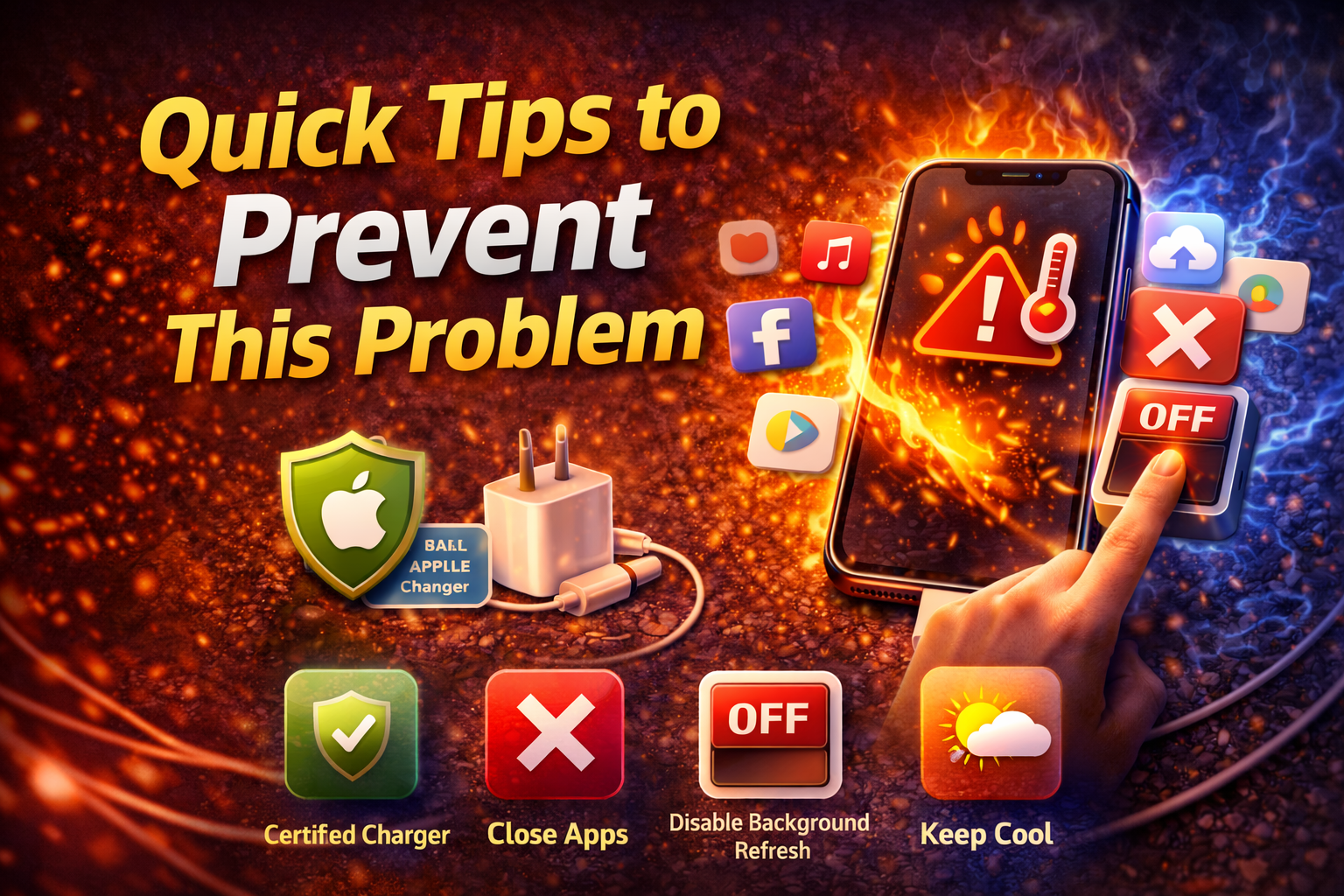
Follow these simple habits to avoid iPhone overheating while charging.
• Use Apple-certified charging accessories
• Avoid charging in hot environments
• Remove thick phone cases while charging
• Keep iOS updated
• Avoid gaming while charging
• Charge on a cool surface
• Maintain good battery health
These small changes can prevent many iPhone troubleshooting issues.
When You Should Contact Apple Support
Sometimes overheating may indicate a hardware problem.
Contact Apple Support if:
• Your iPhone becomes extremely hot frequently
• The phone shuts down while charging
• Battery drains very quickly
• You see warning messages about temperature
• The device smells like burning or shows swelling
Professional technicians can diagnose deeper hardware issues.
FAQ (People Also Ask)
Why is my iPhone overheating while charging?
This usually happens due to heavy background activity, faulty chargers, poor battery health, or charging in a hot environment.
Can this issue damage my iPhone?
Yes. Continuous overheating can damage the battery and internal components over time.
Does restarting fix the problem?
Yes. Restarting clears temporary system bugs and often reduces CPU usage that causes heat.
Is it normal for iPhone to get warm while charging?
Slight warmth is normal, especially during fast charging. However, excessive heat is not normal.
Should I stop charging if my iPhone gets hot?
Yes. Disconnect the charger and allow the phone to cool before charging again.
Conclusion
Experiencing iPhone overheating while charging can be frustrating, but the problem is usually easy to fix. Simple steps like using an Apple-certified charger, removing your case, closing background apps, and updating iOS can significantly reduce heat.
If the problem continues even after trying these iPhone repair tips, checking battery health or contacting Apple Support may be necessary.
By following this iOS troubleshooting guide, you can keep your iPhone cool, protect battery life, and ensure your device runs smoothly.