10 Fixes for iPhone WiFi Not Connecting After iOS Update
Introduction
Have you ever updated your iPhone to the latest iOS version and suddenly your WiFi stops working? Many users experience this frustrating issue where their iPhone WiFi not connecting after iOS update even though it worked perfectly before.
This problem can prevent you from browsing the internet, downloading apps, or using online services. In most cases, it happens because of software glitches, incorrect network settings, or router conflicts after the update.
The good news is that you can usually solve this issue in just a few minutes using simple iPhone troubleshooting steps. In this guide, we’ll show you the most effective solutions to fix the iPhone WiFi not connecting after iOS update problem.
Why This Problem Happens
Before fixing the issue, it helps to understand why it occurs. Several common causes may trigger WiFi problems after updating iOS.
1. Software Glitches
Sometimes a new iOS update may cause temporary system bugs that affect WiFi connectivity.
2. Network Settings Conflict
Your old WiFi settings may conflict with the updated iOS system.
3. Router Compatibility Issues
Some routers may not immediately work well with a newly updated iOS version.
4. Corrupted WiFi Configuration
Saved WiFi networks can sometimes become corrupted after a system update.
5. Incorrect System Settings
Certain settings like Airplane Mode, VPN, or Low Data Mode may interfere with WiFi.
Fortunately, these issues are usually easy to solve with a few iPhone repair tips and troubleshooting steps.
How to Fix iPhone WiFi Not Connecting After iOS Update
Below are the most effective fixes recommended by Apple technicians and experienced users.
Fix 1 – Toggle WiFi Off and On
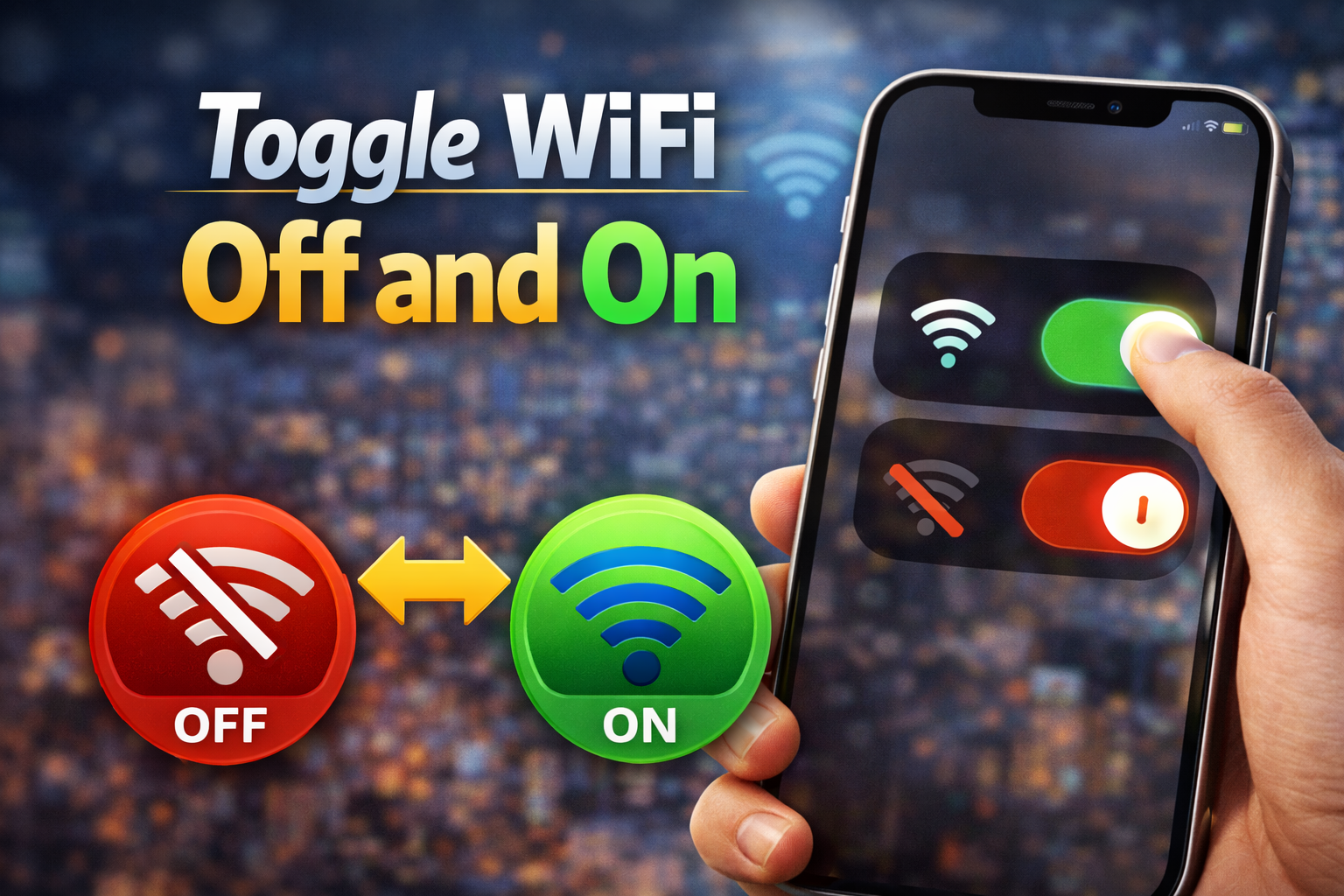
This simple trick refreshes your iPhone’s wireless connection.
Steps:
- Open Settings.
- Tap WiFi.
- Turn WiFi OFF.
- Wait 10 seconds.
- Turn WiFi ON again.
Try reconnecting to your network.
Fix 2 – Restart Your iPhone
Restarting clears temporary system bugs caused by the update.
Steps:
- Press and hold the Power button + Volume button.
- Slide to Power Off.
- Wait 30 seconds.
- Turn your iPhone back on.
Many iOS problem fix cases are solved with a simple restart.
Fix 3 – Restart Your WiFi Router
Sometimes the problem is not your iPhone but your router.
Steps:
- Unplug your WiFi router.
- Wait 30–60 seconds.
- Plug it back in.
- Wait until the internet reconnects.
Then reconnect your iPhone.
Fix 4 – Forget and Reconnect to the WiFi Network
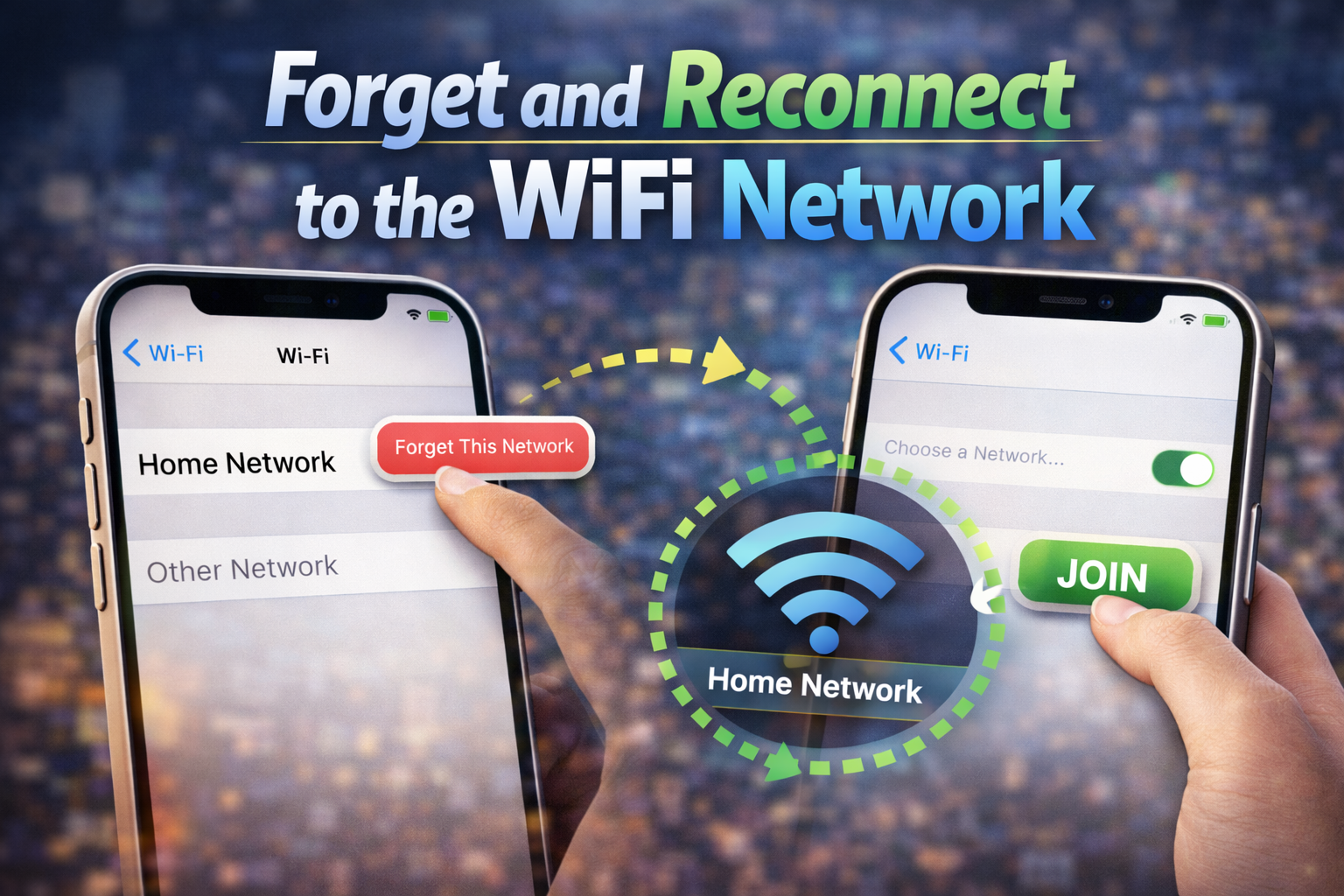
This refreshes your network configuration.
Steps:
- Go to Settings.
- Tap WiFi.
- Tap the (i) icon next to your network.
- Select Forget This Network.
- Reconnect by entering the password again.
This method often fixes iPhone WiFi not connecting after iOS update issues quickly.
Fix 5 – Reset Network Settings
If WiFi still doesn’t work, resetting network settings may help.
Steps:
- Open Settings.
- Tap General.
- Select Transfer or Reset iPhone.
- Tap Reset.
- Choose Reset Network Settings.
Note: This will remove saved WiFi passwords.
This is one of the most effective iOS troubleshooting guide solutions.
Fix 6 – Disable VPN
VPN services can sometimes block WiFi connections.
Steps:
- Go to Settings.
- Tap VPN.
- Toggle OFF.
After disabling the VPN, reconnect to WiFi.
Fix 7 – Update to the Latest iOS Version
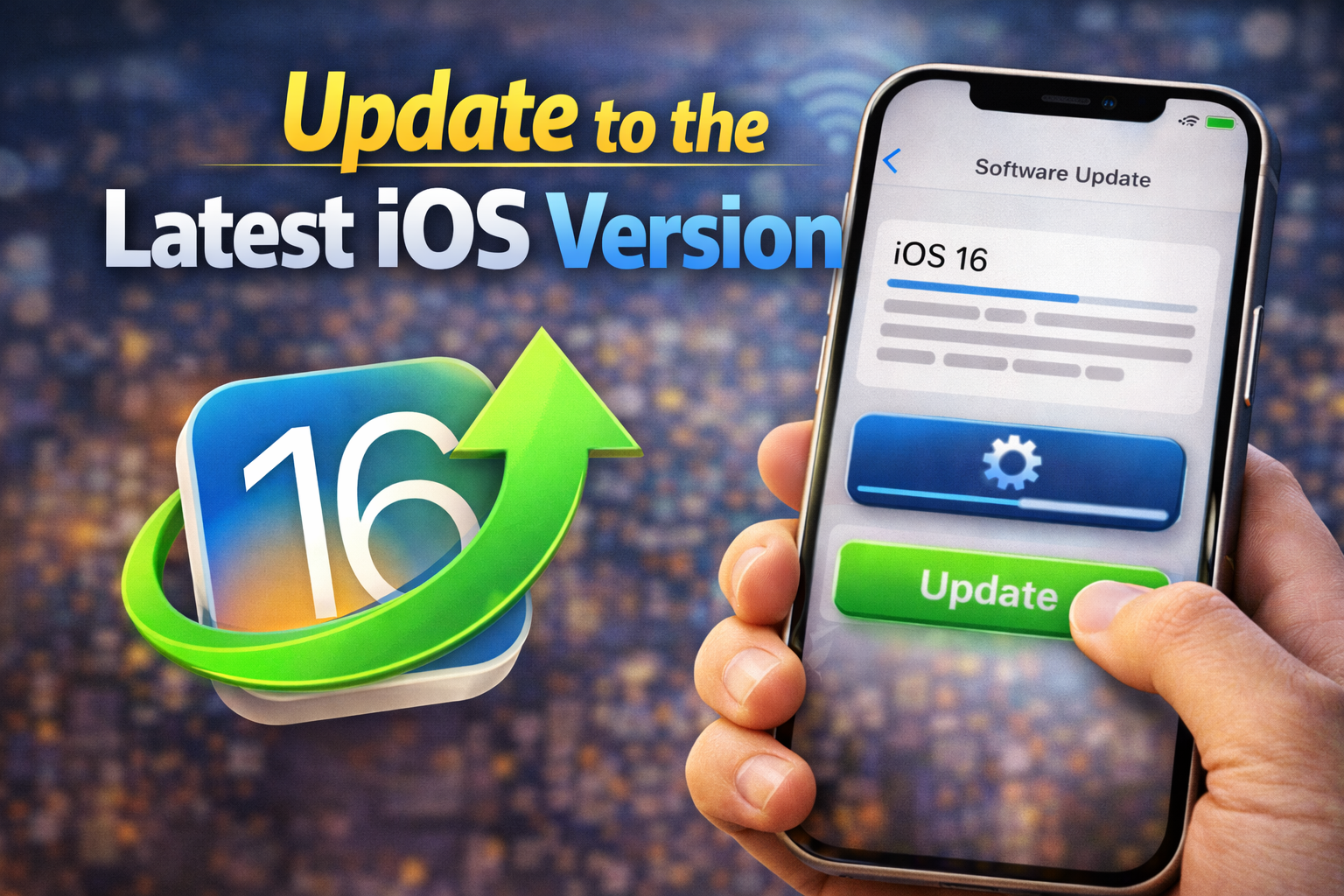
Apple often releases small updates to fix bugs.
Steps:
- Open Settings.
- Tap General.
- Select Software Update.
- Install any available updates.
These updates often include iPhone solution fixes for WiFi problems.
Fix 8 – Turn Off WiFi Assist
WiFi Assist automatically switches to cellular data, which may confuse the connection.
Steps:
- Go to Settings.
- Tap Cellular.
- Scroll down to WiFi Assist.
- Turn it OFF.
Fix 9 – Reset All Settings
If nothing works, resetting all settings may solve deeper system conflicts.
Steps:
- Open Settings.
- Tap General.
- Select Transfer or Reset iPhone.
- Tap Reset.
- Choose Reset All Settings.
This will not delete your data.
Quick Tips to Prevent This Problem
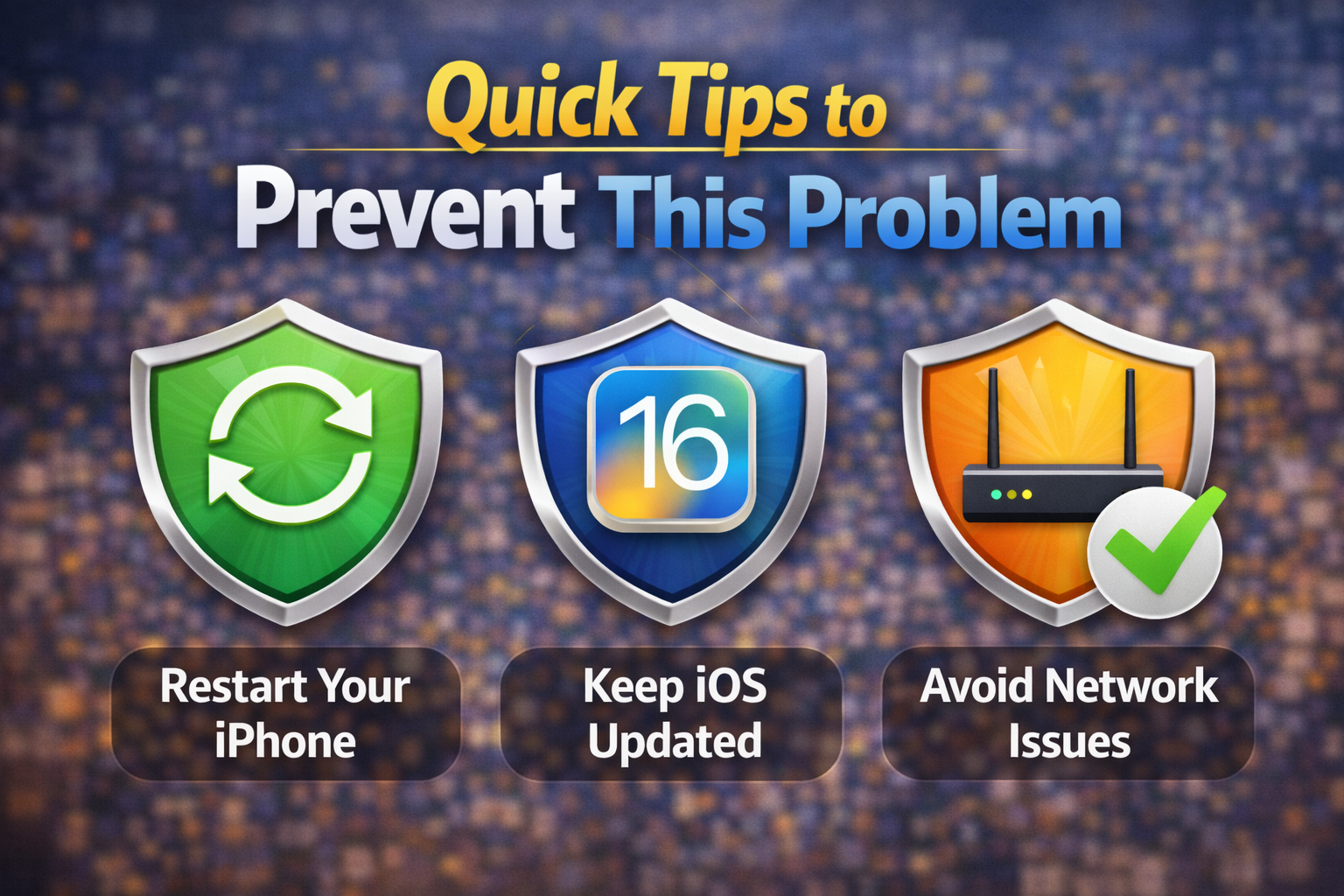
Follow these tips to avoid WiFi issues after future iOS updates.
• Restart your iPhone after every major update.
• Update your router firmware regularly.
• Avoid installing unstable beta iOS versions.
• Keep your iPhone storage free for smoother updates.
• Regularly reset network settings if problems appear.
These Apple iPhone guide tips help maintain a stable connection.
When You Should Contact Apple Support
If the iPhone WiFi not connecting after iOS update problem continues, professional help may be required.
Contact Apple Support if:
• WiFi is completely grayed out
• Your iPhone cannot detect any networks
• The issue started after hardware damage
• None of the troubleshooting methods work
You can visit an Apple Store or use Apple’s online support service.
FAQ (People Also Ask)
Why is my iPhone having this problem?
Most of the time, the problem happens due to software glitches or network settings conflicts after installing a new iOS update.
Can this issue damage my iPhone?
No. WiFi connection issues usually do not damage your device. They are typically software-related and easy to fix.
Does restarting fix the problem?
Yes. Restarting the device often fixes temporary bugs caused by iOS updates.
Why does my WiFi disconnect after the update?
Your saved WiFi configuration may become incompatible with the new system version.
Should I reset network settings?
Yes. Resetting network settings is one of the most reliable how to fix iPhone solutions.
Conclusion
Experiencing iPhone WiFi not connecting after iOS update can be frustrating, but in most cases, it is easy to fix. Simple steps like restarting your device, reconnecting to WiFi, or resetting network settings can solve the problem quickly.
By following the solutions in this iOS troubleshooting guide, you can restore your internet connection and enjoy your iPhone again without interruption.
If the problem persists, contacting Apple Support may help identify deeper system issues.
Try these fixes today and get your iPhone back online in minutes.