How to Use Quick Start to Set Up a New iPhone
Setting up a new iPhone does not have to be complicated or time-consuming. If you are switching from an old iPhone, Apple’s built-in Quick Start feature makes the process fast and easy. In this guide, you will learn how to use Quick Start to set up a new iPhone step by step, without losing your data.
This article is written for beginners and normal users. It uses simple language and real-world examples, so anyone can follow along—even if you are not tech-savvy.
What Is Quick Start on iPhone?
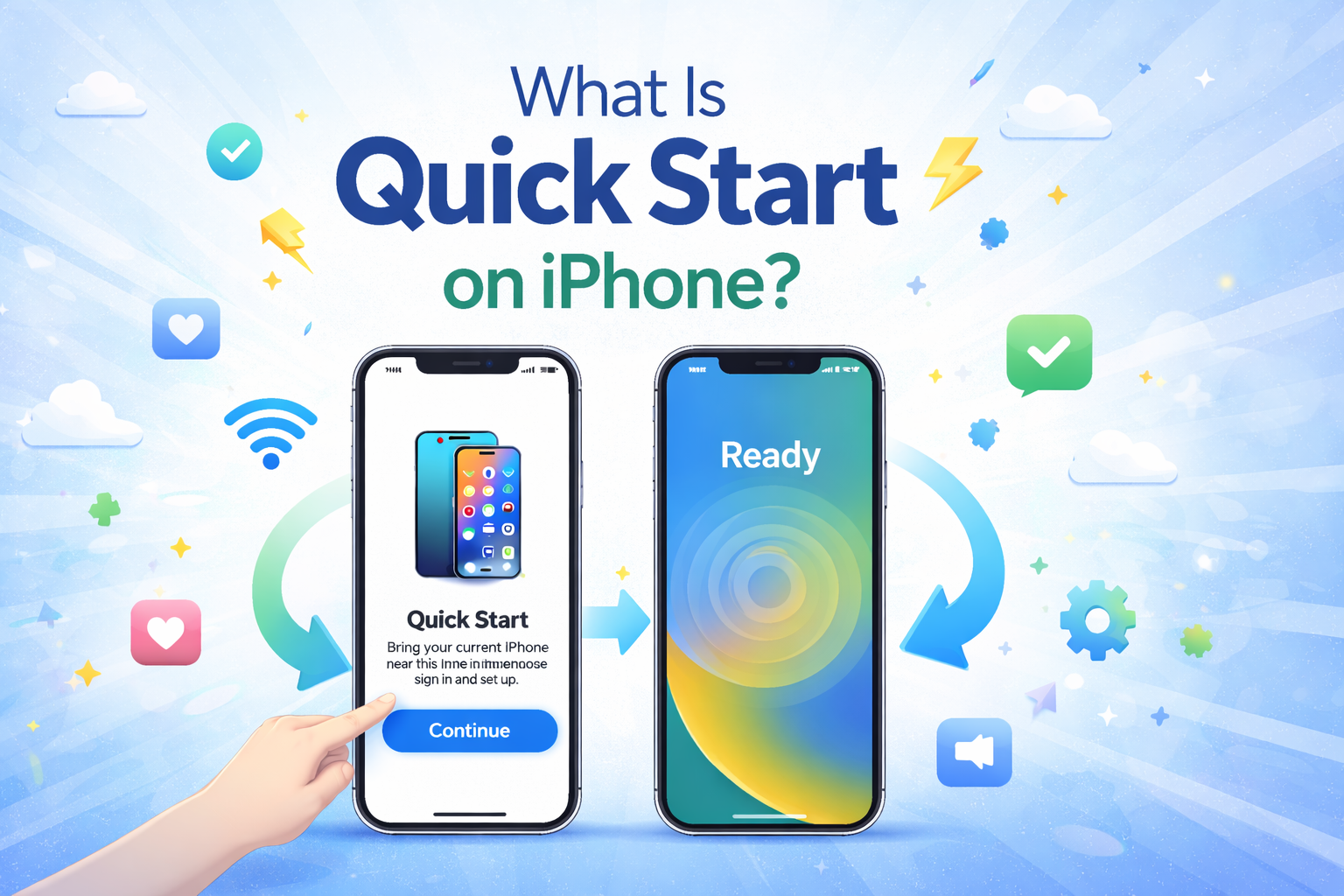
Quick Start is an Apple feature that helps you set up a new iPhone using your old iPhone. Instead of manually signing in, downloading apps, and restoring settings one by one, Quick Start transfers everything automatically.
With Quick Start, you can move:
- Apple ID and settings
- Apps and app data
- Photos and videos
- Messages and contacts
- Device preferences
As long as both iPhones are nearby and running iOS 12.4 or later, Quick Start works smoothly.
Why You Should Use Quick Start to Set Up a New iPhone
Before learning how to use Quick Start to set up a new iPhone, it helps to know why this method is recommended.
Benefits of Using Quick Start
- Saves time compared to manual setup
- No need to connect to a computer
- Transfers data securely
- Beginner-friendly with on-screen instructions
Real-World Example
Imagine you buy a new iPhone in the morning and want to use it the same day. Instead of spending hours reinstalling apps and logging in again, Quick Start lets you finish setup in under an hour, depending on your data size.
What You Need Before Using Quick Start
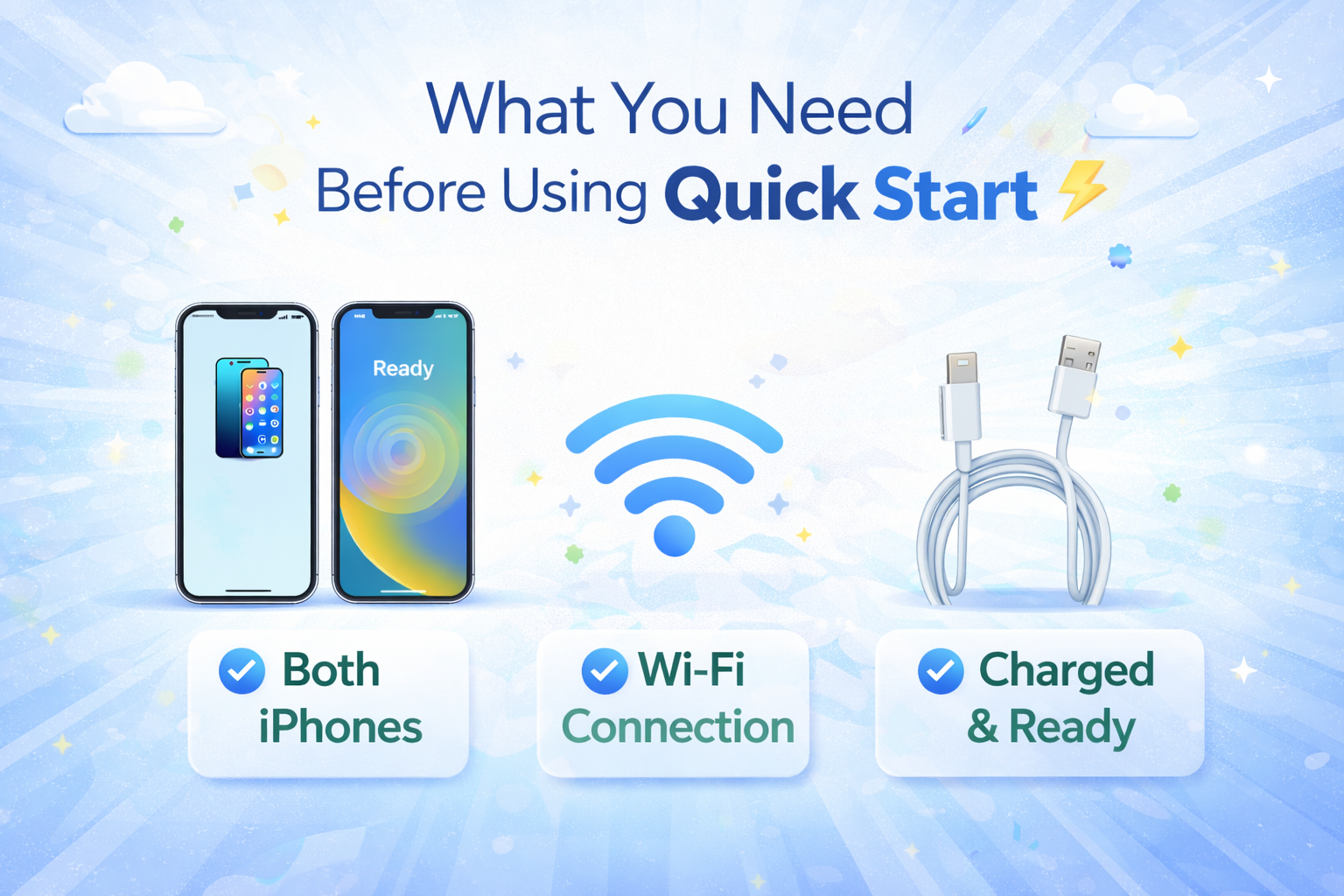
Before starting, make sure everything is ready. This prevents errors during setup.
Requirements Checklist
- Old iPhone running iOS 12.4 or later
- New iPhone turned on and not yet set up
- Both iPhones connected to Wi-Fi
- Bluetooth enabled on both devices
- Enough battery (or keep phones plugged in)
Tip for Smooth Setup
If your old iPhone storage is almost full, consider deleting unnecessary files before transferring. This makes the process faster and more stable.
How to Use Quick Start to Set Up a New iPhone (Step-by-Step)
This is the most important section of the guide. Follow these steps carefully.
Step 1: Turn On Your New iPhone
- Press and hold the Power button on your new iPhone.
- When the “Hello” screen appears, swipe up to begin.
- Select your language and country.
Keep the new iPhone close to your old iPhone.
Step 2: Bring Your Old iPhone Nearby
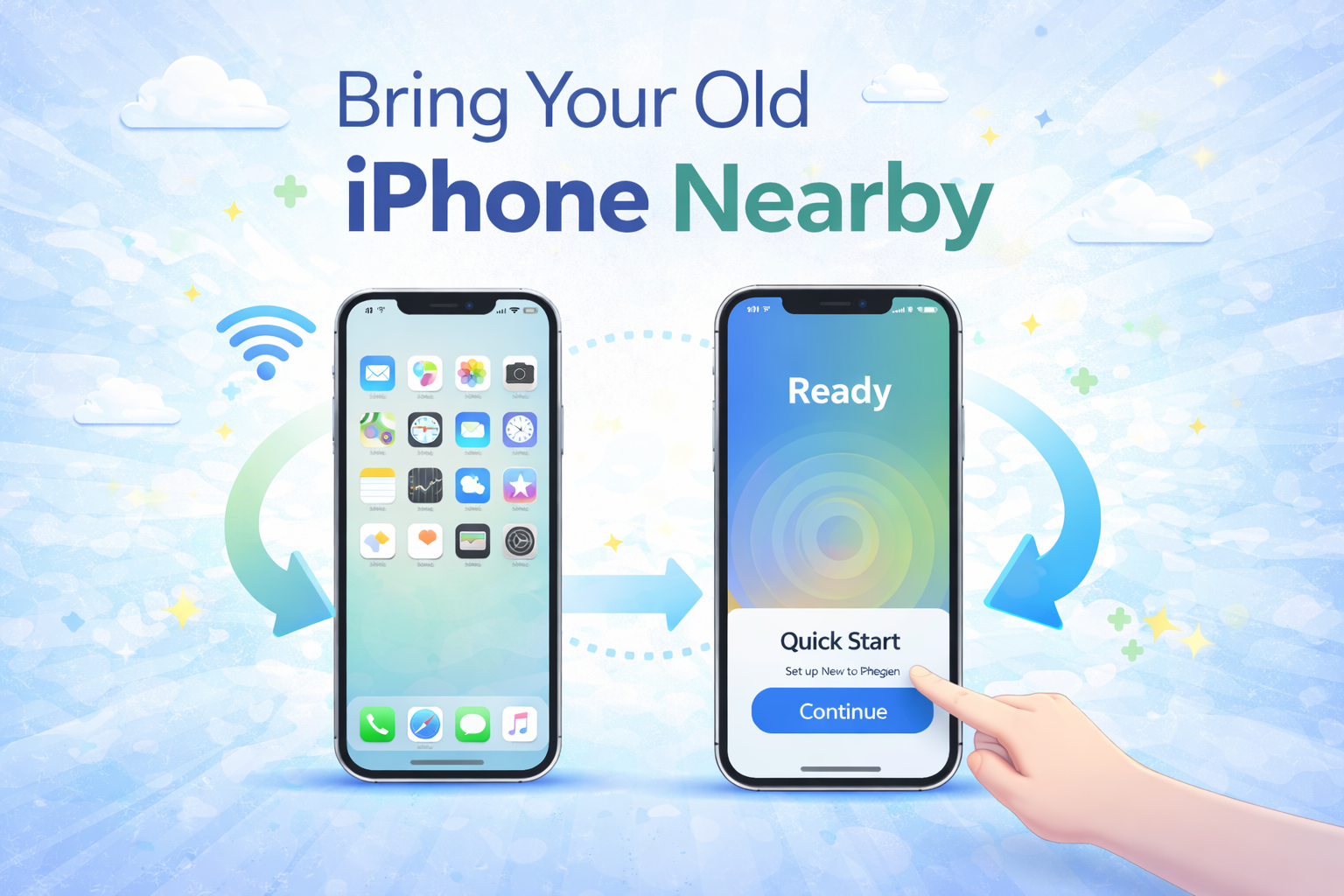
When your old iPhone is unlocked and near the new one, a message will appear:
“Set Up New iPhone”
Tap Continue on your old iPhone. This is how Quick Start begins.
If Nothing Appears
- Make sure Bluetooth is turned on
- Restart both iPhones
- Place devices closer together
Step 3: Scan the Animation
An animation will appear on the new iPhone screen.
- Hold your old iPhone over the new iPhone.
- Center the animation in the camera viewfinder.
- Wait for confirmation.
This step securely connects both devices.
Step 4: Enter Your Old iPhone Passcode
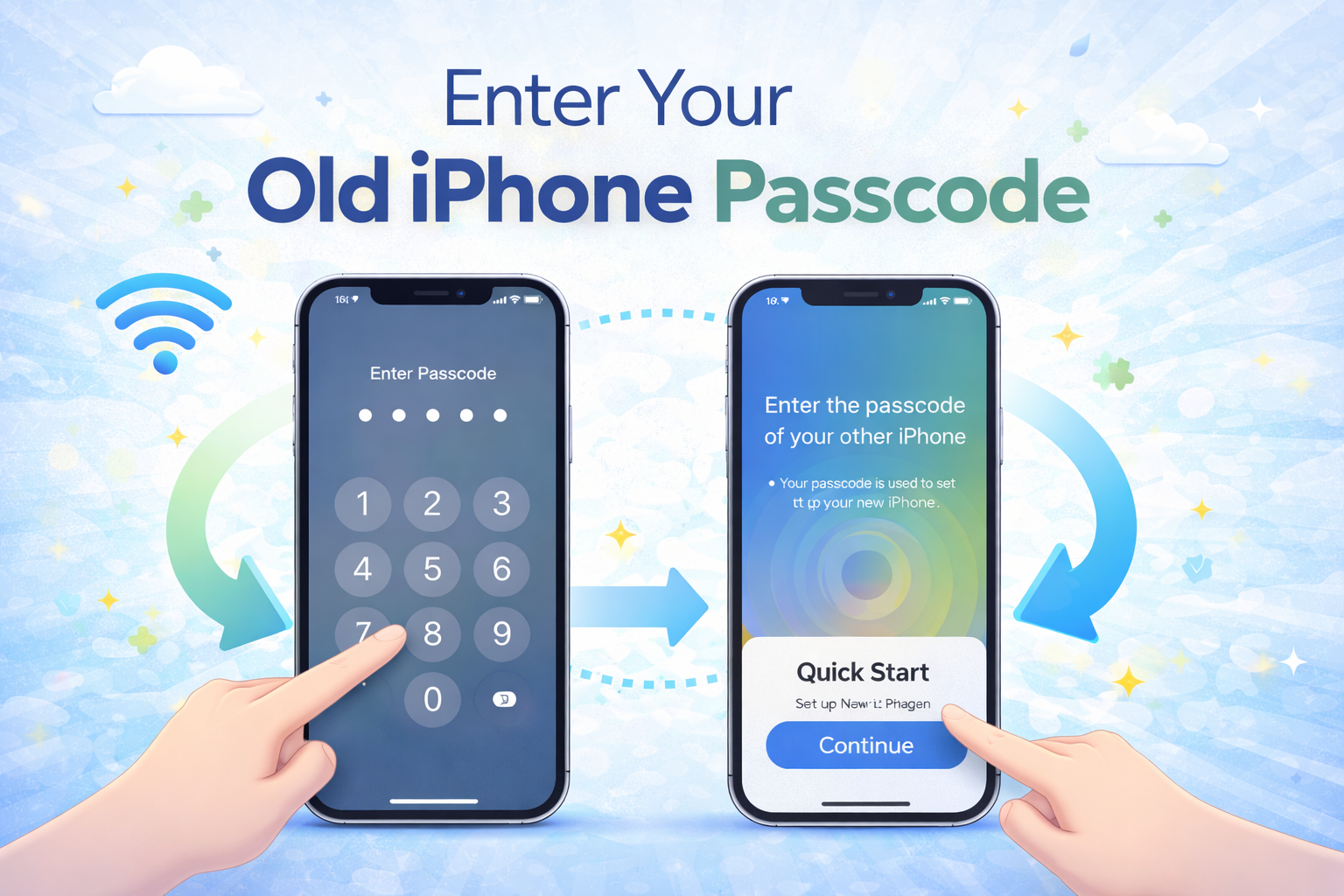
On the new iPhone, enter the passcode from your old iPhone. This confirms your identity and allows data transfer.
You may also be asked to:
- Set up Face ID or Touch ID
- Agree to Apple’s terms and conditions
Step 5: Choose How to Transfer Data
This is a key moment when using Quick Start to set up a new iPhone.
You will see two options:
- Transfer Directly from iPhone
- Download from iCloud
Option 1: Transfer Directly from iPhone
- Faster if you have strong Wi-Fi
- Transfers data phone-to-phone
- No extra iCloud storage needed
Option 2: Download from iCloud
- Requires recent iCloud backup
- Useful if old iPhone battery is low
- Slower but reliable
For most users, Transfer Directly from iPhone is the best choice.
Step 6: Wait for the Transfer to Finish
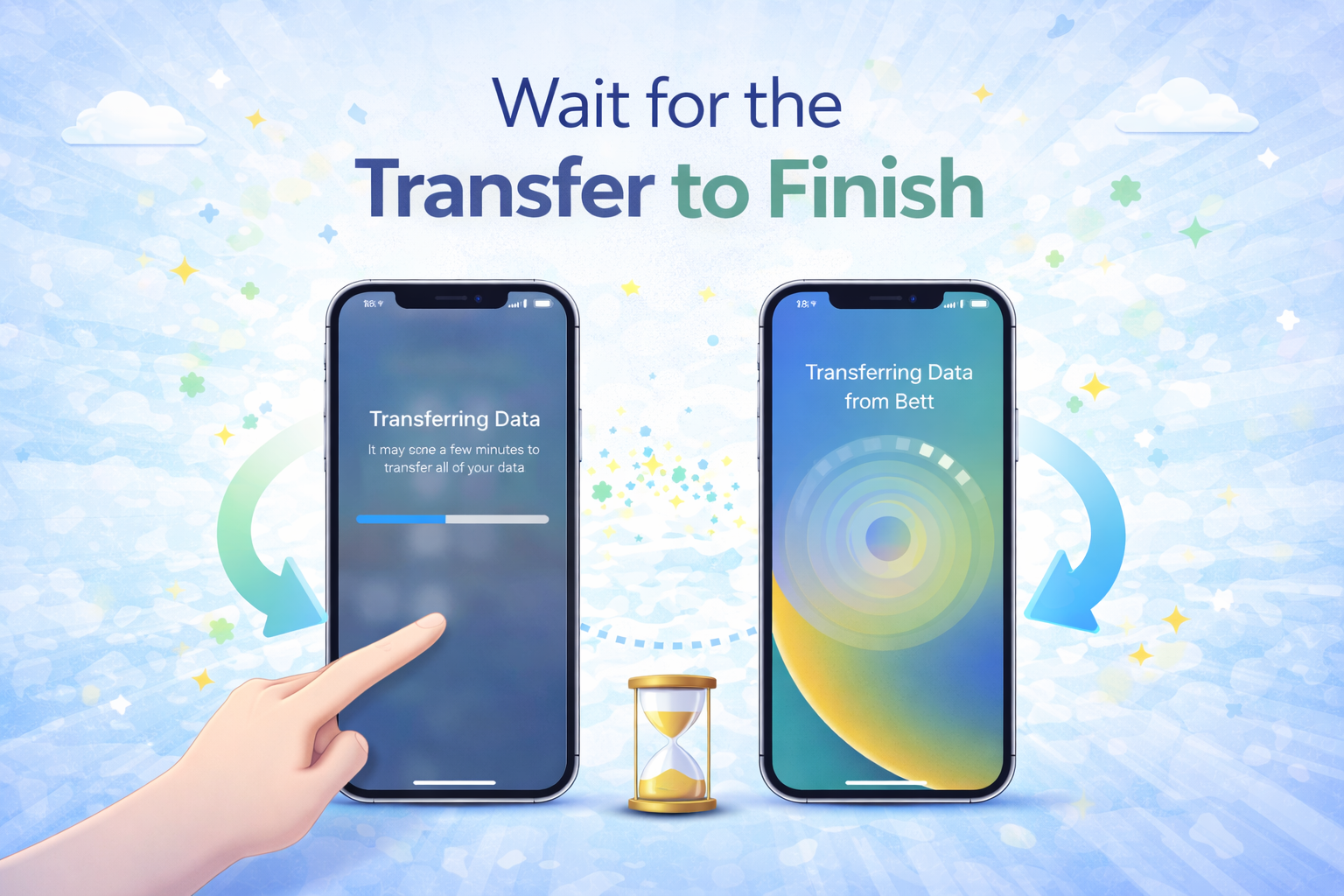
The transfer time depends on:
- Amount of data
- Wi-Fi speed
- Phone model
During this time:
- Keep both iPhones close
- Do not lock or restart devices
- Keep phones plugged in
Real-World Example
If you have 50 GB of photos and apps, the transfer may take 30–60 minutes. Smaller data sets may finish in 10–15 minutes.
Step 7: Complete Setup on the New iPhone
Once the transfer is complete:
- Your apps will appear on the Home Screen
- Photos and messages will continue syncing
- Settings will match your old iPhone
You can now use your new iPhone normally while remaining data finishes downloading in the background.
Common Problems and How to Fix Them
Even though Quick Start is reliable, issues can happen.
Quick Start Not Working
- Restart both devices
- Update old iPhone to the latest iOS
- Reset network settings if needed
Transfer Stuck or Slow
- Check Wi-Fi connection
- Keep devices charging
- Be patient—large transfers take time
Missing Apps or Data
- Sign in to the App Store with your Apple ID
- Wait for background downloads
- Check iCloud sync settings
Tips to Make Quick Start Faster and Safer
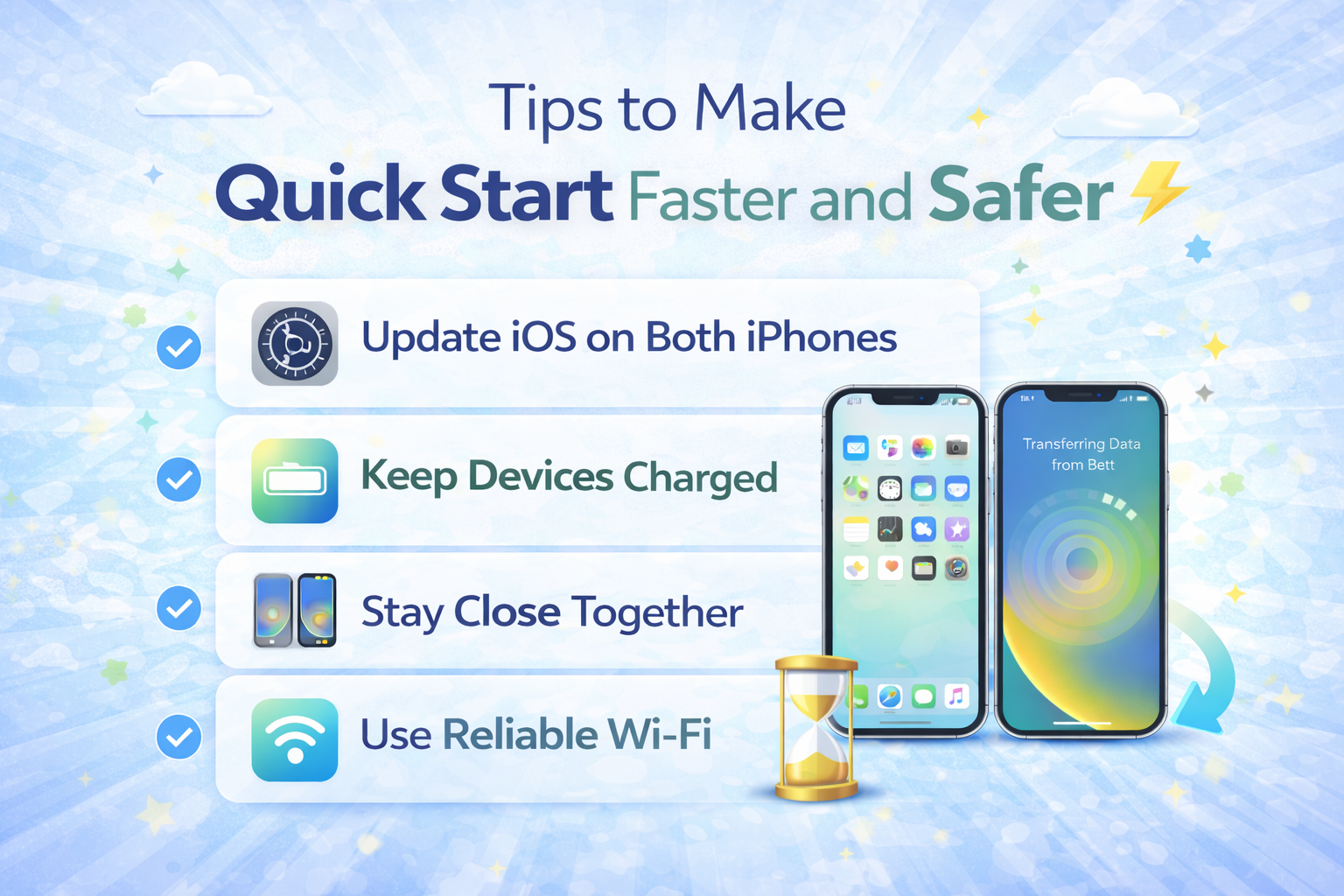
Here are some practical tips many users overlook:
- Use strong and stable Wi-Fi
- Charge both iPhones to at least 50%
- Avoid using phones during transfer
- Keep screen unlocked if possible
These small steps can prevent interruptions.
When You Should NOT Use Quick Start
Quick Start is excellent, but not always ideal.
Avoid Quick Start if:
- Your old iPhone is broken
- Screen is unresponsive
- You want a completely fresh start
In these cases, iCloud backup or computer restore may be better.
FAQ: How to Use Quick Start to Set Up a New iPhone
1. Can I use Quick Start without Wi-Fi?
No. Wi-Fi is required to transfer data and verify your Apple ID.
2. Does Quick Start transfer everything?
It transfers most data, including apps, photos, messages, and settings. Some apps may require you to log in again.
3. How long does Quick Start take?
Anywhere from 10 minutes to over an hour, depending on data size and internet speed.
4. Can I cancel Quick Start once it starts?
Yes, but canceling may cause incomplete transfers. It’s best to let it finish.
5. Is Quick Start safe and secure?
Yes. Apple uses encrypted connections to protect your data during transfer.
Conclusion
Learning how to use Quick Start to set up a new iPhone can save you time, stress, and effort. It is one of the easiest and safest ways to move from an old iPhone to a new one. With just a few taps, you can transfer your data, settings, and apps without technical skills.
If you are upgrading to a new iPhone, Quick Start is the best place to begin. Follow the steps in this guide, stay patient during the transfer, and enjoy your new device with everything already in place.