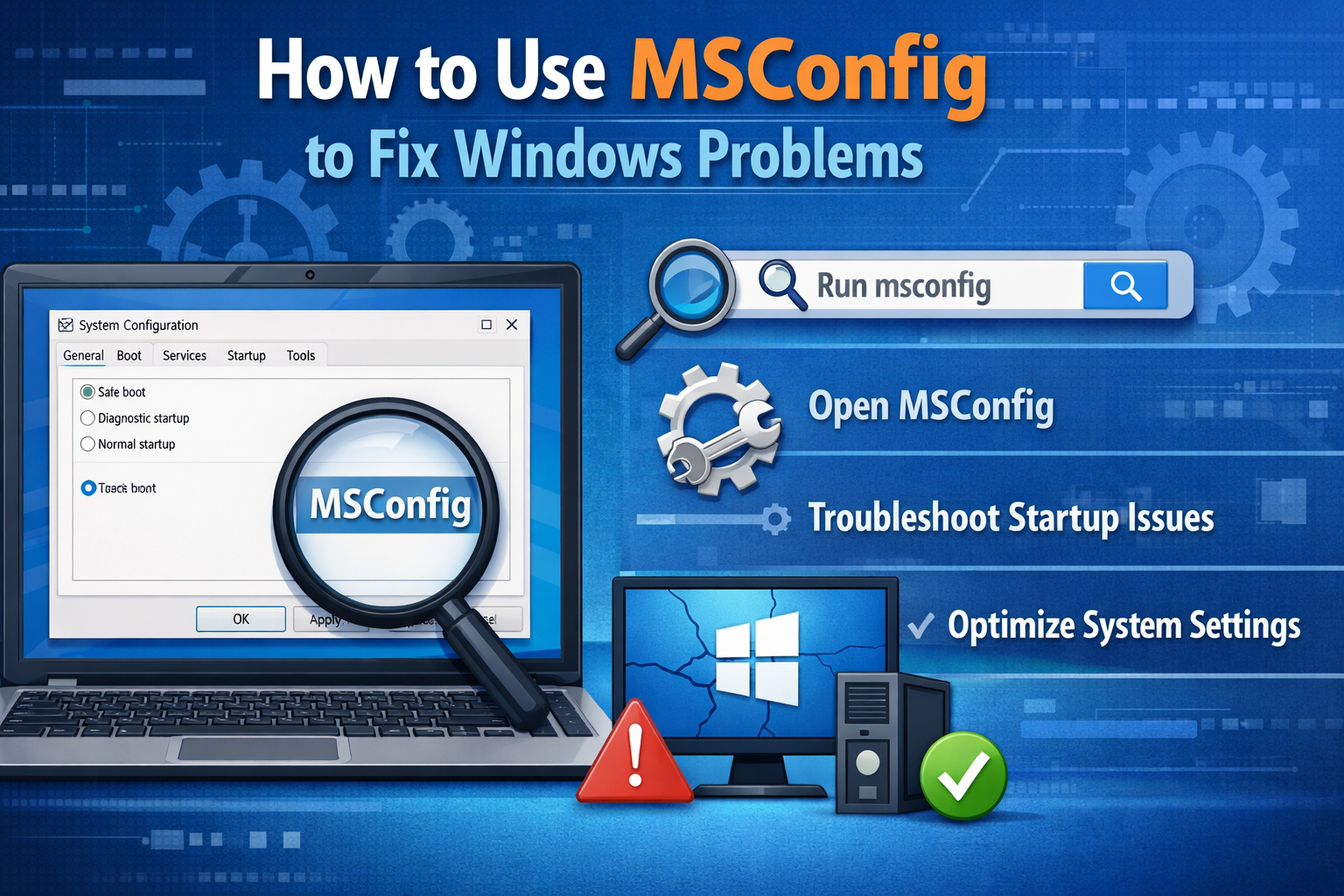
How to Use MSConfig to Fix Windows Problems (Beginner-Friendly Guide)
Windows problems like slow startup, random crashes, or apps not opening can make your PC frustrating to use. Many users immediately think about reinstalling Windows, but in many cases, that’s not necessary. One powerful built-in tool can help you troubleshoot these issues safely: MSConfig.
In this beginner-friendly guide, you’ll learn how to use MSConfig to fix Windows problems step by step. We’ll explain what MSConfig is, when to use it, and how to apply it in real-world situations—without risking your files or system.
What Is MSConfig?
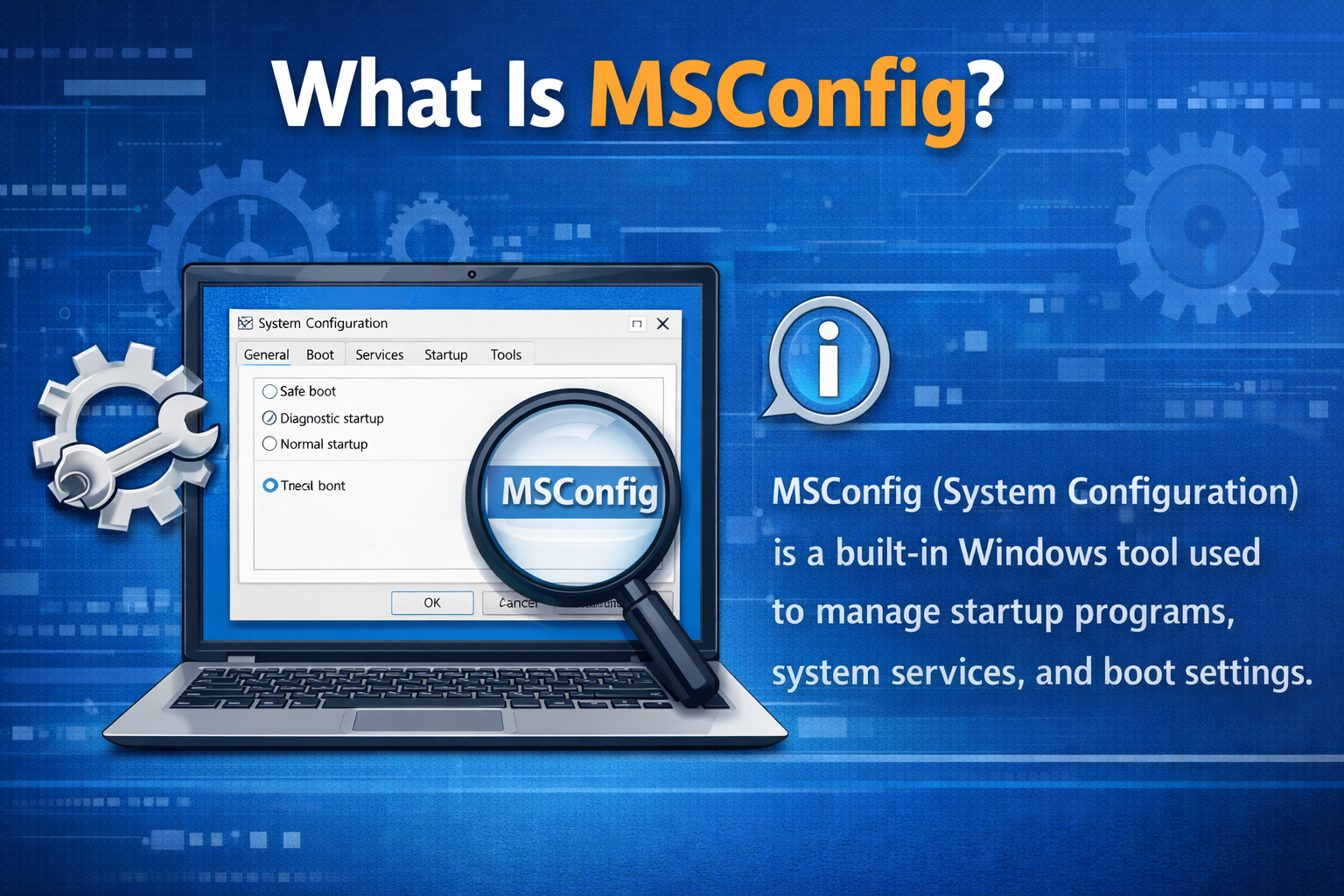
MSConfig (short for System Configuration) is a Windows tool that helps you manage:
- Startup programs
- Boot options
- System services
- Troubleshooting settings
It is mainly used to identify and fix Windows problems caused by conflicting software, drivers, or services.
When Should You Use MSConfig?
MSConfig is helpful if:
- Windows starts very slowly
- Your PC crashes after startup
- Some programs fail to open
- Windows behaves strangely after installing new software
- You suspect a startup or service conflict
Why MSConfig Can Fix Many Windows Problems
Most Windows issues are not caused by Windows itself—but by:
- Third-party startup programs
- Background services
- Conflicting drivers
MSConfig helps you isolate the problem by starting Windows with only essential components.
Real-World Example:
Your PC becomes slow after installing a free video converter. Using MSConfig, you disable unnecessary startup services and your PC works normally again.
How to Open MSConfig in Windows
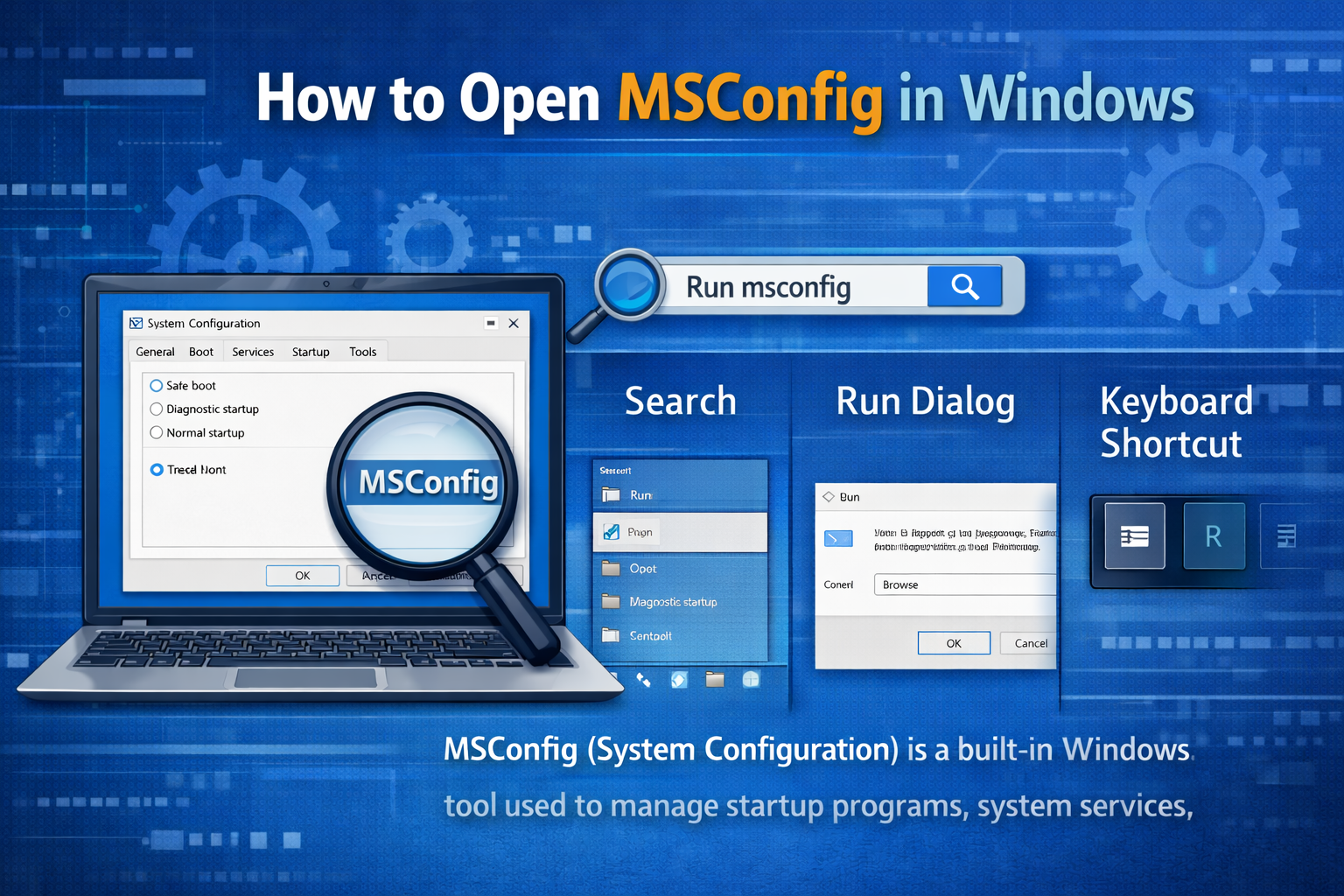
Before learning how to use MSConfig to fix Windows problems, let’s see how to open it.
Steps:
- Press Windows + R
- Type msconfig
- Press Enter
The System Configuration window will open.
Understanding MSConfig Tabs (Simple Explanation)
MSConfig has several tabs. Each one serves a different purpose.
General Tab
Controls how Windows starts:
- Normal startup
- Diagnostic startup
- Selective startup
Boot Tab
Manages boot options like Safe Mode.
Services Tab
Shows background services that run with Windows.
Startup Tab
Redirects to Task Manager (Windows 10/11) to manage startup apps.
How to Use MSConfig to Fix Windows Problems (Step-by-Step)
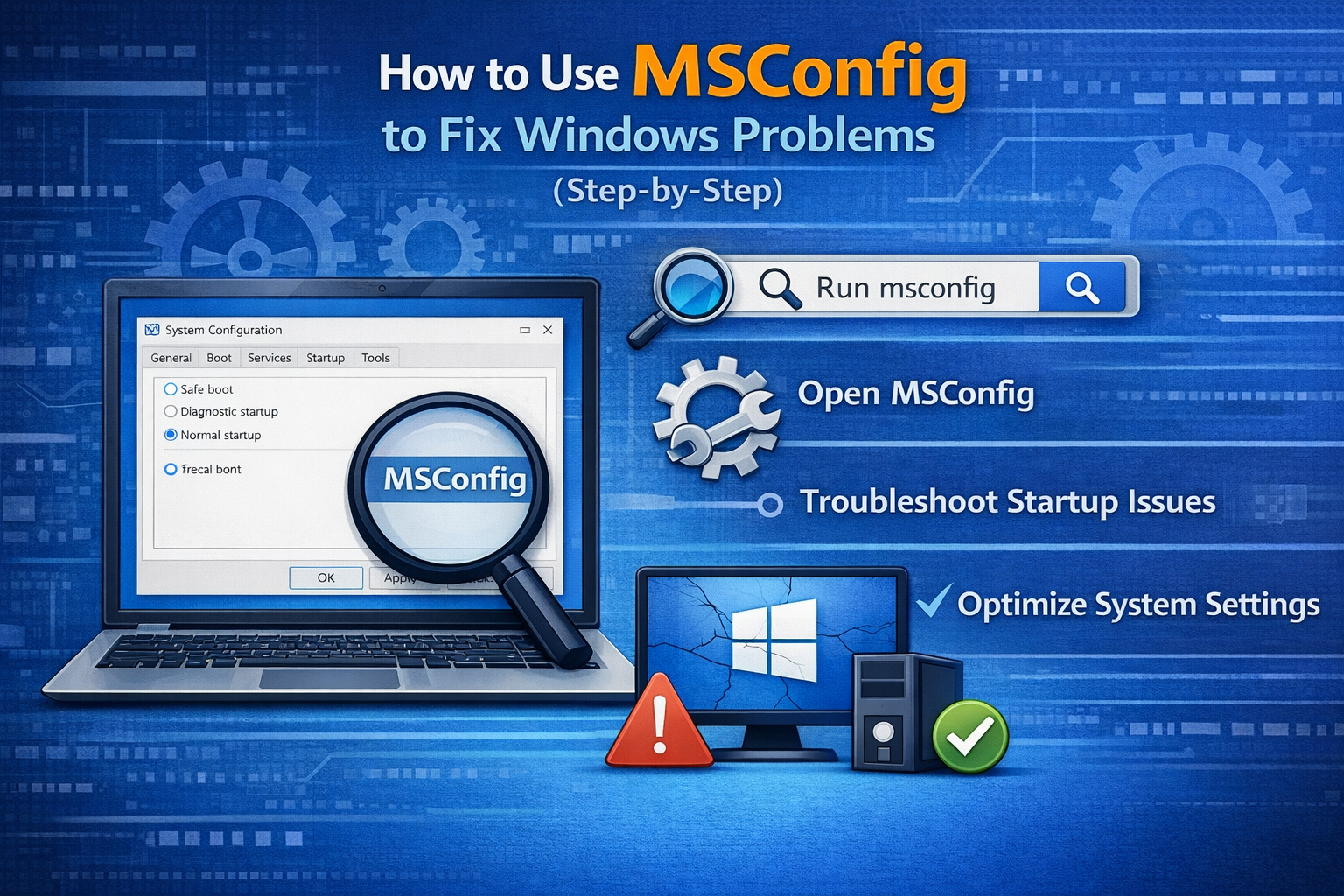
H2: How to Use MSConfig to Fix Windows Problems Safely
This section explains the most effective and safe methods beginners can use.
1. Use Diagnostic Startup to Identify Problems
Diagnostic startup loads only basic drivers and services.
Steps:
- Open MSConfig
- Go to the General tab
- Select Diagnostic startup
- Click Apply → OK
- Restart your PC
What This Does:
- Disables third-party apps
- Loads essential Windows services only
Real-World Example:
If Windows works fine in Diagnostic Startup, the problem is likely caused by a startup app or service.
2. Perform a Clean Boot Using MSConfig
A Clean Boot is one of the best ways to fix Windows problems.
Steps:
- Open MSConfig
- Go to the Services tab
- Check Hide all Microsoft services
- Click Disable all
- Go to the Startup tab
- Click Open Task Manager
- Disable all startup apps
- Restart your PC
Why This Works:
It helps identify which app or service is causing conflicts.
3. Re-Enable Services One by One (Troubleshooting Method)
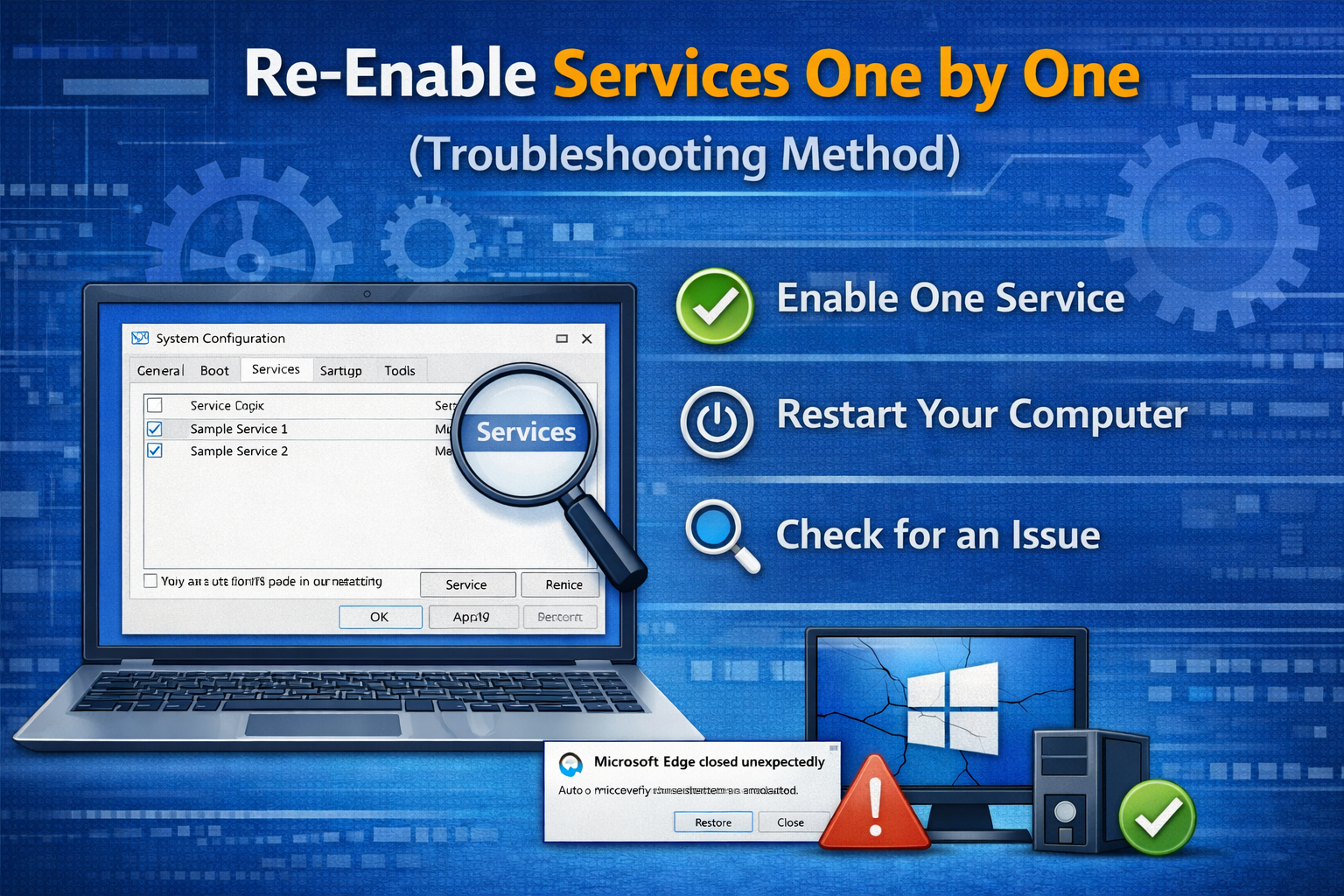
After Clean Boot, enable services gradually to find the culprit.
Steps:
- Open MSConfig again
- Enable a few services
- Restart your PC
- Repeat until the issue returns
Real-World Example:
You discover that a third-party antivirus service is causing system crashes.
4. Use Boot Tab to Access Safe Mode
Safe Mode helps fix serious Windows issues.
Steps:
- Open MSConfig
- Go to the Boot tab
- Check Safe boot
- Choose Minimal
- Click Apply → OK
- Restart your PC
Best Used For:
- Removing stubborn software
- Fixing startup errors
- Troubleshooting driver problems
Tip:
Disable Safe Boot after troubleshooting, or Windows will always start in Safe Mode.
5. Fix Slow Startup Using MSConfig
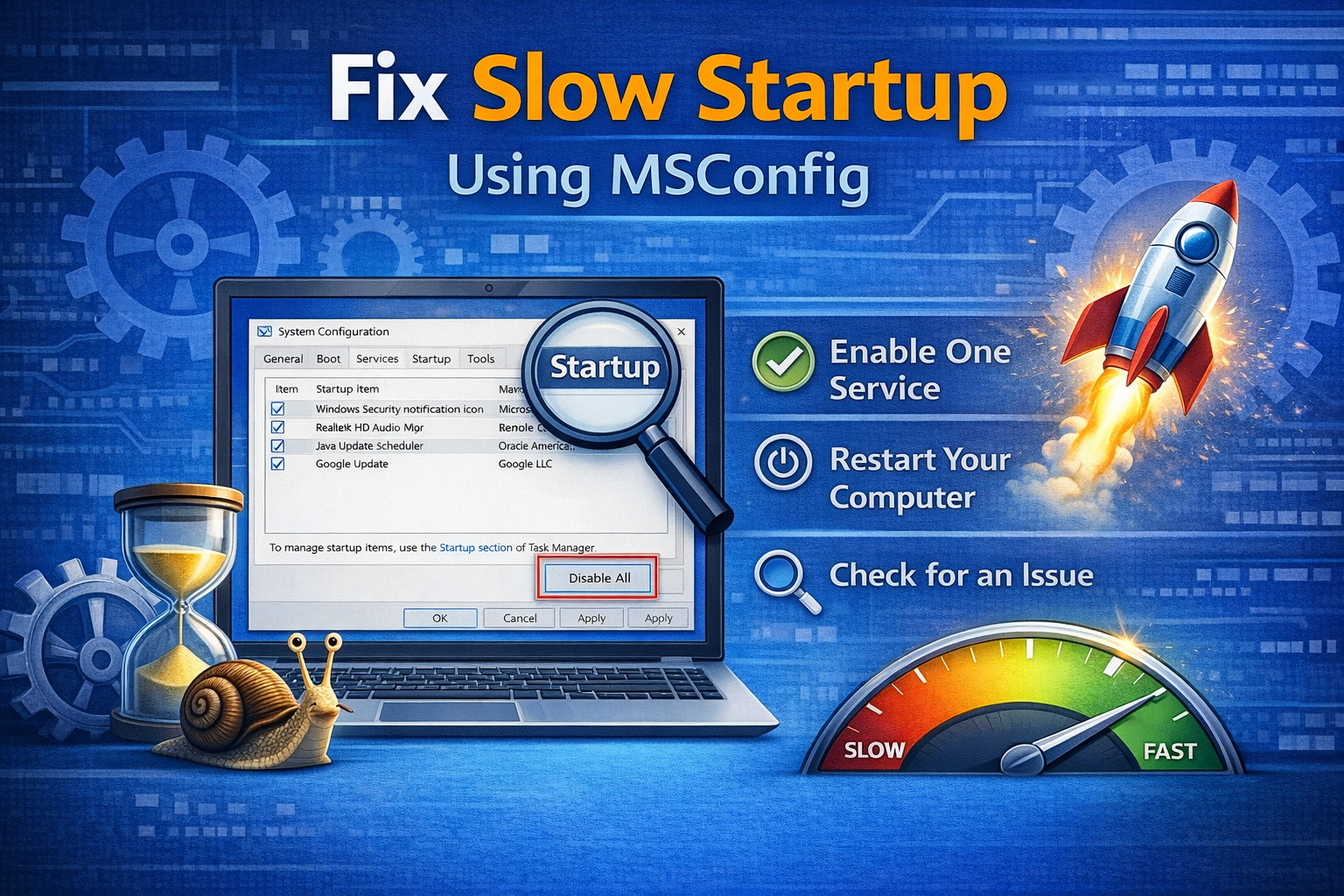
Slow startup is often caused by too many startup apps.
Steps:
- Open MSConfig
- Go to Startup
- Open Task Manager
- Disable unnecessary startup programs
- Restart your PC
Real-World Example:
Disabling game launchers and auto-updaters speeds up boot time significantly.
6. Fix App Crashes Using MSConfig
If apps crash on startup, MSConfig can help isolate the issue.
Steps:
- Perform a Clean Boot
- Test the crashing app
- Re-enable services gradually
Result:
You identify the conflicting background service.
7. Reset MSConfig to Normal Startup (Very Important)
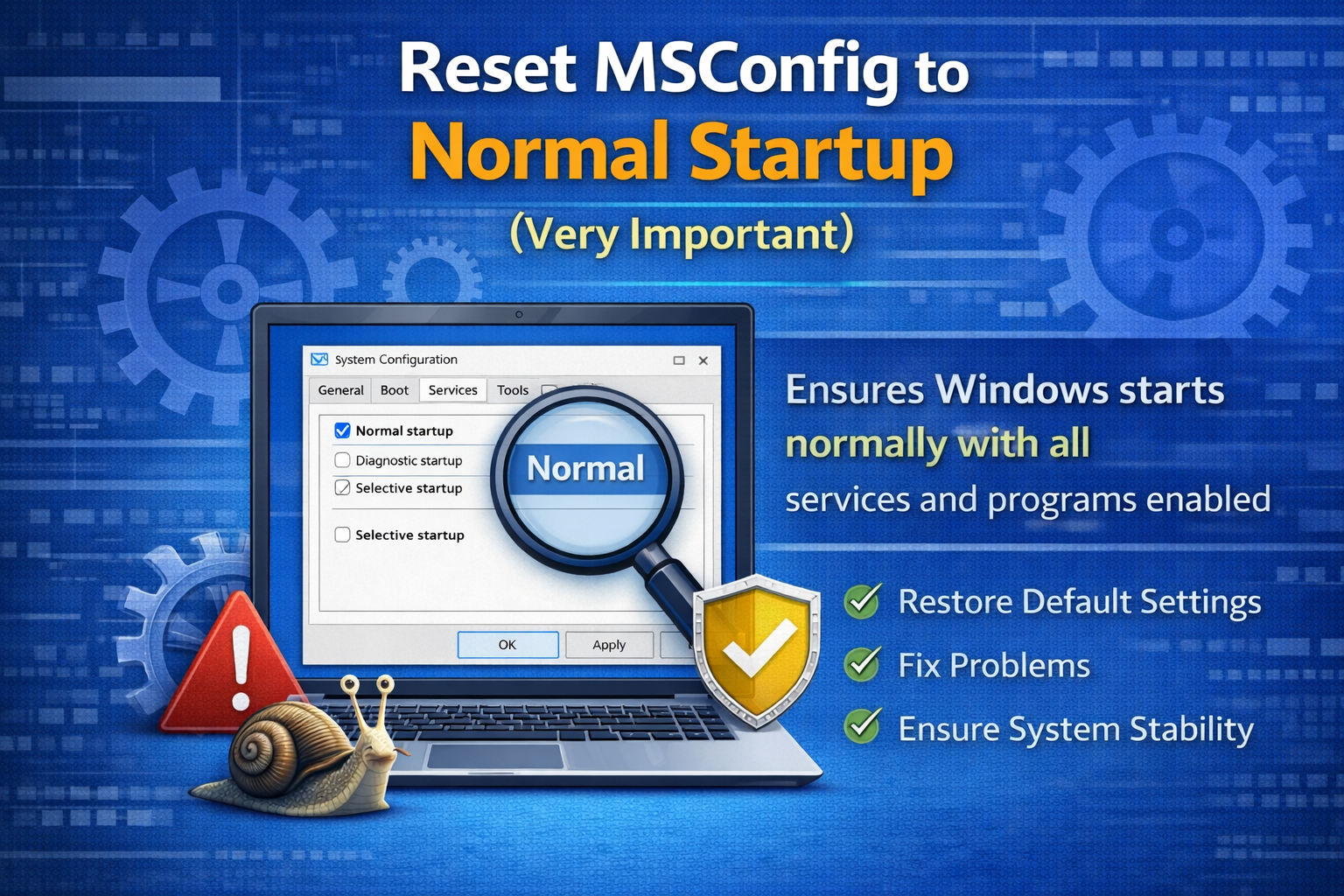
After fixing the issue, always restore normal startup.
Steps:
- Open MSConfig
- Go to General
- Select Normal startup
- Click Apply → OK
- Restart your PC
This ensures Windows runs normally again.
Common Mistakes to Avoid When Using MSConfig
Disabling Microsoft services
Forgetting to restore normal startup
Disabling all services without testing
Using MSConfig as a permanent solution
MSConfig is a troubleshooting tool, not a long-term configuration manager.
When MSConfig Is Not Enough
Sometimes MSConfig cannot fix the problem.
Try These Instead:
- System Restore
- SFC /scannow
- DISM commands
- Malware scan
Use MSConfig as part of a broader troubleshooting process.
FAQ: How to Use MSConfig to Fix Windows Problems
1. Is MSConfig safe for beginners?
Yes, if used carefully and Microsoft services are not disabled.
2. Can MSConfig delete my files?
No. MSConfig only changes startup behavior.
3. Why does Windows keep booting into Safe Mode?
You forgot to disable Safe Boot in MSConfig.
4. Should I keep services disabled permanently?
No. Re-enable services after troubleshooting.
5. Does MSConfig work on Windows 10 and 11?
Yes. MSConfig works on both versions.
Conclusion
Learning how to use MSConfig to fix Windows problems can save you time, stress, and unnecessary Windows reinstalls. It’s a powerful yet beginner-friendly tool that helps identify software conflicts, fix slow startups, and troubleshoot crashes safely.
When used correctly, MSConfig allows you to fix many common Windows issues without losing files or damaging your system. Just remember to use it carefully and always restore normal settings after troubleshooting.