How to Fix Google Account Verification Issues (Beginner-Friendly Guide)
Google account verification issues can be frustrating, especially when you are trying to sign in to Gmail, set up a new Android phone, or access important Google services. You may see messages like “Verify it’s you”, “Google couldn’t verify this account belongs to you”, or get stuck on the verification screen.
In this complete guide, you will learn how to fix Google account verification issues step by step. This article is written in simple, clear English and is perfect for beginners and normal users. You don’t need technical skills—just follow the instructions carefully.
What Are Google Account Verification Issues?
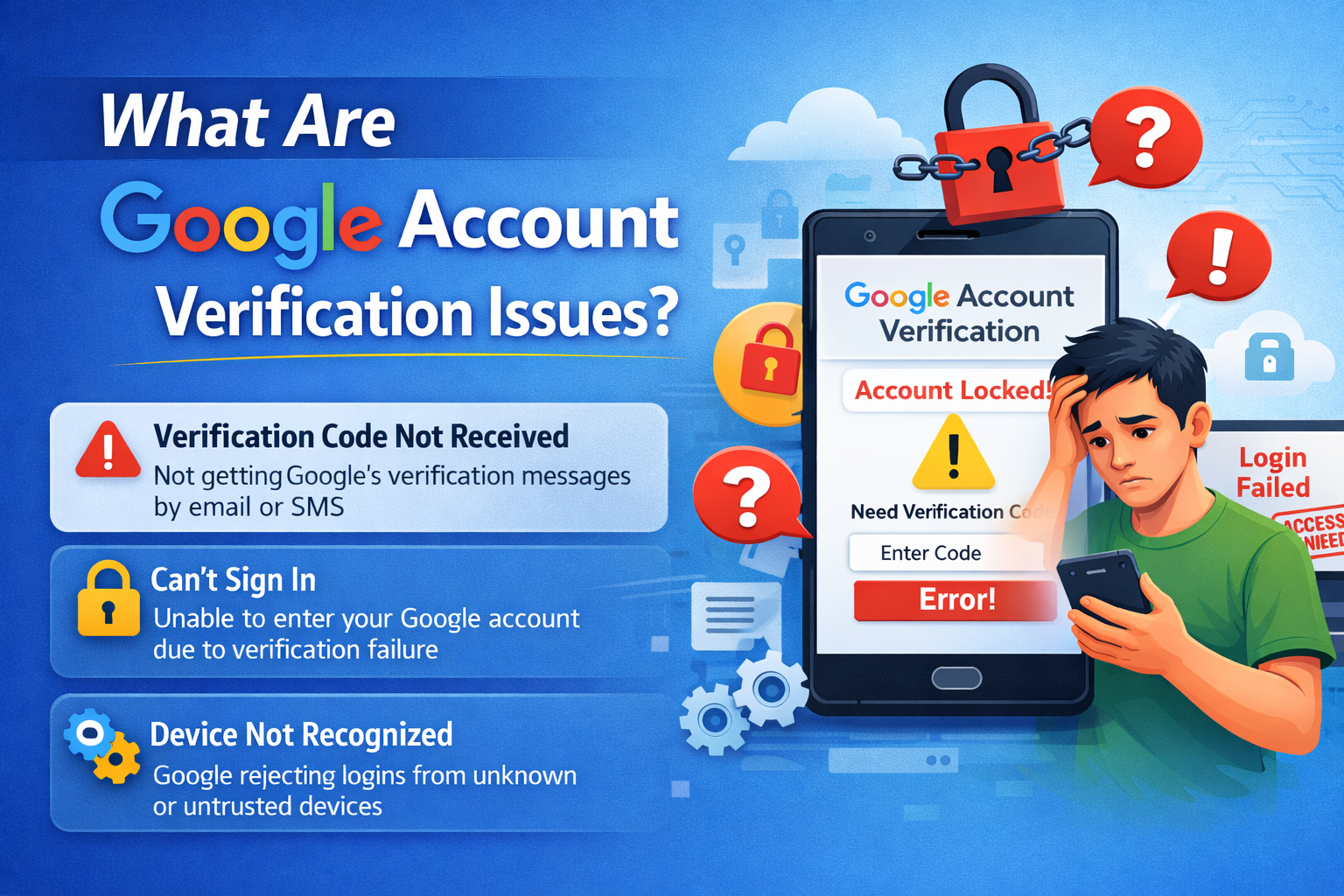
Google account verification is a security process used to confirm that you are the real owner of the account. Google may ask for verification when:
- You sign in from a new device
- You reset your password
- You factory reset your Android phone
- Google detects unusual activity
- You add your account to a new phone
When verification fails, you may be locked out temporarily.
Real-world example:
A user buys a second-hand Android phone, signs in with their Google account, and suddenly gets stuck on the “Verify it’s you” screen after a password reset.
Common Google Account Verification Problems
Here are the most common issues users face:
- Stuck on “Verify it’s you” screen
- Google not sending verification code
- Verification code expired
- “Couldn’t sign you in”
- Account locked for 24–48 hours
- Can’t verify account after factory reset
Understanding the problem helps you choose the right fix.
Basic Checks Before Fixing Google Account Verification Issues
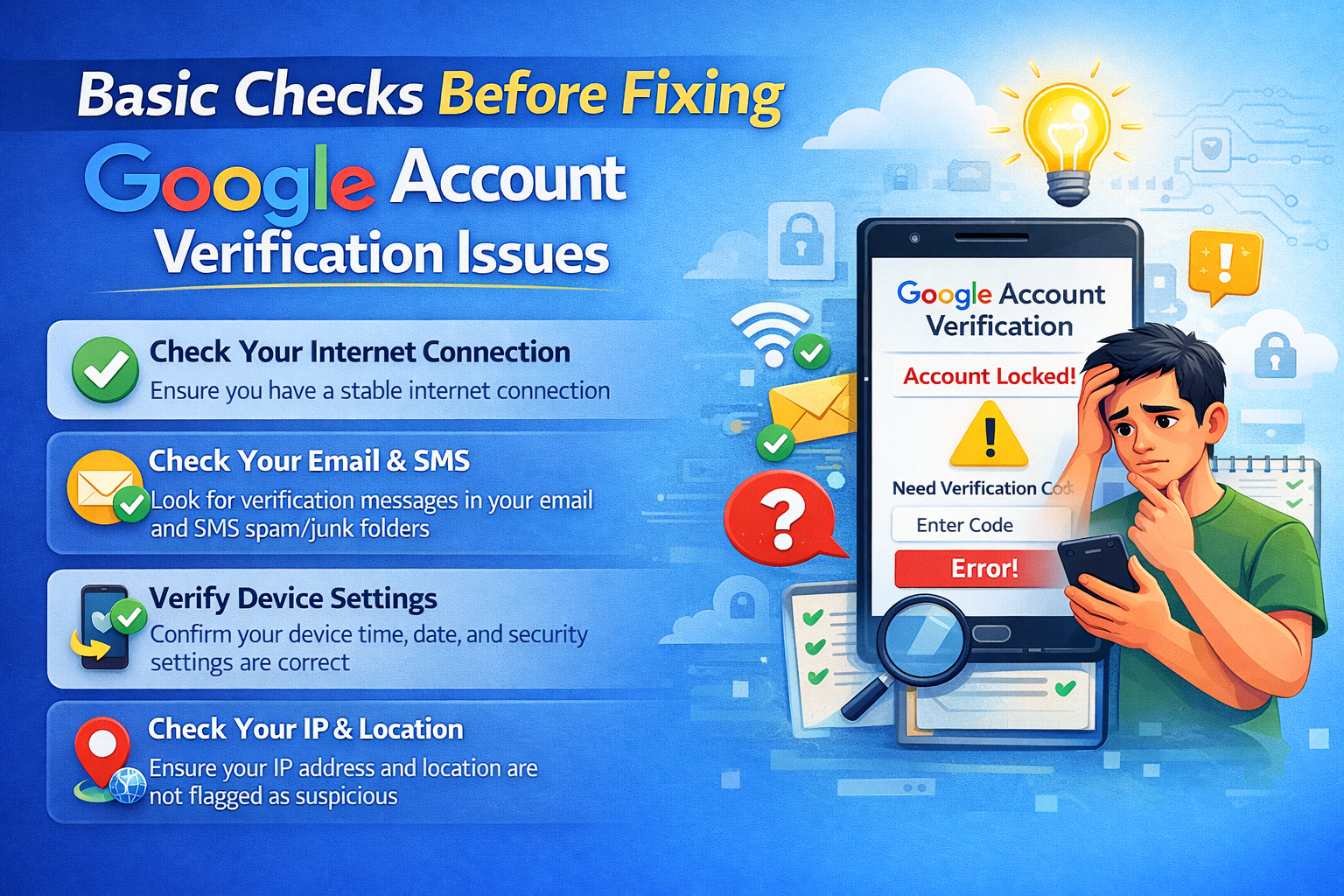
Always start with these simple checks.
1. Check Your Internet Connection
Verification requires a stable internet connection.
Steps:
- Switch between Wi-Fi and mobile data
- Turn Airplane mode ON for 10 seconds, then OFF
- Open a website to confirm internet is working
Weak or unstable internet can block verification requests.
2. Restart Your Phone or Device
A restart clears temporary bugs.
Steps:
- Press and hold the Power button
- Tap Restart
- Try signing in again
How to Fix Google Account Verification Issues (Step-by-Step)
3. Use a Previously Trusted Device (Most Important Fix)
Google trusts devices you used before.
Steps:
- Try signing in from:
- Your old phone
- Your home computer
- A familiar Wi-Fi network
- Use the same browser you used before
- Avoid VPNs or public Wi-Fi
Real-world example:
Many users successfully verify their account by signing in from their old Android phone instead of a new one.
4. Wait 24–48 Hours and Try Again
If Google detects suspicious activity, it may block verification temporarily.
Steps:
- Do not try to sign in repeatedly
- Wait 24 to 48 hours
- Try again from the same device and network
This is one of the most effective solutions.
Fix Verification Code Problems
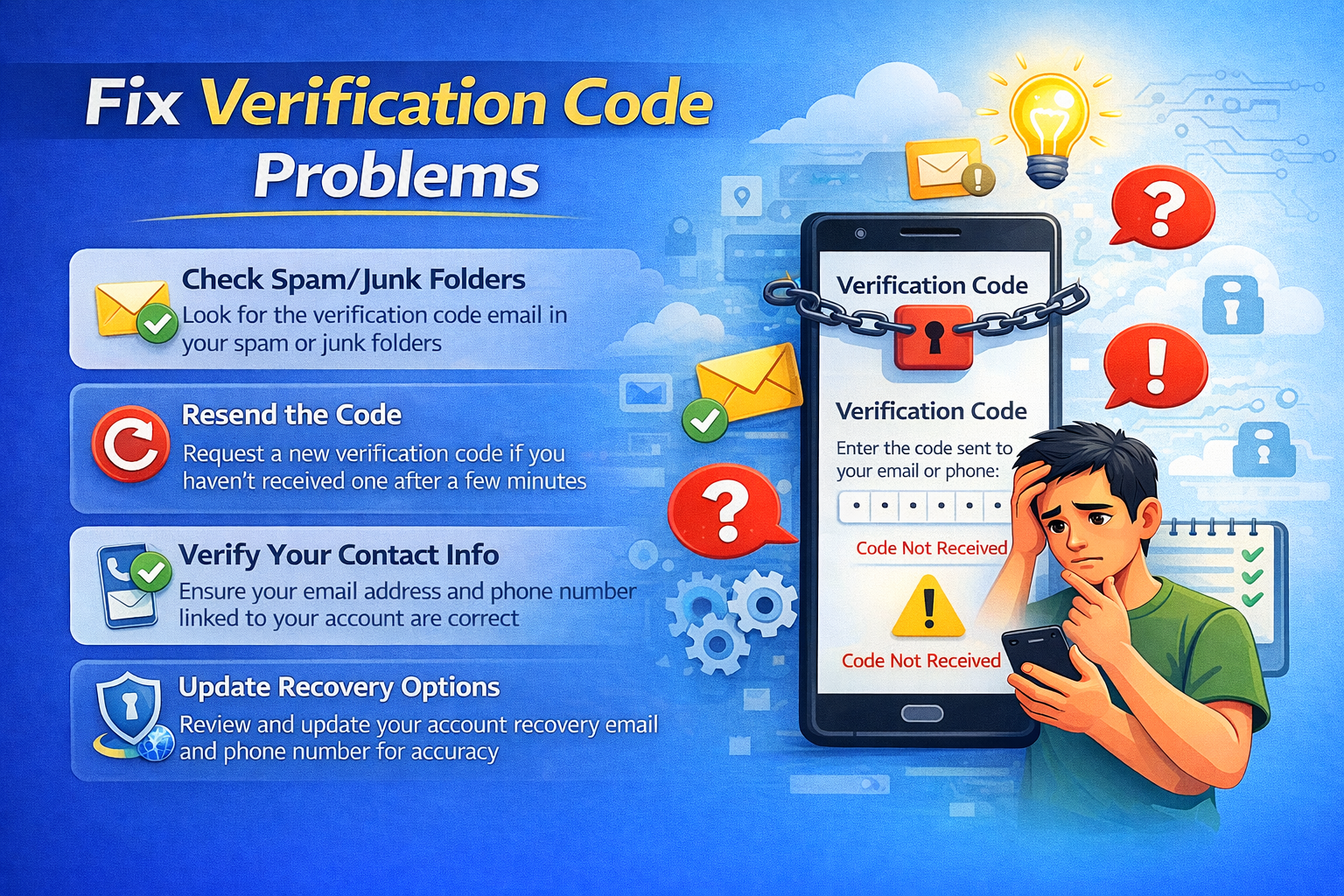
5. Check Phone Number and Email for Codes
Google may send verification codes to:
- Your recovery phone number
- Your recovery email
- Google Authenticator app
Steps:
- Check SMS messages
- Check Spam folder in email
- Wait a few minutes for the code
6. Request a New Verification Code
If the code expires, request a new one.
Steps:
- Tap Try another way
- Choose SMS, email, or prompt
- Enter the new code immediately
Do not request codes too many times in a short period.
Fix Google Account Verification Issues After Factory Reset
7. Understand Factory Reset Protection (FRP)
After a factory reset, Android requires the last Google account used on the phone.
This is a security feature, not a bug.
8. Sign In With the Original Google Account
Steps:
- Enter the same Google email used before reset
- Enter the correct password
- Complete verification steps
Real-world example:
Many users think their account is wrong, but it’s usually the previous owner’s account on second-hand phones.
9. Wait 24 Hours After Password Change
If you changed your Google password before resetting:
Steps:
- Wait at least 24 hours
- Connect to Wi-Fi
- Sign in again
This delay is required by Google’s security system.
Fix Google Account Verification Using Account Recovery
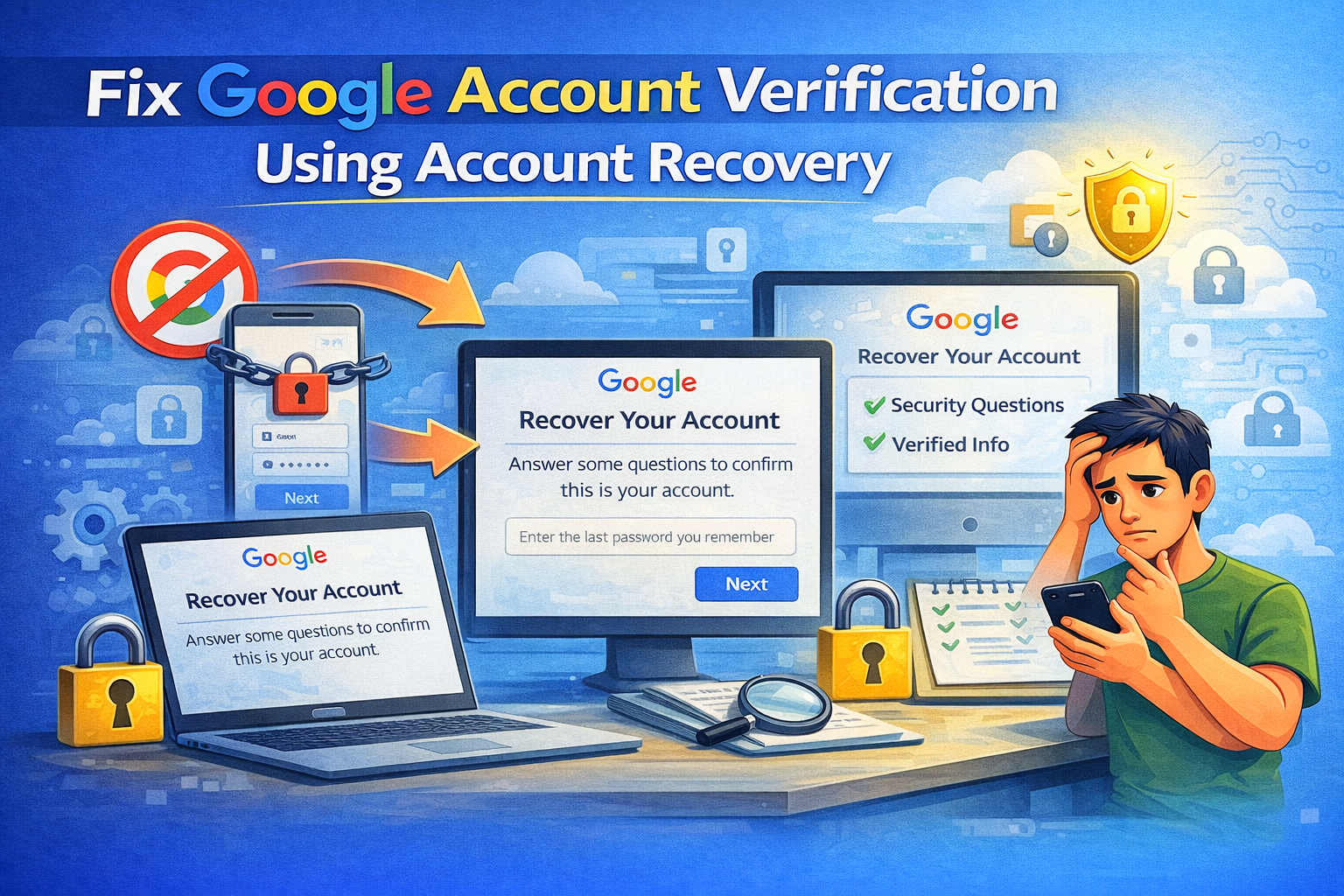
10. Use Google Account Recovery Page
If you cannot verify normally, use recovery.
Steps:
- Go to Google Account Recovery
- Enter your email
- Answer security questions
- Use a familiar device and location
Recovery may take a few hours or days.
11. Answer Questions Carefully
Google may ask:
- Last password you remember
- When you created the account
- Devices you used before
Answer as accurately as possible, even if unsure.
Fix Verification Issues Caused by Apps and Settings
12. Disable VPN, Proxy, or Ad Blockers
These can block verification servers.
Steps:
- Turn off VPN apps
- Disable Private DNS
- Restart phone
13. Update Google Play Services
Outdated services can break verification.
Steps:
- Open Google Play Store
- Search Google Play Services
- Tap Update
Advanced Fixes for Google Account Verification Issues
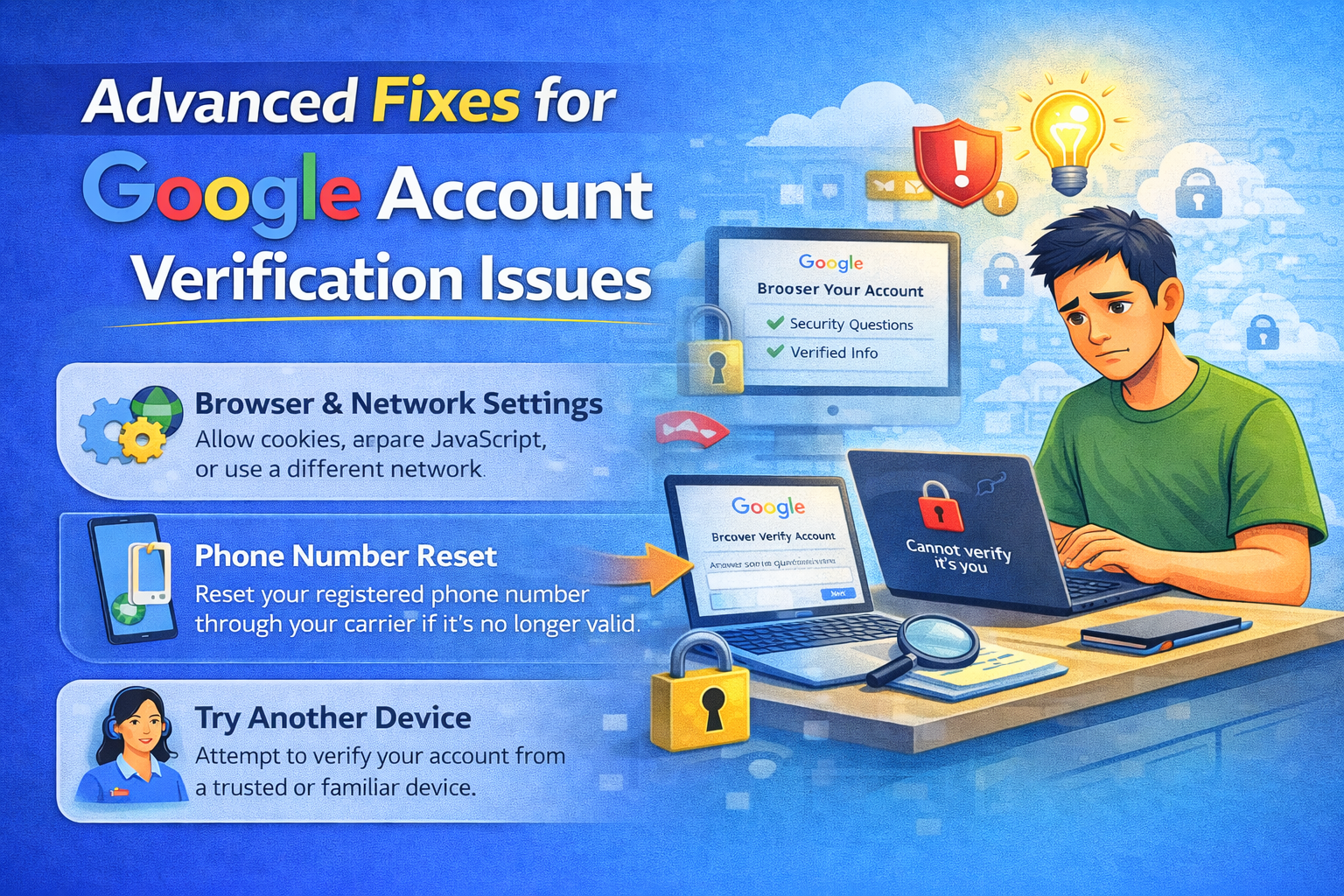
14. Remove and Re-Add Google Account (If Accessible)
If you can still access settings:
Steps:
- Settings → Accounts
- Tap Google
- Remove account
- Restart phone
- Add account again
Only do this if you can sign in again.
15. Contact Google Support (Last Option)
If all else fails:
- Use Google Help Center
- Submit account recovery request
- Wait for Google’s response
Google does not provide phone support for most accounts, so patience is important.
Tips to Prevent Google Account Verification Issues
- Always add a recovery phone and email
- Keep Google Play Services updated
- Avoid frequent password changes
- Don’t sign in from many devices at once
- Keep your device secure
Frequently Asked Questions (FAQ)
1. Why is Google asking me to verify my account?
Because of new device login, password change, or suspicious activity.
2. How long does Google verification take?
Usually instant, but sometimes 24–48 hours.
3. Can I bypass Google account verification?
No. Google verification is a security feature and cannot be bypassed legally.
4. Why didn’t I receive a verification code?
Possible reasons include poor internet, blocked SMS, or wrong recovery info.
5. What if I forgot my Google account details?
Use the Google Account Recovery page and answer questions carefully.
Conclusion
Google account verification issues can be stressful, but most problems are temporary and fixable. By following the step-by-step solutions in this guide—using trusted devices, waiting the required time, and using account recovery—you can regain access safely.
Quick reminder: Patience, correct information, and a familiar device solve most verification issues.