How to Fix iPhone Stuck on Verification Screen (Step-by-Step Guide)
If your iPhone is stuck on the verification screen, you’re not alone. Many users face this frustrating issue when setting up a new device, restoring from backup, or updating iOS.
The problem usually happens during Apple ID verification or iCloud sign-in, where your iPhone keeps loading, freezes, or fails to verify your account.
The good news? You can fix it yourself.
In this guide, we’ll walk you through simple, beginner-friendly solutions to fix the iPhone stuck on verification screen issue quickly.
What Does “iPhone Stuck on Verification Screen” Mean?
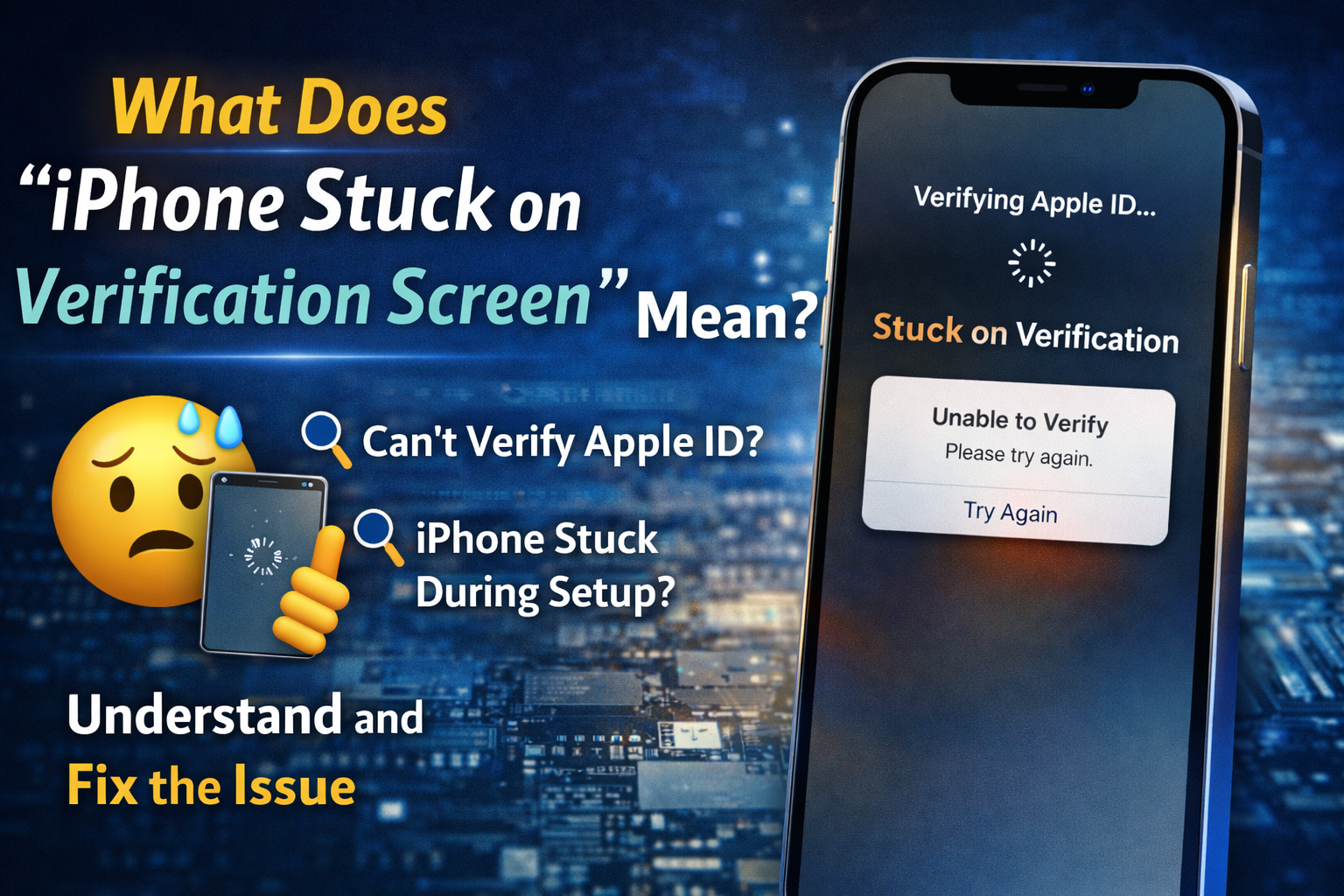
This issue occurs when your iPhone cannot complete the verification process required to access Apple services.
You may see:
- “Verifying…” stuck on screen
- “Unable to Verify Identity”
- Endless loading after entering Apple ID
- Verification code not working
This usually happens during:
- New iPhone setup
- iOS updates
- iCloud login
- Restoring a backup
How to Fix iPhone Stuck on Verification Screen
Follow these step-by-step solutions. Start from the easiest and move down if needed.
1. Check Your Internet Connection
A weak or unstable connection is the most common cause.
Steps:
- Connect to a strong Wi-Fi network
- Avoid public or slow networks
- Restart your router if needed
👉 Tip: Try switching between Wi-Fi and mobile data
2. Restart Your iPhone
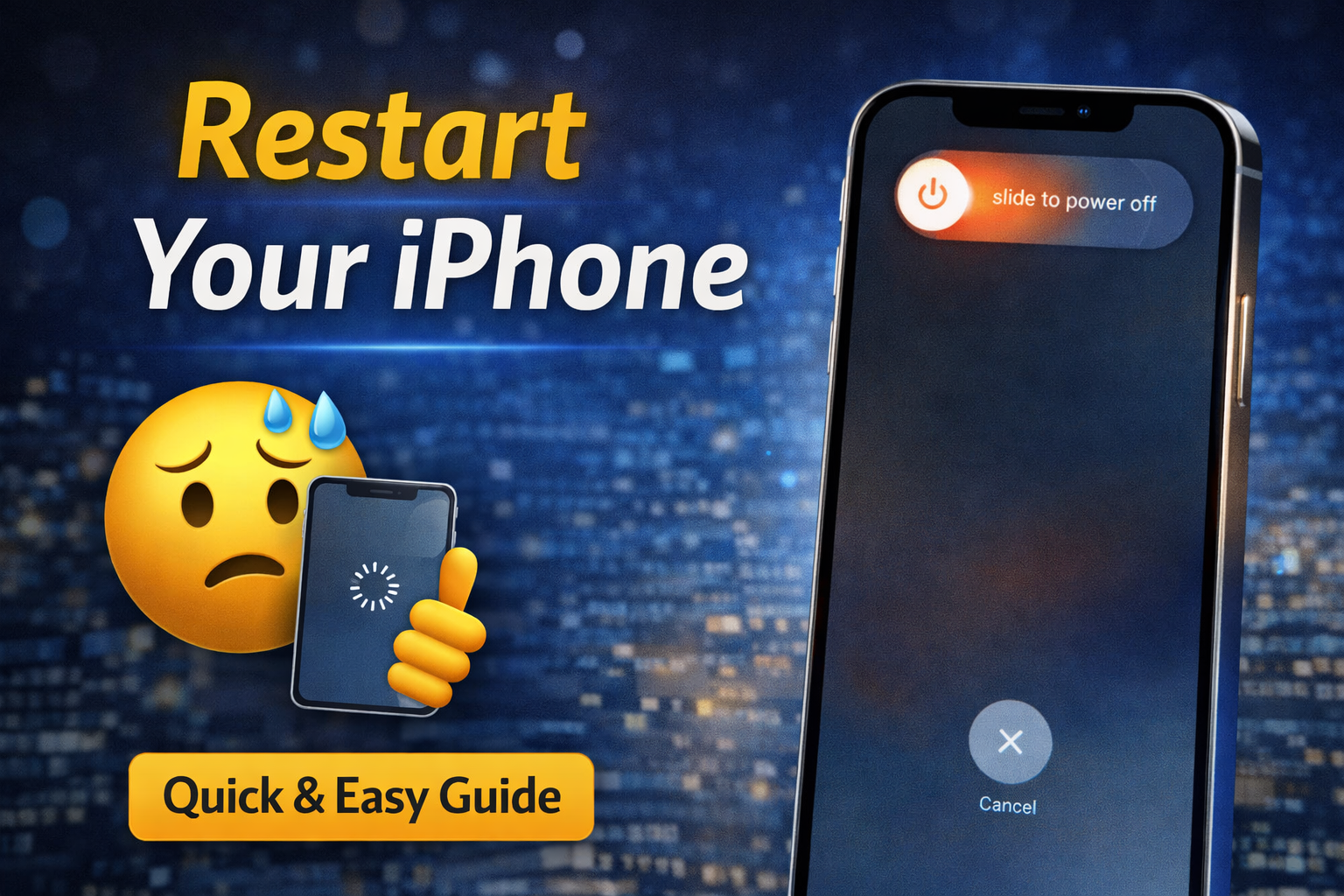
A simple restart can fix temporary glitches.
Steps:
- Press and hold the Power button
- Slide to power off
- Wait 10–15 seconds
- Turn it back on
👉 This refreshes the system and may fix the verification loop.
3. Re-enter Your Apple ID and Password
Sometimes incorrect credentials cause verification failure.
Steps:
- Tap Back on the verification screen
- Enter your Apple ID and password again
- Make sure there are no typing errors
👉 Double-check:
- Caps Lock
- Extra spaces
- Correct email
4. Check Apple System Status
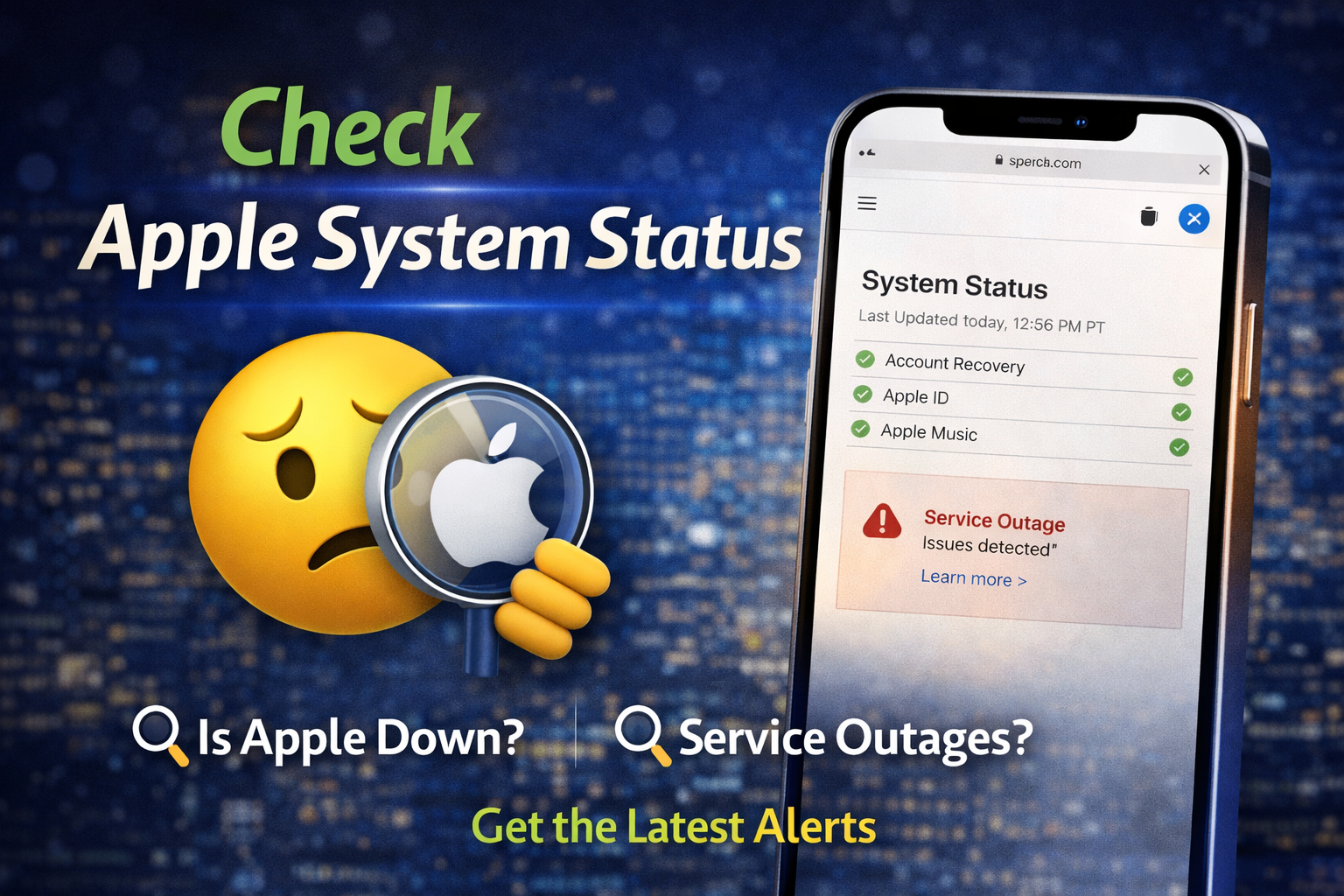
Apple servers may be down.
Steps:
- Visit Apple System Status (search online)
- Check services like:
- Apple ID
- iCloud Account & Sign In
👉 If servers are down, you must wait until Apple fixes it.
5. Use a Different Wi-Fi Network
Sometimes your network blocks Apple verification.
Steps:
- Connect to another Wi-Fi network
- Or use mobile hotspot from another device
👉 This helps bypass network restrictions.
6. Skip Verification (If Available)
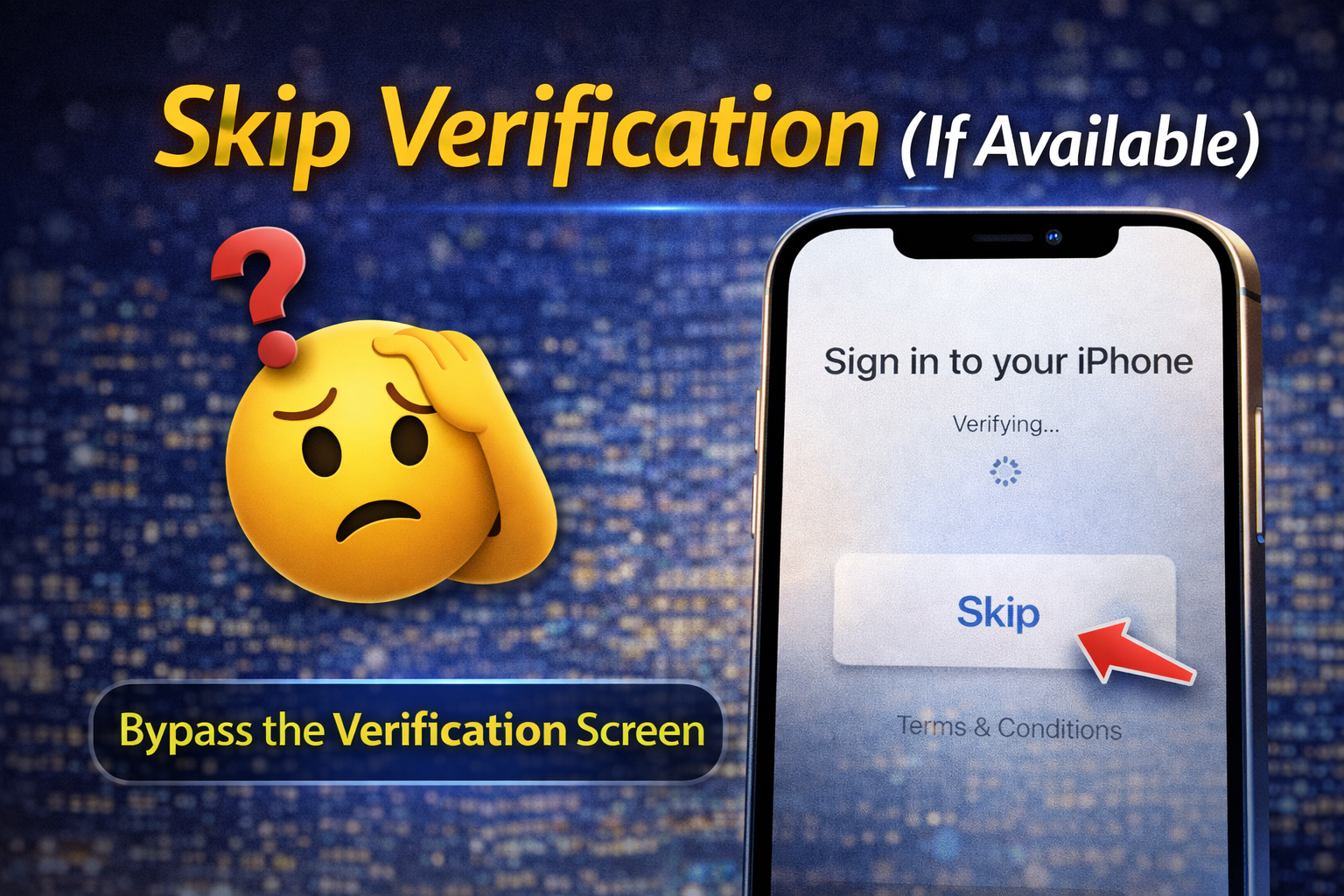
On some iPhones, you can skip the step temporarily.
Steps:
- Look for “Skip” or “Set Up Later”
- Continue setting up the device
- Sign in later from Settings
👉 This is useful if verification keeps failing.
7. Update Your iPhone (If Possible)
Outdated iOS versions may cause verification errors.
Steps:
- Go to Settings > General > Software Update
- Install the latest update
👉 New updates fix bugs related to Apple ID verification.
8. Reset Network Settings
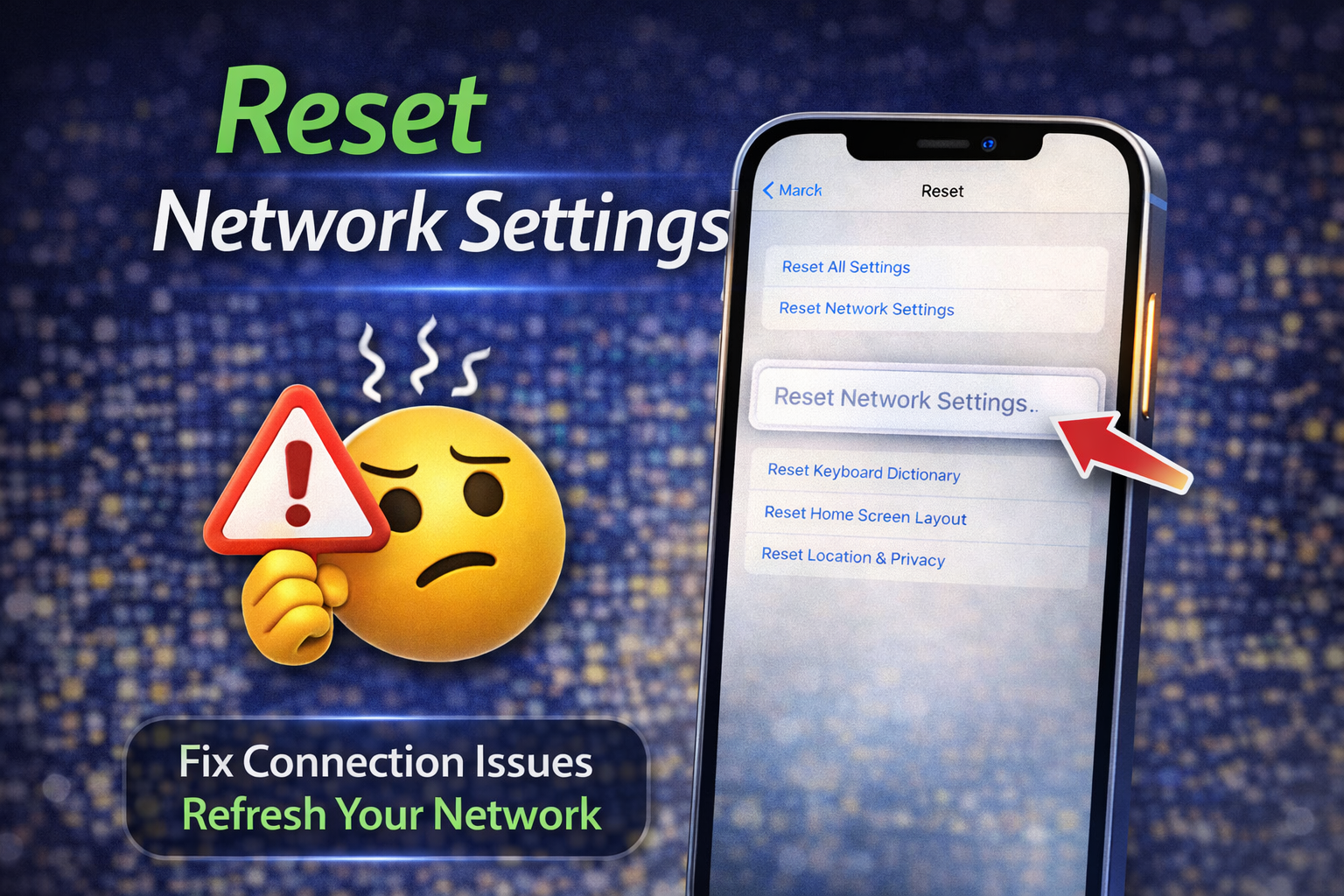
This clears network-related issues.
Steps:
- Go to Settings > General > Transfer or Reset iPhone
- Tap Reset
- Select Reset Network Settings
👉 Note:
- This will remove saved Wi-Fi passwords
9. Remove Activation Lock (If Applicable)
If the device is linked to another Apple ID, verification will fail.
Steps:
- Enter the correct Apple ID and password
- If you bought a used iPhone:
- Contact the previous owner
- Ask them to remove the device from iCloud
👉 Without this, you cannot proceed.
10. Use iTunes or Finder to Restore iPhone
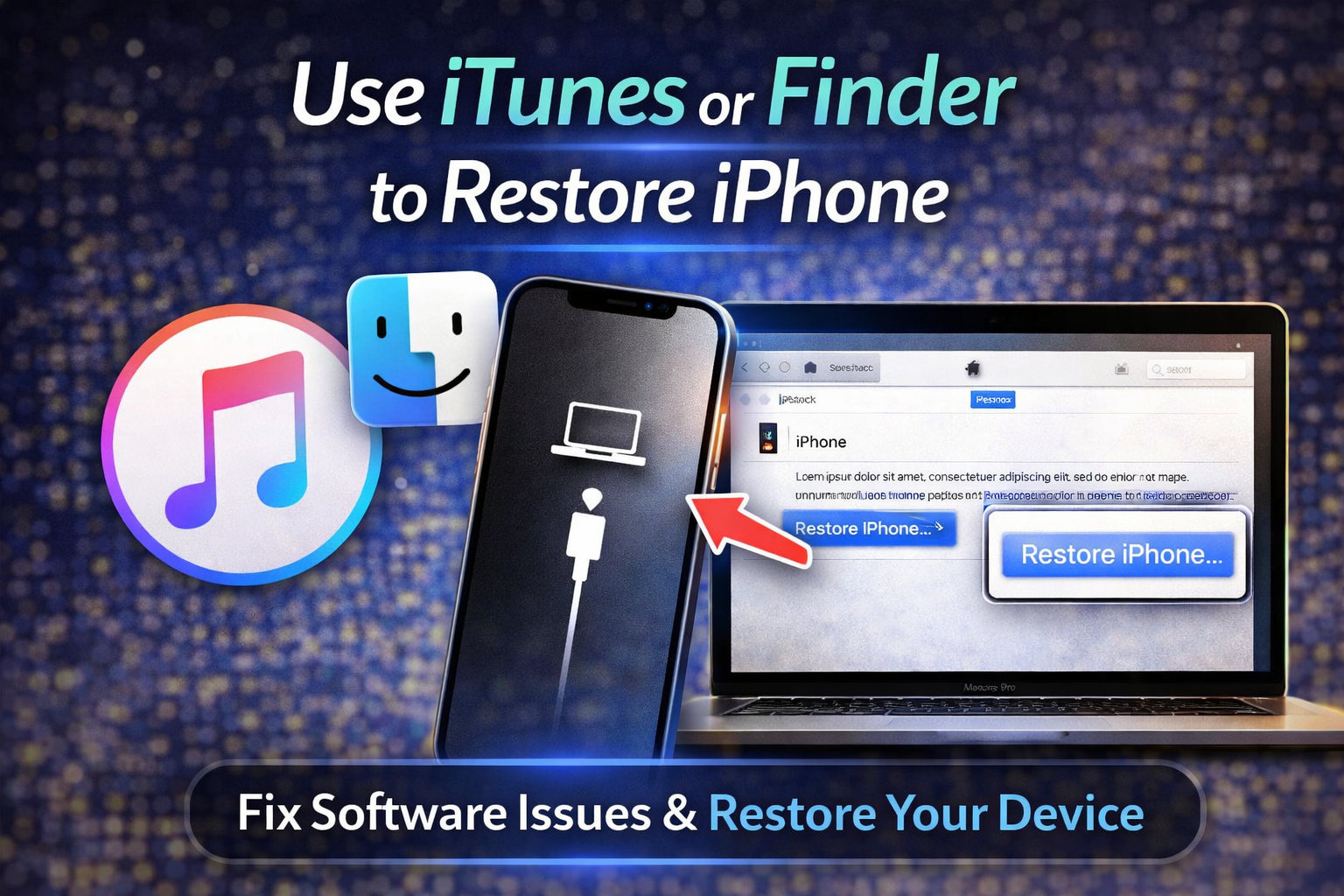
If nothing works, restoring your iPhone can fix the issue.
Steps:
- Connect your iPhone to a computer
- Open iTunes (Windows) or Finder (Mac)
- Put your iPhone in Recovery Mode
- Select Restore iPhone
👉 Important:
- This will erase all data
11. Contact Apple Support
If the problem continues, it may be account-related.
You should contact support if:
- Apple ID is locked
- Verification keeps failing
- You forgot account details
👉 Apple can help verify your identity and unlock your account.
Why This Problem Happens
Understanding the cause helps prevent it in the future.
Common reasons:
- Poor internet connection
- Apple server issues
- Incorrect Apple ID or password
- Activation Lock enabled
- Software bugs or outdated iOS
- Network restrictions or firewall issues
- Account security verification problems
Quick Tips to Prevent This Problem
Follow these tips to avoid getting stuck again:
- ✅ Always use a stable internet connection
- ✅ Keep your iPhone updated to the latest iOS
- ✅ Double-check your Apple ID credentials
- ✅ Avoid using public Wi-Fi during setup
- ✅ Keep your Apple ID secure and accessible
- ✅ Log out properly before selling or buying a device
- ✅ Backup your iPhone regularly
FAQ: iPhone Stuck on Verification Screen
1. Why is my iPhone stuck on verifying Apple ID?
This usually happens due to poor internet, Apple server issues, or incorrect login details.
2. How long does Apple ID verification take?
Normally, it takes a few seconds to a few minutes. If it takes longer, there may be a problem.
3. Can I bypass the verification screen?
You may be able to skip it temporarily, but you will need to verify your Apple ID later.
4. Will resetting my iPhone fix the issue?
Yes, restoring your iPhone often fixes software-related problems, but it will erase your data.
5. What if I forgot my Apple ID password?
You can reset it using Apple’s official password recovery page.
Conclusion
Getting your iPhone stuck on verification screen can be frustrating, especially when you just want to use your device. But in most cases, the problem is easy to fix.
Start with simple solutions like:
- Checking your internet
- Restarting your device
- Re-entering your Apple ID
If needed, move to advanced fixes like resetting network settings or restoring your iPhone.
By following this guide, you should be able to solve the issue and get your iPhone working again in no time.