How to Fix iPhone Screen Not Rotating
Introduction
Have you ever tried to watch a video or browse a website on your iPhone, only to find that the screen refuses to rotate? This can be frustrating, especially when you rely on landscape mode for a better viewing experience.
The iPhone screen not rotating issue is quite common and usually happens due to simple settings, software glitches, or sensor problems. The good news is that most of these issues can be fixed in just a few minutes—no technical skills required.
In this guide, we’ll walk you through easy, step-by-step solutions to fix this problem and get your screen rotating again.
Why This Problem Happens
Before jumping into fixes, it helps to understand the causes. Here are the most common reasons:
- Portrait Orientation Lock is enabled
- App doesn’t support rotation
- Software bugs or glitches
- Screen rotation sensor issues
- Outdated iOS version
- Display zoom settings interfering
Understanding these causes will help you quickly identify the right solution.
Step-by-Step Solutions to Fix iPhone Screen Not Rotating
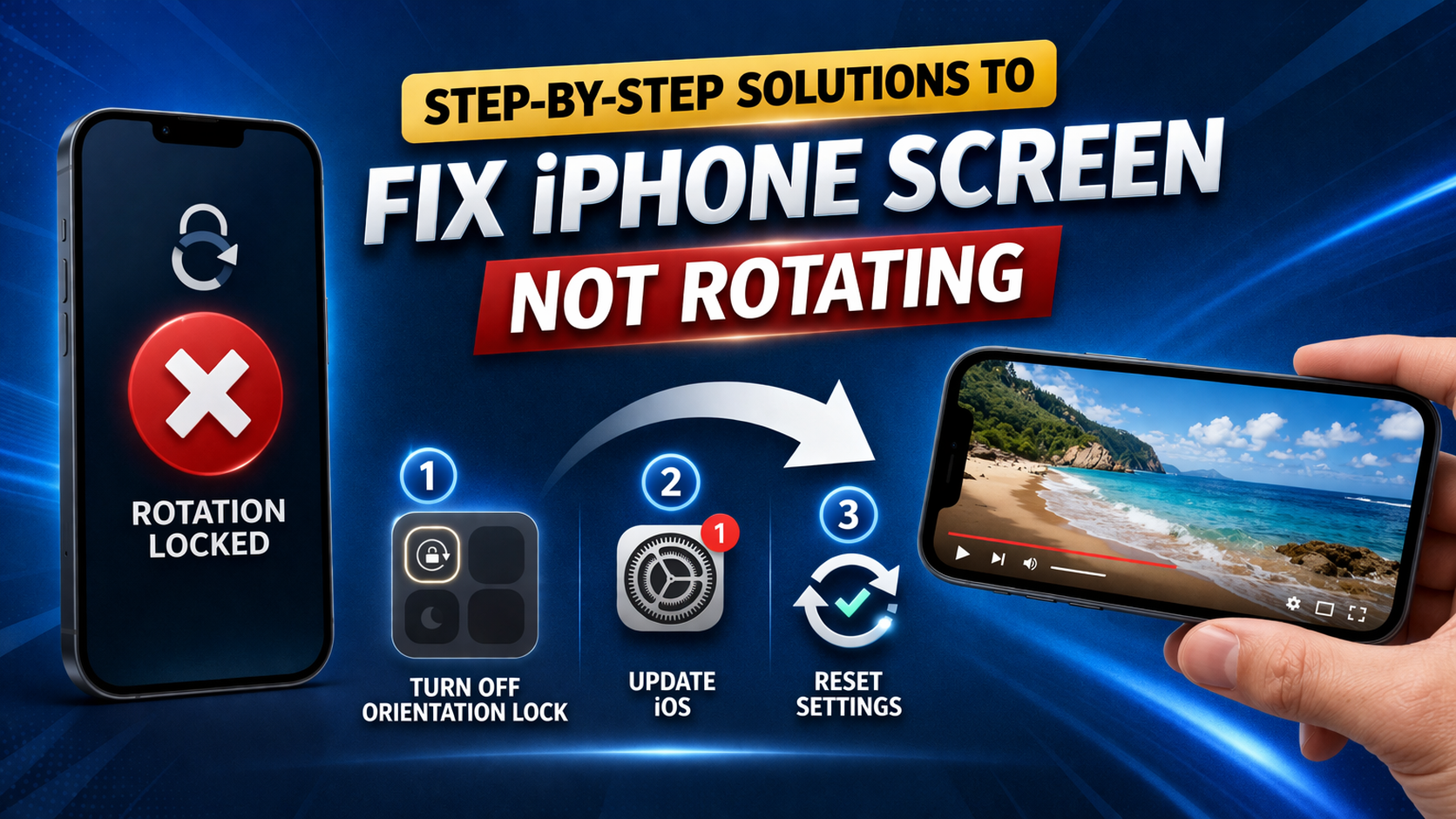
1. Turn Off Portrait Orientation Lock
This is the most common reason your screen won’t rotate.
Steps:
- Swipe down from the top-right corner (or up from bottom on older iPhones).
- Look for the lock icon with a circular arrow.
- If it’s enabled, tap it to turn it OFF.
👉 Important: If this is ON, your screen will stay in portrait mode no matter what.
2. Check If the App Supports Rotation
Not all apps rotate.
Some apps (like certain games or social media apps) only work in portrait mode.
What to do:
- Try rotating your screen in:
- Safari
- Photos app
- YouTube
👉 If it works there, the issue is not your phone—it’s the app.
3. Restart Your iPhone
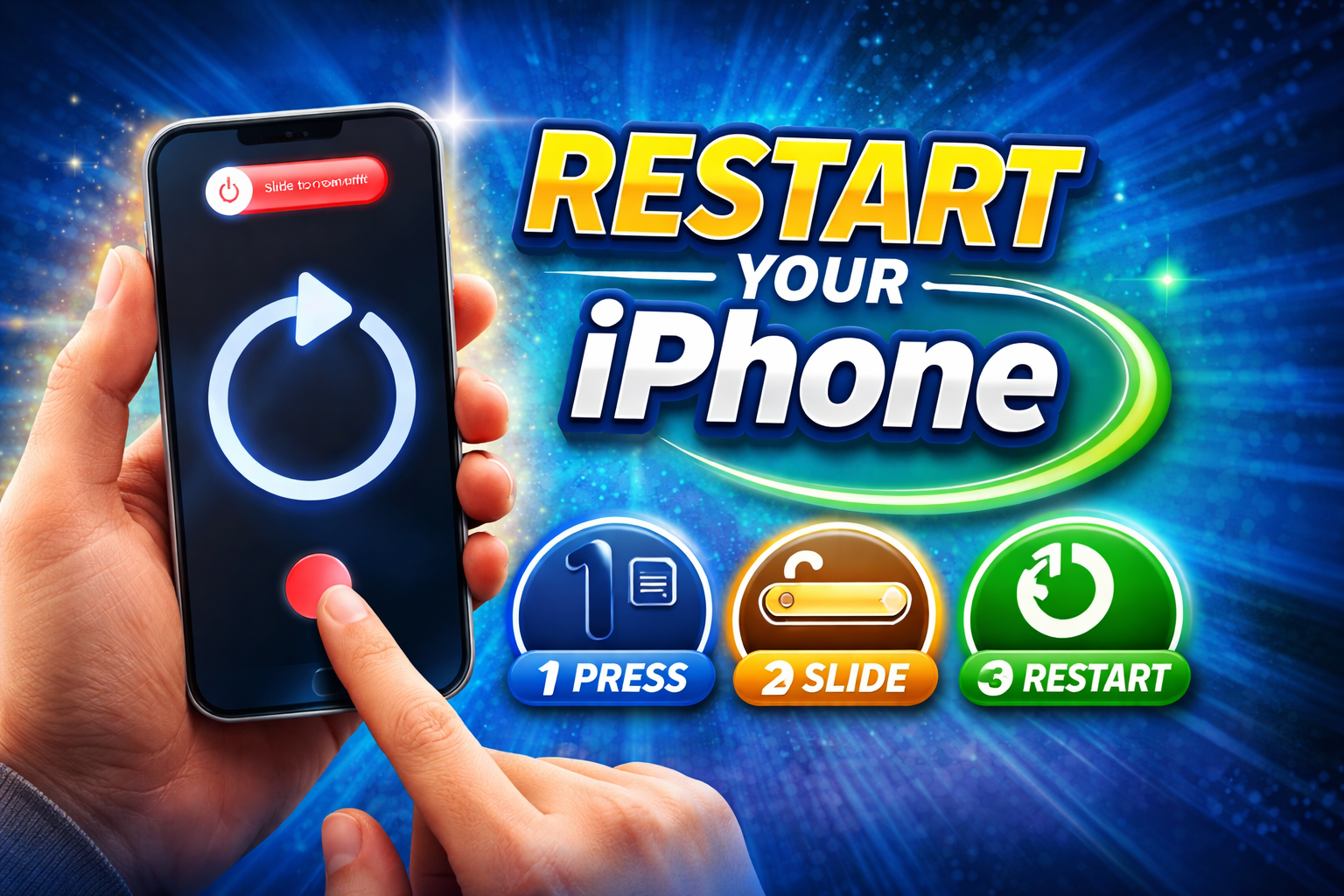
A simple restart can fix many temporary bugs.
Steps:
- Press and hold the Power + Volume button.
- Slide to power off.
- Wait 10 seconds.
- Turn your iPhone back on.
👉 Quick fix tip: Restarting clears minor software glitches affecting rotation.
4. Turn Off Display Zoom
Display Zoom can sometimes interfere with screen rotation.
Steps:
- Go to Settings
- Tap Display & Brightness
- Select View (Display Zoom)
- Choose Standard
- Tap Set
👉 Your phone will restart automatically.
5. Update iOS

An outdated system may cause bugs like rotation issues.
Steps:
- Go to Settings
- Tap General
- Select Software Update
- Tap Download and Install
👉 Important: Always keep your iPhone updated for smooth performance.
6. Reset All Settings
If nothing works, resetting settings can fix deeper issues.
Steps:
- Go to Settings
- Tap General
- Select Transfer or Reset iPhone
- Tap Reset
- Choose Reset All Settings
👉 This will NOT delete your data but will reset Wi-Fi, Bluetooth, and preferences.
7. Check the Screen Rotation Sensor
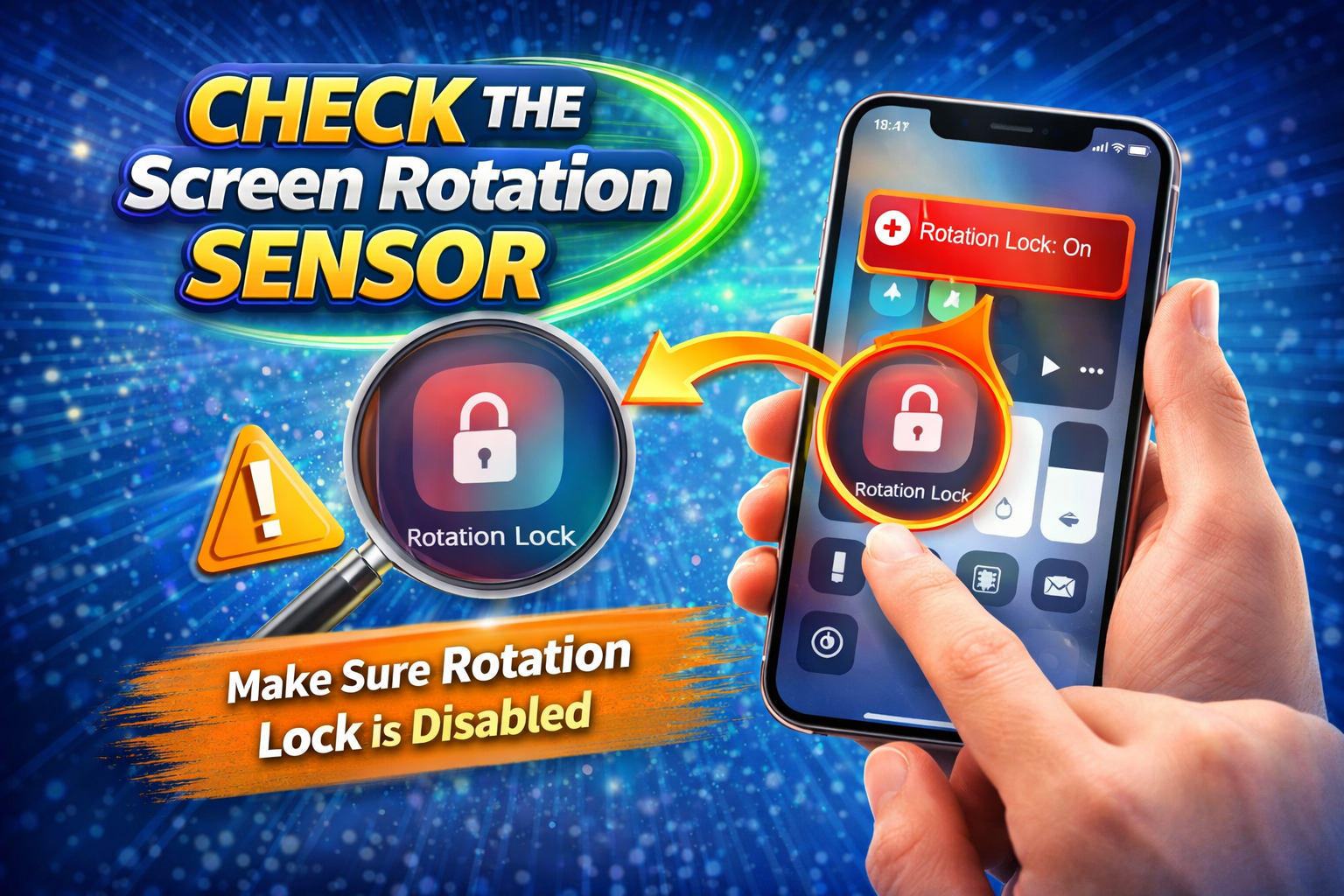
Your iPhone uses a built-in sensor (accelerometer) to detect orientation.
How to test:
- Open the Compass app
- Rotate your phone
👉 If the compass doesn’t respond correctly, the sensor might be faulty.
8. Remove Case or Screen Protector
Sometimes accessories can block sensors.
Try this:
- Remove your phone case
- Remove thick screen protectors
- Test rotation again
9. Use AssistiveTouch (Temporary Fix)
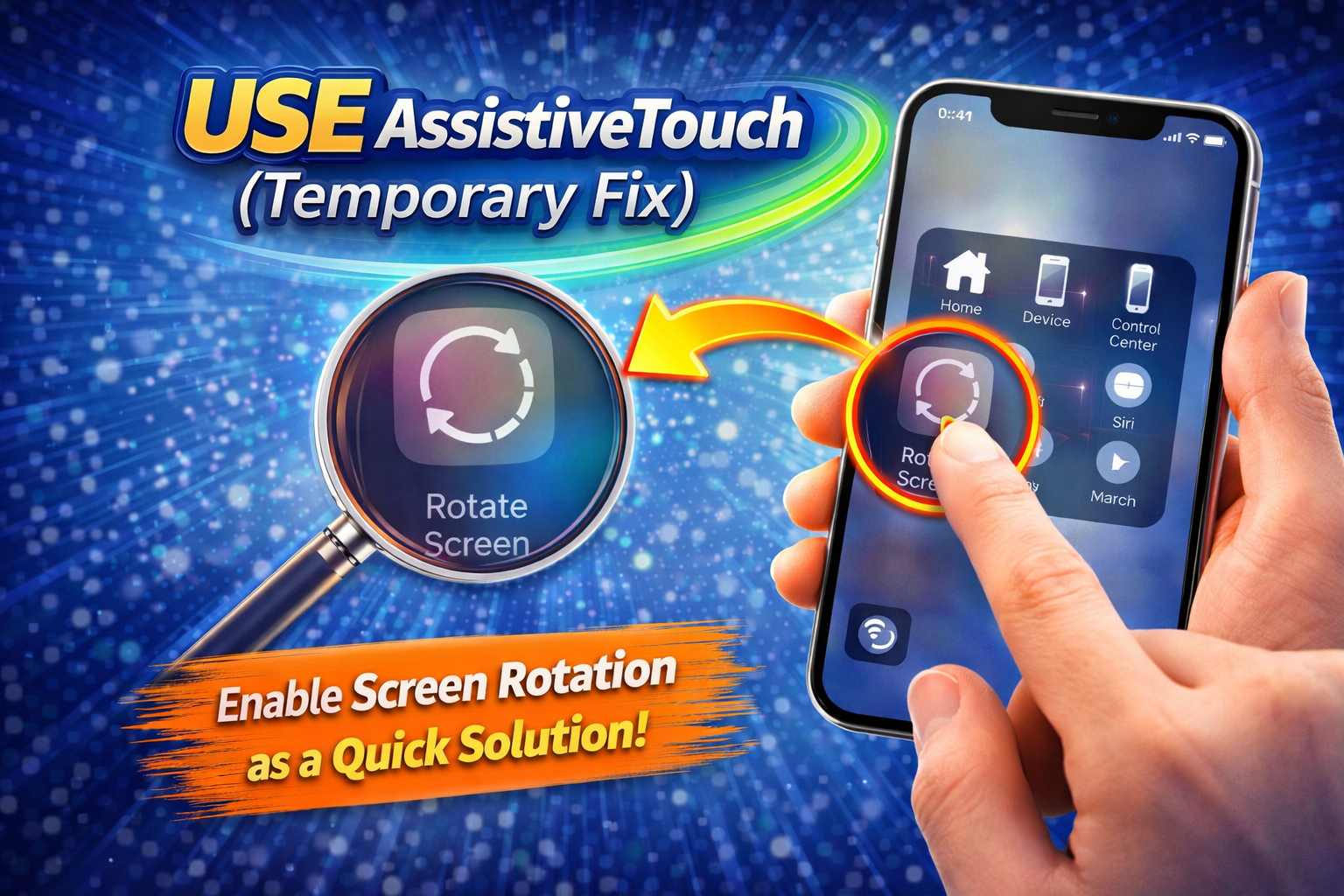
If your sensor is not working, you can use AssistiveTouch.
Steps:
- Go to Settings
- Tap Accessibility
- Select Touch
- Turn on AssistiveTouch
Then:
- Tap AssistiveTouch button
- Go to Device > Rotate Screen
👉 This is useful if hardware is damaged.
10. Contact Apple Support
If none of the above solutions work, it may be a hardware issue.
You should:
- Visit an Apple Store
- Contact Apple Support online
- Get your device checked
Quick Tips to Prevent This Problem
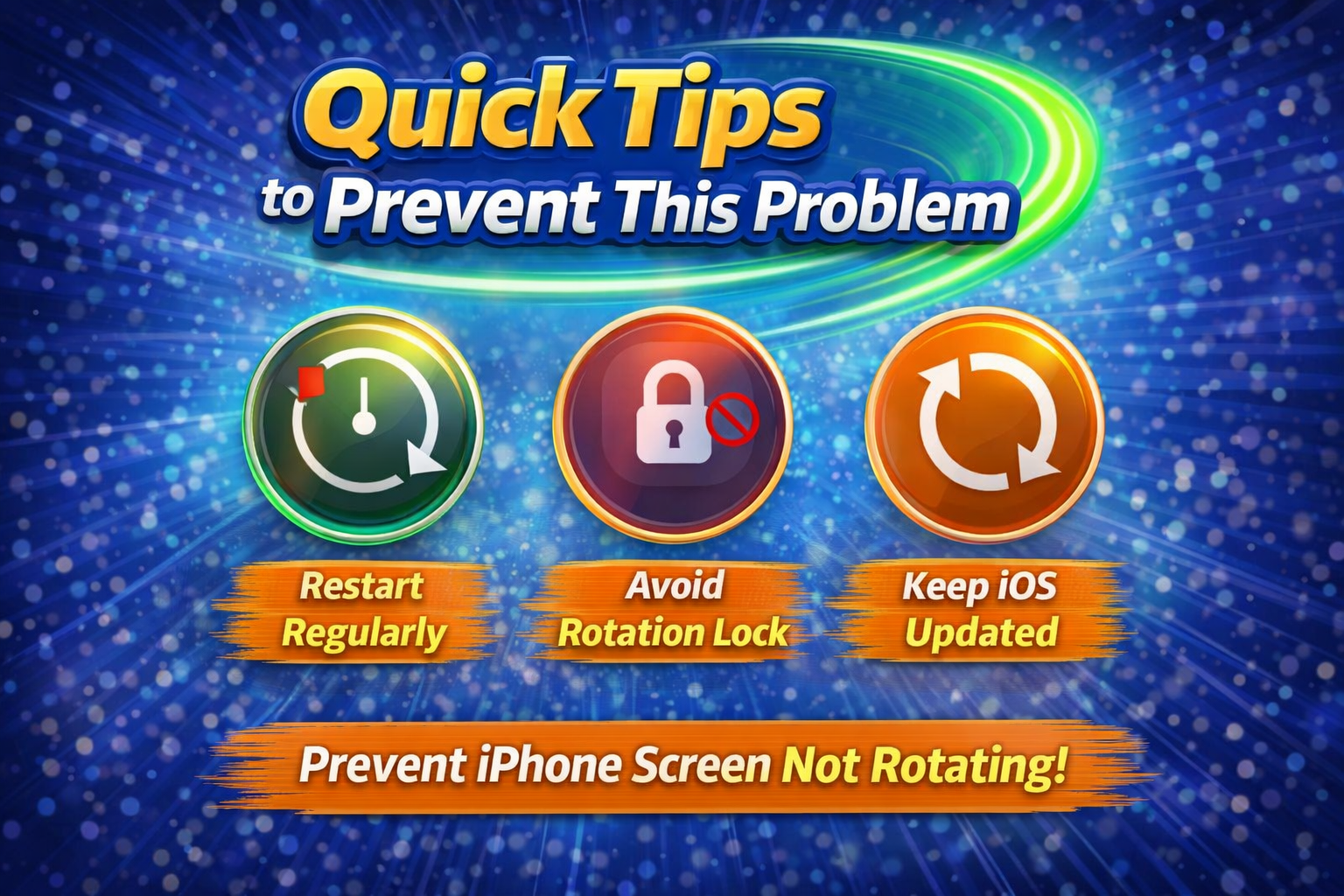
Keep your iPhone running smoothly with these tips:
- Always turn off Orientation Lock when not needed
- Keep your iOS updated
- Avoid installing buggy or outdated apps
- Use high-quality phone cases
- Restart your phone once a week
- Avoid dropping your phone (protect sensors)
FAQ (Frequently Asked Questions)
1. Why is my iPhone screen stuck in portrait mode?
This usually happens because Orientation Lock is enabled or the app doesn’t support rotation.
2. Why does my screen rotate in some apps but not others?
Some apps are designed to work only in portrait mode, so rotation won’t work in them.
3. How do I fix auto-rotate not working on iPhone?
Turn off Orientation Lock, restart your phone, and update iOS.
4. Can a broken sensor cause rotation issues?
Yes. If the accelerometer is damaged, your screen won’t rotate properly.
5. Will resetting settings fix rotation problems?
Yes, in many cases. It removes system glitches without deleting your data.
Conclusion
The iPhone screen not rotating issue can be annoying, but in most cases, it’s easy to fix. Whether it’s a simple setting like Orientation Lock or a minor software glitch, following the steps above should solve the problem quickly.
Start with the basic fixes like checking settings and restarting your device. If the issue continues, move on to advanced solutions like resetting settings or checking hardware.
By following these tips, you can ensure your iPhone runs smoothly and your screen rotates exactly when you need it.