
How to Fix iPhone Screen Freezing or Lagging (Step-by-Step Guide)
If your iPhone screen freezes, stutters, or responds slowly, you’re not alone. iPhone screen freezing or lagging is a very common problem for beginners and normal users—especially after software updates, when storage is full, or when apps misbehave.
The good news? In most cases, you don’t need to repair or replace your iPhone. With the right steps, you can fix the issue yourself in minutes.
In this complete guide, you’ll learn how to fix iPhone screen freezing or lagging using simple, safe, and proven methods. Each solution is explained step by step, with real-world examples, so anyone can follow along.
Why iPhone Screen Freezing or Lagging Happens
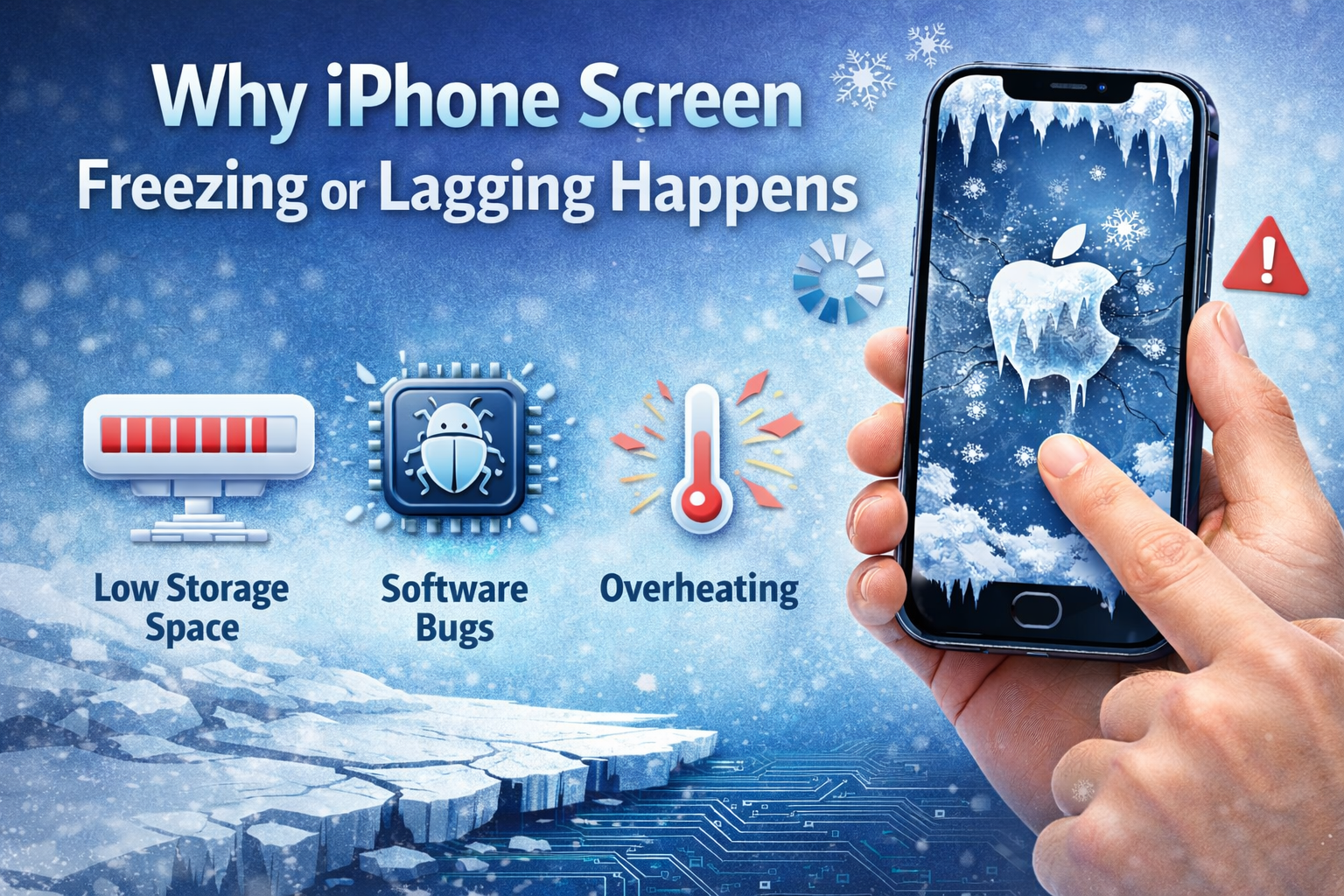
Before fixing the issue, it helps to understand why your iPhone is lagging or freezing. Common causes include:
- Too many apps running in the background
- Low storage space
- Outdated iOS version
- Buggy or incompatible apps
- Overheating
- Battery health problems
- Temporary system glitches
Even a powerful iPhone can slow down if these problems stack up.
Basic Checks Before Trying Advanced Fixes
Start with these quick checks. Many users fix iPhone screen freezing or lagging at this stage.
Restart Your iPhone (Most Important Step)
A restart clears temporary files and refreshes system memory.
Steps:
- Press and hold the Power button (and Volume button on newer models)
- Slide Power Off
- Wait 30 seconds
- Turn your iPhone back on
Real-world example:
Many users notice their iPhone freezes after using social media apps for hours. A simple restart often fixes it instantly.
How to Fix iPhone Screen Freezing or Lagging Using Software Solutions
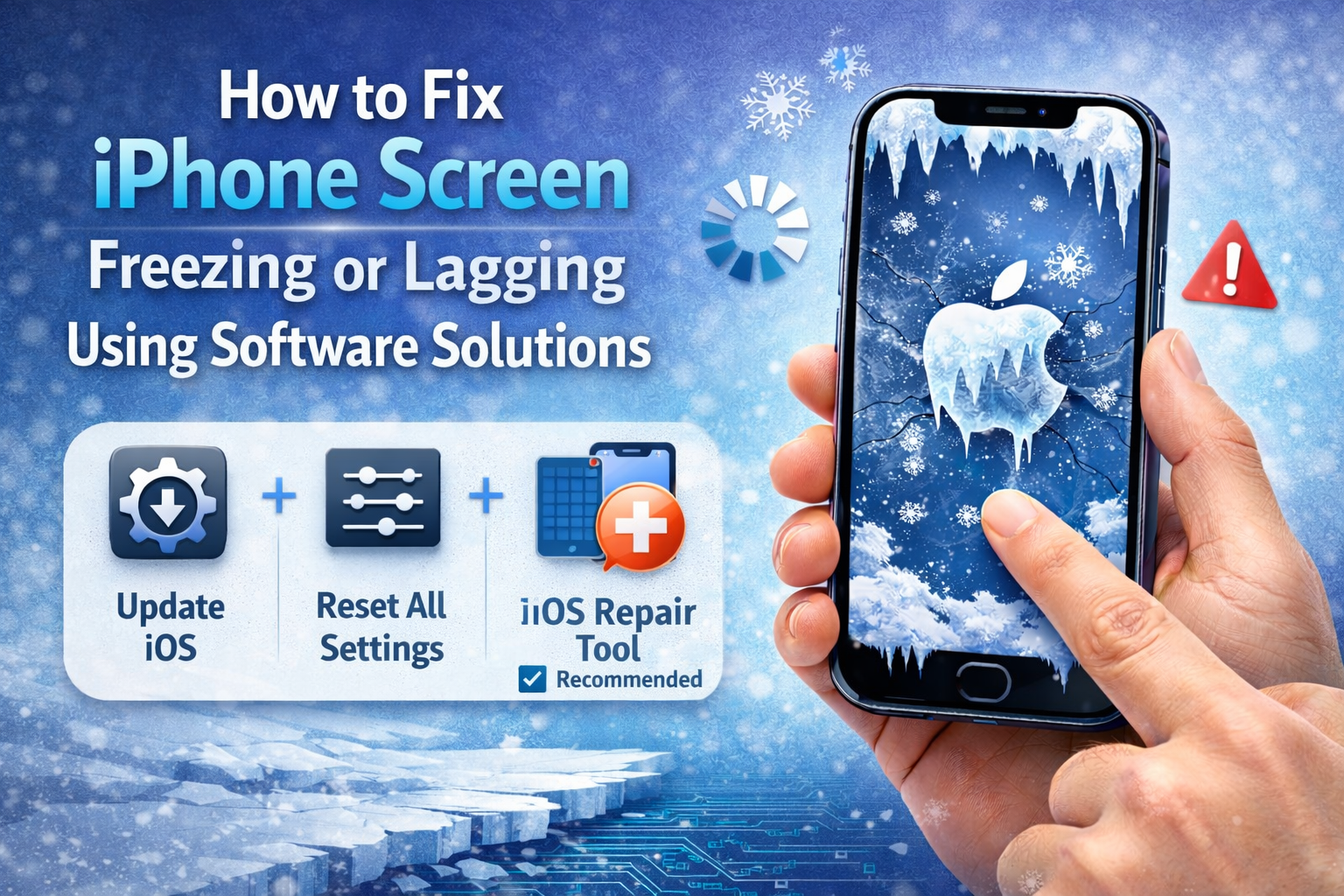
Update iOS to the Latest Version
Apple frequently releases updates to fix bugs and improve performance.
Steps:
- Open Settings
- Tap General
- Select Software Update
- Install any available update
Why this helps:
Outdated iOS versions often cause screen lag, app freezing, and touch delays.
Close Background Apps Properly
Too many background apps can overload your iPhone’s RAM.
Steps:
- Swipe up from the bottom (or double-press Home button)
- Swipe up on unused apps to close them
Tip:
Don’t close all apps constantly—only close apps that are frozen or not responding.
Free Up Storage Space (Very Important)
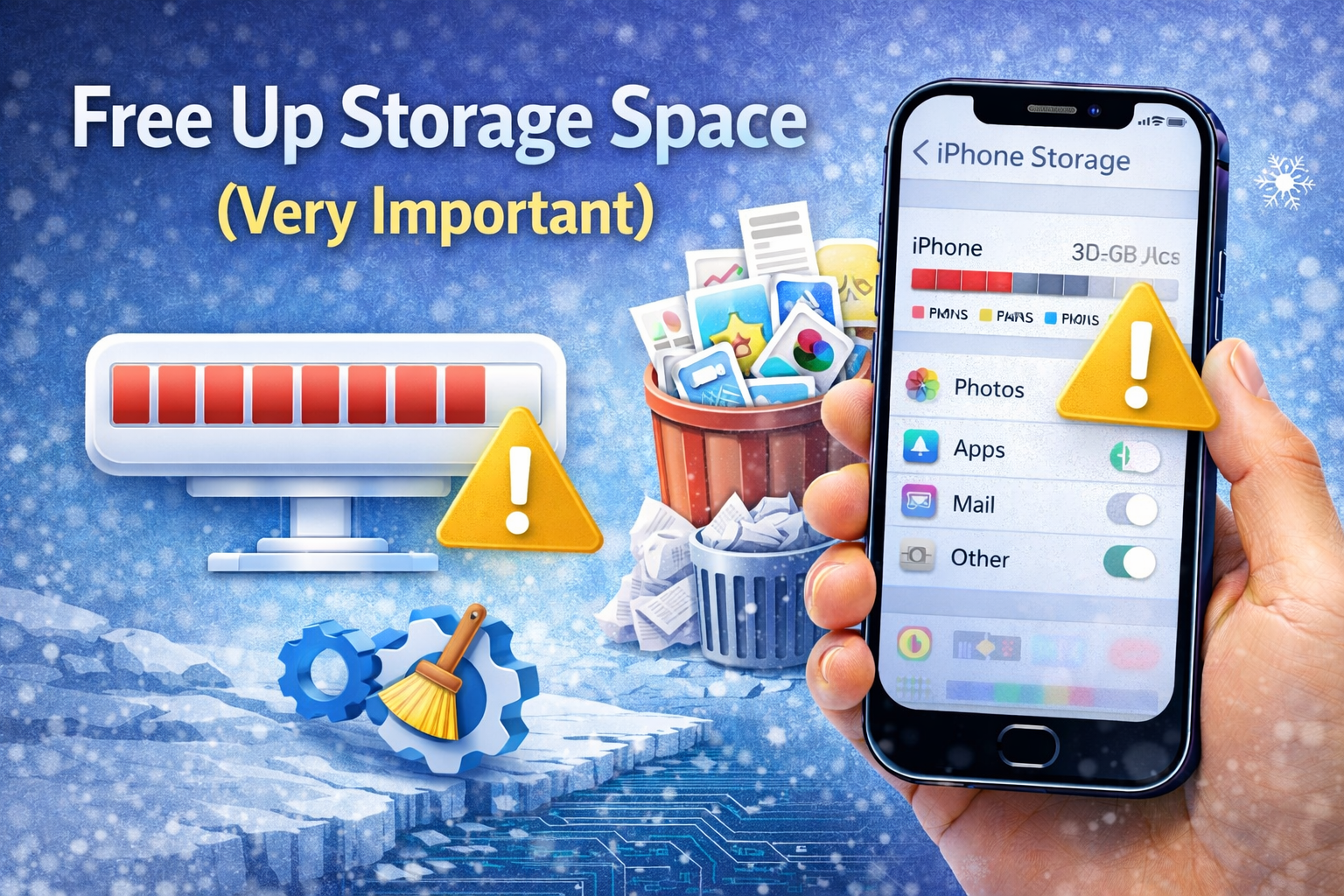
Low storage is one of the biggest causes of iPhone screen freezing or lagging.
Steps:
- Go to Settings → General → iPhone Storage
- Check how much space is left
- Delete:
- Old videos
- Unused apps
- Duplicate photos
- Large message attachments
Real-world example:
An iPhone with less than 2GB free storage often becomes slow, freezes while typing, and lags when opening apps.
Enable “Reduce Motion” and “Reduce Transparency”
Animations can slow down older iPhones.
Steps:
- Open Settings
- Go to Accessibility
- Tap Motion
- Enable Reduce Motion
- Go back → Display & Text Size
- Enable Reduce Transparency
Result:
The interface feels smoother and more responsive.
Fix iPhone Screen Freezing or Lagging Caused by Apps
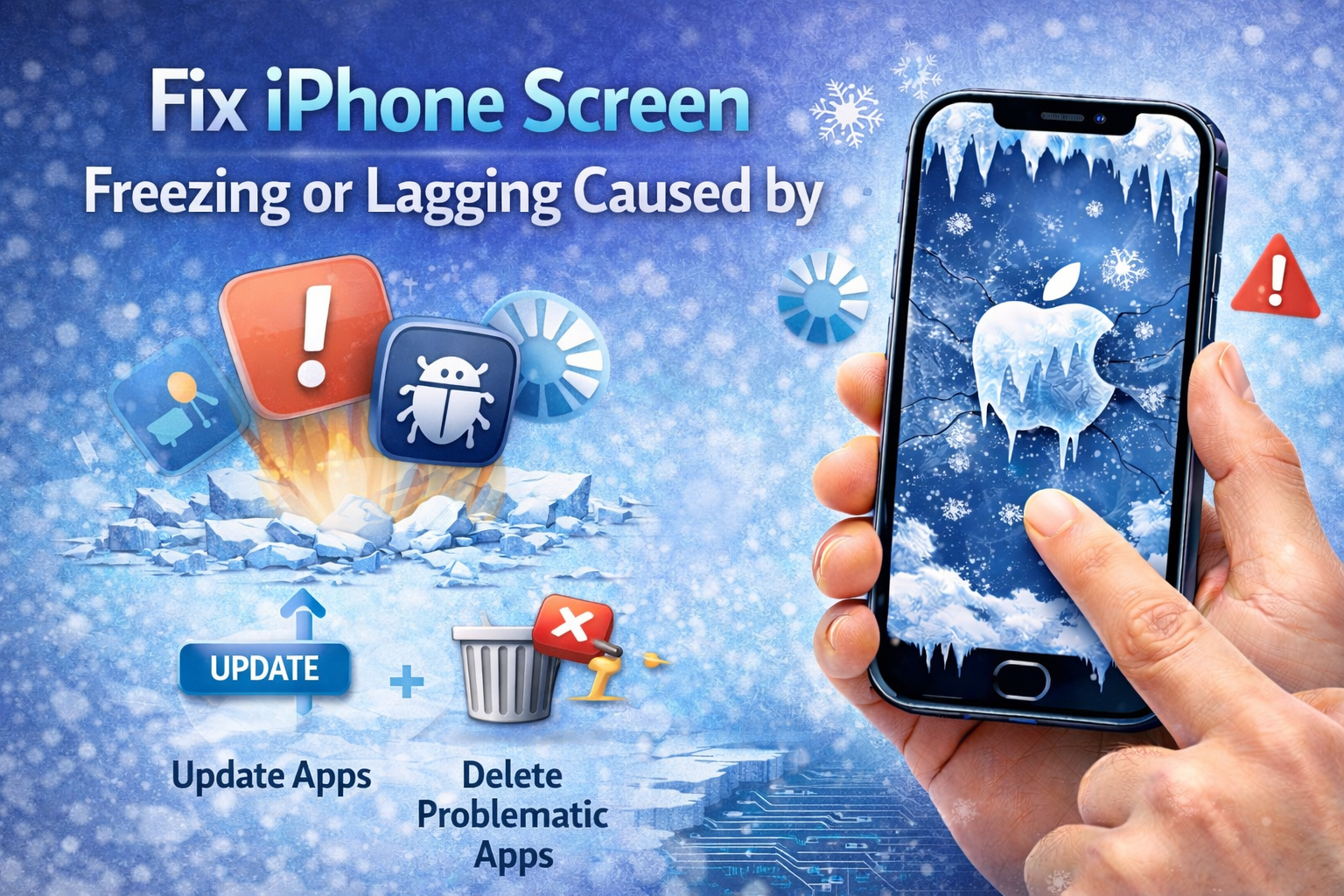
Update All Apps
Old app versions may not work well with the latest iOS.
Steps:
- Open App Store
- Tap your profile icon
- Select Update All
Identify and Remove Problematic Apps
If freezing happens only when using one app, that app is likely the cause.
Steps:
- Notice which app causes lag
- Update the app
- If problem continues, delete and reinstall it
Example:
Many users report freezing issues caused by heavy games or poorly optimized third-party apps.
Advanced Settings to Improve iPhone Performance
Turn Off Background App Refresh
This feature lets apps update content even when not in use.
Steps:
- Go to Settings → General
- Tap Background App Refresh
- Select Off or Wi-Fi only
Disable Automatic Downloads
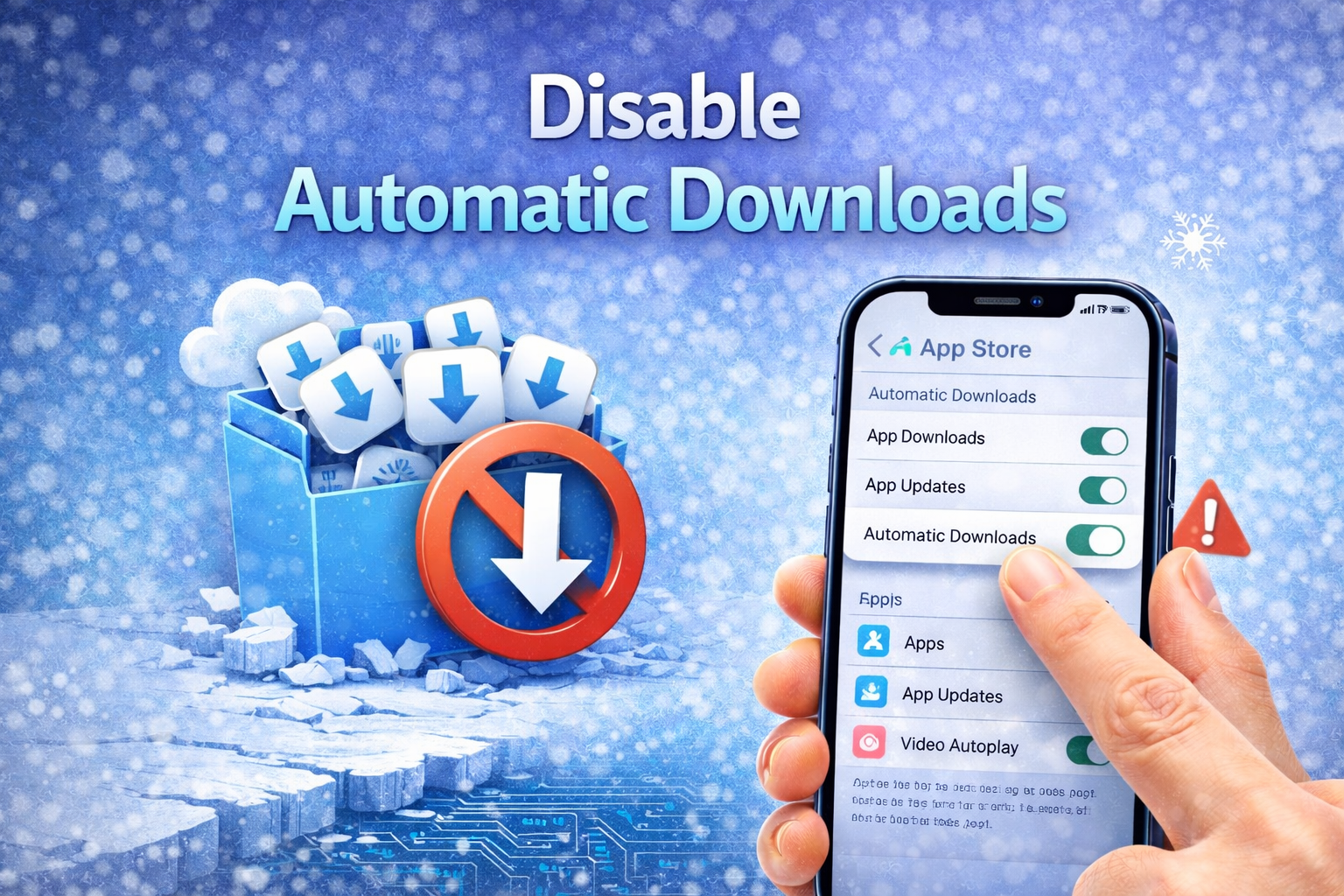
Automatic downloads can slow your phone in the background.
Steps:
- Open Settings
- Tap App Store
- Turn off Automatic Downloads
Reset All Settings (Safe Option)
This does NOT delete your data.
Steps:
- Go to Settings → General
- Tap Transfer or Reset iPhone
- Select Reset
- Choose Reset All Settings
What resets:
Wi-Fi passwords, wallpapers, settings
What stays:
Photos, apps, videos, messages
Hardware and Physical Factors That Cause Screen Lag
Check for Overheating
Heat reduces performance automatically to protect hardware.
Fixes:
- Remove thick cases
- Avoid charging while gaming
- Keep phone out of direct sunlight
Clean the Screen and Case
Dirt, oil, or moisture can cause touch delays.
Steps:
- Use a microfiber cloth
- Avoid harsh chemicals
- Remove screen protectors if touch issues persist
Check Battery Health
Old batteries slow down performance.
Steps:
- Open Settings → Battery
- Tap Battery Health
- If capacity is below 80%, consider replacement
Last Resort: Factory Reset (Only If Nothing Works)
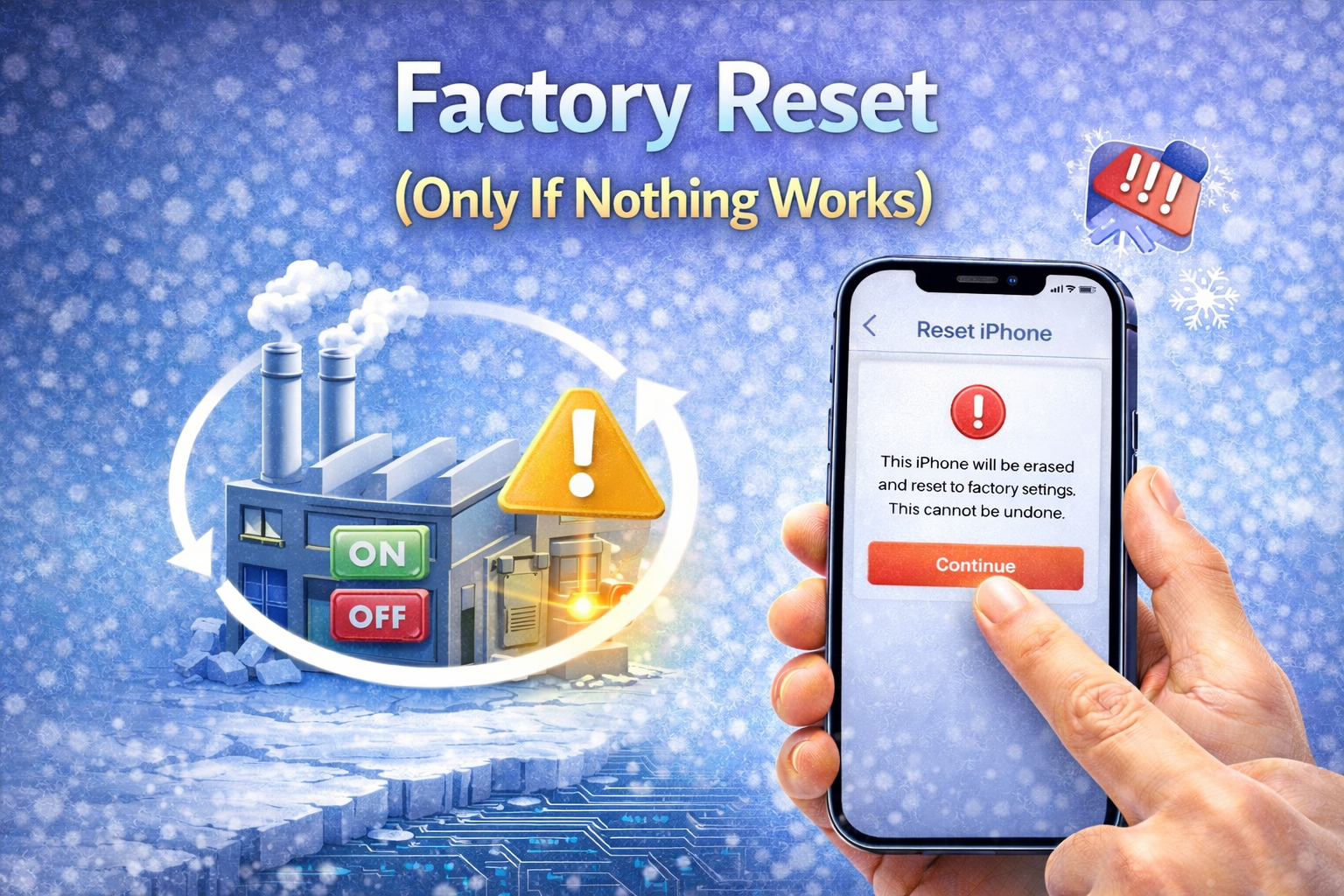
Use this only if iPhone screen freezing or lagging continues after all fixes.
Steps:
- Back up your iPhone (iCloud or computer)
- Go to Settings → General
- Tap Transfer or Reset iPhone
- Select Erase All Content and Settings
This restores your iPhone to like-new software condition.
Tips to Prevent iPhone Screen Freezing in the Future
- Keep at least 5–8 GB free storage
- Update iOS regularly
- Avoid installing unknown apps
- Restart your iPhone once a week
- Replace old batteries when needed
FAQ: iPhone Screen Freezing or Lagging
1. Why does my iPhone screen freeze randomly?
Random freezing usually happens due to low storage, buggy apps, or temporary system glitches.
2. Does iOS update cause iPhone lag?
Sometimes yes, especially right after updating. The phone needs time to re-index data. Lag usually disappears after 24–48 hours.
3. Can low battery health cause screen lag?
Yes. iPhones with weak batteries may throttle performance, causing lag and freezing.
4. Is screen freezing a sign of hardware damage?
Not always. Most cases are software-related. Hardware issues usually involve cracked screens or water damage.
5. Should I reset my iPhone to fix lag?
Resetting helps, but try other solutions first. A full reset should be the last option.
Conclusion
iPhone screen freezing or lagging can be frustrating, but it’s usually easy to fix. In most cases, restarting your device, freeing up storage, updating iOS, or adjusting a few settings will restore smooth performance.
Follow the steps in this guide patiently, and your iPhone should feel fast and responsive again—without expensive repairs or replacements.