How to Fix iPhone Battery Draining Fast (Step-by-Step Guide)
If your iPhone battery is draining fast, you are not alone. Many iPhone users notice their battery dropping quickly even when they are not using the phone much. This problem can happen on new and old iPhones, and it often gets worse after iOS updates, installing new apps, or changing settings.
The good news is that you can fix iPhone battery draining fast issues without being a tech expert. In this guide, I will explain the real reasons behind fast battery drain and show you simple, step-by-step solutions that actually work. This article is written for beginners and everyday users, using clear and easy English.
Why Is My iPhone Battery Draining So Fast?
Before fixing the issue, it’s important to understand why it happens. Here are the most common reasons:
- Background apps using too much power
- Screen brightness set too high
- Location services always turned on
- Old or buggy iOS version
- Battery health is degraded
- Poor network signal
- Apps not optimized for the latest iOS
Real-world example:
After updating to a new iOS version, many users report that their iPhone battery drops from 100% to 70% within a few hours—even without heavy use. This usually happens because apps are still syncing or not optimized yet.
How to Fix iPhone Battery Draining Fast
Let’s go through the most effective fixes, step by step.
Check iPhone Battery Usage First (Very Important)
Before changing settings, find out what’s draining your battery.
Steps to Check Battery Usage:
- Open Settings
- Tap Battery
- Wait a few seconds for the data to load
- Check Battery Usage by App
You will see:
- Which apps use the most battery
- Whether battery drain is happening in the background
Tip:
If an app you rarely use is at the top of the list, that app is likely the problem.
Reduce Screen Brightness and Display Settings
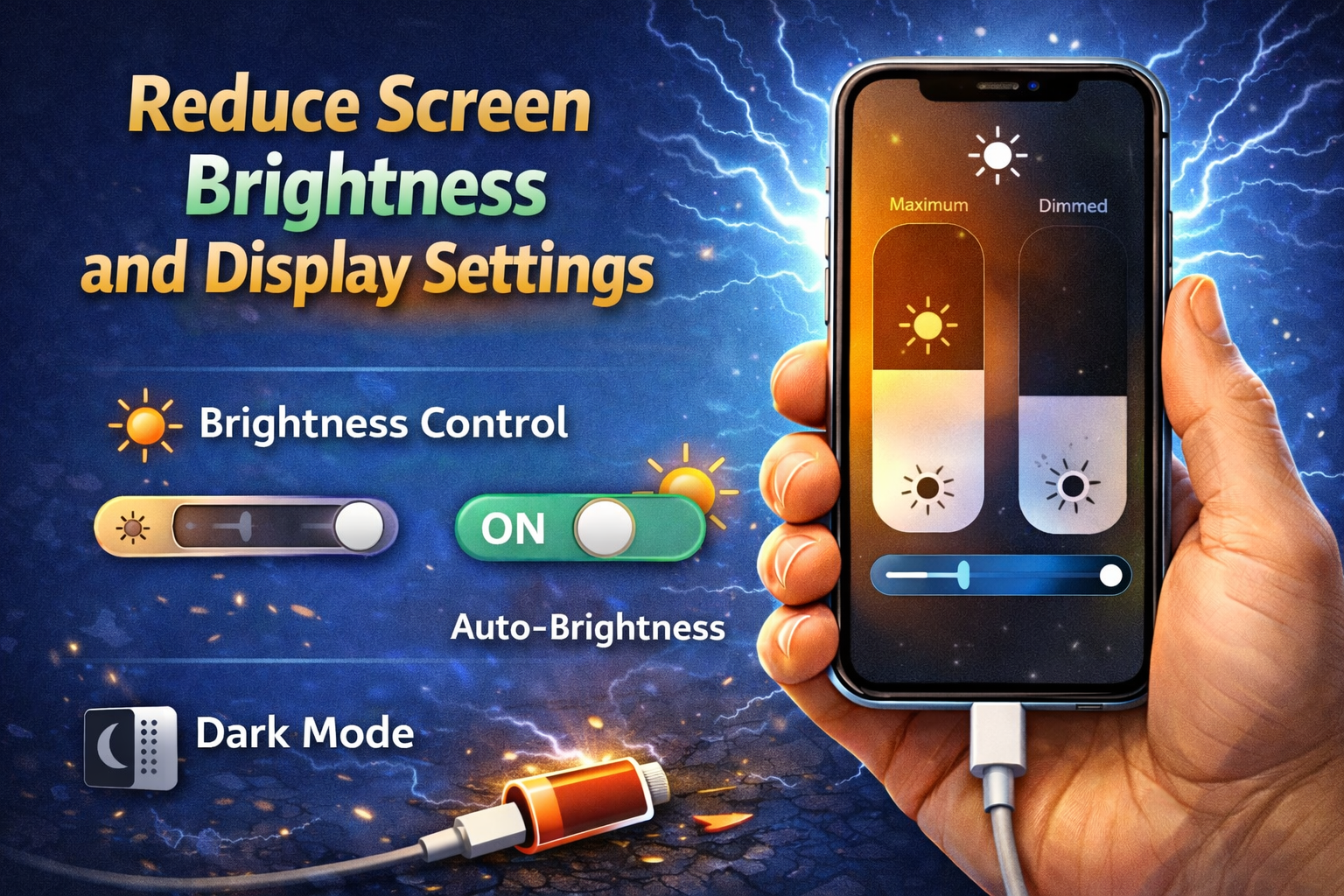
The display is one of the biggest battery killers on iPhones.
Steps to Fix:
- Go to Settings > Display & Brightness
- Lower the Brightness slider
- Enable Auto-Brightness
- Settings > Accessibility > Display & Text Size > Auto-Brightness
Also Do This:
- Reduce Auto-Lock time to 30 seconds or 1 minute
- Avoid using live wallpapers
Real-world example:
Users who reduce brightness from 100% to 50% often see 1–2 extra hours of battery life per day.
Turn Off Background App Refresh
Background App Refresh lets apps update even when you’re not using them.
Steps:
- Open Settings
- Tap General
- Tap Background App Refresh
- Choose Wi-Fi or Off
- Turn it off for unnecessary apps
Best practice:
Keep it enabled only for essential apps like messaging or navigation.
Fix iPhone Battery Draining Fast by Managing Location Services
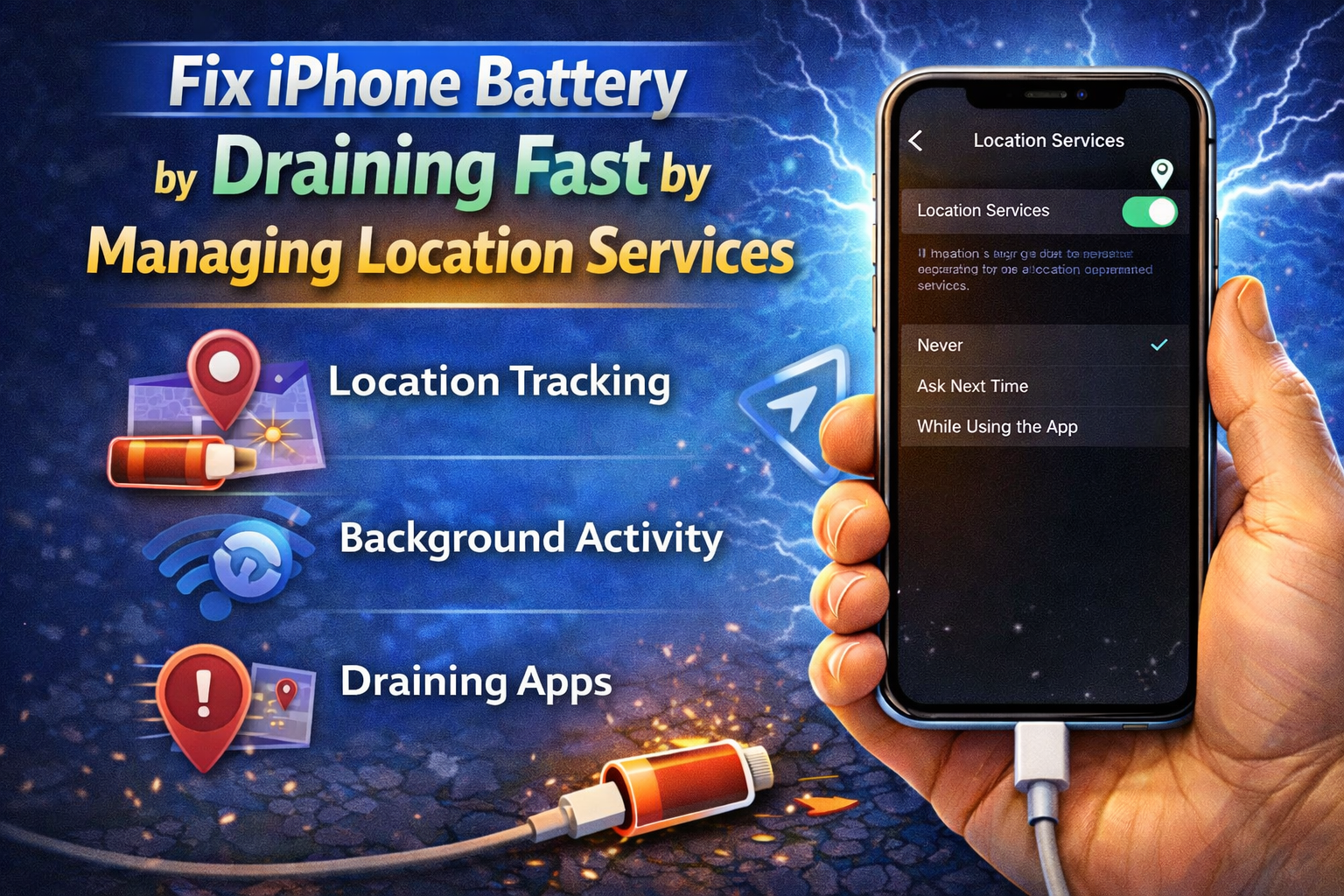
Location services can drain battery quickly, especially GPS-based apps.
Steps:
- Go to Settings > Privacy & Security
- Tap Location Services
- Set apps to While Using the App
- Turn off location for apps that don’t need it
Important:
- Disable Precise Location for social media apps
- Scroll down and tap System Services
- Turn off unnecessary options like location-based ads
Update iOS to Fix Battery Bugs
Sometimes battery drain is caused by software bugs.
Steps:
- Open Settings
- Tap General
- Tap Software Update
- Install the latest iOS version
Note:
Right after an update, battery drain may be higher for 1–2 days while the system finishes background tasks. This is normal.
Check iPhone Battery Health
If your battery health is low, no setting will fully fix the problem.
Steps:
- Go to Settings > Battery
- Tap Battery Health & Charging
- Check Maximum Capacity
What the numbers mean:
- 90–100%: Battery is healthy
- 80–89%: Noticeable drain
- Below 80%: Battery replacement recommended
Real-world example:
An iPhone with 75% battery health may lose 30–40% charge in just a few hours of normal use.
Disable Unnecessary Notifications
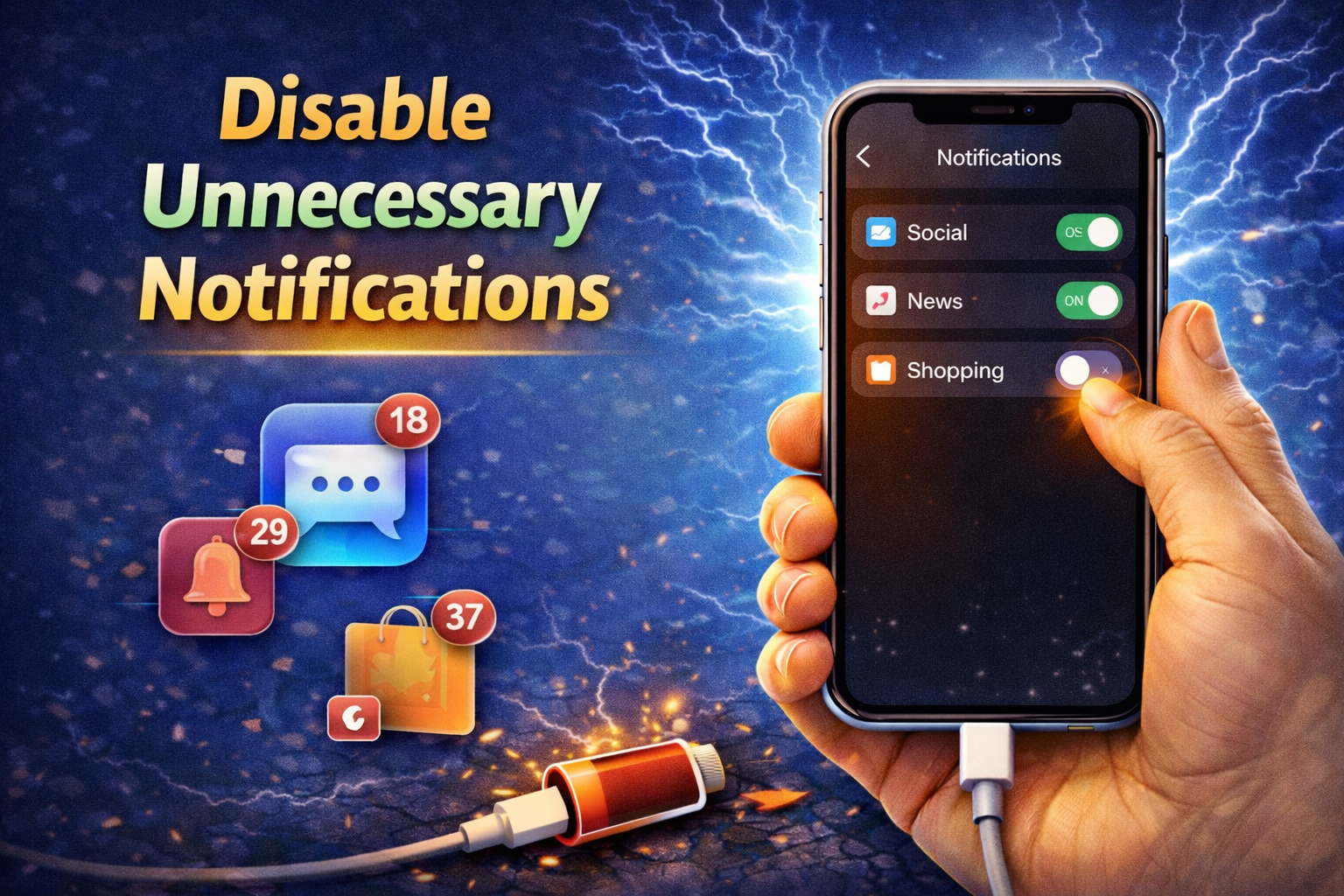
Too many notifications wake up your screen and drain power.
Steps:
- Open Settings
- Tap Notifications
- Select apps you don’t need alerts from
- Turn off Allow Notifications
Enable Low Power Mode
Low Power Mode is one of the easiest fixes.
Steps:
- Go to Settings > Battery
- Turn on Low Power Mode
What it does:
- Reduces background activity
- Lowers screen brightness
- Extends battery life instantly
Tip:
You can add Low Power Mode to Control Center for quick access.
Close Apps the Right Way (Myth Explained)
Force-closing apps all the time is not always helpful.
When to close apps:
- If an app is frozen or misbehaving
- If it shows high background battery usage
How to close:
- Swipe up from the bottom
- Swipe the app card up
Reset All Settings (Safe Option)
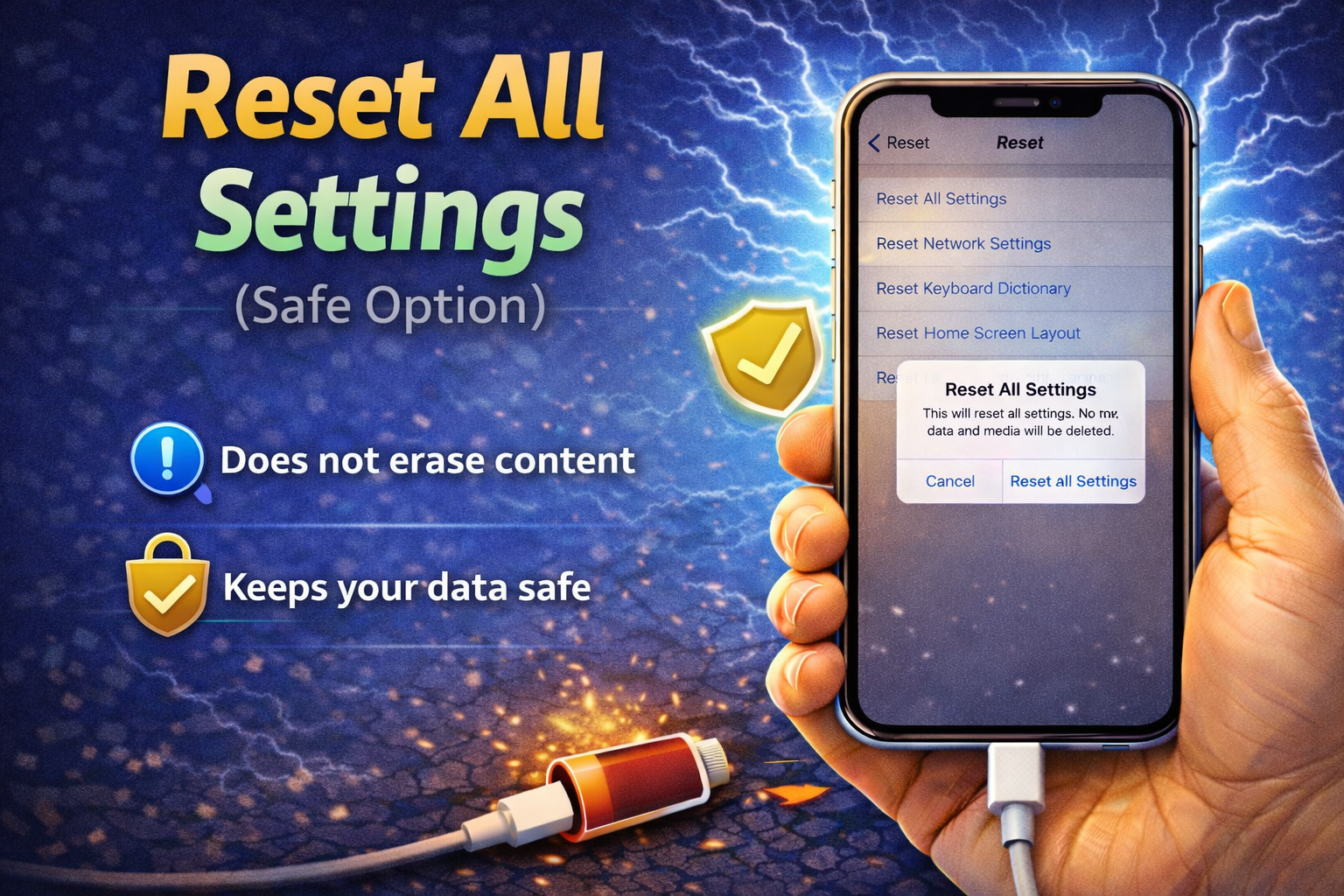
If battery draining fast continues, reset system settings.
Steps:
- Open Settings
- Tap General
- Tap Transfer or Reset iPhone
- Choose Reset
- Select Reset All Settings
This will NOT delete your data, but Wi-Fi passwords and settings will reset.
Avoid Extreme Temperatures
Heat damages battery life permanently.
Tips:
- Avoid charging under pillows
- Don’t use iPhone while charging heavily
- Remove thick cases if phone gets hot
Frequently Asked Questions (FAQ)
1. Why is my iPhone battery draining fast overnight?
This usually happens because of background app activity, poor network signal, or iOS updates syncing data. Check Battery Usage to confirm.
2. Does iOS update cause battery drain?
Yes, temporarily. Battery drain usually stabilizes after 1–2 days.
3. Should I replace my iPhone battery?
If Battery Health is below 80%, replacement is recommended for best performance.
4. Is Low Power Mode bad for iPhone?
No. It’s safe and helps extend battery life without harming your phone.
5. Can bad apps drain iPhone battery fast?
Yes. Poorly optimized apps can drain battery even in the background.
Conclusion
If your iPhone battery is draining fast, it doesn’t mean your phone is broken. In most cases, the issue is caused by settings, apps, or battery health. By following the step-by-step solutions in this guide—checking battery usage, adjusting settings, updating iOS, and monitoring battery health—you can significantly improve your iPhone’s battery life.
For the best results, combine multiple fixes instead of relying on just one. A few small changes can make your iPhone last hours longer every day.