
How to Fix External Monitor Not Working on Windows (Beginner-Friendly Guide)
An external monitor not working on Windows can be frustrating, especially when you need more screen space for work, study, or entertainment. You plug in the monitor, but nothing happens—no display, no signal, or a black screen. Don’t worry. In most cases, this problem is easy to fix. This guide will show you how to fix external monitor not working on Windows using simple, step-by-step solutions that anyone can follow.
Whether you are using Windows 10 or Windows 11, this article covers the most common causes and proven fixes, explained in clear and simple English.
Common Signs of External Monitor Problems on Windows
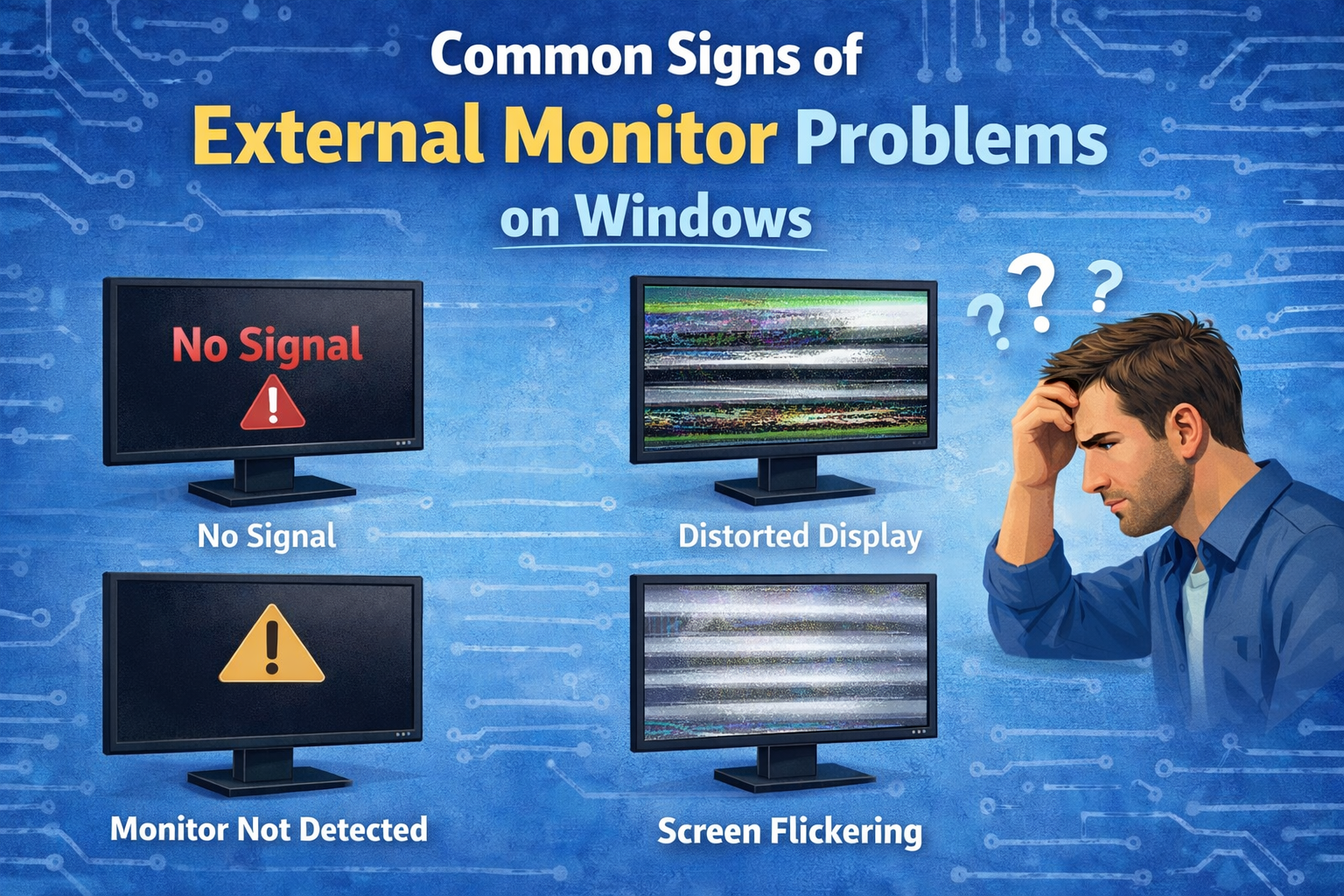
You may be facing this issue if you notice:
- External monitor shows “No Signal”
- Second screen is not detected
- External monitor is black or flickering
- Display works sometimes but disconnects randomly
- Resolution or scaling looks wrong
Why External Monitor Is Not Working on Windows
Understanding the cause helps you fix the problem faster.
1. Cable or Port Issues
Loose, damaged, or incompatible cables are the most common reason.
2. Display Settings Problems
Windows may not be set to extend or duplicate the display.
3. Graphics Driver Issues
Outdated or corrupted display drivers can prevent detection.
4. Hardware Compatibility Issues
Some monitors or adapters may not work well with your PC.
5. Windows Update Conflicts
Recent updates can sometimes break display settings or drivers.
How to Fix External Monitor Not Working on Windows (Step-by-Step)
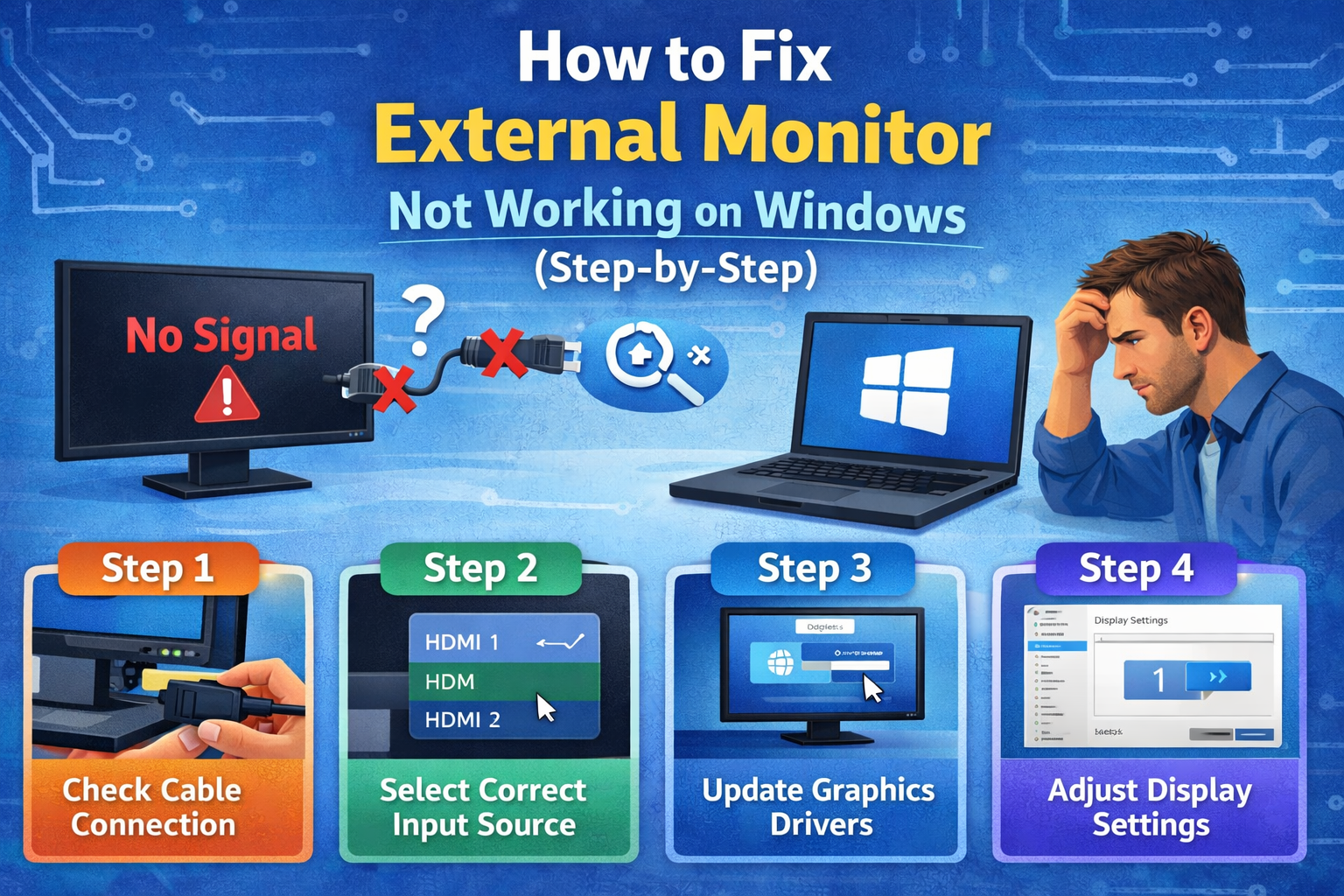
Follow these solutions in order. Most users fix the problem within the first few steps.
Solution 1: Check Monitor Power and Input Source
Before changing Windows settings, check the basics.
Steps:
- Make sure the monitor is powered on
- Check the power cable and LED light
- Use the monitor’s buttons to select the correct input (HDMI, DisplayPort, VGA)
Real-world example:
Your monitor is connected via HDMI, but the input is set to DisplayPort. Changing the input fixes the issue instantly.
Solution 2: Check and Reconnect Cables
Loose or faulty cables are a very common cause.
What to do:
- Unplug and replug the cable firmly
- Try a different HDMI, DisplayPort, or VGA cable
- Try another port on your PC or monitor
- Avoid cheap or damaged adapters
Tip:
If you use HDMI-to-VGA or USB-C adapters, try a different one if possible.
Solution 3: Restart Your Computer
A simple restart can reload display drivers and fix detection issues.
Why it works:
- Clears temporary glitches
- Reloads graphics drivers
Example:
After plugging in an external monitor, Windows doesn’t detect it. Restarting makes the monitor appear.
Solution 4: Use Windows Display Settings to Detect the Monitor
Sometimes Windows does not automatically detect the external display.
Steps:
- Right-click on the desktop
- Select Display settings
- Scroll down and click Detect
- Wait for Windows to search for the monitor
If detected, you will see the external monitor listed.
Solution 5: Choose the Correct Display Mode
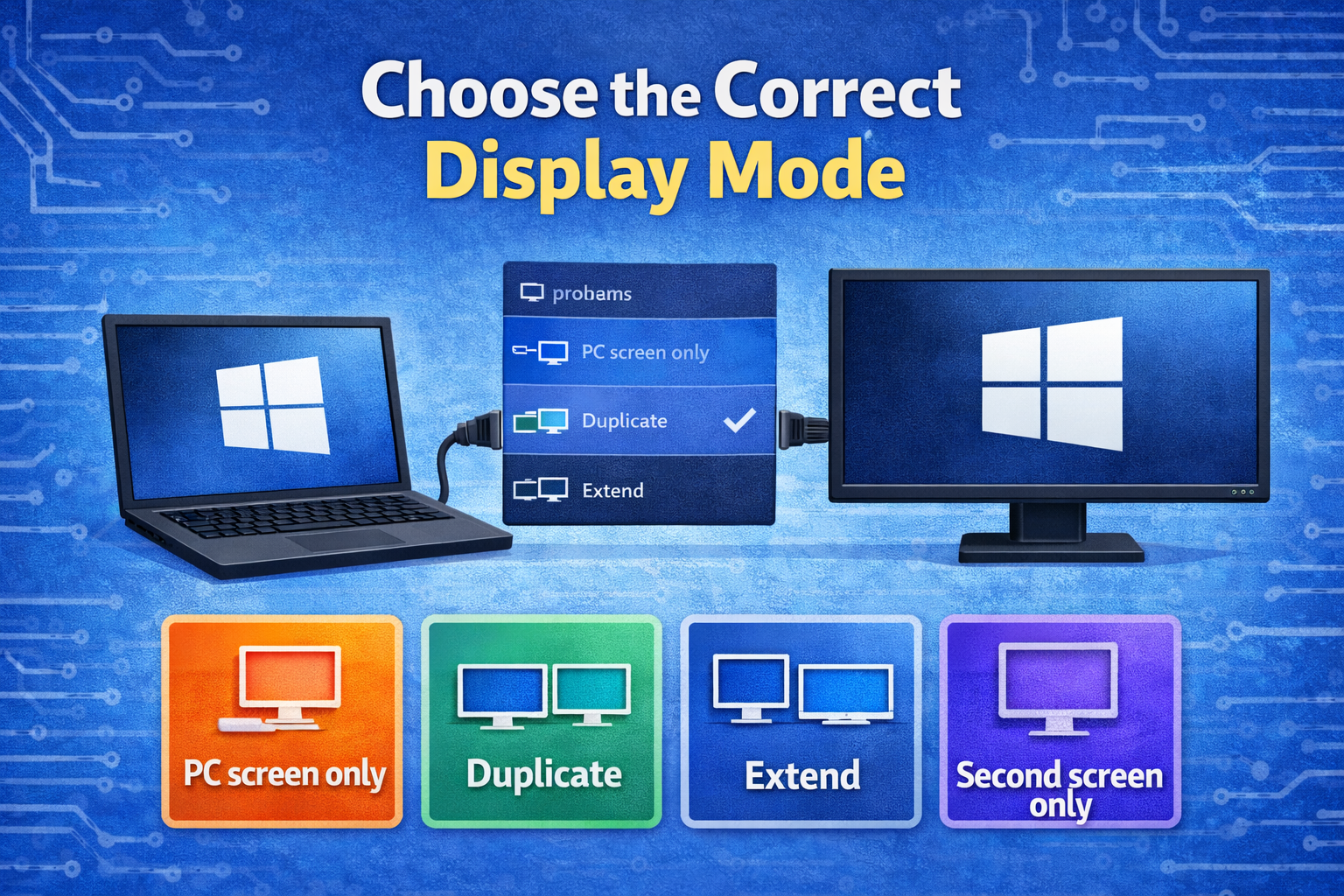
Windows may be set to show content on one screen only.
Steps:
- Press Windows + P
- Select one of these options:
- Duplicate (same screen on both)
- Extend (recommended for dual screens)
- Second screen only
Best option:
Extend for work and multitasking
Solution 6: Fix External Monitor Not Working on Windows Using Display Drivers
Display driver issues are one of the top causes.
Update the Display Driver
Steps:
- Press Windows + X
- Open Device Manager
- Expand Display adapters
- Right-click your graphics card
- Click Update driver
- Choose Search automatically for drivers
- Restart your PC
Roll Back Display Driver (If Issue Started After Update)
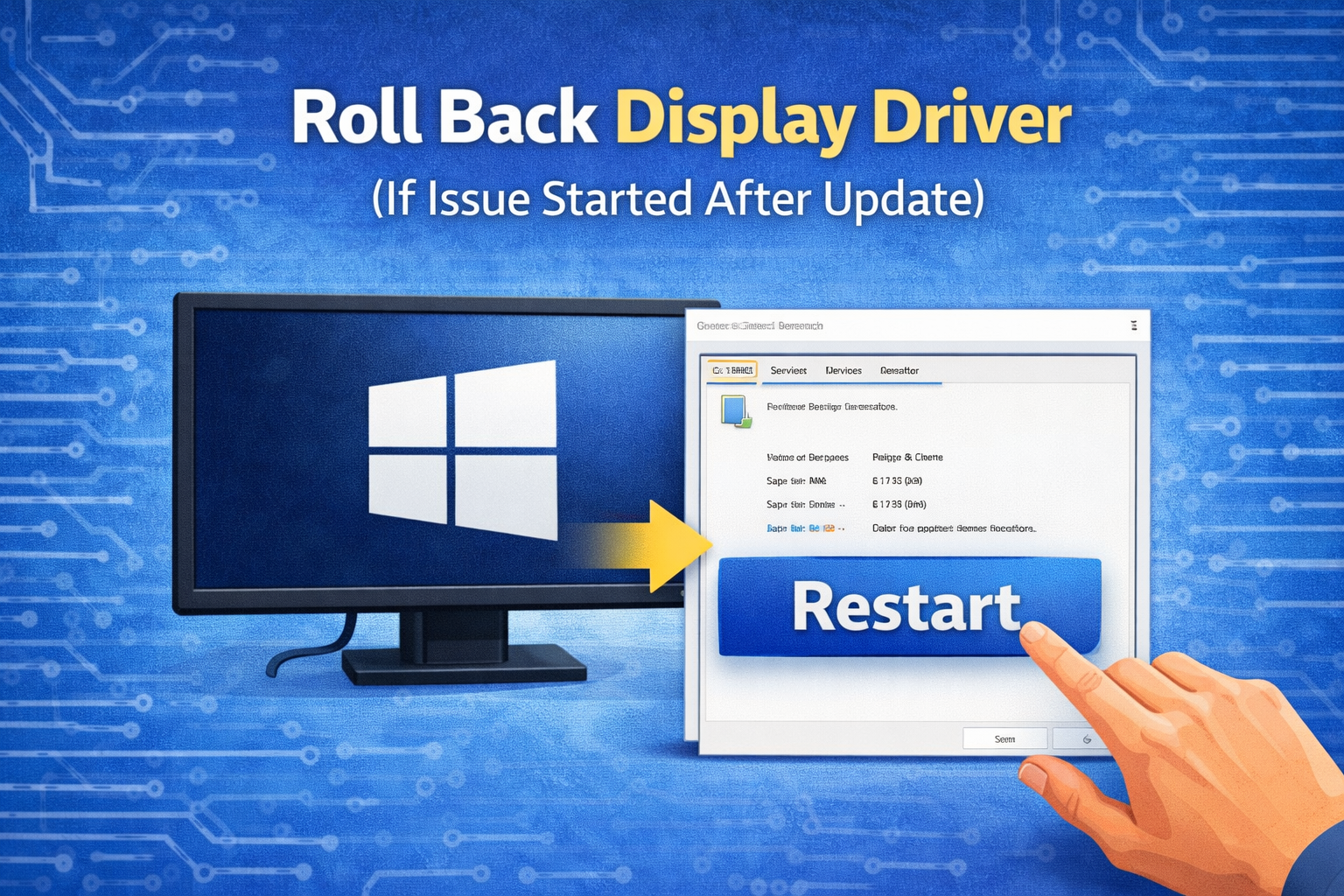
Steps:
- Open Device Manager
- Right-click the display adapter
- Click Properties
- Go to the Driver tab
- Click Roll Back Driver
- Restart
Real-world example:
After a Windows update, the external monitor stops working. Rolling back the driver restores functionality.
Reinstall Display Driver
If updating doesn’t help, reinstalling often works.
Steps:
- Open Device Manager
- Right-click Display adapters
- Click Uninstall device
- Restart your computer
Windows will reinstall the driver automatically.
Solution 7: Adjust Screen Resolution and Scaling
Incorrect resolution or scaling can cause display issues.
Steps:
- Open Display settings
- Select the external monitor
- Set Display resolution to Recommended
- Set Scale to 100% or 125%
- Apply changes
Solution 8: Change Refresh Rate
An unsupported refresh rate can cause a black screen.
Steps:
- Go to Display settings
- Click Advanced display
- Select the external monitor
- Choose a supported refresh rate (usually 60Hz)
- Apply
Solution 9: Try Another Monitor or PC
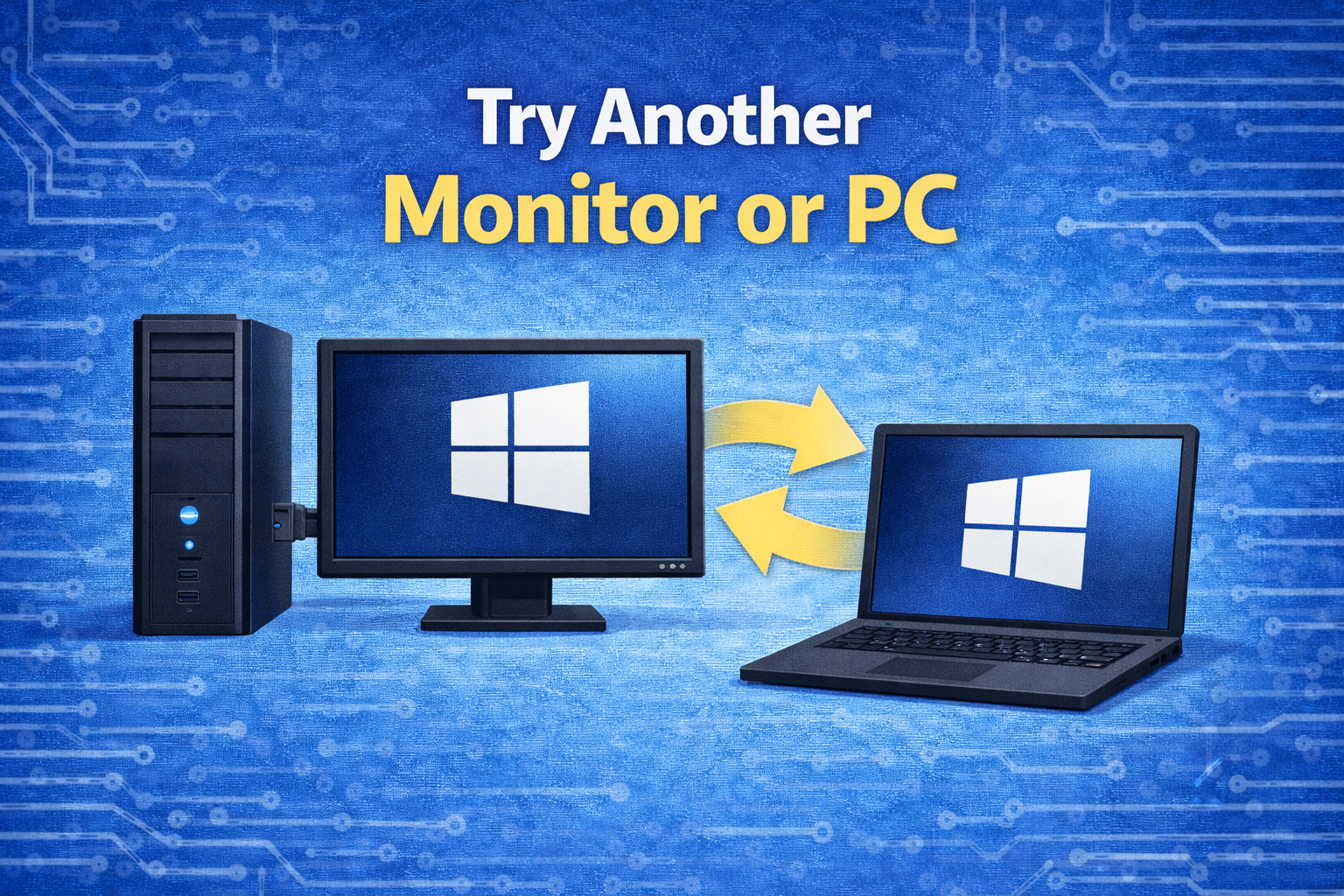
This helps identify hardware problems.
Test:
- Connect the monitor to another computer
- Connect a different monitor to your PC
Result:
- If the monitor doesn’t work anywhere → monitor issue
- If another monitor works → original monitor problem
Solution 10: Update Windows
Windows updates often include display fixes.
Steps:
- Open Settings
- Go to Windows Update
- Click Check for updates
- Install all updates
- Restart
Solution 11: Use Safe Mode to Diagnose the Problem
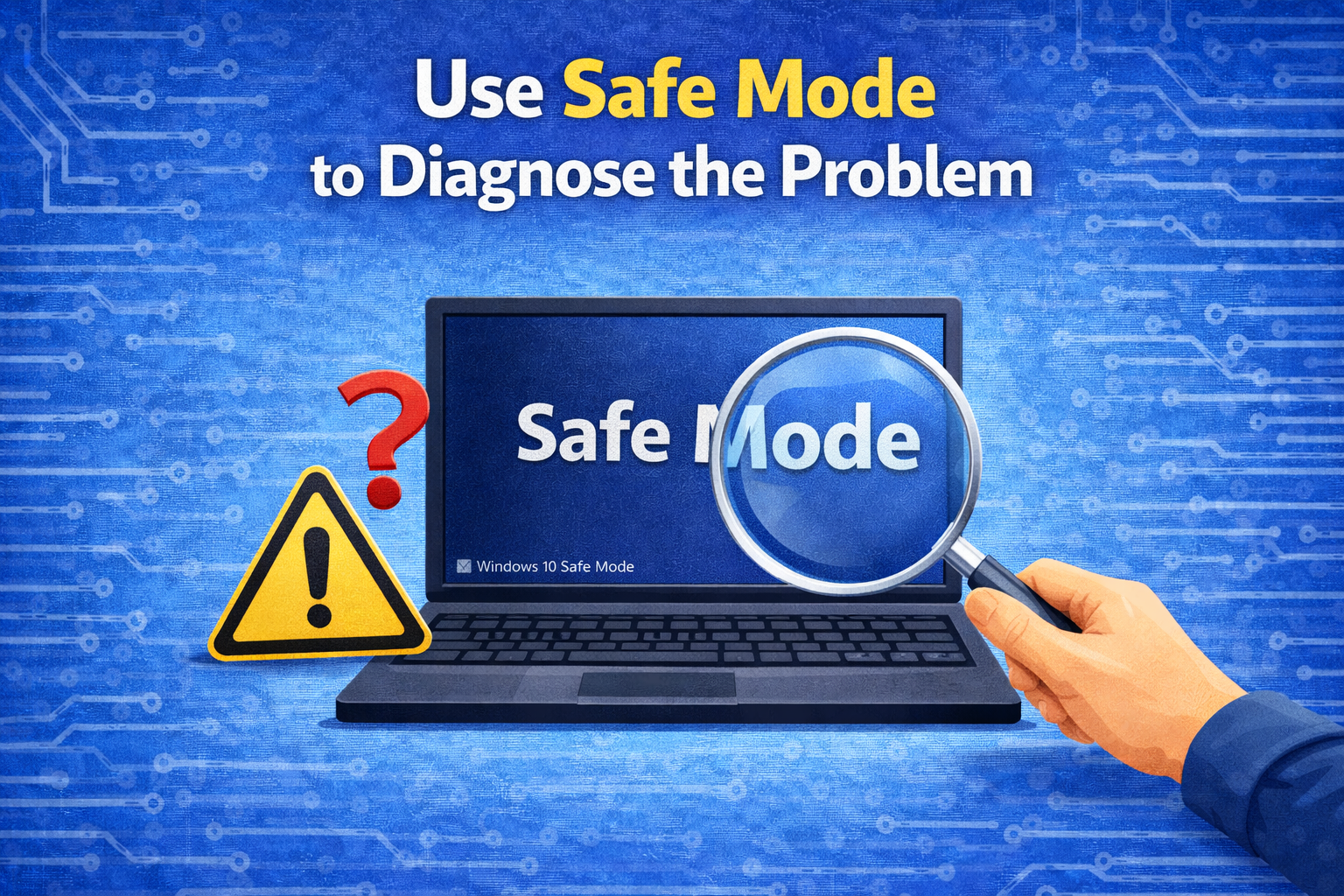
Safe Mode loads only basic drivers.
Steps:
- Hold Shift and click Restart
- Go to Troubleshoot → Advanced options
- Select Startup Settings
- Press F4 for Safe Mode
What it means:
- If the monitor works in Safe Mode, a driver or app is causing the issue
Common External Monitor Issues and Fixes
External Monitor Shows “No Signal”
✔ Check input source
✔ Replace cable
✔ Update display driver
Laptop Not Detecting External Monitor
✔ Press Windows + P
✔ Update graphics driver
External Monitor Flickering
✔ Change refresh rate
✔ Replace cable
External Monitor Resolution Looks Wrong
✔ Set recommended resolution
✔ Adjust scaling
Tips to Prevent External Monitor Issues in the Future
- Use quality cables and adapters
- Keep graphics drivers updated
- Avoid unplugging cables while PC is on
- Update Windows regularly
- Use official drivers from the manufacturer
Frequently Asked Questions (FAQ)
1. Why is my external monitor not detected on Windows?
Usually due to cable issues, incorrect display settings, or outdated graphics drivers.
2. How do I force Windows to detect an external monitor?
Go to Display settings and click Detect, or press Windows + P and select Extend.
3. Can a bad HDMI cable cause no display?
Yes. A faulty or low-quality cable is a very common cause.
4. Does updating Windows fix external monitor problems?
Often yes, especially if the issue is related to drivers or system bugs.
5. Do I need to reinstall Windows to fix this issue?
No. Reinstalling Windows should be the last option and is rarely needed.
Conclusion
An external monitor not working on Windows is a common problem, but it is usually easy to fix. By following this guide, you now know how to fix external monitor not working on Windows using simple, beginner-friendly steps. Start with basic cable checks, then move on to display settings and driver fixes. In most cases, your external monitor will be working perfectly again without professional help.