How to Fix Android Fingerprint Sensor Not Responding
If your phone suddenly stops reading your fingerprint, it can be frustrating. You place your finger on the sensor, but nothing happens. In some cases, the sensor is slow. In others, it does not detect your fingerprint at all. This issue can lock you out of quick access and make daily phone use annoying.
The good news is that this problem is often easy to fix.
In this guide, you will learn how to fix Android fingerprint sensor not responding using simple and practical steps. These methods are beginner-friendly and do not require advanced technical skills. Whether the problem is caused by dirt, software bugs, outdated settings, or hardware issues, this article will help you find the right solution.
This guide also includes related tips for problems like Android fingerprint not working, fingerprint sensor not detecting finger, and fix fingerprint unlock on Android.
Why This Problem Happens
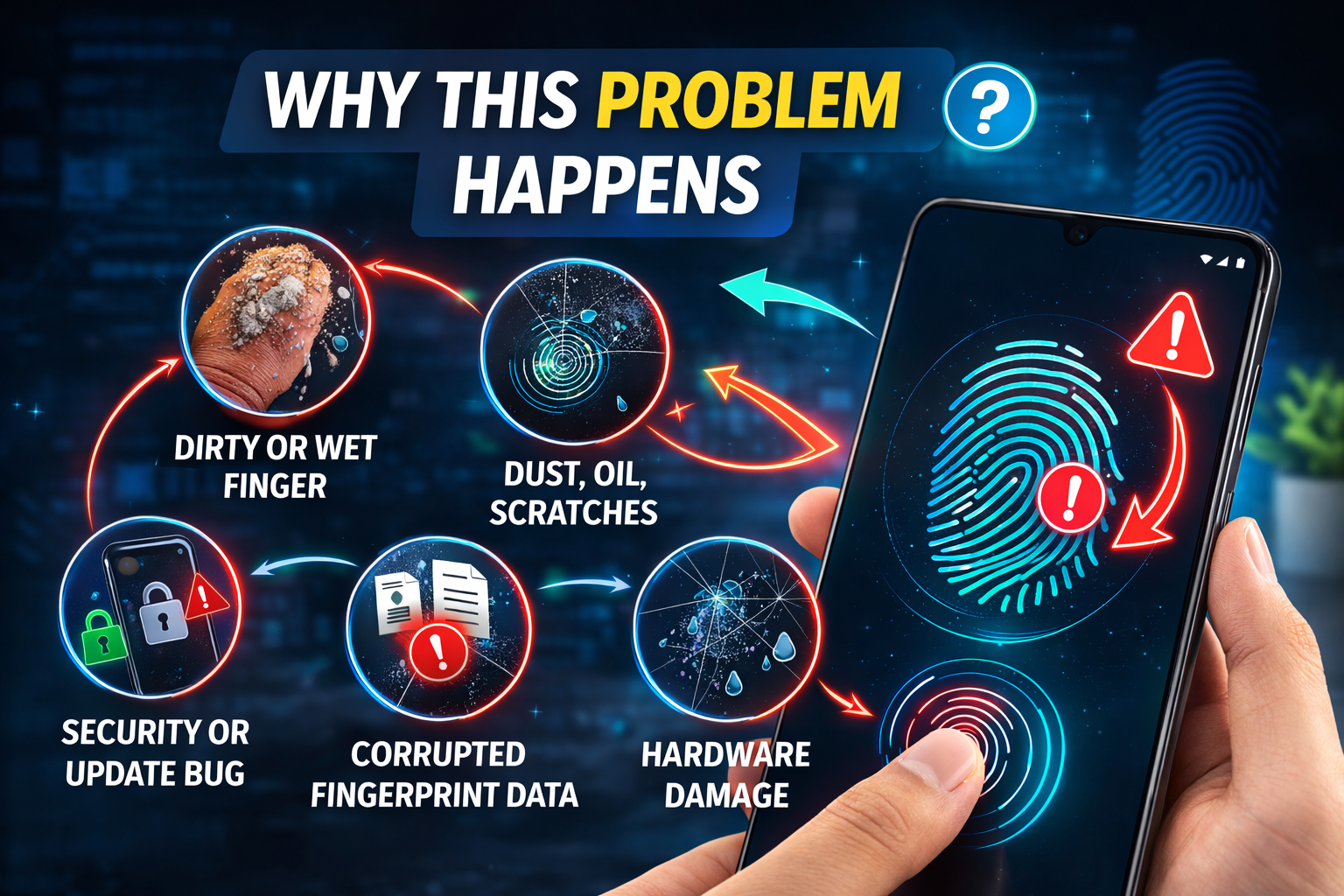
Before jumping into the fixes, it helps to understand why your fingerprint sensor may stop working.
Common causes include:
- Dirty or wet fingers
- Dust, oil, or scratches on the sensor
- Software glitches after an update
- Corrupted fingerprint data
- Screen protectors or phone cases interfering with the sensor
- Too many failed attempts
- Hardware damage from drops or water exposure
Sometimes the issue is temporary. Sometimes it needs a deeper fix. That is why it is best to go through the steps one by one.
1. Clean the Fingerprint Sensor and Your Finger
This is the first and easiest fix.
Fingerprint sensors are very sensitive. Even a little oil, sweat, lotion, or dust can stop them from working properly.
What to do:
- Wipe the fingerprint sensor gently with a soft microfiber cloth.
- If needed, slightly dampen the cloth with a little water and dry the sensor right away.
- Clean your finger and make sure it is dry.
- Try unlocking your phone again.
Why this works:
A dirty sensor may fail to read your fingerprint clearly. A clean surface improves accuracy.
2. Restart Your Android Phone
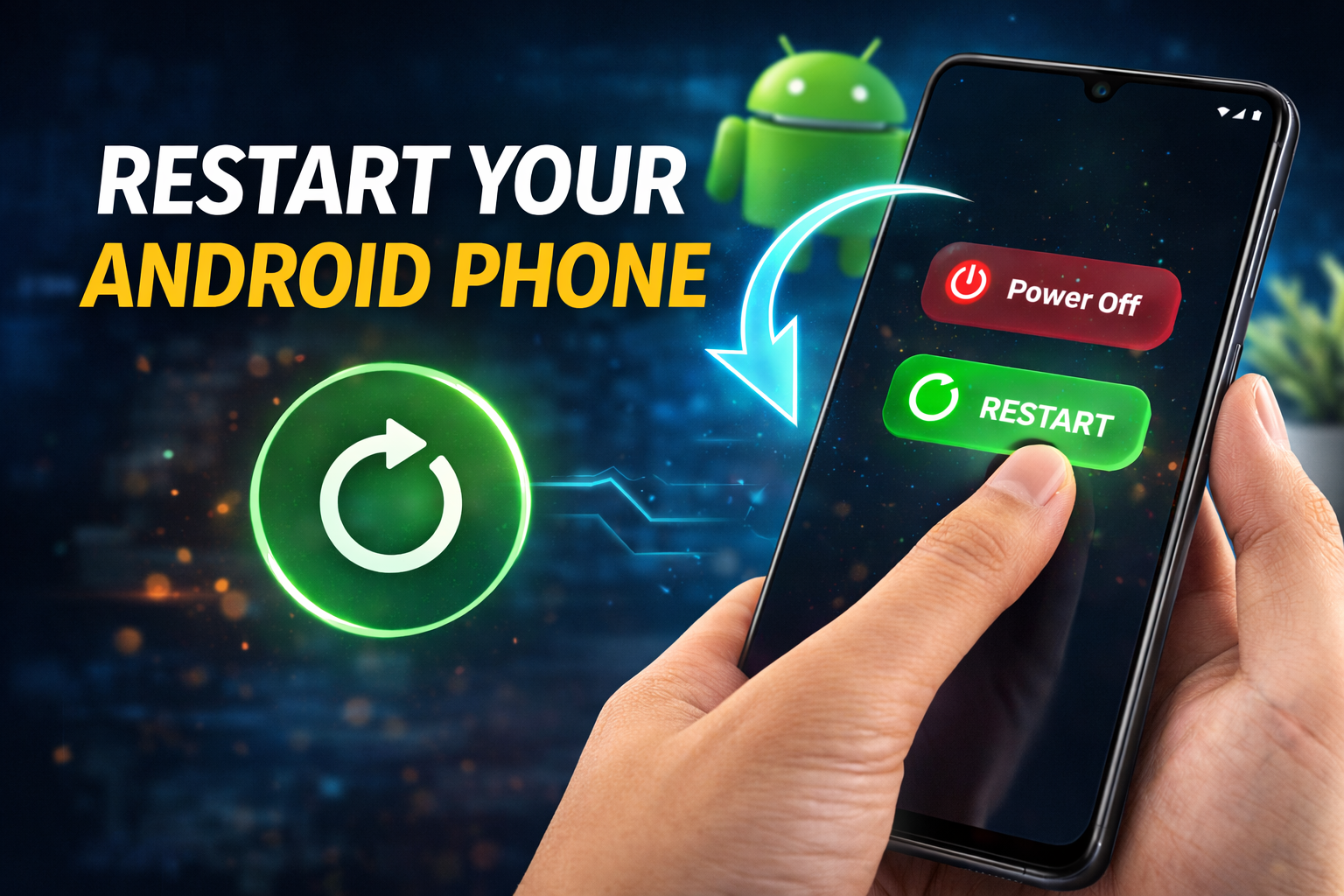
A simple restart can solve many Android problems, including fingerprint sensor issues.
Steps:
- Press and hold the Power button.
- Tap Restart.
- Wait for the phone to reboot.
- Test the fingerprint sensor again.
Why this works:
Restarting clears temporary bugs and refreshes background processes that may affect biometric features.
3. Check If Fingerprint Unlock Is Still Enabled
Sometimes the fingerprint option may be disabled after a software update, security change, or system glitch.
Steps:
- Open Settings.
- Tap Security, Lock Screen, or Biometrics.
- Select Fingerprint Unlock or Fingerprint Recognition.
- Make sure the feature is turned on.
Important:
If the option is missing, your system may have a software issue, or the device may not be recognizing the sensor correctly.
4. Remove and Re-Add Your Fingerprint
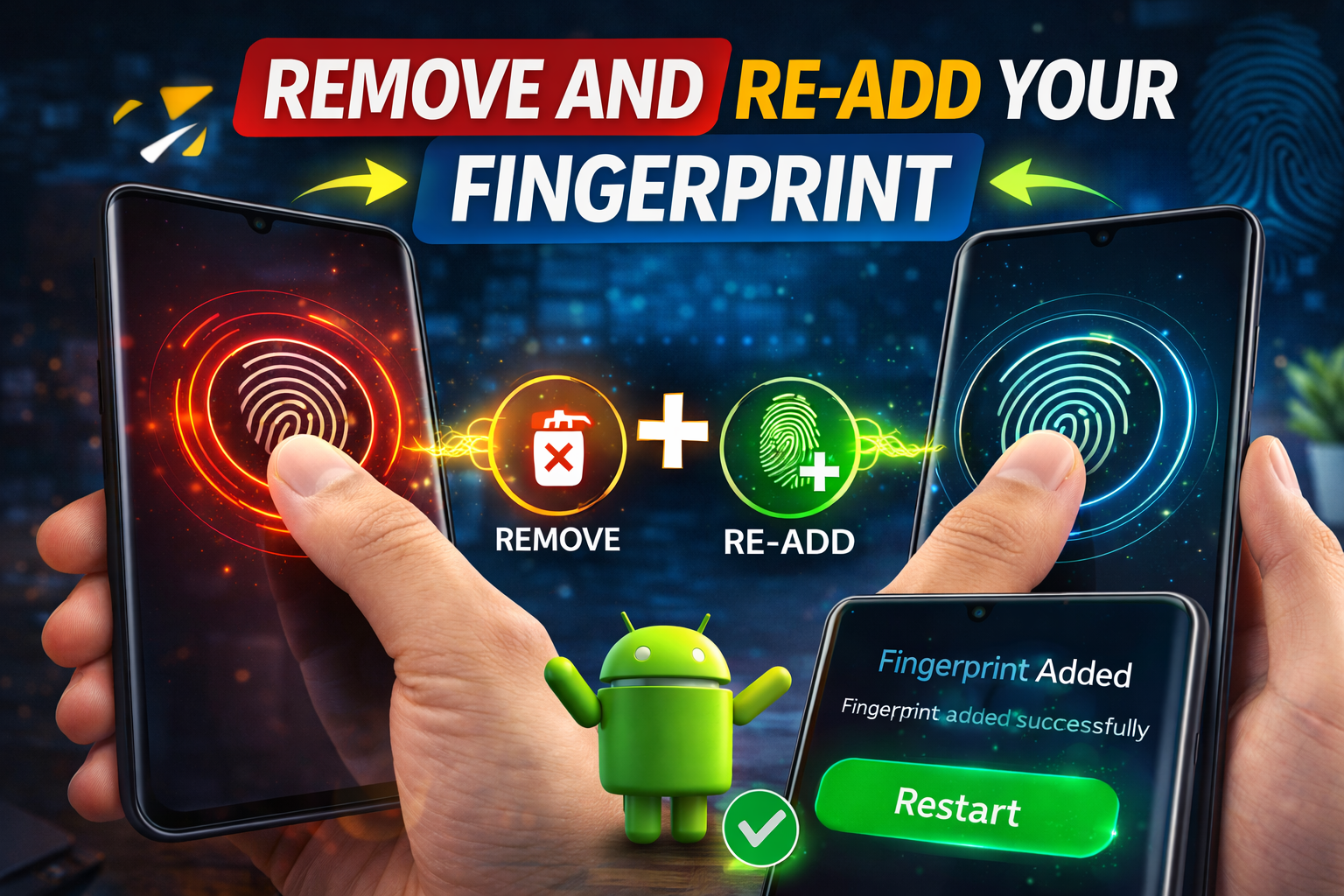
Saved fingerprint data can become corrupted. If that happens, your phone may stop recognizing your finger even though the sensor itself works.
Steps:
- Open Settings.
- Go to Security or Biometrics.
- Tap Fingerprint.
- Enter your PIN, password, or pattern.
- Delete the saved fingerprints.
- Restart your phone.
- Go back and add your fingerprint again.
Best practice when re-adding:
- Use clean and dry fingers
- Scan your finger from different angles
- Press naturally, not too lightly and not too hard
Why this works:
This refreshes your biometric data and often fixes Android fingerprint not working problems.
5. Register the Same Finger More Than Once
This is a smart trick that helps many users.
If your phone allows multiple fingerprint entries, you can register the same finger two times. This improves recognition because the device stores more scanning angles.
Steps:
- Open Settings > Security > Fingerprint.
- Tap Add Fingerprint.
- Scan the same finger you already use.
- Save it as a second fingerprint.
Why this works:
It gives your phone more data points, which can improve sensor response.
6. Update Your Android Software
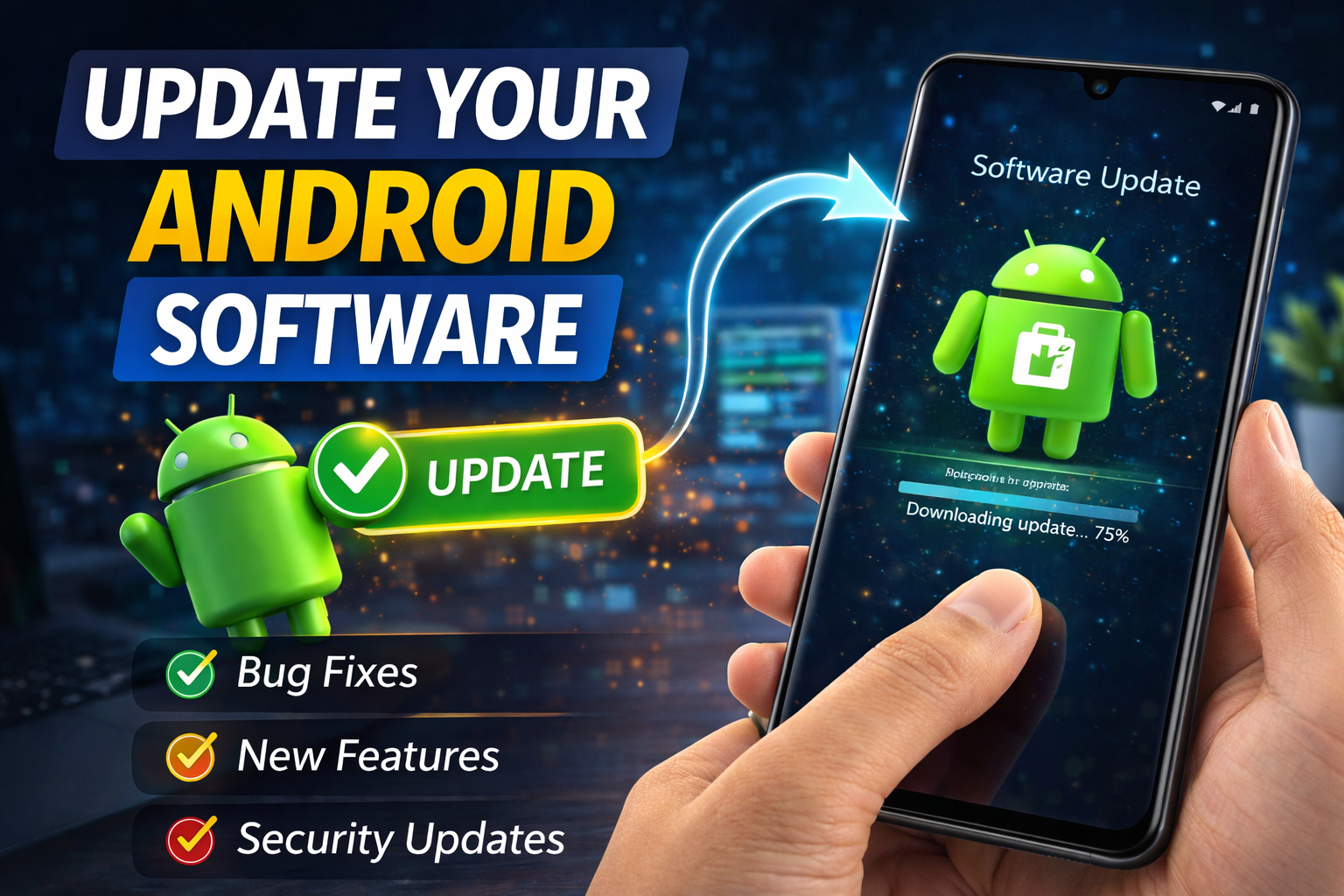
Software bugs can affect fingerprint performance. This is especially common after system updates or when the phone is running an outdated version.
Steps:
- Open Settings.
- Tap Software Update or System Update.
- Tap Download and Install if an update is available.
- Restart the device after the update.
Why this works:
Manufacturers often release updates to fix bugs related to biometrics and device security.
7. Update or Reset the App Causing the Issue
Sometimes the fingerprint sensor works on the lock screen but not inside apps like banking apps, password managers, or payment apps.
Steps:
- Go to Google Play Store.
- Search for the app causing the issue.
- Tap Update if available.
If that does not help:
- Open Settings > Apps.
- Find the app.
- Tap Storage.
- Tap Clear Cache.
If needed, you can also clear app data, but remember that this may reset the app.
Why this works:
Some apps may not work well with old biometric settings or outdated versions.
8. Turn Off Battery Saver
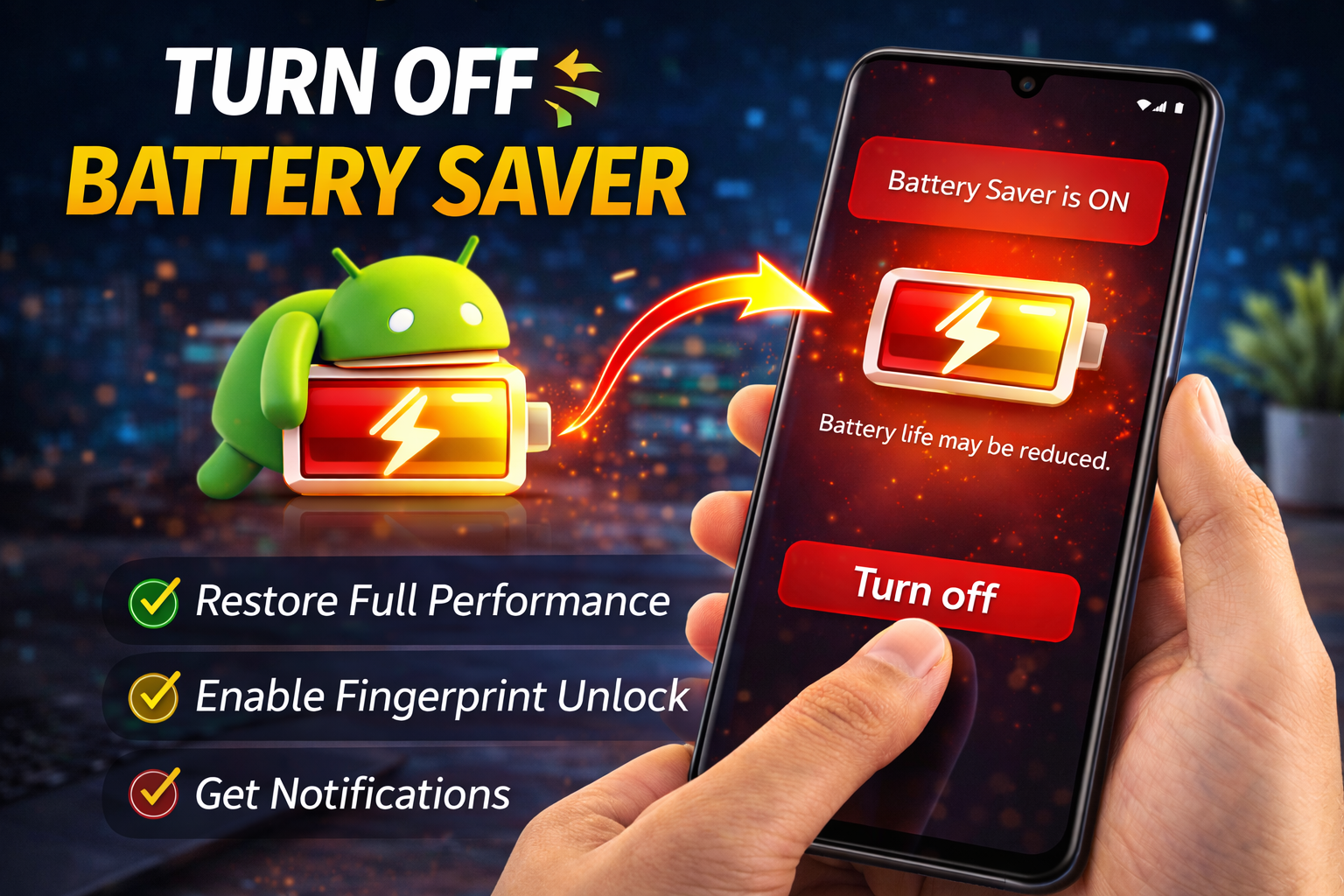
Battery Saver or Power Saving mode can limit some background functions and reduce performance.
Steps:
- Open Settings.
- Tap Battery.
- Select Battery Saver or Power Saving Mode.
- Turn it off temporarily.
- Test the fingerprint sensor.
Why this works:
Some phones reduce system responsiveness in power-saving mode, which may affect fingerprint recognition.
9. Remove the Screen Protector or Thick Phone Case
This is especially important for phones with in-display fingerprint sensors.
A low-quality screen protector, thick tempered glass, or a badly fitted case may block accurate fingerprint reading.
Steps:
- Remove the case.
- If your phone uses an under-display sensor, remove the screen protector temporarily.
- Test the sensor again.
- Re-register fingerprints if needed after changing the protector.
Why this works:
In-display sensors rely on accurate finger contact and image capture. Accessories can reduce sensor performance.
10. Calibrate Your Finger Placement
Many fingerprint problems happen because users do not place their finger the same way each time.
Try this:
- Cover the full sensor area
- Use the center of your fingertip
- Do not move too quickly
- Hold your finger steady for a moment
Tip:
If your finger is too dry, slightly moisturize it. If it is too wet, dry it first.
Why this works:
Fingerprint sensors need a clear and stable reading to match saved data.
11. Boot Your Phone in Safe Mode
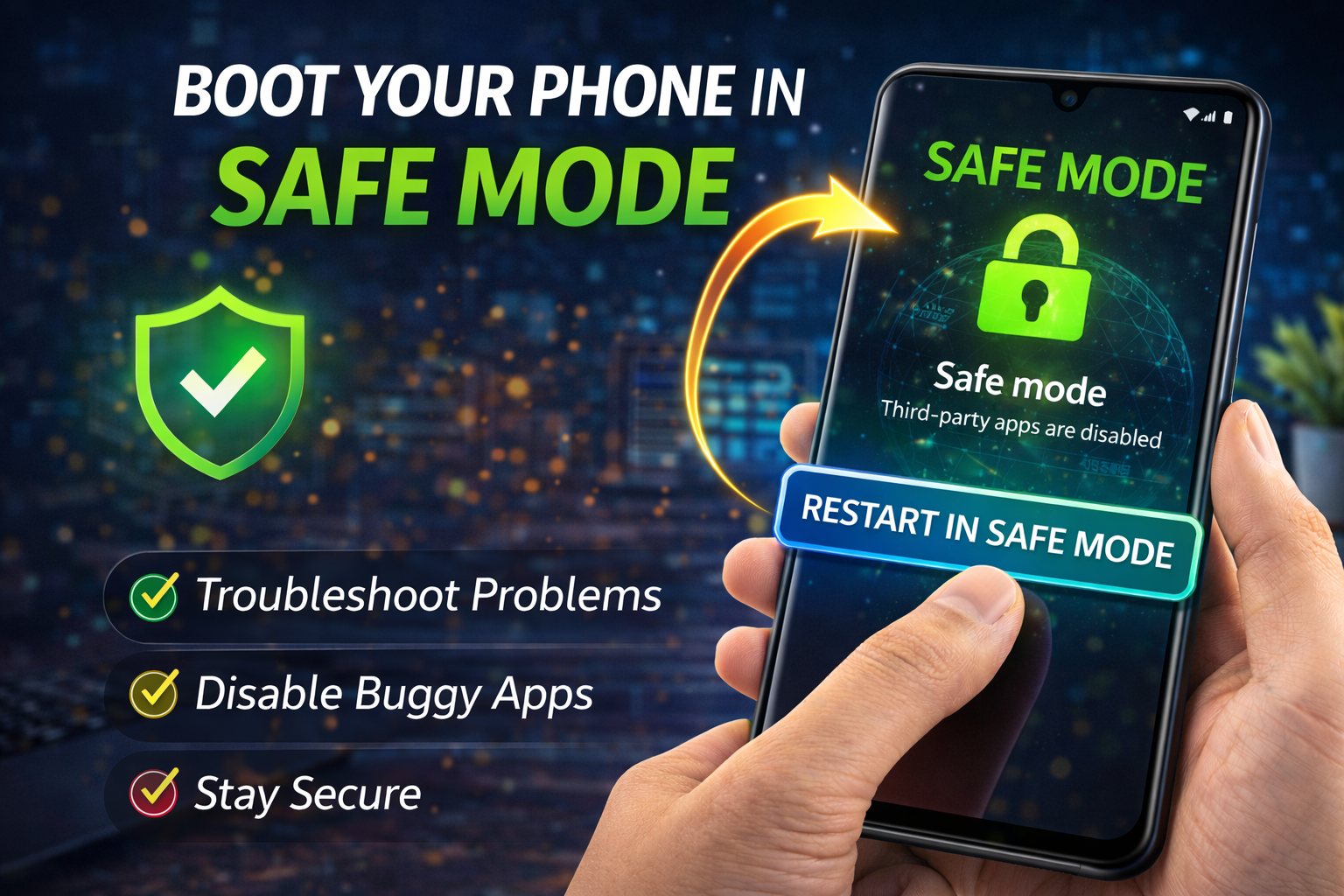
A third-party app may be interfering with system functions, especially security or lock screen apps.
Steps:
- Press and hold the Power button.
- Touch and hold Power Off until the Safe Mode option appears.
- Tap Safe Mode.
- Once the phone restarts, test the fingerprint sensor.
What it means:
- If the sensor works in Safe Mode, a downloaded app may be causing the issue.
- Remove recently installed apps one by one.
Why this works:
Safe Mode disables third-party apps and helps you identify software conflicts.
12. Clear System Cache Partition
On some Android phones, especially Samsung and other brands with recovery options, clearing the cache partition can fix biometric issues.
Steps:
- Turn off your phone.
- Press the correct button combination to enter Recovery Mode.
- Use the volume keys to highlight Wipe Cache Partition.
- Press the Power button to confirm.
- Reboot the phone.
Important:
Do not choose Factory Reset unless you really want to erase everything.
Why this works:
It removes temporary system files that may be causing conflicts.
13. Reset All Settings
If nothing else works, resetting settings can help without deleting personal files like photos or videos.
Steps:
- Open Settings.
- Go to System or General Management.
- Tap Reset.
- Select Reset All Settings.
What this resets:
- Wi-Fi settings
- Bluetooth settings
- Permissions
- Display and security preferences
Why this works:
It restores system settings that may be affecting the fingerprint feature.
14. Factory Reset as a Last Resort
If the fingerprint sensor still does not respond, a full reset may solve a deeper software problem.
Before you start:
- Back up your data
- Save photos, contacts, files, and app information
Steps:
- Open Settings.
- Tap System > Reset.
- Choose Factory Data Reset.
- Follow the on-screen instructions.
Why this works:
A factory reset removes deep software issues, corrupted settings, and system conflicts.
Warning:
This will erase everything on your phone.
15. Check for Hardware Damage
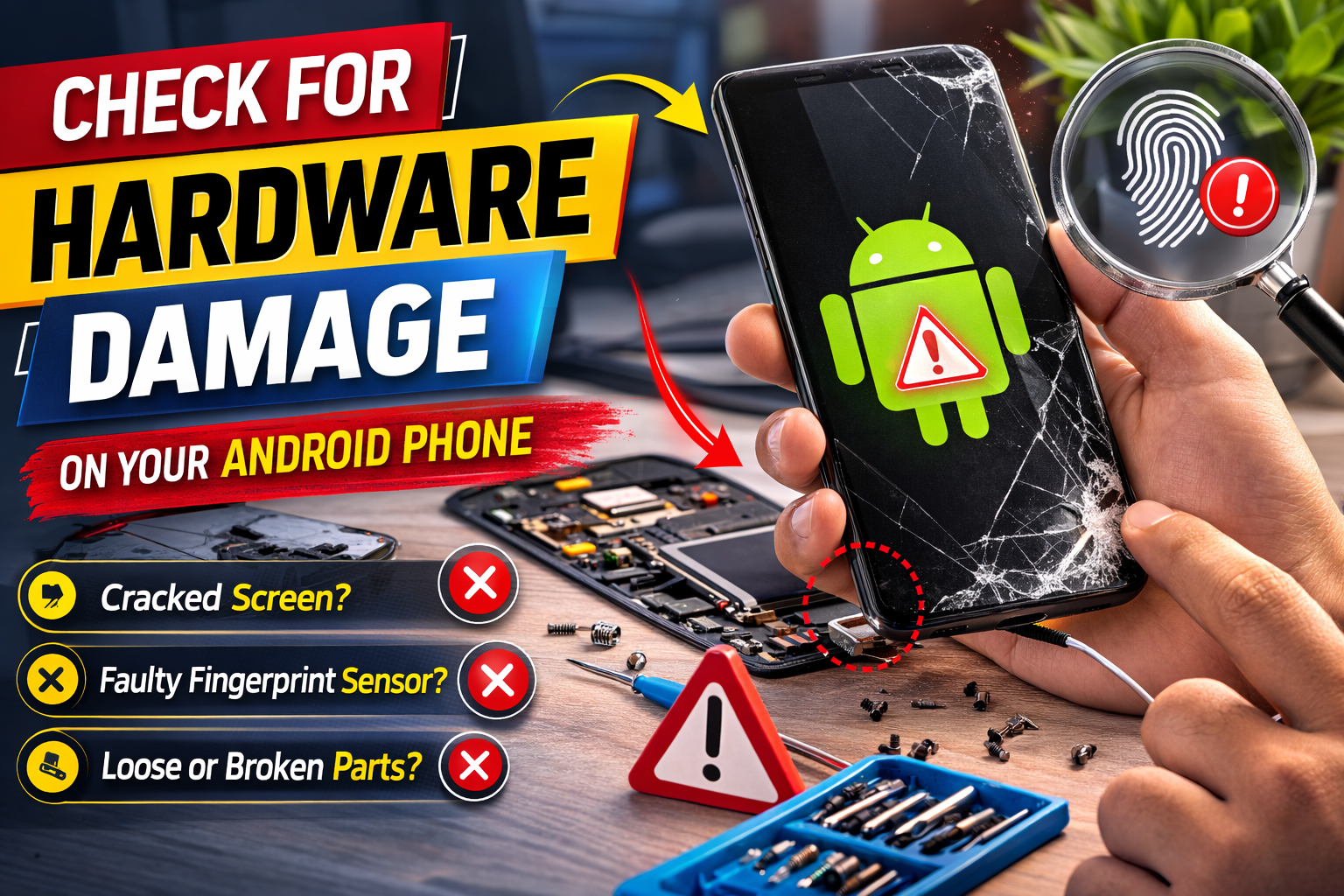
If none of the software fixes work, the problem may be physical.
Signs of hardware damage:
- The sensor does not react at all
- The phone was dropped recently
- The sensor stopped working after water exposure
- The sensor area is cracked or scratched
What to do:
- Visit an authorized repair center
- Ask for a diagnostic check
- Avoid trying to open the phone yourself
Why this matters:
Hardware issues cannot be fixed through settings or updates.
Quick Tips to Prevent This Problem
Here are a few simple ways to avoid fingerprint sensor problems in the future:
- Keep the sensor clean
- Wash and dry your hands before unlocking
- Avoid cheap screen protectors on in-display sensor phones
- Update your phone regularly
- Re-register fingerprints after major software updates
- Use more than one saved fingerprint
- Protect your phone from water and drops
- Avoid overloading your device with untrusted lock screen apps
These habits can reduce the chance of your fingerprint sensor not detecting finger properly.
FAQ
Why is my Android fingerprint sensor not responding?
It may be caused by dirt, wet fingers, software bugs, corrupted fingerprint data, screen protector issues, or hardware damage.
How do I fix Android fingerprint not working after an update?
Start by restarting the phone, checking for another software update, deleting old fingerprints, and registering them again.
Can a screen protector affect fingerprint unlock on Android?
Yes. This is very common on phones with in-display fingerprint sensors. A thick or low-quality protector can reduce sensitivity.
Should I factory reset my phone to fix fingerprint problems?
Only after trying all other solutions first. A factory reset is a last resort because it removes all your data.
What if my fingerprint sensor still does not work?
If none of the steps help, the sensor may have a hardware issue. In that case, contact the phone manufacturer or visit a repair center.
Conclusion
Dealing with an unresponsive fingerprint sensor can be annoying, but in most cases, the fix is simple. If you are searching for how to fix Android fingerprint sensor not responding, start with the easy methods first. Clean the sensor, restart the phone, re-add your fingerprint, and update the software. These steps solve the problem for many users.
If the issue continues, move on to deeper fixes like Safe Mode, clearing the cache partition, resetting settings, or doing a factory reset. And if nothing works, hardware damage may be the real cause.
The key is to go step by step and not panic. With the right method, you can usually restore fingerprint unlock and get your Android phone working normally again.