
How to Disable Antivirus Temporarily on Windows (Beginner-Friendly Guide)
Sometimes, antivirus software can block safe programs, slow down installations, or interfere with troubleshooting. In these situations, knowing how to disable antivirus temporarily on Windows can save you time and frustration.
This guide is written in simple, clear English for beginners and normal users. You’ll learn when it’s safe to disable antivirus, step-by-step methods for Windows Security and popular third-party antivirus programs, real-world examples, and important safety tips to protect your PC.
What Does “Disable Antivirus Temporarily” Mean?
Disabling antivirus temporarily means turning off protection for a short time, not permanently removing it. Most antivirus tools allow you to pause protection for:
- 10 minutes
- 1 hour
- Until restart
- A custom time
This is useful when installing trusted software, fixing system errors, or troubleshooting problems.
Important:
You should only disable antivirus temporarily and only for trusted software from official sources.
When Should You Disable Antivirus Temporarily?
Before learning how to disable antivirus temporarily on Windows, it’s important to know when it makes sense.
Common Situations:
- Installing software that keeps failing
- Antivirus blocking a known safe app
- Fixing software installation errors
- Running troubleshooting tools
- Installing drivers or updates manually
Real-World Example:
You download a printer driver from the official manufacturer website, but your antivirus blocks it as “suspicious.” Temporarily disabling antivirus allows the installation to complete.
Risks of Disabling Antivirus (What You Should Know)
Disabling antivirus even for a short time can expose your system to risks.
Possible Risks:
- Malware infection
- Unwanted downloads
- Security vulnerabilities
How to Stay Safe:
- Disconnect from the internet if possible
- Disable antivirus only for a short time
- Re-enable protection immediately after finishing
How to Disable Antivirus Temporarily on Windows Security (Microsoft Defender)
Windows Security (also called Microsoft Defender) is the default antivirus on Windows 10 and Windows 11.
H2: How to Disable Antivirus Temporarily on Windows (Microsoft Defender)
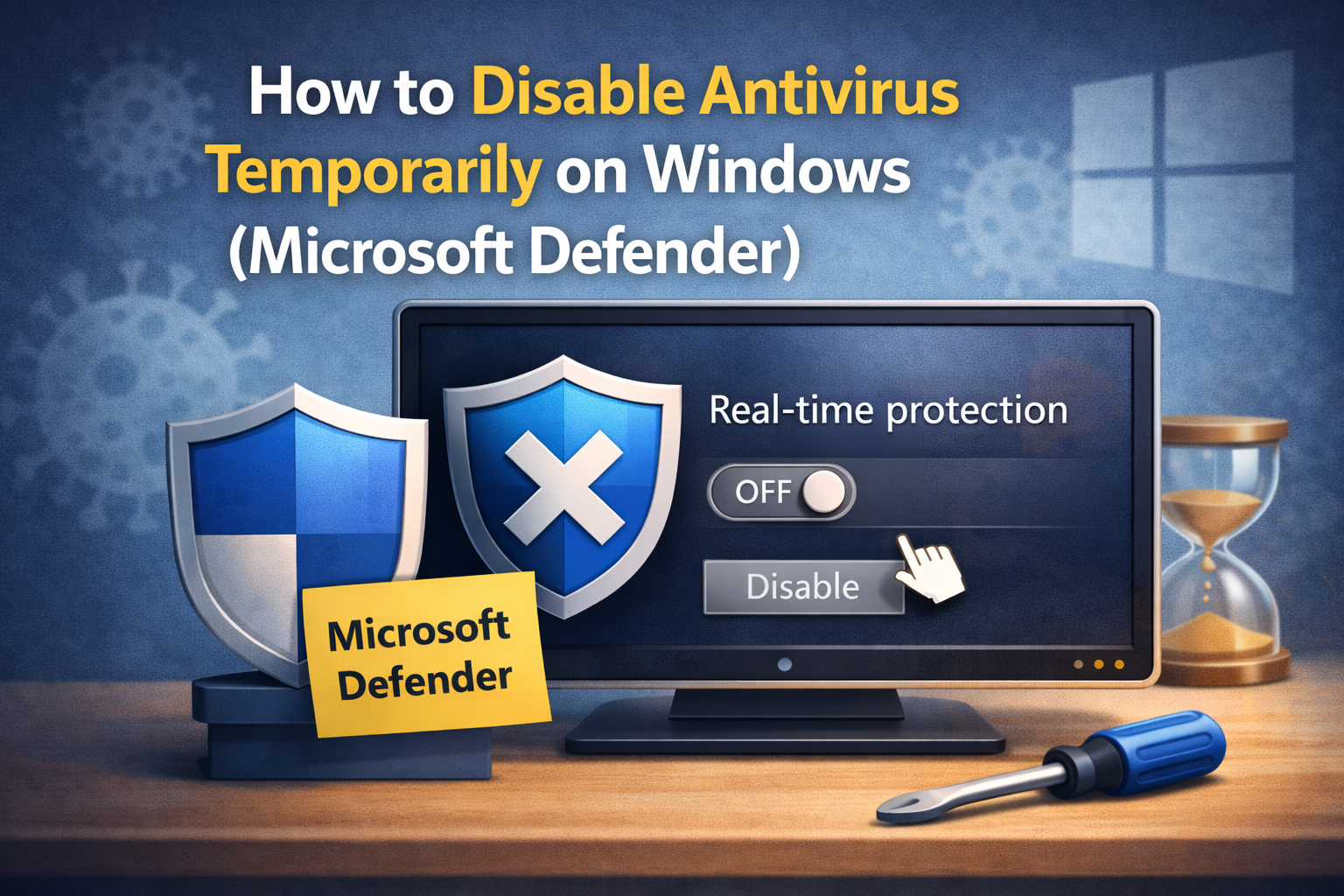
Step-by-Step Guide:
- Click Start and open Settings
- Go to Privacy & Security
- Click Windows Security
- Select Virus & threat protection
- Click Manage settings under Virus & threat protection settings
- Turn Real-time protection OFF
- Click Yes to confirm
Note:
Microsoft Defender will automatically turn back on after some time or after restarting your PC.
How to Disable Antivirus Temporarily on Windows 10 vs Windows 11
The steps are similar, but menus look slightly different.
Windows 10:
- Settings → Update & Security → Windows Security → Virus & threat protection
Windows 11:
- Settings → Privacy & Security → Windows Security → Virus & threat protection
The core steps remain the same for both versions.
How to Disable Third-Party Antivirus Temporarily on Windows
If you’re using third-party antivirus software, the steps will vary. Below are general instructions for popular antivirus programs.
Disable Avast Antivirus Temporarily
Steps:
- Right-click the Avast icon in the system tray
- Select Avast shields control
- Choose a time option (10 minutes, 1 hour, until restart)
- Confirm the action
Real-World Example:
Avast blocks a game installer downloaded from Steam. Pausing protection for 10 minutes fixes the issue.
Disable AVG Antivirus Temporarily
Steps:
- Right-click the AVG icon in the system tray
- Click Disable protection
- Choose how long to disable
- Confirm when prompted
Disable Bitdefender Temporarily
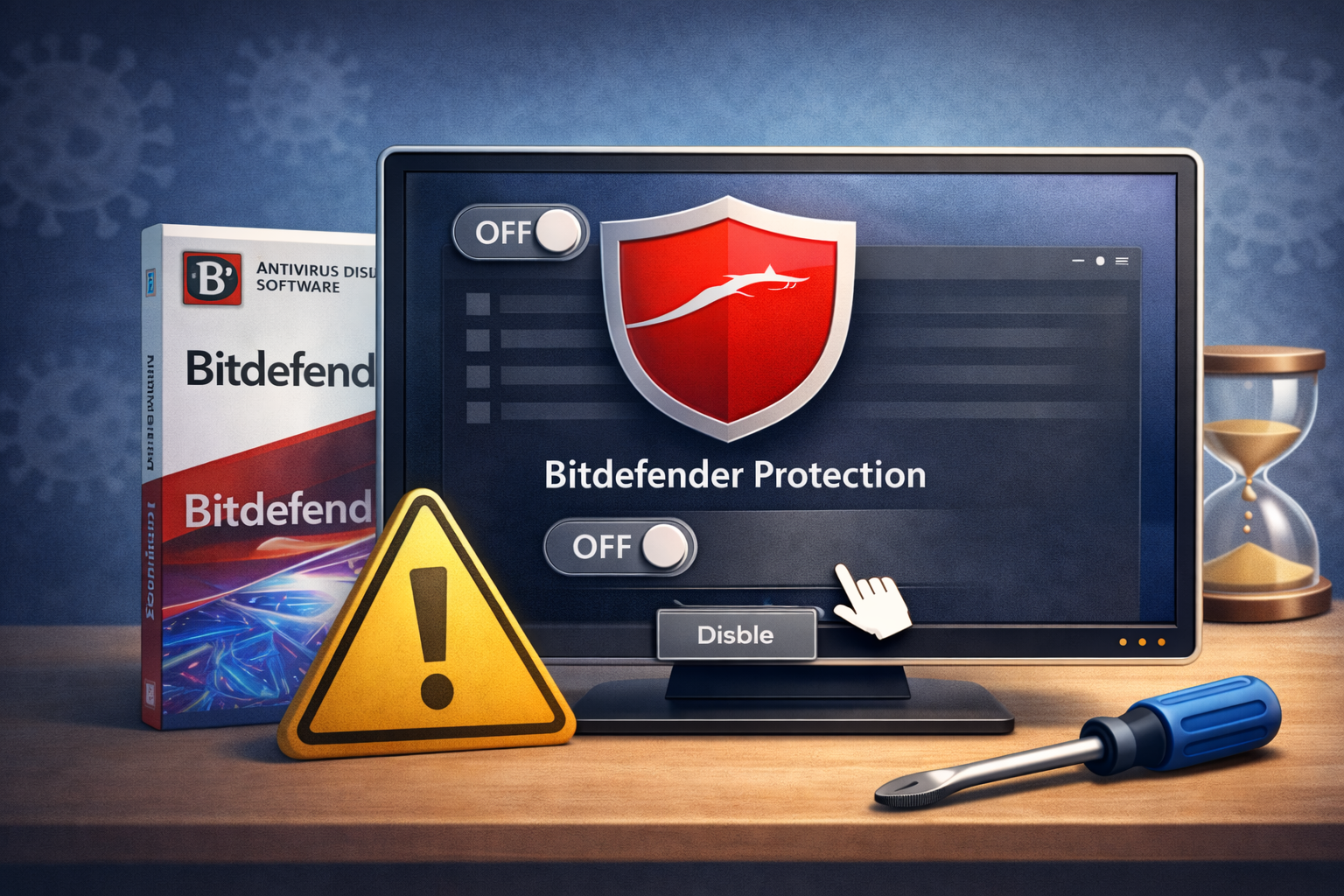
Steps:
- Open Bitdefender
- Go to Protection
- Turn off Real-Time Protection
- Select the duration
- Confirm changes
Disable McAfee Antivirus Temporarily
Steps:
- Open McAfee
- Go to PC Security
- Click Real-Time Scanning
- Turn it off
- Select when to turn it back on
Disable Norton Antivirus Temporarily
Steps:
- Right-click the Norton icon
- Select Disable Auto-Protect
- Choose a time duration
- Click OK
How to Disable Antivirus Temporarily Using Safe Mode
Safe Mode automatically disables many antivirus services.
Steps:
- Restart your PC
- Hold Shift and click Restart
- Choose Troubleshoot → Advanced options
- Select Startup Settings
- Press 4 to boot into Safe Mode
This method is useful when antivirus software is blocking critical system repairs.
How to Re-Enable Antivirus Protection (Very Important)
Always turn your antivirus back on after finishing your task.
For Windows Security:
- Open Windows Security
- Go to Virus & threat protection
- Turn Real-time protection ON
For Third-Party Antivirus:
- Open the antivirus app
- Enable protection or restart your PC
Best Practices When Disabling Antivirus Temporarily
Follow these tips to stay safe:
✔ Download software only from official websites
✔ Disable antivirus for the shortest time possible
✔ Avoid browsing random websites while protection is off
✔ Re-enable antivirus immediately
✔ Keep Windows updated
Common Problems When Disabling Antivirus (And Fixes)
Antivirus Turns Back On Automatically
This is normal behavior for security reasons.
Solution:
Complete your task quickly or choose “Disable until restart” if available.
Can’t Disable Antivirus
Some corporate or managed PCs restrict antivirus settings.
Solution:
Contact your system administrator.
FAQ: How to Disable Antivirus Temporarily on Windows
1. Is it safe to disable antivirus temporarily?
Yes, if done for a short time and only for trusted software.
2. How long can I keep antivirus disabled?
Ideally, just a few minutes. Re-enable it immediately after completing your task.
3. Will Windows automatically turn antivirus back on?
Yes, Windows Security usually re-enables protection automatically.
4. Can disabling antivirus fix software installation errors?
In many cases, yes—especially if the antivirus is blocking the installer.
5. Should I uninstall antivirus instead of disabling it?
No. Temporarily disabling is safer and recommended over uninstalling.
Conclusion
Knowing how to disable antivirus temporarily on Windows is a useful skill for troubleshooting and installing trusted software. When done carefully, it can solve installation errors, blocked programs, and system conflicts without putting your PC at risk.
Always remember: disable antivirus only when necessary, keep the time short, and re-enable protection immediately. With the right balance, you can fix problems while keeping your system secure.