Fix Android Phone Keeps Restarting Randomly
If your Android phone keeps restarting randomly, you are not alone. This is a very common Android problem that affects both new and old devices. One moment your phone works fine, and the next moment it suddenly restarts without warning. This can interrupt calls, close apps, and even cause data loss.
The good news is: most random restart issues can be fixed at home, even if you are not a tech expert. In this guide, you will learn simple, step-by-step solutions to fix Android phone restarting problems. The instructions are written for beginners and normal users, using clear and easy English.
Why Does an Android Phone Keep Restarting Randomly?
Before fixing the problem, it helps to understand why it happens. Random restarts usually come from software or hardware issues.
Common Causes of Random Restart Issues
- Buggy or outdated Android software
- Problematic apps
- Overheating
- Low storage space
- Battery issues
- System cache corruption
- Physical damage or water exposure
Real-world example:
Many users report random restarts after installing a new app or updating Android. This often means the app or update is not fully compatible with the device.
Fix Android Phone Keeps Restarting Randomly (Step-by-Step Solutions)
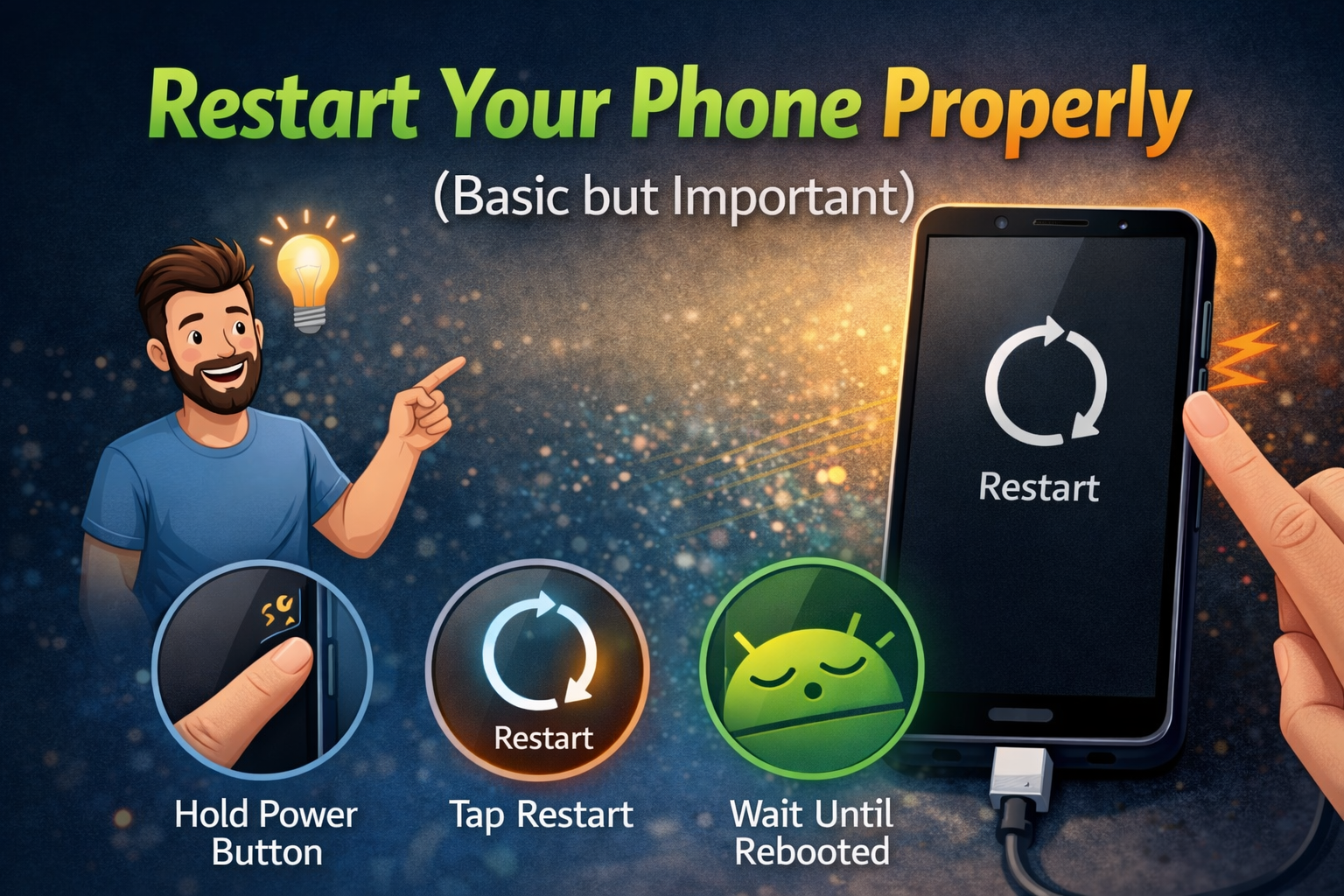
1. Restart Your Phone Properly (Basic but Important)
Sometimes the issue is temporary.
Steps:
- Press and hold the Power button
- Tap Restart
- Wait until the phone fully boots
If your phone restarts again after this, continue with the next solutions.
2. Check for Android System Updates
An outdated system can cause instability.
Steps:
- Open Settings
- Go to Software Update or System
- Tap Check for updates
- Install any available update
Why this helps:
Updates often fix bugs that cause Android phones to restart randomly.
3. Boot Android Phone into Safe Mode
Safe Mode disables third-party apps.
Steps (most devices):
- Press and hold the Power button
- Tap and hold Power Off
- Select Safe Mode
- Tap OK
If your phone does not restart in Safe Mode, the problem is caused by a third-party app.
Real-world example:
Apps like launchers, battery savers, or cleaner apps often cause restart loops.
4. Uninstall Recently Installed Apps
If Safe Mode fixes the issue, remove suspicious apps.
Steps:
- Open Settings
- Go to Apps
- Sort apps by Recently Installed
- Uninstall one app at a time
- Restart the phone after each removal
Focus on:
- Cleaner apps
- Antivirus apps
- Custom launchers
- Game mods
5. Clear System Cache Partition
Corrupted cache files can trigger random reboots.
Steps (may vary by model):
- Turn off your phone
- Press and hold Power + Volume Up
- Enter Recovery Mode
- Select Wipe cache partition
- Confirm and reboot
This will not delete personal data.
6. Check Storage Space
Low storage can cause Android system crashes.
Steps:
- Open Settings
- Tap Storage
- Make sure at least 3–5 GB free space is available
Free space by:
- Deleting unused apps
- Clearing large videos
- Removing duplicate photos
7. Fix Overheating Issues
Overheating forces Android to restart automatically.
What to do:
- Remove phone case temporarily
- Avoid gaming or charging while using heavy apps
- Keep phone away from direct sunlight
Real-world example:
Users often experience random restarts while playing games or using GPS in hot weather.
8. Check Battery Health
A weak battery can cause sudden reboots.
Signs of battery problems:
- Phone restarts below 30%
- Phone shuts down while charging
- Battery drains very fast
Solution:
If the battery is old, replacing it often completely fixes random restart issues.
9. Reset App Preferences
This fixes system conflicts without deleting data.
Steps:
- Open Settings
- Go to Apps
- Tap Reset app preferences
- Confirm
10. Factory Reset (Last Resort)
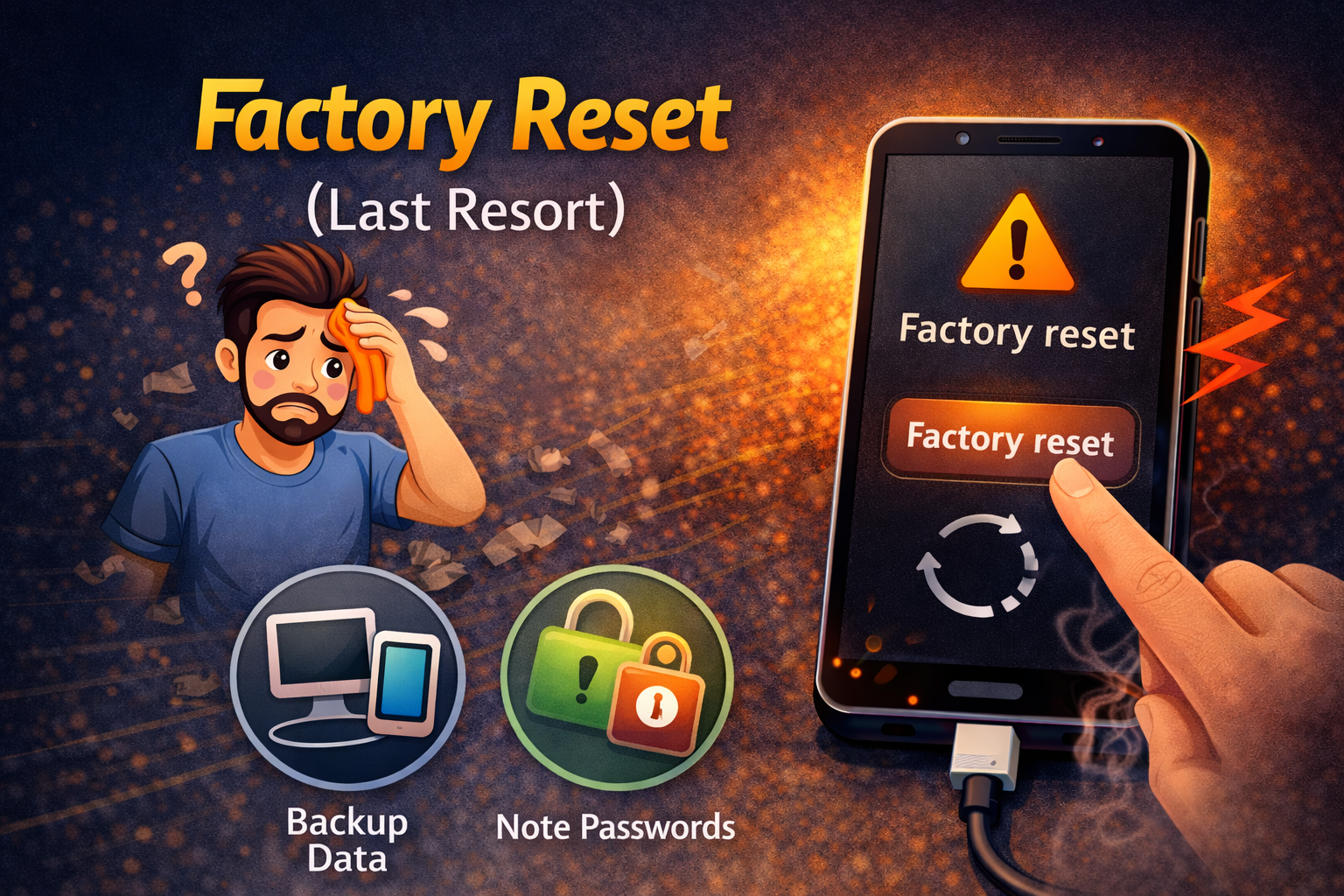
If nothing works, a factory reset may be needed.
Backup your data first
Steps:
- Open Settings
- Go to System > Reset
- Tap Factory data reset
- Confirm
This removes software corruption causing your Android phone to keep restarting randomly.
When Random Restarts Are a Hardware Problem
Sometimes software fixes are not enough.
Hardware Issues Include:
- Damaged power button
- Loose battery connector
- Water damage
- Motherboard failure
If your phone restarts even during setup after a factory reset, visit a repair center.
Tips to Prevent Android Random Restart Issues
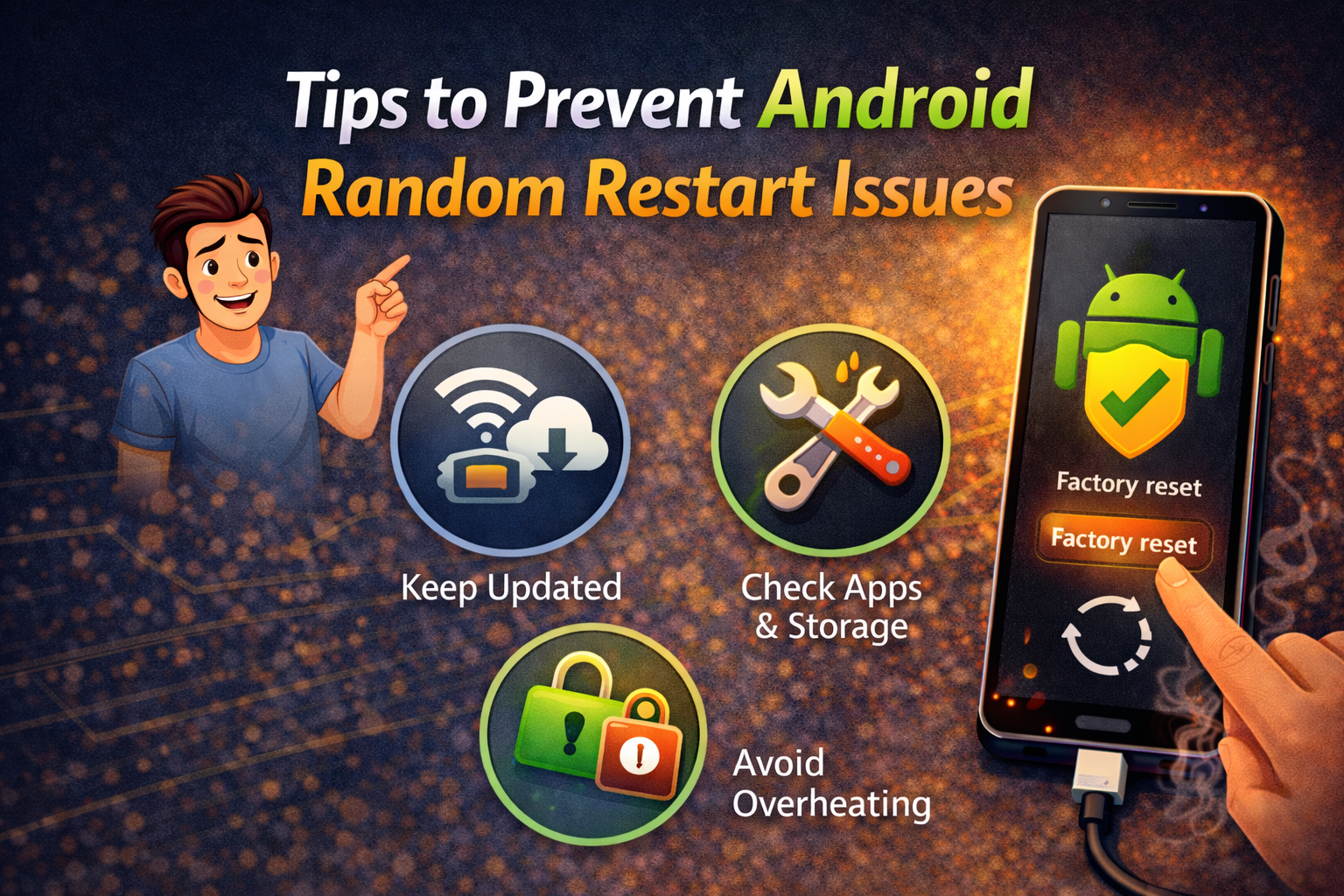
- Keep Android updated
- Avoid installing unknown apps
- Do not overcharge overnight
- Use original chargers
- Clear cache monthly
FAQ: Android Phone Keeps Restarting Randomly
1. Why does my Android phone restart by itself?
This usually happens due to software bugs, bad apps, overheating, or battery problems.
2. Can a virus cause Android phone restarting issues?
Yes. Malicious apps can cause system instability and force restarts.
3. Will factory reset fix Android random restart?
In most cases, yes—especially if the issue is software-related.
4. Why does my phone restart when battery is low?
This often indicates a weak or damaged battery.
5. Is Safe Mode safe to use?
Yes. Safe Mode only disables third-party apps and does not harm your phone.
Conclusion
If your Android phone keeps restarting randomly, it does not always mean your phone is broken. Most issues are caused by apps, software bugs, overheating, or battery problems—and they can be fixed at home.
Start with simple steps like Safe Mode and app removal. If needed, clear cache or perform a factory reset. For hardware problems, professional repair may be required.
By following this guide, you can restore your phone’s stability and prevent future random restart issues.