How to Fix Driver Issues on Windows (Step-by-Step Guide for Beginners)
Driver problems are one of the most common reasons Windows computers stop working properly. If your sound is not working, your screen looks strange, Wi-Fi keeps disconnecting, or a device suddenly stops responding, the real issue is often a driver problem. Learning how to fix driver issues on Windows can save you time, money, and frustration.
In this beginner-friendly guide, you will learn what drivers are, why they fail, and how to fix driver issues on Windows using simple, safe, step-by-step methods. No technical background is needed.
What Are Drivers and Why Are They Important?
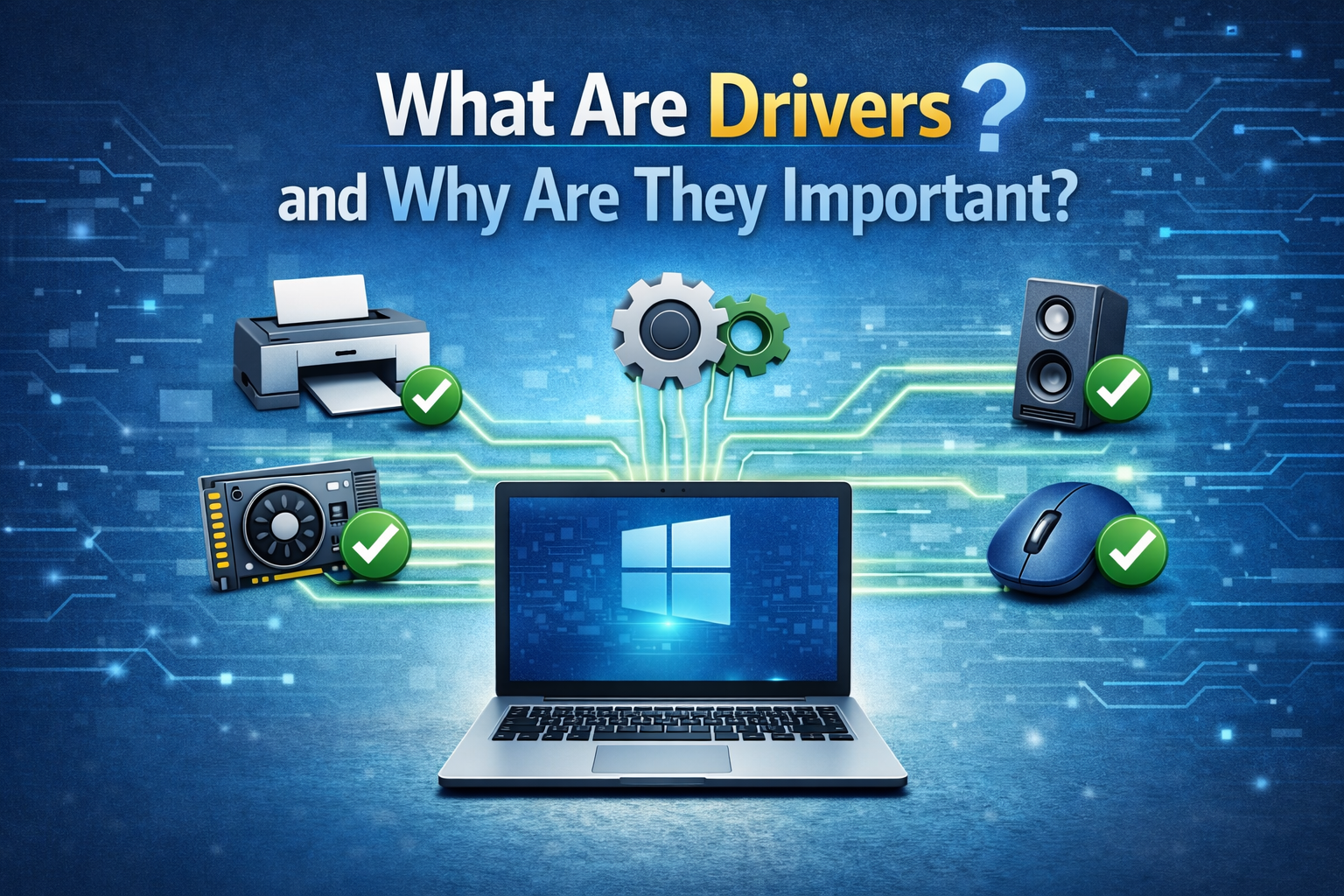
A driver is a small piece of software that allows Windows to communicate with hardware devices like:
- Graphics card (display)
- Sound card
- Network adapter (Wi-Fi or Ethernet)
- Printer
- Keyboard and mouse
- USB devices
Without the correct driver, Windows cannot fully use the hardware. This often leads to errors, crashes, or missing features.
Common Signs of Driver Issues on Windows
You may be facing driver issues if you notice:
- No sound or microphone not working
- Screen resolution stuck or display flickering
- Wi-Fi or Bluetooth not connecting
- Printer not detected
- Blue Screen of Death (BSOD)
- Device Manager showing a yellow warning icon
Common Causes of Driver Problems in Windows
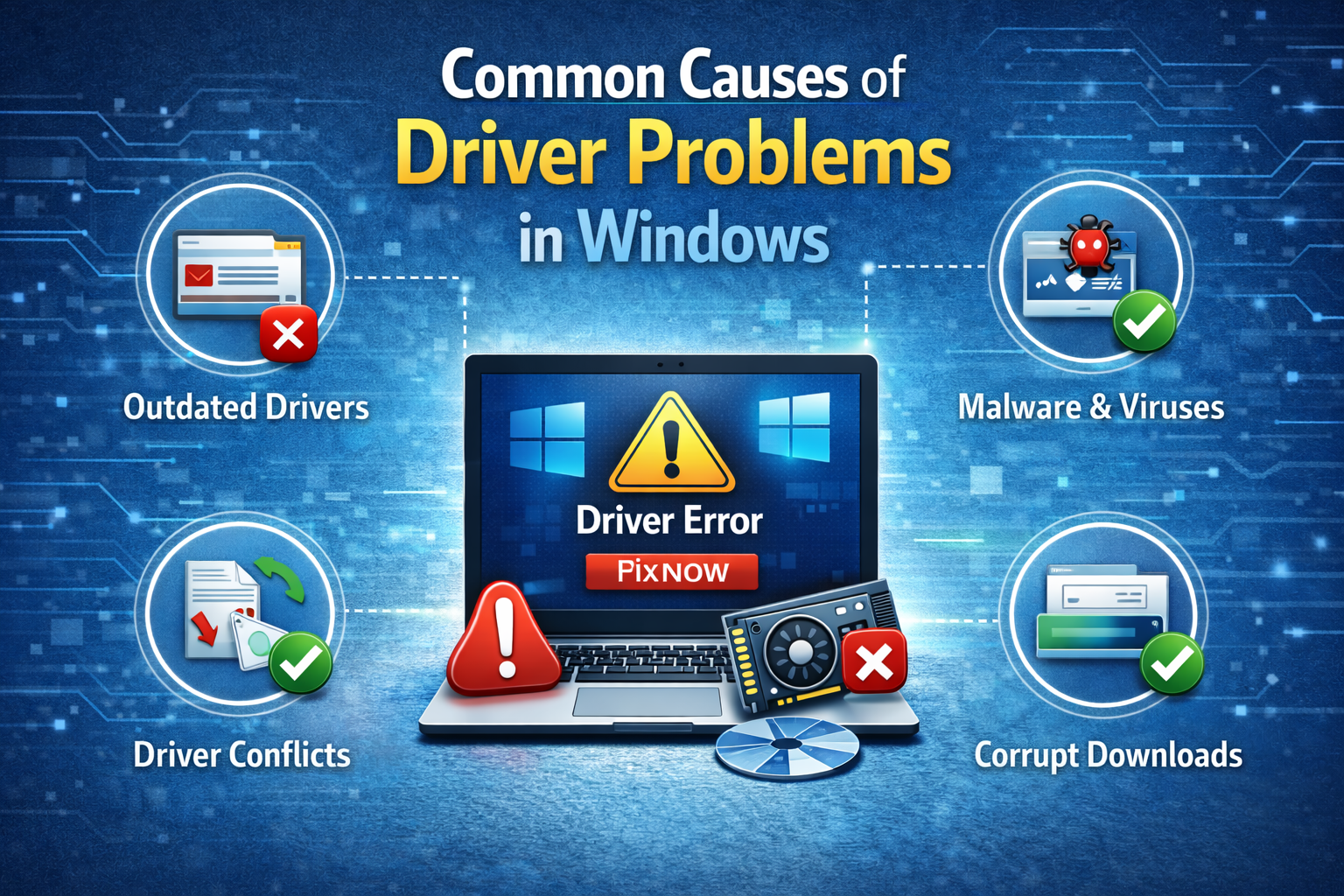
Understanding the cause helps you fix the issue faster.
1. Outdated Drivers
Old drivers may not work well with Windows updates.
2. Corrupted Drivers
Drivers can become damaged due to sudden shutdowns, malware, or system crashes.
3. Wrong Driver Installed
Installing an incorrect driver version can cause conflicts.
4. Windows Update Conflicts
Sometimes Windows updates replace working drivers with unstable ones.
How to Fix Driver Issues on Windows (Beginner-Friendly Solutions)
Below are proven methods to fix driver issues on Windows. Start from Solution 1 and move down if needed.
Solution 1: Restart Your Computer (Don’t Skip This)

This sounds simple, but it works more often than you think.
Why it helps:
- Clears temporary errors
- Reloads drivers correctly
- Fixes minor conflicts
Real-world example:
Your Wi-Fi stops working after sleep mode. Restarting reloads the network driver and fixes the issue.
Solution 2: Use Windows Device Manager (Basic Method)
Device Manager is the built-in tool to manage drivers.
Step-by-step:
- Press Windows + X
- Click Device Manager
- Look for devices with a yellow triangle
- Right-click the device
- Click Update driver
- Select Search automatically for drivers
Windows will try to find and install the best driver.
When this works best:
- Missing drivers
- Simple compatibility issues
Solution 3: Roll Back a Driver (Fix Issues After Updates)
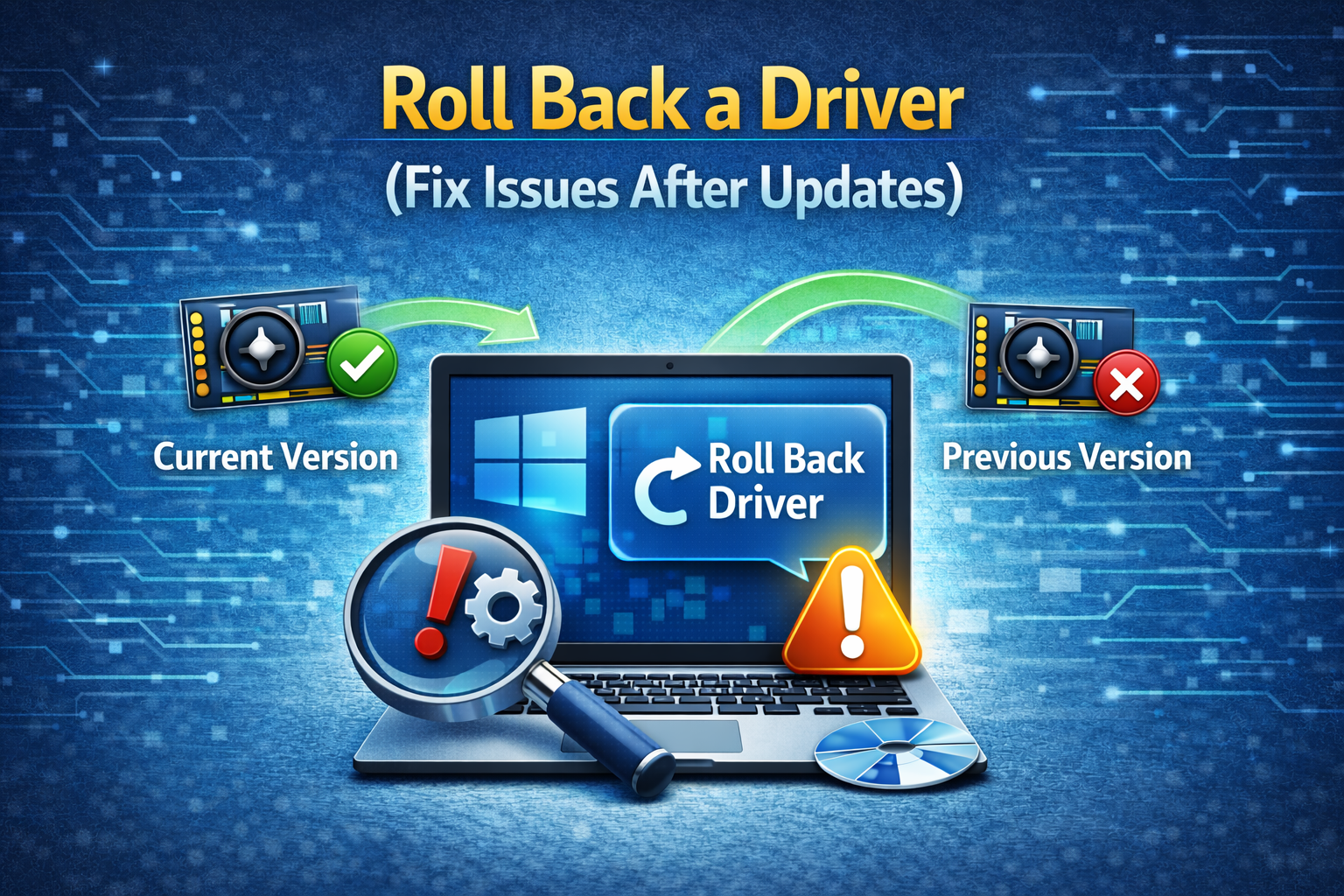
If a problem started after a Windows update, rolling back the driver can help.
Steps:
- Open Device Manager
- Right-click the problem device
- Click Properties
- Go to the Driver tab
- Click Roll Back Driver
- Restart your PC
Example:
After updating Windows, your screen starts flickering. Rolling back the display driver restores stability.
Solution 4: Reinstall the Driver (Fix Corrupted Drivers)
If updating does not help, reinstalling is more effective.
Steps:
- Open Device Manager
- Right-click the problematic device
- Select Uninstall device
- Restart your computer
Windows will automatically reinstall the driver.
Tip:
Check “Delete the driver software for this device” if available (only if you plan to reinstall manually).
Solution 5: Download Drivers from the Official Manufacturer
This is one of the most reliable ways to fix driver issues on Windows.
How to do it safely:
- Identify your device brand (Dell, HP, Lenovo, ASUS, Acer)
- Visit the official support website
- Enter your model number
- Download drivers for:
- Windows version (Windows 10 or 11)
- Correct system type (64-bit or 32-bit)
- Install and restart
Real-world example:
Your laptop has no sound after reinstalling Windows. Downloading the official audio driver fixes it instantly.
Solution 6: Use Windows Update to Fix Driver Issues
Windows Update also delivers drivers.
Steps:
- Open Settings
- Go to Windows Update
- Click Check for updates
- Install all available updates
- Restart your PC
Advanced option:
- Go to Advanced options
- Click Optional updates
- Install available driver updates
Solution 7: Use System Restore (Advanced but Safe)
If driver issues started recently, System Restore can undo changes.
Steps:
- Press Windows + R
- Type
rstruiand press Enter - Choose a restore point before the issue
- Click Next → Finish
This will not delete personal files.
Solution 8: Fix Driver Issues Using Safe Mode
Safe Mode loads only essential drivers.
When to use:
- Blue screen errors
- PC crashes on startup
Steps:
- Hold Shift and click Restart
- Go to Troubleshoot → Advanced options
- Click Startup Settings
- Press F4 for Safe Mode
- Fix or uninstall problematic drivers
Common Driver Issues and Their Fixes
Display Driver Issues
- Screen flickering
- Black screen
- Low resolution
Fix: Reinstall or roll back graphics driver.
Audio Driver Issues
- No sound
- Microphone not working
Fix: Install official audio driver.
Network Driver Issues
- Wi-Fi not showing
- Internet disconnects
Fix: Update network adapter driver.
Tips to Avoid Driver Problems in the Future
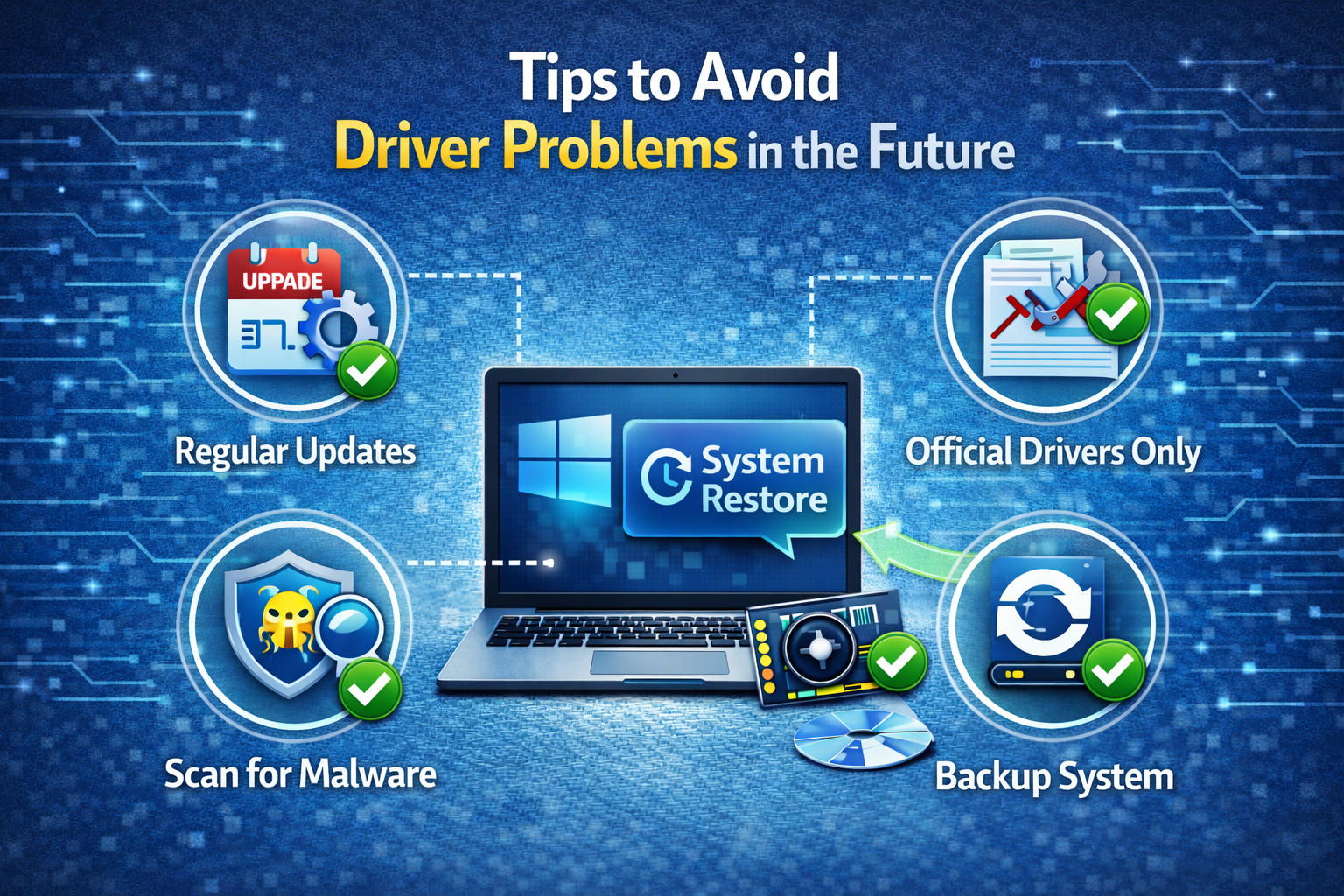
- Create a restore point before major updates
- Avoid unknown driver websites
- Keep Windows updated
- Don’t install drivers unless necessary
- Use official manufacturer sources
Frequently Asked Questions (FAQ)
1. What is the easiest way to fix driver issues on Windows?
Using Device Manager to update or reinstall drivers is the easiest method for beginners.
2. Is it safe to update drivers automatically?
Yes, using Windows Update or official manufacturer tools is safe.
3. Should I use third-party driver updater software?
Not recommended for beginners. Many tools install wrong or outdated drivers.
4. Can driver issues cause blue screen errors?
Yes, faulty or incompatible drivers are a common cause of BSOD errors.
5. How often should I update drivers?
Only update when:
- There is a problem
- A Windows update requires it
- A hardware feature is not working
Conclusion
Driver problems can look scary, but they are usually easy to fix. By following the step-by-step methods in this guide, you now know how to fix driver issues on Windows safely and effectively. Start with simple solutions like restarting or updating drivers, and move to advanced fixes only when needed. With the right approach, your Windows PC can run smoothly again in no time.