How to Fix Internet Problems After Windows Update
If your internet suddenly stopped working after a Windows update, you’re not alone. Many users experience internet problems after Windows Update, such as no connection, slow speed, Wi-Fi not showing, or Ethernet not working. The good news? Most of these issues are easy to fix—even if you’re not a tech expert.
In this guide, you’ll learn how to fix internet problems after Windows Update using simple, step-by-step methods. These solutions are safe, beginner-friendly, and don’t require reinstalling Windows. Let’s get your internet back online.
Why Internet Problems Happen After Windows Update
Before fixing the issue, it helps to understand why it happens.
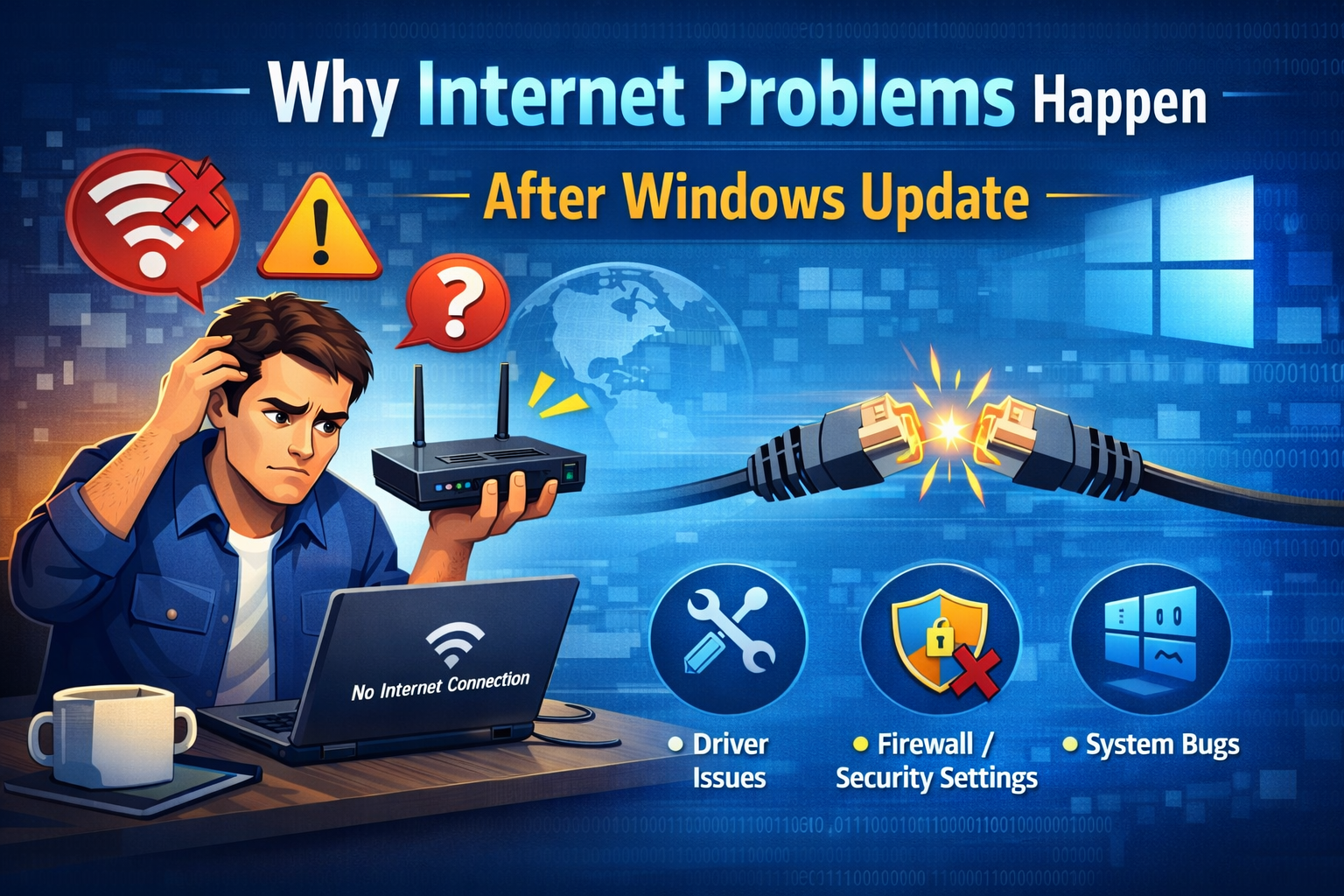
Common reasons include:
- Network drivers become incompatible or corrupted
- Windows update resets network settings
- Firewall or security settings change automatically
- DNS or IP configuration errors
- Windows installs a buggy update
Real-world example:
After updating Windows 11, many users found that their Wi-Fi icon disappeared completely. The update replaced the working Wi-Fi driver with a generic one that didn’t support their adapter.
First Things to Check (Quick Fixes)
Before trying advanced solutions, start with these basic checks.
Restart Your Computer and Router
This may sound simple, but it works more often than you think.
Steps:
- Restart your computer
- Unplug your router/modem
- Wait 30 seconds
- Plug it back in and wait for full connection
Why this helps:
It refreshes the network connection and clears temporary errors caused by the update.
Check If the Internet Works on Other Devices
Use your phone or another computer on the same network.
- If other devices work → the issue is your PC
- If nothing works → the problem is your internet provider or router
This saves time and avoids unnecessary PC changes.
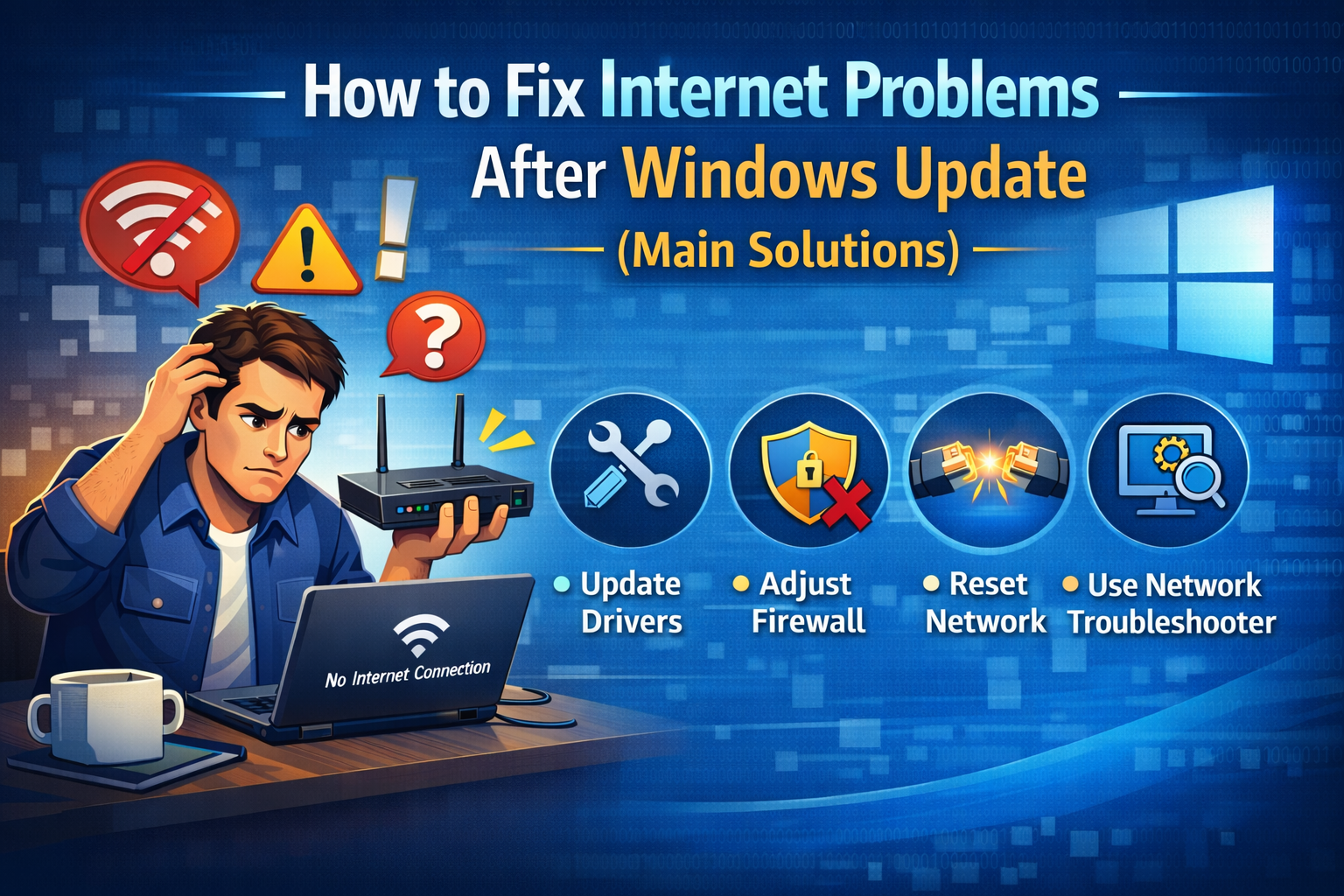
How to Fix Internet Problems After Windows Update (Main Solutions)
1. Run Windows Network Troubleshooter
Windows has a built-in tool designed for network issues.
Steps:
- Open Settings
- Go to Network & Internet
- Click Status
- Select Network troubleshooter
- Follow on-screen instructions
Real-world example:
A user lost internet after an update, and the troubleshooter automatically reset the network adapter—fixing the issue in minutes.
2. Restart Network Adapters
Sometimes the network adapter gets stuck after an update.
Steps:
- Press Windows + R
- Type
ncpa.cpland press Enter - Right-click your network adapter (Wi-Fi or Ethernet)
- Click Disable
- Wait 10 seconds
- Right-click again and choose Enable
This forces Windows to reload the network driver.
3. Update or Roll Back Network Drivers
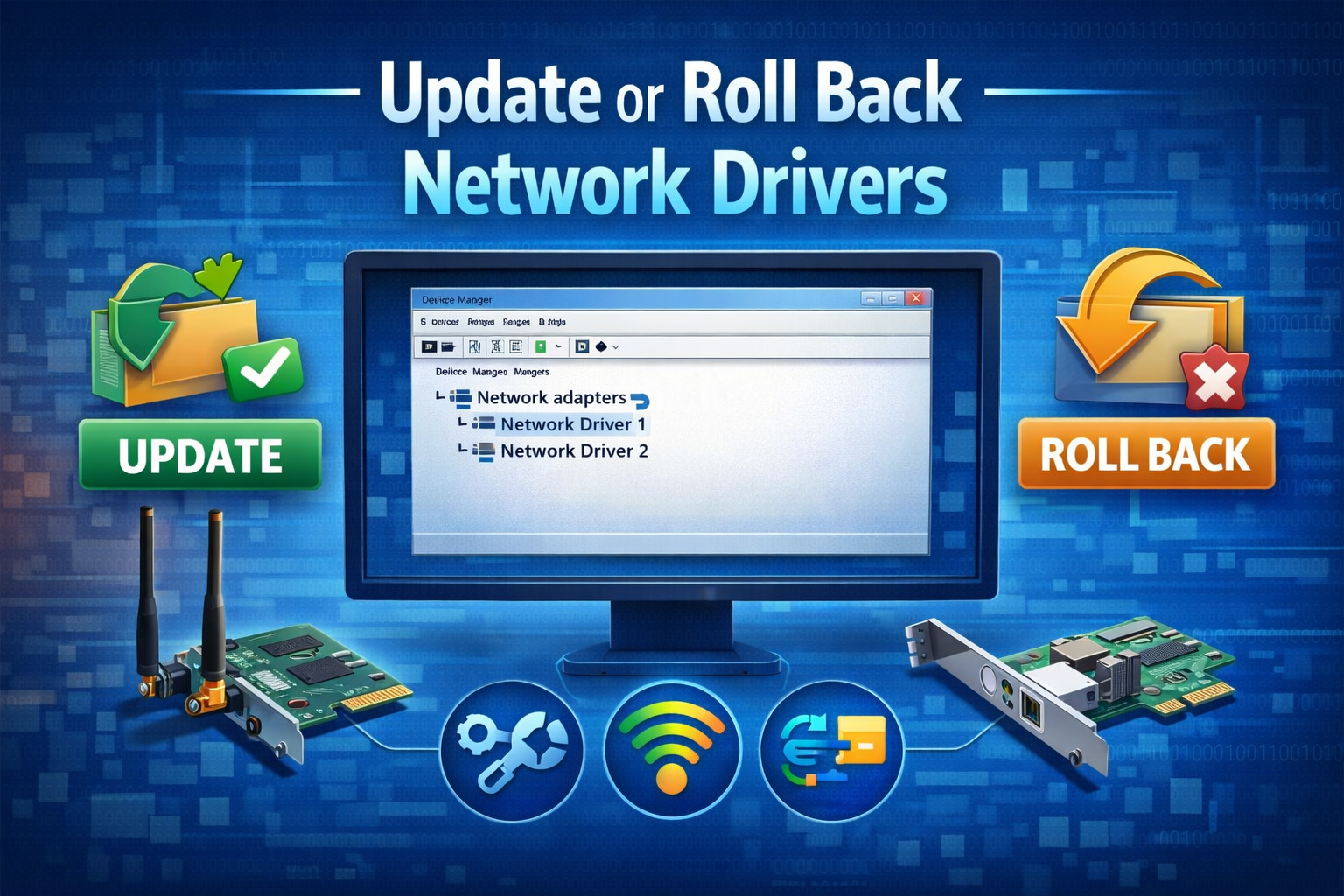
Driver issues are one of the top causes of internet problems after Windows Update.
Update Network Driver
Steps:
- Press Windows + X
- Click Device Manager
- Expand Network adapters
- Right-click your adapter
- Choose Update driver
- Select Search automatically for drivers
Roll Back Network Driver (Very Important)
If the update broke your internet, rolling back often fixes it.
Steps:
- Open Device Manager
- Right-click your network adapter
- Choose Properties
- Go to Driver tab
- Click Roll Back Driver (if available)
Real-world example:
After a Windows update, a laptop lost Wi-Fi. Rolling back the driver restored the connection instantly.
4. Reset Network Settings (Safe but Powerful)
If nothing else works, try a full network reset.
Steps:
- Open Settings
- Go to Network & Internet
- Click Advanced network settings
- Select Network reset
- Click Reset now
- Restart your PC
Note: This removes saved Wi-Fi passwords, so keep them handy.
5. Check Proxy and VPN Settings
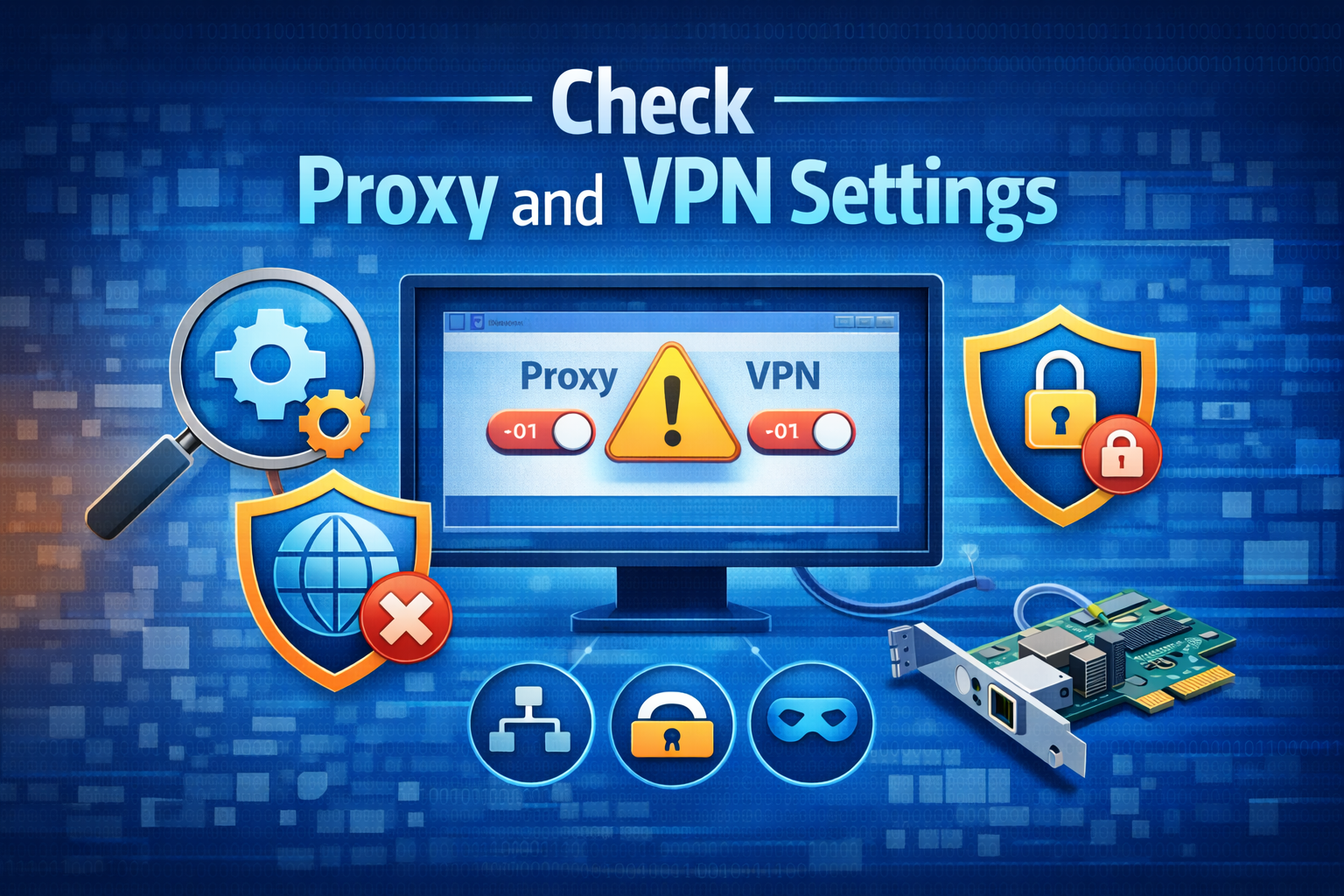
Windows updates sometimes enable proxy settings automatically.
Steps:
- Open Settings
- Go to Network & Internet
- Click Proxy
- Turn OFF:
- Use a proxy server
- Automatically detect settings (optional test)
If you use a VPN, temporarily disable it and test the internet.
6. Reset TCP/IP and DNS Using Command Prompt
This fixes deep network configuration errors.
Steps:
- Search Command Prompt
- Right-click → Run as administrator
- Type these commands one by one, pressing Enter each time:
netsh int ip reset
netsh winsock reset
ipconfig /release
ipconfig /renew
ipconfig /flushdns
- Restart your computer
Why this works:
It rebuilds your network settings from scratch.
7. Temporarily Disable Firewall or Antivirus
Some security software blocks internet access after updates.
Test only (temporary):
- Disable firewall or antivirus
- Check if internet works
- Re-enable after testing
If this fixes the issue, update or reinstall your security software.
8. Uninstall the Problematic Windows Update
If the internet problem started immediately after an update, removing it may help.
Steps:
- Open Settings
- Go to Windows Update
- Click Update history
- Select Uninstall updates
- Remove the latest update
- Restart your PC
Tip:
Pause updates for a few days after uninstalling to avoid reinstalling the same buggy update.
How to Prevent Internet Problems After Future Windows Updates
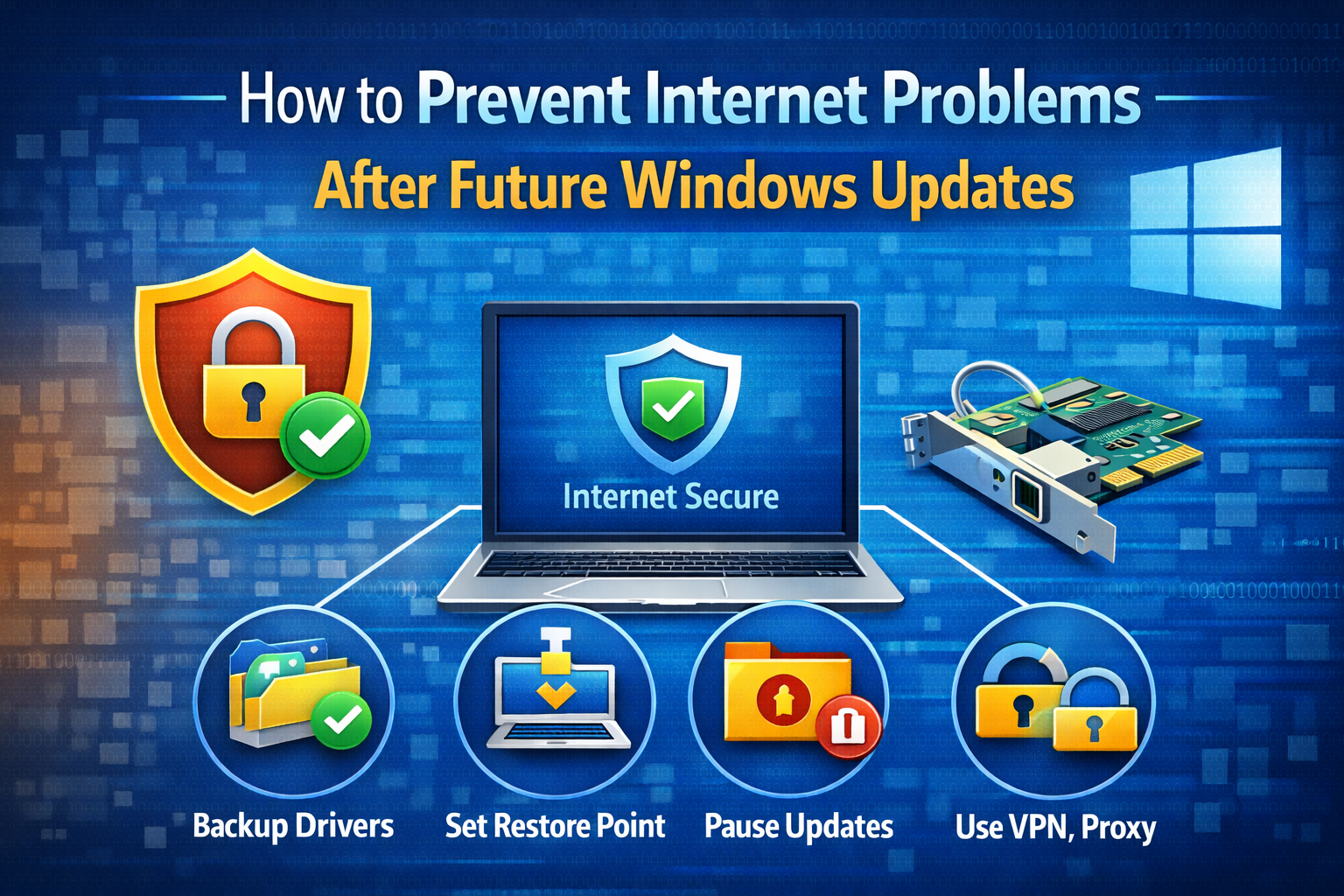
- Keep network drivers updated from manufacturer websites
- Create a restore point before major updates
- Avoid installing optional updates immediately
- Wait a few days to see if others report issues
Frequently Asked Questions (FAQ)
1. Why does my Wi-Fi disappear after Windows Update?
Usually due to incompatible or missing network drivers installed by the update.
2. Can Windows Update really break internet connection?
Yes. It can change drivers, reset settings, or install buggy updates.
3. Is network reset safe in Windows?
Yes. It only resets network settings, not personal files.
4. Should I reinstall Windows to fix internet problems?
No. Reinstalling Windows should be the last option. Most issues are fixable with the steps above.
5. How long do Windows internet issues usually last?
From a few minutes to a few hours—depending on how quickly you apply the correct fix.
Conclusion
Internet issues after updates can be frustrating, but they’re usually easy to fix. By following this guide, you now know how to fix internet problems after Windows Update using safe, beginner-friendly steps. In most cases, updating or rolling back drivers, resetting network settings, or uninstalling a problematic update will restore your connection.
Take it step by step, and your internet should be back in no time.