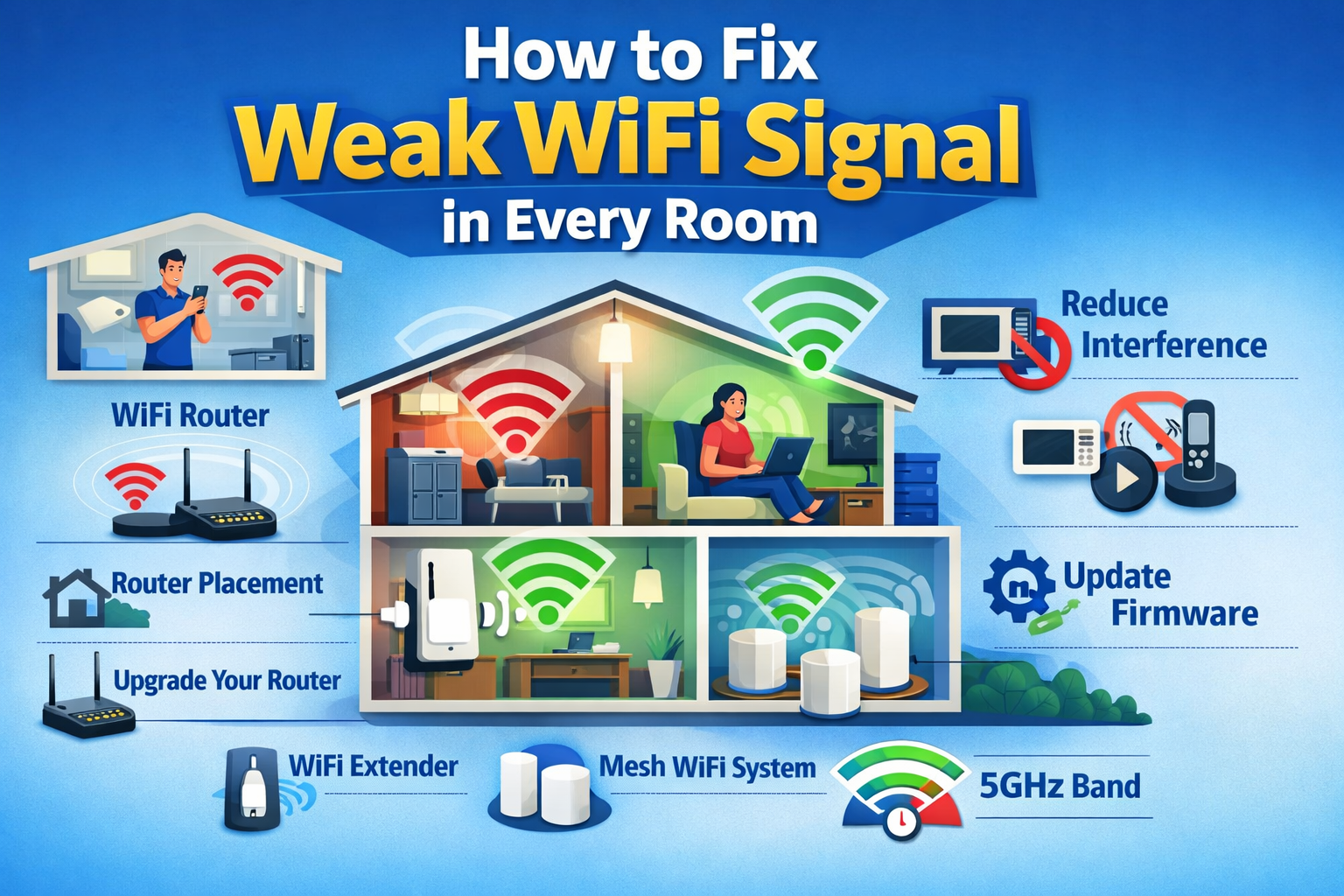
How to Fix Weak WiFi Signal in Every Room
A weak WiFi signal can be incredibly frustrating. One moment your internet works fine in the living room, and the next moment it completely drops in the bedroom or upstairs. If you’re dealing with slow speeds, buffering videos, or constant disconnections, you’re not alone.
The good news? You can fix weak WiFi signal in every room without being a tech expert or spending a lot of money. In this guide, you’ll learn simple, step-by-step solutions that beginners and normal users can follow easily. By the end, you’ll know exactly how to improve WiFi coverage and enjoy stable internet throughout your home.
Why Is Your WiFi Signal Weak in Some Rooms?
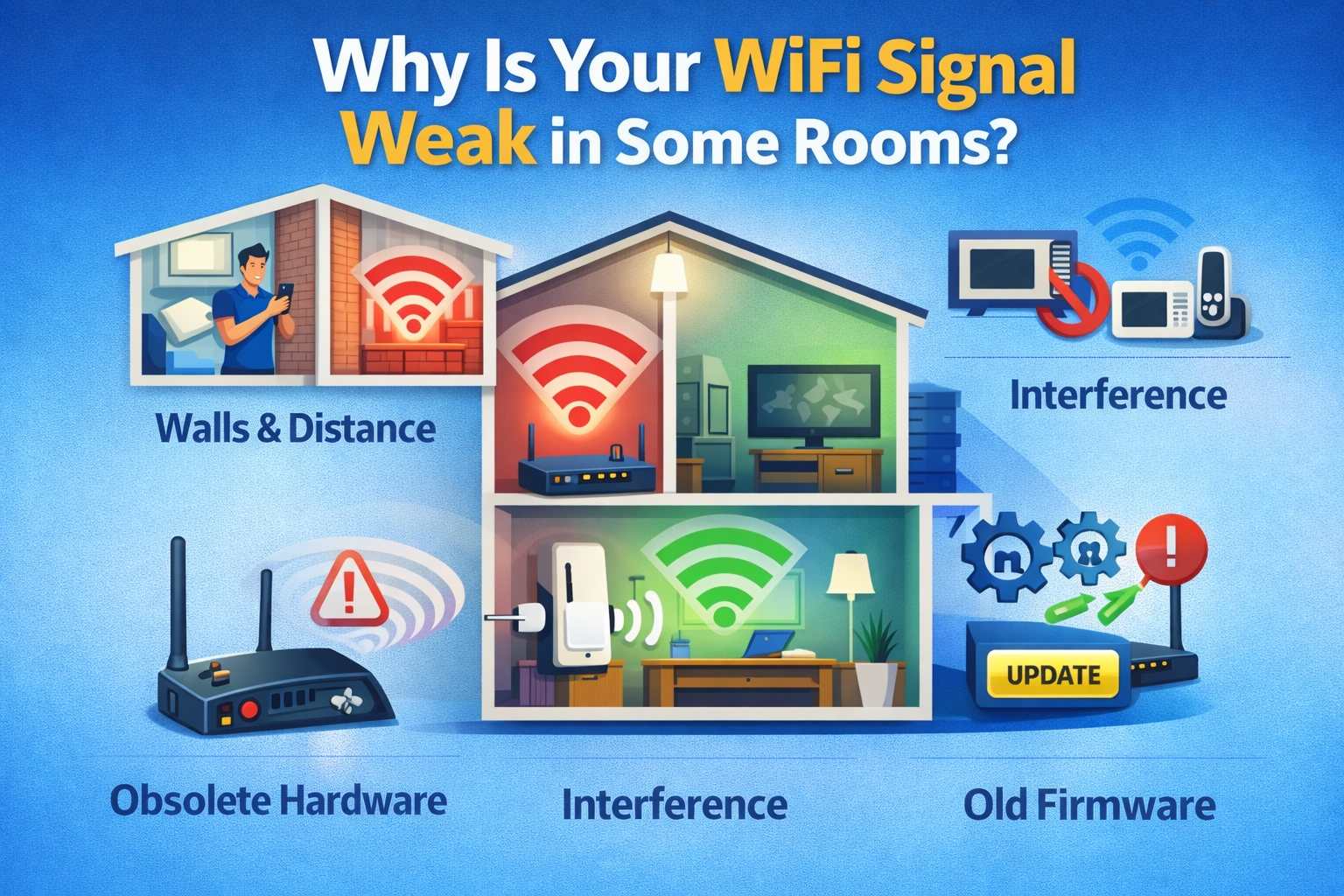
Before fixing the problem, it helps to understand why it happens in the first place.
Common Causes of Weak WiFi Signal
- Poor router placement (hidden in a corner or cabinet)
- Thick walls or floors (concrete, brick, metal)
- Large home size or multiple floors
- Old or low-quality router
- Interference from other devices (microwaves, cordless phones)
- Too many connected devices
Real-World Example
Imagine a two-story house where the router is placed downstairs near the TV. The living room gets full bars, but the upstairs bedroom barely connects. This is a classic case of weak WiFi signal caused by distance and walls.
How to Fix Weak WiFi Signal in Every Room (Step-by-Step)
This section focuses on practical fixes you can apply right away.
Fix Weak WiFi Signal by Improving Router Placement
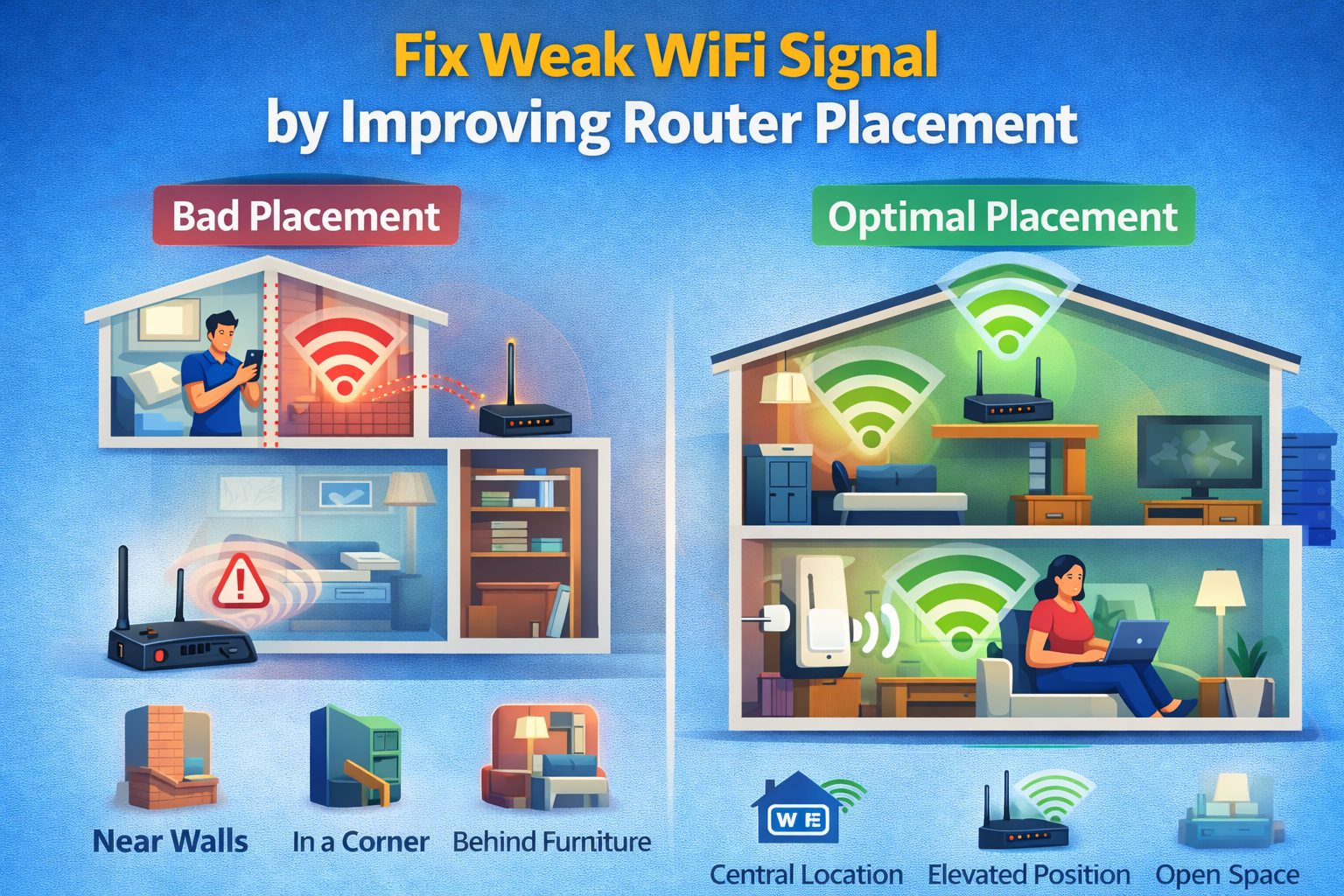
Router placement is the most important factor in WiFi performance.
Step 1: Move the Router to a Central Location
- Place the router in the middle of your home
- Avoid corners and basements
- Keep it elevated (on a shelf or table)
Step 2: Avoid Physical Obstructions
- Keep the router away from:
- Thick walls
- Metal cabinets
- Aquariums
- Large appliances
Step 3: Keep It in the Open
- Don’t hide the router inside a drawer or cabinet
- Open space allows signals to spread evenly
Example:
A user moved their router from behind the TV to a central hallway shelf and instantly improved WiFi coverage in two extra rooms.
Adjust Router Antennas for Better Coverage
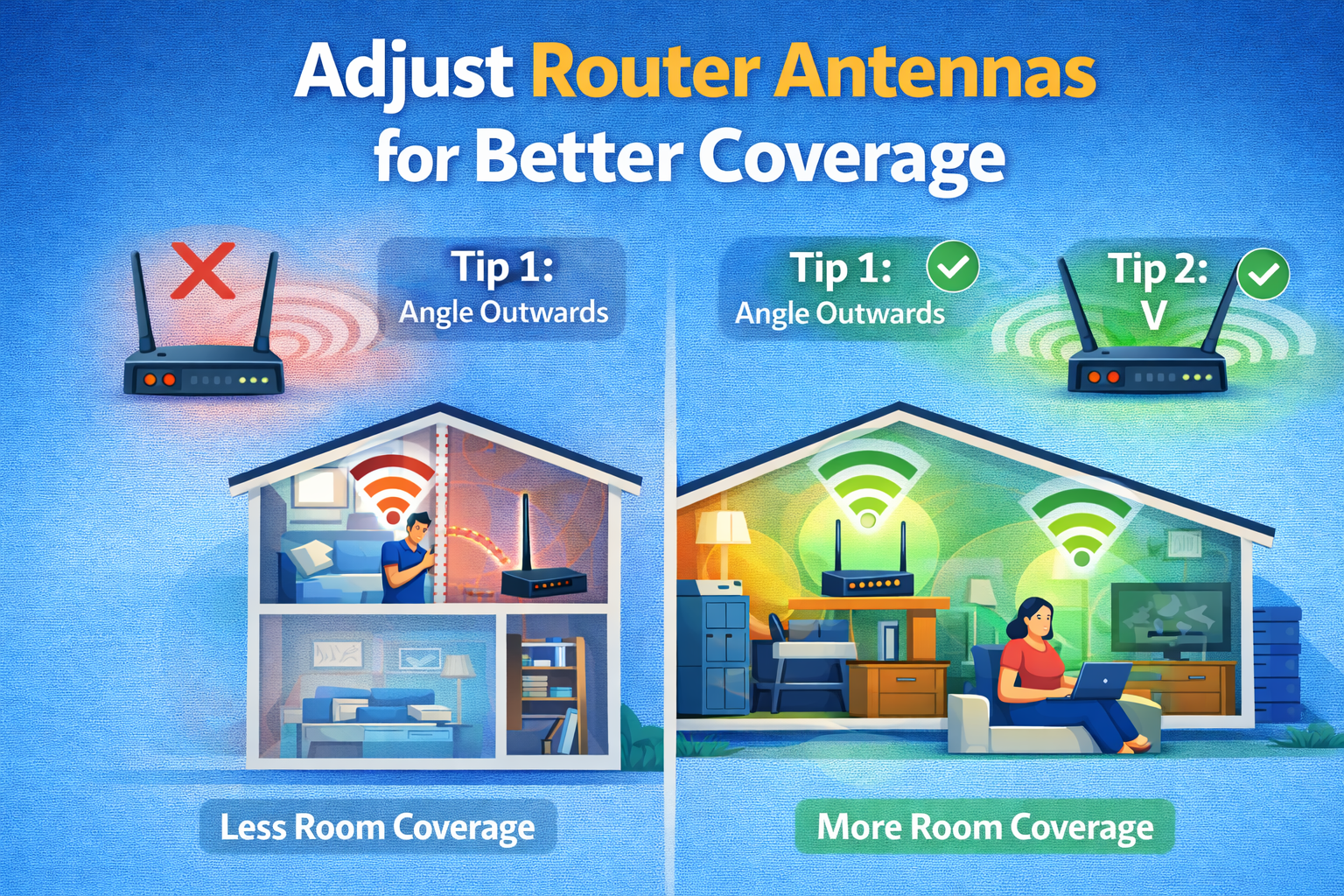
If your router has external antennas, their direction matters.
Best Antenna Positions
- One antenna vertical
- One antenna horizontal
- This helps spread signal across floors and rooms
Why This Works
WiFi signals travel differently in vertical and horizontal directions. Adjusting antennas improves overall coverage without extra cost.
Change WiFi Channel to Reduce Interference
WiFi interference can weaken your signal, especially in apartments.
Step-by-Step: Change WiFi Channel
- Log in to your router’s admin panel
- Find Wireless Settings
- Change the channel:
- Use Channel 1, 6, or 11 for 2.4GHz
- Use Auto or a low-traffic channel for 5GHz
- Save and restart the router
Real-World Example
In an apartment building, switching from a crowded channel to a less-used one doubled the WiFi speed in the bedroom.
Use the Right WiFi Band (2.4GHz vs 5GHz)
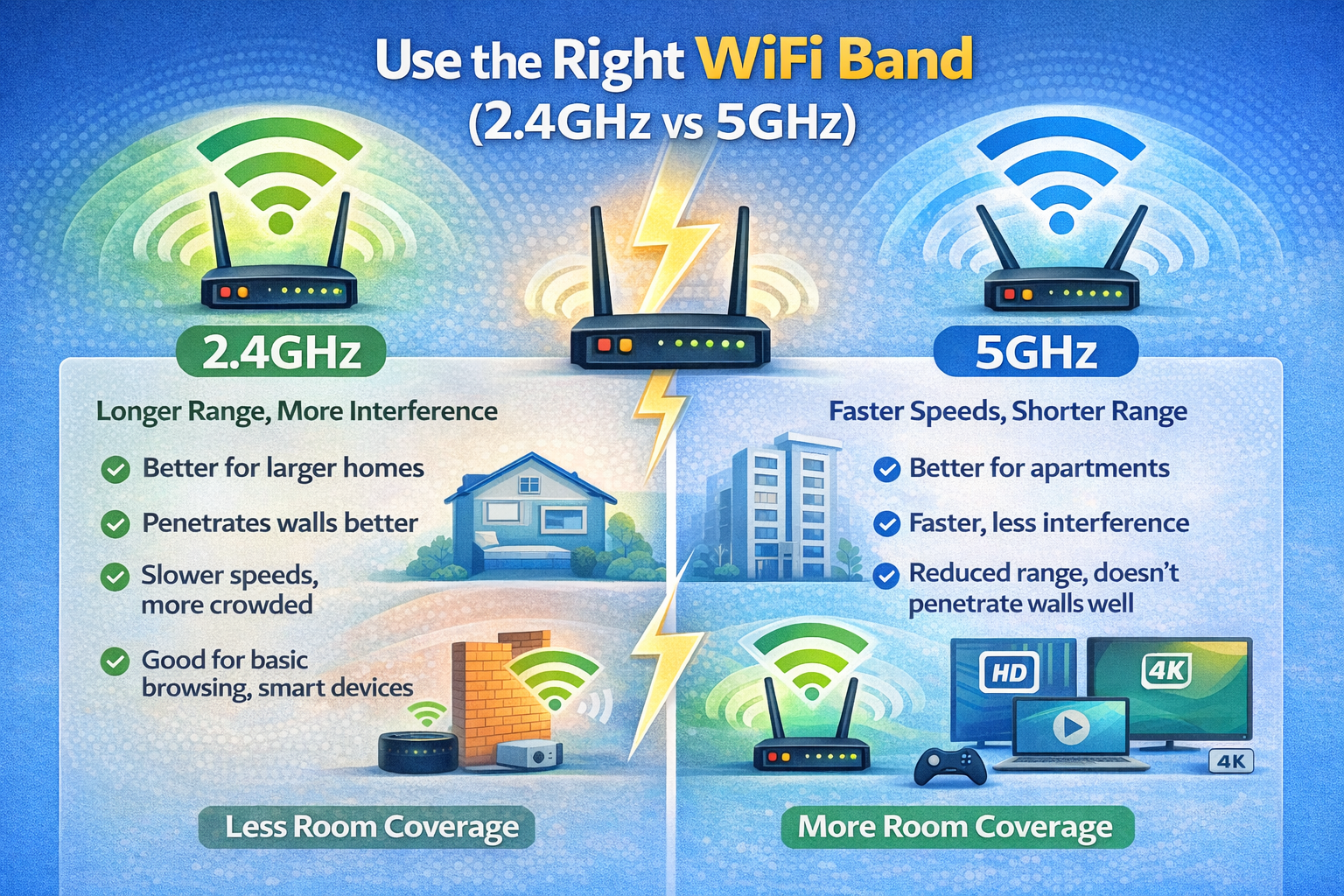
Modern routers usually offer two WiFi bands.
2.4GHz Band
- Longer range
- Better through walls
- Slower speeds
5GHz Band
- Faster speeds
- Shorter range
- Best for nearby rooms
Best Practice
- Use 2.4GHz for far rooms
- Use 5GHz for rooms close to the router
Fix Weak WiFi Signal with a WiFi Extender or Mesh System
If placement and settings aren’t enough, extra hardware can help.
Option 1: WiFi Extender
- Boosts existing signal
- Affordable
- Easy to set up
Placement Tip:
Place the extender halfway between the router and weak signal area.
Option 2: Mesh WiFi System
- Best for large homes
- Multiple nodes create full coverage
- Seamless roaming between rooms
Example:
A three-bedroom home with dead zones installed a mesh system and achieved full WiFi coverage in every room.
Update Router Firmware Regularly
Outdated firmware can cause weak WiFi signal and stability issues.
How to Update Firmware
- Log in to router settings
- Look for Firmware Update
- Install the latest version
- Restart the router
Why It Matters
Firmware updates improve performance, security, and compatibility with new devices.
Reduce the Number of Connected Devices
Too many devices can overload your WiFi.
What You Can Do
- Disconnect unused devices
- Turn off WiFi on idle phones or tablets
- Limit background downloads
Real-Life Situation
A family noticed slow WiFi every night. The issue? Multiple smart TVs and tablets streaming at the same time. Limiting usage fixed the problem.
Replace Old Routers for Better Performance
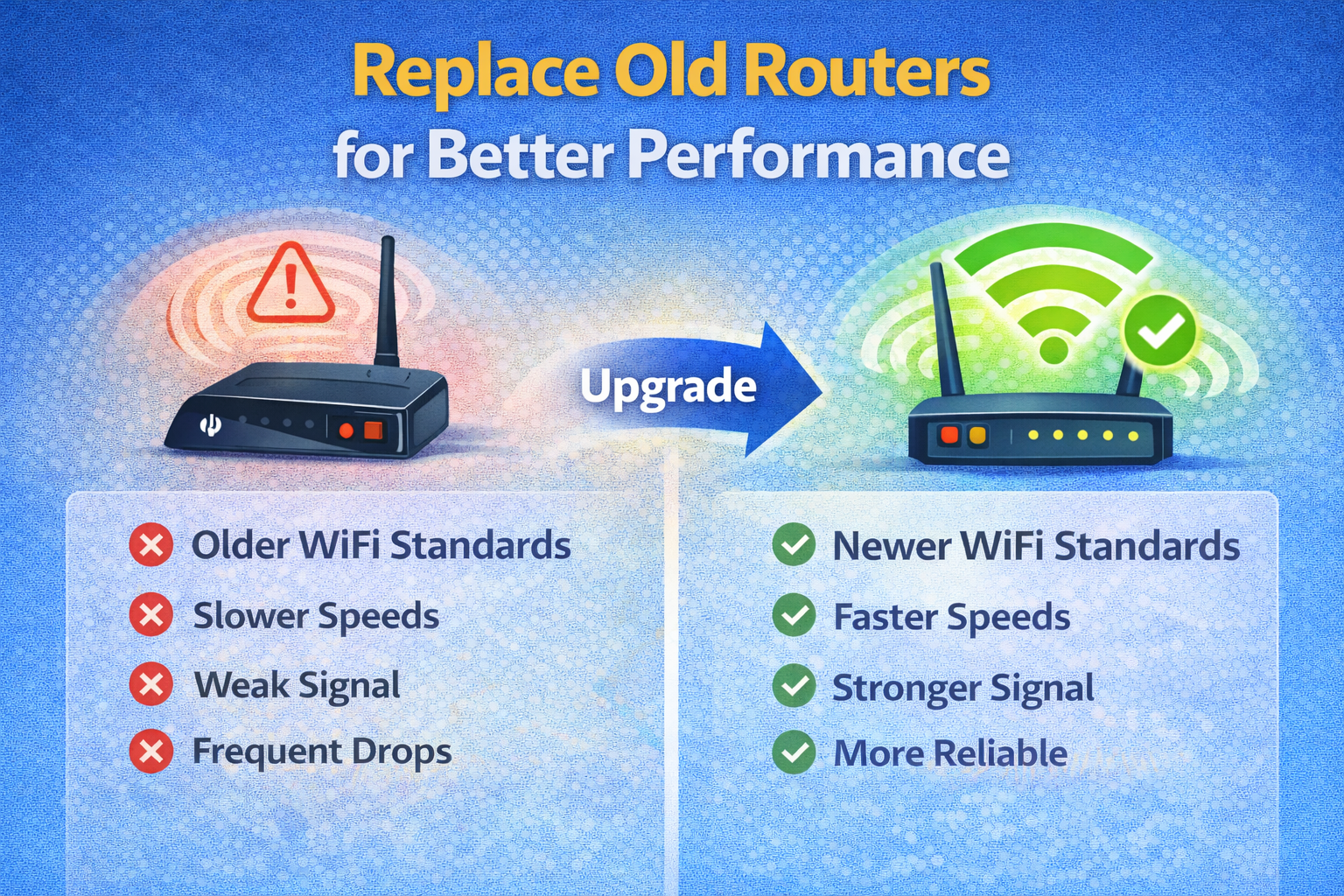
If your router is more than 5 years old, it may be time to upgrade.
Signs You Need a New Router
- Frequent disconnections
- Slow speeds even near the router
- No support for modern standards
Look for These Features
- Dual-band or tri-band support
- WiFi 5 or WiFi 6
- Strong signal range
Frequently Asked Questions (FAQ)
1. Why is my WiFi strong in one room but weak in another?
Walls, distance, and interference reduce signal strength as you move away from the router.
2. Can walls really block WiFi signals?
Yes. Concrete, brick, and metal walls can significantly weaken WiFi signals.
3. Is a WiFi extender worth it?
Yes, especially for small to medium homes with one or two dead zones.
4. How often should I restart my router?
Once every 1–2 weeks is a good habit to maintain performance.
5. Does internet speed affect WiFi signal strength?
Speed and signal are different. A strong signal with slow internet still feels slow, and vice versa.
Conclusion
A weak WiFi signal doesn’t mean you need to suffer through slow internet forever. With the right steps—better router placement, smart settings, and affordable upgrades—you can fix weak WiFi signal in every room and enjoy smooth, reliable internet throughout your home.
Start with the simple fixes, test your signal, and only invest in new equipment if needed. A few small changes can make a big difference.