
How to Fix Windows Black Screen After Login
If you see a Windows black screen after login, you are not alone. This is one of the most common Windows problems, especially after updates, driver changes, or sudden shutdowns. The good news is that in most cases, your computer is not broken, and your data is usually safe.
This guide will show you how to fix Windows black screen after login using simple, step-by-step methods. It is written for beginners and normal users—no advanced technical skills required. Just follow the steps carefully, starting from the easiest fixes.
What Is the Windows Black Screen After Login Problem?
A Windows black screen after login happens when:
- You enter your password
- Windows seems to load
- But the screen stays black (sometimes with a cursor)
You may still hear sounds or see the mouse move, but the desktop never appears.
Common symptoms include:
- Black screen with cursor
- Black screen without cursor
- Taskbar and icons missing
- Screen goes black after Windows logo
Common Causes of Windows Black Screen After Login
Understanding the cause helps you choose the right fix.
Most common reasons:
- Corrupted or outdated display drivers
- Windows update issues
- Explorer.exe not loading
- External display or resolution problems
- Fast Startup conflicts
- Corrupted system files
- Malware or third-party apps
Real-world example:
Many users report this issue after installing a Windows update or graphics driver update, especially on laptops with Intel + NVIDIA graphics.
Fix 1: Wait and Use Keyboard Shortcuts (Quick Check)
Before doing anything complex, try this simple step.
Steps:
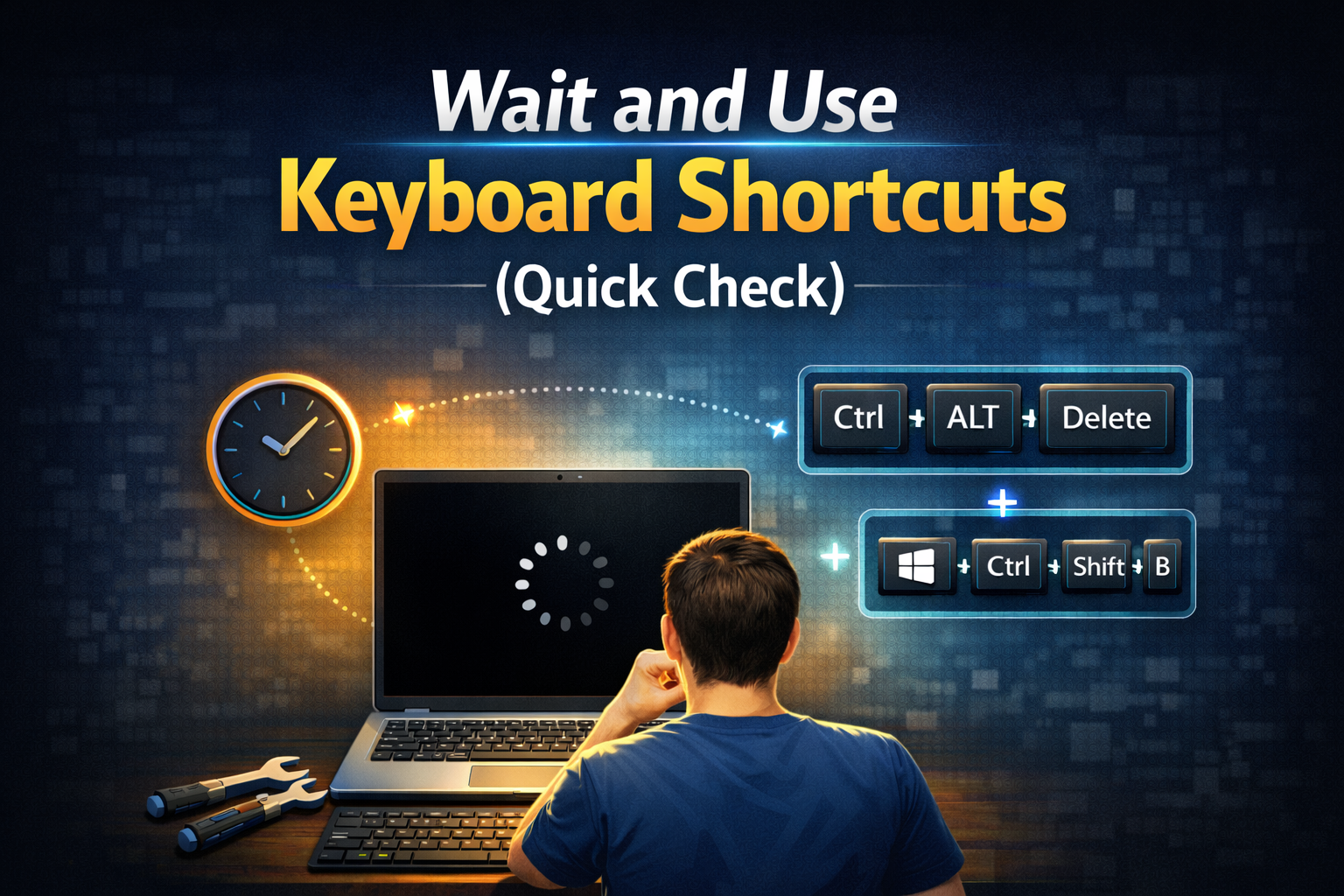
- Wait 2–3 minutes (Windows may still be loading)
- Press Windows + Ctrl + Shift + B
This shortcut restarts the graphics driver.
If the screen flickers and comes back, the problem is solved.
Fix 2: Check Display and Monitor Connections
Sometimes the issue is not Windows—it’s the display.
Try this:
- Press Windows + P
- Use arrow keys and press Enter to switch display modes
- Disconnect external monitors
- Restart your PC with only the main screen connected
Real-world example:
Users connecting laptops to TVs or second monitors often see a black screen because Windows selects the wrong display output.
Fix 3: Restart Windows Explorer (Most Effective Fix)
This is one of the best solutions for Windows black screen after login.
Steps:
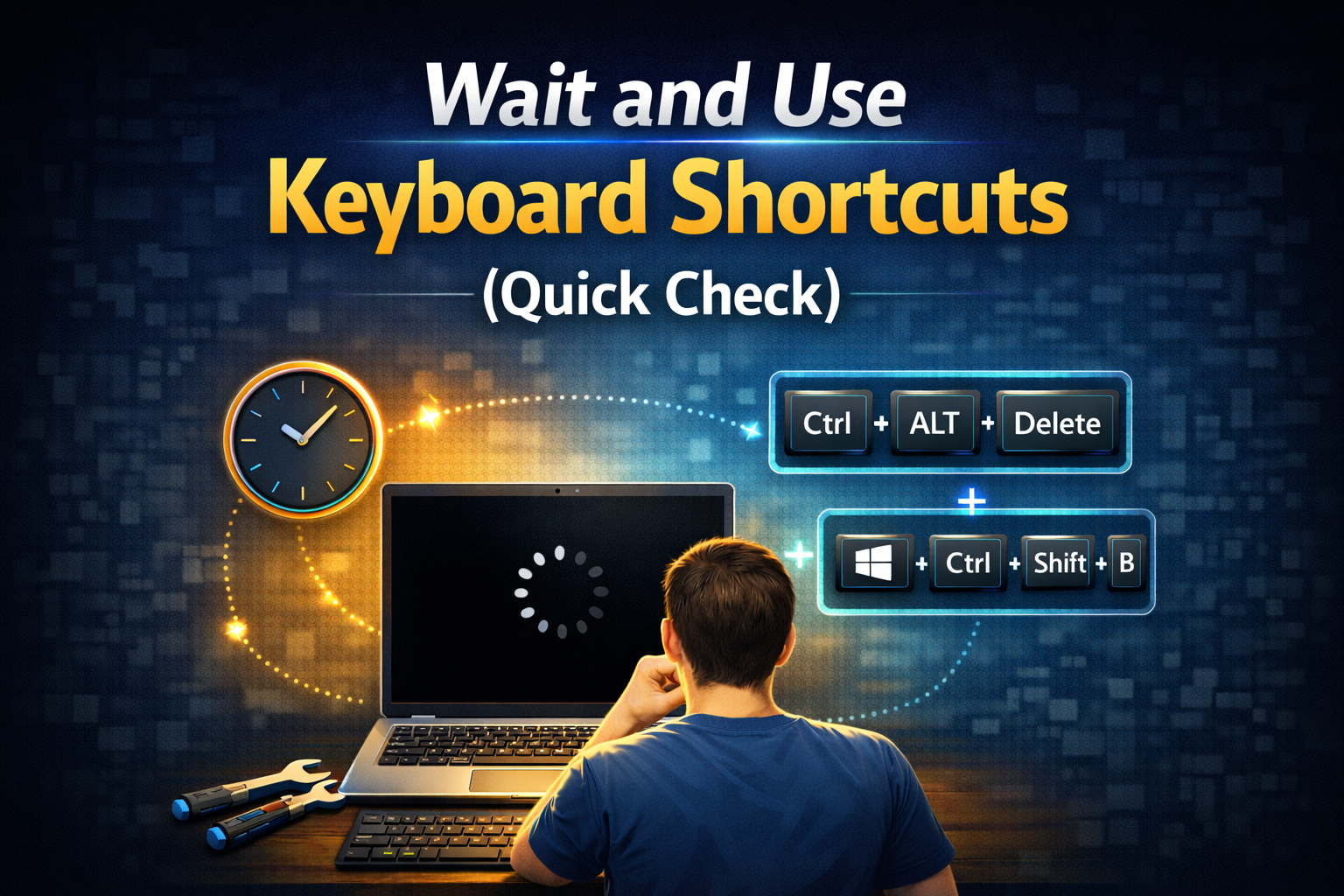
- Press Ctrl + Alt + Delete
- Select Task Manager
- Click File > Run new task
- Type:
explorer.exe - Press Enter
If the desktop appears, the issue was Explorer not loading.
Fix 4: Boot Into Safe Mode
If the black screen keeps coming back, Safe Mode helps you fix deeper issues.
How to enter Safe Mode:
- Restart your PC
- Force shutdown during boot 2–3 times
- Select Advanced options
- Go to:
- Troubleshoot
- Advanced options
- Startup Settings
- Restart
- Press 4 (Safe Mode)
Fix 5: Update or Roll Back Display Drivers
Display drivers are a top cause of Windows black screen after login.
Steps in Safe Mode:
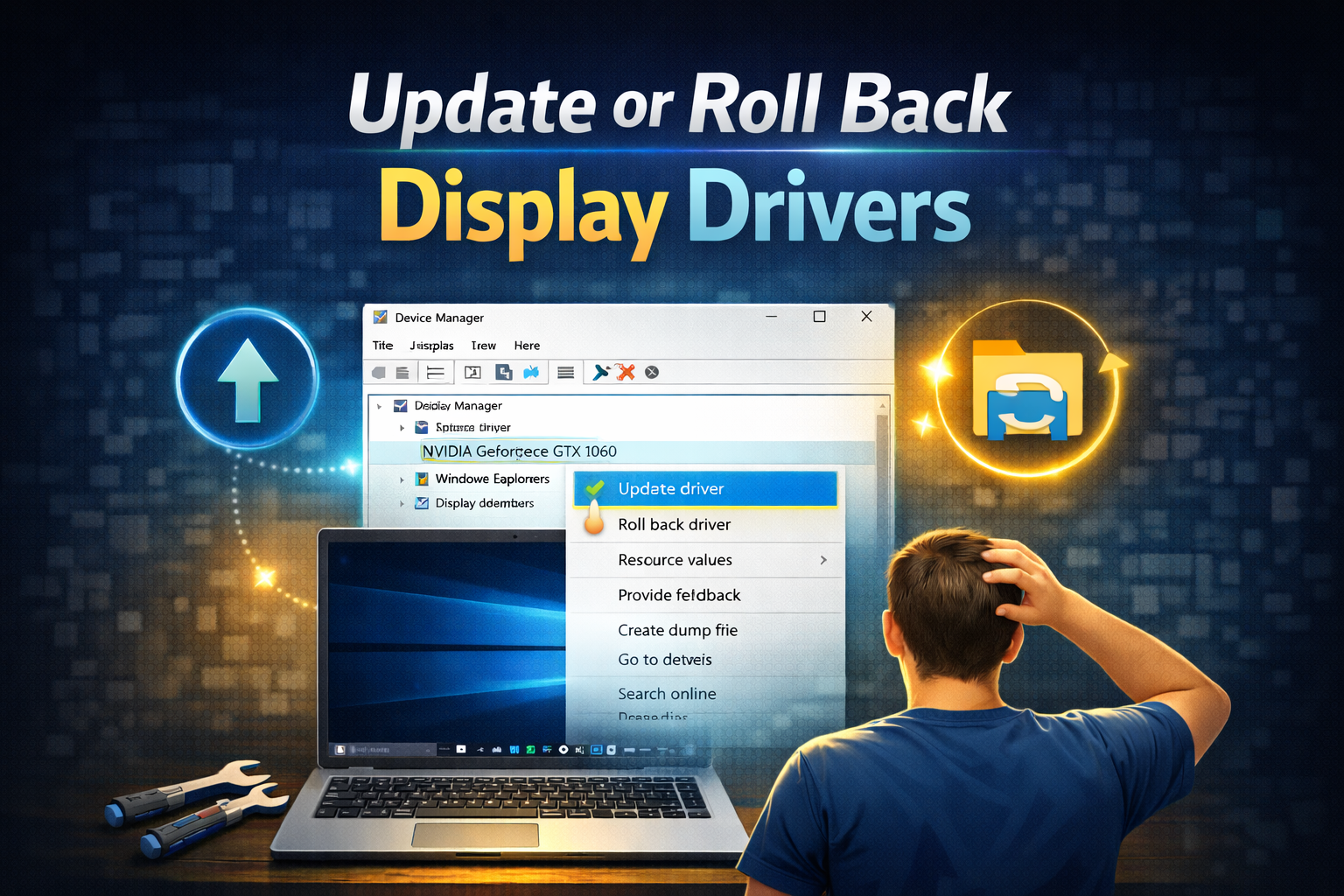
- Right-click Start > Device Manager
- Expand Display adapters
- Right-click your graphics driver
- Choose:
- Update driver (try first)
- Or Roll back driver (if problem started after update)
Restart your PC normally.
Real-world example:
Many NVIDIA users report black screens after driver updates. Rolling back often fixes it instantly.
Fix 6: Disable Fast Startup
Fast Startup can cause conflicts after updates.
Steps:
- Open Control Panel
- Go to Power Options
- Click Choose what the power buttons do
- Click Change settings that are currently unavailable
- Uncheck Turn on fast startup
- Save changes and restart
Fix 7: Run System File Checker (SFC)
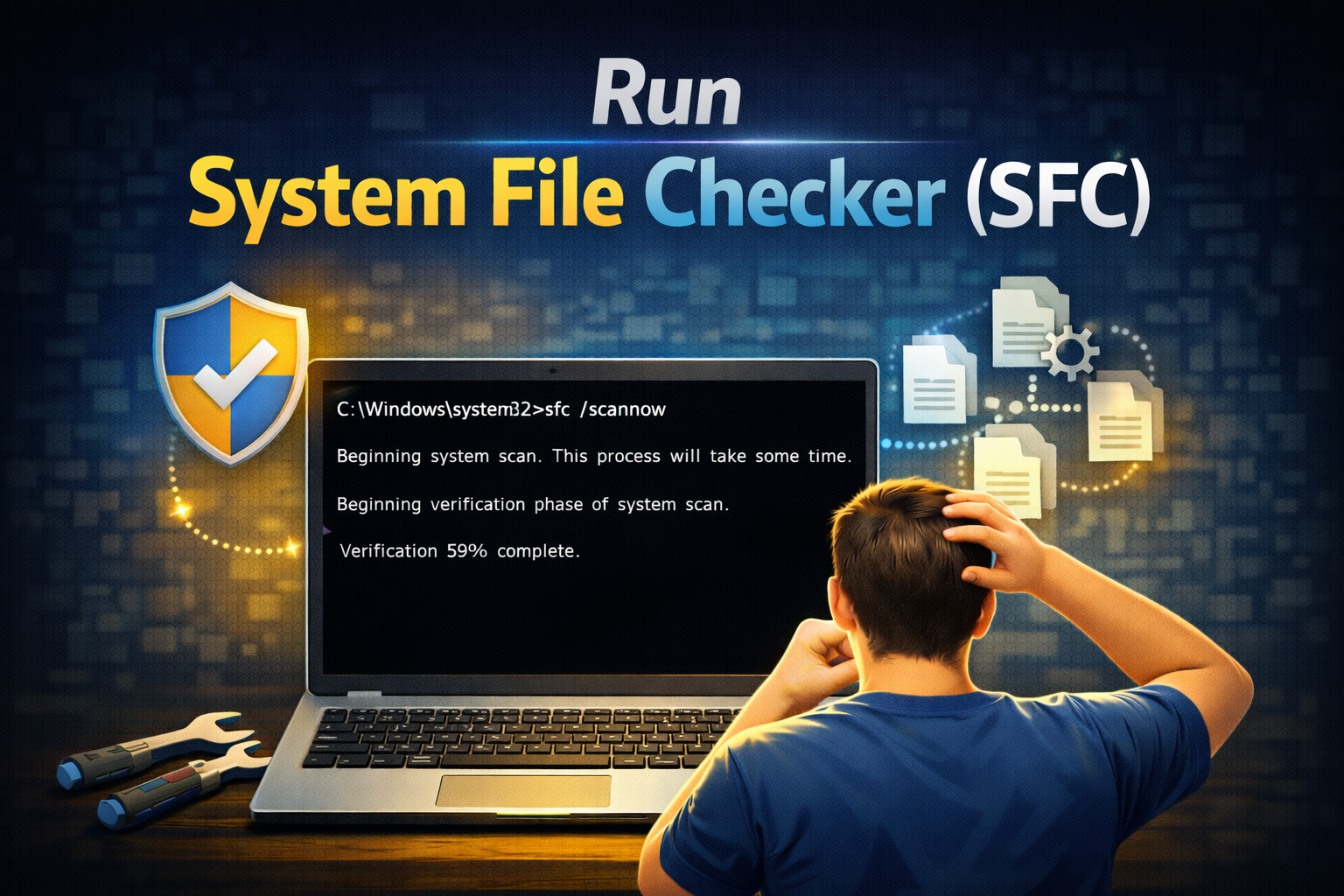
Corrupted system files can cause a black screen.
Steps:
- Boot into Safe Mode
- Open Command Prompt (Admin)
- Type:
sfc /scannow - Press Enter
- Wait for the scan to finish
- Restart your PC
This tool automatically repairs damaged Windows files.
Fix 8: Use DISM Tool (Advanced but Safe)
If SFC doesn’t help, use DISM.
Steps:
- Open Command Prompt (Admin)
- Run:
DISM /Online /Cleanup-Image /RestoreHealth - Wait until completed
- Restart your PC
This fix often works after failed Windows updates.
Fix 9: Uninstall Recent Windows Updates
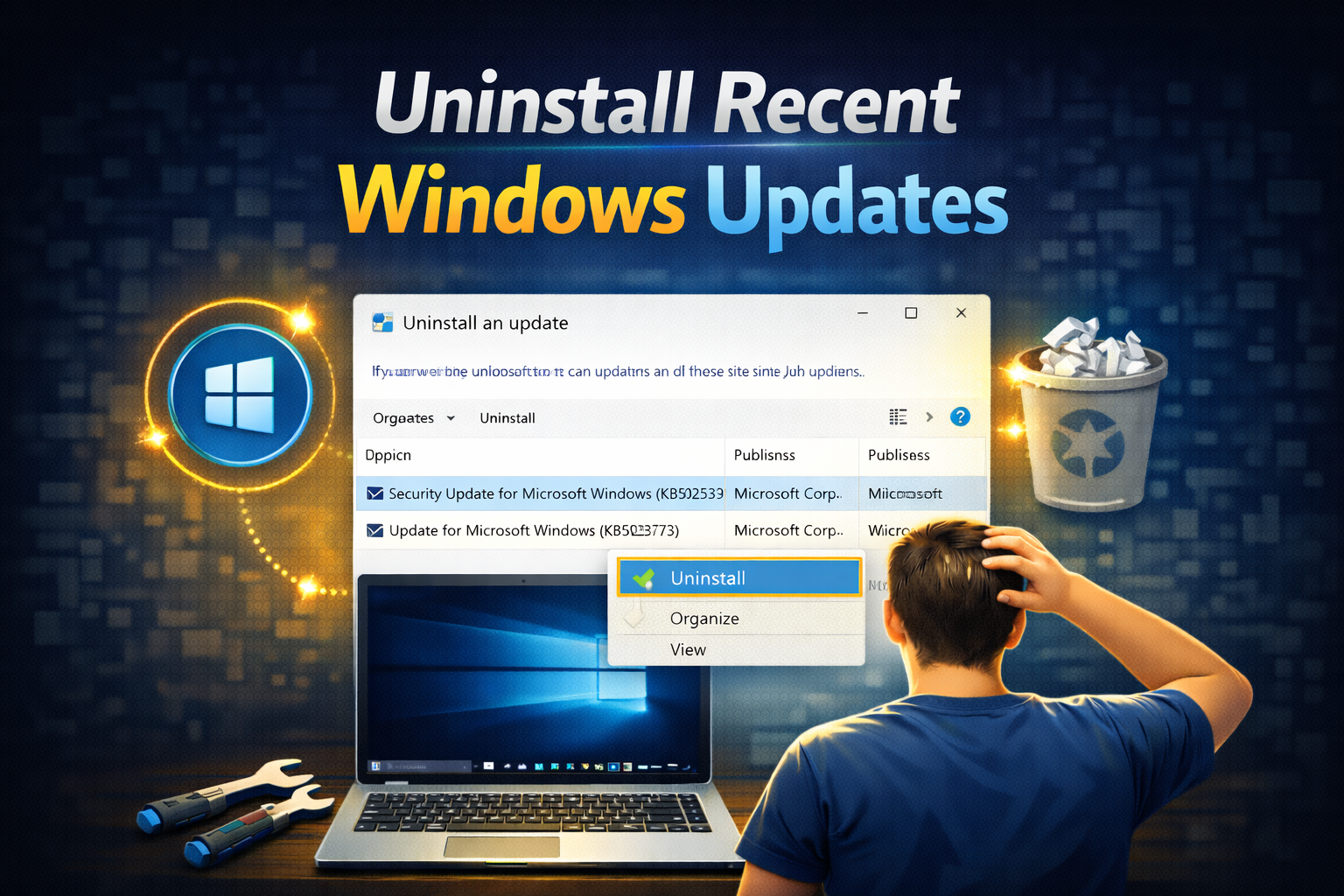
If the black screen started after an update, removing it may help.
Steps:
- Boot into Advanced options
- Go to Troubleshoot > Advanced options
- Select Uninstall Updates
- Remove the latest quality update
- Restart
Fix 10: Create a New User Account
A corrupted user profile can cause black screens.
Steps:
- Boot into Safe Mode
- Open Command Prompt (Admin)
- Type:
net user newuser password /add - Restart and log in with the new account
If the new account works, your old profile was damaged.
Fix 11: Scan for Malware
Malware can block Explorer or display services.
Recommended actions:
- Run Windows Security full scan
- Use a trusted offline scanner if possible
- Remove suspicious startup programs
Fix 12: Reset Windows (Last Resort)
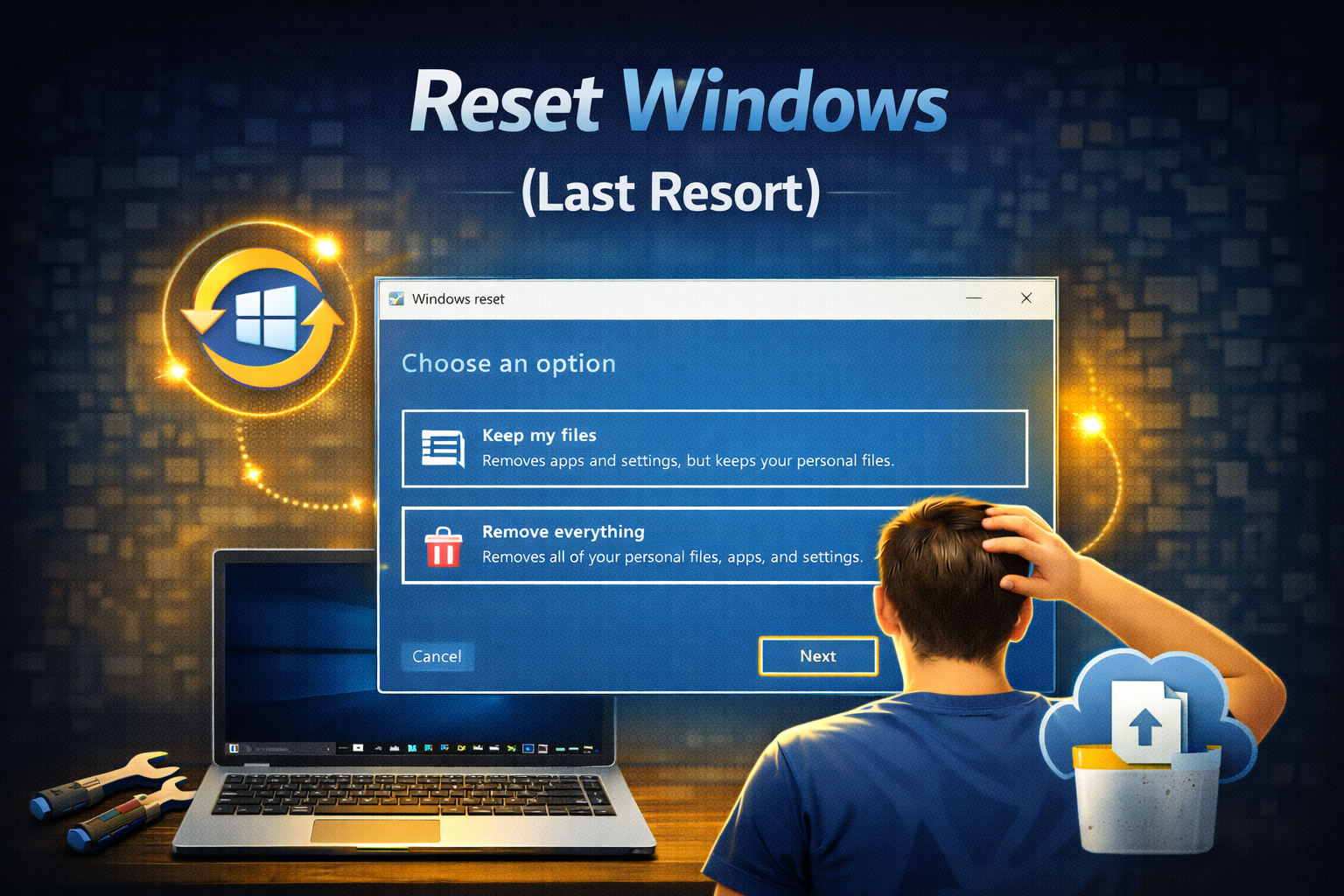
Only do this if nothing else works.
Options:
- Keep my files (recommended)
- Remove everything (clean install)
This usually fixes all software-related black screen issues.
Tips to Prevent Windows Black Screen After Login
- Keep display drivers updated (but avoid beta versions)
- Create a restore point before major updates
- Avoid forced shutdowns
- Disable unnecessary startup programs
- Use trusted antivirus software
FAQ: Windows Black Screen After Login
1. Why does Windows show a black screen after login?
It’s usually caused by display drivers, Windows updates, Explorer issues, or corrupted system files.
2. Is my data lost when Windows shows a black screen?
No. In most cases, your files are safe.
3. Can a Windows update cause a black screen?
Yes. Faulty or incomplete updates are a common cause.
4. Does Safe Mode fix the black screen permanently?
Safe Mode helps identify and fix the cause, but you must apply the correct solution.
5. Should I reset Windows to fix the black screen?
Only as a last resort if all other fixes fail.
Conclusion
A Windows black screen after login can be scary, but it is usually fixable without professional help. Start with simple solutions like restarting Explorer and checking display settings, then move to Safe Mode and driver fixes if needed. In most cases, one of these steps will restore your desktop and get your PC working again.
If you follow this guide step by step, you can confidently fix the problem and prevent it from happening in the future.